
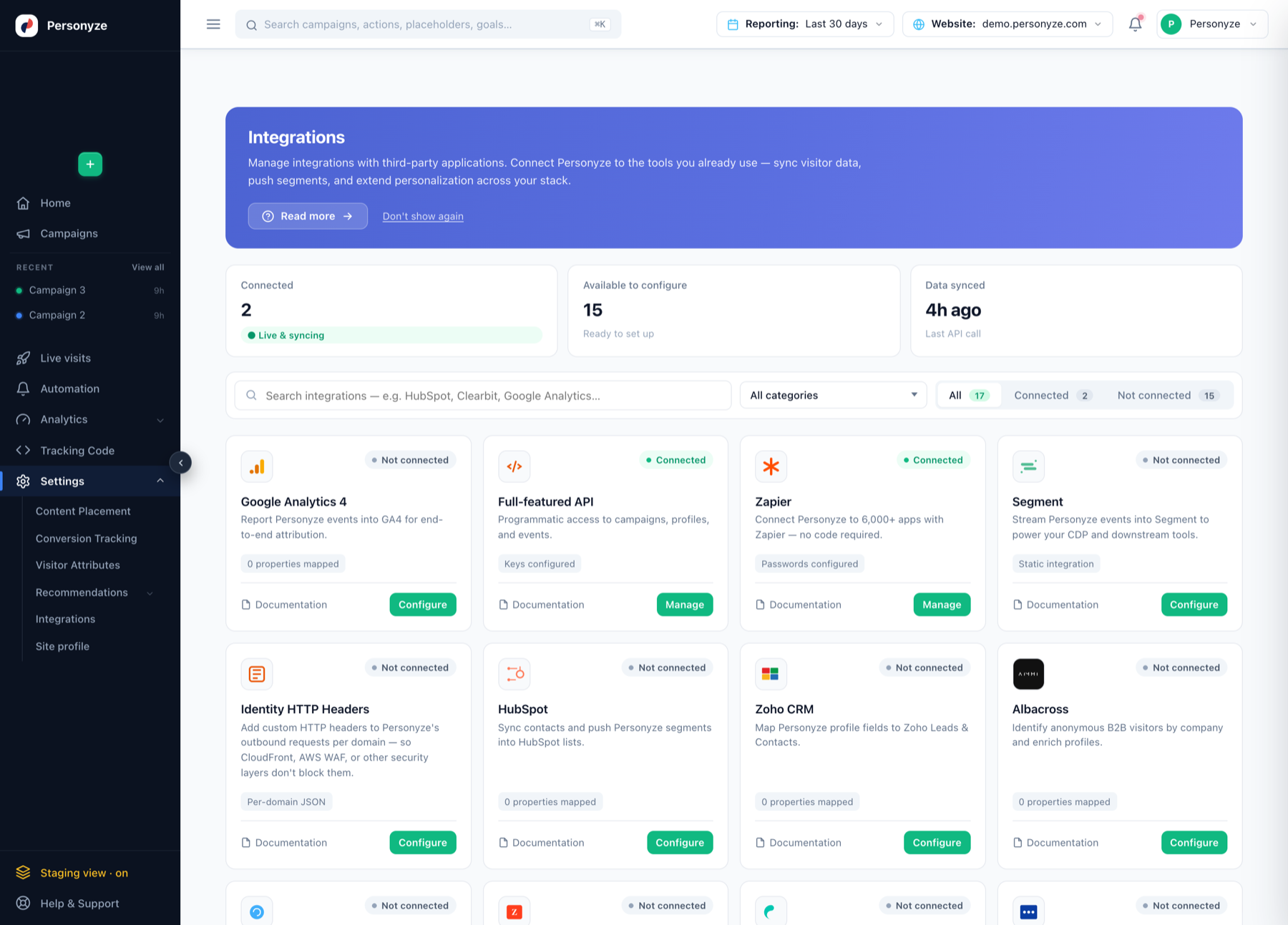
Connecting HubSpot lets Personyze read your CRM contact properties and use them to personalize the website. Job title, lifecycle stage, company, industry, account tier — anything on the HubSpot contact record becomes something you can target on, write into page copy, and A/B test.
In the panel: Settings › Integrations › HubSpot.
How you connect
OAuth is the only way to connect HubSpot. Click Connect to HubSpot, approve read-only access, and you are done — the authorization refreshes itself, so there is nothing to maintain and nothing to copy anywhere. Personyze is a HubSpot Marketplace app, and Marketplace apps authenticate with OAuth.
Setting it up
- Open Settings › Integrations and click Configure on the HubSpot card.
- Click Connect to HubSpot. A HubSpot window opens.
- Sign in and approve access. Personyze requests
crm.objects.contacts.read— read-only on contacts. - The drawer then shows Connected — Reading contact properties with crm.objects.contacts.read.
To disconnect later, use the delete icon on that row. Personyze also asks you to uninstall it from HubSpot › Settings › Integrations › Connected Apps so nothing is left dangling on the HubSpot side.
Mapping the fields you want
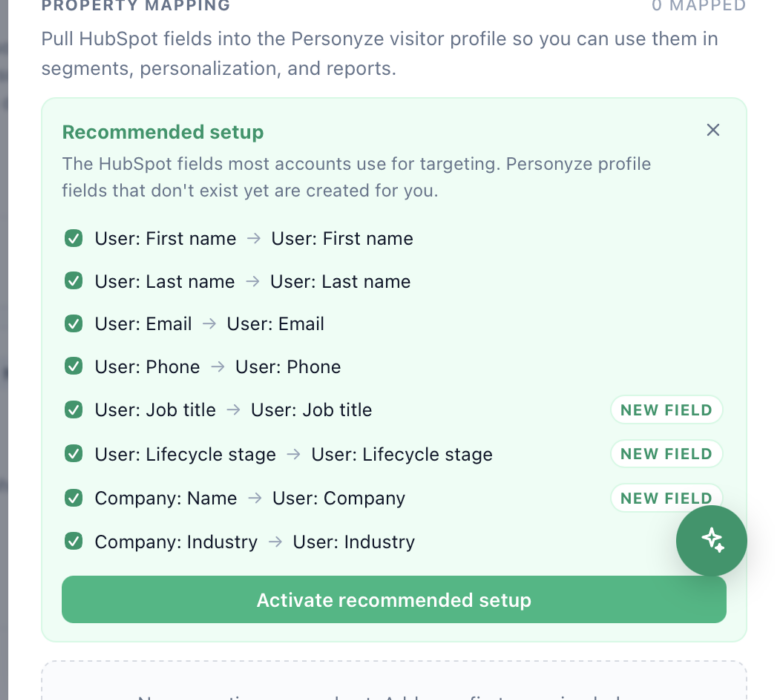
Connecting authorizes the read; property mapping decides which HubSpot fields actually land on the Personyze visitor profile, where they become available to segments, personalization and reports.
The fastest start is Activate recommended setup, which maps the fields most accounts target on. Any Personyze profile field that does not exist yet is created for you — those are marked NEW FIELD:
| HubSpot property | Personyze profile field |
|---|---|
| User: First name | User: First name |
| User: Last name | User: Last name |
| User: Email | User: Email |
| User: Phone | User: Phone |
| User: Job title | User: Job title |
| User: Lifecycle stage | User: Lifecycle stage |
| Company: Name | User: Company |
| Company: Industry | User: Industry |
Adding your own properties
Anything custom in HubSpot can be mapped too:
- In HubSpot, open the property and click edit.
- Copy its Internal Name — not the label. This is the value Personyze matches on, and the usual cause of a mapping that silently returns nothing.
- In Personyze, add a new mapping and enter that name with a
properties.prefix — a
property whose internal name issegmentis entered asproperties.segment. Personyze reads the
property by its path in HubSpot’s reply, sosegmenton its own matches nothing and returns nothing. - Pick the Personyze profile field it should fill, and Save.
The property field is not a fixed list: it suggests the common properties and accepts anything else you type, which is
what makes a custom property reachable at all.
The drawer header shows a live count — 0 properties mapped until you map some. An integration that is connected but has nothing mapped will look healthy and deliver no data.
How a visitor gets matched to a contact
Personyze matches a visitor to a HubSpot contact by email address — captured from a login, a form submission, a URL parameter, or the tracking API.
Because the match is on the email rather than on the device, it works across devices: someone who arrives from a HubSpot email on their phone and later signs in on a laptop resolves to the same profile.
Using HubSpot data in targeting
You can build a HubSpot audience two ways: describe it in plain English and let the AI targeting assistant write the rule, or add the rule yourself in the picker. Both produce the same thing — ordinary audience rules you can edit.
Describe the audience, let AI build the rule
On a campaign’s Target step, type what you want in the AI targeting assistant — for example “Visitors whose HubSpot company record shows they work in the software industry” — and click Generate rules. It writes the matching HubSpot rule (here HubSpot: industry contains software), which is added to your existing rules (turn on Replace my current rules to replace them instead), then fine-tune by hand. The panel on the right shows a live audience forecast as you go.
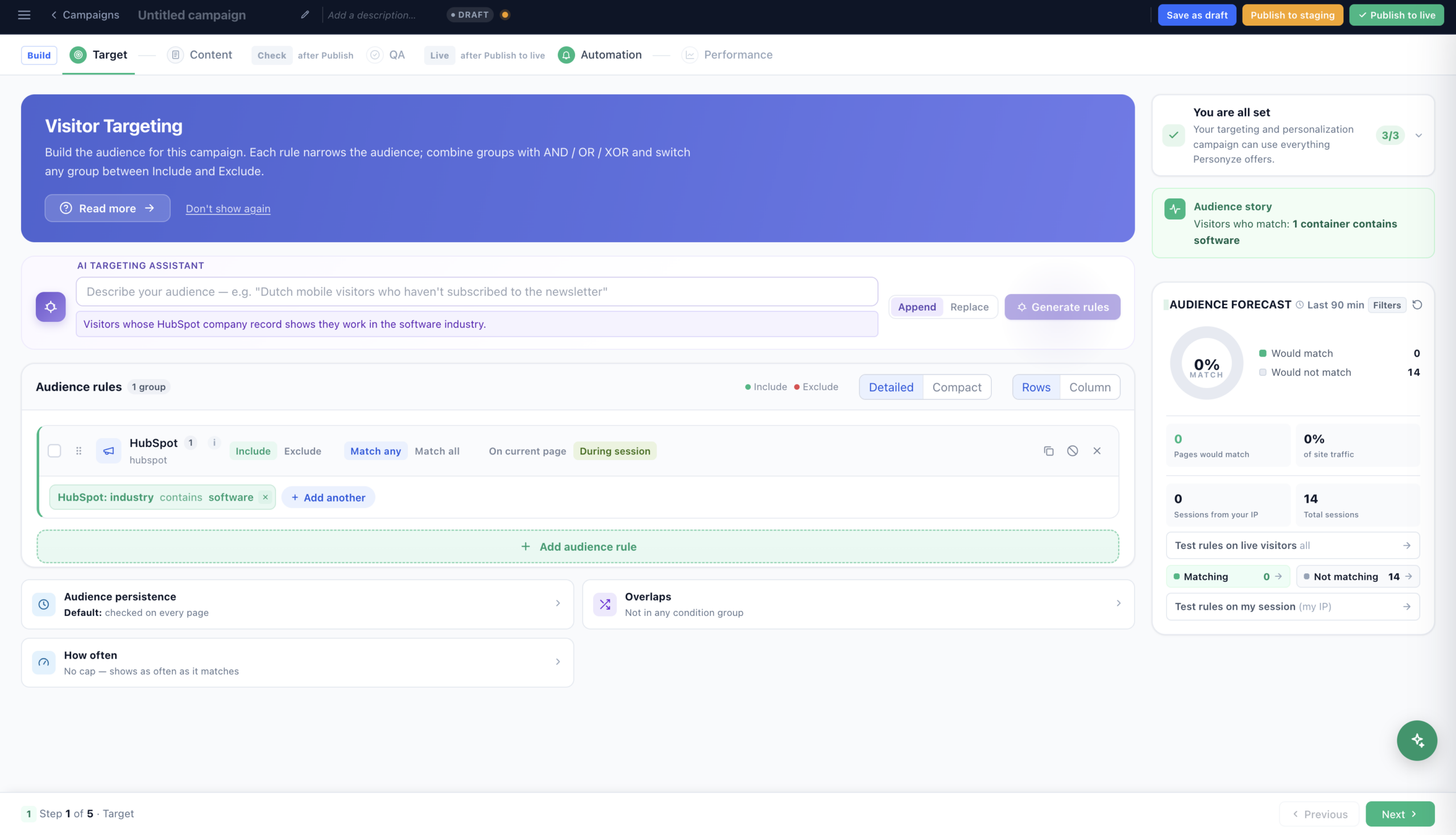
industry contains software), with the live audience forecast on the right. Click to enlarge.Building a HubSpot audience with the AI targeting assistant, end to end.
Or build the rule by hand
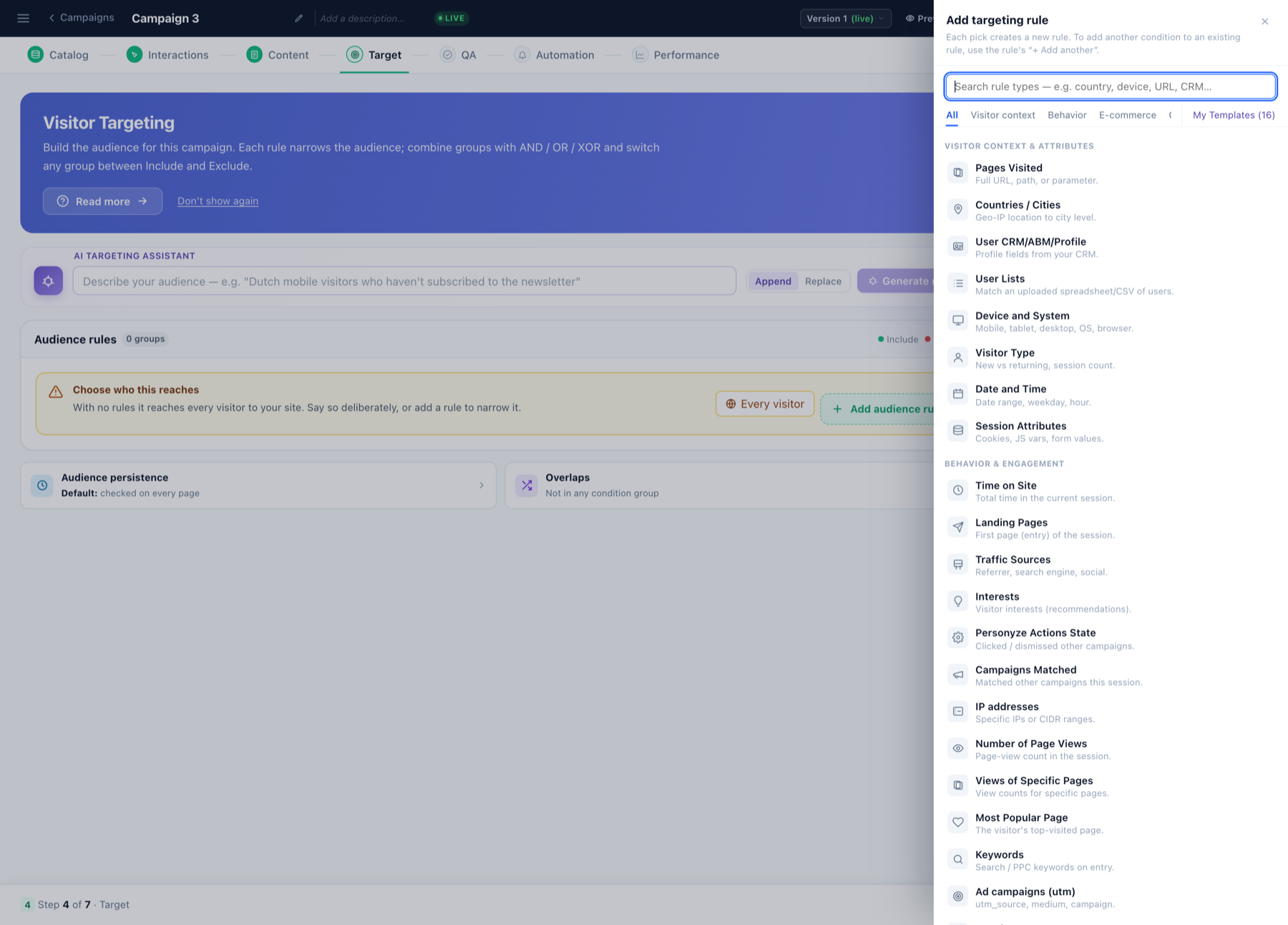
There are two places HubSpot data shows up in the rule picker, and they do different jobs.
The Integrations category — HubSpot as its own rule
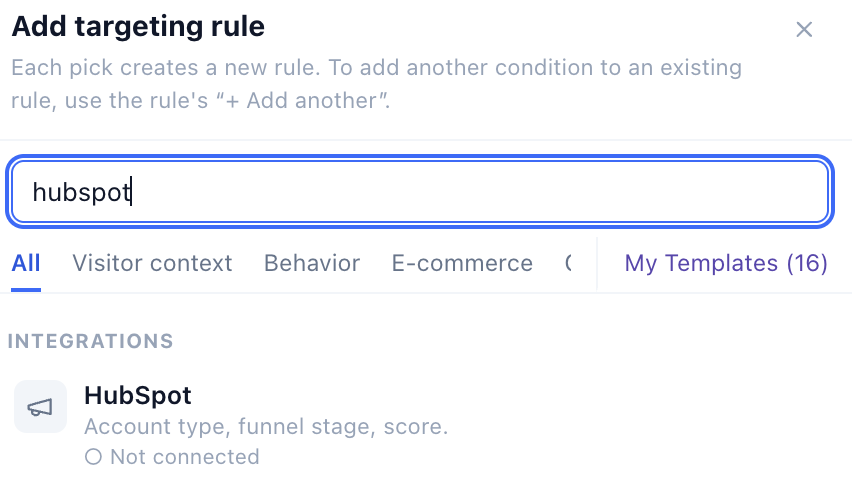
Open Add audience rule and switch to the Integrations tab. HubSpot is listed there with the other CRM and reverse-IP providers — Tealium Audiences, Leadfeeder, 6sense, LeadRebel, Clearbit, Albacross and ZoomInfo. The HubSpot entry targets on account type, funnel stage and score.
Each entry shows a connection indicator. An integration that is Not connected still appears in the list, so seeing HubSpot here does not mean data is flowing — check the marker, and the properties mapped count in Settings, before assuming a rule will match anybody.
The CRM/ABM/Profile rule — any mapped field
On a campaign’s Target step, click Add audience rule and choose User CRM/ABM/Profile — “profile fields from your CRM”. Every mapped HubSpot property appears in its field dropdown.
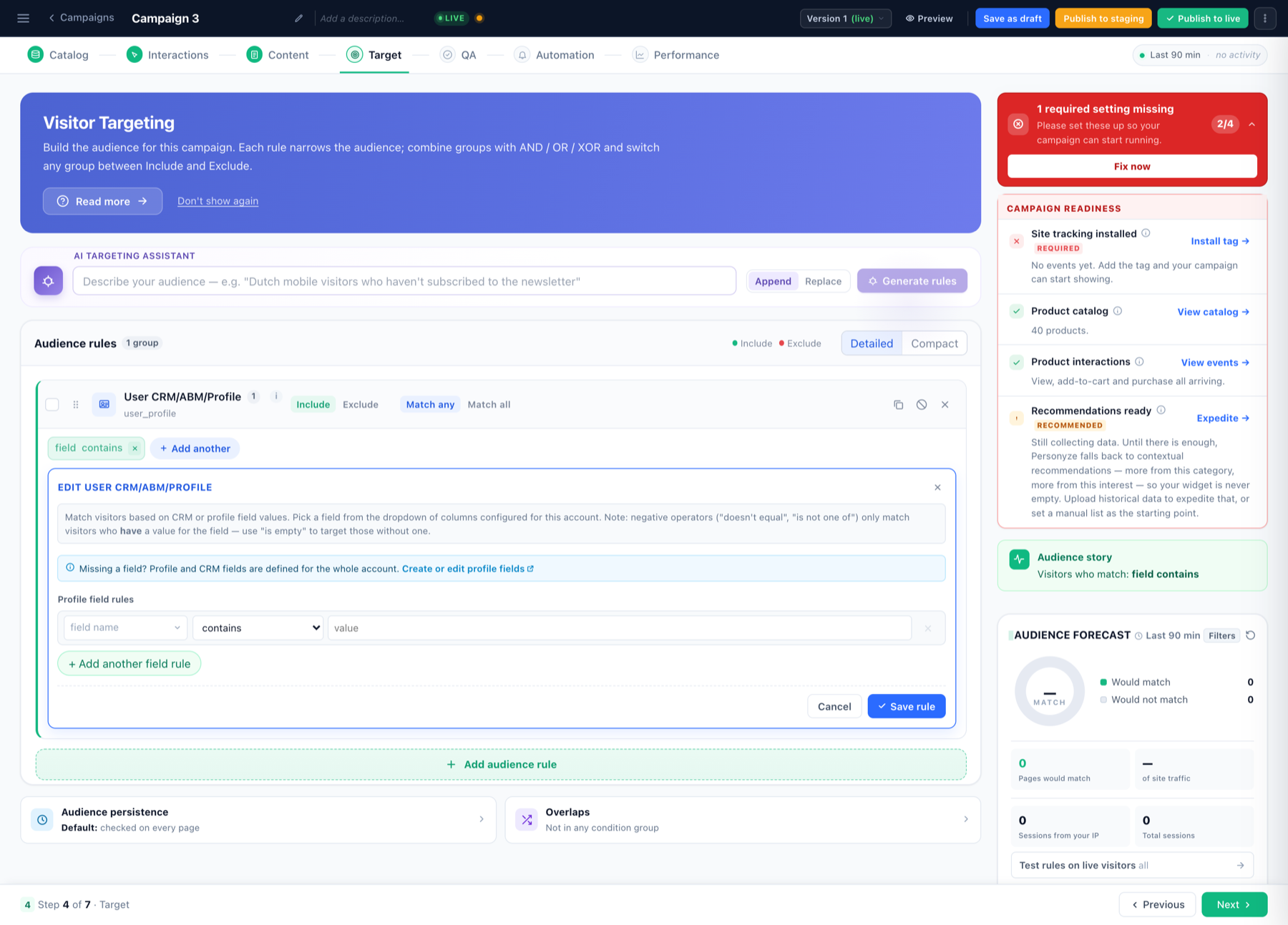
Available operators: contains, doesn’t contain, equals, doesn’t equal, is one of (list, file), is not one of (list, file), matches regex, starts with, ends with, is empty, is not empty.
One trap worth knowing. Negative operators — doesn’t equal, is not one of — only match visitors who have a value for that field. Someone with no lifecycle stage at all will not match “lifecycle stage doesn’t equal customer”. To catch those people use is empty, usually combined with an OR.
Some worked examples:
- ABM landing page — Company: Industry is one of (Finance, Insurance) AND Job title contains VP, showing an industry-specific hero.
- Upgrade prompt — Lifecycle stage equals customer AND Account tier equals Free.
- Suppress the wrong offer — add an Exclude group for Lifecycle stage equals customer so existing customers never see the acquisition banner.
- Unknown visitors — Company is empty, falling back to generic copy.
Because rules join with and / or / only one, CRM attributes mix freely with behaviour: “VP in Finance, on the pricing page, second visit this week” is one audience.
Using HubSpot data inside the content
The same fields can be written into the content itself, not just used to decide who sees it. In the WYSIWYG editor, click the text and insert a dynamic variable; mapped HubSpot properties appear in the list alongside Personyze’s own profile and session fields.
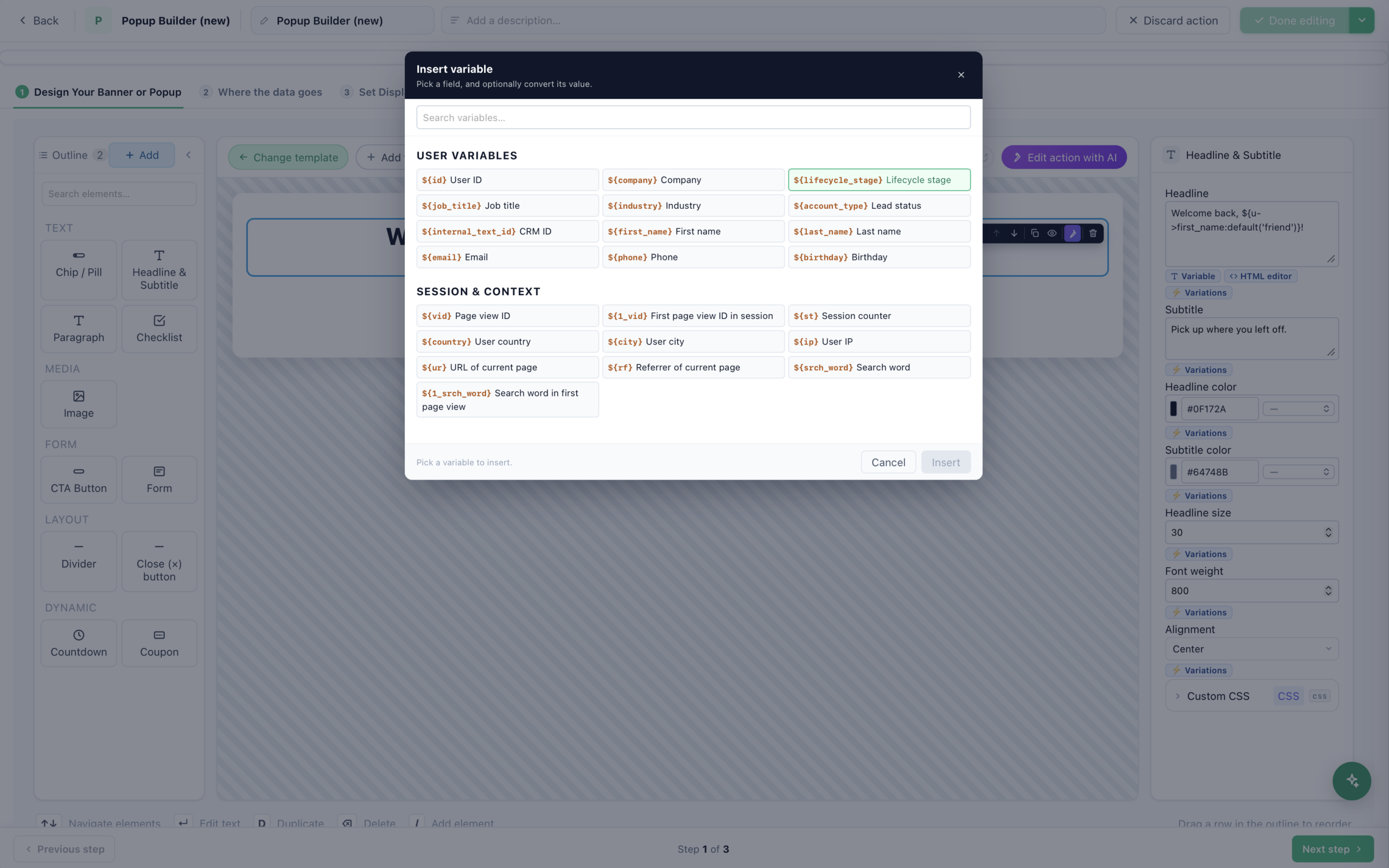
${first_name} and a ‘friend’ fallback. Click to enlarge.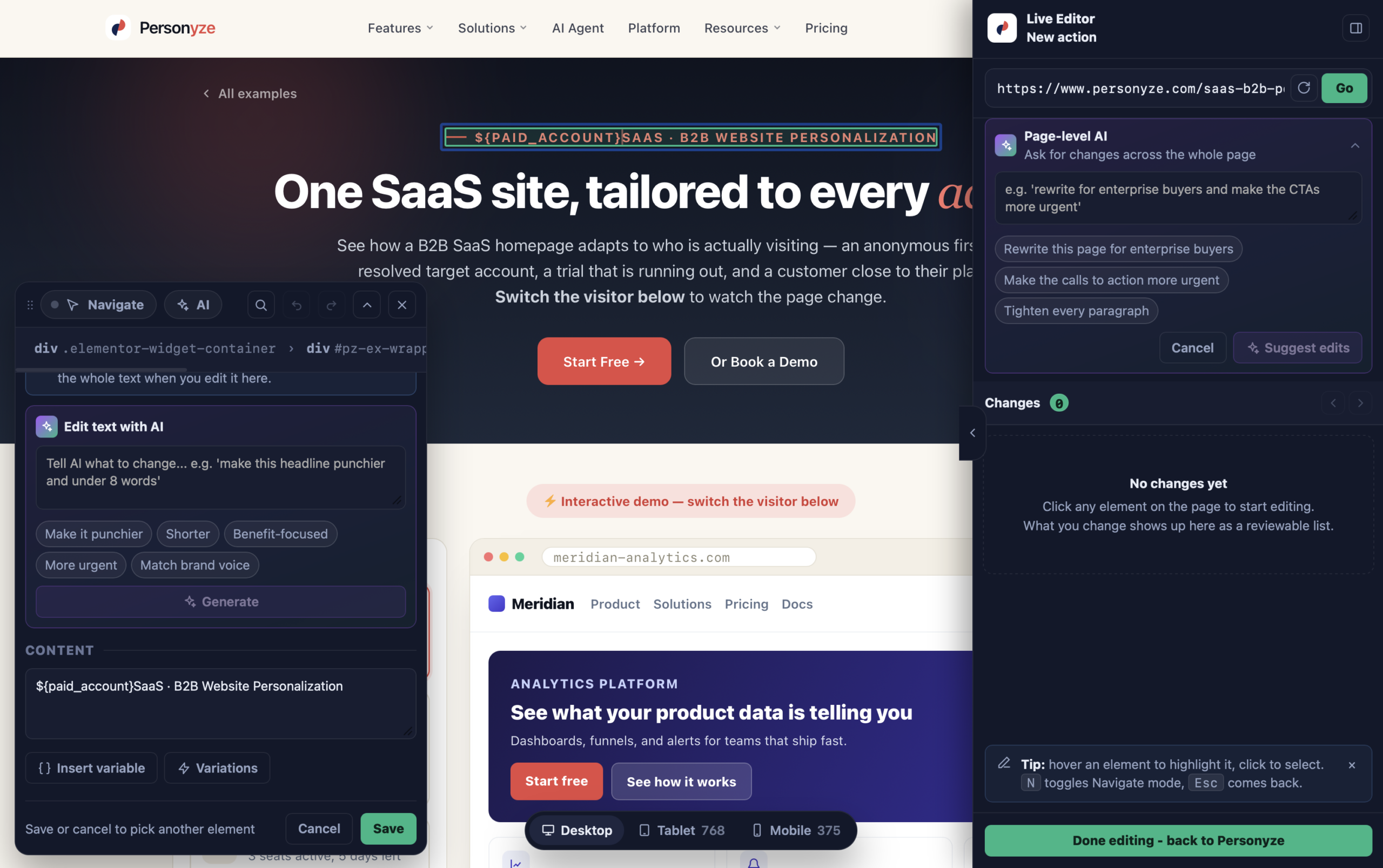
${paid_account} in the eyebrow line. HubSpot fields such as Industry and Account Type insert exactly the same way, and the panel on the right logs every change for review before you publish. Click to enlarge.
Typical uses:
- “Welcome back, [First Name]”
- “Trusted by [Industry] teams”
- “Your [Account Tier] plan includes…”
Always set a fallback value. Not every visitor has every field populated, and a variable with no default renders as a blank — “Welcome back, ” is worse than no personalization at all. Configure a default such as “there” when you insert it. See inserting dynamic variables.
A/B testing on HubSpot data
There are two distinct things you might want to test, and they are set up differently.
Testing the content shown to a CRM audience
Build the audience with a CRM rule as above, then on the Content step click Turn on A/B testing. Personyze splits that audience across your variations and keeps each visitor in the arm they were assigned to.
Inside the action editor, every look-and-feel preset carries a ⚡ Variations control — the quickest way to produce a second arm that differs only in wording or accent colour.
Testing whether personalizing on CRM data helps at all
Make one arm the personalized version (dynamic variables, industry-specific copy) and the other the generic version, with the same audience. That answers whether the personalization earns its keep, rather than which shade of blue wins.
Pick the winner criterion deliberately — it decides what you must report back. See A/B Testing, and note that a test scored on Clicks measures a different signal from one scored on Products purchased.
Because assignment is per visitor and sticky, a HubSpot contact who returns tomorrow sees the same arm — so the test measures the experience, not the visit.
When it looks connected but nothing happens
- 0 properties mapped. Connecting only authorizes the read. Until you map fields, no CRM data reaches the profile. This is the most common cause.
- A mapped property returns nothing. Two ways to arrive at the same silence: the label was entered instead of the Internal Name, or the internal name was entered without the
properties.prefix. It isproperties.segment, notsegment. - Anonymous visitors are not recognised. Expected — matching is by email address, so a visitor is recognised once they identify themselves (a login, a form, or an email link), not before.
- A negative rule matches nobody. Remember that negative operators skip visitors with no value; add is empty.
- Nothing renders for known contacts. Check the campaign is live and the action has a placement, before suspecting the integration.
Related
- CRM / User-List Targeting — the campaign type built around imported and CRM audiences.
- Adding custom user profile fields
- A/B Testing
- users object in the REST API — for pushing profile data programmatically.
On the Personyze site
- HubSpot website personalization — using HubSpot CRM data on the page.
- Account-based marketing — targeting known contacts and accounts.