
A recommendation widget can put a product in the visitor’s cart without leaving the page: the card’s Add to cart button runs a short piece of JavaScript that you save once for your account, and every widget uses it. The same code runs the Add to cart button on product cards in AI finder results and AI Chat answers — see AI finders. Personyze can’t know how your store’s cart works, so the code is yours — usually a few lines around your cart’s own “add” request.
Where the code lives
Go to Settings → Recommendation setup → Product Tracking, open Product Added to cart, and under What the widget does expand Quick add to cart. The panel marks it Personyze widget callback (not a tracker): it doesn’t detect add-to-carts on your site — the sources above it do that — it runs when a visitor clicks Add to cart inside a Personyze widget.
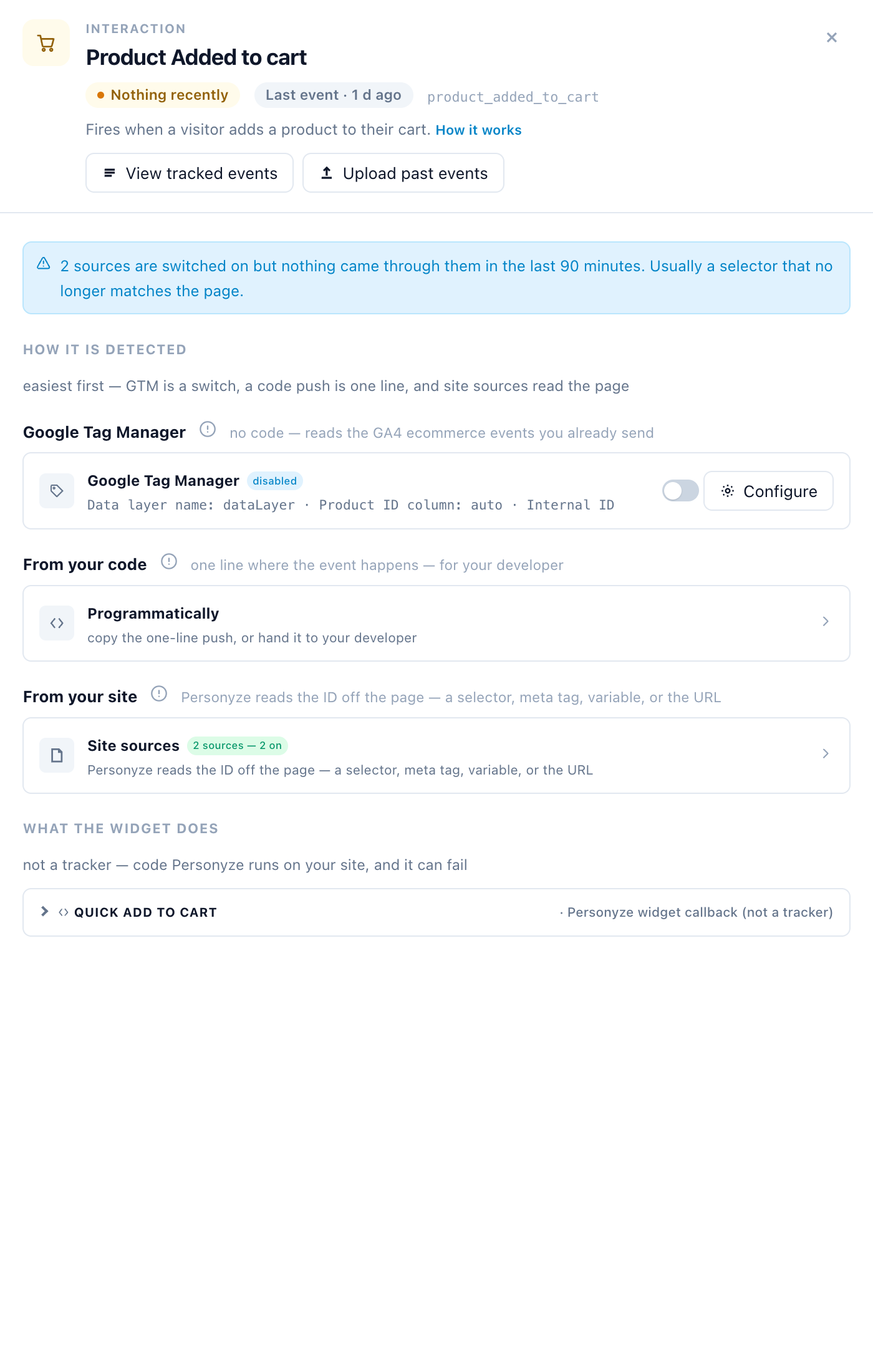
The box opens with a code template. Edit it and press Save. Until working code is saved here, the button fails and the widget shows its error message.
What the code must do
| Part | What it is |
|---|---|
| The function | The code must declare a function named add_to_cart. Save refuses anything else with This script must declare function named "add_to_cart()", and a script with errors with There are errors in script. Some widget options and older guides still mention add_to_cart_for_personyze(); the function that is called is add_to_cart. |
products |
An array with one object per product: internal_id (the product’s Internal ID in your catalog, as a string) and quantity (1 or more). A bundle widget passes every selected product in one call. Catalog columns you add under Available fields → Add field ride along on each object under their own names — add sku and each product arrives with p.sku. |
arg |
Undefined unless the widget sets it. Each widget has its own field for it — Quick Add to Cart — Cart Integration Argument or Extra add_to_cart Argument, depending on the template — for anything that differs per widget, such as a variant or a quantity. |
| Return value | A Promise. An async function returns one for you; anything else fails with add_to_cart() must return Promise object. |
| Success | The Promise resolves. Personyze then records Product Added to cart for each product, credited to the widget — you don’t report it yourself. |
| Failure | The Promise rejects, or the function throws. The widget shows its error instead of its confirmation. |
The code runs in the visitor’s browser, on your site, so a relative URL such as /cart/add reaches your store with the visitor’s own session. Refer to your site’s global objects through window (for example window.myCart); modern JavaScript is fine, it is transpiled for older browsers.
A minimal example
One request per product, in turn. Replace the URL and the body with your store’s real add-to-cart request:
async function add_to_cart(products, arg)
{	// One request per product. If your cart takes several products at once, send one request instead.
	for (const {internal_id, quantity} of products)
	{	// Replace with your store's real "add to cart" request.
		const response = await fetch('/cart/add',
		{	method: 'POST',
			credentials: 'include',
			headers: {'Content-Type': 'application/x-www-form-urlencoded'},
			body: 'product=' + encodeURIComponent(internal_id) + '&qty=' + quantity
		});
		if (!response.ok)
		{	throw new Error(response.statusText);
		}
	}
}
The same, with all the requests sent at once:
function add_to_cart(products, arg)
{	return Promise.all(products.map(p =>
		fetch('/cart/add',
		{	method: 'POST',
			credentials: 'include',
			headers: {'Content-Type': 'application/x-www-form-urlencoded'},
			body: 'product=' + encodeURIComponent(p.internal_id) + '&qty=' + p.quantity
		}).then(response =>
		{	if (!response.ok)
			{	throw new Error(response.statusText);
			}
		})
	));
}
If your code reports cart events to Personyze itself while it runs (a personyze.push with a product event, for example to mirror the cart your API returns), Personyze doesn’t add its own Product Added to cart on top.
Messages
Under the code, Show message when added successfully and Show message when adding failed each add an account-wide message — Icon name, Text, Style (CSS) and Hide after (seconds), with a live preview. It appears after every quick add from any widget, in addition to the confirmation the widget itself shows.
Quick remove from cart and Quick add to wishlist
- Quick remove from cart — further down the same box: code that runs when a visitor clicks “Remove from cart” inside a Personyze widget. It must declare
remove_from_cart(products, arg); each product carries itsinternal_id. - Quick add to wishlist — in the Product Added to favorites drawer, under What the widget does: code that runs when a visitor clicks “Add to wishlist” inside a Personyze widget. It must declare
add_to_wishlist(products, arg).
Both follow the same rules: same arguments, and a Promise that resolves on success. A widget calls them only if its design has that button — the wishlist hearts in the gallery’s product templates record the save in Personyze without them.
Related
- Product Interaction Tracking — detecting views, add-to-carts and purchases on your site.
- Product Slider & Grid and Buy Together — widgets with an Add to cart button.