
The Live editor — the WYSIWYG visual editor — lets you change any element of your
real site by pointing and clicking: text, images, styles, layout. Your edits are recorded as a Personyze action and
shown to the campaign’s audience. Nothing is written back to the page itself, so your site is
never touched.
Watch the 2:02 walkthrough: opening one of your own pages, changing text, images and styles on it, and keeping that as an action.
Video: Setting up an A/B test campaign (B2B demo) (4:26) — it plays at the top of A/B Testing.
Opening it on the right page
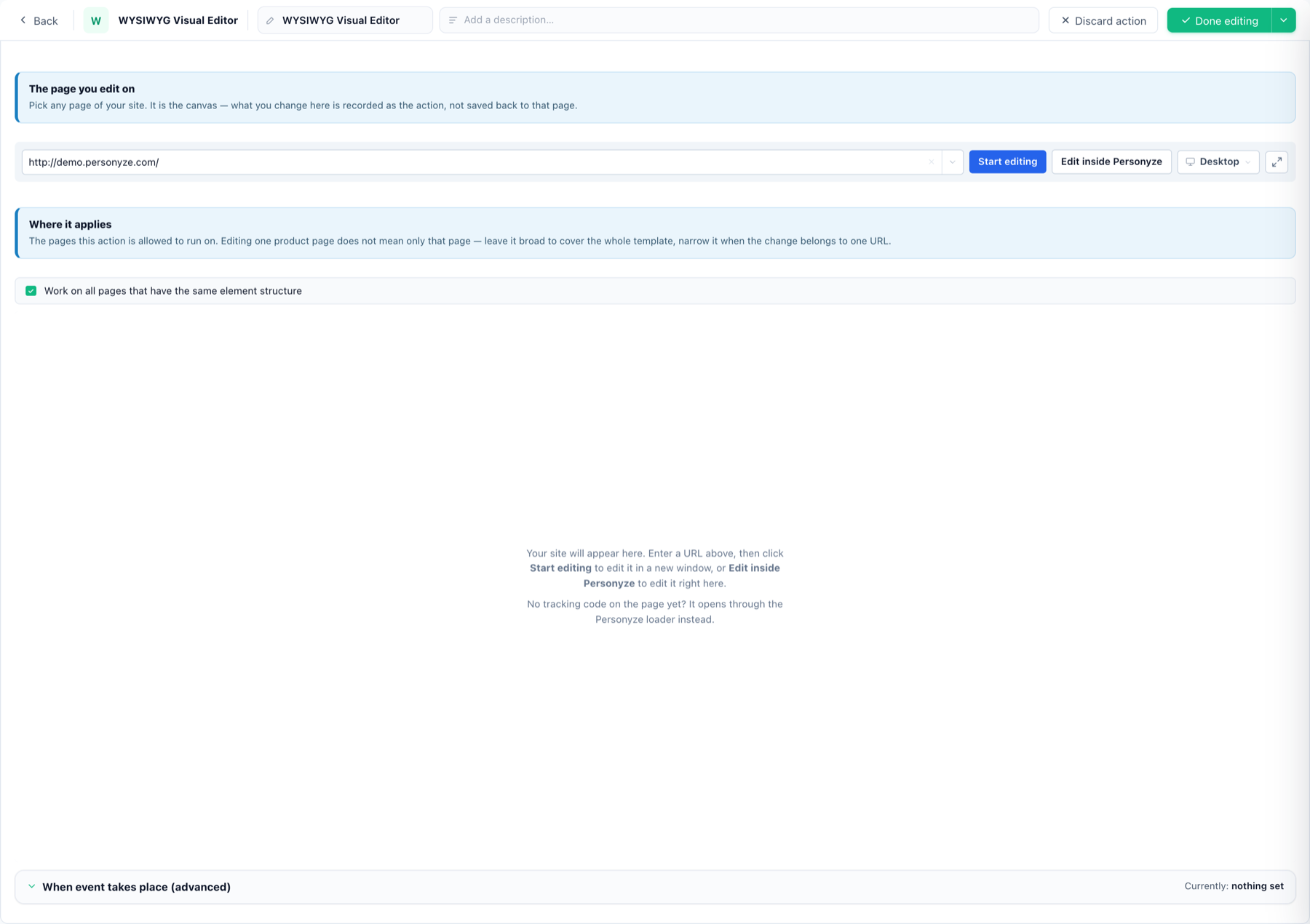
In the campaign’s Content step, Add action → Live. Then pick the page you
will edit on — the canvas, not the only page the edits run on.
- Show the pages of your site lists what Personyze already knows, grouped: Most visited,
Product pages, Article pages. Type to filter. - Or type any URL yourself. On a brand-new account there is nothing to list yet, and the box says so.
Two ways to open it:
- Edit inside Personyze — the page loads in the panel with the Changes panel beside it.
- Open in a new window — the page opens on its own with the editing toolbar over it.
Where it applies is on by default: work on all pages that have the same element
structure — editing one product page covers the whole template. Untick it, or pick
page groups, when the change belongs to particular URLs.
can design before the tag is installed. The loader only opens domains registered to your account — if you see
“This page isn’t on one of your sites”, add the domain under Tracker settings and
reopen.
X-Frame-Options or CSP header stops anyiframe. The editor says “This site can’t be embedded” and offers two ways round it: the
proxy loader, or opening in a new window. Neither changes what you can edit.
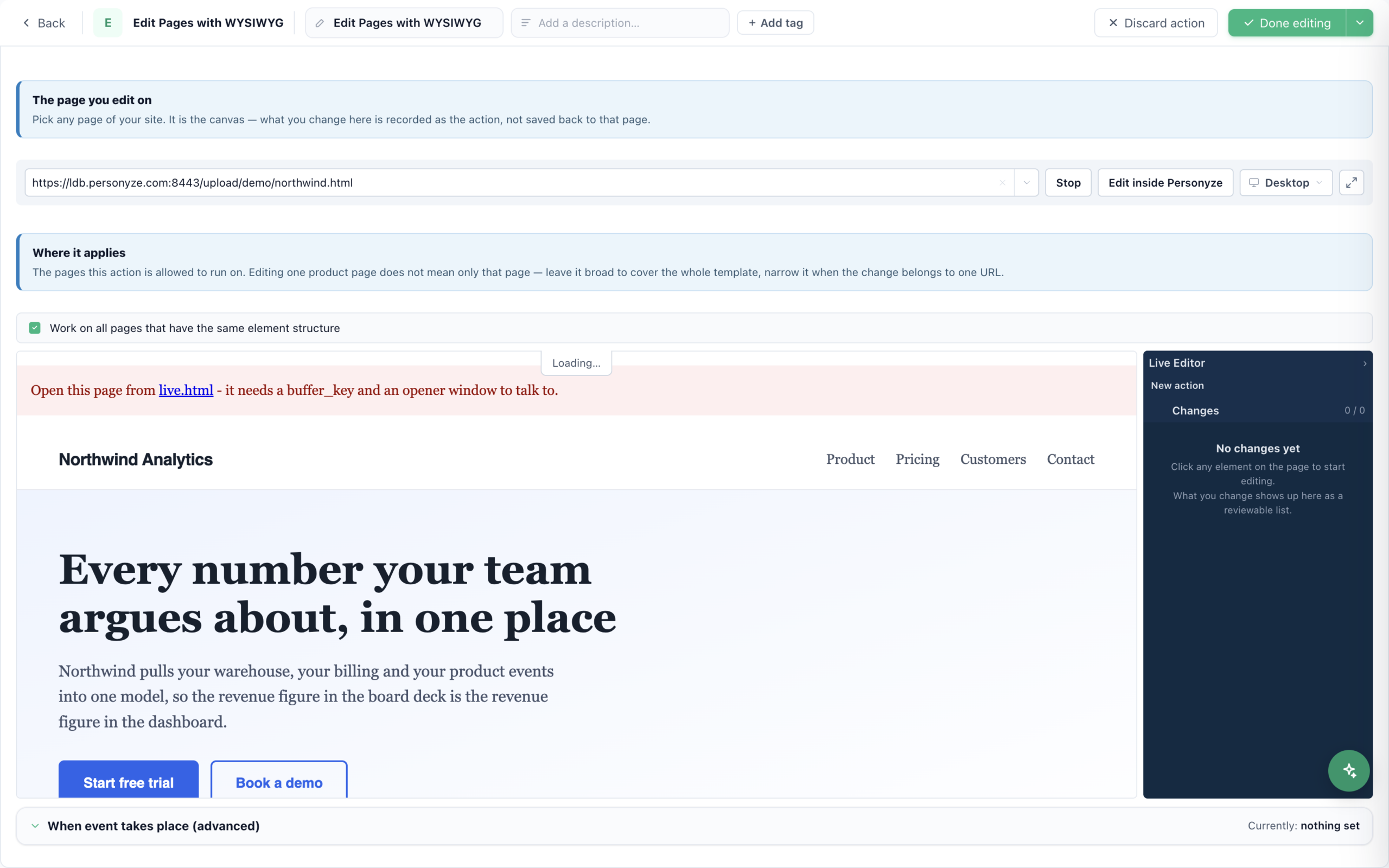
Sizing the canvas
The device switcher previews desktop, tablet and mobile widths, and Custom takes an exact width and
height — useful for the one breakpoint your design actually breaks at. Expand the editing area
hides the settings and gives the page the full width; Esc brings the settings back. The Changes panel hides
the same way.
Editing an element
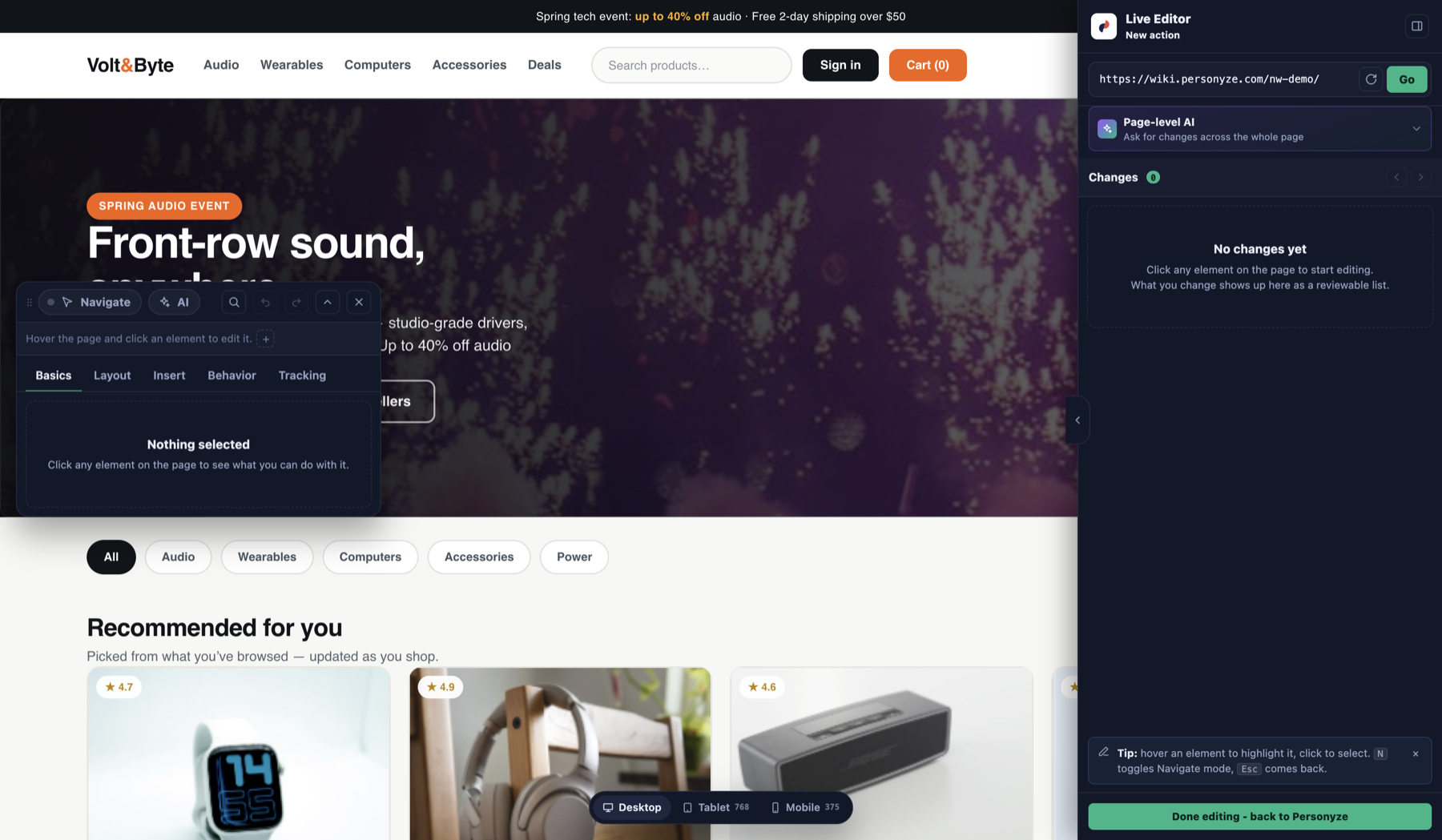
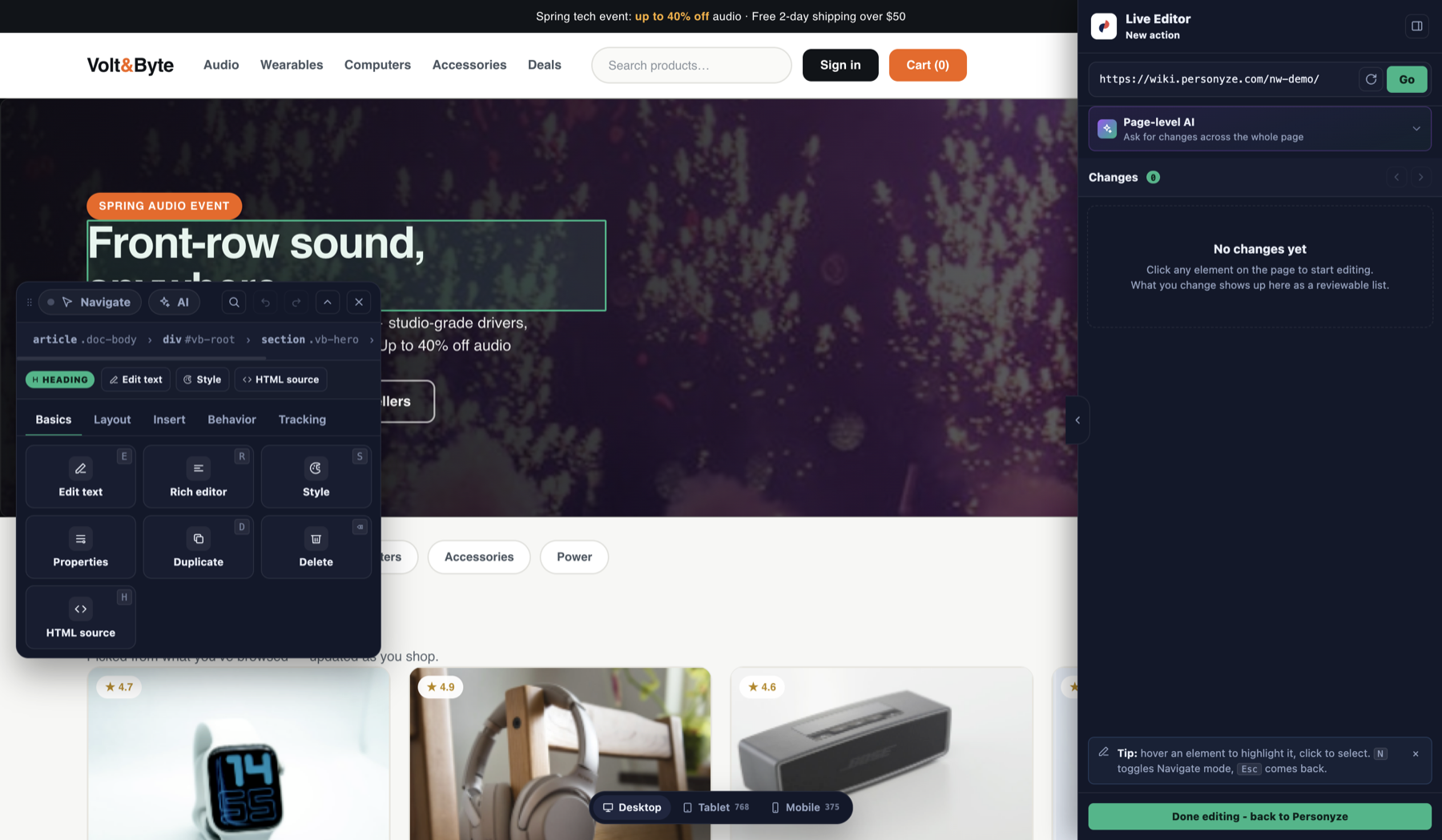
Hover to highlight, click to select — the toolbar floats over the element rather than sitting in a sidebar.
From it: Edit text, Rich editor, Style, Properties,
Duplicate, Delete, HTML source, with a breadcrumb up the DOM and
Basics / Layout / Insert / Behavior / Tracking tabs.
Dynamic visitor
variables go into any text — “Welcome back, {first_name}”.
Adding something to the page
The element toolbar carries five tabs — Basics, Layout,
Insert widget, Behavior, Tracking. Insert puts new content
before, after or inside the element you picked.
Plain elements
An image, a link, a video, custom HTML, or a block — either a plain one or a message box with a close button. A button’s job is set up afterwards, on the Behavior tab.
Canvas widgets
Twenty-six of the Canvas Builder’s own blocks can be dropped straight into
your page:
| Group | Widgets |
|---|---|
| Urgency & offers | Countdown · Coupon · Stock Urgency · Progress Bar · Prize Wheel |
| Text & layout | Headline & Subtitle · Paragraph · Chip / Pill · Checklist · Divider · Icon · Rotating Text · Numbered Steps · Media + Text · Menu |
| Proof & explanation | FAQ / Accordion · Star Rating · Comparison Table · Testimonials · Logo Row · Image Slider |
| Interactive | Form · AI Chat · AI Search |
| Wiring | Personyze Placeholder |
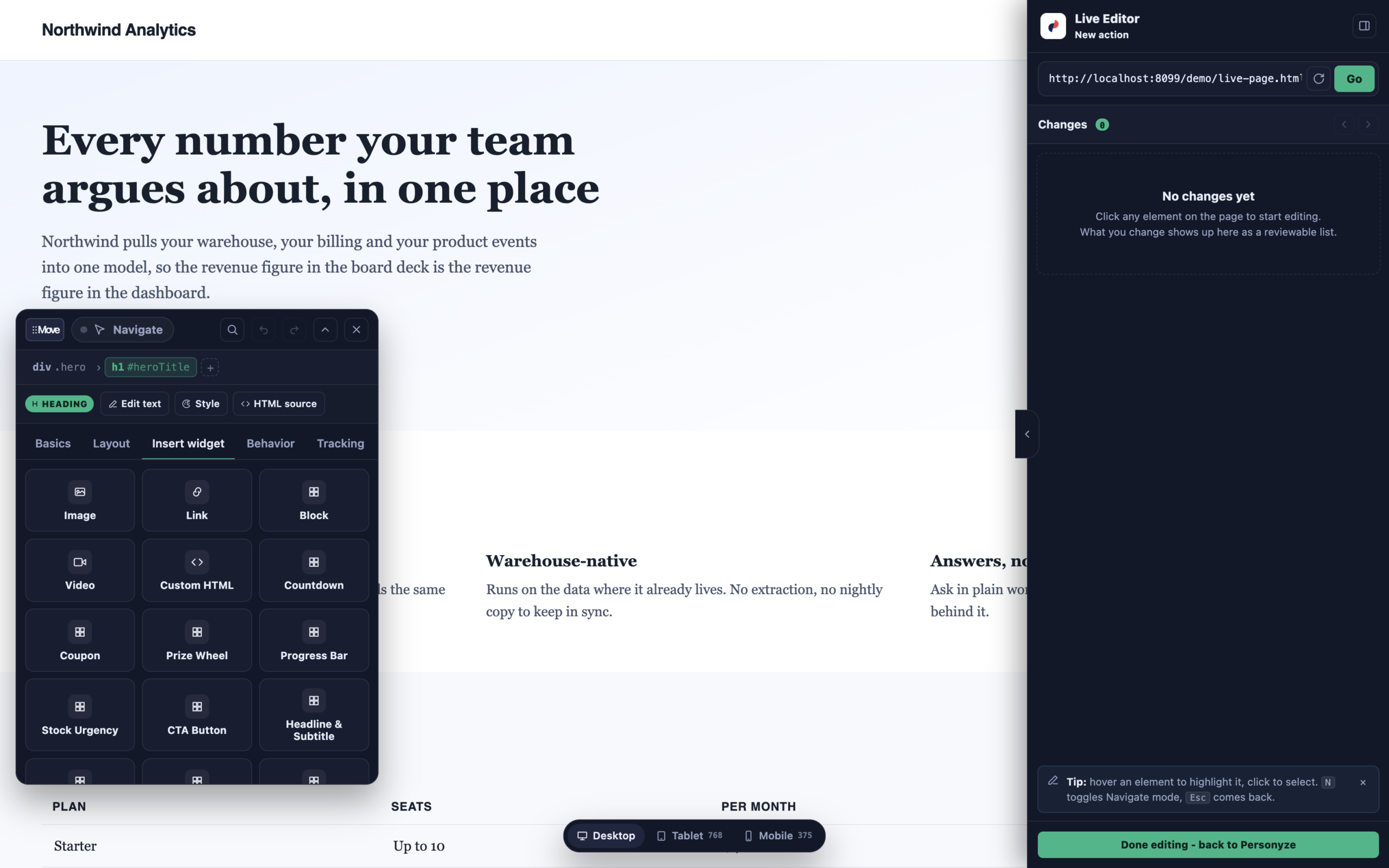
A widget dropped onto your page works — the countdown ticks, the wheel spins, the form
reports — because the action carries the same runtime the block builder compiles for.
and the action moves onto its form-capable twin by itself, so submissions are collected the way the
lead form collects them.
a source declared by the action — which the live editor’s action type does not declare. Inserting one would
put un-substituted tokens on your page in front of a visitor. Insert a Personyze Placeholder instead
and point a recommendation action at it: the same
result, with the query where it belongs.
Widget settings, afterwards
Click an inserted widget again and you get its settings — not the HTML it compiled to. The
same choices the Canvas offers, on two tabs:
- Where to put it — before, inside or after the element you picked, chosen in the widget’s own panel.
- Content — what it says and does. A countdown’s deadline and unit captions; a
coupon’s code and reveal style; a wheel’s segments and odds; an FAQ’s questions; a comparison
table’s rows. - Style — colours, sizes, corners, spacing, animation.
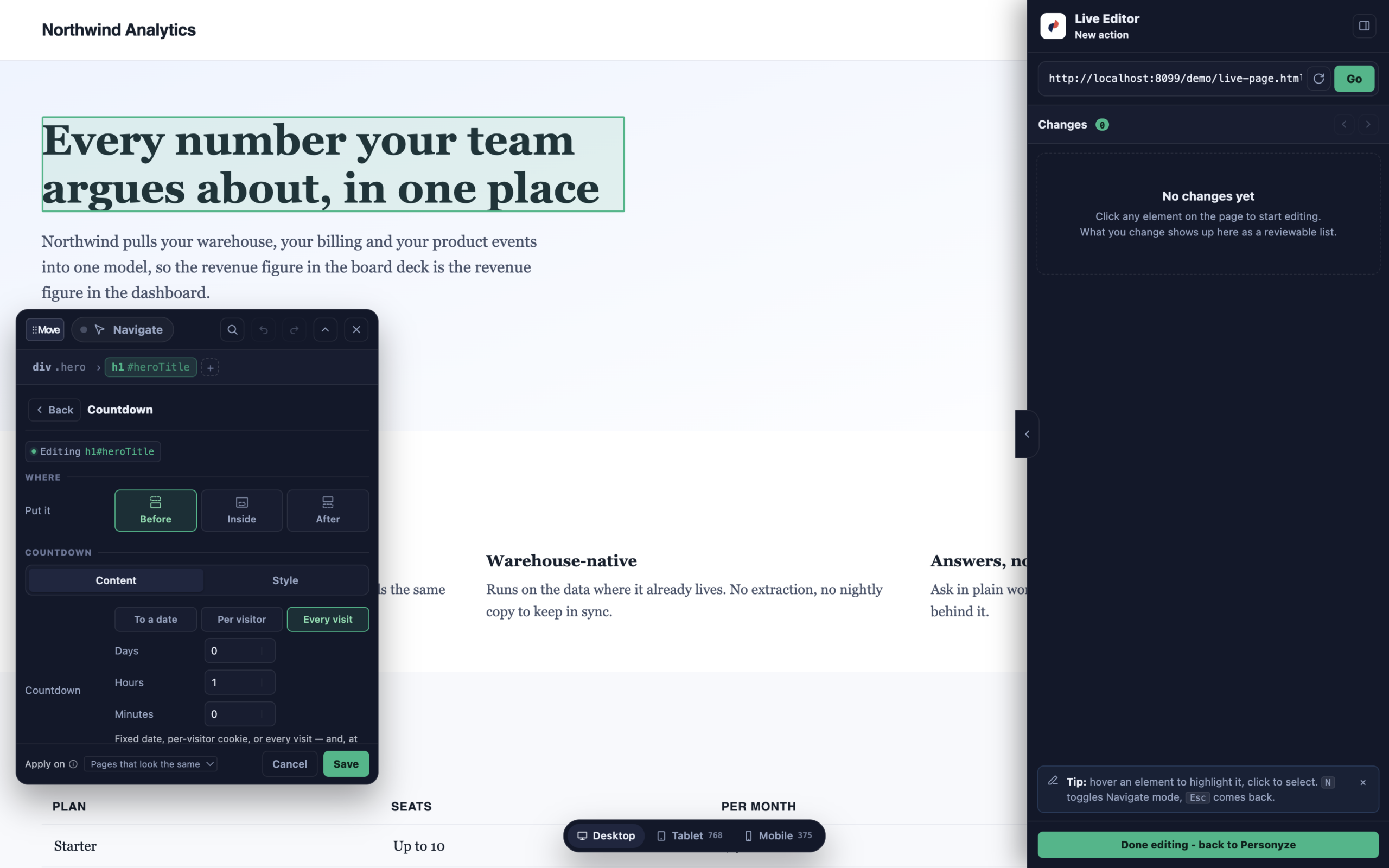
The richer widgets carry a lot of them: the Prize Wheel has nineteen settings, the Form sixteen, CTA Button and
Media + Text thirteen each.
so “how do I change the title?” has an answer months later. The compiler itself never loads into your site
— the page asks the Personyze window to recompile when a value changes, and re-renders the result.
A Logo Row or an Image Slider has nothing to draw until you give it pictures. The empty element you see is the one
you are filling in.
When the change shows, and what it reacts to
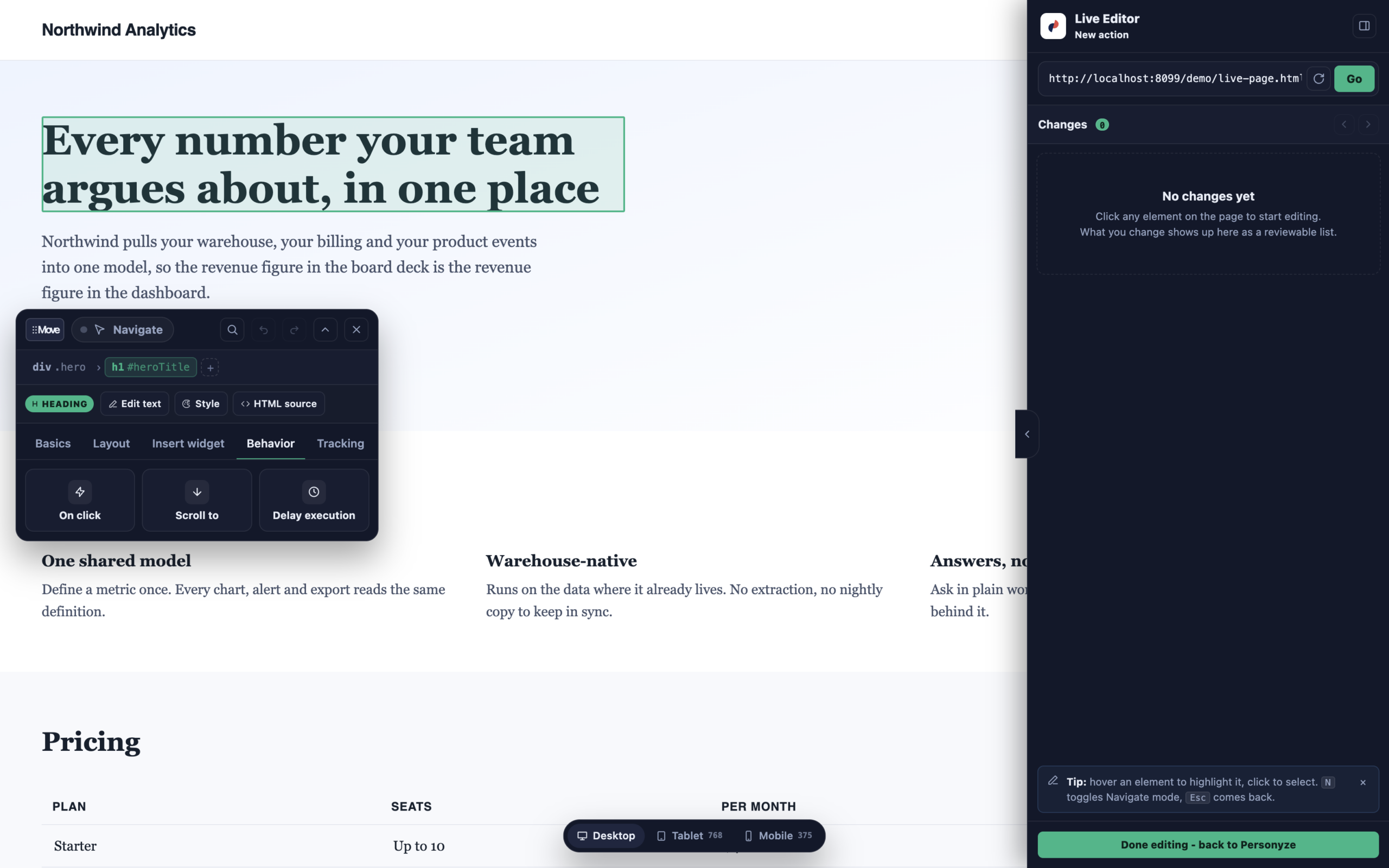
Behavior → wait for something
By default a change is applied as soon as the page is ready. On a page that builds itself afterwards — a
framework rendering client-side, a lazy-loaded section — that is too early, and the change lands on an element
that does not exist yet.
Wait for takes a CSS selector (or pick the element on the page), optionally text the element
must show, and then an extra delay in milliseconds. The change holds until all of it is true.
Behavior → on click
Make any element do something. When the visitor clicks it — or mouses over, mouses out, focuses in,
focuses out, presses a key — and then:
- Dismiss an element from the page — how a close button is built.
- Execute another action — one element opens another campaign’s content.
- Execute custom JavaScript.
- Trigger a custom event or goal — so the click counts as a conversion.
- Scroll to an element, aligned to the top, middle or bottom of the screen, with an offset and a
smooth or instant motion.
Each can run once or every time.
Tracking
Mark which element counts as the click for this action’s click-through rate. Without it, an action
with several links reports every click equally, and the CTR answers a question nobody asked.
The Changes panel
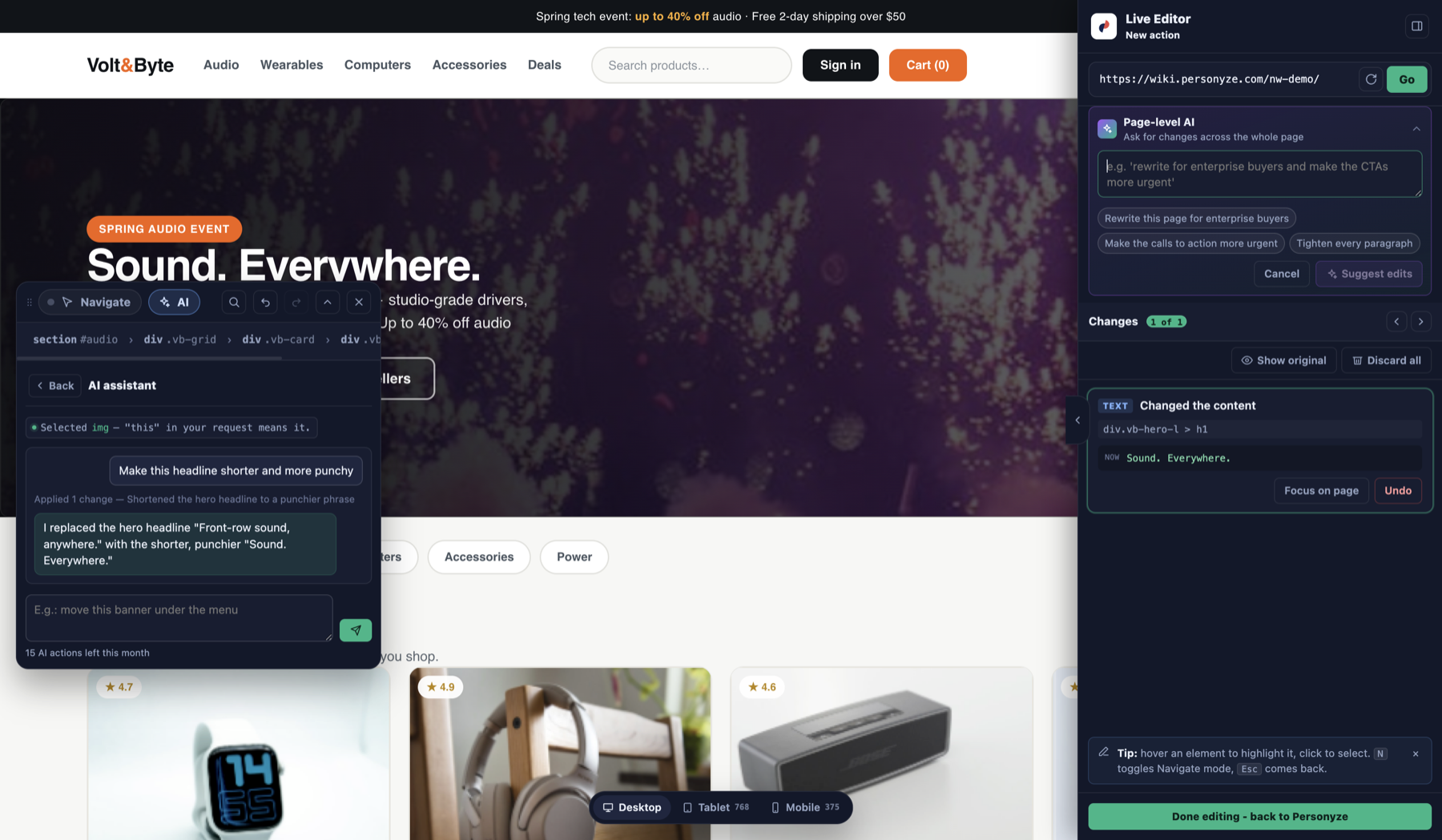
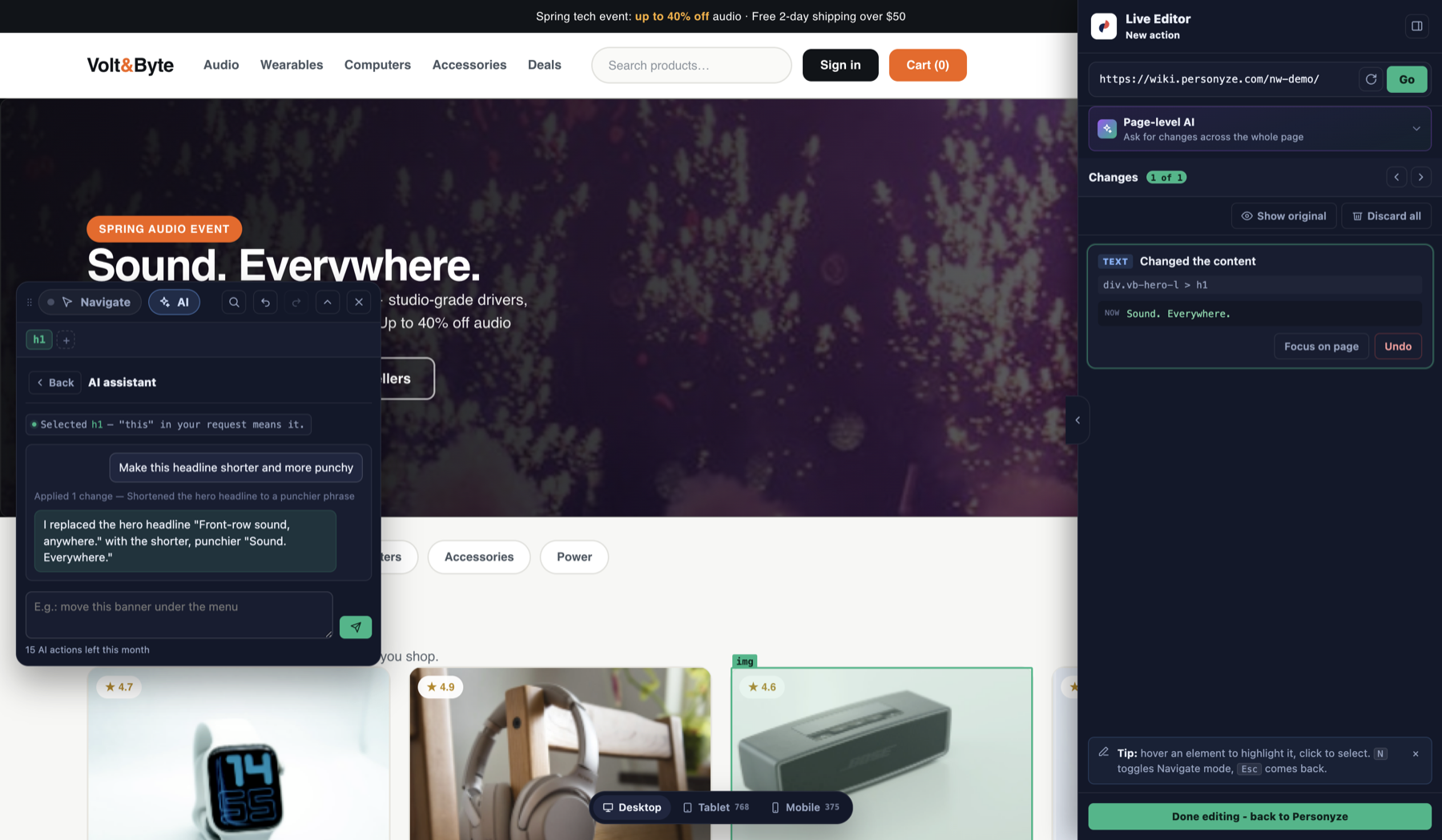
Every edit lands in the right-hand panel as a reviewable row — a change-type tag, a description of what
actually changed (not just “Style”), and the element it targets.
- Undo / Redo walk the history. A row’s own Undo takes back that change and everything
after it, and the row reads “Undone — it will not be saved” until you Redo. - Focus on page scrolls to the element and highlights it.
- Show original rolls every change back so you can see the page as it arrived. Nothing is lost
— press again to put them back. Editing is paused while you compare, which is deliberate: an edit
made against the original would be recorded against a page that is not what your visitors get. - Discard all empties the list, after asking.
Nothing is stored until you save the action, so none of this can lose work that was already saved.
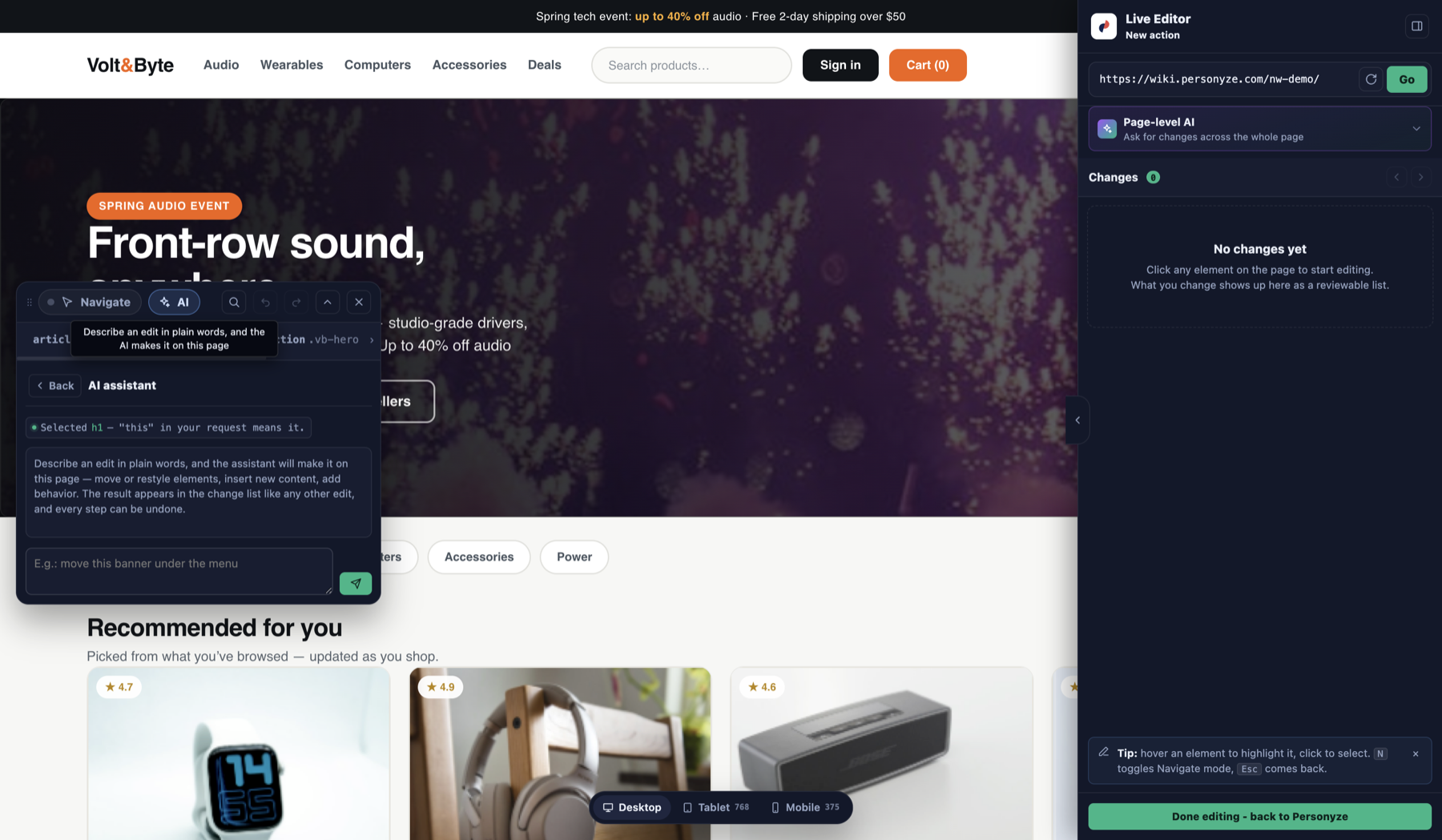
Built-in AI
Two levels, and both produce ordinary change rows — reviewable and undoable exactly like your own edits.
Per element
With an element selected, describe the replacement in plain words. “This” means the selected
element. You can also describe the change out loud rather than typing it.
Across the whole page
The card at the top of the Changes panel takes one prompt aimed at everything: “Rewrite this page for
enterprise buyers”, “Make the calls to action more urgent”, “Tighten every
paragraph”. Suggest edits offers ready-made prompts if you would rather pick than write. The
AI inspects the page, applies its edits as change records, and reports what it did in a couple of plain sentences.
Making it different per audience
A Live action shows to whoever the campaign targets. For several variants — a different headline per language
or segment — add one Live action per variant with its own targeting, or run them as
split cases and let the results decide.
Related
- Dynamic variables in the editor
- Canvas Builder — when you want to build something new rather than edit what is there.
- Popup & banner — adding content over the page instead of changing it.
- Frequency caps — how often the change is applied.