
Personyze sends email itself: one email, a sequence of follow-ups that react to what each person did, text messages, or a mix of them — all from one campaign type, Email & SMS Personalization. Anything Personyze knows about the recipient can be printed into a message, and an email can carry products or content picked for that person. This page is the front door: how to start a campaign, what each of its seven steps is for, and where every part is explained.
Start one: New campaign › Email & push
New campaign groups what you can build into topics. Open Email & push with See options: two of the cards under Build it yourself make an email campaign. There is no separate SMS campaign type: text messages go out from the same campaign.
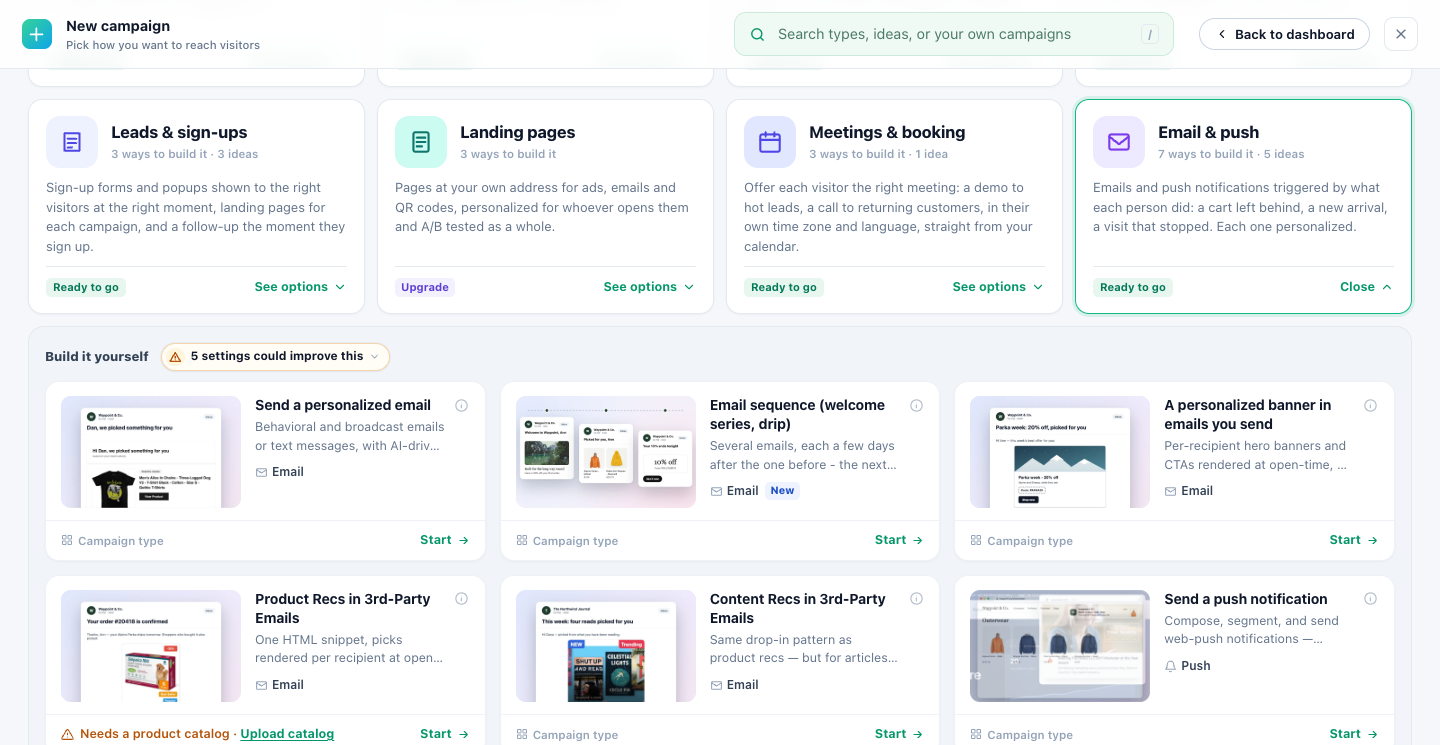
| Card | What it says | What it opens |
|---|---|---|
| Send a personalized email | “Behavioral and broadcast emails or text messages, with AI-driven content. Email sends through Personyze or your own ESP; SMS through your own carrier.” | A new, empty campaign on its first step, User Base. |
| Email sequence (welcome series, drip) | “Several emails, each a few days after the one before – the next only to those who did not open, click or reply, if you like. Leaves out anyone who buys or replies.” | The same kind of campaign, opened on its Content step with two emails already in it. |
Both start with Start. You can also find them by setting Group by to Channel and picking Email, or by typing “email” or “drip” in the search at the top. Email campaigns need email on your plan.
What the Email sequence card puts in:
- Two blank emails named “Email 1” and “Email 2”, both Dynamic email/Remarketing email. The names are ordinary names: change them as you like.
- Email 2 goes 3 days after Email 1, and only to people who did not open Email 1.
- Leaves when they buy is on — see Who leaves a sequence.
- The Content step shows them as a list of steps. No email editor opens by itself: write each email with Edit email.
The two emails are added only to an empty campaign; a campaign that already holds an action gets nothing added.
Start from an idea, under the same topic, lists ready-made email campaigns, such as a win-back or a cart reminder, that set the campaign up for you to adjust.
The other email cards there put Personyze content into emails your own email platform sends: Get Code for Emails: Personalized Banner, Get Code for Emails: Product Recommendations and Get Code for Emails: Content Recommendations — see personalized banners, product recommendations and content recommendations in 3rd-party emails. A survey sent by email is part of a Surveys campaign, and a booking email part of a Meetings campaign.
What one campaign can send
Each message in the campaign is an action of one of these types. Several messages go out side by side, each on its own timing, or in order, as a sequence.
| Type | What it sends |
|---|---|
| Dynamic email/Remarketing email | The basic email: your design and words, with anything Personyze knows about the recipient printed into it. |
| Products recommendation by email | An email with products picked for each recipient — see Recommendation algorithms. |
| Content recommendation by email | An email with articles and other content picked for each recipient. |
| Survey by email | A survey question in an email, with the Reviews & Surveys add-on — see Survey emails. |
| Ask for a review by email | Stars that open your Review Form, for a buyer, a reader or your business, with the Reviews & Surveys add-on — see Ask for a review by email. |
| Booking by email | An invitation to book a call — one button to your booking page, or the next free times — see A booking page of its own. |
| Promotion by email | Each recipient’s best promotion from your Promotions list, with their own coupon code, and nothing when none fits them — see Promotion by email. |
| SMS on Campaign Match | A text message, through your own carrier — see SMS. |
| Send Event to Analytics (Automation) | No message: the moment is reported to the other tools you use — see Send Event to Analytics. |
| Add to Klaviyo List | No message: the person is added to a Klaviyo list — see Klaviyo integration. |
Whatever you print into a message, give each variable a fallback: a field that is empty for somebody must not leave a hole in the sentence.
The seven steps

The step bar groups the steps under three headings. Build steps are open at any time. Check opens after Publish, to staging or to live. Live opens after Publish to live — except Automation, whose rules can be set at any time.
| # | Step | Group | What it is for | More |
|---|---|---|---|---|
| 1 | User Base | Build | Who this campaign can reach at all, and where those people come from: your site, connected apps, imported lists. It changes nothing about the campaign. | The User Base step |
| 2 | Target | Build | Audience rules that narrow the user base to who should receive it. For a sequence, also who leaves it. | Choosing who receives it |
| 3 | Content | Build | The emails, texts and other messages; for a sequence, their order and each follow-up’s wait and condition. Edit email opens an email’s own editor — for a Dynamic email/Remarketing email its steps are Sender settings (the subject and preheader), Email look, URL parameters and Timing. | Email sequences, Writing the email, When an email sends |
| 4 | Sending | Build | Who the emails are from, where replies go and Track replies; your account’s sending setup; and a test email to yourself. | The Sending step |
| 5 | QA | Check | See the email as a real recipient would get it, send yourself a copy, and Check for spam. | The spam check |
| 6 | Automation | Live | Rules that tell you, or have Personyze act, when this campaign’s numbers cross a line. | Automation |
| 7 | Performance | Live | Results once the campaign is running: the General dashboard and the Recipient report, for the whole campaign or one email. | Reading the report |
Everything about email campaigns
- Email campaigns — starting one, and its seven steps (this page).
- Who you can reach: the User Base step — the count tiles and every source of people.
- Choosing who receives an email — audience rules, and who leaves a sequence.
- Email sequences — follow-ups, their waits and conditions, the purchase stop and the one-week window.
- Writing the email — sender, subject tests, coupons and the spam check.
- When an email sends — triggers, waits, best time and limits.
- Set up email sending — senders, your domain and email delivery.
- The Sending step — who an email is from, where replies go, and a test to yourself.
- Your unsubscribe page, the suppression list and double opt-in — and what a recipient sees.
- The Email sending add-on — included on Growth, Power and Enterprise; a trial and an add-on on Free and Starter.
- Check your recipients’ addresses — skip the ones that would bounce, before you send.
- Bounces & spam — who your email skips, and what happens automatically.
- Reply tracking — know when someone answers your email.
- Email deliverability — the page, domain warm-up and paused sending.
- Reading an email campaign’s report — the Performance step and the Recipient report.
- Subject tests — reading the result.
- Analytics: Email & SMS and Email deliverability — the email of every campaign at once.
- Targeting people by what they did with an email — opened, clicked, replied, bought.
- Troubleshooting email campaigns — a follow-up that never went, a missing card, paused sending.
Related: Campaigns · SMS · Cart abandonment emails · Automation · Performance metrics