
Personyze has its own analytics module, but it also connects to Google Analytics — and now in both directions, through two cards under Integrations (its own section in the left menu):
- Google Analytics 4 — reports Personyze’s campaign matches and action events into GA (GA4, or the older Universal Analytics), so they sit alongside the rest of your analytics. Set it up below.
- Google Analytics goals — the newer card. It reads the events GA4 already collects and imports the ones you pick as Personyze goals, with no goal expression to write.
Import GA4 events as Personyze goals
The Google Analytics goals card turns conversions you already track in GA4 into Personyze goals — tick them from a list instead of writing a goal expression. It is read-only: Personyze lists your GA4 properties and event names and reads nothing else.
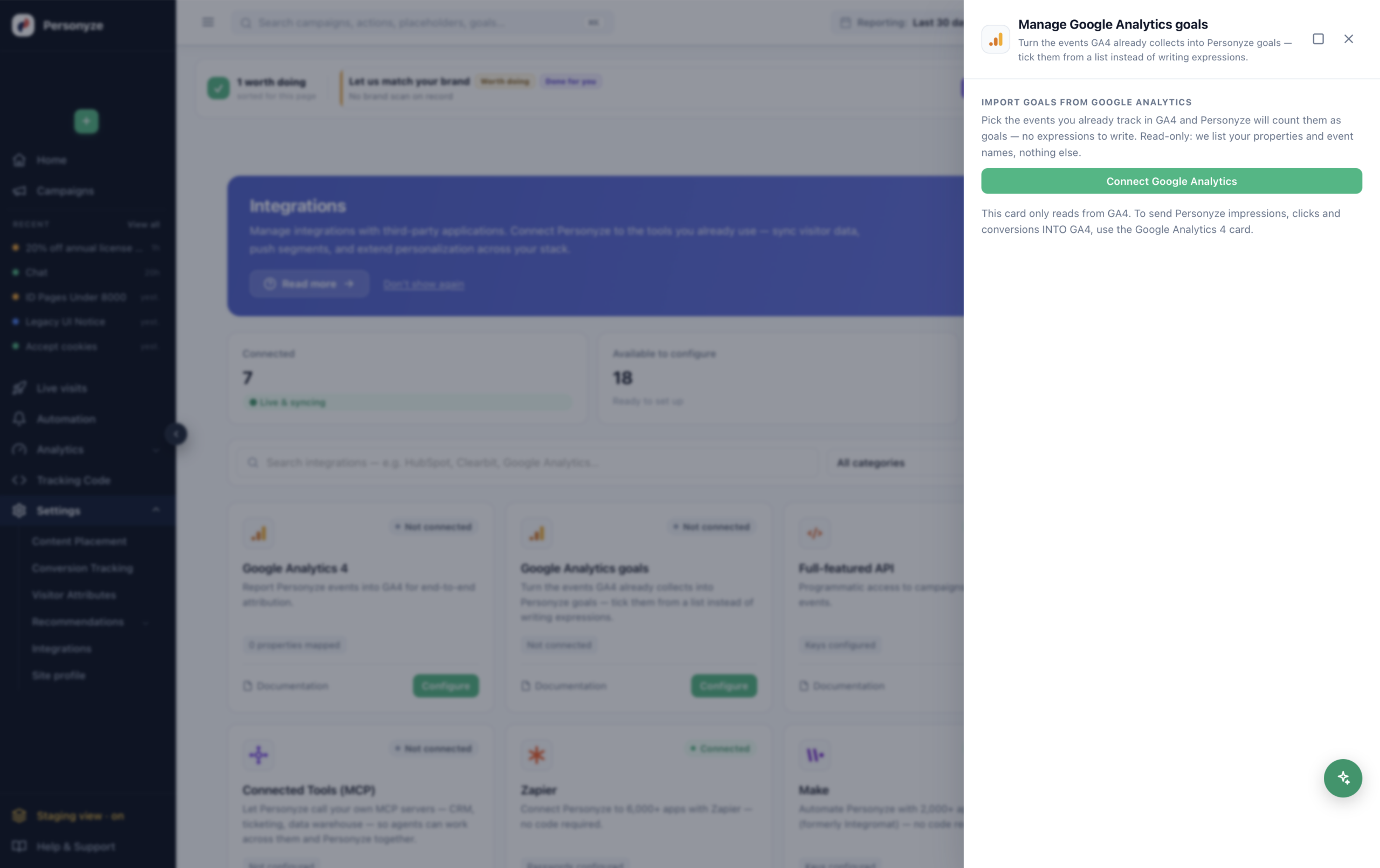
1. Connect. In Integrations → Marketplace, find Google Analytics goals, click Set up, then Connect Google Analytics and approve read-only access to your GA4 account.
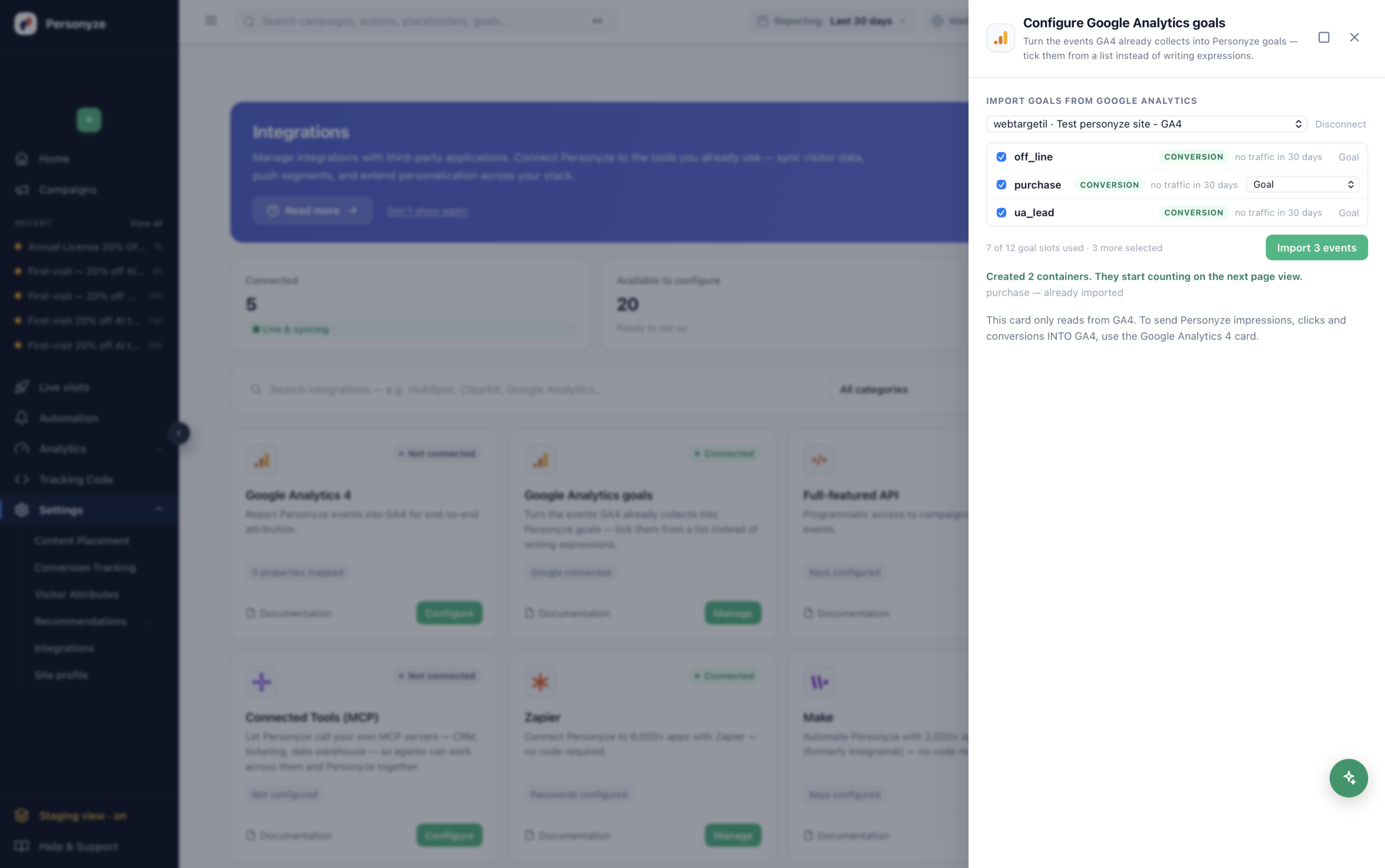
2. Pick the events to import. Choose your GA4 property at the top, then tick the events you want. Each is listed with its type (a CONVERSION badge) and its recent traffic — so you can tell a live event from a dormant one — while a counter tracks how many of your goal slots are in use. Click Import N events and Personyze creates a goal for each (as a container); they start counting on the next page view. Events you have already imported are marked, so you never add the same one twice.
The goals card only reads from GA4. To send Personyze impressions, clicks and conversions into GA4 for attribution — the other direction — use the Google Analytics 4 card, covered next.
Setting up GA4
- Find your Measurement ID. In Google Analytics go to Admin → Data Streams and open your web stream. The ID starts with
G-— a Universal AnalyticsUA-ID will not work here. - Open the Personyze drawer. In the panel go to Integrations → Your integrations, find Google Analytics 4 and click Configure.
- Turn on Report events to Google Analytics and paste the ID into GA4 Measurement ID.
- Choose the transport. Left alone, Personyze reports with the
gtag.jslibrary that the GA4 tag already put on your page. If your site loads GA through Google Tag Manager instead, switch on Send through Google Tag Manager and Personyze pushes the events into the GTMdataLayer— see the next section for the one tag you need in GTM. - Save changes. Events start flowing on the next page views; allow a few minutes before checking the GA4 realtime report.
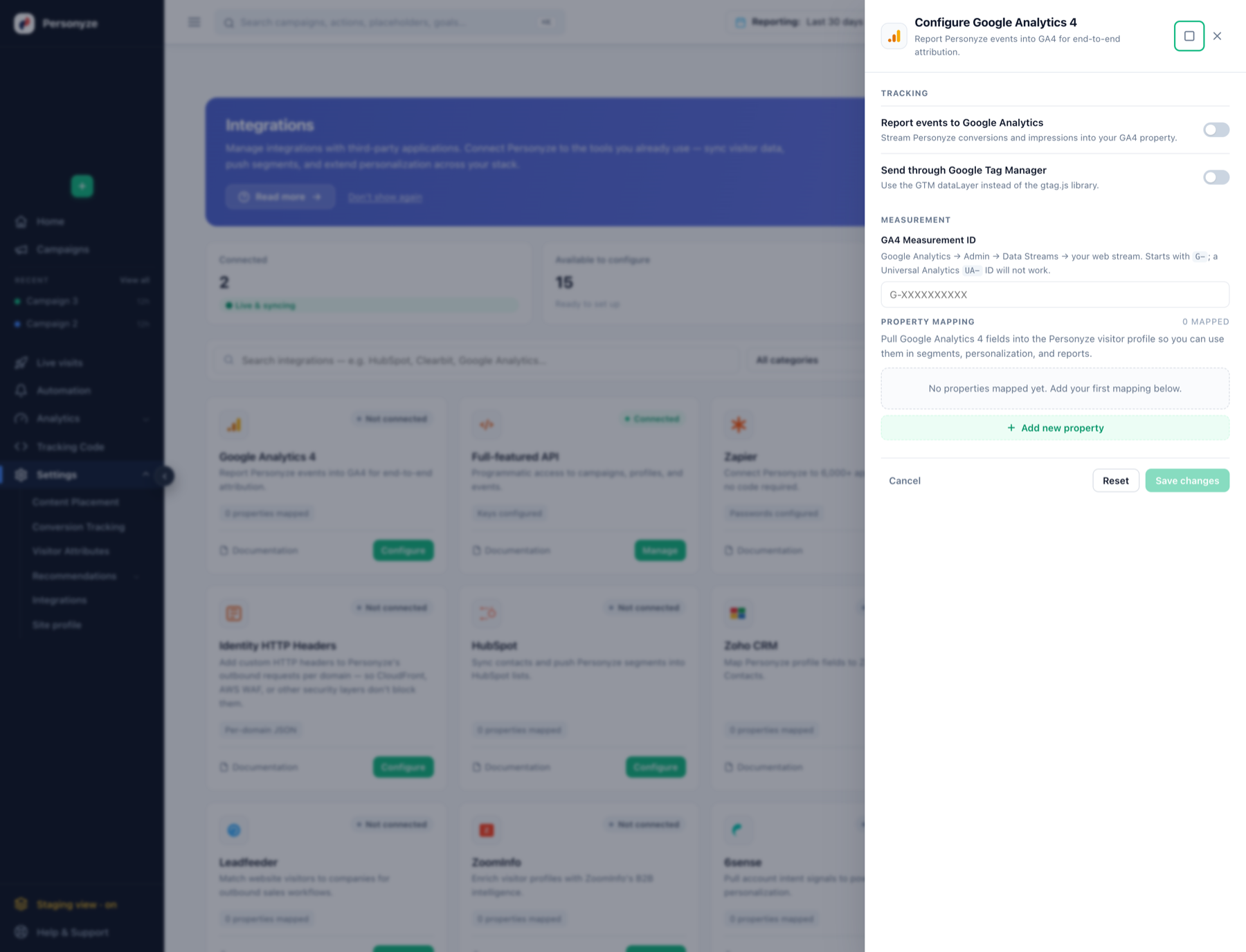
The same drawer also works in the other direction: under Property mapping, click + Add new property to pull Google Analytics fields into the Personyze visitor profile, where they become available in segments, personalization and reports.
If you send through Google Tag Manager
With the GTM toggle on, Personyze pushes its events into the dataLayer; GTM needs one tag to forward them to GA4:
- In Google Tag Manager, click New Tag.
- Choose tag type Google Analytics: GA4 Event.
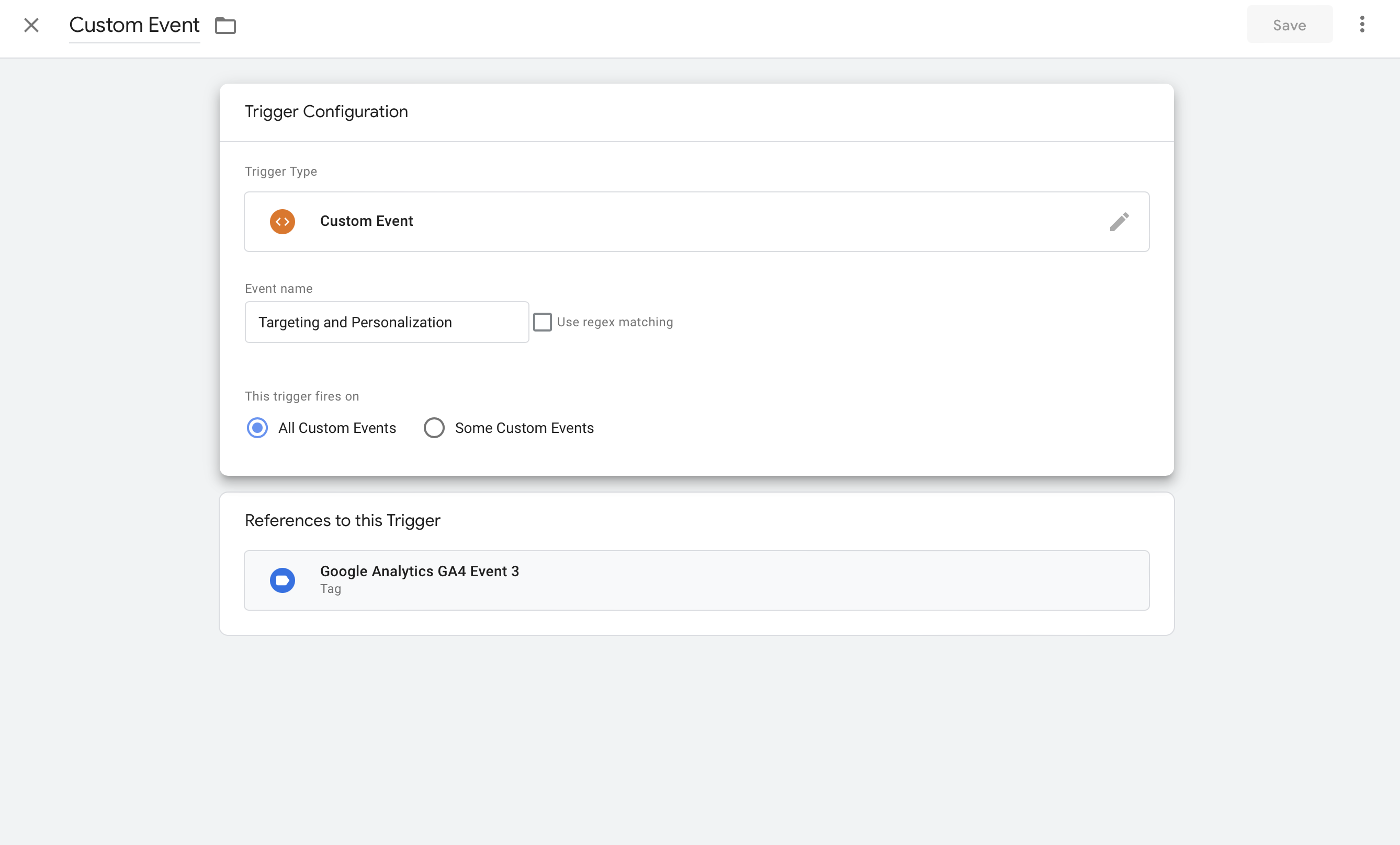
- Configure the trigger to fire on a custom event reporting from Personyze.
- Save and publish the GTM container.
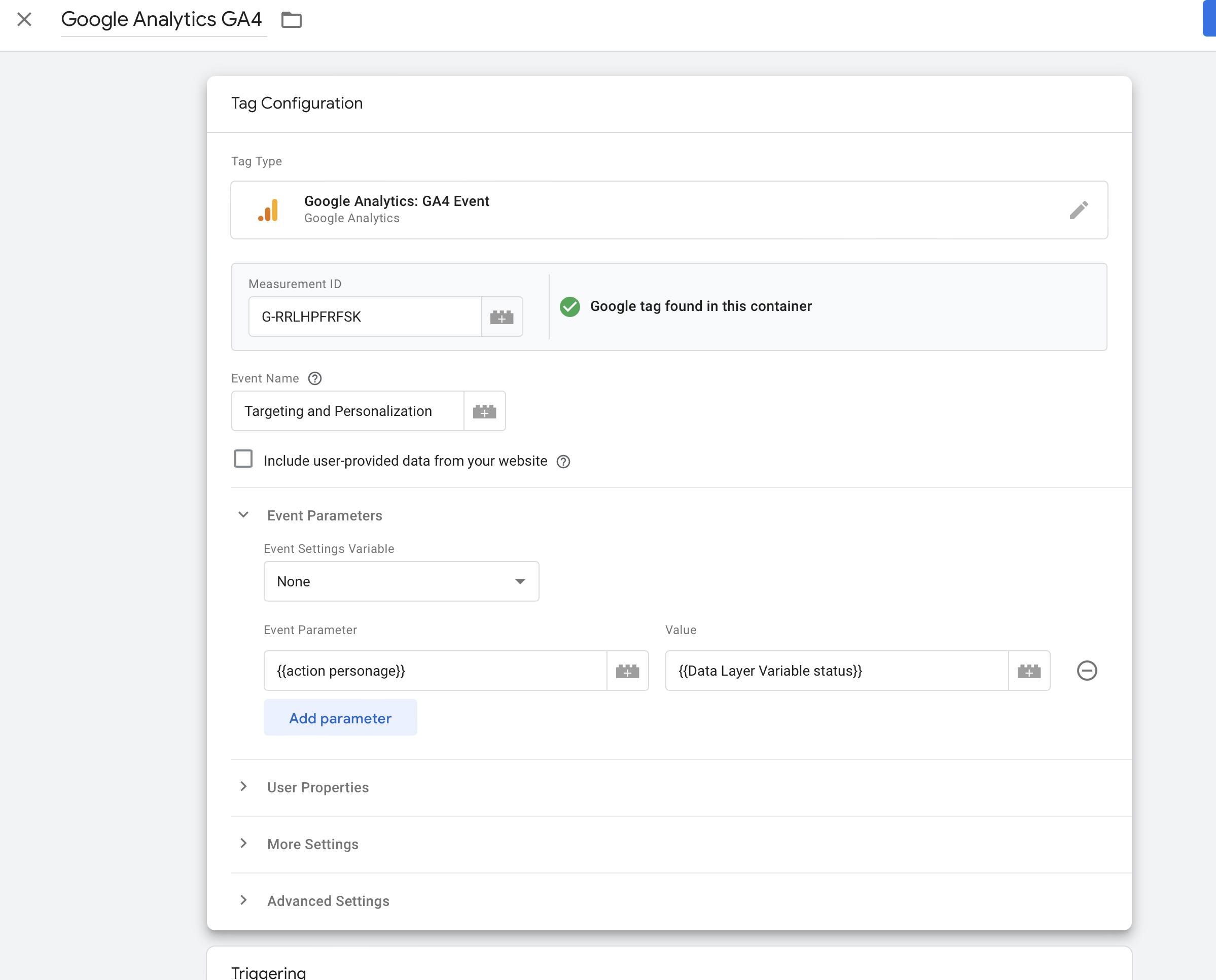
The trigger setup should fire whenever a custom event reports from Personyze:
Universal Analytics (legacy)
For sites still on Universal Analytics, Personyze integrates automatically once it detects a UA tag on the page — no GTM configuration required. Every reported event surfaces in GA with three pieces of data:
- Category — “Campaign Name” or “Action Name (personalization widget)” plus the source domain.
- Action — the action name as you set it in Personyze (auto-generated by default).
- Label — the event status:
shownfor audiences, or one of the action statuses listed below.
Event statuses
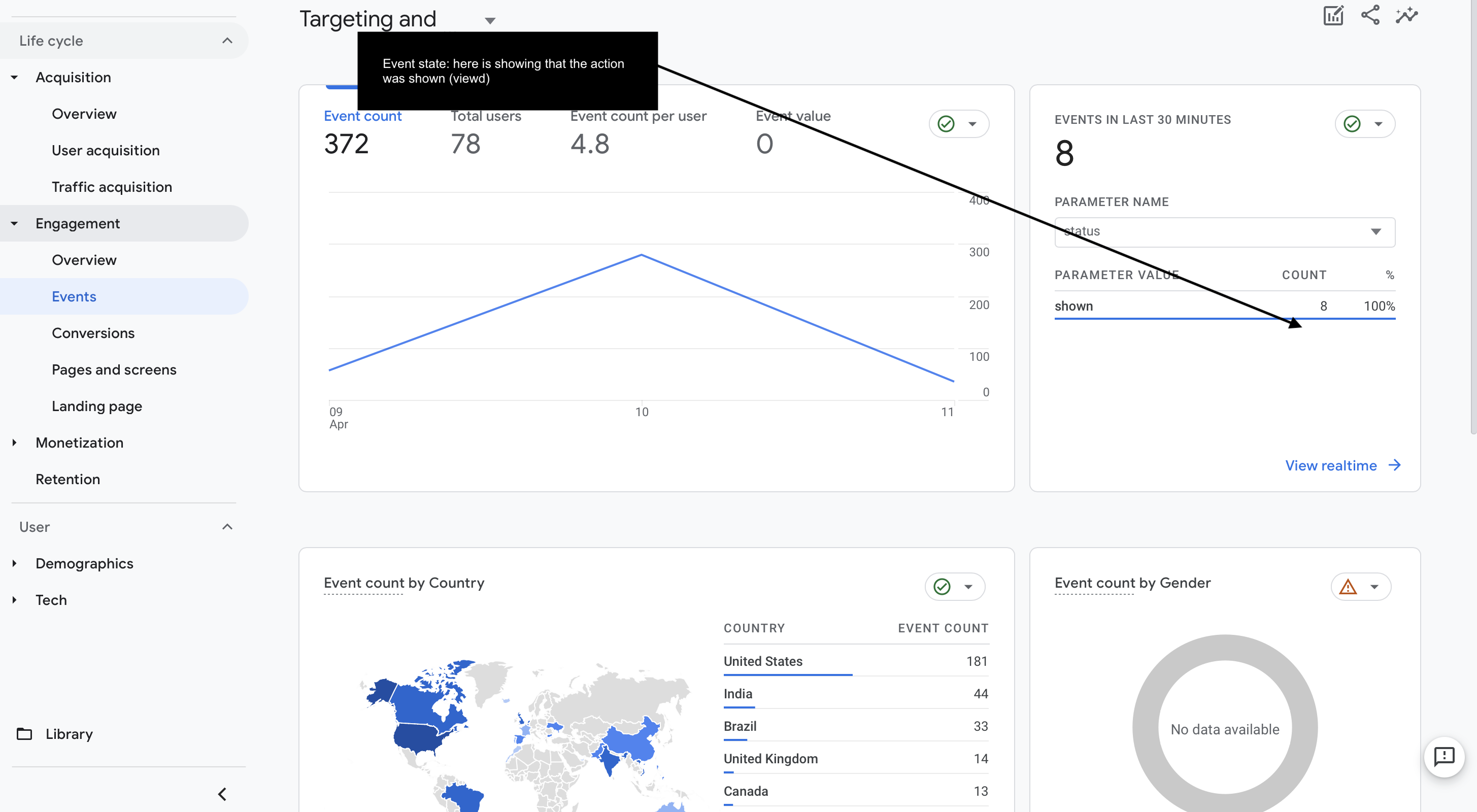
Action events report a status under event_value (GA4) or as a label suffix (UA). The full list:
- Yes — action was shown or executed successfully
- No — action was not shown
- Error — something prevented the action from executing
- Extra — action was shown and clicked
- Goal — a defined goal was reached
Viewing campaign performance in GA
Use Google Analytics’ Segments (Explore → segments in GA4) to filter reports by Personyze events:
- Create a new segment.
- Add a rule that filters for the event name Personyze reports (the campaign or action name as configured in Personyze).
- Save the segment.
You’ll now see GA reports filtered to visitors who matched that campaign or interacted with that action — making it easy to compare on-site behavior between personalized and non-personalized traffic.
Controlling which events report
- Everything on / off — the Report events to Google Analytics toggle in the drawer is the master switch for the automatic reporting of campaign matches and action events.
- Custom events on top — to send your own event at a moment you define, use the Send Event to Google Analytics action template, or the Send event to Google Analytics auto-action available on any on-event action. These fire with
gtag('event', ...)and carry whatever name and parameters you set, so you can report things GA cannot see on its own.
Advanced use cases
Because Personyze has access to richer visitor data than GA does, you can use it to enrich your analytics with segments GA can’t track on its own. A few examples:
- Report when a visitor reduces items in their cart after seeing the shipping cost — useful for shipping price-sensitivity analysis.
- Report when CRM data shows a visitor’s subscription is expiring and they started but abandoned the renewal flow.
- Report visitor traits from your CRM or form submissions so you can break GA reports down by fields GA doesn’t natively know.