
Targeting rules decide which visitors a campaign applies to. Personyze tracks 70+ real-time signals about every visitor — behavior, location, device, profile and CRM data, and signals from your connected tools — and evaluates your rules on the fly, so a matching visitor sees the personalized experience the moment they qualify.
Watch the 2:04 walkthrough: every way to describe an audience — plain words, the rule catalog, templates and logic — and testing it before anyone sees it.
Video: Targeting, step by step (1:55) — it plays at the top of Audiences & Targeting — Deciding Who Sees What.
Adding a rule
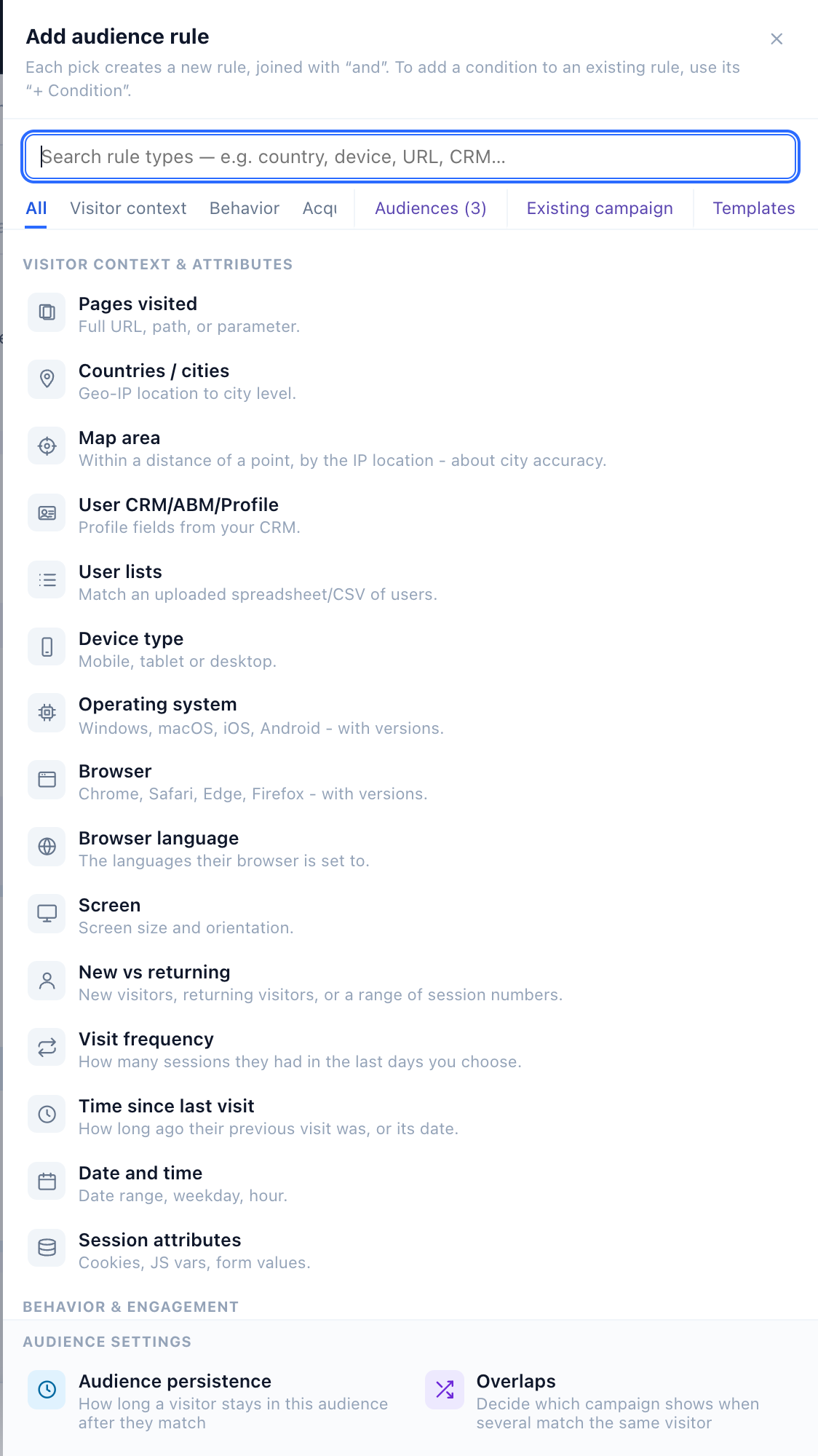
The rules live on the campaign’s Target step, under Audience rules. A new campaign’s audience starts empty, which matches everyone until you narrow it. Click + Add audience rule and pick a rule type: each pick becomes a new rule, joined to the others with “and”. To add a condition to a rule you already have, use its own + Condition.
The Add audience rule menu has a search box that looks through every rule, and tabs for the rule families: Visitor context, Behavior, Acquisition, Conversions, E-commerce, Content and Integrations (an email campaign has its own tabs, including Surveys). Three more tabs bring in rules that already exist:
- Audiences — the groups Audience Discovery found in your data, once it has found some. See Discovered audiences.
- Existing campaign — copies another campaign’s rules into this one. Add keeps your rules and joins the copied ones with “and”; Replace swaps yours for them. The other campaign is not changed.
- Templates — audiences saved with Save as template. Copy pastes a template’s rules for free editing; Link keeps them attached to the template, so every campaign that links it follows its edits.
At the foot of the menu, Audience settings opens Audience persistence or Overlaps. They are settings, not rules, so picking one adds no rule.
How a rule is built, and how rules combine
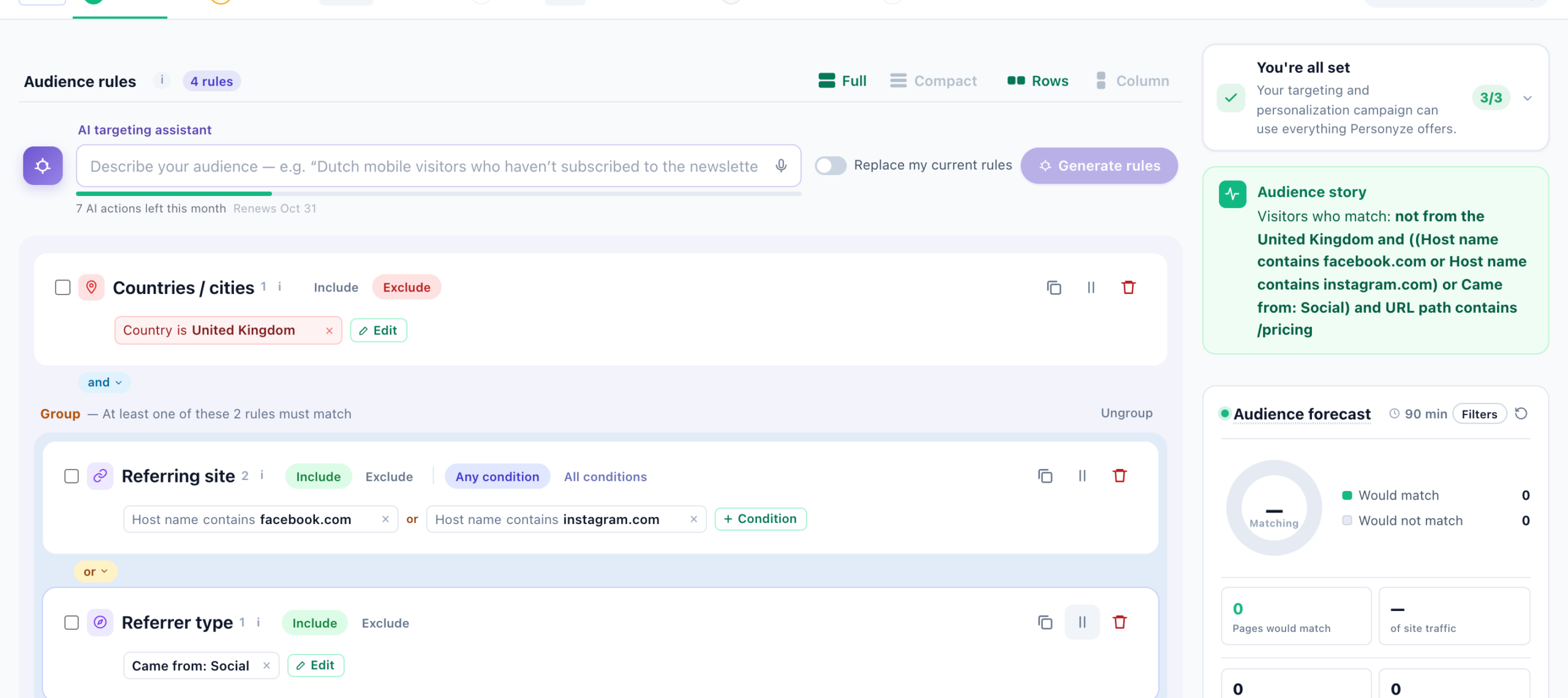
Each rule is a white card in the Audience rules list; a rule that excludes is marked in red. Its header line holds the choices that shape it:
- Include / Exclude — Include: only visitors who match this rule see the campaign. Exclude: visitors who match it are left out. Each rule has its own, and the two mix freely: include visitors from the Netherlands while excluding those already subscribed to the newsletter.
- Any condition / All conditions — how the conditions inside the rule combine. Any condition: one is enough. All conditions: every one must hold. Add a condition to the rule with its + Condition.
- On this page / During the visit — on rules that offer it, where the rule is checked. On this page checks the page the visitor is viewing right now; During the visit matches if the conditions were met at any time this visit, on any page.
A long list of values folds to “one of N”; click it to see them all. On an Exclude rule built on a profile field or a page container, Only match after a value is recorded keeps the rule from matching everyone whose field is still empty.
Joining rules: and, or, only one
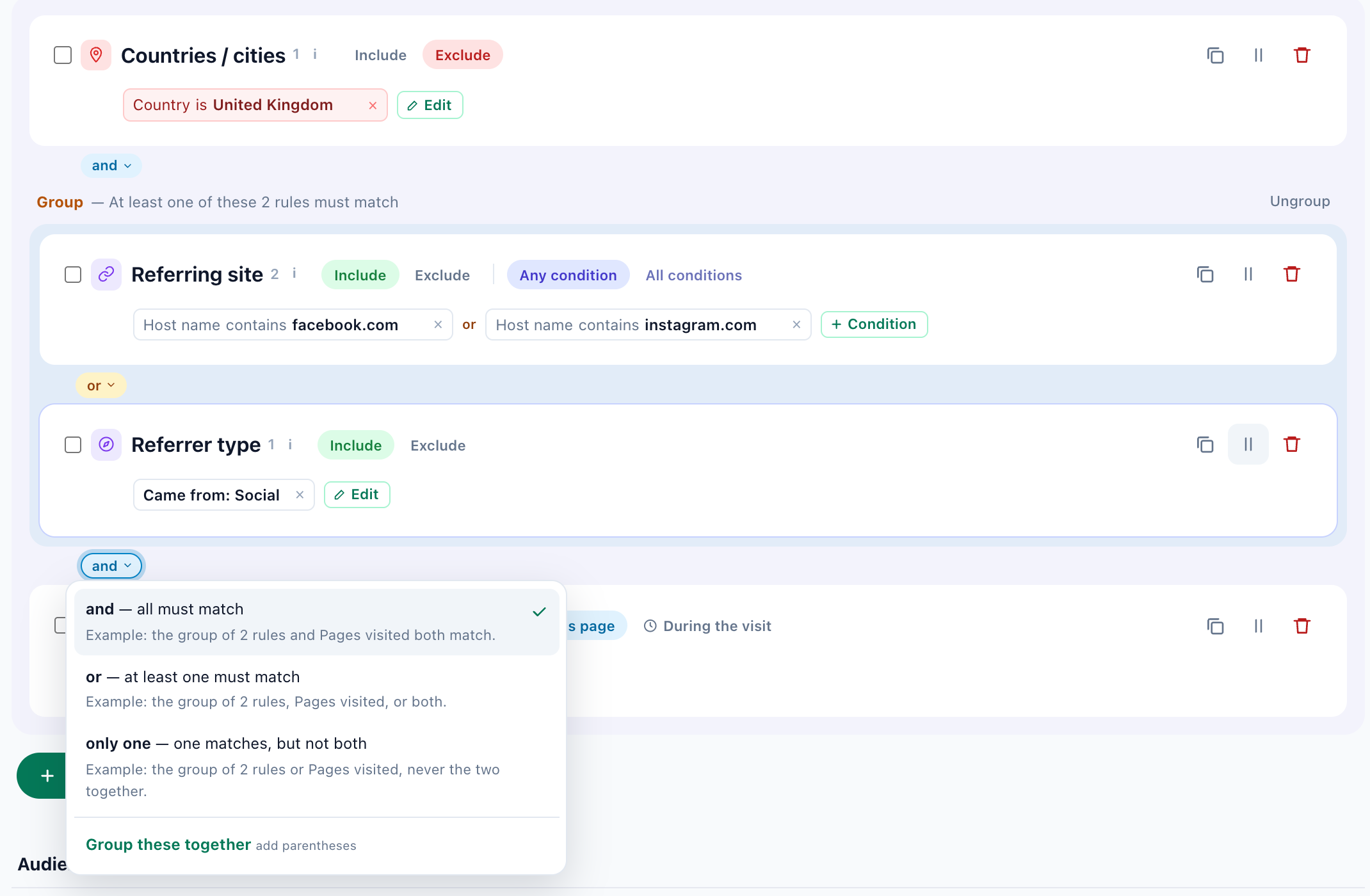
Between two rules sits a connector pill. Click it to change how they join; the menu says what each choice means, with your two rules as the example.
| Connector | The visitor matches when |
|---|---|
| and | All must match. |
| or | At least one must match — for an audience with several ways in. |
| only one | One matches, but not both — visitors from your newsletter or from an ad, never the two together. |
Choosing or or only one in the middle of a longer list asks which rules you mean: Join these two rules only (they are grouped — the recommended choice), or Everything above or everything below, which splits the list in two at that point. Each choice shows how the audience will read before you pick it.
Groups
A group works like brackets in math: it keeps an “or” from spreading to the rest of the list. Click a connector and choose Group these together, or tick several rules and press Group. A group is drawn as a band with a line saying what it means — for example “At least one of these 2 rules must match” — and groups can sit inside groups. Ungroup removes the brackets and keeps the rules.
A rule can be as simple as “is on the pricing page” or as layered as “viewed the pricing page in the last 14 days and is on a paid plan, excluding anyone who opened a support ticket in the last 7 days.”
Duplicate, Turn off, Remove
Each rule’s tools sit at the right of its card, as icons that show their names on hover:
- Duplicate — a copy of the rule, to change one thing.
- Turn off — keeps the rule but stops using it. Turned-off rules wait under Turned off — kept, but not used until you turn them back on. Turn back on returns a rule to the place it left, with its connector and its Include or Exclude, in any browser. A rule turned off before its place was kept comes back at the end, joined with “and”, and its card asks whether it is meant to include or exclude.
- Remove — deletes the rule.
Drag a card by its handle to move it. Tick the box on several cards and a bar offers Set to Include, Set to Exclude, Turn off, Group, Remove and Clear selection for all of them at once.
Full or Compact
Two switches beside the Audience rules title change only how the rules are drawn. Full / Compact: Compact shows each rule as one line with its Include or Exclude tag, and a click opens it. Rows / Column: in Full view, a rule’s conditions wrap across rows or stand one per line.
Under the list, Save as template saves the rules as a reusable audience that any campaign can copy or link from the Templates tab.
Discovered audiences
The Add audience rule menu has an Audiences tab holding the groups Audience Discovery found in your own data. Each one drops in as a single rule card that names the group in plain words, and it works as a Target or an Exclude like any other rule — excluding a group that never converts is often the more valuable half. Use Unlink on the card to turn it back into ordinary editable conditions.
Two URL hand-offs open a new campaign with the targeting already in place: ?audience= for a discovered rule, ?list= for an audience list. That is what the Use in a campaign buttons on the discovery screens do.
Visitor context & attributes
Who and where the visitor is, right now:
- Pages Visited — match on the full URL, a path, or a query parameter, checked on this page or during the visit. Example: on any
/pricingURL this session. - Number of Page Views — how many pages the visitor has seen this session. Example: viewed 5+ pages.
- Most-popular Page — the page (or page type) a visitor spends the most time on or returns to most. Example: frequent visitors of a specific product category.
- Countries / Cities — geo-location down to city level from the visitor’s IP. Example: visitors in Canada.
- User / CRM / ABM data — known-visitor profile fields synced from your CRM or CDP: lifecycle stage, plan tier, lifetime value, industry, custom fields. Example: lifecycle stage = SQL.
- Device & System — device type, operating system, browser, screen size, and browser language. Example: mobile visitors with a small screen, or visitors whose browser language is French.
- Visitor Type — new vs. returning, plus session count. Example: returning visitors on their 3rd+ session.
- User Lists — match against a spreadsheet/CSV of users you upload. Example: a list of trial accounts. Once lists are chosen, See who is in: links each one to its people, in a new tab.
- Date & Time — a date range, day of week, or hour of day. Example: only during a weekend sale.
- IP Addresses — specific IPs or CIDR ranges. Example: exclude your office IP from a promo.
- Weather — the visitor’s local conditions by IP or GPS. Example: show umbrellas when it’s raining.
Behavior & engagement
What the visitor has actually done, this session or over time:
- E-commerce — products viewed, added to cart, or purchased, with finer filters for cart value, number of products purchased, total purchased value, and filters by brand or price range. Example: cart value over $100 containing a specific brand.
- Product Interactions — counts across products (distinct, same, or total). Example: viewed 3+ different products.
- Last Product Interaction — the most recent shown / cart / purchase event, for “pick up where you left off.” Example: last added a specific SKU to cart.
- Content Interaction — article views, favorites, subscriptions, and reading depth. You can also target by the content’s attributes — author, tags, category, or topic — pulled from your content feed. Example: read 2+ articles tagged “pricing.”
- Session Attributes — cookies, JavaScript variables, form/input values, meta tags, DOM values, and your Google Tag Manager data layer — any client-side data you expose. Example: a
dataLayervalue your site pushes. - Time on Site — total time in the current session. Example: engaged for 2+ minutes.
- Landing Page — the first (entry) page of the session. Example: entered on a campaign landing page.
- Traffic Source — referrer, search engine, social network, or campaign. Example: arrived from a paid ad (UTM).
- Search Keywords — the terms a visitor searched to arrive, or searched in your on-site search. Example: searched for “noise-cancelling headphones.”
- Interests — topics Personyze infers from browsing behavior via AI topic tagging, each with a strength score, plus any explicit interests. Example: strong interest in “running shoes.”
- Last search — what the visitor last searched for, on your own site or in the search engine that sent them. Unlike Search Keywords it is kept on the profile, so it outlives the session. Example: last searched for anything at all in the past 7 days. See targeting on the last search.
- Last Content Interaction — fires on the page right after the visitor views, comments on, likes or finishes an article. The content twin of Last Product Interaction. Example: just finished a pricing explainer.
- Campaigns Matched — whether another campaign matched this visitor this session. Example: don’t show the newsletter form to anyone the welcome discount already matched.
- Actions State — what the visitor did with your other campaigns: clicked, dismissed, or saw them. Example: exclude anyone who dismissed this popup already.
- Time Since Last Visit — how long since the previous session. Example: back within 48 hours.
- Total Session Count — how many sessions the visitor has had in all. Example: the fifth visit and beyond.
Where they came from originally
Most rules describe the visit in front of you. This family describes the person — how they first arrived, however long ago, and on whatever device. It survives every later visit, which is what makes it useful for cohorts and for judging channels by what they eventually produced rather than by the session they happened to convert in.
- First Source — how they first arrived, ever. Example: everyone originally acquired from organic search.
- First medium — the
utm_mediumof that first arrival, which separates paid from organic from email at the point of acquisition. Example: acquired by paid, whatever they do now. - First landing page — the page they arrived on the very first time. Durable intent: the page that interested them before they knew you.
- First device — the device they were acquired on, which is often not the one they are using now.
- First seen — when they were first ever seen, as an age (“longer ago than”) or an absolute date. Tenure and cohorts, not recency. Example: first seen more than 90 days ago.
Conversion history
Three rules about converting, and they answer genuinely different questions:
- Conversion (has converted) — has ever converted, has never converted, or first converted within a window. Example: never converted, for a first-purchase offer.
- Conversion (first goal) — which goal they converted on first. A visitor whose first conversion was a newsletter signup is a different person from one who started with a purchase, even if both have since done both.
- Conversion (last one) — how long ago the most recent conversion was. This is the recency rule, and the one win-back campaigns want. Example: last converted more than 60 days ago.
Survey answers (email campaigns)
In an email campaign’s Target step, the Surveys tab holds one rule, made for survey reminders:
- Survey response — how far a person got with one of your surveys, wherever they answered it: has not finished it, has not answered it, started it, did not finish or finished it — optionally only the people a given email reached, at least N days after it was sent. Example: has not finished the customer survey, 3+ days after the invitation email. See the Survey response rule.
An answer whose question saves to a visitor attribute (the survey’s Save answer to) is on the visitor profile, so any campaign can target it with the User CRM/ABM/Profile rule.
Integrations
Signals pulled live from connected tools. Known-visitor data flows in through integrations with HubSpot, Salesforce, Pardot, Zoho, Tealium, Segment, and Zeotap; for anonymous B2B visitors, ABM and intent providers — such as 6sense, Clearbit, Leadfeeder, ZoomInfo, LeadRebel and Albacross — can infer company name, firmographics, and buying intent. Leadinfo reaches the same targeting from the browser rather than by a server-side lookup, so you can target by account before anyone fills out a form.
Build rules faster with the AI Targeting Assistant
If you already know the audience you want in plain English, describe it to the AI Targeting Assistant and it generates a matching rule set. You review, edit, and refine before saving — it’s a starting point, not a black box.

For example, typing “returning US visitors who viewed the pricing page but didn’t sign up in the last 30 days” produces a rule set like: Visitor Type is returning AND Countries is United States AND Pages Visited contains /pricing (this session) AND NOT a sign-up event in the last 30 days — each as an editable rule.
The assistant is a row at the top of Audience rules. Type or dictate the audience and press Generate rules: the new rules are added to yours. Turn on Replace my current rules to start fresh instead — the button then reads Generate and replace. When the description is unclear, the assistant asks a question first; Refine carries on the conversation, Start over forgets it, and Undo puts the rules back as they were.
Preview the audience with the live forecast
As you edit rules, the Audience forecast in the step’s right-hand column updates continuously, showing how much of your site’s last 90 minutes of traffic would match versus would not match. Above it, the Audience story reads your rules back as one sentence. The counters are only the summary — the real value is opening the forecast to see the actual visitors behind the numbers.
Expand it and you get two lists: the visitors who would match your current rules and the ones who wouldn’t. Click into any visitor to see their attributes and exactly which conditions they pass or fail — so a surprising count (too high, too low, or zero) is quick to diagnose. The forecast also has a live-traffic mode that evaluates your rules against visitors arriving in real time, a final sanity check before you publish.
Audience settings: persistence and overlaps
Under the rules, Audience settings holds two pills, also listed at the foot of the Add audience rule menu. Each opens its panel in place. An email campaign has neither: it matches its recipients when it sends.
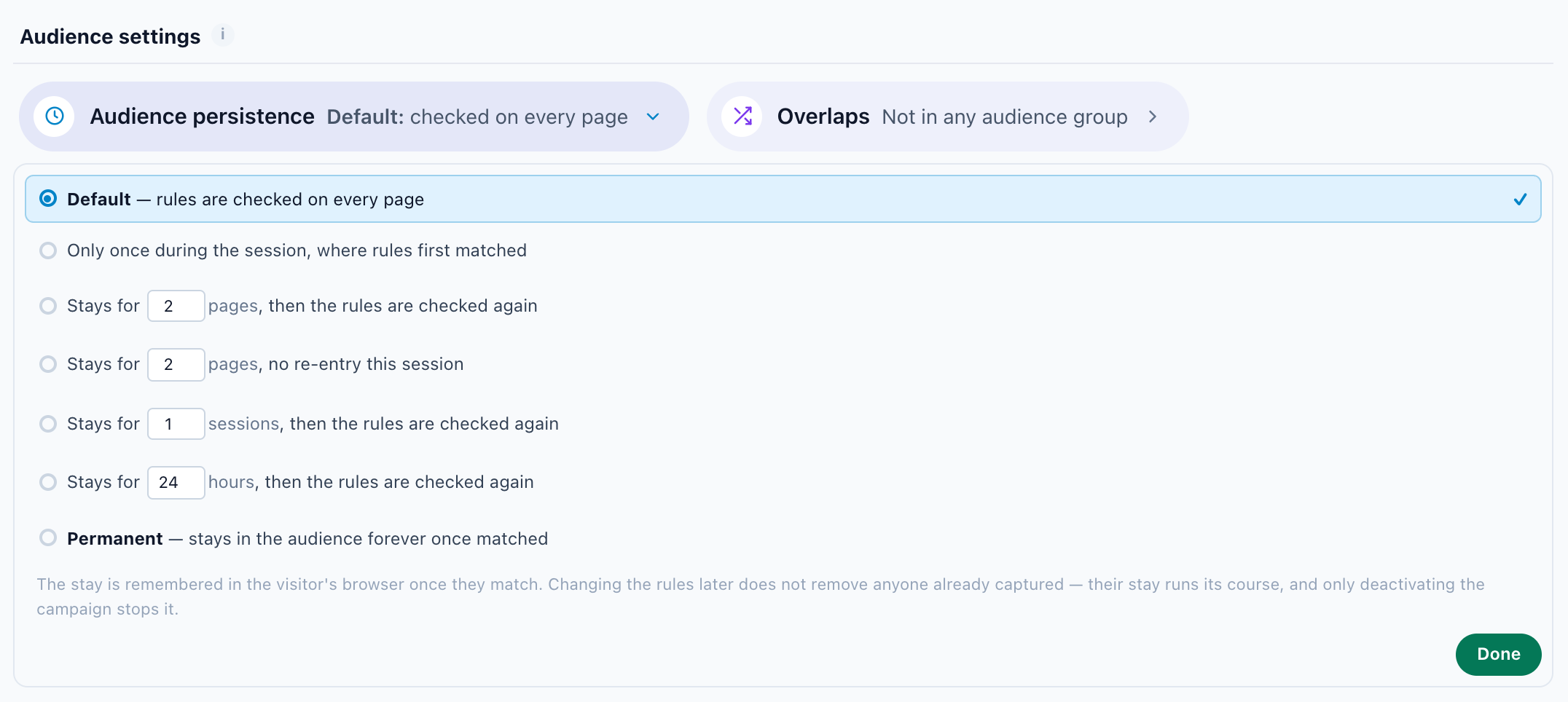
Audience persistence controls how long a visitor stays in the audience after they first match. A setting other than the default turns its pill amber.
- Default — the rules are checked on every page.
- Only once during the session, where rules first matched.
- Stays for a number of pages, then the rules are checked again — or with no re-entry this session.
- Stays for a number of sessions or hours, then the rules are checked again.
- Permanent — stays in the audience forever once matched.
- For most acquisition campaigns, per-session persistence is right — the visitor is re-evaluated fresh each visit.
- For retention or loyalty campaigns, permanent membership often makes sense so the experience follows the visitor across future sessions.
The stay is remembered in the visitor’s browser. Changing the rules later does not remove anyone already captured: their stay runs its course, and only deactivating the campaign ends it.
Overlaps puts the campaign in an audience group — see below.
How often a matched visitor sees the campaign is a separate setting, the Campaign cap, on the Content step’s Campaign settings card — at most three times per session, say, or once per visitor per day. See Frequency caps.
Resolving overlaps between campaigns
When several campaigns can match the same visitor, Personyze doesn’t silently stack them. The Overlaps pill ticks the audience groups this campaign is in, and Manage audience groups opens the groups themselves. Add the overlapping audiences to a shared audience group and give each a priority; the group’s conflict-resolution rule then decides which one wins, so a shared visitor sees only the intended experience.
Real-world targeting examples
Most useful audiences combine a few rules. Here are common patterns and the rules behind them:
E-commerce & retail
- Mobile shoppers on category pages — a sticky app-download bar only where it belongs. Device & System = mobile AND Pages Visited path contains
/category. - Cart abandoners with a high-value cart — an exit-intent discount worth showing. E-commerce = added to cart, not purchased AND Cart value > $150.
- Repeat buyers of one brand — cross-sell within that brand. E-commerce = purchased AND Filter by brand = Acme AND Number of products purchased ≥ 2.
- Browsers who never bought — a first-order incentive. Product Interactions = viewed 3+ products AND NOT any purchase this session.
- Price-sensitive shoppers — lead with deals. Filter by price range = under $50 OR Search Keywords contains “cheap” / “discount”.
B2B & SaaS
- High-intent trial users on pricing — a “talk to sales” prompt. User / CRM data lifecycle = Trial AND Pages Visited =
/pricingthis session AND Visitor Type = returning. - Named accounts, still anonymous — an ABM banner before they ever fill a form. Integrations (6sense / Clearbit) company = target-account list.
- Enterprise-sized visitors — route to the enterprise plan. User / CRM data company size > 500 OR lifetime value > $10k.
- Engaged blog readers — a newsletter or demo CTA. Content Interaction = read 2+ posts AND Time on Site > 2 min.
Geo, timing & context
- Weekend sale, one country — Date & Time = Sat–Sun AND Countries = Canada.
- Rainy-day promo — Weather = raining AND Pages Visited = outerwear category.
- Paid-traffic landing experience — match the ad’s message. Traffic Source = paid (UTM) AND Landing Page = the campaign page.
- New vs. returning welcome — a first-time intro vs. a “welcome back.” Visitor Type = new for one campaign, returning for the other (use an audience group so they don’t collide).
Exclusions & QA
- Exclude your own team — keep internal traffic out of stats. NOT IP Addresses = office range.
- Exclude existing customers from an acquisition offer — NOT User Lists = current-customers CSV.
- Desktop-only rich experience — a layout that needs the space. Device & System = desktop AND Screen size ≥ large.
Tips for accurate targeting
- Start broad, then narrow. Add one rule, watch the audience forecast, then tighten — it’s easier than debugging a huge rule set at once.
- Choose On this page or During the visit deliberately. They answer different questions; mixing them up is the most common targeting mistake.
- Verify with real visitors. The forecast and the QA Simulator let you confirm you’re catching the right people, not just the right number.
Related
- Targeting and Personalization — the full campaign lifecycle.
- Resolve Audience Overlaps and Conflicts — when campaigns share visitors.
- Page Groups — reusable groupings of URLs for rules.
- Personyze QA Simulator — test targeting before launch.
- Frequency Caps — how often a matched visitor sees the campaign.