
Prefer to click through it? This quick walkthrough shows how to set up a goal. Full detail is below.
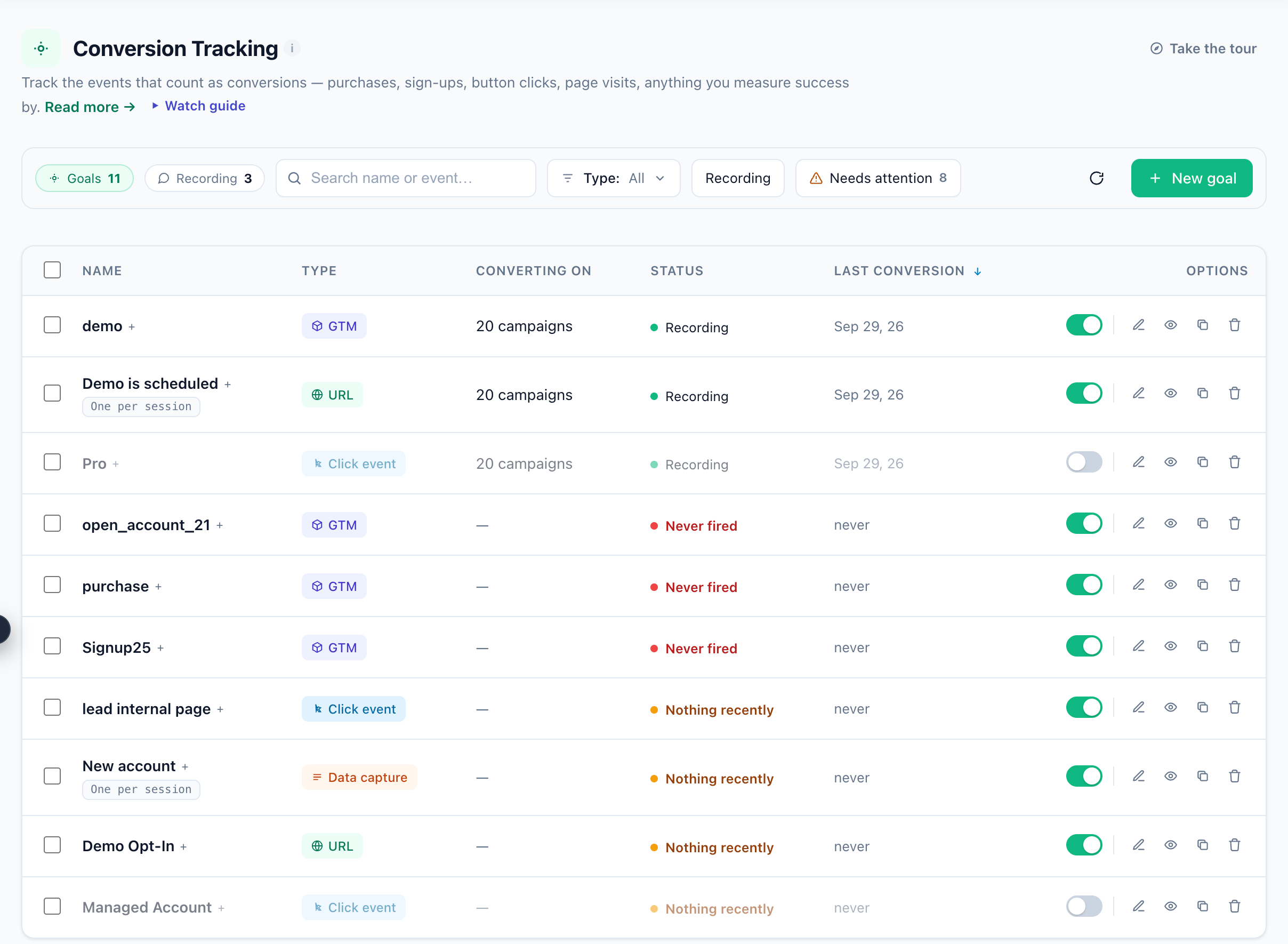
Open Conversion Tracking
Go to Conversion Tracking to see all your goals in one place. Goals are the events that count as conversions — purchases, sign-ups, button clicks, page views, and more. Personyze uses them to measure how your campaigns, recommendations, and emails actually perform.
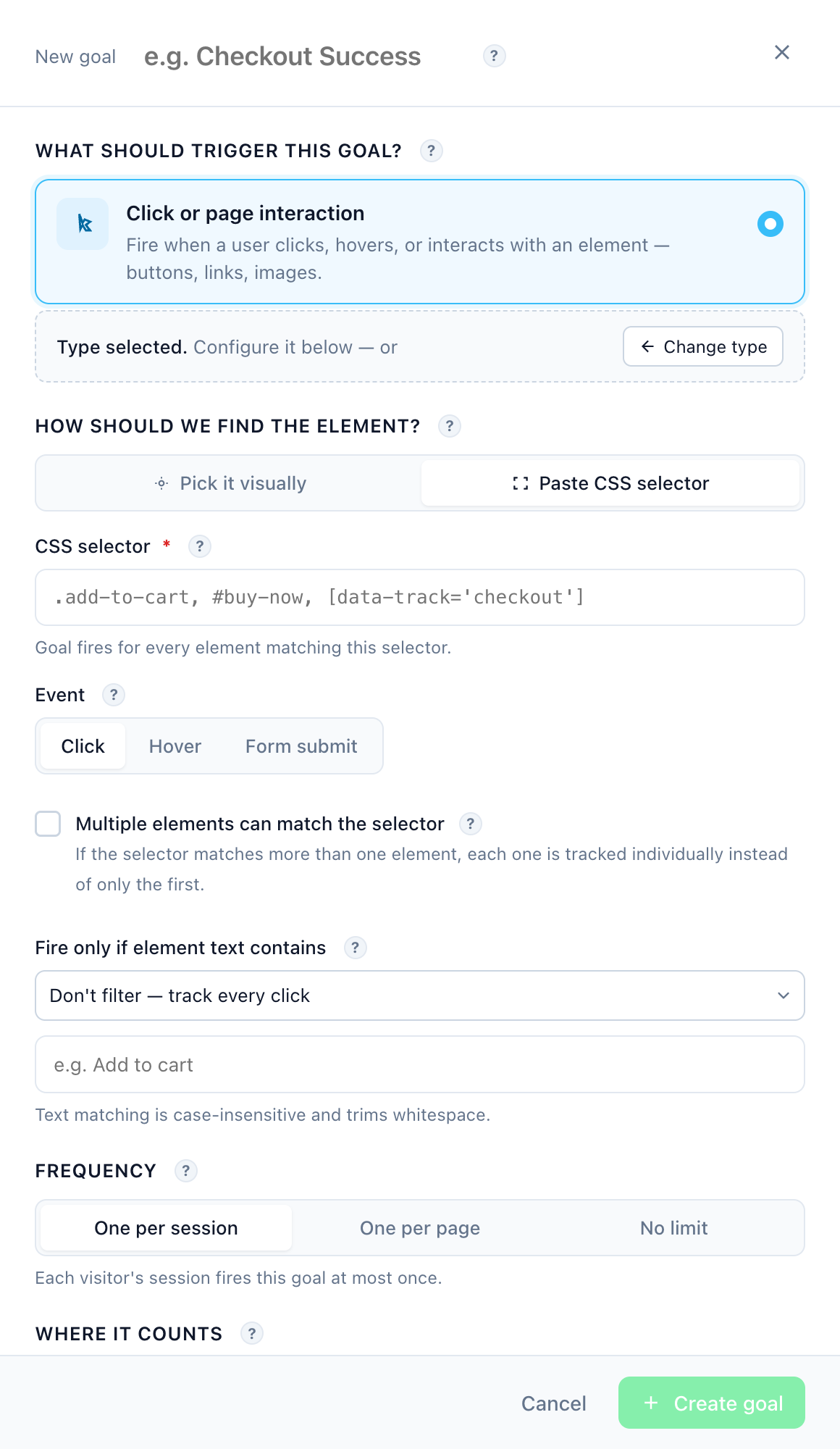
Create a new goal
Click New goal and give it a clear name (e.g. “Checkout Success”). Then choose what should trigger it: a click or page interaction, a page visit, a JavaScript event, grabbed data, or a tracked activity. Personyze walks you through configuring the trigger you pick.
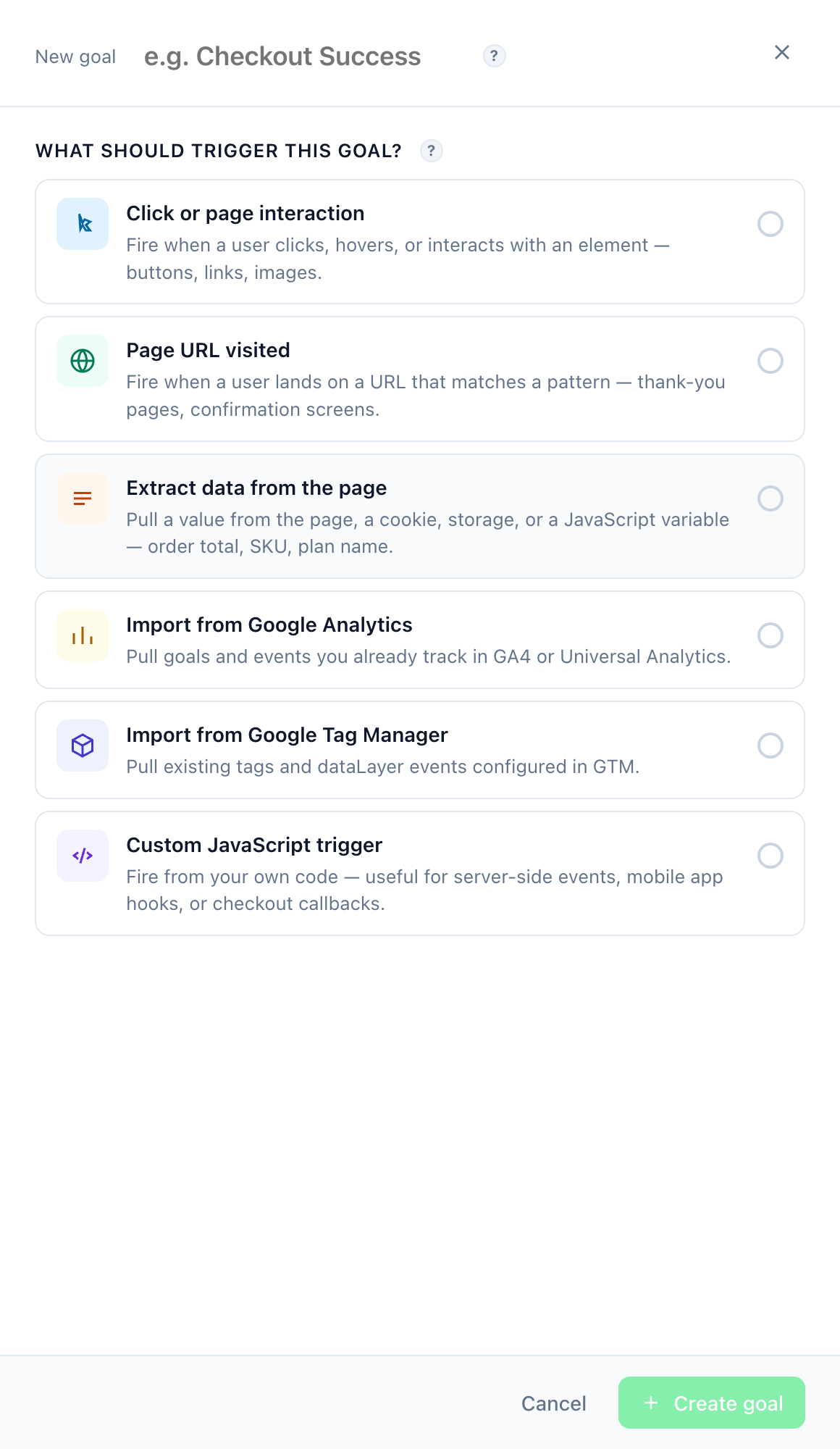
Pick the goal type
Select the goal type that matches how the conversion happens on your site. Click or page interaction fires when a user clicks or interacts with an element; other types track page visits, custom JavaScript events, e-commerce activity, or captured data values.
Set value & frequency
Configure the goal’s details: assign a goal value (fixed, or dynamic from a data attribute like order total), and set frequency limits — count it once per session, once per user, or every time it fires. These settings control how the goal is counted and valued in reports.
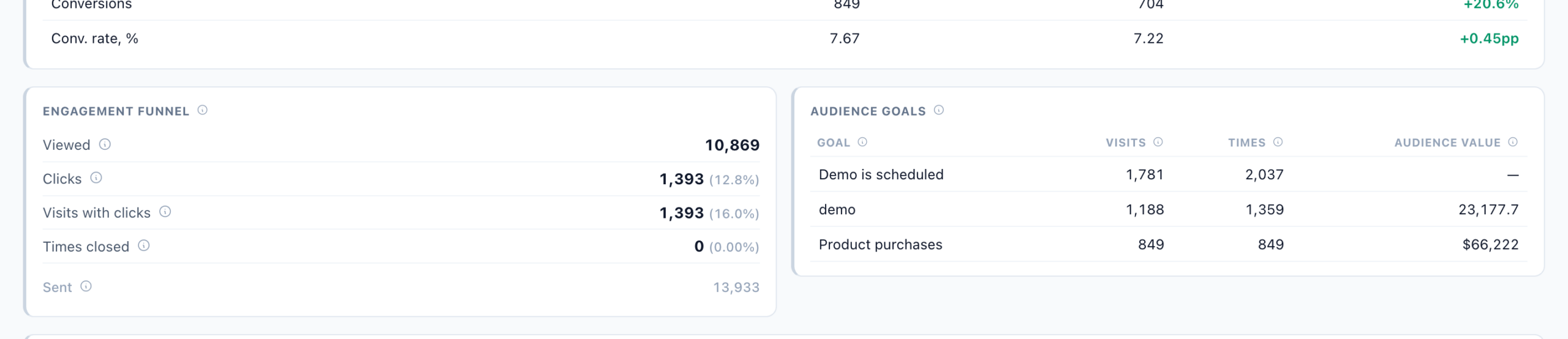
See goal statistics
Once live, your goals appear across Personyze’s reporting — overall conversion tracking and per-campaign performance. Track conversions, conversion rate, and goal value over time to see what is working.
Open Conversion Tracking
Go to Conversion Tracking to see all your goals in one place. Goals are the events that count as conversions — purchases, sign-ups, button clicks, page views, and more. Personyze uses them to measure how your campaigns, recommendations, and emails actually perform.
Create a new goal
Click New goal and give it a clear name (e.g. “Checkout Success”). Then choose what should trigger it: a click or page interaction, a page visit, a JavaScript event, grabbed data, or a tracked activity. Personyze walks you through configuring the trigger you pick.
Pick the goal type
Select the goal type that matches how the conversion happens on your site. Click or page interaction fires when a user clicks or interacts with an element; other types track page visits, custom JavaScript events, e-commerce activity, or captured data values.
Set value & frequency
Configure the goal’s details: assign a goal value (fixed, or dynamic from a data attribute like order total), and set frequency limits — count it once per session, once per user, or every time it fires. These settings control how the goal is counted and valued in reports.
See goal statistics
Once live, your goals appear across Personyze’s reporting — overall conversion tracking and per-campaign performance. Track conversions, conversion rate, and goal value over time to see what is working.
What are Conversion Goals?
Conversion goals measure meaningful user actions on your website, such as form submissions, downloads, coupon usage, or any significant engagement events. Personyze supports tracking up to 12 custom conversion goals simultaneously across all campaigns, providing detailed analytics at both audience and action levels.
Every newly created goal adds a dedicated column in your Audience and Action statistics, accessible in the Statistics section.
Note: Goals are account-level settings; therefore, any goal created automatically applies to all your campaigns.
Two scopes: account-wide and campaign-dedicated
Every goal has a scope, and it decides where the goal reports and whether it costs you one of the twelve account-wide slots.
- Account-wide — reports on every campaign and on the dashboard. Twelve per account.
- Campaign-dedicated — reports only on the campaigns it is attached to. Costs no slot, no limit on how many, and stays off the dashboard.
Pick account-wide for the conversions that matter to the whole site — a purchase, a sign-up. Pick dedicated to measure one campaign’s own outcome without spending a permanent slot or adding noise to every other report. Full detail, and the two ways to make one: Conversion tracking — define goals that count.
Default Campaign Metrics
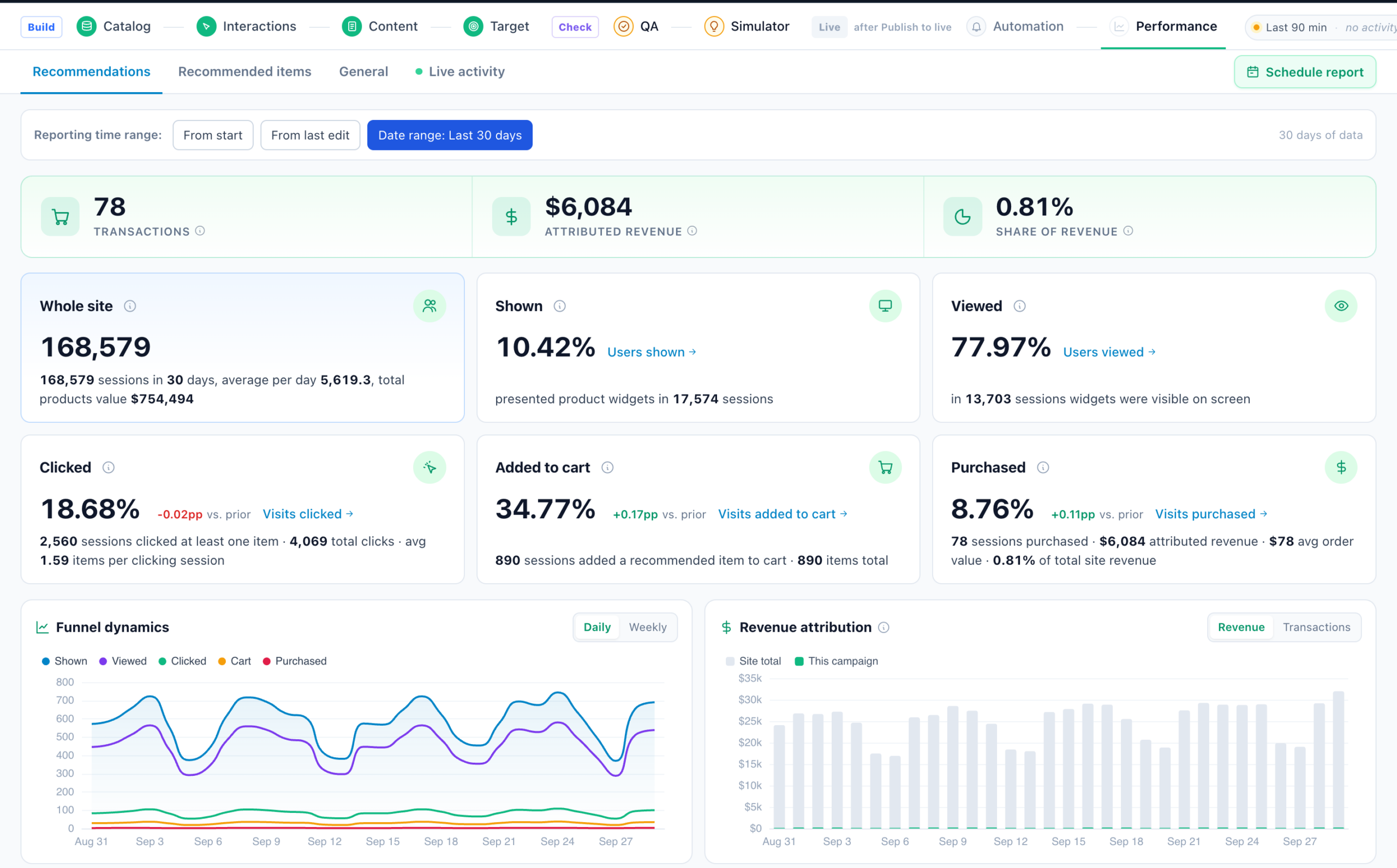
By default, Personyze automatically tracks these campaign metrics:
- Impressions: Number of times the content was displayed to visitors.
- Clicks: Total clicks on personalized elements.
- CTR (Click-Through Rate): Percentage of impressions that resulted in clicks.
- Average Page Views: Average number of pages viewed per session.
- Time on Page: Average duration visitors spend on pages.
- Bounce Rate: Percentage of visitors who leave after viewing only one page.
Reading the numbers: The rules every number follows on the Performance Metrics page explains every figure on this screen and how to read it.
Advanced E-commerce Metrics
If your product catalog includes prices and Personyze product tracking is enabled, additional metrics become available:
- Purchase Total Value: Total revenue from tracked transactions.
- Average Order Value (AOV): Average monetary value per transaction.
- Average Items per Order: Average number of items per transaction.
- Contribution Rate: Campaign-driven revenue as a percentage of total revenue.
- First-time vs. Returning Customer: Segmentation of new versus returning buyers.
Main Types of Conversion Goals
- Track Activity (Clicks, Mouseover, Load Events): Tracks user interactions.
- Goal if Page URL Contains: Triggered by specific text in the URL.
- Grab Data from Pages/Cookies: Extract dynamic data (form inputs, cart values) using CSS selectors or cookie names. Such as form email inputs, cart values, thank you message on the page, etc.
- Grab from Google Analytics: Capture event data via JavaScript expressions from GA.
- Grab from Google Tag Manager: Extract data from GTM’s data layer using JavaScript.
- JavaScript Conversion Pixel: Custom JS snippets for advanced tracking setups.
Advanced Goal Tracking Options
1. Type of Activity to Track
- Click Event: When a visitor clicks an element.
- Mouse Over Event: When a visitor hovers over an element.
- Load Event: When an element loads on the page.
2. Goal Value Settings
- No Value (Occurrence Only): Tracks occurrences without monetary values.
- Fixed Value: Assigns a static numeric value to each goal occurrence.
- Dynamic Value: Grabs variable values from page elements dynamically (e.g., purchase amounts). Set the mask to Number only or the captured text won’t sum as revenue.
- Fixed Value When the Grabbed One Is Nonempty: Sends a value you set whenever the target element is present — for conversions signalled by an element existing (a “thank you” message) rather than by a number on the page. See Grab Data Goal below.
3. Goal Tracking Frequency Limits
- Once per Visit (Session): Goal tracked only once per visitor session.
- Once per Page View: Tracks goal once per page load; repeated triggers override prior ones.
- No Limit: Tracks every occurrence without restrictions.
4. Additional Goal Settings
- Multiple Elements Match: Track multiple elements matching a single selector.
- Use Container on Click: Define a container from which data is captured upon clicking an element.
- Goal Value Unit: Define display units next to goal values in reports (use “*” as placeholder).
Setting Up Specific Goals
Grab Data Goal
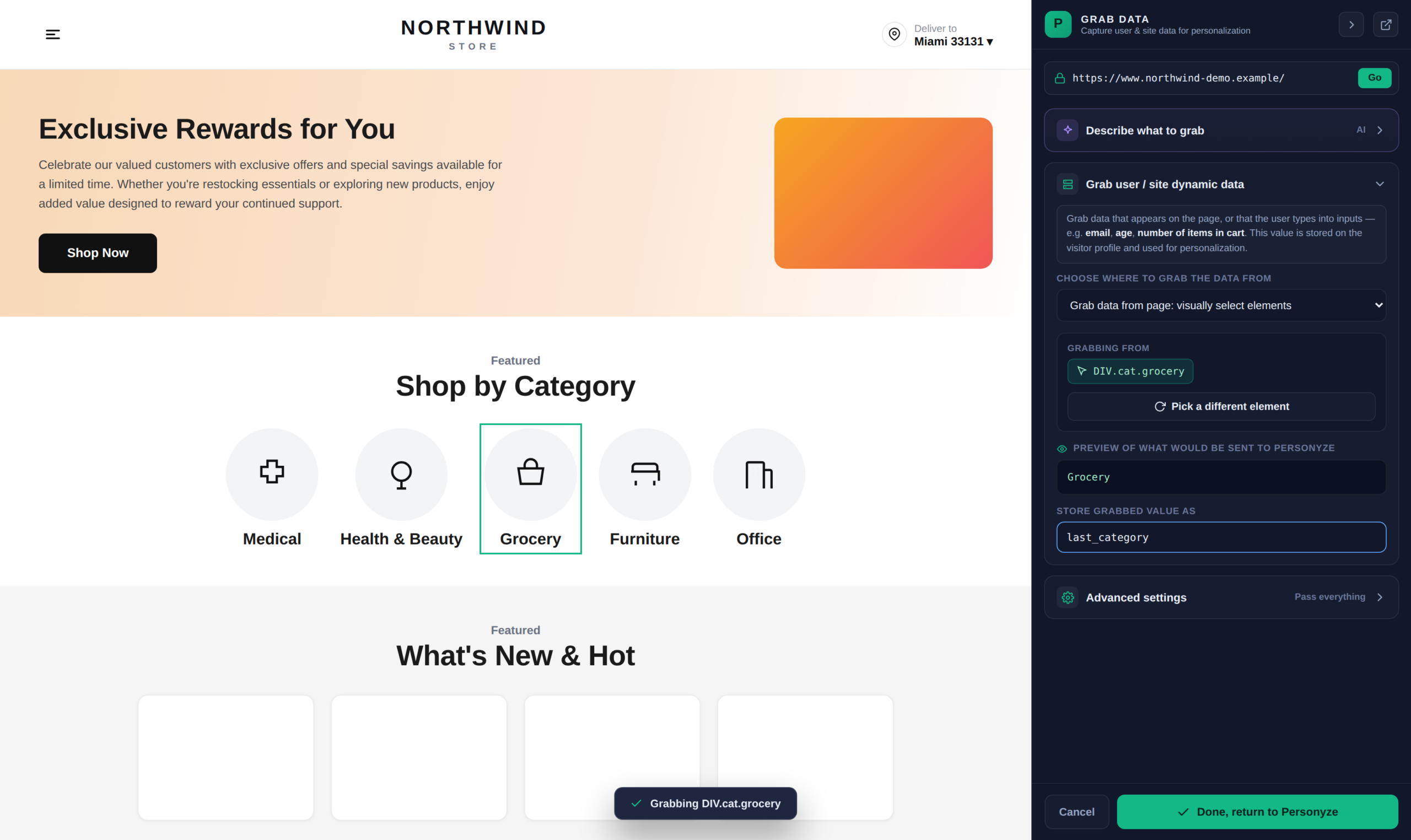
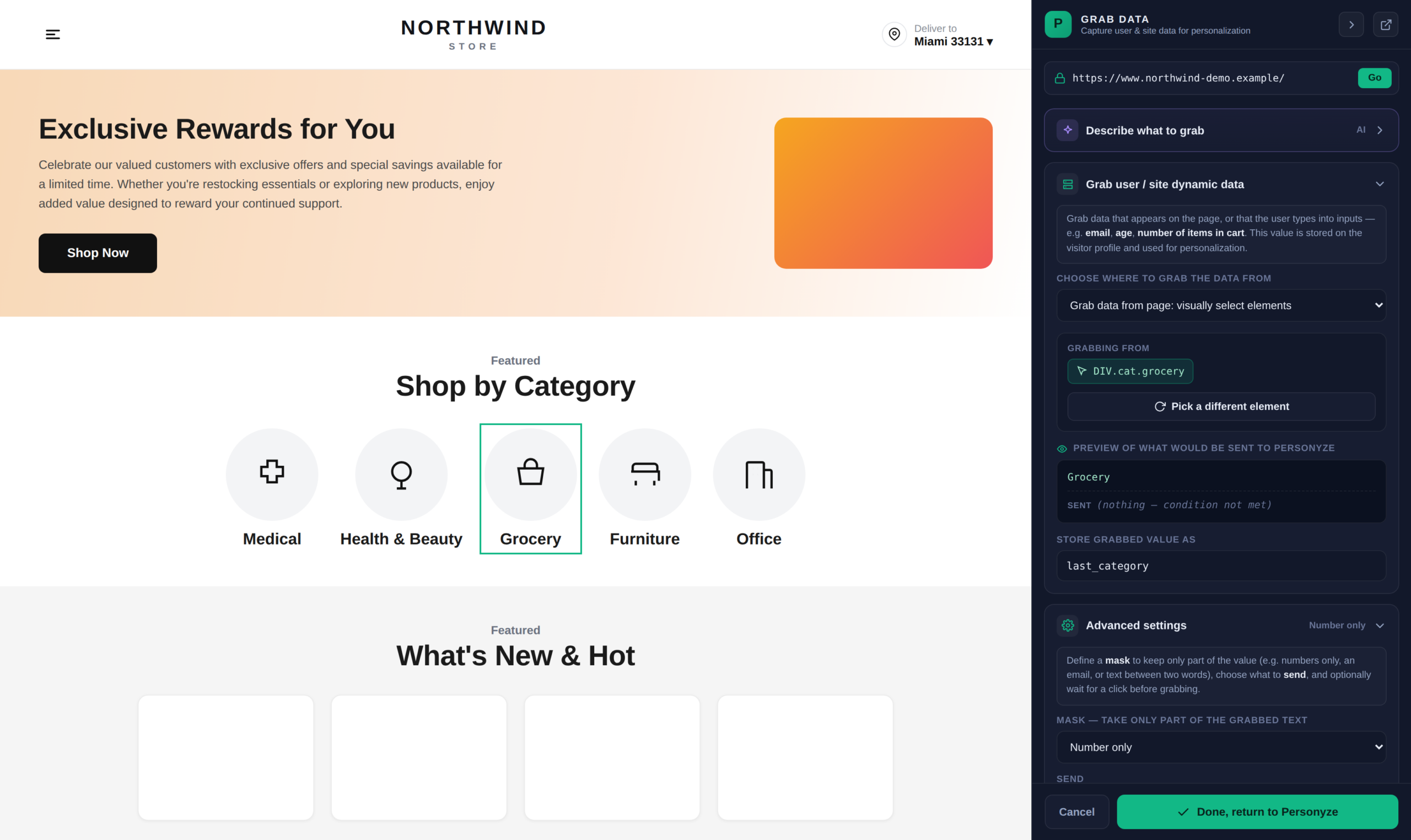
A grab data goal captures a value off the page and records it as the conversion — an order total on the thank-you page, an email in a form field, a plan name on a confirmation screen. It uses the same picker as any other data grab: open your site, click the element, and Personyze derives the selector.
Make the Value a Number
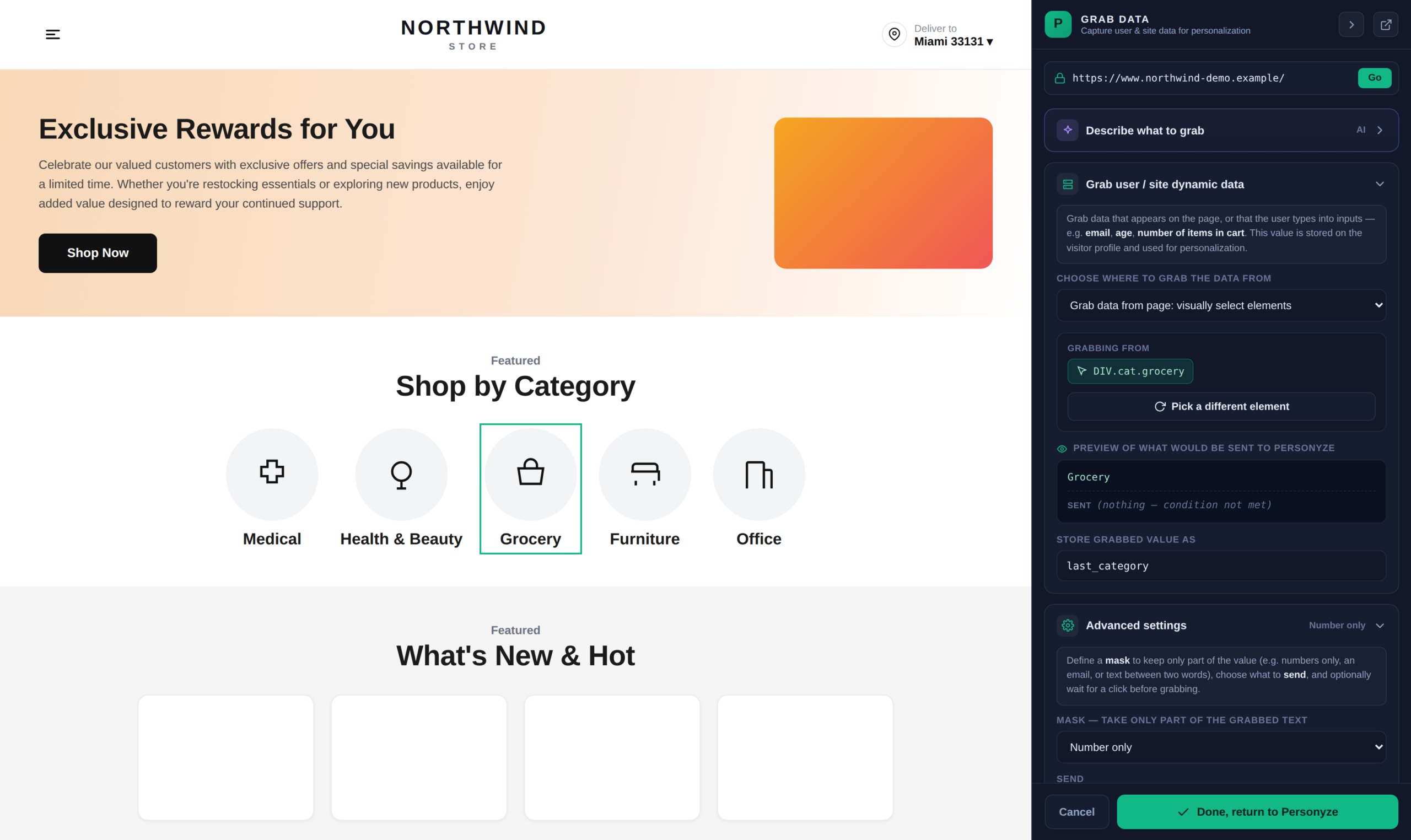
A goal value has to be numeric to be summed as revenue in reports. Page text almost never is: “Order total: $149.99” is a string. Under Advanced settings, set the mask to Number only so the goal records 149.99.
Fixed Value When the Container Grabs a Value
Often the conversion has no number to grab — the signal is simply that an element exists. A “Thank you for your order” heading only renders after a purchase; a “Subscription active” badge only appears once someone subscribes.
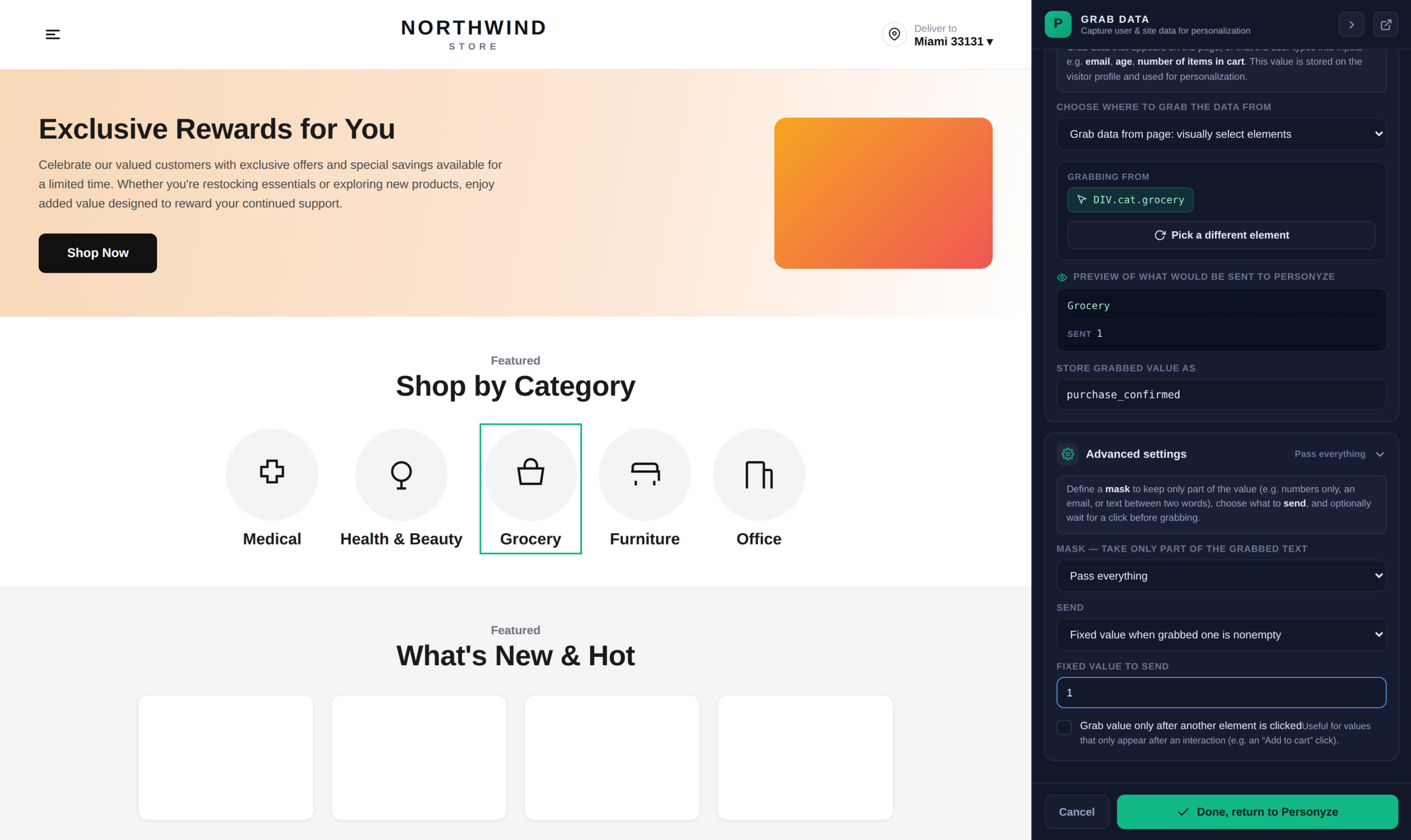
For those, set Value to send to Fixed value when the grabbed one is nonempty and enter the value you want recorded. Personyze still looks for the element, but instead of sending its text it sends your fixed number:
- Element found (nonempty) → the goal fires with your fixed value —
1to count occurrences, or a set amount like49if every conversion is worth the same. - Element absent → nothing is recorded. No false conversions on pages where it never rendered.
This is also the answer when the value on the page is unusable — formatted with currency symbols and thousands separators that no mask cleans up reliably. If every conversion is worth the same to you, a fixed value is more robust than fighting the markup.
Grab Only After a Click
If the value doesn’t exist at page load — a total that updates after “Add to cart”, a field filled at submit — use Use the container when this element is clicked. Personyze waits for a click on the trigger element before capturing.
Set the Frequency Deliberately
Purchase goals almost always want once per visit (session). A confirmation page the visitor refreshes, or returns to via back-button, will otherwise record the same order several times and inflate your revenue.
Track Activity Goal
A track activity goal fires on an interaction rather than a value — a click, a hover, or an element loading.
- Go to Goals in Settings and create a new goal.
- Name it, then select the element visually with the picker or paste a CSS selector.
- Choose the event: click, mouse over, or load.
An element that merely loads is worth calling out: it turns “this page section was reached” into a goal without needing a URL rule — useful for confirmation blocks injected into a page that never changes URL.
Click-Through Rate (CTR) Tracking
Personyze automatically monitors CTR for personalized elements. Limit CTR tracking by marking elements as “Click Target” within the Personyze template.
CTR Tracking via WYSIWYG Editor
- Select the element in the WYSIWYG editor.
- Choose “Trigger on Event”.
- Select “Click” and track as “Extra”.
CTR Tracking for JavaScript Actions
personyze.action_state(${action_id}, 'extra')Note: ${action_id} auto-substitutes within actions; otherwise, specify explicitly.
Reporting Clicks for JSON Recommendations
When using Personyze to generate product or content recommendations in JSON format, you need to send click events to Personyze to accurately track and measure performance metrics like click-through rates (CTR).
Reporting Click Events
Whenever a visitor clicks an item from your recommendations widget, report it back to Personyze using the following JavaScript snippet:
(self.personyze = self.personyze || []).push(['Product Viewed', PRODUCT_ID, 'action_id', ACTION_ID]);
- PRODUCT_ID: Replace with the ID of the clicked item (exactly matching the ID from your JSON result).
- ACTION_ID: Replace with the unique ID of the Personyze action (recommendation widget), available once the campaign is saved.
Frequently asked questions
What is a conversion goal in Personyze?
A conversion goal is an event that counts as a success – a purchase, sign-up, button click, page view, or any tracked activity. Personyze measures campaigns, recommendations, and emails against these goals to show what actually drives results.
How do I create a conversion goal?
Go to Conversion Tracking, click New goal, name it, and choose what triggers it – a click or page interaction, a page visit, a JavaScript event, grabbed data, or a tracked activity. Then set its value and frequency limits.
Can a goal have a monetary value?
Yes. You can assign a fixed value or a dynamic value pulled from a data attribute (like an order total), so revenue goals reflect the real amount of each conversion.
What goal types does Personyze support?
Click or page interaction, page visit, custom JavaScript events, e-commerce activity, grab-data goals (capturing a value), and track-activity goals. You choose the type that matches how the conversion happens on your site.
How is goal frequency counted?
You set frequency limits – count a goal once per session, once per user, or every time it fires – which controls how conversions are tallied and valued in reports.
How do I track click-through rate on an action?
Personyze can track CTR through the WYSIWYG editor for visual actions, or via code for JavaScript actions and JSON recommendations, by reporting click events. See the CTR tracking section below for details.