
Every marketing email you send through Personyze carries a way out: the unsubscribe link in the email, and the one-click Unsubscribe button that Gmail and Yahoo show beside your name. Settings › Email setup is where you put your logo and your words on the page that link opens, decide on double opt-in, and limit how much email one person gets. Everything there is set once for the whole account.
Where to find it
Settings › Email setup has five tabs: Senders, Address & consent, Sending limits, Unsubscribe page and Bounces & spam. This article covers three of them: the Unsubscribe page tab, with its Design and Preview; Address & consent, with your mailing address, double opt-in and the consent log; and Sending limits. The addresses your campaigns skip are on Bounces & spam.
You can also set it up without leaving an email campaign. On the campaign’s Sending step, under Your account:
- Set up your unsubscribe page — Set up page (or Change, once it is done) opens this same editor in a drawer on the right, titled Unsubscribe page. Save, close the drawer, and carry on with the campaign.
- Decide on double opt-in — Keep single opt-in records your decision, and Turn on double opt-in opens the drawer on its Consent tab. See Double opt-in.
The other rows of that step are on The Sending step of an email campaign.
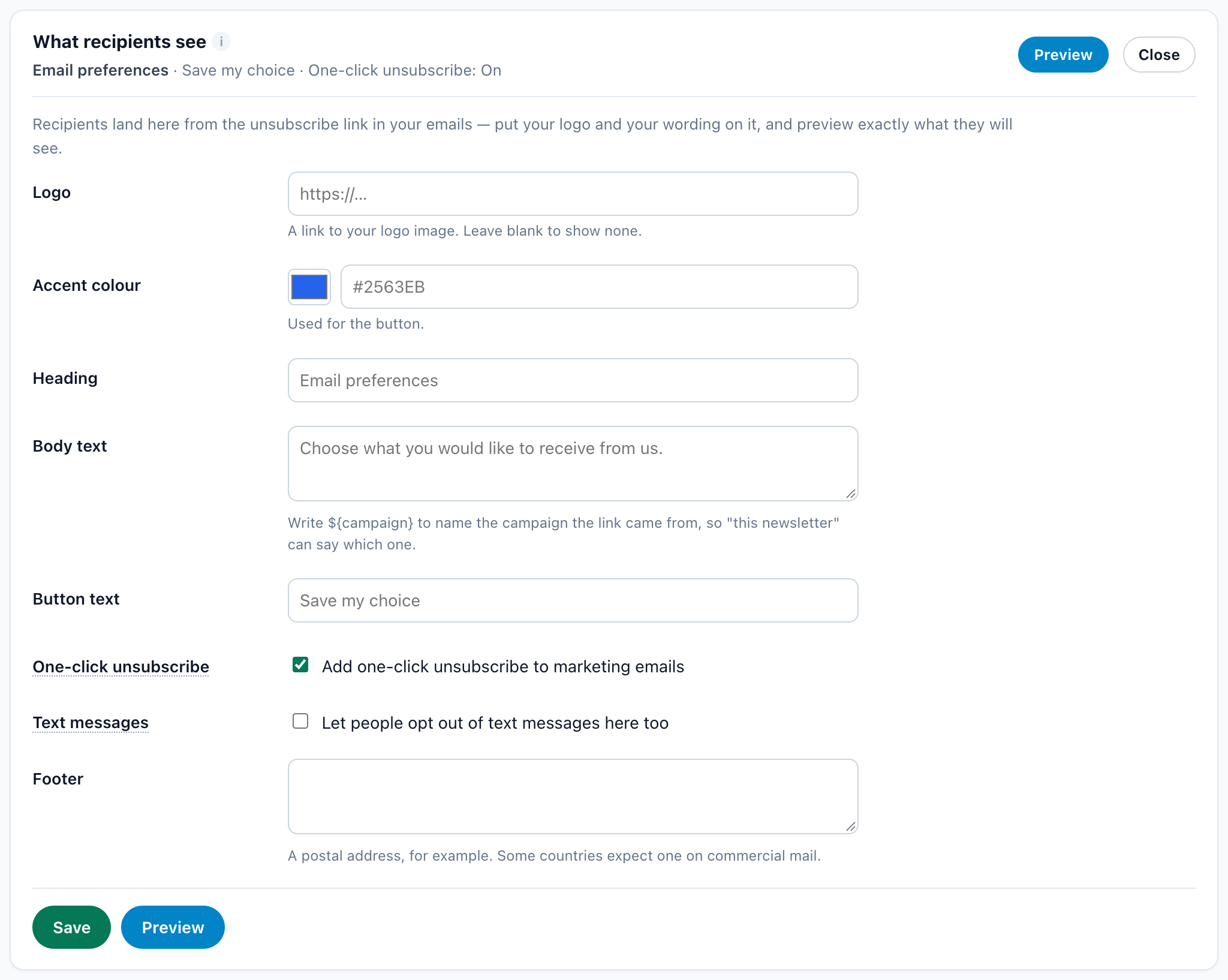
The Design tab: your logo and your words
Every field is optional. A field you leave blank keeps the page’s own wording, so you can change one line without designing a page.
| Field | What it does |
|---|---|
| Logo | A link to your logo image, shown at the top of the page. Blank shows no logo. |
| Accent colour | The colour of the button — on this page, and in the double opt-in confirmation email and on its page. Pick it, or type a hex code. |
| Heading | The page’s heading. Blank: Unsubscribe. It can name the campaign with ${campaign}, as Body text can. |
| Body text | A line under the heading. Blank: no text. Write ${campaign} to name the campaign the link came from, so “this newsletter” can say which one: Stop getting ${campaign}? It becomes the name of the campaign the clicked email belongs to — the person’s own one when the email is in several — else the email’s own name, else “our emails”. |
| Button text | The confirm button. Blank: I’m sure. |
| One-click unsubscribe | On by default. See One-click unsubscribe. |
| Text messages | Let people opt out of text messages here too. Off by default. On, people with a phone number on their profile can stop your text messages on the same page — see Text messages on the same page. |
| Footer | Text at the foot of the page — “A postal address, for example. Some countries expect one on commercial mail.” It shows only on this page. The address in your emails is the {{mailing_address}} token: see Your mailing address. |
The grey text inside an empty Heading, Body text or Button text box is a placeholder only. A blank field shows the default in the table above.
Press Save; it reads Saved when done. Preview opens the Preview tab. The exact words and choices a recipient gets are listed under What a recipient sees.
What a recipient sees
Opening the unsubscribe link never unsubscribes anyone by itself: the page asks first, so the mail scanners that open every link in an email change nothing. From the top, the page shows:
- your Logo, if you set one;
- the Heading — Unsubscribe unless you change it — and your Body text, if any;
- Unsubscribe me from and a dropdown: Everything Forever or This Newsletter;
- the button — your Button text, I’m sure unless you change it — in your Accent colour once you have saved one;
- your Footer, if any.
The browser tab reads Unsubscribe from newsletter.
| Choice | What happens |
|---|---|
| Everything Forever | Your account sends this person no more marketing email, from any campaign. Their consent records are marked withdrawn, and marketing emails already waiting in the queue for them are dropped. |
| This Newsletter | The person leaves only the email campaign the link came from. Your other campaigns can still email them. |
- Either way the page then says Thank you., and the email the link came from counts as Unsubscribed in the campaign’s report — see Reading an email campaign’s report.
- Someone who already left this campaign’s email is offered only Everything Forever.
- Someone already unsubscribed from everything sees “You are already unsubscribed. But if you would like to resubscribe, click here.” Clicking it subscribes them again and puts them back in this campaign’s email.
- People who unsubscribe on this page are stopped through their visitor profile. They are not added to the Bounces & spam list.
Text messages on the same page
With Text messages ticked, a person whose profile has a phone number that has not opted out yet is offered more:
- a box beside the email choice, Also stop text messages to the number ending in NN — only the last two digits are shown;
- a third choice in the dropdown, Text messages only, which stops text messages and keeps email;
- for someone already unsubscribed from email, a button Stop text messages to the number ending in NN.
The number goes on the same opt-out list a STOP reply writes to, and your SMS campaigns skip it. The page’s resubscribe link is about email only and never turns text messages back on; replying START does — see SMS.
Each recipient’s link is signed for that person when the email is sent. It can unsubscribe only the person it was sent to: editing the link cannot unsubscribe anyone else. Links do not expire with time.
A link that does not work
The page then names no product and shows no technical error. It says one of two things:
| When | Heading | Text |
|---|---|---|
| The link is incomplete or was altered, or the campaign email it came from no longer exists | This unsubscribe link is incomplete or has expired | “To stop receiving these emails, use the unsubscribe link in a more recent email from the sender, or reply to the email and ask to be removed.” |
| A temporary problem, or too many requests | We couldn’t process your request right now | “Please try again in a few minutes. The link in your email still works.” |
One-click unsubscribe in Gmail and Yahoo
With One-click unsubscribe ticked — Add one-click unsubscribe to marketing emails, on by default — every campaign email carries the standard unsubscribe headers. Gmail and Yahoo, and Apple Mail too, then show their own Unsubscribe button beside your name in the inbox.
- One press unsubscribes the person from everything at once, without opening your page: the same as Everything Forever. Pressing it twice changes nothing.
- Only your email campaigns carry it. Alerts, reports, password resets and emails to your team never do.
- It goes out with email sent through the Personyze mail server or your own SMTP server. A Webhook (HTTP POST) sender cannot carry it.
The addresses your campaigns skip
Bounces, spam complaints, unsubscribes your own SendGrid or Mailgun reports, low-rated addresses and the ones you add are on Settings › Email setup › Bounces & spam, where you can search them, add one or take one off — see Bounces & spam. People who unsubscribe on your unsubscribe page are not listed there: their visitor profile stops every marketing email to them.
Double opt-in and the consent log
The Consent tab keeps “a record of every address your forms and surveys collected: what the person agreed to, when, and from where.” Each record keeps the words of the form’s opt-in checkbox, or your default wording, with the time, the IP address and the browser. Records are never deleted or edited. When someone unsubscribes from all your email or marks it as spam, their records are marked withdrawn.
| Setting | What it does |
|---|---|
| Double opt-in — Ask new email subscribers to confirm their address | Off by default. New subscribers get an email asking them to confirm their address, and your marketing emails skip them until they click the link (it works for 7 days). Addresses you already had are not asked again. Turning it on asks you first. |
| Default consent wording | “Kept with a record when the form has no opt-in checkbox of its own.” Up to 1,000 characters. |
Press Save.
How double opt-in behaves
- A form or survey collects a new address: it is logged Waiting for confirmation and gets one confirmation email. Marketing emails skip it until the person confirms.
- An address you already had, or one already confirmed, is logged Already subscribed and gets no email.
- The same address is not sent a confirmation twice within 24 hours, and each account has an hourly and a daily limit on confirmation emails.
- With double opt-in off, every address is logged Confirmed at once. Turning it off again lets addresses still waiting be emailed as before.
- Alerts, reports and test emails are never held back.
What a new subscriber gets
The email comes from the Personyze platform’s own address, not your sender. Its subject reads “Please confirm your subscription to <your account’s name>” — the name your account has in Personyze. It thanks them for signing up, asks them to confirm that this is their address with a Confirm my subscription button in your accent colour, gives the link to copy, and ends: “If you did not sign up, ignore this email: you will not get any more. The link works for 7 days.”
The link opens a page with your logo and colour, titled Confirm your subscription, and a button Yes, subscribe me. Opening the link does not confirm — only the button does, so mail scanners cannot confirm on the person’s behalf. After the button the page reads You are subscribed.
A link that does not work says This link does not work, and why: it has expired (sign up again on the website and a new one is sent), the person unsubscribed after it was sent, or it is not a whole link.
The consent log
Filter it with All, confirmed, waiting for confirmation and withdrawn (each with its count), find an address with Search addresses, and download it with Export CSV. Its columns are Address (with the IP address), Status, Source, Agreed to (the wording) and When.
| Status | Meaning |
|---|---|
| Confirmed | Agreed to when the address was collected, with double opt-in off. |
| Confirmed by email | Confirmed from an email: the button in the confirmation email, or resubscribing on your unsubscribe page. |
| Already subscribed | An address you already had, so it was not asked again. |
| Waiting for confirmation | Sent a confirmation email, not confirmed yet. |
| Withdrawn | The person unsubscribed from all your email or marked it as spam. |
Source is where the address came from: Form or Survey with its number, Import with its number, API, or Unsubscribe page. The log starts with the next form or survey that collects an email address — see Surveys.
Email frequency cap: a limit across all campaigns
On Settings › Email setup › Sending limits, under Per person, across all your campaigns.
Tick Limit how many marketing emails one person gets (off by default) and set Emails per person (1–100) and Within (days) (1–90). It starts at 3 per 7 days, about what most senders use. The line under it says what is set: “At most 3 marketing emails per person every 7 days, across all your email campaigns.”
- An email over the cap is skipped, not failed. A campaign that sends when its audience rules match offers it again once the person has room; one fired by an event (a visit, a cart, a purchase) waits for that event to happen again.
- A follow-up in a sequence is offered again on later checks until its one-week window closes — see Email sequences.
- Alerts, reports, test sends and emails to your team are never capped.
- An email that must always go — a receipt, a booking confirmation — can ignore the cap: Account cap › Ignore the account cap on its Timing step. It still counts towards the cap. See When an email sends.
The sunset policy: stop emailing unengaged people
On Settings › Email setup › Sending limits, under Per person, across all your campaigns.
Stop emailing unengaged people — Stop emailing people who haven’t opened or clicked in a while — with Days without an open or click (30–730, 180 by default). Email to people who never open turns into bounces, spam complaints and spam traps, which hurts your sender reputation.
| State | What it does |
|---|---|
| The default, until you change it | On, for email sent through the Personyze mail server only: people sent 5 or more of your marketing emails over 180 days, with no open, click or reply, are skipped. |
| On, as you saved it | The same rule over your number of days, for every sender — your own SMTP servers and email providers included. “Save a choice here to apply it to your own email provider too.” |
| Off | People who never open keep getting your email. |
- New subscribers are never skipped: a person needs at least 5 of your marketing emails over the whole period first.
- Apple Mail opens every email by itself, so its readers always count as engaged. The rule skips fewer people than it could, never more.
- Skipped emails are not failures. Alerts, reports, test sends and emails to your team are never affected.
- An email written for exactly these people, such as a “we miss you” campaign, or a receipt, can ignore it: Sunset policy › Ignore the sunset policy on its Timing step — see When an email sends.
Your mailing address and the {{mailing_address}} token
The law in the US (CAN-SPAM) and in many other countries requires a postal address in every marketing email. Save yours once, and put the token where it goes.
- Find the Add your mailing address row: on any email campaign’s Sending step, on Settings › Email setup › Address & consent (Mailing address), in the checklist of the Email delivery (SMTP) drawer under Settings › Integrations, or in the checklist on the Email deliverability page.
- Press Add address (Change or Edit once it is saved), type the address in the box — company name, street, city, postal code, country — and press Save. Fewer than 8 characters is refused: “That is too short to be a postal address.”
- Beside In your email footer:, click
{{mailing_address}}to copy it (Copied), and type it into your email where the address goes — usually the footer, beside the unsubscribe link.
- When the email is sent, the token is replaced with the address as saved then, one line per line. Inside a link it goes in on one line, joined with commas. A change reaches every campaign with the next emails sent.
- It works in every email, test sends included.
- With no address saved, the token is removed — never sent as typed.
- The address is one for the whole account. It is not the unsubscribe page’s Footer, which shows only on that page.
The rest of the checklist is on Set up email sending.
Related
- Email campaigns — one email, a sequence or text messages
- The Sending step of an email campaign — where the unsubscribe page, double opt-in and the mailing address rows sit
- Set up email sending — senders, your domain and your own email provider
- Bounces and spam complaints — who your email skips, and how addresses get there
- Email deliverability — bounces, complaints and unsubscribes against the safe lines
- When an email sends — ignoring the account cap or the sunset policy for one email
- Reading an email campaign’s report — Unsubscribed, Bounced and Spam complaints per campaign
- SMS — people stop text messages by replying STOP
- Troubleshooting email campaigns