
A new lead form — Add action → A lead form — is a Form: built in the survey editor, free without any add-on, with questions that follow the answers, the visitor’s own email, a thank-you email and spin to win. It has its own page: The Form. This page covers the classic Lead Capture Form, which lead forms made before keep, with their own editor: its layout, its fields, what’s pre-filled, and exactly what happens when someone submits.
Watch the 1:17 walkthrough: starting from a template, editing the fields on the preview, and where the answers go.
Which lead form
- A lead form — makes a Form, with designs such as the Light Sign-Up Card, the Inline Sign-Up and two Spin to Win wheels that unlock when the form is sent.
- Lead Form with Personalized Recommendations — capture the lead, then show personalized product recommendations in the same action.
- Lead Form with Content Recommendations — capture, then suggest the most relevant articles to read next.
- Lead Capture Form — the classic form this page describes. It is no longer offered for new forms; the ones already made keep working. Its designs are on Lead Capture Form templates, and its form-locked wheel on Gated Spin Wheel.
Fields, dynamic values & pre-fill
Add whatever fields you need, then make the form feel like it already knows the visitor. Any field can carry a dynamic value — insert a variable and Personyze fills it from the visitor’s profile, your CRM, or a custom attribute.
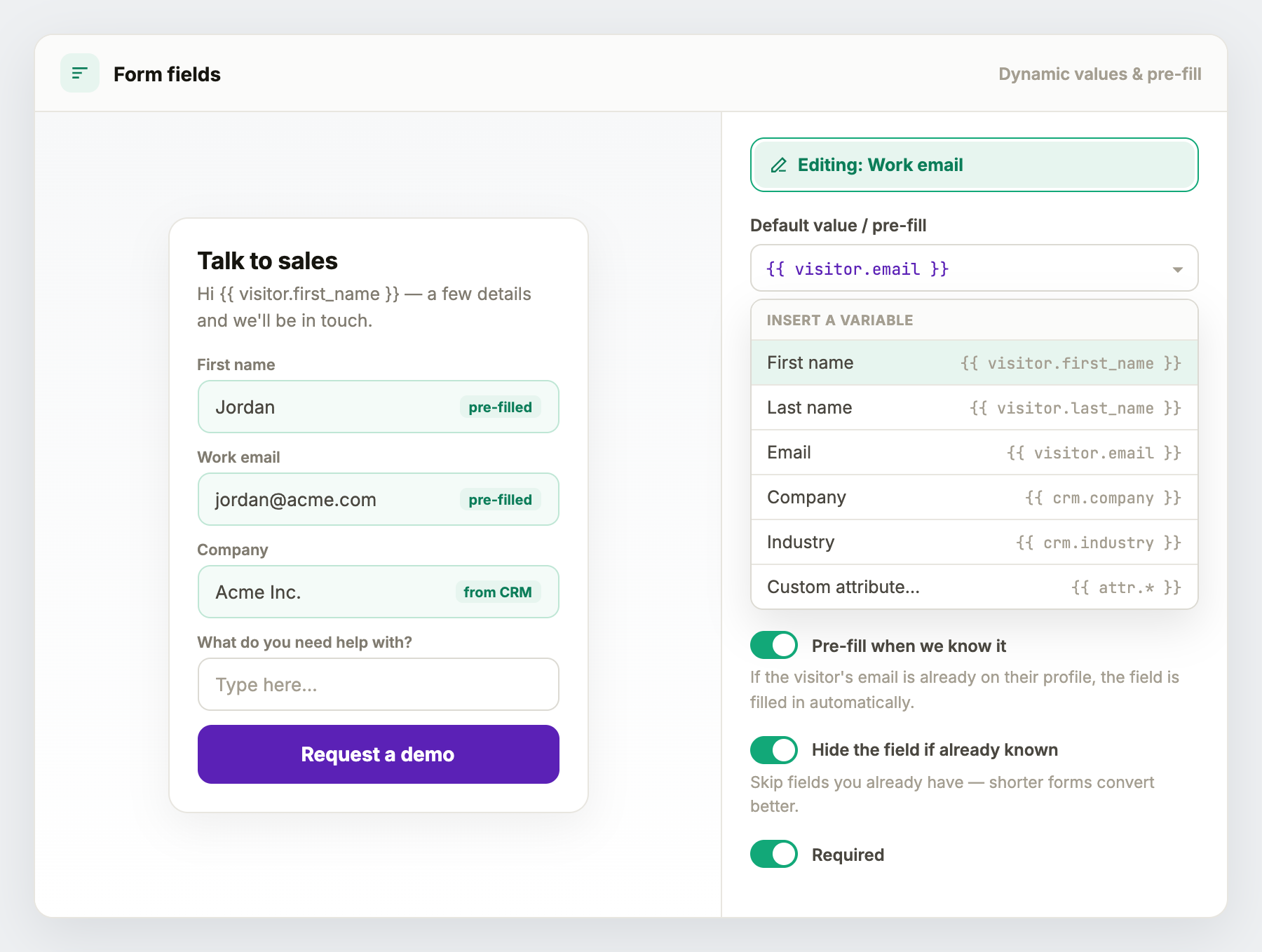
- Insert a variable —
{{ visitor.first_name }},{{ visitor.email }},{{ crm.company }},{{ crm.industry }}, or any custom attribute. Use them in field values and in the copy (e.g. a headline that greets the visitor by name). - Pre-fill when known — if the value is already on the visitor’s profile, the field is filled in automatically. A returning visitor sees their email already there.
- Hide the field if already known — skip what you already have. Shorter forms convert better, and if you already know the email you can drop the field entirely — even auto-submit-style flows where the visitor barely types.
- Required / validation — mark fields required and validate format (email, phone) before the form can be sent.
What happens when the form is submitted
This is where a form becomes useful. On submit you can do any of the following — several at once:
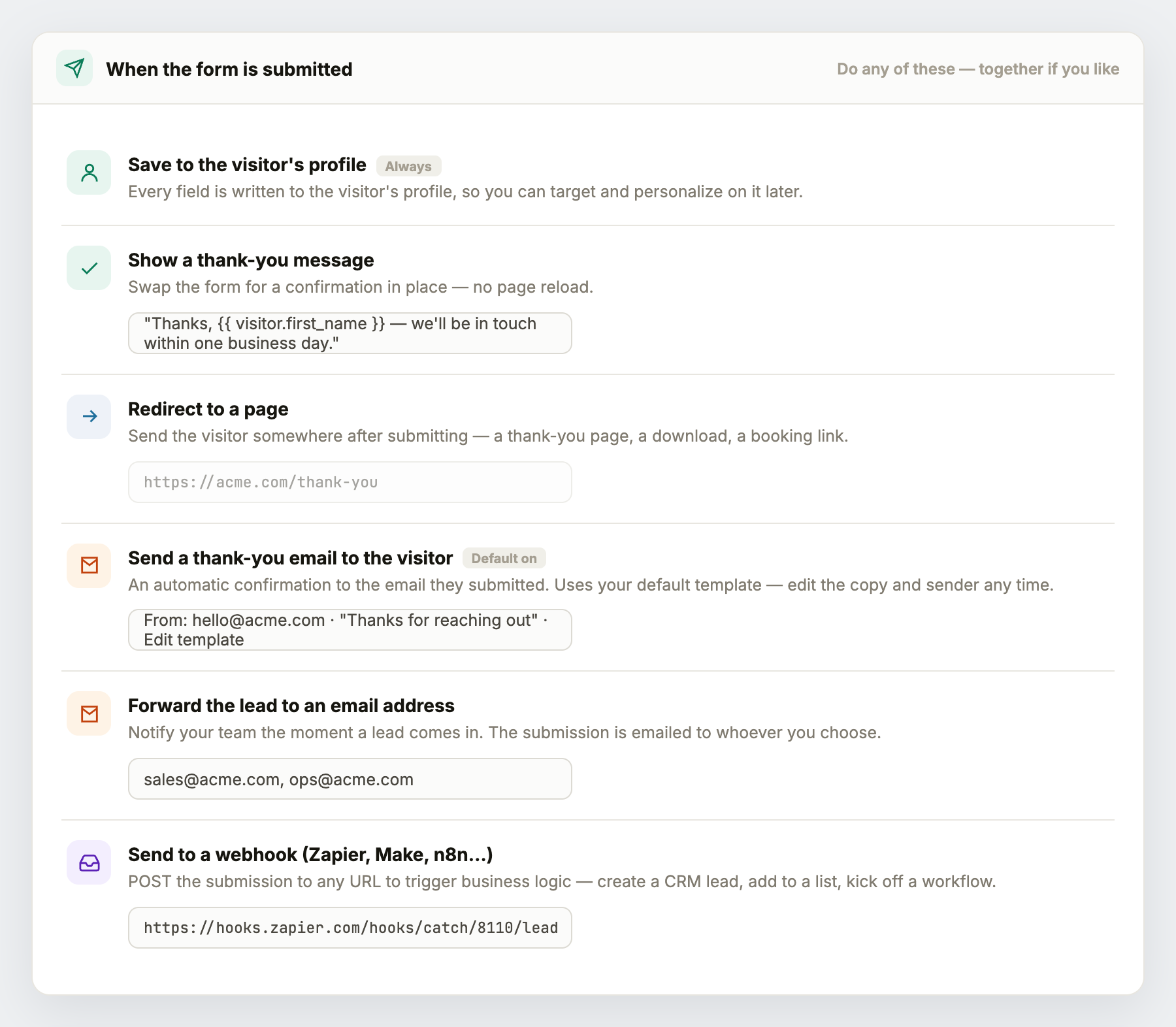
- Save to the visitor’s profile (always) — every field is written to the profile, so you can target and personalize on it afterward (e.g. “has requested a demo”).
- Show a thank-you message — swap the form for a confirmation in place, no page reload. The message can use variables too (“Thanks, {{ visitor.first_name }}”).
- Redirect to a page — send the visitor to a thank-you page, a download, or a booking link after they submit.
- Ask permission to send marketing emails — on the Where the data goes step. If the design shows a consent box, The box starts ticked or unticked, and people who leave it unticked are skipped by your email campaigns. Without a box, choose Subscribe everyone who sends this form or Don’t subscribe them. See Marketing consent from forms and surveys.
- Forward the lead to an email address — Email me on the Where the data goes step emails the submission to your team the moment it arrives (one or more addresses), so sales can act immediately.
- Send to your other tools — Zapier, Slack, HubSpot, Klaviyo, Oracle Eloqua and Salesforce are destinations of their own on the same step. A Custom webhook POSTs the submission to any URL to trigger business logic elsewhere: a webhook into Zapier, Make, n8n, or straight into your CRM. This is how you create a CRM lead, add to a list, or start a workflow. See also the Klaviyo integration for list/event sync.
These aren’t either/or. A common setup: show a thank-you message + forward the lead to sales + fire a webhook into the CRM — all from one submit. A classic form sends the visitor no thank-you email of its own: a Form has a Thank-you email step, or send an email campaign with the trigger On form submit for this form.
Measure it
Add a form-submit conversion goal so the form’s completion rate shows up in campaign performance, and you can compare variations with an A/B test.
Reading the numbers: Forms on the Performance Metrics page explains every figure on this screen and how to read it.
Privacy
Collect only what you need, and decide who becomes a subscriber with Ask permission to send marketing emails — see Marketing consent from forms and surveys. A required consent box always starts unticked. For tracking opt-outs, see GDPR & opt-out.
Tips
- Pre-fill and hide known fields — the shortest form that still gets what you need always wins.
- For a new form, start from A lead form: it adds questions that follow the answers and a thank-you email to the visitor.
- Use the webhook for anything Personyze doesn’t do natively — it’s the universal escape hatch to your stack.
For a personalized, routed example end-to-end, see the ABM lead-form case study.