
Every recommendation widget is a frame. What goes in it is decided per visitor, at the moment it renders, by the algorithm you pick. This page is every algorithm the picker offers today: what it picks, what it is anchored to, which pages it works on, and what it needs before it can return anything.
On personyze.com: Every recommendation algorithm, page by page →
Four videos go deeper into what the algorithms pick and how to shape it:
What Trending measures, the window it compares, and sets of products that sell together.
Filters, fallbacks that keep them, and a title for each algorithm.
Picking a widget template, anchoring it to the article being read, and choosing the algorithm that fits.
Boosts, filters, fallbacks and titles on a content catalog.
Video: Product recommendations: what to show each visitor (2:02) — it plays at the top of Recommendations — Where to Start.
On this page
- How an algorithm thinks: the crowd, times this visitor
- Pick the page first
- Reading a card
- Product algorithms — the 25 cards in five groups
- Content recommendations — the 20 cards for articles
- After you pick: output, filters and fine-tuning
- Looking for an older name?
How an algorithm thinks: the crowd, times this visitor
Most algorithms are a hybrid: they combine crowd data — what everyone does on your site — with this visitor’s own interest. Most Popular with Taken from set to from their latest reported interest is the most-viewed items (the crowd) in the interest this visitor showed last (the individual). Change either half and you have a different recommendation.
- Crowd-only cards — Most Popular, Best Sellers and Trending Now on their site-wide setting — work on a visitor’s very first page view. That is what makes them the usual fallback.
- Visitor History cards are lists, not models. Buy it Again, Recently Viewed and Items in Cart show what this person did, so they show nothing to someone who has not done it yet.
- When the visitor’s half is empty — no interest reported, no product viewed — a card that depends on it has nothing to return, and your fallback serves. Give every personal card a crowd fallback.
Pick the page first — it changes the algorithm, not just the placement
The picker asks where the widget will appear before it shows a single card: Home, Category, Product, Cart, Thank you, Search results for products; Home Page, Category Page, Article Page, Search Page for content. There is no 404 tab: for an error page, pick Home and target the error page in the campaign.
The tab is not a filter on where the widget shows — the Target step decides that. Behavioural algorithms anchor to something different on each page: the product being viewed on a Product page, everything recently viewed on Home, the cart contents on Cart. The same card on two pages is two different questions.
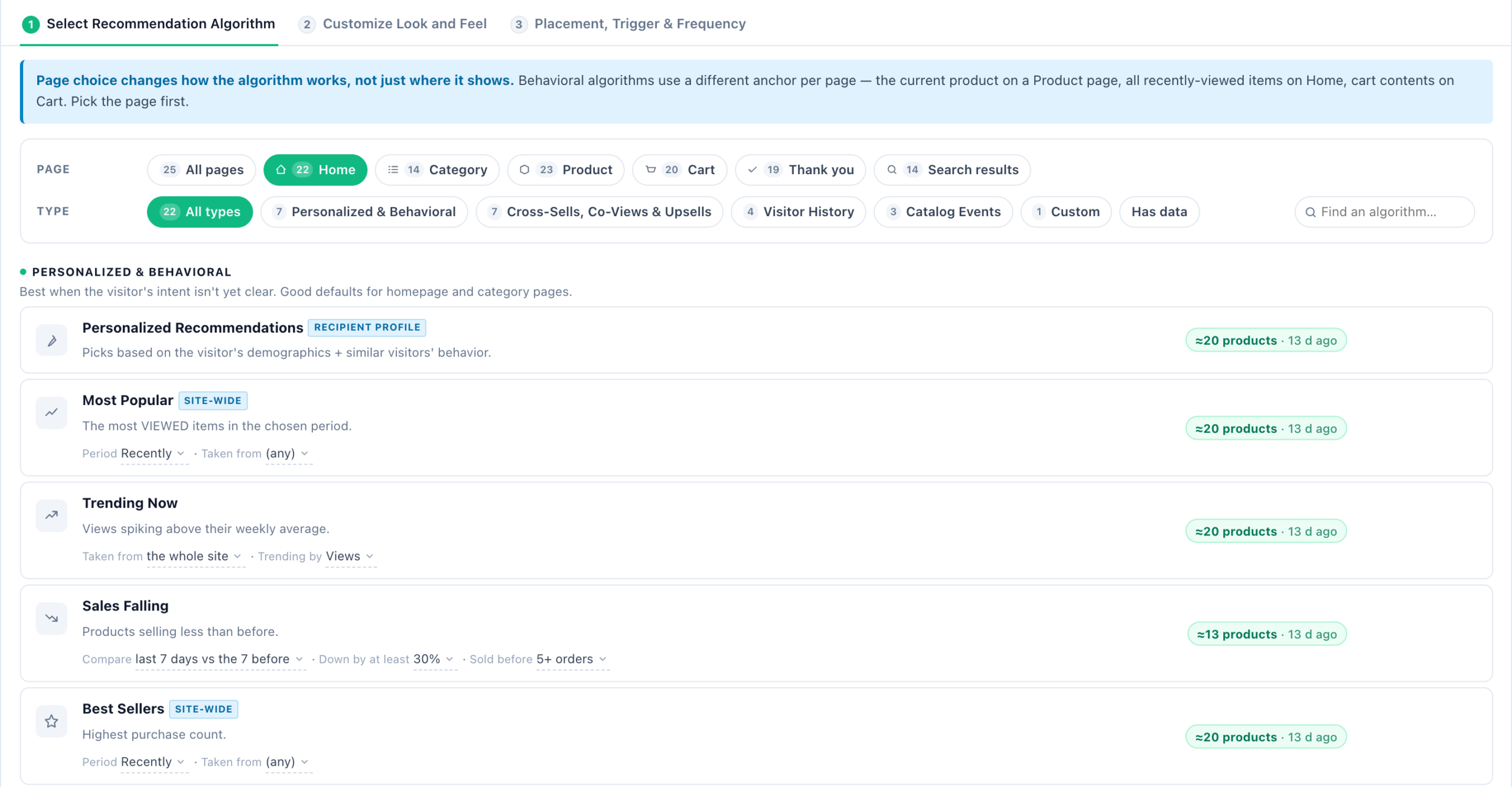
When the anchor is an event on the page — a product view, an add-to-cart, an article read or comment, a search — the widget can only show something where that event happened. The editor says so in a yellow strip (“…on pages where no product is known the widget renders nothing”) and sets the widget’s Restrict to page group for you: Product viewed on this page, Product added to cart on this page, Article viewed on this page, Article commented on this page or Searched on this site. Pick another group, or All pages, to run it everywhere — where there is nothing to recommend from, only its fallbacks fill it.
Starter recipes
A safe first choice per page, and a fallback that needs no history. Content recipes are further down.
| Page | Start with | Add as a fallback |
|---|---|---|
| Home | Personalized Recommendations — or Recently Viewed for returning visitors | Most Popular or Trending Now, site-wide |
| Category | Best Sellers, Taken from: the category page being viewed (needs category tracking) | Trending Now |
| Product | Others Who Viewed Also Viewed, or Cross-Sells for the item being viewed | Similar Items (AI), then Most Popular |
| Cart | Cross-Sells for cart contents, or Cross-Sells for Last Item Added to Cart | Best Sellers from cart categories |
| Thank you | What Others Viewed Then Bought, or Last Bought Item: Those Who Bought This Also Bought | Similar Items (AI), then Trending Now |
| Search results | Matches Their Search — it is listed first on this tab | Most Popular or Trending Now |
Reading a card
| What you see | What it means |
|---|---|
| A badge beside the name — Based on the item being viewed, From recently-viewed category | What the card anchors to on the tab you chose. It shows only with a single page tab chosen, not under All pages. |
| ≈17 products (≈N articles for content) | How many items it could recommend at the last recommendation build. For products, out-of-stock items are already excluded. |
| · 16 d ago after the count | That build is over a day old, so your catalog or tracking may have changed since. |
| Needs a product feed, Needs product-view tracking, Needs add-to-cart tracking, Needs purchase tracking, Needs wishlist tracking, Needs category tracking, Needs interest tracking, Needs an uploaded cross-sell catalog, No traffic data yet | The setup step that would give the card data. Hover it for a link to the screen that fixes it. |
| Not built for the current catalog yet | Your catalog has items now, but the last build ran before they arrived. Recommendations rebuild automatically every few hours. |
| Has data (next to the type groups) | Hides every card that has nothing to show yet. It never hides your current choice. |
Product algorithms
Twenty-five cards in five groups. Anchored to is the badge the card shows on each tab; a dash means it has none. Pages are the tabs the card is offered on.
Personalized & Behavioral
Good defaults for home and category pages, where the visitor’s intent is not clear yet.
| Card | What it picks | Anchored to (the badge) | Pages |
|---|---|---|---|
| Personalized Recommendations | Items this visitor is likely to buy, from their profile and the behaviour of similar visitors. | Home: recipient profile · Category: from current category · Product: based on the item being viewed · Cart: based on cart contents · Thank you: from the order | All six |
| Most Popular | The most viewed items in the Period you choose, from recently to all time. Taken from narrows it to a category, the cart’s categories or the visitor’s interests. | Home: site-wide · Category: from current category · Product: from recently-viewed category | Home, Category, Product, Search |
| Trending Now | Items whose activity today jumps above their own weekly average. More below. | — (Taken from decides) | All six |
| Sales Falling | Products whose orders dropped. Compare: the last 7, 14 or 30 days against the same span before; Down by at least: 20%, 30%, 50% or 75%; Sold before: 3+, 5+, 10+ or 20+ orders in the earlier period, so a slow seller is not called falling on one missed order. By default a week against the week before, down 30% or more, from at least 5 orders. It puts them back in front of shoppers before they go stale, and the card’s count says how many products the widget would show. The same for every visitor, so it is also safe for email. | — (site-wide) | All six |
| Best Sellers | Highest purchase count in the Period, with the same Taken from choices as Most Popular. | Home: site-wide · Category: from current category · Product: from recently-viewed category · Cart: from cart categories | Home, Category, Product, Cart, Search |
| Most-Added to Wishlist | Items most often saved to wishlists. | Product: from recently-viewed category | Home, Product, Cart, Thank you |
| Inspired by Past Purchases | What people who bought the same things as this visitor went on to view and buy. | — | Home, Search |
Cross-Sells, Co-Views & Upsells
Relations between items — what goes with what, what people looked at together. The co-view and cross-sell cards share two menus: Prefer most (strongest match, transactions, users, recommended + bought) and Require at least, a minimum count behind each pair. Several also carry Recommend: any price, cheaper or more expensive than the viewed item, or within a price difference of it.
| Card | What it picks | Anchored to (the badge) | Pages |
|---|---|---|---|
| Others Who Viewed Also Viewed | Items other visitors viewed together with the anchor. Taken from: anywhere in the catalog, the same category, or the same interests. | Home: based on recent views · Category: from recently viewed categories · Product: based on the item being viewed · Cart: based on cart contents | Home, Category, Product, Cart |
| What Others Viewed Then Bought | What visitors who viewed the anchor went on to buy — the view-to-purchase bridge. Same Taken from choices. | As above, plus Thank you: based on purchased items | Home, Category, Product, Cart, Thank you |
| Cross-Sells | Items bought together with the anchor, learned automatically. Based on: bought together, or bought together in the current category or interest. | Home: recipient profile · Category: scoped to category / interest · Product: for the item being viewed · Cart: for cart contents · Thank you: for purchased items | Home, Category, Product, Cart, Thank you |
| Inspired by Category | Items that share a category — or an interest, under Match on — with the item on this page or the last one they opened. Newest in the catalog first unless you change Sort by. | Product: from this product’s category · Search: from last viewed category | Product, Search |
| Up-Sells | Higher-priced alternatives to the anchor. On a Product page Based on starts on your uploaded up-sell catalog; it can also use bought or viewed together, or best sellers in the current category. | Product: for the item being viewed · Cart: for cart contents · Thank you: for purchased items | Product, Cart, Thank you |
| Similar Items (AI) | The items closest in meaning, read from your catalog’s own text. More below. | Home: for all viewed products · Product: based on the item being viewed · Cart: for cart contents · Thank you: for the order | Home, Product, Cart, Thank you |
| Managed Cross-Sells | Cross-sell pairs from a list you upload and maintain yourself (managed cross-sell). Until one is uploaded the card reads Needs an uploaded cross-sell catalog. | Home: for all viewed products · Product: for recently-viewed item · Cart: for cart contents · Thank you: for the order | Home, Product, Cart, Thank you |
| Cross-Sells for Last Item Added to Cart | Bought (or viewed) together with the one item the visitor added to the cart last — not the whole cart. | For last item added to cart | Home, Product, Cart, Thank you |
| Last Bought Item: Those Who Bought This Also Bought | Bought together with the one item this visitor bought last. | For last bought item | Home, Product, Cart, Thank you |
Visitor History
This person’s own past. Best for returning visitors and post-purchase pages.
| Card | What it picks | Anchored to (the badge) | Pages |
|---|---|---|---|
| Buy it Again | What this visitor bought before — for replenishment and repeat purchases. | — | Home, Product, Cart, Thank you |
| Matches Their Search | Items matching this visitor’s last search. More below. | — | Home, Category, Product, Search |
| Recently Viewed | What this visitor viewed, most recent first. Which: all recently viewed, or only the one being viewed now. | Home: recipient’s recent views · Category: in this category · Product: in recently-viewed category | All six |
| Items in Cart | What is in the cart right now. | — | Cart, Thank you |
| Your Wishlist | What this visitor saved to their wishlist. | — | Home, Product, Cart, Thank you, Search |
Catalog Events
Things that happened to the catalog: a price drop, a restock, a new arrival.
| Card | What it picks | Anchored to (the badge) | Pages |
|---|---|---|---|
| Price Dropped | Items cheaper than at the visitor’s last visit. Dropped: since last visit, or from yesterday up to the last 3 months. | Home: site-wide · Category: from current category · Product: from recently-viewed category · Cart: from cart contents · Thank you: from purchased items | All six |
| Back in Stock | Items that returned to stock after selling out. More below. | Same as Price Dropped | All six |
| New in Stock | Recently added items — added in the last 12 hours up to 3 months, or since the visitor’s last visit. | Home: site-wide · Category: from current category · Product: from recently-viewed category | Home, Category, Product, Thank you, Search |
Custom
| Card | What it picks | Anchored to (the badge) | Pages |
|---|---|---|---|
| Any products | The catalog itself, in the order you choose — Sort by includes Price: low to high, Price: high to low, Most in stock (by the stock count in your feed), High rated and High profit — narrowed with Taken from and your own filter rules. | — | All six |
Trending Now — and whose trend
Trending Now compares today’s activity against the item’s own weekly average, so a steady best-seller does not trend and a small item catching fire does.
- Trending by picks the signal: Views, Purchases, Add to cart, or Wishlist.
- Taken from picks whose trend it is: the whole site, categories of what they engaged with, or interests of what they engaged with. The last two are personal trending — what is taking off in the corner of the catalog this person actually cares about.
Site-wide is the default on purpose: it does not depend on the visitor, so it is also safe for email and product ads. A scoped trend gives that up — do it deliberately.
Back in Stock
The engine records the moment an item’s stock crosses in either direction, automatically, from your normal feed imports. There is nothing to configure on the feed. The window (Returned) is since last visit, or a fixed span from yesterday up to the last 3 months — the same windows Price Dropped offers.
It is offered on all six page types, and Cart and Thank you are deliberate: a restock of something a visitor abandoned is one of the strongest recovery triggers there is. It combines with every filter and fallback, and with Skip items the visitor already… — but leave has purchased before off if you are writing a restock reminder.
Similar Items (AI), and Similar Content (AI)
Every other algorithm here needs traffic first: an item nobody has viewed, carted or bought is invisible to them. Similar Items (AI) reads the catalog itself — titles, brands, descriptions, categories (for articles: title, topic, author, description) — and computes each item’s nearest neighbours by meaning, within its own category. A brand-new product gets recommendations on day one.
Switch it on in any of three places — they are one switch:
- A recommendation campaign’s Catalog step, under Optional: Similar items (AI) → Turn on.
- Settings → Recommendation setup → Product Catalog (or Article Catalog) → the catalog card’s ⋯ More options → Similar items (AI) — semantic similarity from your catalog text, then tick Compute similar items for this catalog.
- Settings → Site profile → Recommendations → Similar items (AI) → Configure.
One switch covers the whole account, products and content alike. Use it through the Similar Items (AI) card under Cross-Sells, Co-Views & Upsells, or Similar Content (AI) for articles.
- It runs nightly, only over items that were added or changed; after activation the first pairs appear within a day.
- It uses AI credits and respects the account’s daily AI cap — over the cap, it resumes the next night.
- Until it is on, the card serves nothing and the widget’s fallback covers.
- As a fallback it fills with on-topic items instead of generic bestsellers.
Matches Their Search
Every other algorithm recommends from behaviour. None of them can answer a phrase, and a phrase is the most explicit statement of intent a visitor ever makes.
Matches Their Search reads the phrase Personyze keeps on the visitor’s profile — typed into your own site search, or carried in from a search engine — and matches it against your catalog’s own words: title, brand and short description for products, title, topic and description for articles.
- It answers a phrase the first time anyone types it. There is no nightly job and no phrase list to build up.
- Matching is natural language, not a query syntax, so a visitor typing
C++or an unbalanced quote cannot steer or break it. A phrase that matches nothing returns nothing. - Relevance decides who is in the list; personalization only reorders it. Among equally relevant items, a newly added item, a price drop or the visitor’s usual price range decide the order.
- It needs a phrase. Until the visitor has searched, the widget renders nothing — so the editor sets the page group Searched on this site for you, and says so on the widget.
What is captured, how it differs from the Keywords rule, and how to target on it: targeting and recommending on the last search.
Video: Show visitors what they searched for (0:48) — it plays at the top of Personalize by What Visitors Search For.
Content recommendations
A Content Recommendations widget has the same picker over your article catalog, with four page tabs — Home Page, Category Page, Article Page, Search Page — and no Cart or Thank-you. On an Article page the anchor is the article being read. Twenty cards, in five groups.
Video: Content recommendations: what to show each reader (2:11) — it plays at the top of this page, beside the 4:16 in-depth one.
Personalized & Popular
| Card | What it picks | Anchored to (the badge) | Pages |
|---|---|---|---|
| Content Recommended for You | Articles this reader is likely to view or comment on, from the behaviour of similar visitors. | Category: from current category · Article: based on current article | All four |
| Content Recommended for You — Published Since Last Visit | The same, limited to articles published after their last session. | — | Home |
| Most Popular | The most read articles in the Period, narrowed by Taken from. | Category: from current category · Article: from current article’s category | All four |
| Trending Now | Articles read today far more than their own weekly average. Trending by: Reads, Reached goal, Comments, Likes. | — (Taken from decides) | All four |
| Most Liked Content (favorite or wishlist) | Articles most often liked or saved. | Category: from current category | All four |
| Most Commented | The most commented articles in the Period. | Category: from current category · Article: from current article’s category | All four |
| Inspired by Reached Goals | What people who reached the same goals as this reader went on to read — the content twin of Inspired by Past Purchases. | — | Home, Search |
Co-Reads & Related
| Card | What it picks | Anchored to (the badge) | Pages |
|---|---|---|---|
| Visitors Who Read This Also Read | Articles read together with the current one. Taken from: anywhere in the catalog, or the same interests. | Article: based on current article · Search: based on recent reads | Article, Search |
| Visitors Who Read This Also Read — From Current Category | The same, kept inside the current article’s category. | Article: from current article’s category | Article |
| What Readers Went On to Convert On | What readers of the same articles engaged with before reaching a goal — a read-to-goal relation. | Home: based on recent reads · Article: based on current article | Home, Article |
| More From This Topic | Articles on the topics of the one being read — its interests by default, or its categories under Match on. | Article: from this article’s topic · Search: from last read topic | Article, Search |
| Similar Content (AI) | The articles closest in meaning, from title, topic, author and description. Same switch as Similar Items (AI). | Home: based on recent reads · Article: based on current article | Home, Article |
| Managed Related Articles | Related articles you pair by hand and upload with your article catalog. Personyze does not learn these. | Article: for the last article read | Article |
Visitor History, Catalog Events and Custom
| Card | What it picks | Anchored to (the badge) | Pages |
|---|---|---|---|
| Reached Goal | Articles on which this reader reached a goal — finished a tutorial, say. | — | All four |
| Matches Their Search | Articles matching their last search; among equally relevant ones, the newest first. | — | All four |
| Recently Viewed | Articles this reader viewed recently. | Category: in this category · Article: in current article’s category | All four |
| You Commented | Articles they commented on. | — | All four |
| Content You Liked | Articles they liked or saved — the per-person twin of Most Liked Content. | — | Home, Article, Search |
| Recently Published (Catalog Events) | Newly published articles — in the last 12 hours up to 3 months, or since the visitor’s last visit. | Category: from current category | Home, Category, Search |
| Any Articles (custom filter) (Custom) | The article catalog, sorted and narrowed your way. | — | All four |
Content starter recipes
| Page | Start with | Add as a fallback |
|---|---|---|
| Home Page | Content Recommended for You | Most Popular or Trending Now |
| Category Page | Most Popular, from the current category | Recently Published |
| Article Page | Visitors Who Read This Also Read, or More From This Topic | Similar Content (AI), then Most Popular |
| Search Page | Matches Their Search | Trending Now |
“More from this author” is not a card: it is Most Popular (or any card) with a filter rule Author · Exactly matches · Viewing article → Author — see filters.
After you pick: output, filters and fine-tuning
Beside the settings, the What this widget recommends rail counts what they leave against your real catalog — the pool filter by filter, what happens per visitor, the data the settings need, and what picks the items. See What this widget recommends.
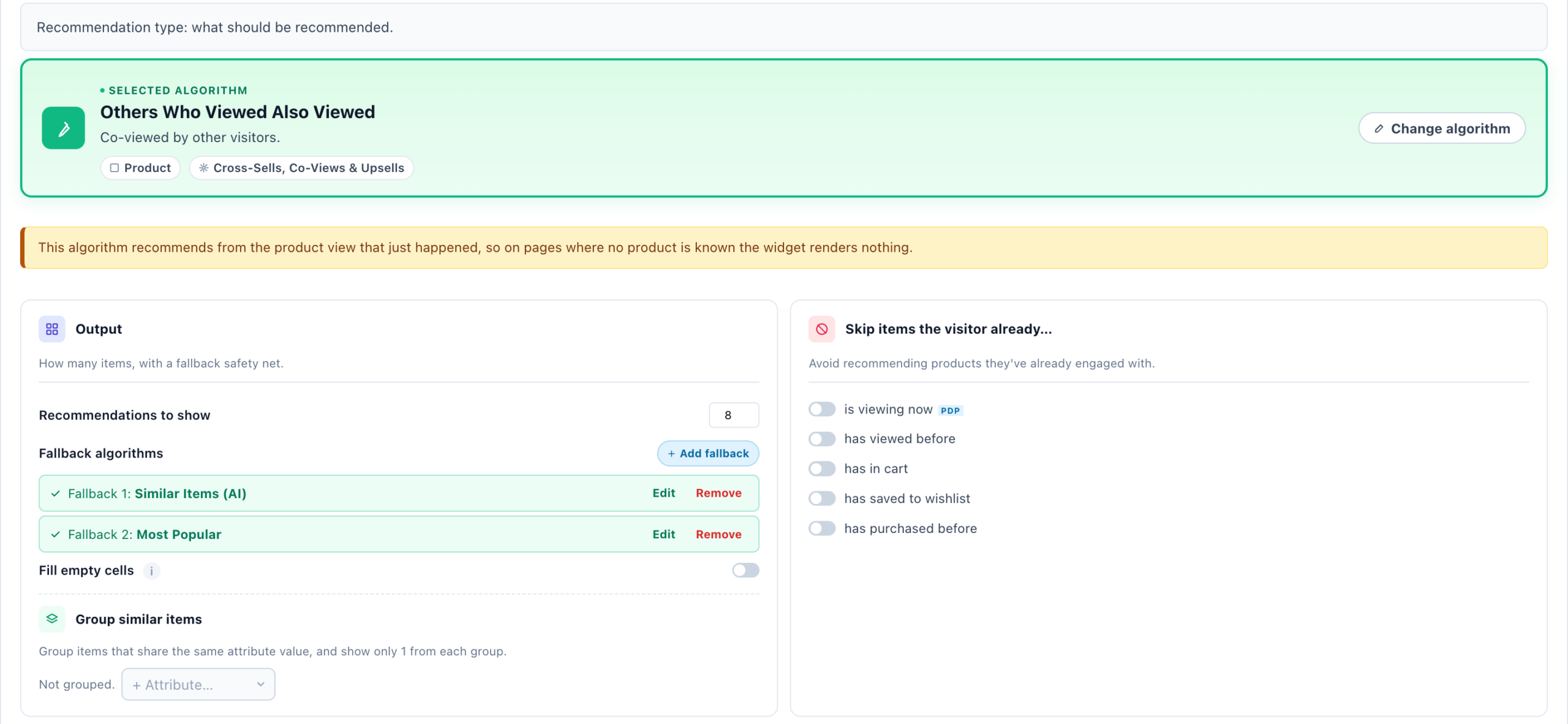
Output — how many, and what happens when it comes back short
| Control | What it does |
|---|---|
| Recommendations to show | How many items the widget asks for, up to 12. The template may show fewer if its layout has fewer cells. |
| Fallback algorithms → Add fallback | A second (and third) algorithm that runs in order when the ones before it return too few items. Each has its own filters and a choice of topping up or only replacing an empty result — see fallbacks. The QA bar tells you which one filled each slot. |
| Fill empty cells | Off by default on a website widget: only what the recommendation returned is shown, and an empty result leaves an empty block. On, a short result is topped up with the most popular items, then the catalog itself. The fallbacks above apply either way. |
| Group similar items | Items that share an attribute value are grouped, and only one from each group is shown. |
Match the visitor
Under the algorithm cards, Match the visitor puts the items that fit each visitor first: the brands, sizes, categories or authors in their own history, their gender, the prices they look at, where they are, their language, or one of their visitor fields. It re-orders the algorithm’s top 200 and never adds items. See Match the visitor.
Filters
Skip items the visitor already… (viewed, has in cart, saved, purchased), Restrict the catalog (Match visitor’s gender and age, discounted, with an image, link or price, from given categories) and Custom filter rules narrow what any algorithm may return. Out-of-stock items are excluded automatically. Match visitor’s gender and age need gender and age in your feed and on the visitor’s profile. All of it, with examples: setting filters on recommendations.
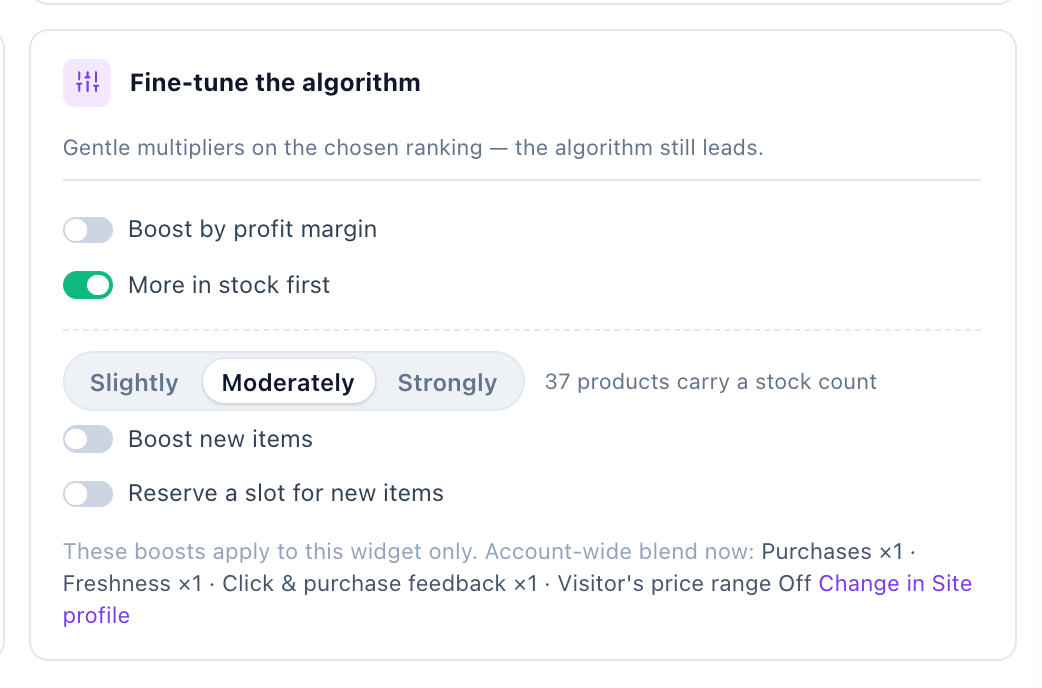
Fine-tune the algorithm
Gentle multipliers on the chosen ranking — the algorithm still leads; these nudge. Each one, once on, has a strength: Slightly, Moderately or Strongly.
| Boost | What it does | Offered on |
|---|---|---|
| Boost by profit margin | Favours higher-margin items, up to 2×, from the profit field of your feed (a margin percent, 0–100). | Products |
| More in stock first | Favours products with more units in stock, from the inventory field of your feed: the full lift at 100 units or more, less at 20–99, 5–19 and 1–4. Products with no stock count are left as they are; out-of-stock products are never shown anyway. The card says how many products carry a stock count. | Products |
| Boost promoted items | Favours the articles you push, up to 2×, from the rank field (0–1). | Content |
| Boost new items | Lifts items added in the last 30 days. | Both |
| Reserve a slot for new items | Gives one slot in every serve to a random item added in the last 30 days, so items with no history yet can earn first impressions. | Both |
Each boost says whether your catalog carries the field it needs — “No items have the profit field set” means it will do nothing yet. These apply to this widget only; the card’s footer shows the account-wide setting live (“Account-wide blend now: …”), so you never tune one widget blind to the account it sits in. See the score blend.
Looking for an older name?
Earlier editors and guides used other names. Here is where each one lives today.
| Older name | Today |
|---|---|
| Highest Relevance, Auto-pilot | Personalized Recommendations |
| Bought Together; Cross-sale Cart Recommendation; Most Frequently Bought with Cart | Cross-Sells, on the Product or Cart tab |
| Likely to Buy | What Others Viewed Then Bought |
| Likely to View | Others Who Viewed Also Viewed |
| View It Again | Recently Viewed |
| In Your Cart, Abandoned Cart | Items in Cart |
| Recently Discounted, Price Recently Changed | Price Dropped |
| Past-Orders Recs | Inspired by Past Purchases |
| Popular from Most Recent Interest / from Recent Interests | Most Popular, Taken from: from their latest reported interest / from their reported interests |
| Most popular based on gender/age | Most Popular with Match visitor’s gender and Match visitor’s age switched on |
| Most Read Based on Most Recent Interest / Mix of Interests | Most Popular (content), Taken from: from their latest reported interest / from their reported interests |
| Most Commented Content Based on … Interest | Most Commented, with the same Taken from choices |
| Likely to Read and Buy; Content That Led to Most Conversions | What Readers Went On to Convert On |
| Likely to Read Based on a Mix of Content Read and Commented | Content Recommended for You |
| New Article Based on Your Interests | Recently Published, Taken from: from their reported interests |
| Most Popular from This Author | Any card plus the filter rule Author · Exactly matches · Viewing article → Author |
The cards on this page are the ones the website picker offers, and recommendations for third-party emails, JSON feeds and apps use the same picker — only their page choices differ. An Email & SMS Personalization campaign is the exception: its recommendation blocks keep the older list, grouped General, Wish list, Cart Abandonment and Made a purchase (Personal and General for content), with entries such as Left in Cart Items and Wishlist Now Discounted.
Related
- Recommendations — Where to Start — the whole journey, and what to check when a widget shows nothing.
- Category & interest recommenders — the same engines, recommending a category or topic instead of an item.
- Filters on recommendations
- Recommendation fallbacks
- Score blend & presets — the account-wide weights behind every ranking.
- Interests — what the interest-scoped options draw on.
- Quick add to cart — add to the cart straight from a recommendation.
- Placement, triggers & frequency — any recommendation can also open as a popup, on exit intent, idle or scroll.