
Each email in an Email & SMS Personalization campaign is written in its own editor: on the campaign’s Content step, click Edit email. This page covers what decides whether the email is opened and where it lands — who it is from, the subject and preheader, a subject test, coupon codes and the spam check. When it goes, and how often, is on When an email sends.
Read more in the blue box at the top of the Content step opens the guide Sending email that arrives — “What is on this campaign’s Sending step, and what keeps your email out of spam”: your domain and DMARC, the mailing address, the unsubscribe page, the test send, the Address check, the warm-up of a new domain, keeping your list clean, and what a pause means. From this step it ends with How testing works, the A/B testing guide.
The email’s editor
The basic email, Dynamic email/Remarketing email, has four steps:
| Step | What it holds |
|---|---|
| Sender settings | The subject, the preheader, the subject test and an inbox preview. Its help line: “Who it’s from is set on the Sending step.” |
| Email look | The email itself: its design and its words. |
| URL parameters | What is added to every link in the email, so your analytics can attribute the visit. |
| Timing | What starts the email, when it may go and how often one person can get it. See When an email sends. |
A sequence is the same campaign with its emails in order, and each of its emails has this editor too. See Email sequences.
Designing the email: Email look
When you add an email on the Content step and pick its type, the drawer asks you to choose a template. Pick one of the designs, Start blank for an empty email, or Use existing to copy an email you built before and change it.
On the Email look step, click any element in the preview, or work through the sidebar’s sections, from the logo bar and the headline down to the button and the footer.
- Any text can hold dynamic values, such as the recipient’s name or a coupon code, filled in for each person when the email goes out.
- Variations on a setting give an audience its own version of it, for example a different headline for returning customers.
- Edit raw HTML source opens the email’s HTML, for hand-tuning or for a template you paste in.
- A recommendation block is filled for each recipient when the email is sent, so everyone sees their own products or articles.
Who it is from, and where replies go
In an Email & SMS campaign the sender is set on the campaign’s Sending step, with the rest of your sending setup. The email’s Sender settings step shows it as one row, From: the current name and address, and a Change on the Sending step link.
| Field (on the Sending step) | What it does |
|---|---|
| Sender | “A saved sender bundles a From address, sender name and the delivery method. Configure once, then pick it on any email.” It sends through the Personyze mail server, your own SMTP server, or a webhook. |
| Reply-To | Where replies go. Left empty, they go to the sender’s default, which the field shows in grey. |
| Track replies | Replies go through Personyze first: each one is counted in the report, can be used in audiences, and is forwarded to the Reply-To. Offered for email sent through the Personyze mail server. |
All of it is on The Sending step. Adding senders and sending from your own domain: Set up email sending.
Subject and preheader
The Sender settings step opens on Subject & preheader: “The only thing a recipient sees before deciding to open.”
| Row | What it is |
|---|---|
| Subject (required) | Shown in the inbox. “Most phones cut it around 35 characters and desktop around 70 — the meter marks both.” Personalization variables can go in it. |
| Preheader | “The grey preview line after the subject in the inbox; 40-100 characters.” Optional: without it, the inbox shows the first words of the email. Its meter is amber under 40 characters, green from 40 to 100, red over 100. |
| Subject test | Up to three subjects for the same email — see Subject test. |
| From | Who the email is from, set on the Sending step. |
| Inbox preview | The email as an inbox lists it, on Desktop and on Phone: the sender, the subject and the preheader exactly as they are above, with personalization filled in for a sample recipient. Grey text is what the inbox cuts off. |
- The preheader is added to the email as its hidden first line when it is sent.
- The subject and preheader are personalized for each recipient, like the body. Give every variable a fallback, so an empty field never leaves a gap in the subject.
AI suggestions for the subject and preheader
A Suggest button sits under Subject and under Preheader.
| Button | What it writes |
|---|---|
| Suggest under Subject | “Five subject lines with matching preheaders, written by AI from this email. Pick one; nothing is saved until you save the email.” |
| Suggest under Preheader | Keeps your subject and writes five preheaders for it. |
The suggestions open in a panel, Suggested subject lines (or Suggested preheaders), with Suggest again. Each one is labelled with its angle: Curiosity, Benefit, Urgency, Personal, Question, News, Social proof or Direct.
- Use puts the subject and its preheader into the fields.
- Test it adds the subject to the subject test, beside yours: “Added as subject B of the test.” With three subjects already: “The test already has three subjects.”
What the AI is held to:
- It writes only from the email’s own words, and never invents an offer.
- Every suggestion passes a spam guard: no shouting capitals, at most one “!”, no known spam phrases, no “$$$”, no fake “RE:”, at most one emoji.
- It uses only the personalization variables the email already has, plus the first name.
- It uses your account’s AI allowance. Asked too often, it answers “Too many requests just now. Try again in a few minutes.”
An email with no subject and no text yet gets “Write a subject or some of the email first, so the AI has something to go on.”
Subject test: up to three subjects
Under Subject test, + Test another subject opens Subject B below Your subject (A). Write another subject and, if you like, its own preheader — left empty, it uses the email’s. + Add a third subject opens Subject C; three is the most. × takes a subject out of the test.
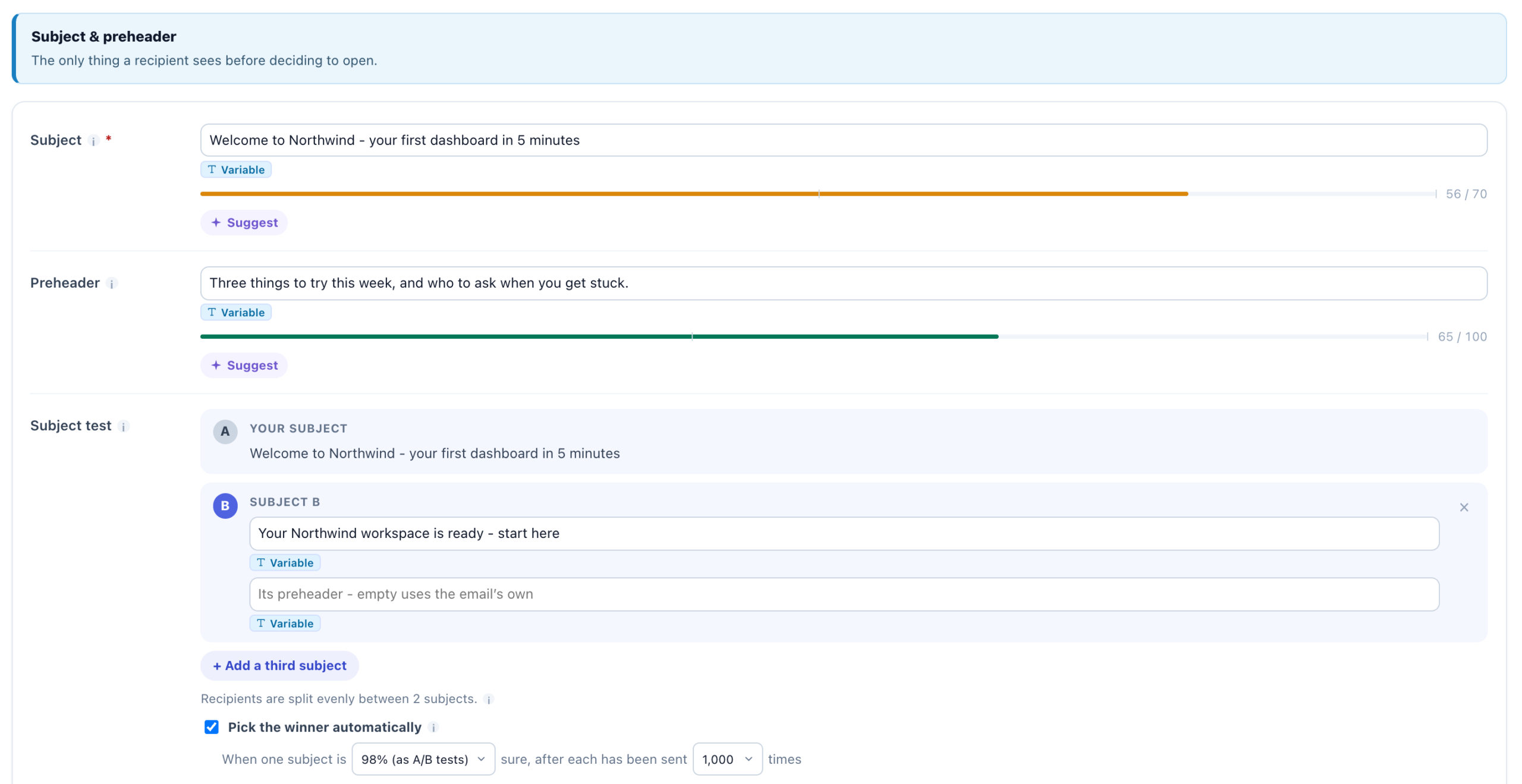
A line under the subjects says how recipients are split — “Recipients are split evenly between 3 subjects.” Its tip: “Each person always gets the same subject. Open rate, click rate and conversions per subject appear on this email’s report.”
- The split is even and fixed: one person always gets the same subject, on a resend too.
- A test subject that comes out empty for someone — say it is only
${first_name}and their first name is not known — sends them subject A, but they are still counted under the letter they were dealt. Give each test subject words of its own. - A subject test is per email, and separate from a campaign’s A/B test of whole emails. In a sequence, where the campaign’s A/B testing is not offered, it is how you test.
Pick the winner automatically
Once a test subject has words, the checkbox Pick the winner automatically appears, off by default. Its tip: “Judged on clicks, with the same statistics as the site’s A/B tests. Once one subject is sure enough, everyone after that gets it; the report says when it happened, and you can resume the test.”
Ticked, it reads “When one subject is 98% (as A/B tests) sure, after each has been sent 1,000 times”, with both values to choose:
| Setting | Choices | Default |
|---|---|---|
| How sure | 90%, 95%, 98% (as A/B tests), 99% | 98% |
| Sends per subject | 250, 500, 1,000, 2,500, 5,000 | 1,000 |
How it judges:
- On clicks per email sent, not on opens. Opens are overcounted: Apple Mail opens every email it receives, read or not.
- Every subject still in the test must have been sent the set number of times, and the leader must be ahead and at least as sure as the threshold. The same statistics as the site’s A/B tests.
- With three subjects, the leader is compared with the other two together, and the confidence allows for having picked the best of three.
Once a subject wins, everyone after that gets it, and the editor says so — for example “Winner: B (picked automatically on Oct 4, 2026, 98% sure) – everyone now gets B” — with Resume the test. Resuming splits the recipients between the subjects again when you save, and switches the automatic pick off, so it does not pick the same subject again at once.
Each subject’s Sent, Click rate, Open rate and Conversions are on the campaign’s Performance step, in By email. See Subject tests — reading the result.
Coupon codes in an email
An email can hand each recipient a coupon code of their own. Open the coupon under Coupons and click Copy token, then put the token in the email — in the subject, the preheader or the body, even inside a link. The coupon page’s tip: “Put this in any campaign’s HTML: each visitor sees their own code in its place. In a preview it shows as dots.”
When the email is sent, the token becomes the recipient’s own code:
| Coupon | What each recipient gets |
|---|---|
| Shared code | Its one code, the same for everyone. |
| Code pool, Generated codes or Coupon engine | The code they already hold and have not used; otherwise a new one — from your list, made from your pattern, or from your coupon engine. |
| Protected code | Nothing: “A protected code works on your site only: an email cannot carry it, and an email with this token is not sent.” |
- A code is handed out only when the email really goes — after every check that could stop it, such as suppression, double opt-in, the account cap and the sunset policy. A retry prints the same code.
- In the design preview the token shows as dots. A test send and the QA step’s preview print the sample code CODE-1234.
A coupon in one email lets the next email of a sequence go only to those who used it, or did not (Used the coupon / Didn’t use the coupon) — see Email sequences. A coupon can also start an email: Redeems a coupon, or Got a code, hasn’t used it — see What starts it. The coupon kinds themselves: Coupon Codes.
The spam check
Before the email goes out, see how a spam filter scores it. On the campaign’s QA step (Preview & QA), Preview by user renders the email for a recipient. Under the preview, click Check for spam (Checking…, then Check again).
When the email holds product or article recommendations, Why these items under the same preview shows, for that recipient, whether the algorithm or a fallback picked each one — see Preview as a Visitor.
Beside the button: “This email as it is sent, scored by a spam filter, plus our deliverability checks.” Its tip: “Scored by SpamAssassin, the filter many mail servers use, with the headers this email is sent with. Lower is better; under 5 passes most filters.” Under it, the privacy line:
“Checked with sample data – no personal data leaves Personyze.”
The email is checked as it would be sent — with its From, its Reply-To and its unsubscribe header — but filled with sample data and addressed to a placeholder, so no recipient’s data goes anywhere. The result does not depend on the person picked for the preview.
The score
| Score | Verdict |
|---|---|
| Under 2 | Looks clean |
| 2 to under 5 | Probably fine – worth a look |
| 5 or more | Likely to be marked as spam |
Then What cost points: each rule that added to the score, in plain words, with a fix — for example Too few words for its images (“Add more text; an email that is one big picture reads as spam.”) or A link shortener is used (“Link to your own site’s addresses, not bit.ly or similar.”).
Deliverability checks
| Check | What it looks at |
|---|---|
| Sending domain | Whether the email goes out from your verified sending domain — or from the platform’s own address, your own mail server or a webhook. |
| DKIM alignment | Whether the email is signed for your From domain, as Gmail and Yahoo expect of bulk senders. |
| List-Unsubscribe header | The header behind the inbox’s own one-click Unsubscribe button. It comes from one-click unsubscribe on your unsubscribe page. |
| Unsubscribe link | An unsubscribe link in the email. Marketing email must have one. |
| Postal address | A postal address in the email, which the US CAN-SPAM law requires. |
| Preheader | Whether the email has a preheader. |
| Subject line | Spam triggers in the subject, or an empty subject. |
| Images and text | Enough words for the images: filters treat a picture-only email as spam. |
| Links | Link shorteners, link text that shows another address than the link goes to, or too many links (keep it under 30). |
| Email size | The size of the HTML: Gmail clips an email over 102 KB, hiding the end of it. |
A footer says what was checked: “Checked as sent: From …”, the Reply-To, the subject and, with a subject test, which subject.
- The check reads the saved email. An unsaved one gets “Save the email first, then check it.”
- It is limited per account: “Too many requests just now. Try again in a few minutes.”
- When the spam filter does not answer, the deliverability checks still show, with a note to try the score again later.
To fix the domain and DKIM checks, verify your sending domain. For the postal address and the unsubscribe link, see Your unsubscribe page and mailing address.
Related
- Email campaigns — one email, a sequence or text messages
- When an email sends — the email’s Timing step
- The Sending step — sender, Reply-To, Track replies and a test to yourself
- Email sequences — follow-ups that react to each person
- Subject tests — reading the result
- Email deliverability — bounces, complaints and the warm-up of a new domain
- Troubleshooting email campaigns