
Three AI tools sit inside the design editors. Write with AI writes the words of a popup, banner or Canvas design, three options for one text at a time. Create with AI, in the Media manager, makes a picture: from your own product photos, or drawn from a description. Make this banner with AI uses both to remake a whole banner in three steps.
Write with AI: the words of a design
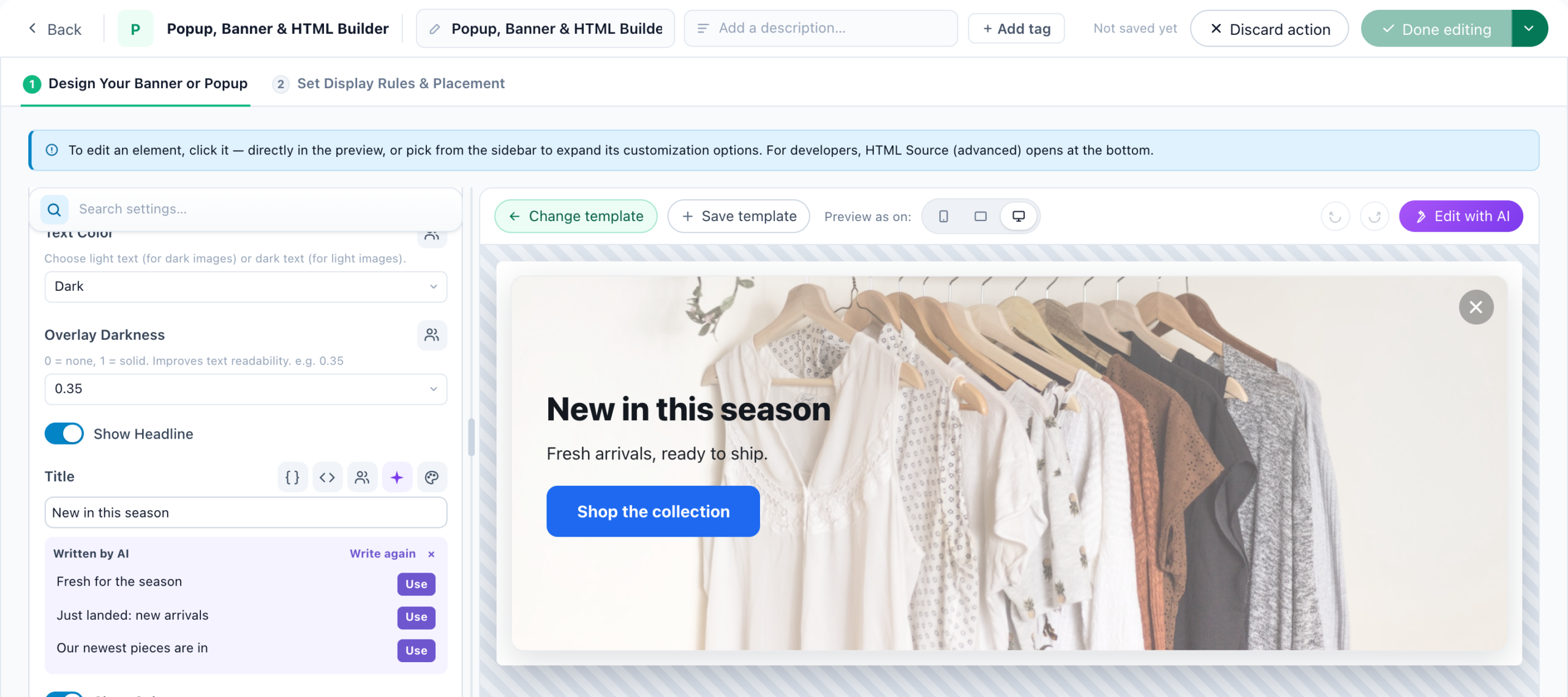
Every text a visitor reads in a design built from the template gallery — a headline, a button, a label, a thank-you line — has a Write with AI tile beside it in the editor’s sidebar, and so does every text element of the Canvas Builder. One press writes three options for that text, the best first.
- They are written from the design’s other texts, the campaign it is in, and your site’s voice.
- Use puts one in, Undo puts back what was there, and Write again writes three more.
- In the Variations dialog each audience version has its own tile, so each version is written for itself.
What it will not do:
- Invent an offer. A number the design never says — “20% off” in a popup that offers nothing — is caught, and that option is dropped.
- Lose a variable. A text with
${first_name:default("there")}or a catalogue value keeps every variable, exactly, in every option. - Touch settings that only look like text — a link, a font, a size, a coupon code, a currency sign, a script. They have no tile.
Each press uses your AI allowance. An account can write 30 times in 15 minutes, and 300 times a day.
Create with AI: a picture for an image field
An image setting has two icons. Library opens the Media manager on My library, your own pictures; Create with AI opens it on the Create with AI tab. The AI icon is left off a field where a made picture would be wrong: a logo, an icon, a badge, an arrow, a button’s picture, an avatar, a favicon, a review or testimonial photo.
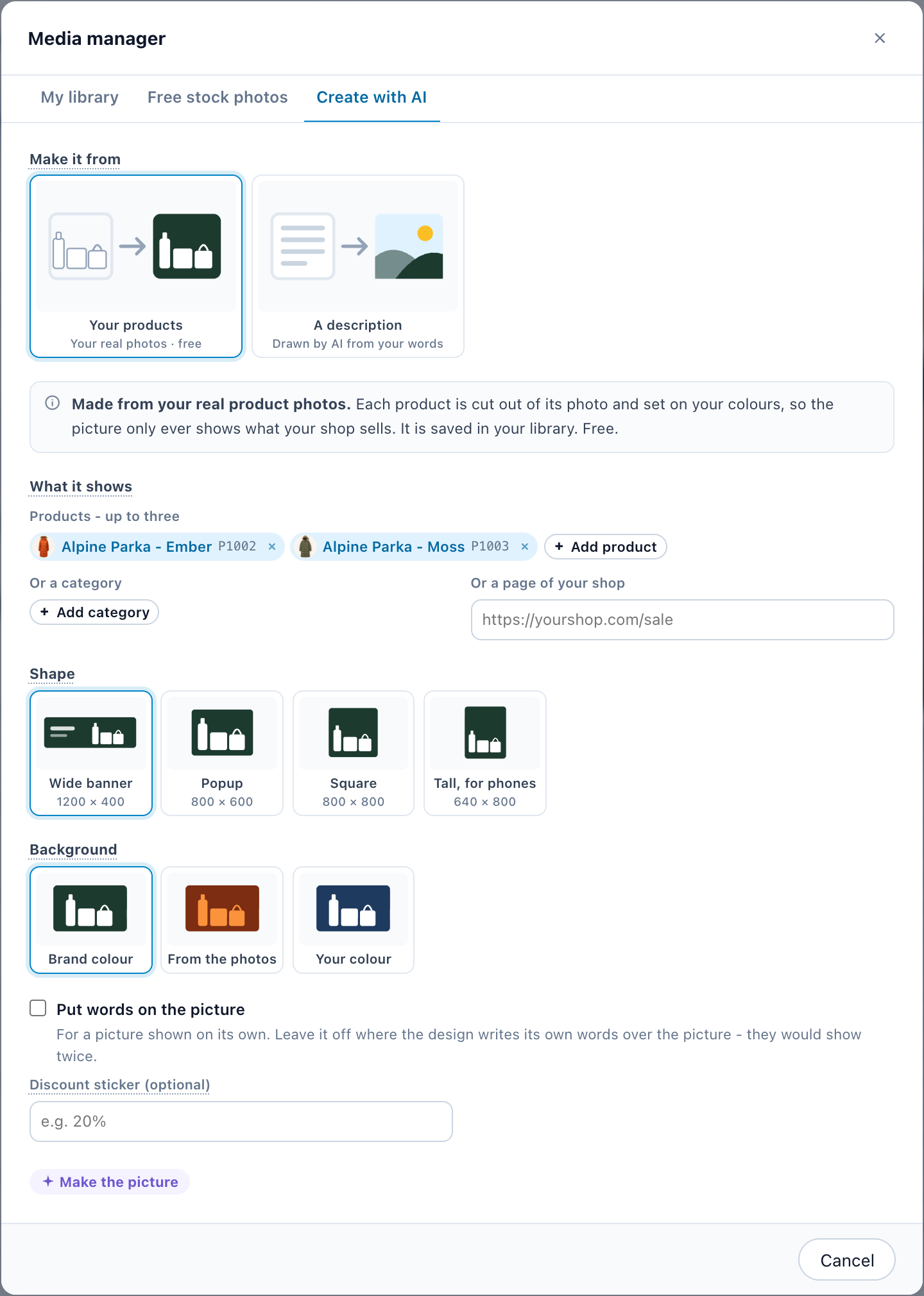
Make it from picks how the picture is made:
| Your products | A description | |
|---|---|---|
| What it is | Your real product photos, each cut out and set on your colours, so the picture only ever shows what your shop sells. | Two pictures of a scene, a setting or a mood, drawn from your words — for backgrounds and atmosphere. |
| What you give it | What it shows: up to three products, or a category, or a page of your shop to take them from. It needs your product catalog. | Describe the picture: a place, a season, a mood, the light and the colours. Try: offers examples. |
| On the picture | Background (Brand colour, From the photos, or Your colour), Put words on the picture — a Headline and A line under it — and a Discount sticker. | No words, and never a product: a drawn product is one you do not sell. Your design adds the words. |
| What it costs | Free. | Your AI allowance. An account can draw 10 times in 15 minutes, and 60 times a day. |
Both ask for a Shape, and the picture is cut to exactly that size: Wide banner, Popup, Square or Tall, for phones. Then press Make the picture, or Draw two pictures, which takes about half a minute. Every picture made is saved in your library, so it can be used again anywhere; Use this picture puts it in the field.
Make this banner with AI
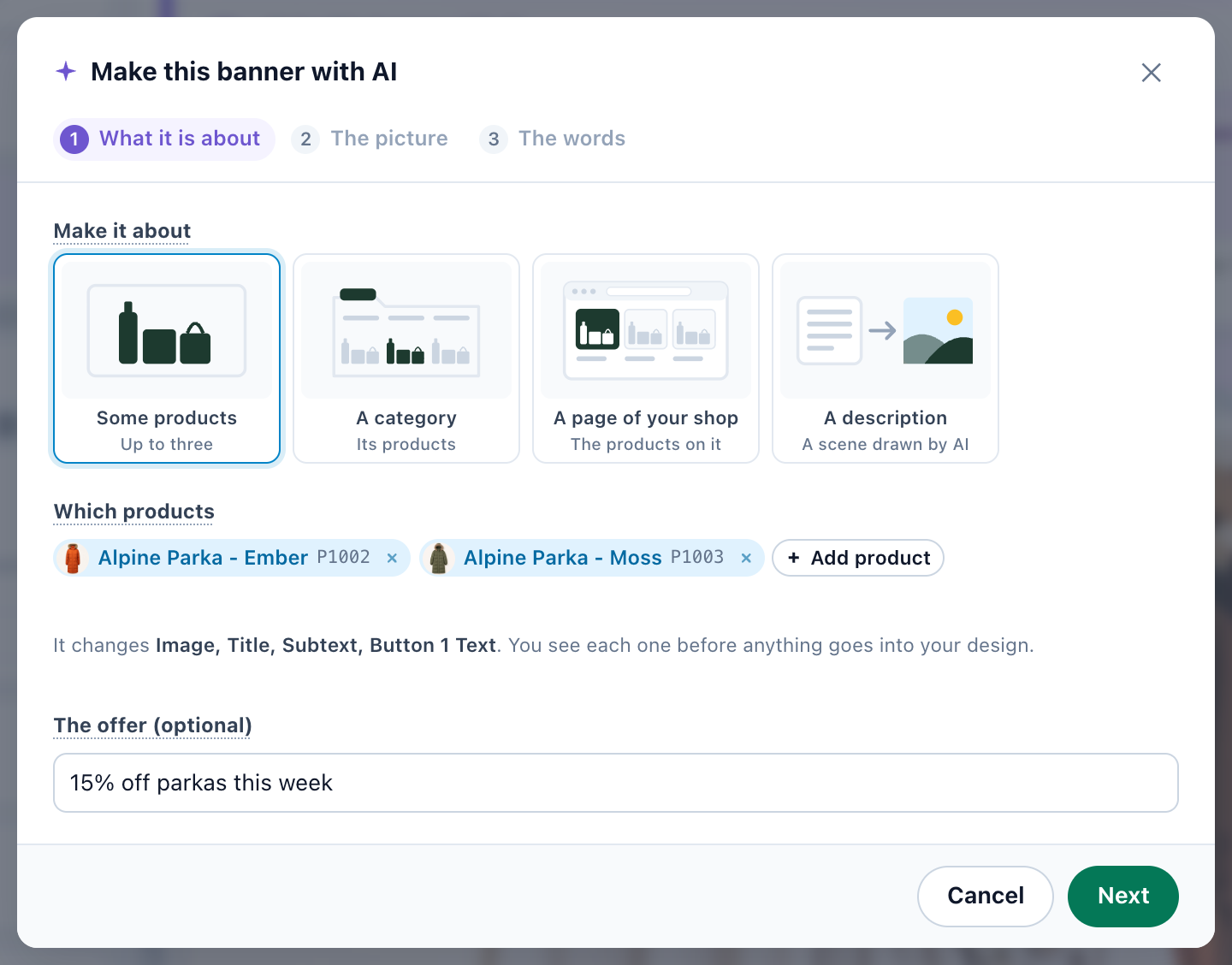
A gallery design that has a picture, and a Canvas design, open their Edit with AI box on Make this banner with AI: a new picture and the words to go with it, in three steps. Each step says what it will change before anything goes into your design.
- What it is about — Make it about some products (up to three), a category, a page of your shop, or a description; and The offer (optional), the only thing the words may promise. Leave it empty and they promise nothing: the AI never makes up a discount.
- The picture — made as in Create with AI, its shape fitted to the design’s picture. The picture it replaces is shown.
- The words — the headline, the line above it, the text and the button, written about the picture and the offer. Under each, Now: shows what the design says today; untick one to keep it. Write them again writes another set.
Put it in the design makes it one edit, with one Undo. The button keeps its link: if it should now go to these products, change its link in the settings after.
Your AI allowance
Write with AI and drawing from a description use the account’s AI allowance, like the other AI features; a picture made from your products is free. When the allowance is spent, the tool says so, with Add AI credits.
Related
- AI in Personyze — every AI assistant in the panel
- Popup & Banner action guide — the design editor these tools sit in
- Canvas Builder — designs built from elements
- Template Gallery — the designs Write with AI works on
- Personyze AI Agent — builds whole campaigns from a sentence