
ZoomInfo enriches an anonymous visitor with B2B intelligence about the company behind them — name, domain, industry, headcount band, revenue band, location. Personyze pulls those attributes onto the visitor profile, where they become available to every targeting rule, content variable and report.
In the panel: Settings › Integrations › ZoomInfo.
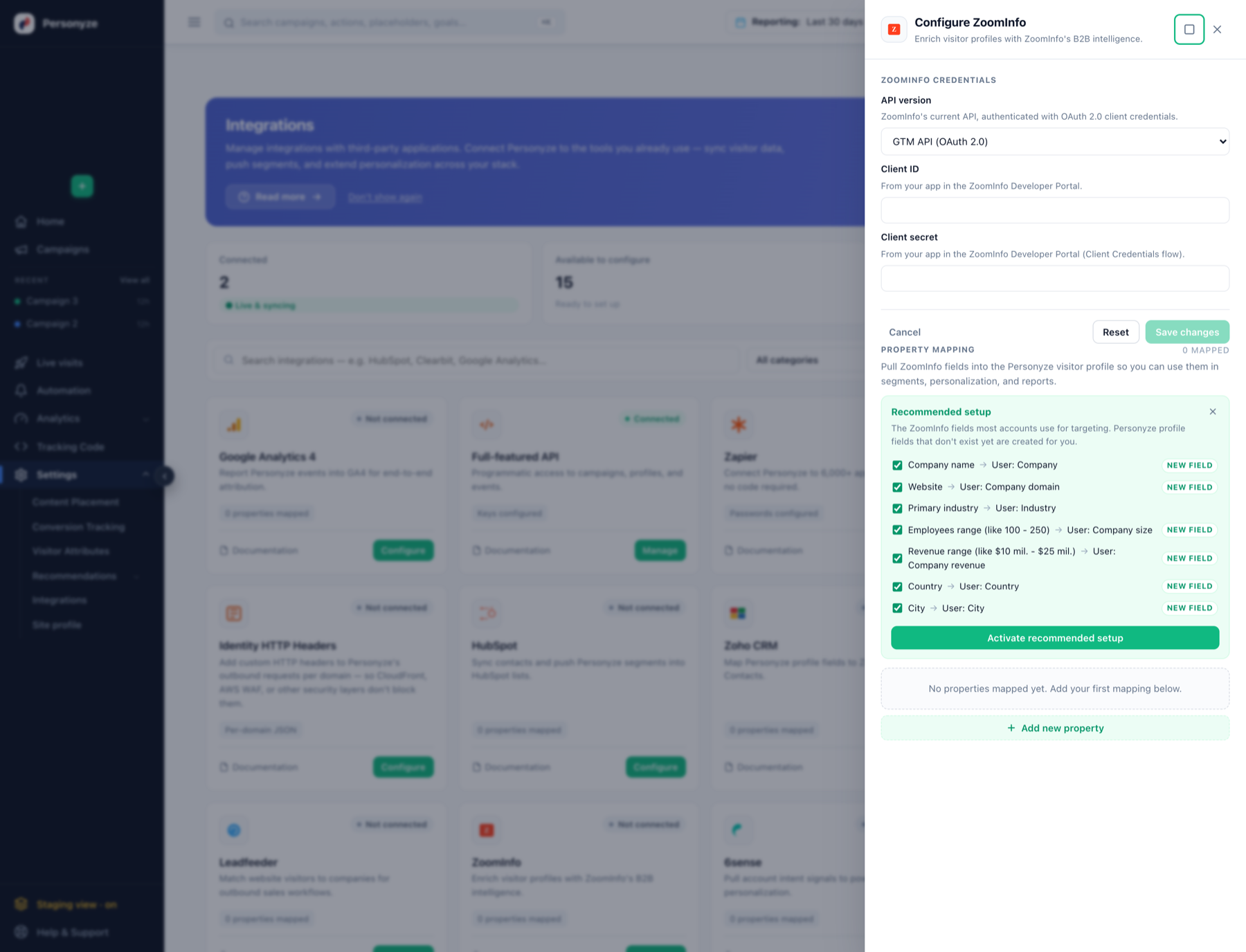
Two API versions — pick first, then fill in credentials
The API version selector at the top changes what the rest of the form asks for. Choose it before anything else.
GTM API (OAuth 2.0) — the current one
ZoomInfo’s current API, authenticated with OAuth 2.0 client credentials. Two fields:
- Client ID — from your app in the ZoomInfo Developer Portal.
- Client secret — from the same app, using the Client Credentials flow.
Use this one. It is the right choice for any new integration — and, as the next section explains, the one that actually returns the fields you map.
Legacy API — username and private key
The older API signs every request as a specific ZoomInfo user. It asks for:
- Username (email) — the ZoomInfo user the private key was issued to.
- Private key — the full RSA private key downloaded from ZoomInfo, entered whole.
Only pick this if your ZoomInfo account has not been moved to the GTM API. Because requests are signed as that named user, deactivating them in ZoomInfo breaks the integration — a dedicated integration user is safer than a person’s account.
Mapping the fields
Connecting authorizes the lookup; property mapping decides what actually lands on the visitor profile. Activate recommended setup maps the seven fields most accounts target on, creating any Personyze profile field that does not exist yet:
| ZoomInfo field | Personyze profile field |
|---|---|
| Company name | User: Company |
| Website | User: Company domain |
| Primary industry | User: Industry |
| Employees range (like 100 – 250) | User: Company size |
| Revenue range (like $10 mil. – $25 mil.) | User: Company revenue |
| Country | User: Country |
| City | User: City |
The range fields are the practical ones for targeting — “company size is 100–250” is a single rule where raw headcount needs a numeric comparison.
What to expect
- Not every visitor resolves. Reverse-IP identification misses home broadband, mobile networks and VPNs. Always build a fallback for visitors with no company data.
- It identifies the company, not the person.
- 0 properties mapped means no data, however healthy the connection looks.
- One field where you mapped many? That is the legacy API, not a mistake in your mapping — it resolves Company name and nothing else, silently. Move to the GTM API (Developer Portal credentials) to get the rest.
Using the data in targeting
On a campaign’s Target step, Add audience rule gives you two routes:
- Integrations tab — this provider’s own rule entry, with a connection indicator. Note that every provider is listed whether or not it is connected, so read the marker.
- User CRM/ABM/Profile — any field you have mapped, with the full operator set: contains, doesn’t contain, equals, doesn’t equal, is one of (list, file), is not one of, matches regex, starts with, ends with, is empty, is not empty.
Negative operators only match visitors who have a value. Someone with no data for that field will not match “industry doesn’t equal Retail” — use is empty for them, usually combined with an OR.
Using the data in content
Mapped fields become dynamic variables in the WYSIWYG editor, so they can appear in the copy itself — “Trusted by [Industry] teams”. Always set a fallback value: not every visitor resolves, and a variable with no default renders blank. See inserting dynamic variables.
A/B testing on it
Build the audience with the rule, then click Turn on A/B testing on the Content step. The test worth running first is personalized versus generic to the same audience — that answers whether the integration earns its keep. See A/B Testing.
Why pair ZoomInfo with Personyze
ZoomInfo on its own tells you who is visiting. Personyze tells you what to do about it. Together they unlock four high-leverage motions:
Best practices
- Map only the attributes you’ll use. Each mapped property adds a small bit of overhead. Start with the 4–6 attributes most relevant to your campaigns and add more as needed.
- Always set fallback content. Not every visitor will be identified by ZoomInfo. Make sure your default content (when ZoomInfo variables are blank) still reads naturally and converts.
- Test both identified and anonymous flows. Use the QA step to preview as a known-company visitor and as an unknown one. Both should look polished.
- Combine with on-site behavior. ZoomInfo tells you about the company; Personyze’s behavioral tracking tells you about the individual. The strongest campaigns combine both — e.g., “enterprise-revenue visitor who’s viewed pricing 3+ times this week.”
- Monitor match rate. ZoomInfo’s identification rate isn’t 100% — typical resolution rates are 30-60% of B2B traffic depending on your industry and geography. Check your reports periodically to confirm the match rate matches your expectations.