
The AI Chat agent is an assistant that talks to your visitors: it answers from what you have
taught it, searches your catalogues, and hands the conversation to a person when it should. It never invents a price, a
stock level or a promise — it can only repeat what your catalogue, your sources and your
offers actually returned.
On personyze.com: AI Chat Agent — an assistant that answers from your own site →
Video: The chat inbox: when the assistant hands over to a person (2:46) — it plays at the top of Operators, Conversations & Blocking.
Watch the 2:18 walkthrough: setting up AI Search & Chat — what it answers from, what it may know about the visitor, who takes over, where it sits on the page, and a visitor asking it on the site.
There is one assistant per account. Everything it is — what it knows, how it behaves, what it
may see, who it hands over to — is set once under AI Chat → Settings. A campaign changes how
it looks and when it shows, never what it may say.
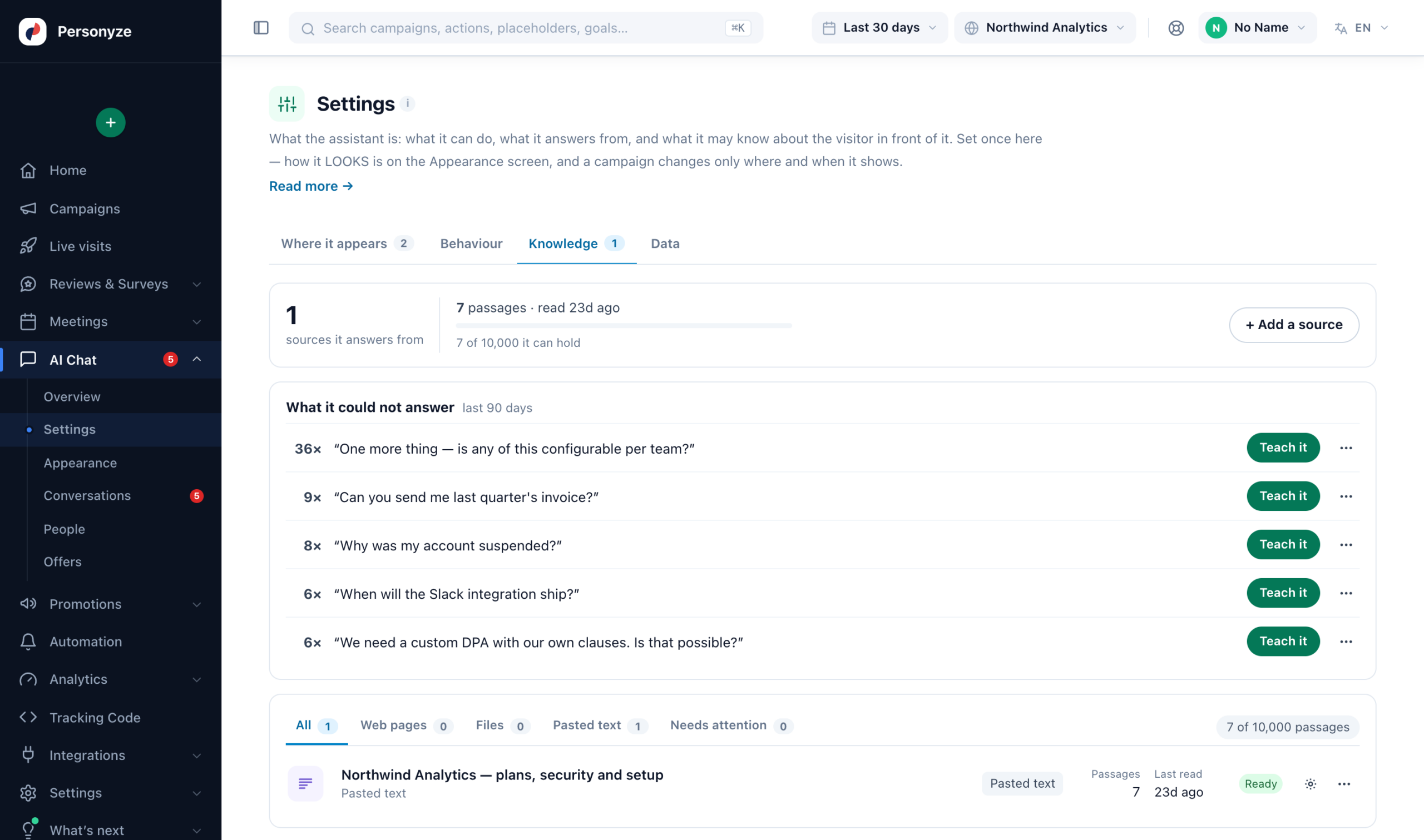
The same assistant has other faces besides this chat window: an ask box that answers a question in place (see AI Search), and two finders that pick the products or articles that fit what a visitor describes (see AI Product Finder and AI Content Finder).
This guide
| Page | What it covers |
|---|---|
| Knowledge | What it may answer from — sources, re-reading, tags, and the storage limit |
| Behaviour, handover & leads | What it can do, what it must never say, when it fetches a person, when it offers a meeting, and how an email becomes a profile |
| Visitor data & catalogue | What it knows about the person in front of it, which feeds it may search and how, looking up an order, and how long transcripts are kept |
| Appearance & placements | Colours, the teaser card, attachments, reading answers aloud, and what a campaign may override |
| Offers | The only way the assistant is allowed to mention a discount, its coupons, the Promotions it falls back on, and who may hear the code |
| Operators & conversations | Your team’s screen, the queue, blocking, transcripts and reporting |
| AI Search | The ask box — including the results-only mode that lists findings without writing an answer |
| AI finders | A bar where visitors describe a need and get the products or articles that fit, with a reason for each |
Where everything lives
Under AI Chat in the menu:
| Screen | What it holds |
|---|---|
| Overview | Is it on, is anybody using it, and where does it appear |
| Settings | Where it appears · Behaviour · Knowledge · Data |
| Appearance | Colours, the button, the teaser card, attachments, branding |
| Conversations | The queue, what it could not answer, and every transcript |
| Offers | What it is allowed to offer, and to whom |
| People | Who can take over, and who is blocked |
Before a visitor can see it
- The AI Chat module is active — activate it, or start the free trial, on the
Add-ons page in the account menu. - The assistant is switched on on Overview: “Off — nothing answers anywhere,
whatever the campaigns say.” - It has been taught something. With no sources it answers “I cannot confirm that” to
almost everything, which reads as broken. - A published campaign carries it. A campaign left in testing reaches nobody but you.
Putting it on your site
Create a campaign from Create new and pick AI Search & Chat:
“One assistant, answering from your own pages and catalog — as a chat bubble, a search-style ask box, or
both. Hands over to a person when it should.”
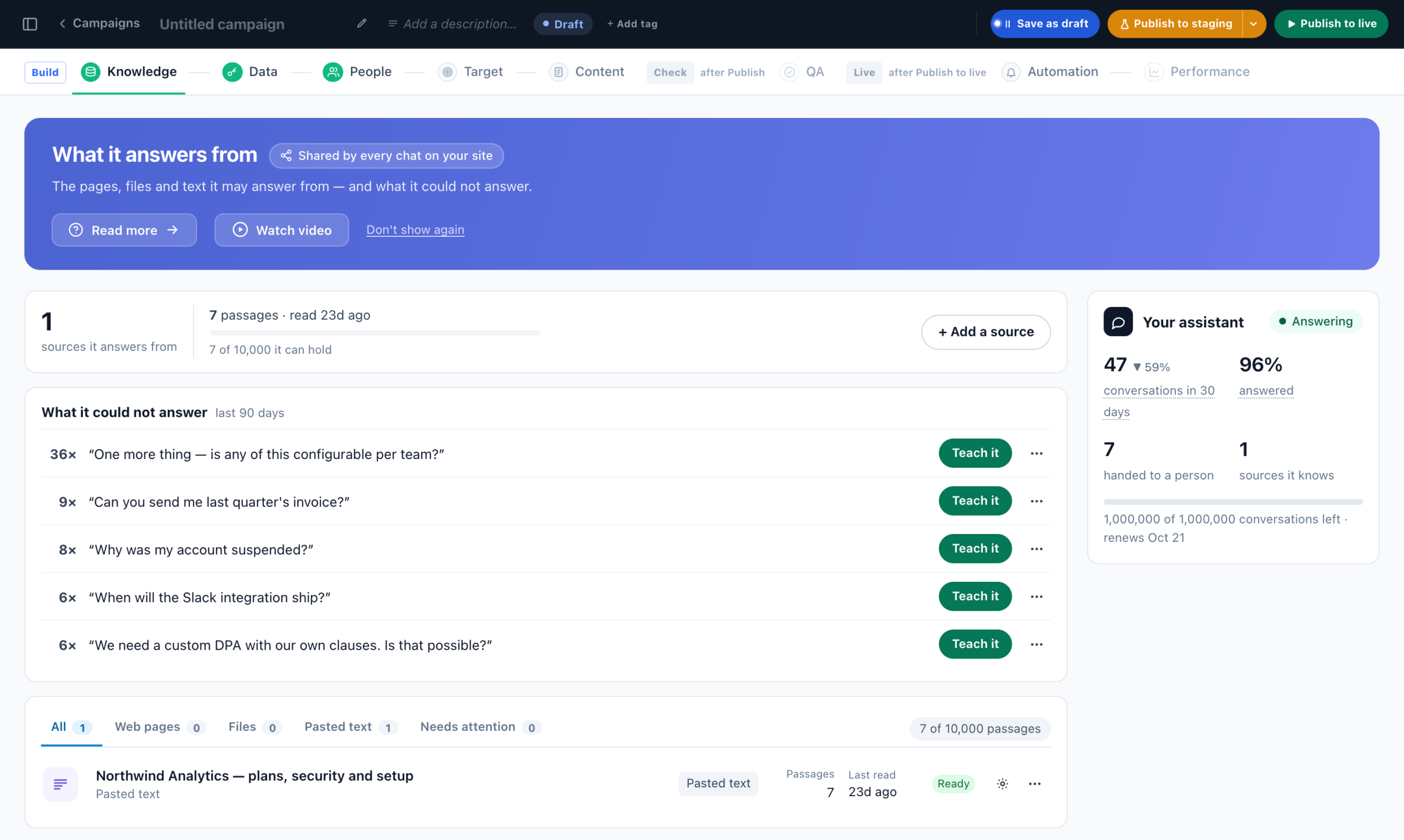
The campaign’s first three steps belong to the assistant rather than to the campaign, and each is marked Shared by every chat on your site: change it here and it changes everywhere.
- Knowledge — the pages, files and text it may answer from, and what it could not answer. See Knowledge.
- Data — what it may know about the visitor, and which catalogues it may search. See What the assistant may see.
- People — who takes over when it hands a visitor across. See Operators.
Then come the ordinary campaign steps: Target, Content, QA, Automation and Performance. How the assistant behaves is not a wizard step: it is set once, under AI Chat → Settings → Behaviour. How one chat looks and talks is set in that chat, on the Content step.
Beside each setup step, Your assistant says how it is doing: conversations in the last 30 days, how many it answered, how many were handed to a person, and the conversations left in the cycle. Before its first conversation it lists what is still missing instead — pages to answer from, someone to take over, a place on your site — each with a button to fix it.
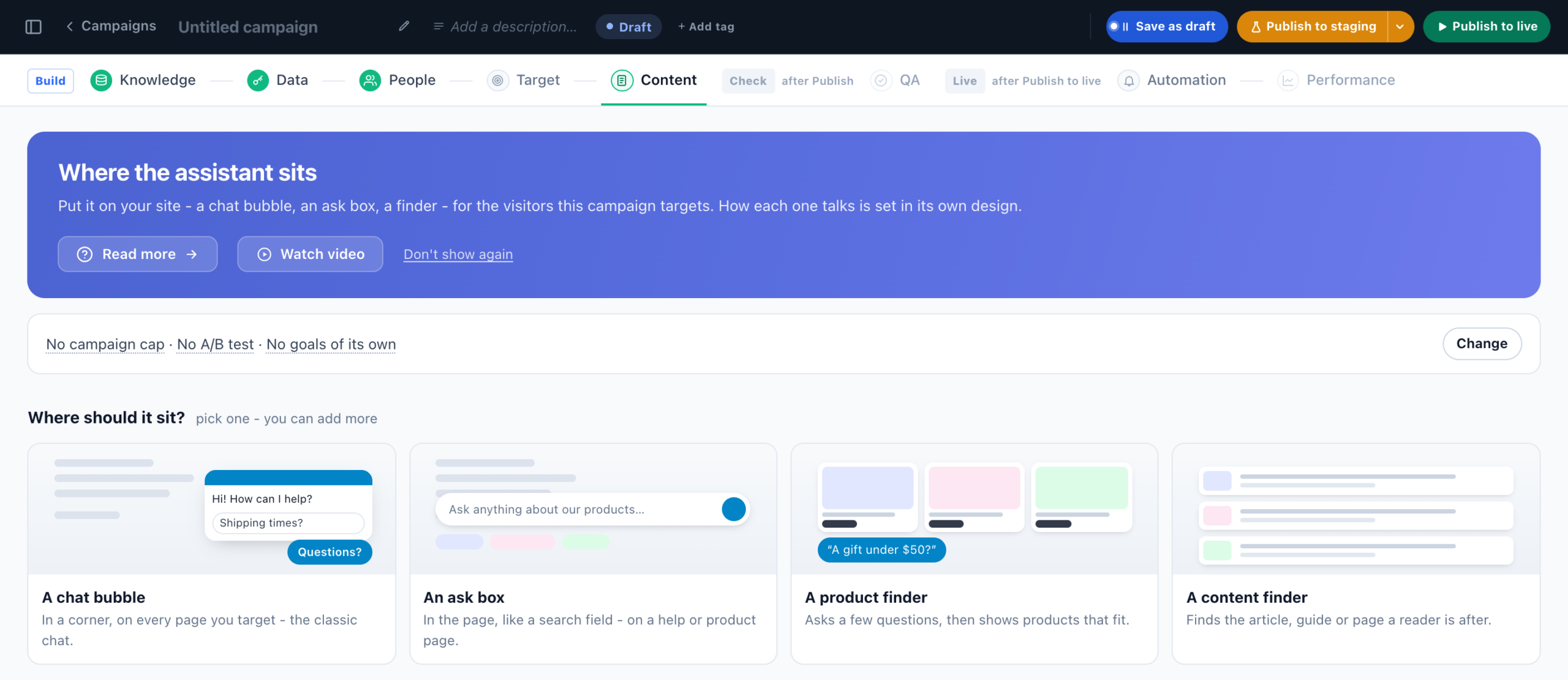
The Content step is where the faces diverge. An empty campaign shows four pictures under Where should it sit? — A chat bubble, An ask box, A product finder and A content finder. Pick one; you can add more. Once the campaign has them, each card draws the assistant as a visitor sees it.
There is a second route for adding another placement later: Settings → Where it appears → Put it
somewhere else.
highest-priority one wins and the rest stand down. An ask box is not a window, so it is not
counted — a box in the page and a bubble in the corner coexist.
What it can and cannot do
- It can search your knowledge base, your products and your articles, pull one product’s full record, state an offer you wrote or the visitor’s promotion from Promotions, and hand over to a person where that is allowed.
- It can look up one order — given the order number and the email it was placed with, together — and tell its status, carrier and tracking link. See Where is my order?. That is the only customer record it ever reads: it cannot look up an account or anything else personal, and it is told it is talking to a stranger.
- It will not state a price or a stock level from memory — only what the catalogue returned in that conversation — and it cannot mention a discount that is not an offer you entered or a promotion in your Promotions.
- It can book a meeting where AI Chat → Settings → Behaviour → Offering a meeting allows it: the calendar opens in the conversation, and the visitor picks a day, then a time. See Offering a meeting.
- Its product cards can carry Add to cart, which runs your account’s own add-to-cart code — only where Quick add to cart is set up.
What it costs
A paid module, billed by the conversation: a monthly price for the module, an allowance of
conversations included, and a usage price beyond it. The allowance grows with your plan, and there is a free trial.
Current prices and allowances are on the Add-ons page — that screen is the authority, not this
one.
Support sets a ceiling on conversations per billing cycle — 1,000 for a new chat. It is shown under Behaviour as Most conversations per billing cycle; ask support to raise it. Past it the assistant stops answering new conversations rather than quietly running up a bill, and anyone mid-conversation is allowed to finish. When an allowance is spent the chat switches itself off rather than appearing and failing.
Related
- AI in Personyze — every assistant and where to find it.
- Product / content feeds — what the
assistant searches.