
Conversion tracking is where you define the events that count as success — a purchase, a sign-up, a button click, a page visit, a form submission. In Personyze these are called goals. Define a goal once and every campaign, action and audience can reuse it for performance reporting, so your numbers stay consistent everywhere.
Two videos cover goals:
What can trigger a goal, from a click to your own JavaScript.
Account-wide goals versus a goal dedicated to this campaign.
Where it lives
Open Settings → Conversion Tracking in the left menu. You’ll see every goal on the account, its type, when it was created, its de-duplication limit, recent event count, and whether it’s active. Use the search box and the Type / Status filters to find one quickly.
Create a goal
Click + Add new goal, give it a clear name (for example Checkout Success), then choose what should trigger it. Personyze offers six trigger types:
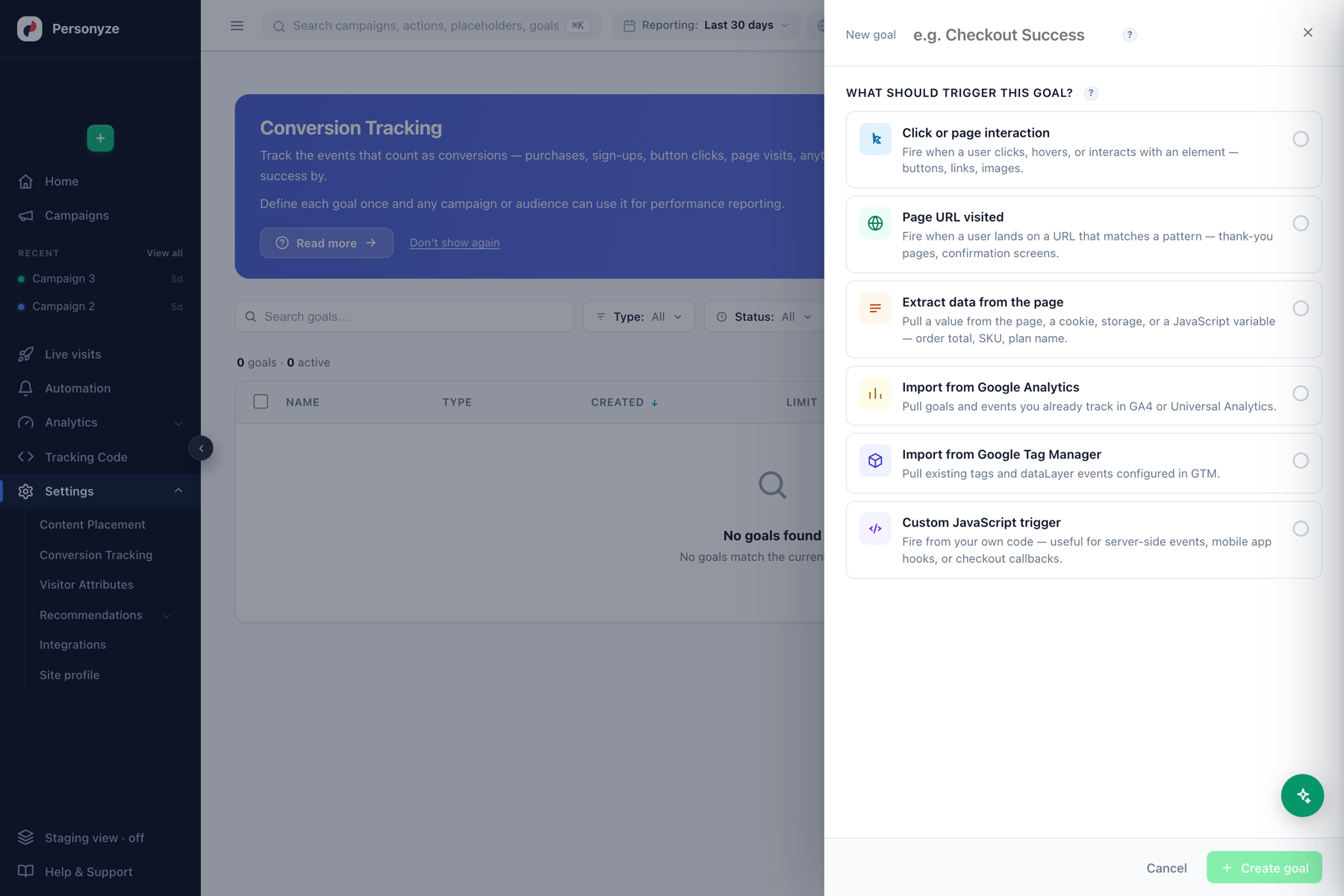
- Click or page interaction — fire when a visitor clicks, hovers, or interacts with an element: buttons, links, images. Point it at an element with the visual picker or a CSS selector.
- Page URL visited — fire when the visitor lands on a URL that matches a pattern. Ideal for thank-you pages and confirmation screens (for example any URL containing
/order-complete). - Extract data from the page — pull a value from the page, a cookie, browser storage, or a JavaScript variable. Use this to capture the order total, SKU, or plan name so the goal carries a monetary value, not just a count.
- Import from Google Analytics — reuse goals and events you already track in GA4 or Universal Analytics instead of re-defining them.
- Import from Google Tag Manager — pull existing tags and
dataLayerevents configured in GTM. - Custom JavaScript trigger — fire the goal from your own code. Useful for server-side events, mobile-app hooks, or checkout callbacks.
Configure the trigger
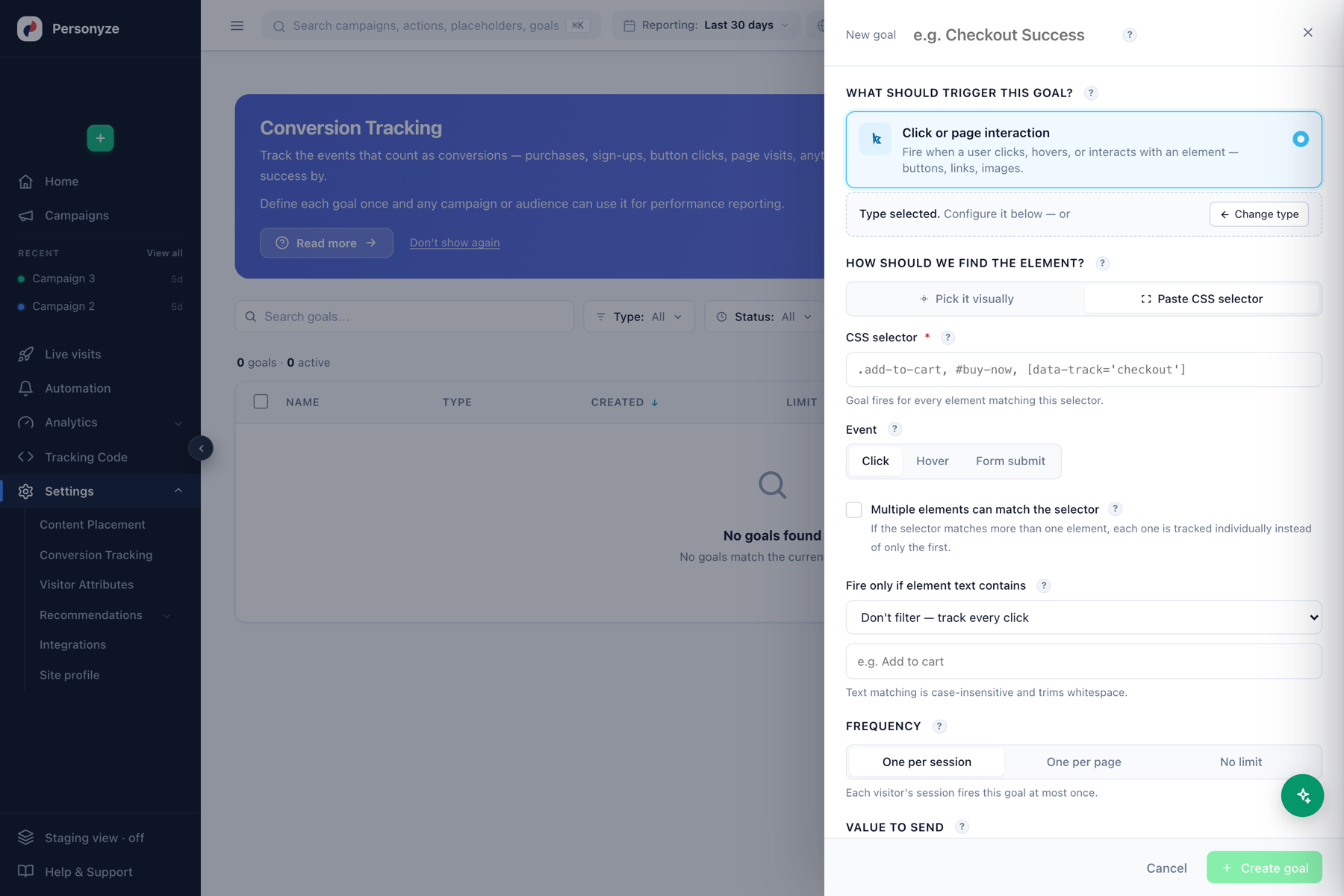
After picking a trigger type, configure how Personyze detects it. For a click goal, choose Pick it visually (opens the QA simulator so you can click the element on your live page) or Paste CSS selector, then set the event (click, hover, or form submit), an optional text filter, and how often it may fire per visitor.
Goal value and de-duplication
A goal can carry a value — a fixed amount, or a number extracted from the page (the order total). Personyze then reports attributed revenue alongside the raw conversion count, so you can see the money a campaign influenced, not just the clicks.
The limit controls de-duplication: count a goal once per visitor, once per session, or every time it fires. Set purchases to count every time; set a sign-up to count once per visitor so a returning user doesn’t inflate the number.
Two scopes: account-wide and campaign-dedicated
A goal now has a scope, and it decides where the goal reports and whether it costs you a slot.
| Account-wide | Campaign-dedicated | |
|---|---|---|
| Reports on | Every campaign, and the dashboard | Only the campaigns it is attached to |
| Costs a slot | Yes — twelve per account | No |
| How many | Twelve at once | No limit |
| On the dashboard | Yes | No |
Use account-wide for the conversions that matter to the whole site — a purchase, a sign-up.
Use dedicated to measure one campaign’s own outcome — a click on this promotion’s
landing CTA, a form only this campaign drives — without spending a permanent slot or adding noise to every other
report.
Making one
Two routes into the same editor:
- Conversion tracking — the goal editor has a Where it counts section: choose
Account-wide or Selected campaigns only, with a searchable campaign picker. The goals list marks a
dedicated goal with a Dedicated · N campaigns chip. - The campaign editor’s Content step — the GOALS strip, beside Campaign
Cap and A/B Testing. By default it reads “Tracking the account-wide goals”.
+ Add goal either creates a goal already attached to this campaign, or attaches an existing dedicated
one — including one made for another campaign, because a goal can measure several campaigns at
once.
Each row on the strip has Edit, Detach, and the same on/off switch as the
Conversion tracking page.
are looking at. And a goal cannot be detached from its last campaign — edit it to move it elsewhere, make it
account-wide, or delete it.
Everything else is the same
Same trigger types, same tracking code, same pipeline, same attribution. A conversion belongs to a
session, and a campaign is credited when a session that matched it fired the goal — audience
attribution, “how do my matched visitors convert”, not click-through. Conversion rate is
converting sessions ÷ the campaign’s matched sessions, the same denominator as every other campaign
metric, so numbers are not additive across campaigns.
Where a dedicated goal’s numbers appear
In the same places as any goal, under the goal’s own name — there is no separate section:
- The campaign’s Performance step: the Audience goals table, and the campaign’s headline
Conversions and Conv. rate. A session counted by both an account goal and a dedicated goal counts once. - The campaigns list — row conversion numbers and the expanded per-campaign detail.
- A/B testing — per-variation results, daily trends and the
decision-criteria weights. A dedicated goal can be the test’s goal, and with auto-pick winner on, the
campaign’s dedicated goal is offered as the default winner criterion. - The REST API —
/rest/goalscarries the
attachment asdedicated_campaign_ids, an array of campaign ids, absent on an account-wide goal.
conversion takes up to a few hours to appear. Standard report ranges end at the last complete day — to see a
goal’s very first day, use the Today or Last 7 days incl. today preset.
Where goals show up
- Campaign performance — every campaign’s Performance tab reports impressions, clicks, and the goals it drove, with attributed revenue.
- Audiences & targeting — you can target visitors by whether they’ve completed a goal (or not), which is how “returning buyers” or “abandoned checkout” audiences are built.
- Account overview & analytics — site-wide conversion totals and trends.
Reading the numbers: The rules every number follows on the Performance Metrics page explains every figure on this screen and how to read it.
Tips
- Define the purchase goal with an extracted order-total value first — most reporting depends on it.
- Give goals names your whole team recognizes; they appear in every report and audience rule.
- If you already track conversions in GA4 or GTM, import them rather than rebuilding — the numbers will match your existing analytics.
- Test a new goal with the tracker’s staging/QA mode before relying on it in live reports.
Goals feed the performance numbers you’ll see throughout Personyze. For where and how personalized content is shown, see Where Content Shows, and for the data you can collect about each visitor, see the Visitor Attributes guide.