
The Sending step of an email campaign says who the email is from and where replies go, lets you finish your account’s sending setup without leaving the campaign, and sends you a test. It comes after Content and before QA in an Email & SMS Personalization campaign, and is also a step of a Cart Abandonment Emails campaign. Its tooltip: “Who this email is from, where replies go, and your account’s sending setup – with a test to yourself”.
At the top of the step
Read more in the blue box opens the campaign’s guide, Sending email that arrives — “What is on this campaign’s Sending step, and what keeps your email out of spam”: your domain and DMARC, the mailing address, the unsubscribe page, the test send, the Address check, the warm-up of a new domain, keeping your list clean, and what a pause means. It follows this step from top to bottom.
A dismissible intro, Send it as you: “Who this email is from, and where replies go, are this email’s own. The rest is set once for your whole account – your domain, your mailing address, your unsubscribe page – so your next email campaign finds it done.”
Under it is the header of the Set up email sending checklist: a ring, Set up email sending (or Email sending is set up) and how many of its items are done. The same checklist is at the top of Settings › Email setup, in the Email delivery (SMTP) drawer under Settings › Integrations and on the Email deliverability page — see Set up email sending.
If sending through the Personyze mail server is paused for your account, an amber line says so here as well — for example “Sending through Personyze is paused for this account: high bounce rate (6.2%). Contact support.” The email waits in the queue; nothing is lost. See Email deliverability.
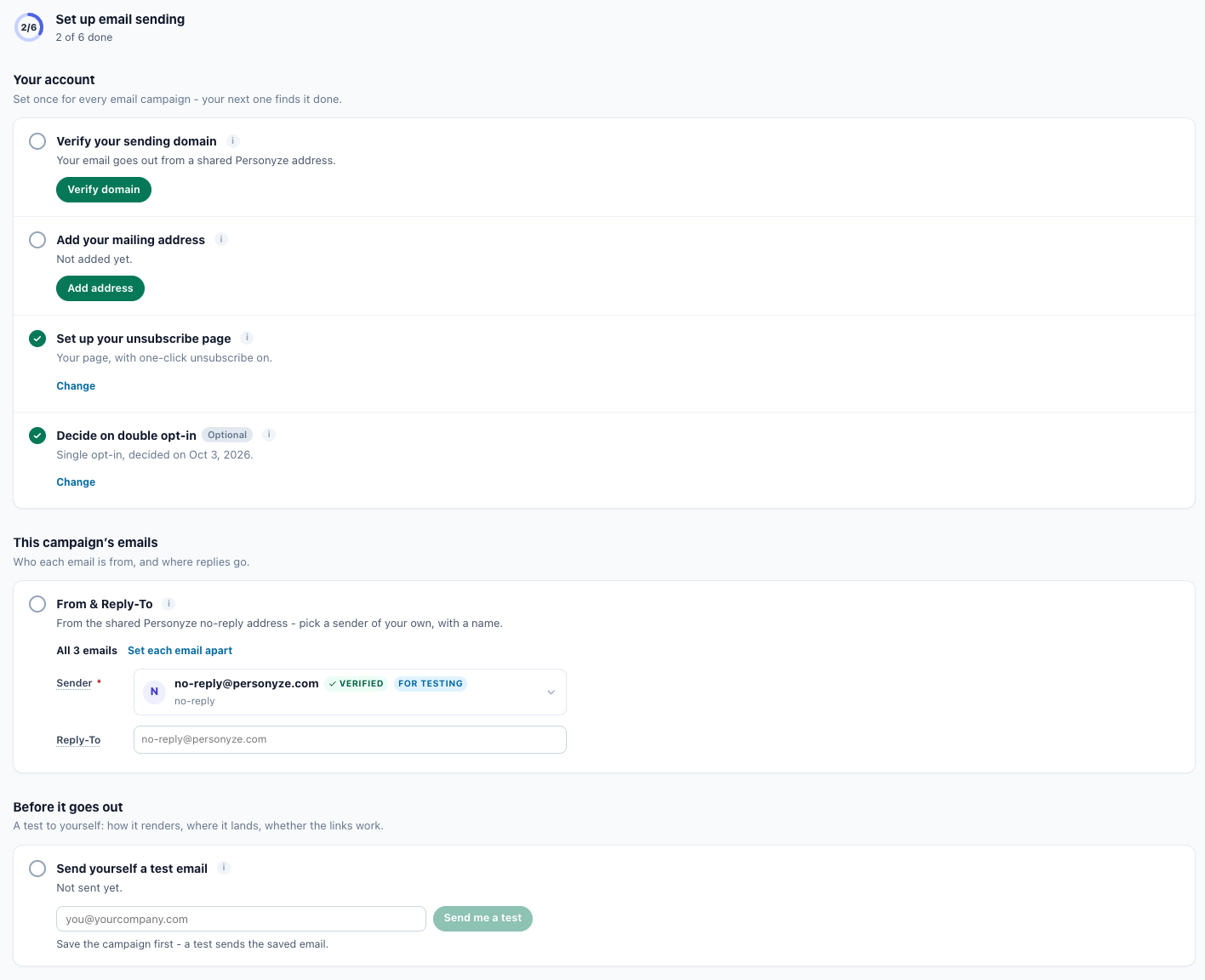
The step has three groups: Your account, This email and Before it goes out.
Your account
“Set once for every email campaign – your next one finds it done.” These rows belong to the whole account: once they are done, the next email campaign opens with them done, each with a quiet Change.
| Row | Done when | Button while not done |
|---|---|---|
| Verify your sending domain | You have a verified sending domain, an address verified for your account on the Personyze mail server, or an SMTP provider of your own. | Verify domain (Continue for a domain added but not verified yet) opens the Send from your own domain drawer. See Verify your domain. |
| Add your mailing address | A postal address is saved. | Add address opens a box in the row. Put {{mailing_address}} in your email’s footer and each email gets the address. See The mailing address. |
| Set up your unsubscribe page | One-click unsubscribe is on, and at least one thing on the page is yours — the logo, colour, heading, body text, button text or footer. | Set up page opens the Unsubscribe page editor in a drawer. See Your unsubscribe page. |
| Decide on double opt-in (Optional) | Double opt-in is on, or you chose to keep single opt-in. | Keep single opt-in records the decision. Turn on double opt-in opens Email setup on its Address & consent tab. See Double opt-in. |
| Warm-up of a new domain | Information only, shown while a domain is warming up or paused for the day. | Deliverability opens the Email deliverability page. See Warm-up of a new domain. |
The drawers open on the right, over the campaign. Set up the domain or the page, save, close the drawer — you are still in the campaign, and the row turns done. The unsubscribe-page row updates after each Save in its drawer.
This email: From & Reply-To
The group is This email, or This campaign’s emails when there are several: “Who it is from, and where replies go.” Its one row, From & Reply-To, is done when every email in the campaign goes out from a sender with a name, at an address of your own — not the shared no-reply address. The row’s line says where things stand:
| Line | What it means |
|---|---|
| Name <address>, replies to reply address. | Done. |
| Name <address>, replies go to the same address. | Done, with no Reply-To of its own. |
| From the shared Personyze no-reply address – pick a sender of your own, with a name. | Not done yet. |
| address has no name – the inbox shows the bare address. | Not done: give the sender a name. |
| There is no email in this campaign yet. | Build it opens the Content step. |
Under the row are the email’s sender fields:
| Field | What it does |
|---|---|
| Sender (required) | “A saved sender bundles a From address, sender name and the delivery method. Configure once, then pick it on any email.” The list holds your saved senders, grouped as Personyze server, SMTP and Webhook, and last the shared Personyze address, marked Verified and For testing. It also offers Send from your own domain and Add a new sender. Under the list, a saved sender has Edit this sender. |
| Reply-To | “Where replies to this email go. Leave it empty for the sender’s default, shown in the field.” The grey text is that default: the sender’s Default Reply-To, otherwise its From address. Not shown for a webhook sender, which has no inbox. |
| Track replies | Counts and forwards replies — see Track replies. |
A new sender is one of three kinds: the Personyze mail server (a verified address, no SMTP settings), Your own SMTP, or Webhook (HTTP POST), which posts the rendered email to your own endpoint. How to add each, and how to send from your own domain: Set up email sending.
Track replies
The checkbox under Reply-To: “Replies go through Personyze first: each one is counted in the report, can be used in audiences (“Emails replied to”), and is forwarded to the Reply-To above. Out-of-office and other automatic replies are not counted or forwarded.”
- It is offered only for an email sent through the Personyze mail server — not through your own SMTP server or a webhook.
- A sequence needs it for Didn’t reply and for Leaves when they reply. Choosing Didn’t reply, or switching Leaves when they reply on, ticks it for the emails before — see Email sequences.
- Send me a test is never tracked, so a test shows the real Reply-To.
How replies are counted and forwarded: Reply tracking.
A campaign with several emails
While every email of the campaign has the same sender, Reply-To and Track replies, the step shows one set of fields, All 3 emails, that sets them all. Set each email apart gives each email its own fields, labelled with its place and subject — Email 2 · its subject, or No subject yet. Same for every email joins them again while they still match.
Everything in this group is saved with the campaign’s Save.
Send yourself a test email
The last group, Before it goes out: “A test to yourself: how it renders, where it lands, whether the links work.” Type an address — it starts with the one you used last — and click Send me a test.
- The test sends the saved version of every email in the campaign, filled with sample data, to that one address. Save first: an unsaved campaign gets “Save the campaign first – a test sends the saved email.”, and unsaved edits “Save first to test your changes – a test sends the saved email.”
- Then it says “Sent to address.”, or, when some emails could not go, how many did and why each other one did not — for example “Email 3 was not sent: This email has no subject line yet. Add one on the email step: it cannot be sent without one.”
- The row then turns done, “Sent to address on date.”, and so does the test item of the checklist.
- A test is never held back by suppression, the account cap or the sunset policy, and keeps the real Reply-To even with Track replies on.
- While sending through the Personyze mail server is paused for your account, a test through it is refused with “Sending through Personyze is paused for this account: … Contact support.”
To see an email as one recipient would get it, with their own personalization, use Preview by user on the QA step — and run the spam check there.
The Campaign readiness card
On the campaign’s Target step, the Campaign readiness card lists the setup items still open — Branded sending address, Sender name, Mailing address, Unsubscribe page, Test email and, while a domain warms up, Warm-up of a new domain — and each one links to this step. None of them stops you publishing.
Related
- Email campaigns — the steps of an email campaign
- Set up email sending — senders, your domain and the checklist
- Writing the email — subject, subject tests, coupons and the spam check
- Your unsubscribe page, the suppression list and double opt-in
- Reply tracking — know when someone answers your email
- Email deliverability — the warm-up and paused sending
- Email sequences — several emails in one campaign
- Troubleshooting email campaigns