
A Surveys campaign asks a few questions — a poll, an exit survey, a post-purchase check-in — and keeps every answer: in your submissions and in the campaign’s report, and — for the questions you choose — on the visitor’s profile. This page is how a survey is built. Asking only some visitors, where the answers go, the survey’s own page and emails, and the report each have a page of their own — see Everything else about surveys.
On personyze.com: On-site surveys and NPS →
Watch the 2:28 walkthrough: building a five-question customer survey, what a visitor sees, the Survey dashboard, and publishing the results under the home page hero.
The campaign
New campaign → Surveys. The steps: Content, Target, Sharing, QA, Automation and Performance. A survey shown only on its own page and in emails has no Target step — anyone with the page’s address sees it — and no Placement, Trigger & Frequency step. A survey inside a page of your own design is a part of a hosted landing page: see Landing page kinds and parts. Sharing gives the survey a web address of its own, a QR code and emails — see A survey’s own page, QR code and survey emails.
Surveys are part of the Reviews & Surveys add-on. Every survey of the account is also in one report, under Reviews & Surveys → Surveys.
The Survey action
In Content, Add action → Feedback & surveys → Survey, and pick a design. The gallery opens on B2B Visitor Survey — role, company size and what they need, three questions on one card — then Customer Survey, Tap-to-Answer Survey and the Welcome Quiz; Quick Poll, Exit Survey, Post-Purchase Survey and Exit Survey — What Held You Back? For B2B and Services follow. Each comes with sample questions; change any of them. The action has four steps:
- Questions, look and feel — the languages, the questions, the question layout, the look and the thank-you screen.
- Placement, Trigger & Frequency — where, when and how often it shows.
- Where the answers go — email, Slack, Zapier, a CRM or a webhook, and alerts. See Where survey answers go.
- Thank-you email — off by default. See The thank-you email.
Under the design pictures, Or build a page or popup of your own with the Canvas builds a design in the Canvas Builder instead. It shows on your site’s pages, not on the survey page, and answers to a form in it go to Forms, not to this survey’s results.
Building the questions
Step 1’s sections start with Languages, then Questions — the whole survey — and Question Layout. The rest are the design’s own: the message, the buttons, the thank-you, the picture and the look (see below).
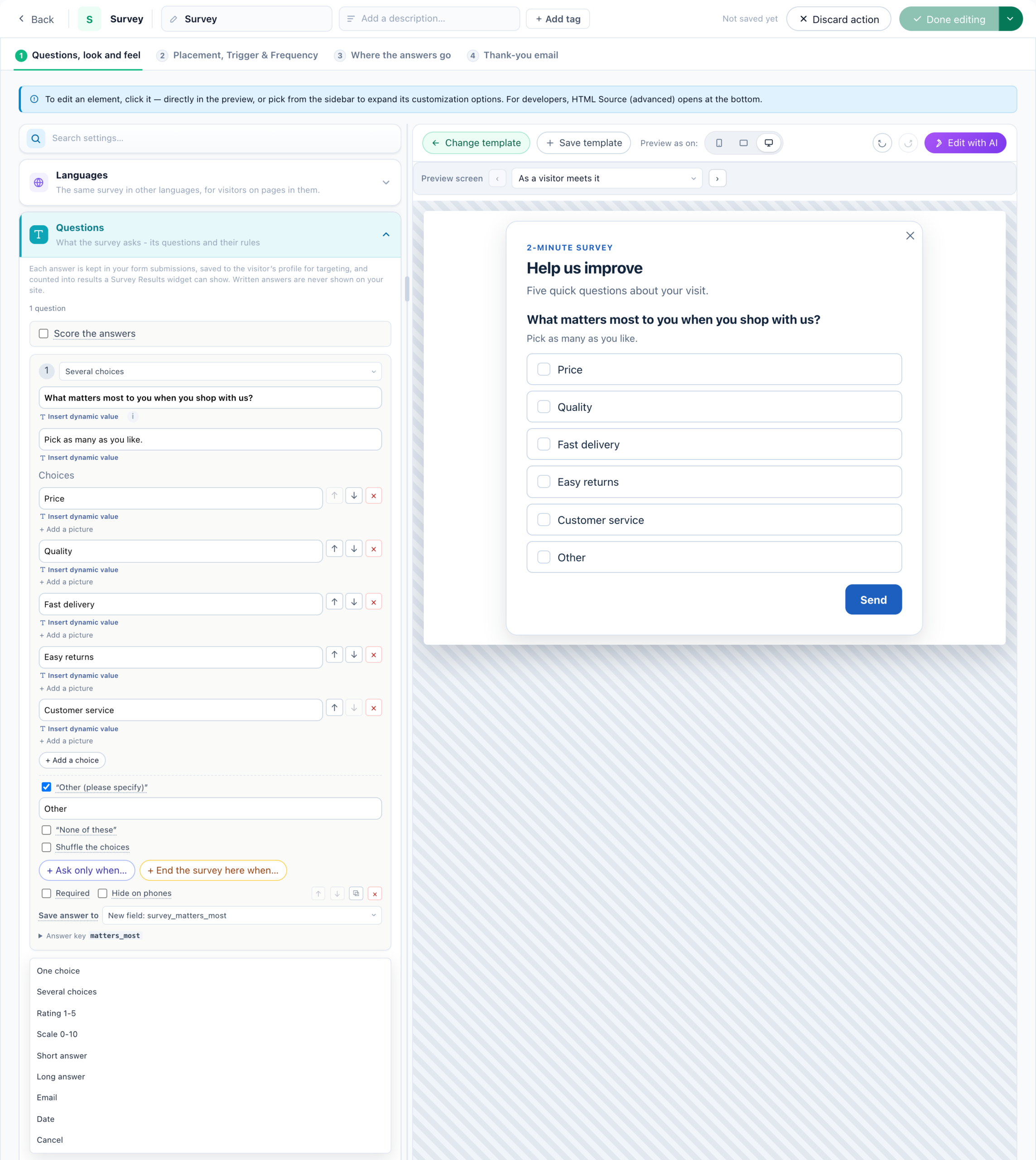
Questions holds up to 20 questions, one card each. + Add a question opens a menu of the eight kinds; the kind of a card can be changed from the list at its top.
| Kind | What the visitor does |
|---|---|
| One choice | Picks one of your choices. |
| Several choices | Ticks any of them. Each choice’s share is of the visitors who answered, so the shares can add up to more than 100%. |
| Rating 1-5 | Gives one to five stars. Its result is an average out of 5. |
| Scale 0-10 | The “how likely are you to recommend us” scale. Its results are an average and an NPS. |
| Short answer | Writes one line. |
| Long answer | Writes a paragraph. |
| Types an email address, checked as it is typed and again when it is sent. It reaches the places your answers go as the submission’s email — see Where survey answers go. | |
| Date | Picks a day from a calendar. Its conditions are before, after and between days. |
Above the first card, Score the answers gives the choices points — for a quiz, a lead score or a readiness check; see Scoring. Below the last, After the last question sets what a visitor who answers to the end sees: a booking calendar, a button, or a result by answer — see At the end.
On each card:
- The question, and A line under it, optional.
- Choices (one choice, several choices) — up to 12, added with + Add a choice, reordered with ↑ ↓, removed with ×. At least two are needed, and no two can say the same thing.
- “Other (please specify)” (one choice, several choices) — a last choice that opens a short text box. Your results, your conditions and the profile see its words, e.g. Other; what the visitor types is kept with their answers, and shown under it in the report and the export.
- “None of these” (several choices) — the very last choice, and the only one that stands alone: ticking it clears the others, and ticking another clears it.
- Shuffle the choices — each visitor sees your choices in an order of their own, kept on every page and after a reload, so the first one is not picked just for being first. “Other” and “None of these” stay last, and your results do not change.
- + Add a picture, under any choice — see Make it a quiz.
- Words at the two ends (rating, scale) — shown under the first and the last number, e.g. Not likely and Very likely.
- If we already know their email (email) — Ask anyway, or Skip this question for a visitor whose profile already has an email address. Consent text is the words shown next to the email box, e.g. “Yes, send me news and offers by email.”, saved with each answer as proof of consent.
- Only dates from today on (date) — for a delivery date, a booking, a call back.
- Required — a visitor cannot go on without answering it. A question skipped by its condition is never required.
- Hide on phones — not asked on a phone. For the conditions after it, it counts as not asked, and the progress count leaves it out. Pick the phone under Preview as on to see the survey as phones get it.
- ↑ ↓ move the question, ⧉ copies it (the copy’s answers are counted apart), × removes it. Answers already given to a removed question stay in your submissions and on the visitors’ profiles.
- + Ask only when…, + End the survey here when… and Insert dynamic value — a survey that changes with the answers and the visitor. See Survey logic.
Written answers are for you: they are never shown on your site.
Save answer to: target by the answers
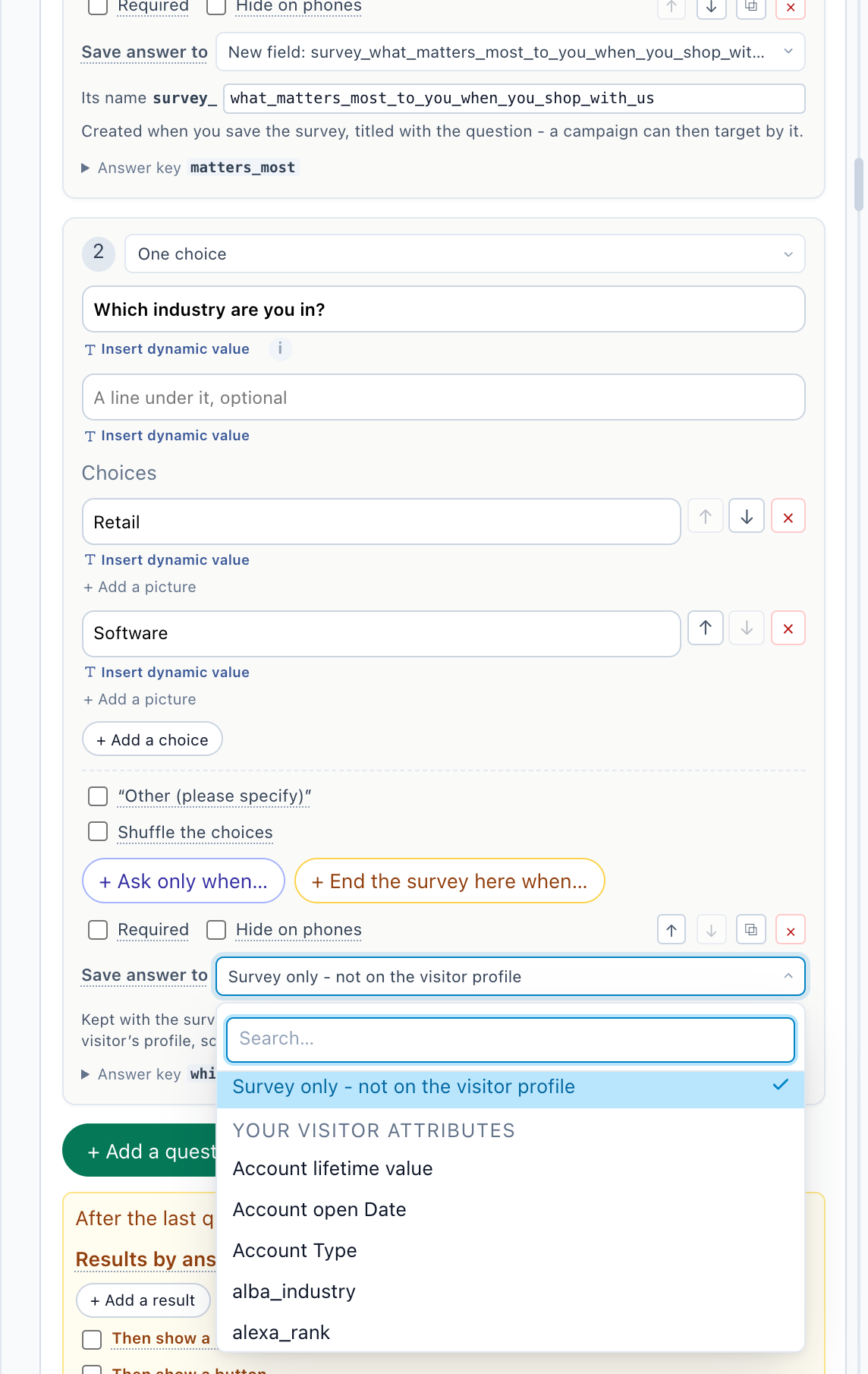
Every answer is kept with the survey: its results, exports and the places the answers go. Save answer to, on every question except a long answer, decides whether it is also kept on the visitor’s profile, so a campaign can target by it with a targeting rule — e.g. Industry is Retail.
| Choice | What happens to the answer |
|---|---|
| Survey only – not on the visitor profile (the default) | Kept with the survey’s answers only. No campaign can target by it. |
| An attribute under Your visitor attributes | Saved to an attribute you already have — company, website, industry, anything imported from a CRM — so the campaigns that already use it read the answer too. Attributes that identify the visitor, such as their email, and the ones Personyze fills itself are not offered. |
| Create a new attribute… | A new visitor attribute for this answer, with a name suggested from the question’s words, e.g. survey_what_brought_you_here_today. Change it under Its name — lower-case letters, digits and _. It is created when you save the survey, titled with the question. |
- A question that already saves to a field of its own keeps it, shown as New field: survey_<answer key>.
- A long answer is never saved to the profile: Kept in your submissions only.
- An Email answer is never saved as the visitor’s own email address: a typed address does not prove who someone is.
- A rating or a 0–10 answer is saved as a number; several choices as one text, joined with “; ”.
- An answer that does not fit the attribute you picked — words into a field of numbers, a choice its fixed list lacks — is warned about under the question. Two questions saving to one attribute are marked in red: one answer would replace the other.
- An attribute a survey created is offered to the surveys after it under Your visitor attributes, so several surveys can fill one attribute.
- A 0–10 question does not fill the NPS score and NPS group fields — only a Feedback NPS question does.
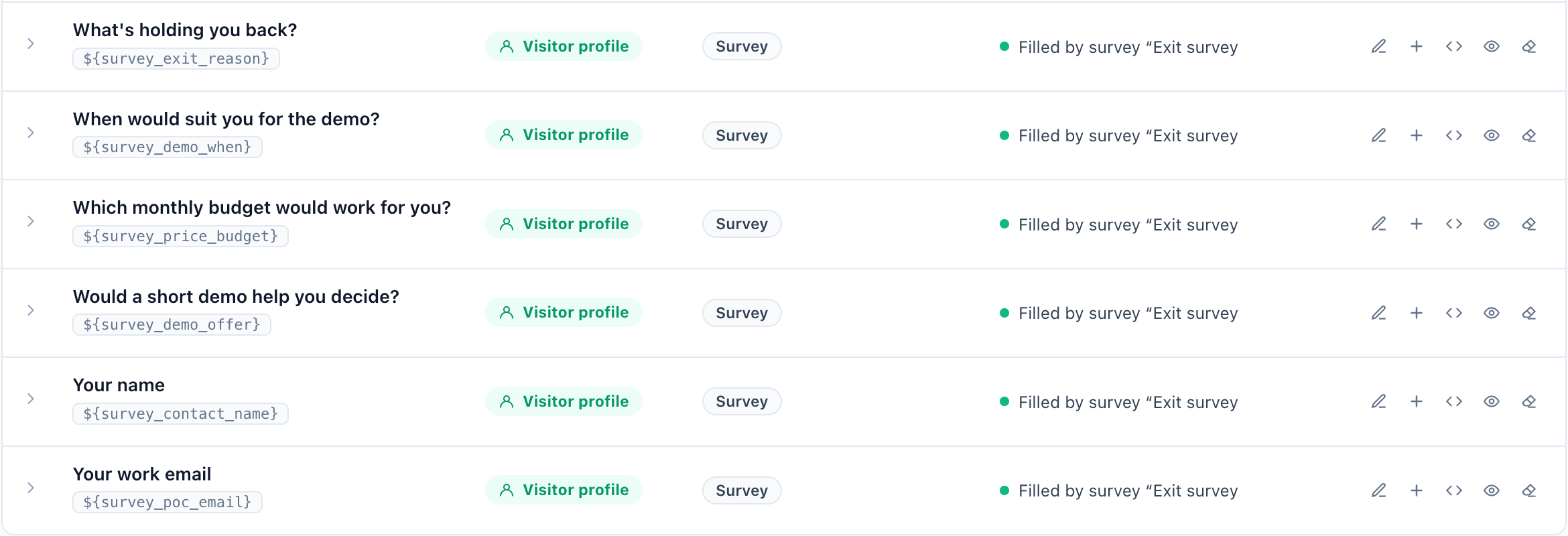
On the Visitor Attributes page, a field a survey fills reads Filled by survey “<survey name>”, or Filled by 2 surveys.
Answer key
The fold at the foot of each card, Answer key, is the answer’s name in every submission, the CSV export and the rules. It is made from the question and follows its words while you edit. Open the fold to set it yourself: lower-case letters, digits and _, at most 40. Once the survey has answers it is fixed (“Fixed – this survey has answers under it.”), because its answers, totals and profile values are filed under it. The key is also how an answer is put into an email — see Where survey answers go.
Question Layout, the look and the thank-you screen
Set in the design’s own sections: click the element in the preview, or pick it from the sidebar.
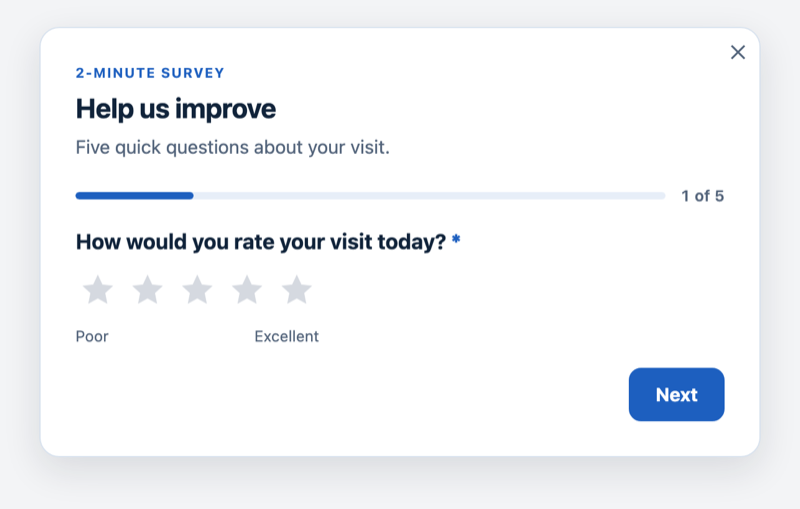
- Question Layout, right after Questions — Layout: One question at a time, with Show the Progress Bar, Progress Text (“{n} of {total}”) and Go On When a Choice Is Tapped; or All on one card, which suits one or two questions. Choices Look draws the choices as Rows, Chips, Cards or Buttons. The section also holds the mark on required questions and the message for a missing answer.
- After Sending — Thank-You Heading, Thank-You Text, and Then: Keep the thank-you on screen or Close after a few seconds. An early end can have a thank-you line of its own, and any end a booking calendar, a button or a result by answer — see Survey logic.
- Look, under Layout and Style — one pick sets the colours, the corners, the buttons, the shadow and the font: Light, Warm, Dark, Forest, Ocean, Minimal, Midnight, Daylight, Sunset, Lavender, Rose, Graphite, Editorial, Mono or Candy. Corners, Shadow, Button Shape and Font follow it while they are left on From the look; set one to change only that.
- Show Maybe Later Link (it reads No thanks unless you change it) — a visitor who clicks it is not asked again. The link disappears once the survey is sent.
- Text Direction — left to right, or right to left.
Make it a quiz
A survey can be a quiz: a few taps, then the page that fits the answers.
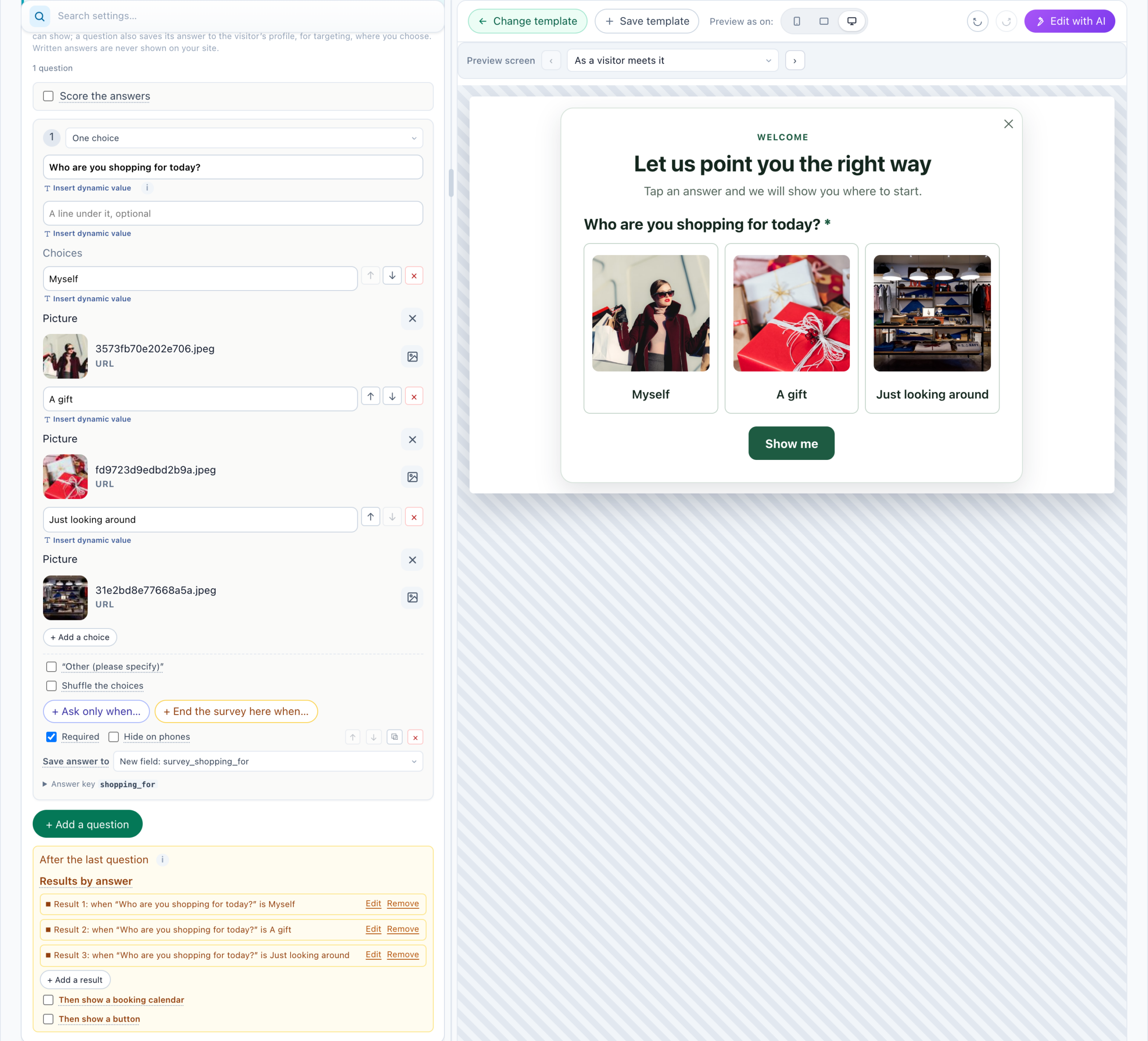
- Pictures on the answers — + Add a picture under a choice puts a picture from your media library above it: a product, a person, a place. Once an answer has a picture, the question’s answers are drawn as picture tiles. Visitors still pick the words: what is saved and counted is the answer, never the picture.
- Results by answer — under After the last question, + Add a result for each outcome: the answers that lead to it, and its own thank-you line, button and booking calendar. The first result that matches is shown.
- A button at the end — Then show a button, with its words and its page, opens the page for that answer.
- A score — Score the answers adds up points per choice, and a result can read it.
Each is explained in Survey logic. The gallery’s Welcome Quiz — Who They Shop For, a Page for Each Answer is a ready one: “Who are you shopping for today?”, three picture answers, and a result for each with a button to its own page.
Languages: one survey in several languages
Languages is the first section of step 1, closed until you open it. + Add a language, choose it, and choose who gets it under Show it to visitors when: their browser’s language is that one, the page’s address starts with a path such as /nl, or a rule of my own. Under its tab, write the words of every question, choice and text — or click Translate with AI for the ones not translated yet, and check them before you save. A text left empty shows the main words. The same card is in every editor — see Languages.
The questions themselves — their kinds, order, logic and keys — are set in the main version. So every language asks the same survey, sends to the same places and counts in one report, under the main words.
Placement, Trigger & Frequency
Where the survey shows — an Inline element in a placeholder of your page, or a Floating popup — when (on page load, after a delay, on scroll, on exit intent…) and how often (see Frequency caps).
A survey has a third choice: Only on its own page and in emails. It is then never shown on your site — only on its own page, through that page’s link, QR code and text message, and from your emails. Its campaign then drops the Target step, and the survey’s editor drops this step the next time it is opened. Frequency caps do not apply on the survey’s own page. See A survey’s own page, QR code and survey emails.
Survey Results: share them on your site
Add action → Feedback & surveys → Survey Results publishes the results as Poll Results (bars and percentages) or a Stat Highlight (“82% of customers chose…”). Two more designs: Poll Results on a dark card, and a Stat Card — one big number in a framed card. Choose the survey and which of its questions are public.
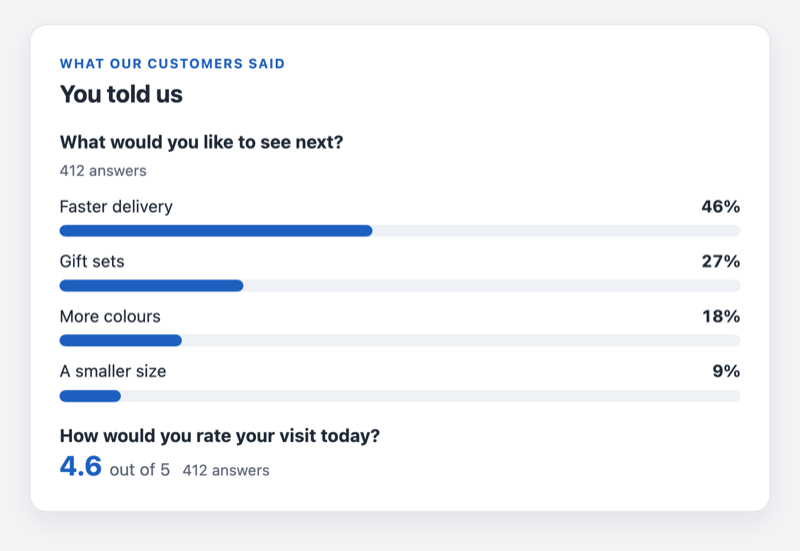
- Totals only. Written answers are never shown.
- Only the survey’s own choices are counted — anything else a browser sends is left out.
- Nothing is shown below the Minimum Answers — 20 by default.
The Surveys report
Campaign → Performance → Surveys: respondents, the response rate, NPS, the path from shown to finished, where visitors stop, where the survey was answered, results per question and by segment, and an AI summary of the written answers. See Survey reports and the AI summary.
Every survey of the account side by side, shown, started and finished: Reviews & Surveys → Surveys — see Reports.
Everything else about surveys
| Page | What it covers |
|---|---|
| Survey logic | Ask a question only for some answers or some visitors, end the survey early, start it differently per visitor, put earlier answers and visitor values into the words, keep a score, end with a booking calendar, a button or a result by answer, and preview every screen. |
| Where survey answers go | Email, Slack, Zapier, HubSpot, Salesforce, Oracle Eloqua, Klaviyo and webhooks; low-score alerts and lead emails; the thank-you email. |
| A survey’s own page, QR code and survey emails | The Sharing step: a web address, QR code and text-message link; surveys in your emails and in other email tools; reminders. |
| Survey reports and the AI summary | The Surveys tab, tile by tile, and the AI summary of written answers. |
| Worked example: an exit survey on a pricing page | Every piece above working together, step by step. |
| Troubleshooting | A question that never shows, an alert that never arrives, answers missing from the report. |
Related
- Feedback & NPS — one question, and the NPS
- The thank-you email
- Reviews, Feedback & Survey Reports — how the numbers are counted
- Targeting rules — target a campaign by a saved answer
- Troubleshooting