
AI assistants are built into the places in Personyze where describing what you want is faster than clicking it together: targeting, the content editors, and the pickers that find things on your pages. They all work the same way — you write a sentence, the assistant does the setup, and the result lands as ordinary, reviewable configuration you can inspect, edit or undo. Nothing is applied behind your back.
On personyze.com: AI personalization in Personyze →
Video: Auto-pick winner & AI optimizer (1:43) — it plays at the top of A/B Testing.
Where the assistants live
| Assistant | Where | What it does |
|---|---|---|
| AI Targeting Assistant | Campaign → Target step | Describe your audience — it generates the audience rules and adds them to yours; turn on Replace my current rules to start over. |
| Edit action with AI | Action editor toolbar (all template widgets) | Restyles or rewrites the whole action from a prompt — texts, colors, tone. |
| Write with AI | Design editor sidebar; Canvas Builder text elements | Three options for one text of a design, written from its other texts, its campaign and your site’s voice — see Write and draw with AI. |
| Create with AI | Any image setting → Media manager | A picture from your own product photos (free), or two drawn from a description. |
| Make this banner with AI | Edit with AI box of a gallery design with a picture, or of a Canvas design | A new picture and the words to go with it, in three steps. |
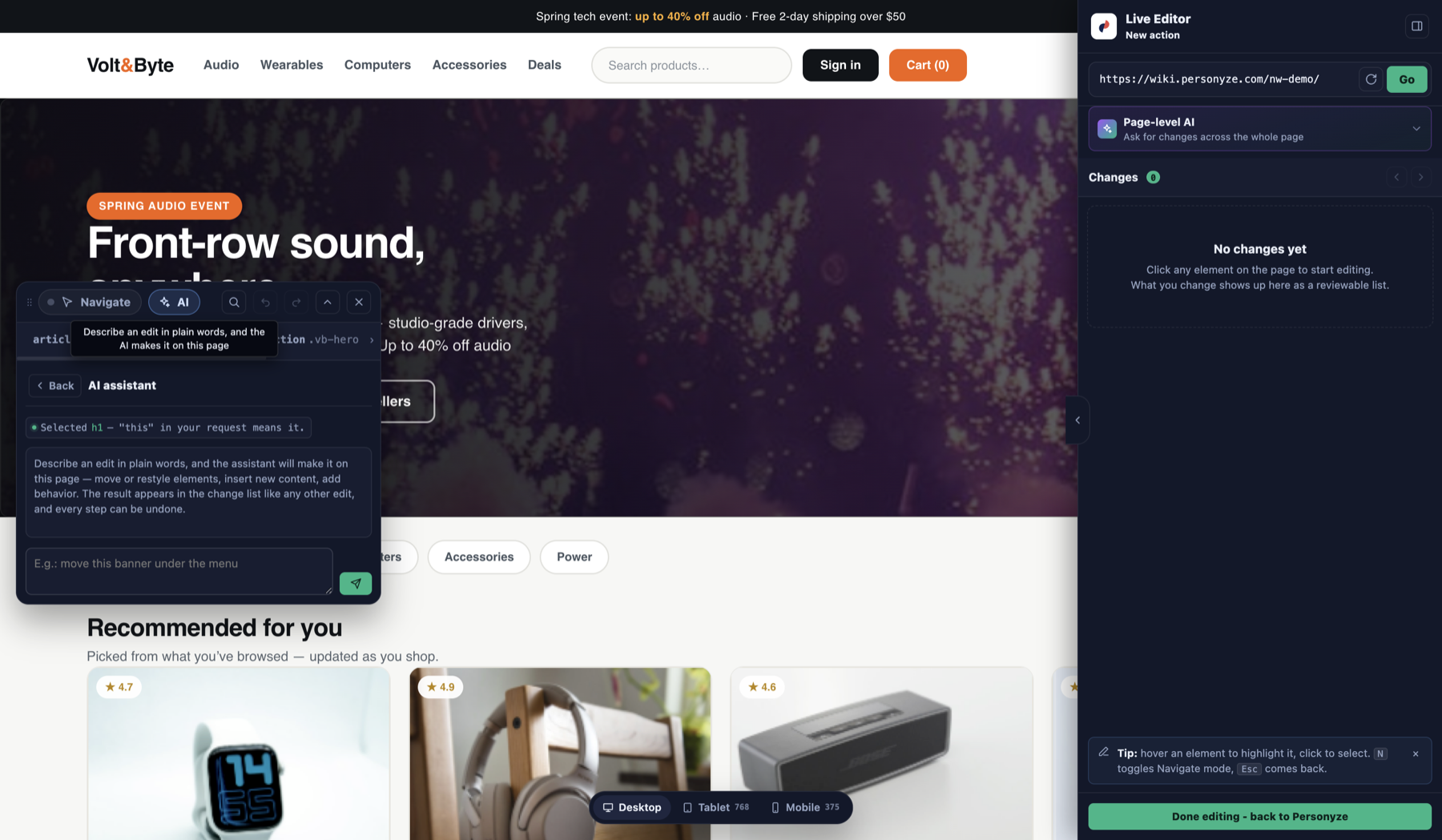
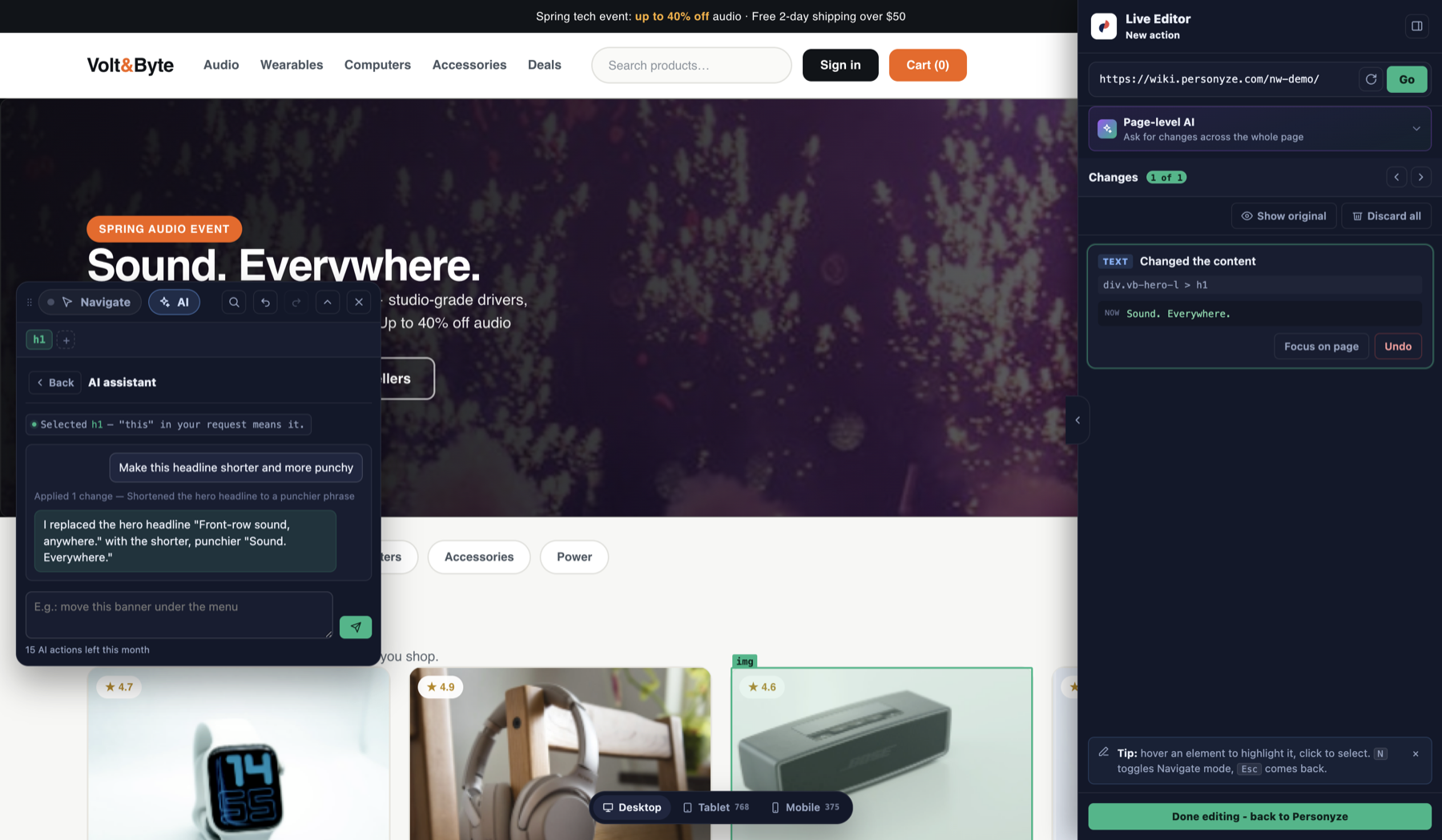
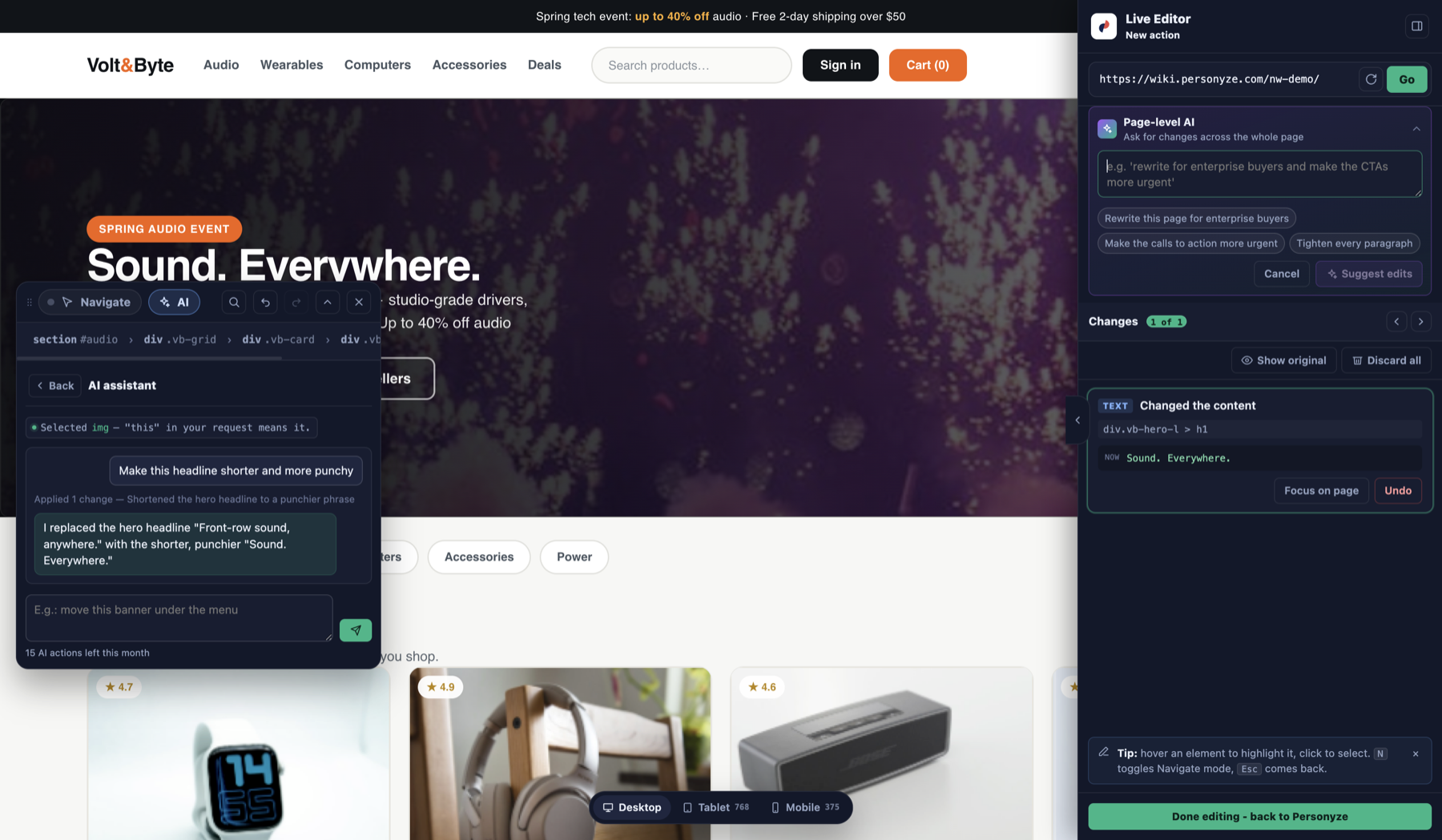
| Page-level AI | WYSIWYG editor → Changes panel | One prompt for the whole page; every edit it makes appears as an undoable row in the change list. |
| Per-field AI | WYSIWYG editor → element editing | Writes a replacement value for the one field you’re editing. |
| “Grab data” picker AI | Settings → Visitor attributes → containers | Describe the visitor data you want collected (“the logged-in user’s plan name in the header”) — it finds where on the page that value lives and fills in the picker. |
| Goal-element AI | Conversion goals setup | Describe the action that counts as a conversion (“clicking the Request a demo button”) — it finds the element. A variant captures a value (order total, plan name) instead of a click. |
| “Find on pages” AI | Placeholder / placement picker | Describe where campaign content should appear (“a promo strip under the section title”, “a recommendations widget above the footer”) — it anchors the placement to the right element. |
| Inspire me | Left menu → Inspire me | Give it your site’s address and a goal — it reads your pages and returns a personalization plan: the audiences it sees, ideas drawn on your own pages for each visitor, and Build this to turn a drawn idea into campaigns. See Inspire me. |

The editor AI in action
Two of these assistants live in the visual editor. Per-element AI rewrites the one thing you selected; page-level AI takes a single prompt for the whole page. Every edit lands in the reviewable change list and can be undone.
Writing prompts that work
Plain language is the point — but a little structure gets much better results:
- Say who, what and where, concretely. “Visitors from Germany on mobile who viewed at least 3 products but never purchased” beats “interested German users”. Numbers, countries, devices and behaviours all translate directly into rules.
- One intent per prompt. For content edits, ask for one coherent change — “make the CTAs more urgent” — and run a second prompt for the next idea, so each lands as its own reviewable change.
- Name the audience in content prompts. “Rewrite this page for enterprise buyers” or “translate the texts to French and keep the brand names” gives the assistant a voice to aim for.
- Point at real things. The pickers work best when you describe what a visitor would see: “the price under the product title”, “the green Add to cart button”.
- Review, then keep or undo. Generated targeting rules read exactly like hand-made ones; AI page edits appear in the Changes list. If it’s not right, undo and rephrase.
Quota
AI actions are metered per account per month — the counter under each assistant (“16 AI actions left this month”) shows what’s left and when it renews. Generating, regenerating and page-level edits each consume one action; typing and reviewing consume nothing.
Read more
- Inspire me — an AI personalization plan for your site, drawn on your own pages.
- Write and draw with AI — words and pictures for your designs.
- WYSIWYG Visual Editor — per-field and page-level AI in context.
- Campaign targeting — the rules the Targeting Assistant writes for you.
- Action guides — every action editor carries the Edit action with AI button.