
A survey does not have to ask everyone the same questions. Under every question in the survey builder, two buttons change who is asked what:
- + Ask only when… — the question is asked only when its conditions hold. Everyone else skips it.
- + End the survey here when… — after this question, the survey ends for the visitors whose answers match, with a thank-you line of its own.
And under each text — the question, its line, each choice — Insert dynamic value puts an earlier answer, or something known about the visitor, into the words.
A survey can also keep a score, end with a booking calendar or a button, and show a result by answer — a quiz.
Watch the 2:09 walkthrough: an exit survey on a pricing page that asks only what each answer calls for, ends early with its own thank-you, offers a proof of concept to the right visitors, and sends the request to sales.
Ask only when…
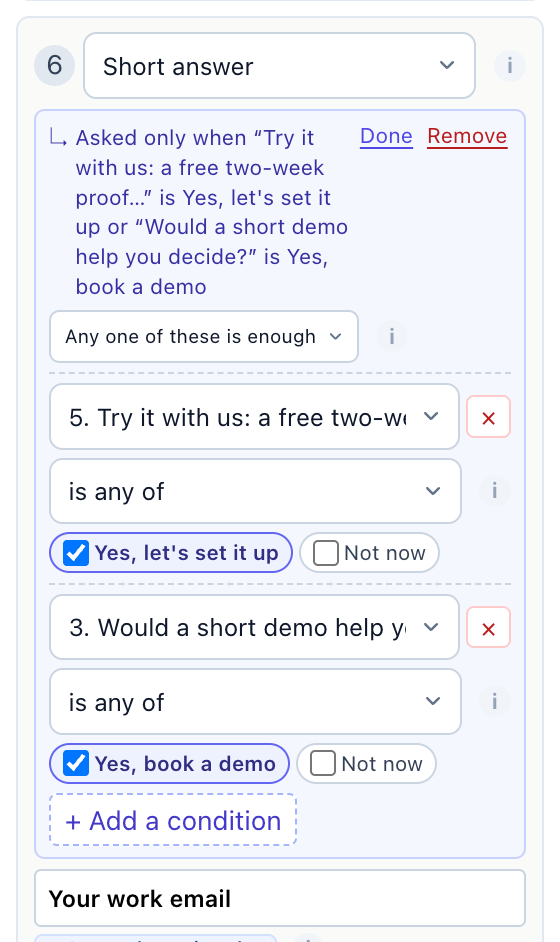
Click + Ask only when… under a question. A box opens with one condition filled in — on the answer to the question before it, or, on a first question, a value of the visitor. Change it, add more, and click Done. Shut, the box reads as one sentence, with Edit and Remove beside it:
Asked only when “What’s holding you back?” is The price is too high
A visitor the conditions do not hold for skips the question: it is not required of them, and not counted as unanswered.
Start differently for different visitors
+ Ask only when… works on the first question too. The survey then starts at the first question whose conditions hold — so several first questions can each speak to their own visitors: one for visitors from a paid search ad, one for visitors whose industry is Retail, and one with no condition for everyone else.
End the survey here when…
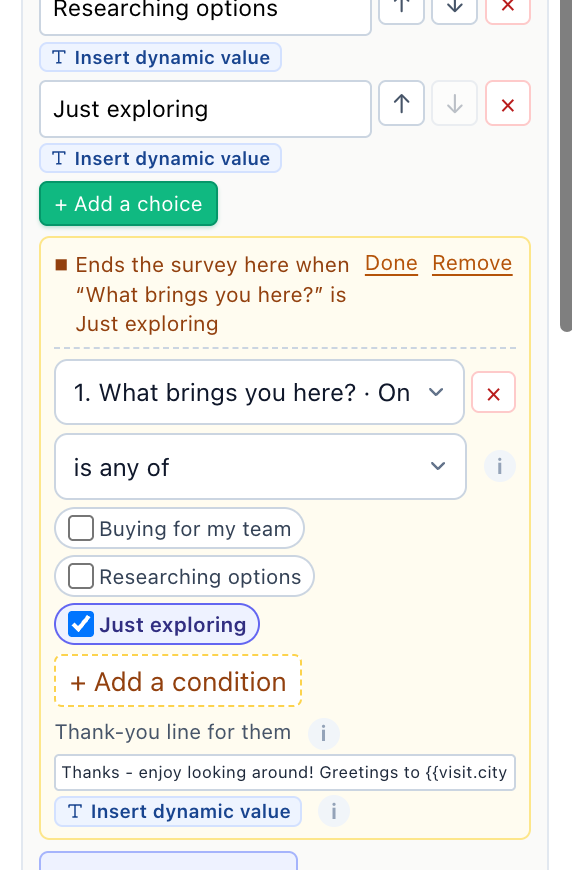
After this question, the survey ends for the visitors whose answers match: their answers are sent, and they see the thank-you. Thank-you line for them (optional, e.g. “Thanks – enjoy looking around!”) replaces the design’s thank-you text for those visitors; left empty, they get the usual one. An end rule can read the answer to this question and to the ones before it. Shut, it reads Ends the survey here when “…” is Just looking for now. An end can also show a booking calendar or a button.
Conditions
+ Add a condition adds up to 5 to a rule. With two or more, choose All of these must hold or Any one of these is enough. A condition reads one of:
- An earlier answer — any question before this one; for an end rule, this question too. “Other” and “None of these” are choices like the rest.
- Score so far, under This survey — on a survey that keeps a score: the points of the answers given before this question (for an end, this one’s too).
- Who the visitor is — Country, Region, City, Traffic source (Direct, Organic search, Paid search, Social, Email, AI assistant, Referral, Internal), Visits so far, Search words, Device (Desktop, Tablet, Mobile), Page language, Page address, Came from, the URL parameters utm_source, utm_medium, utm_campaign, utm_term and utm_content (or any other, typed by its name), and every one of the account’s visitor attributes — industry, company, plan, anything imported from a CRM.
A visitor value is what Personyze knows when it shows the survey — from the visitor’s profile, this visit or the page.
What a condition can ask
| It reads | It can ask |
|---|---|
| One choice | is any of, is none of, is answered, is not answered |
| Several choices | includes any of, includes all of, includes none of, is answered, is not answered |
| Rating 1-5, Scale 0-10 | is, is not, is less than, is at most, is more than, is at least, is between, is answered, is not answered. On a 0–10 question, one click sets Detractors 0-6, Passives 7-8 or Promoters 9-10. |
| Short answer, Long answer, Email | contains, does not contain, is answered, is not answered |
| Date | is before, is after, is between, is answered, is not answered |
| Score so far | is at least, is at most, is between, is more than, is less than, is, is not |
| A visitor value | The same, by the kind of value — words, a number, or one of a list — with is known and is not known in place of answered. Several words are separated by ;, e.g. Retail; Software Development. |
Skipped questions and unknown values
Two rules decide who a condition catches:
- A condition on an answer needs an answer. It is false for a visitor who skipped that question or was never asked it — even is none of or is not. To catch them, use is not answered. A question counts as not asked when its condition skipped it, when Hide on phones kept it off a phone, and when If we already know their email skipped an Email question.
- A condition on a visitor value needs a value. Every operator is false on an empty value except is not known. So “Industry is none of Retail” does not match a visitor whose industry is unknown — which is most visitors. To include them, add “Industry is not known” and choose Any one of these is enough.
What the builder keeps right
- Renaming a choice renames it in every rule; removing one takes it out of them. Removing a question other questions read asks first, then takes those conditions out with it.
- What cannot work is said in red where it is: a condition on a question that now comes after this one, a rule no visitor can meet (“…so nobody is asked it”), an end that never ends the survey.
- A question only some visitors reach is marked “· only for some” in the Preview screen list.
- A survey whose every question is hidden on phones is said in red: a visitor on a phone would see no survey at all.
Dynamic values in the words
Insert dynamic value sits under the question, under its line, under each choice, and under an end rule’s thank-you line. The picker — “An earlier answer, or what is known of the visitor, their visit or the page.” — has a search box and four groups:
| Group | What it holds |
|---|---|
| Earlier answers | The answers to the questions before this one only. On a first question: “None yet – only the answers to questions before this one can go here.” |
| Who the visitor is | The account’s visitor attributes: first name, company, industry and every other. |
| This visit | Country, Region, City, Traffic source, Visits so far, Search words. |
| This page | Device, Page language, Page address, Came from, the utm parameters, and Another URL parameter, by its name. |
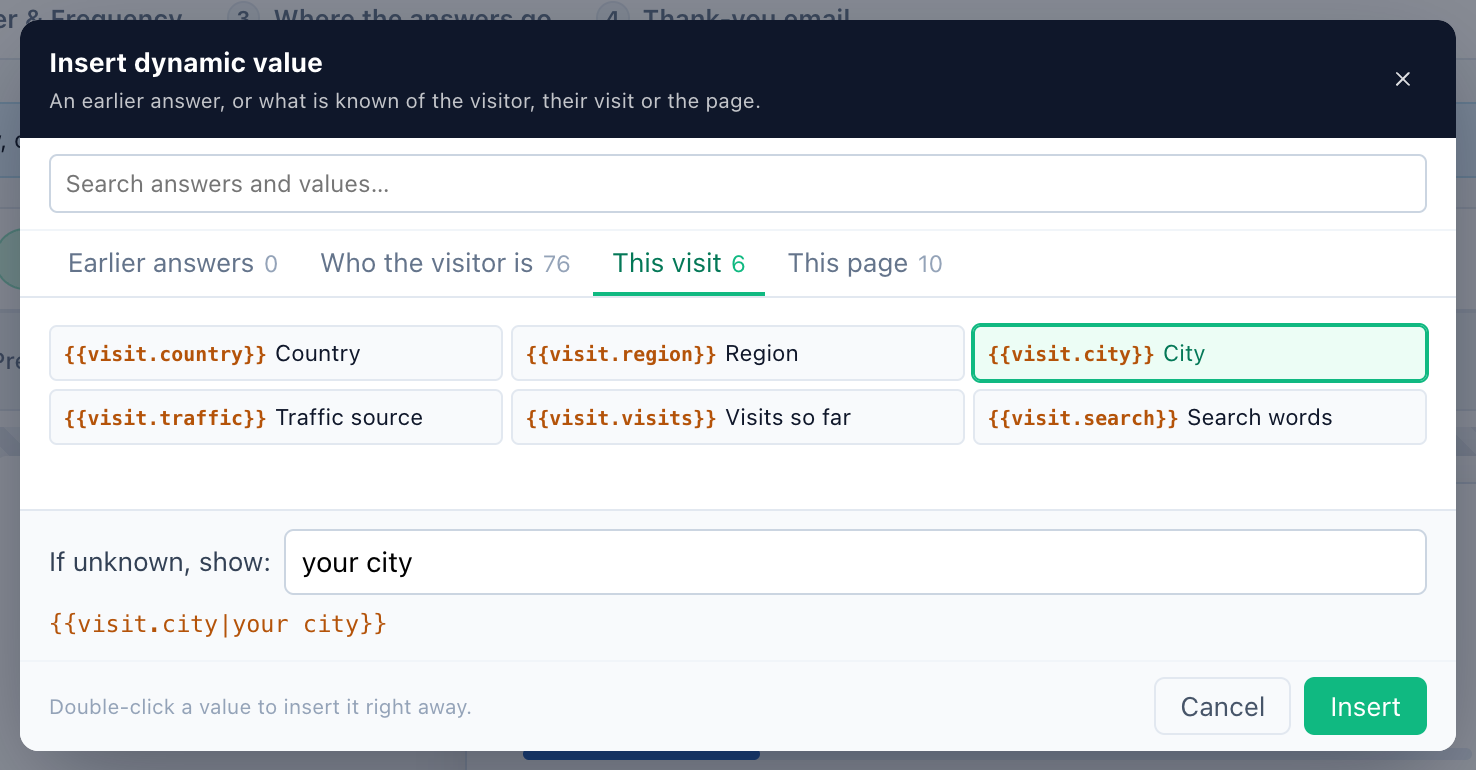
If unknown, show: is what a visitor with no value reads. It is prefilled where a phrase is obvious — “your city”, “there” for a first name — and can be changed or cleared. Insert puts the value in at the caret, written as {{key|fallback}}. Under the field the builder shows Visitors read: and, where there is a fallback, With nothing to fill in:.
Example: What brought you here from {{visit.city|your city}}? reads “What brought you here from Lyon?”, or “…from your city?” when the city is not known. Where some visitors will have no value and there are no words to show instead, the builder asks for them in red.
Scoring: points for the answers
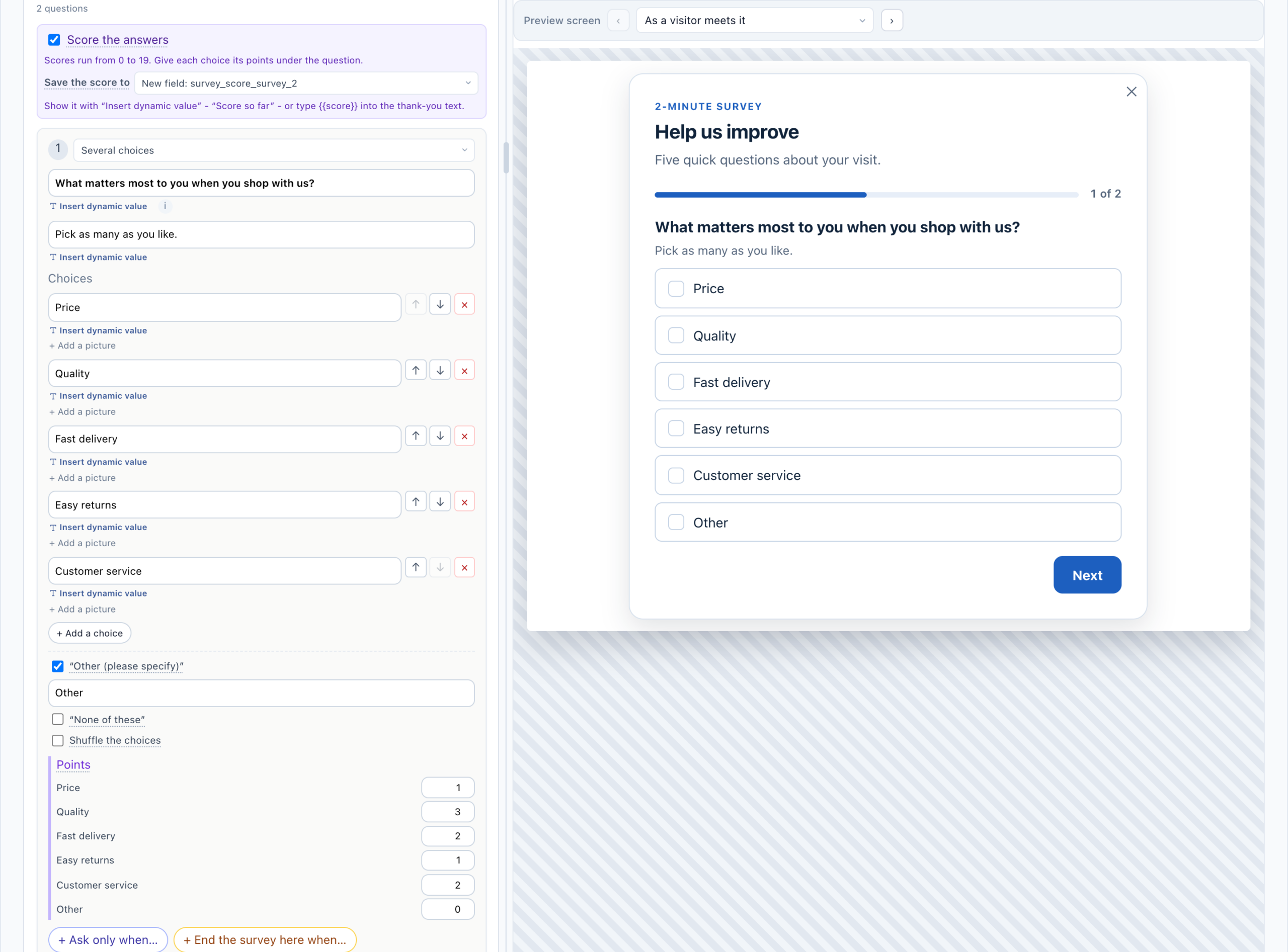
Tick Score the answers, above the first question, and give each choice its Points under the question — for a quiz, a lead score or a readiness check. Several choices add up, a minus takes points away, and “Other” and “None of these” have points of their own. On a rating or a 0–10 question, The answer counts as its points adds 1 to 5, or 0 to 10. The panel says how far the score can run — on phones too, when a question hidden on phones carries points.
- In the words — Insert dynamic value → Score so far, or
{{score}}typed into the thank-you text. - In the rules — Score so far in any Ask only when…, end rule or result.
- On the profile — Save the score to: a new field named after the survey (the default), one of your visitor attributes, or Survey only – not on the visitor profile. On the profile, a campaign can target by it — e.g. the score is at least 30.
- In the deliveries — an Only when… row can read The survey’s score, so only the high scorers reach sales; see Where survey answers go.
- In the report — the score is saved with each response, and the Surveys report shows the average and how the scores spread.
Switching scoring off keeps the points on the questions, so switching it back on finds them.
At the end: a booking calendar or a button
An end rule, and the survey’s own end under After the last question, can each add two things under the thank-you:
- Then show a booking calendar — your Meetings booking calendar, with its real free times, so the visitor books at once. Pick the Meeting — a meeting type from the Meetings screen — and, under Fill the booking with, the answers that fill its name and email; an Email question is the natural pick for the email, and the visitor can still change them. It counts as a booking of that meeting type, credited to this campaign. See Book a meeting.
- Then show a button — Button words and a Page, given as
https://…or as a path on your site starting with/. The button shows once it has both, and opens the page in the same tab: the result of a quiz, the offer that fits the answer.
Results by answer
A quiz’s results: under After the last question → Results by answer, click + Add a result, up to 12. Each has Show this result when — conditions on any answer, a visitor value or the score, as in an end rule — and its own thank-you line, button and booking calendar. Shut, it reads Result 1: when ….
- A visitor who answers to the end sees the first result whose conditions hold.
- An end rule that ended the survey earlier wins over every result.
- With no result matching, the survey’s own end shows: the booking calendar and the button set below the results.
- Renaming a choice or removing a question updates the results that read it, as it does every rule.
Each result is a screen of its own in Preview screen. The Welcome Quiz in the gallery is built this way — see Make it a quiz.
Previewing every screen
Above the preview in step 1, the Preview screen bar has a dropdown and ‹ › arrows:
- As a visitor meets it (the default) — the preview works like the live survey: answer it, and the rules decide what comes next.
- Questions — every question, whatever its rule. The ones only some visitors reach are marked “· only for some”, and the ones hidden on phones “· not on phones”.
- Thank-you screens — Thank-you; After question {n}: “…” for each early end with a thank-you line of its own; Result {n} for each result; and “· booking calendar” on every end that shows one, drawn with its real free times.
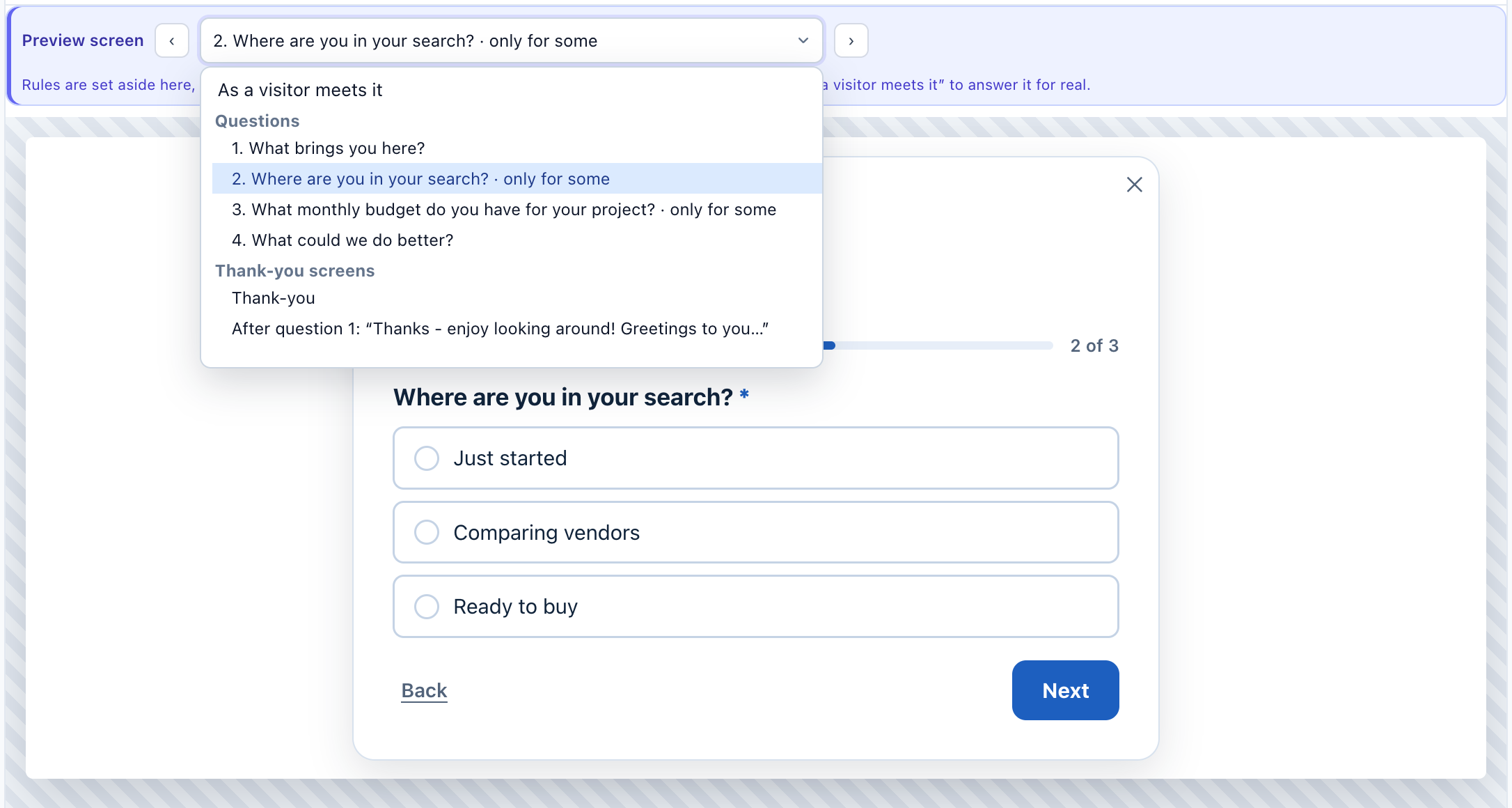
Picking a screen shows it at once, with the note “Rules are set aside here, so every screen can be checked – including the ones only some visitors reach. Pick “As a visitor meets it” to answer it for real.” Nothing is saved by picking a screen.
Related
- Surveys — building the questions
- Where survey answers go — send a lead only when it is one
- Worked example: an exit survey on a pricing page — every rule on this page in one survey
- Targeting rules — the same visitor values, for campaigns
- Book a meeting — the meeting types a survey’s booking calendar offers
- Troubleshooting — a question that never shows