
When there is no feed to load, Personyze can build your Product Catalog or Article Catalog from your own site. It finds your item pages through your sitemap or your links, reads the details each page already publishes for search engines — name, picture, price, stock — and reads them again on the schedule you choose, so the catalog stays current. Every account has it; there is nothing to switch on first.
When to use it
- No feed. Your platform will not export one, or nobody keeps it up to date.
- A feed with gaps. Keep the feed and let the crawl add only the items it misses — see Add only new product pages.
- A content site. Blogs, magazines and help centres: the crawl reads article pages the same way — see Products and articles.
When you do have a feed or a store, prefer it: it carries every field your system knows, with no page reading in between. Shopify, WooCommerce, Magento and BigCommerce connect under Sync my store on the catalog screen; feeds are on Setting the Product / Content Feed and Uploading Feeds & Data Files.
Where to find it
Four ways in, all to the same steps:
- Product Catalog → ⋯ (More options) → Crawl my site — discover and queue product pages. On the Article Catalog the entry reads … article pages. On the older catalog screen it is under Data settings. It opens Read my products from your site.
- In the AI recommendations setup, Your products → Read them from my site shows the same steps in place, with Find my products beside the address.
- Add a source → We read your site → Continue → Open the crawl settings — the catalog’s setup, which then checks the items as a shopper sees them.
- Once a crawl has a schedule or has run, it is listed under Where your products come from as Site crawl. Click the row, or its gear, for the settings.
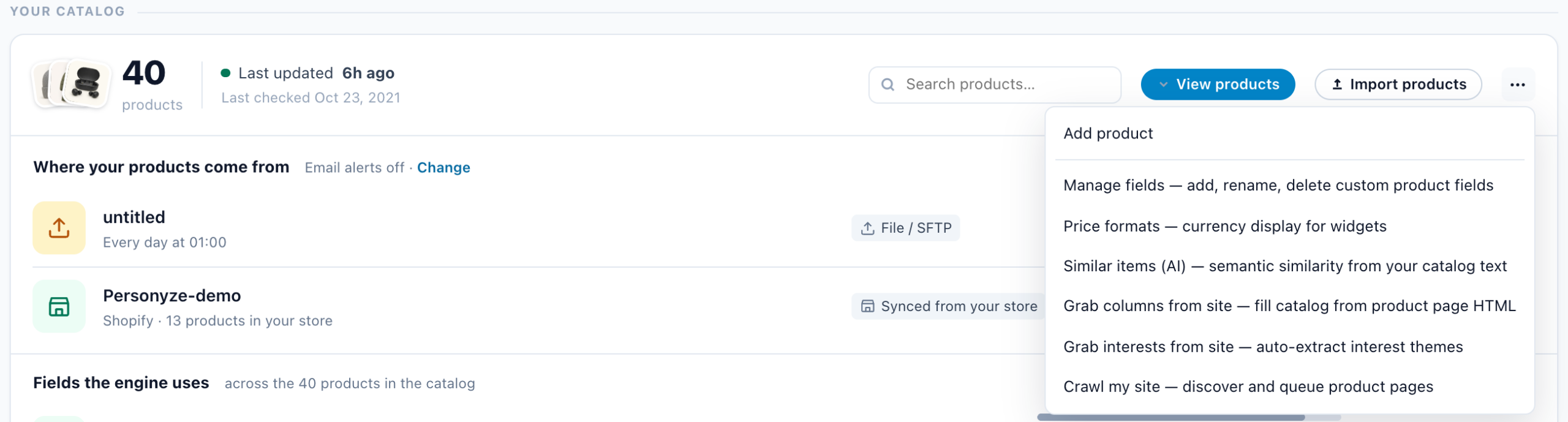
The settings
The dialog is Read my products from your site (Read my articles from your site on the Article Catalog). It asks three things, one step each — 1 · Your site, 2 · Your product pages, 3 · How much, how often — and then shows the reading. There is no separate Save: Start reading saves what the steps hold and starts a crawl, and Cancel or the × leaves without saving.
| Step | What you do |
|---|---|
| Your site Where is your store? (Where is your site?) |
Your home page or your sitemap; the account’s own sites are suggested. Find my products looks through your sitemap first, else the links on your pages — about a minute. Nothing changes on your site. Have a feed or a store to connect? Import a feed instead brings prices and stock exactly as you keep them. |
| Your product pages Which pages are your products? |
The sections of your site, each read from 3 of its pages. Sections whose pages carry a product (a name, a price, a picture) are ticked; Show products shows what was read from a section. Tick or untick, then Continue with N product pages. Pages at the top of your site are in no section: each becomes a product by its own product data. When your site draws its products after the page loads, ticking that section reads it in a real browser (slower), on plans that include one. |
| How much, and how often? | How many of the ticked pages one crawl reads, the one limit that decides it, and the way to lift it. When some pages were read already, it says how many this read leaves as they are, with Force a full re-crawl instead beside them. Check for changes: Every day, Every week, Every month or Only when I ask — a schedule your plan does not allow cannot be picked. Then the two switches below, and More options. |
| Switch | What it does |
|---|---|
| Take a product out when its page is gone Only after a check that read every page, so a slow night never empties your catalog. |
When a page answers “not found”, its product is set out of stock (an article is unpublished). It happens only after a crawl that read every page it queued; a crawl cut short by its page limit or an error takes nothing out. Off by default. |
| Don’t add products that are out of stock Products already in your catalog still get their stock updated. |
Products only. A new page that says out of stock, or has no price, is not added. Leave it off to add every product page — out-of-stock ones still show “also viewed” on their own page and are never recommended. |
More options
Every other setting, with the same meaning it always had:
| Setting | What it does |
|---|---|
| Start pages | Where the crawl begins, one URL per line, each a full https:// address; step 1’s address is the first. A section index or a sitemap usually finds more than the homepage. Give a sitemap (an address ending in .xml, or with sitemap in it) and only the sitemaps you list are read. Otherwise Personyze reads the sitemaps your robots.txt declares, then /sitemap.xml and /sitemap_index.xml, and with no sitemap at all, the links on your start pages. Sitemaps listed inside other sitemaps are followed. The crawl stays on the sites of your start pages; www. and the bare domain count as one. |
| Which addresses are products (pattern) | A regular expression matching your product page URLs, written against the address without its https: — //shop.com/products/blue-coat. The sections you tick in step 2 write it; a pattern you write by hand is never replaced by a tick. Pages that match are read first, so the page limit is not spent on category pages, and become products even when they carry no product data of their own. When your tracking setup already has exactly one such pattern, the field is filled from it, marked Suggested from your product tracking setup — check it matches your item pages. |
| Page limit | Stops the crawl after this many pages, listing pages included. Your plan may cap it, and the dialog says so, for example Your plan caps this at 5,000 pages. A higher number is saved, but the crawl stops at the plan’s limit. See Limits. |
| Read pages in a real browser | For sites that build their pages with JavaScript. Slower, and it covers far fewer pages per crawl — see Sites built with JavaScript. Shown only on plans that include it. |
| Only add pages not in your catalog yet Pages your feed already provides are left as they are. |
For a catalog a feed already fills. A page whose address is already in your catalog is skipped, so nothing your feed owns is changed. Items an earlier crawl added are still kept up to date. |
| Use the page’s SKU as the product id Match your feed’s product numbers, when the page has one |
Uses the SKU from the page’s structured data as the item id instead of one built from the address, so a product your feed also carries lands on the same item instead of a duplicate; an item your feed holds is left to the feed. A product your site serves at two addresses stays one item, and one that moved to another address keeps its item. A page with no SKU keeps an id from its address, and pages that share one SKU, such as colour variants, are not merged. Turned on after a crawl has run, it changes those items’ ids to their SKUs, and views recorded under the old ids stop counting toward them. |
| Force a full re-crawl instead | Re-reads every page, including those already read. Worth it after you change the pattern, or when your pages change shape; otherwise Start reading is faster and gentler on your server. |
More options also holds three panels, each opened by its bar: Map a field to a part of the page, Tracking suggestions and Access for a protected site (cookie or header).
What arrives on its own, and what to map
Personyze reads the details your pages publish for search engines; it does not guess from how a page looks. For each field it takes the first of these that has it:
- Structured data — schema.org Product details (articles: Article, NewsArticle or BlogPosting) in the page’s JSON-LD. The most reliable, and what Google reads.
- Microdata — the same schema.org details written as
itempropattributes in the HTML. - Open Graph and meta tags —
og:title,og:image,product:price:amountand the like.
| Catalog | Filled on its own |
|---|---|
| Products | Title, description, main image (the first, when several are listed), brand, price, in stock, rating and number of reviews. The page’s address becomes the item’s link. |
| Articles | Title, description, main image, author, topic and publish date. The topic is the page’s section; when it names none, the folder in its address — /news/reviews/… becomes Reviews. |
Rules it applies:
- A page with no product data — no structured data and no Open Graph tags — is read from the page itself: the name from its main heading, its product picture, and a price only from clear price markup.
- Sizes and offers. A product with sizes is in stock when any size is, at the lowest price of a size in stock. Prices written the local way (12,99, 1.299,00) are read as prices.
- No price means out of stock. The item keeps its page — shoppers there still see “also viewed” — but it is never recommended. A price that appears only as text, with no structured data or price markup around it, cannot be read, so such products arrive out of stock. Adding schema.org Product data to your product pages fixes it, and it is the same data Google uses for rich results. A shop that shows no prices at all — prices after sign-in, or on request — is the exception: when none of its stored products has a price, they are in stock unless their own page says otherwise, and its widgets show them without a price.
- The SKU is read but not stored as a field. It is used only as the item id, when Use the page’s SKU as the product id is on.
- Not read: categories, a was-price (the struck-through one), the currency (set how prices print under ⋯ → Price formats), and anything particular to your site. Read those with Grab columns from site (same ⋯ menu), which reads values off each item page with CSS selectors; they then show in Field mapping. A card shows the higher of Price and Sale Price as the price before discount, so a was-price read into Sale Price shows as the discount.
- Your site’s own details — its logo, its name — are never taken as an item’s name, image, brand or price.
- A page marked up as an article is never stored as a product, and a page marked up as a product never as an article.
- A page that answers with a login prompt instead of the item is not added — see Private and members-only sites.
- When Personyze improves how it reads pages, a page read the older way is read once more on your next crawl, whatever its schedule.
Field mapping
For fields the crawl does not read. Field mapping lists the custom fields set up under Grab columns from site, and points each one at a source:
| Where it is read from | Use it for |
|---|---|
| A CSS selector on the page | The default. A value shown on the page, with an optional attribute. |
| A segment of the page’s own URL | A value that lives in the address, such as a department folder. |
| Always the same fixed value | The same value on every item. |
Two more sources are listed — the page’s JSON-LD and a meta tag — with not read yet, so a field set to it stays empty; do not choose them. Value found and Sample page show what the last crawl found on one sample page. Add field adds a row, and nothing is saved until Apply. A field you set here is never changed by a crawl.
When fields that used to be found come back empty on most pages, the panel says These fields used to be found but came back empty on most pages of the last crawl — the site may have changed, or a rule below may need updating, and names them. Usually the site’s design changed: update the selector.
Tracking: what makes crawled items count
A crawled item is recommended — and anchors “people who viewed this also viewed” — only once Personyze records which item each visitor views. When nothing records that yet, the dialog and the Site crawl row say Visits to these pages are not tracked yet, so they cannot anchor or appear in recommendations., with Set up tracking, which opens Product tracking (Article tracking on a content catalog). See Product Interaction Tracking.
The item id is built from the page address, so visits to a crawled page are matched to its item with no id to map. If your tracking reports a SKU instead, turn on Use the page’s SKU as the product id.
Tracking suggestions reads a handful of pages your last crawl read, and suggests tracking to add: a product page viewed, added to cart or saved to favourites (articles: an article read, a comment), and goals that count a click or a visit. Each comes with Why and Seen on. Press Get tracking suggestions; every box starts unticked, and nothing is written until you tick one and press Apply. One that already exists is reported as Already set up: … — nothing changed.
Progress and results
After Start reading the dialog becomes Reading your products. A line at the top says what was queued — for example 25 pages queued (found via the sitemap)., or Nothing new — every page already found is queued or done. It also counts pages skipped because their address is too long to store, and, with Only add pages not in your catalog yet on, pages already in your catalogue and left as they are.
Under it: … of … pages read and how long the rest takes at the pace so far, the products read, the newest items under Just read with their pictures, the pages that could not be read, grouped by why, and when the next check is (Next check: …, or It reads again only when you ask.). You can close this: reading carries on, and the catalog fills as it goes. It reads one page at a time from your site, at most one a second; a few thousand pages take an hour or more.
Every page, as it is read opens the page-by-page table:
| Column | Shows |
|---|---|
| URL | The page. |
| Kind | Item becomes a catalog item. Listing is only read to find item pages on it. |
| Status | Queued, Reading, Read, Gone, Login page or Failed. A gone page is one your site removed, and a login page one only members see — nothing to do for either. A failed page names its reason underneath. |
It updates by itself every few seconds while pages wait; Refresh looks at once. Below the reading: Change settings goes back to step 1, Read again now starts another crawl as it is set up, and See my products opens the catalog.
On the catalog screen, the Site crawl row shows the schedule that runs (Runs daily, Runs weekly, Runs monthly or Paused), how many items it has read, Last run, and a pill: On, Paused or Failing. A paused crawl offers Turn on, which opens the settings to choose a schedule; a failing one opens with the reason and the page list, and offers Check. Its ⋯ menu holds View crawl and settings and Crawl settings.
Once items arrive, the AI reads them like any other product when product reading is on — see AI reading.
Schedules
| What starts it | What it reads |
|---|---|
| Start reading or Read again now | Pages not read before, pages whose sitemap date (lastmod) is later than their last read, pages that failed, and pages read before Personyze last improved how it reads them. |
| Check for changes (Every day, Every week, Every month) | The same, plus every page last read about one period ago or more — so prices and stock stay current even on a site whose sitemap carries no dates. |
| Force a full re-crawl instead | Every page again. |
A scheduled crawl that cannot reach your site waits longer before each try, up to a week (or one period, on a monthly schedule). Step 3 says so under the schedules: … scheduled attempts in a row could not reach your site (the reason). It is backing off, waiting longer between tries each time.
Limits
The crawl reads other people’s servers from Personyze’s own address, so it runs inside limits the server applies whatever the dialog holds:
- Pages per crawl, by plan. Shown under Page limit; a higher number is saved but not used. 20,000 pages is the most on any plan, and a crawl in a real browser reads 200 pages unless Personyze has raised it for your account.
- The fastest schedule, by plan. A faster schedule than your plan allows is marked · on a bigger plan and cannot be picked. The Site crawl row shows the schedule that actually runs.
- Polite reading. Your robots.txt is obeyed. Each site is read one page at a time, a second apart, and only a set number of sites are crawled at once across all accounts. Only
https://addresses are read. - Sites that keep refusing. When one site answers 401, 403 or 429 to 100 pages in a row, the rest of that crawl on that site is held — see Sites that block crawlers.
Sites that block crawlers
Many sites put a bot filter in front of their pages — Cloudflare, an AWS firewall, a rule at the hosting company. It answers our crawler 403 (Forbidden) while the same page opens fine in your browser. The crawler names itself and never pretends to be a browser, so the fix is a rule on your site that lets it through. It takes a couple of minutes.
How you see it:
- When a crawl starts: Your site blocked our crawler (403). Allow this user-agent and try again: Personyze catalogue crawler; +https://www.personyze.com/
- On a page in Progress: Blocked by the site’s bot protection (403). Allow our crawler: …
- After 100 refusals in a row: Not requested: the site refused our crawler on 100 pages in a row, so the rest of this crawl was held. Allow our crawler (Crawl settings show how), then click Crawl now. Those pages are tried again on the next crawl.
Crawl blocked or returning 403? What to allow, under Start pages, says what to let through. It opens by itself once any page came back 403.
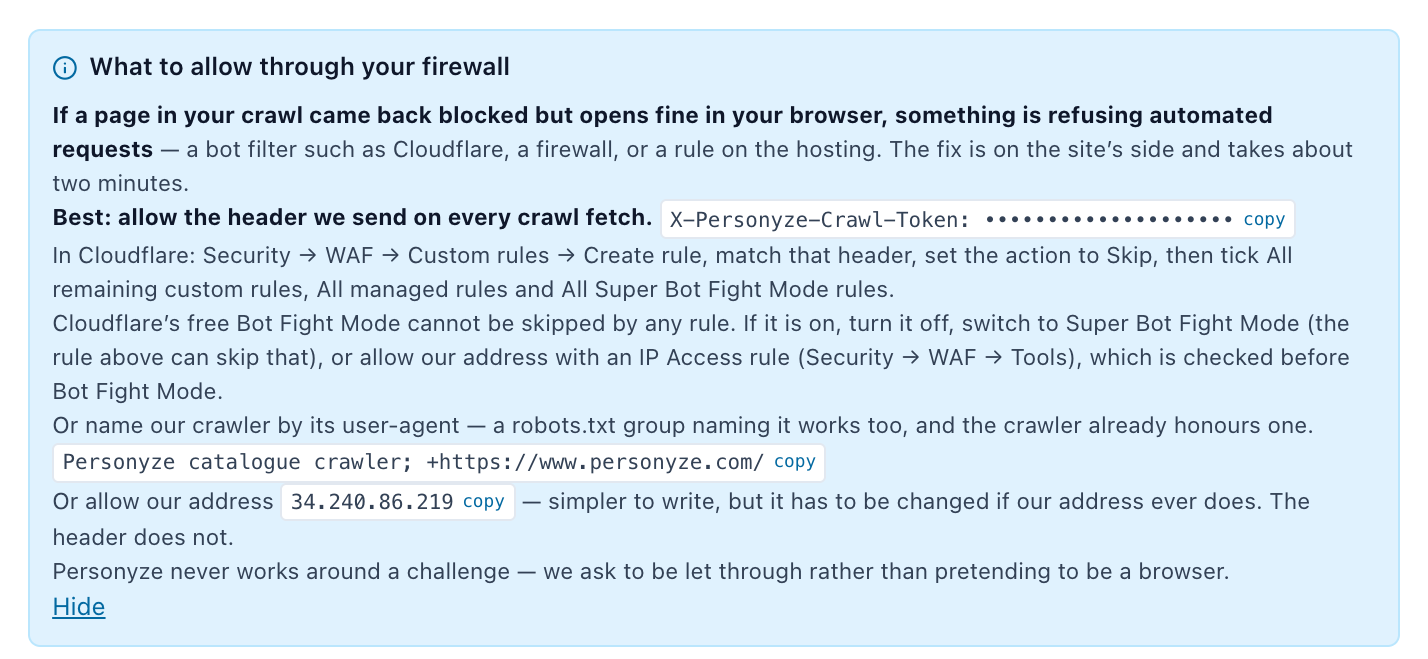
| Allow | Value | Why this one |
|---|---|---|
| The header (best) | X-Personyze-Crawl-Token with your account’s own value, from the box. |
Sent on every crawl request, and only to your own site. Keeps working if our address changes. |
| The user-agent | Personyze catalogue crawler; +https://www.personyze.com/ |
Works in a firewall rule and in robots.txt. |
| The address | The IP shown in the box. | Simplest to write, but has to be changed if our address ever does. |
Cloudflare: Security → WAF → Custom rules → Create rule, match the header, set the action to Skip, then tick All remaining custom rules, All managed rules and All Super Bot Fight Mode rules. The free Bot Fight Mode cannot be skipped by any rule: turn it off, switch to Super Bot Fight Mode, or allow our address with an IP Access rule (Security → WAF → Tools), which is checked before it.
robots.txt
Pages your robots.txt disallows for our crawler are never queued. A group that names the crawler is used instead of the * group, so this lets it read everything:
User-agent: Personyze
Allow: /
Any Disallow you want kept for us goes into that same group.
A 401 — Those pages need a login (401) at … — is a login wall, not a bot filter: see the next sections.
Sites built with JavaScript
Some shops and magazines build their pages in the browser after loading. A plain read then finds an empty shell: the crawl finds no items, or items with no name or price. Read pages in a real browser opens each page in a browser and reads what it renders.
- Try without it first. Many sites built that way still publish structured data in the page itself, and a plain read is many times faster.
- It reads 200 pages per crawl, whatever Page limit says, unless Personyze has raised that for your account; and it is slower page by page.
- The switch shows only on plans that include it.
Private and members-only sites
Access credentials, the third panel in the dialog:
- Cookie or API header — a header name (for example
CookieorX-Api-Key) and its value, for pages behind a login a cookie can get past, or an API that needs a key. It is sent with every crawl request to your own site, and never along a redirect to another domain. The value is never shown again: the panel only says A value is stored. — Replace or Delete it. A session cookie stops working when it expires; paste a fresh one. - Form login (not used yet) — stores a login page URL, a username and a password for later. Personyze does not sign in to your site with them yet, so nothing is read with them today.
A page that answers with a login prompt instead of the item — a title such as “Login Required” — is not added. Progress shows This page asks for a login, so it is not public and was not added. It is tried again on later crawls, in case it becomes public.
Products and articles
| Product Catalog | Article Catalog | |
|---|---|---|
| Menu entry | Crawl my site — discover and queue product pages | Crawl my site — discover and queue article pages |
| Reads | schema.org Product, then Open Graph | schema.org Article, NewsArticle or BlogPosting, then Open Graph |
| Fills | Title, description, image, brand, price, stock, rating, reviews | Title, description, image, author, topic, publish date |
| A page that no longer exists | Set out of stock | Unpublished |
| Don’t add products that are out of stock | Yes | Not shown — articles have no stock |
Either way, a page that answers again on a later crawl comes back on its own: the article is published again, the product’s stock is read again.
Troubleshooting
| What you see | Why, and what to do |
|---|---|
| Your site blocked our crawler (403)…, or Blocked by the site’s bot protection (403) on pages | A bot filter on your site. Allow the header, the user-agent or the address — Sites that block crawlers. |
| No readable pages were found on that site | The start pages gave nothing to follow. Give your product sitemap or a section index as the start page. On a site built with JavaScript, see Sites built with JavaScript. |
| Your site took too long to look through. Try a start page closer to your items, such as a section index. | Finding the pages has about 20 seconds, and nothing turned up in that time. Give the product sitemap itself, or a section index. |
| Only https:// addresses can be crawled… | Use the https:// address of each start page. |
| Mostly Listing rows, few Item | Your pages publish no product markup, or the page limit went on category pages. Tick the sections that hold your items in step 2, or set Which addresses are products (pattern) under More options, so item pages are read first and as items, then Force a full re-crawl instead. |
| Items arrive out of stock, or with no price | The price is only text on the page. Add schema.org Product data, or read the price with Grab columns from site — What arrives on its own. |
| … pages share their catalogue address with another page that differs only by a link parameter (e.g. ?id=7 vs ?id=8)… | Items are keyed by path, so those pages became one item. Turn on Use the page’s SKU as the product id. |
| … pages shared their SKU with another page crawled in the same pass, so they kept a generated id instead… | Several pages carry one SKU, such as colour variants. Nothing is lost; each page kept an id from its address. |
| This page asks for a login, so it is not public and was not added. | Members-only pages. See Private and members-only sites. |
| Not requested: the site refused our crawler on 100 pages in a row… | Allow our crawler, then Read again now. |
| … scheduled attempts in a row could not reach your site … | The schedule is waiting longer between tries. Fix the reason in brackets, then Read again now. |
| These fields stopped extracting on most pages of the last pass: … | The site changed. Update those rules in Field mapping. |
| The crawl stopped below your Page limit | Your plan caps the pages per crawl, or the crawl reads in a real browser (200 pages). |
| A schedule says · on a bigger plan | Your plan allows re-crawls only that often. |
| Crawled items are never recommended | Out of stock (no price), or visits are not tracked — Tracking. |
| Crawl my site is not in the menu | The crawl has been switched off for your account — support does this only when a crawl misbehaves. Write to support@personyze.com. |
The panel assistant (Ask Personyze) can also report on a crawl: whether it stopped at its page limit, which sections of your site its queue holds, and how many stored titles repeat or look like error pages.
Related
- Setting the Product / Content Feed for Recommendations — the catalog screen and every way to load it.
- Uploading Feeds & Data Files — files, URL feeds, SFTP and the API.
- Product Recommendations Wizard — where the catalog fits in a product recommendations campaign.
- Content Recommendations Wizard — the same for articles.
- Product Interaction Tracking — recording views, cart adds and purchases.