
Everything on this page is set in the design step of an AI Product Finder or AI Content Finder.
On personyze.com: AI Product Finder — the AI shopping assistant for your store →
Videos: AI Product Finder (1:53) and AI Content Finder (1:56) — they play at the top of AI Product Finder and AI Content Finder.
Words for each visitor
Every word a finder shows can change with the visitor, using the account’s own data — the same tools as any other Personyze campaign.
| Tool | What it does | Example |
|---|---|---|
| Variable | Inserts a value the account holds about the visitor into any text: title, invitation, placeholder, headings, buttons and their links, small print, examples, logo. | Title Reading picked for ${company:default('you')} shows “Reading picked for Acme” to a known visitor. |
| ⚡ Variations | Different wording per audience, with a fallback for everyone else. | One invitation for returning customers, another for first visits. |
| Write the bar’s words for each visitor | A question you write, filled with the visitor’s values and answered by the assistant as one short line. Its answer replaces the invitation or the title. | What would a ${industry} company like ${company} come here to buy? |
| Languages | The finder’s 16 texts in each language, by the page’s address, the browser’s language or a rule of your own; its own words (“Here are your picks”) follow too. See Languages. | Dutch on pages under /nl/. |
How the per-visitor line behaves
- The words you typed show until the answer arrives, and whenever it cannot be written.
- When a visitor has no value for it: Show the words above, or Ask another question instead — a second, simpler question, such as one built on their country for visitors with no company.
- It is written only from the question itself. One answer is written per distinct question, kept for an hour, and reused for everyone whose question comes out the same — so a line for “a logistics company in the Netherlands” is written once, not once per visitor, and nothing else about the first visitor reaches the others.
- Each visitor keeps their line for the whole visit.
Examples with a missing value
An example to tap that uses a value the visitor lacks is left out, not shown with a gap: “Case studies in ${industry}” appears only for visitors whose industry is known.
Words in other languages
The Languages card, first in the design step, gives the finder your wording for pages in another language — for example Dutch on addresses starting with /nl/. + Add a language adds one; its visitors see its words, and everything still counts in this one campaign. A text left empty shows the main words.
- A question with a variable gets that language’s own fallback: Asked instead of that question when a value is missing for the bar’s line, and Asked by itself instead when a value is missing for Ask a question by itself. They show only while the question has a variable. A visitor without the value is asked a whole question in their language, never one with a gap.
- A translated example to tap that uses a value the visitor lacks is left out.
- The finder’s own words — “Here are your picks”, “Start over” — follow the language by themselves, as set under Its own words. The answers and the reasons beside each pick are always in the visitor’s language.
The look
A finder can match any site without code: pick a look, then change any part of it.
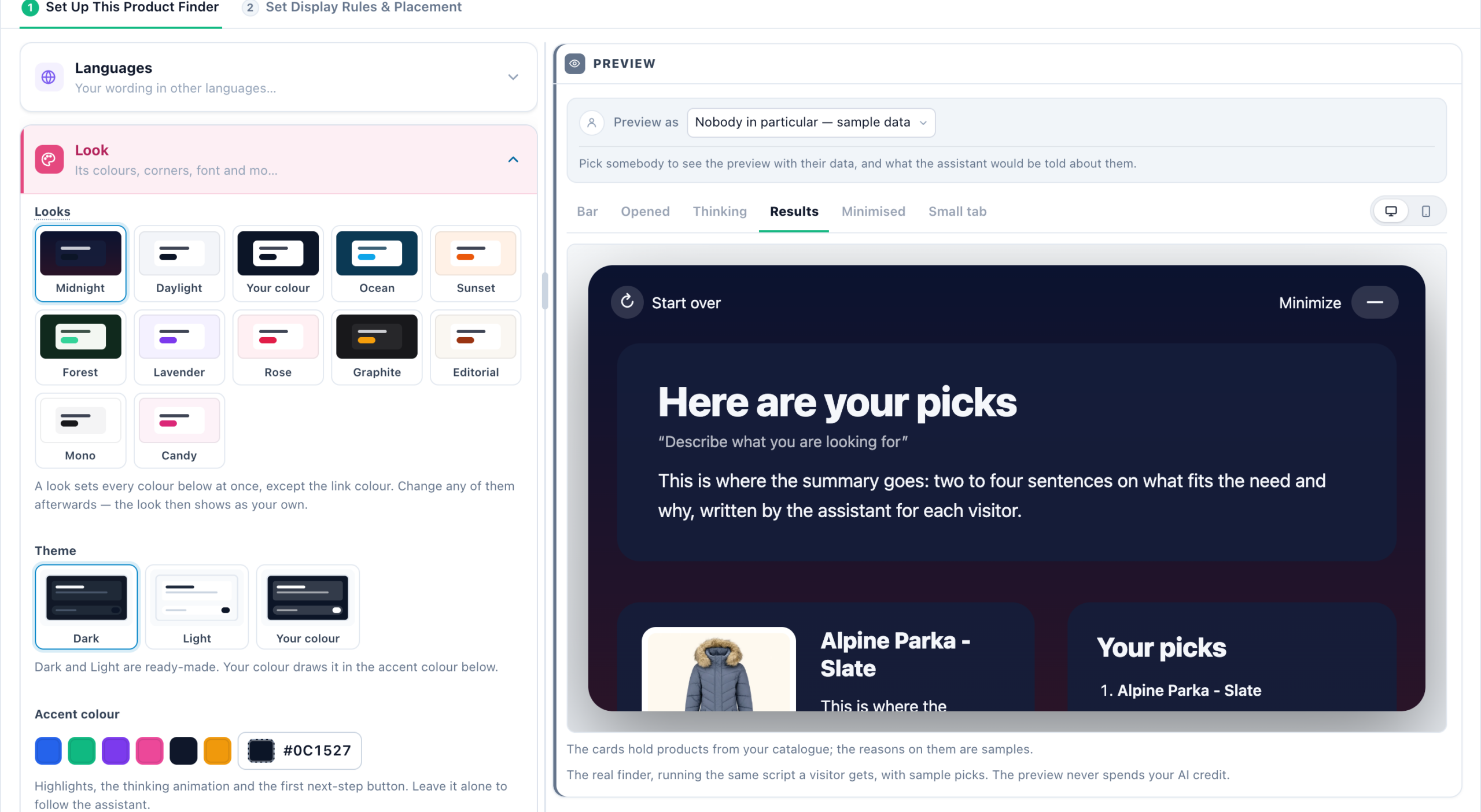
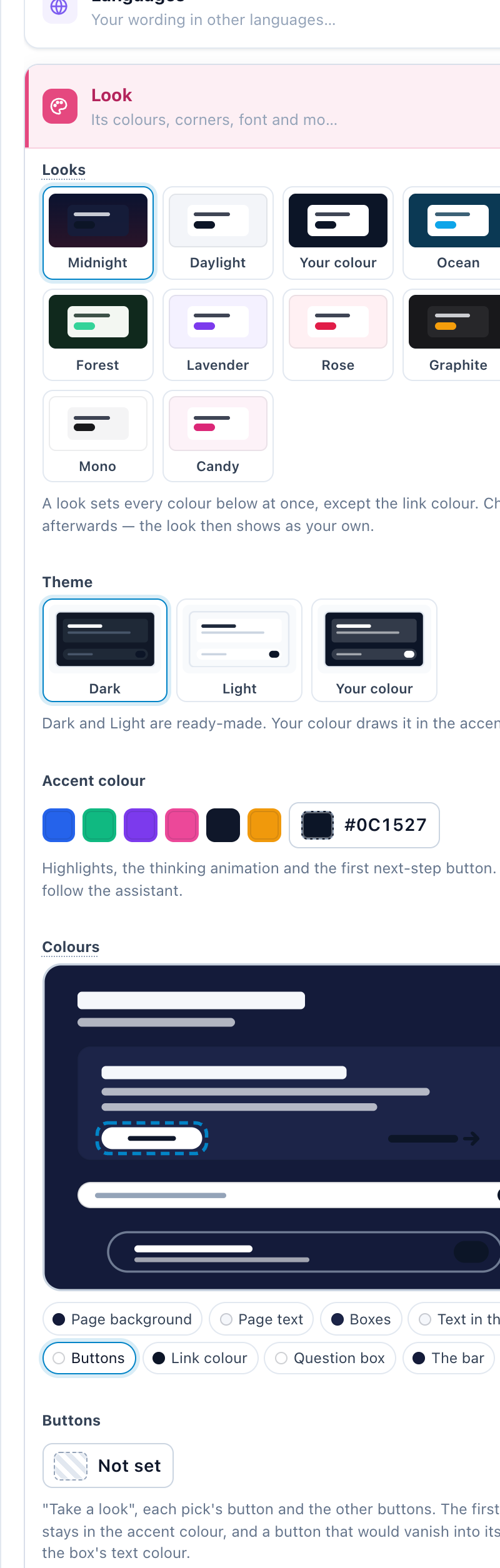
- Looks — Midnight, Daylight, Your colour, Ocean, Sunset, Forest, Lavender, Rose, Graphite, Editorial, Mono and Candy. A look sets every colour at once, except the link colour; change any of them afterwards and the look shows as your own.
- Theme (Dark, Light, Your colour) and the Accent colour — highlights, the thinking animation and the first next-step button.
- Colours — a drawing of the finder: click a part of it, or its name, to change its colour. The parts are Page background, Page text, The bar, Boxes, Text in the boxes, Buttons, Link colour and Question box — so a red page with blue boxes is two clicks.
- Box edges (Flat, A thin line, Soft shadow, Strong shadow), Corners (Rounded, Slightly rounded, Square) and Font (the finder’s own, the font of the page it is on, Serif, Rounded, Monospace), each choice drawn as a small picture.
- How it arrives (Rises in, Fades in, Pops in, No motion) and Until somebody uses it (Stays still, A pulse, A shine, A nudge). Visitors whose device asks for less motion see none of it.
- Text on every surface is given dark or light ink by measured contrast, so a custom colour never produces unreadable text, and a link colour too close to its box is lifted off it.
- Extra CSS, under More settings, for anything beyond the settings — applied inside the finder only.
Closing, the small tab, and coming back
| Setting | Choices | What the visitor gets |
|---|---|---|
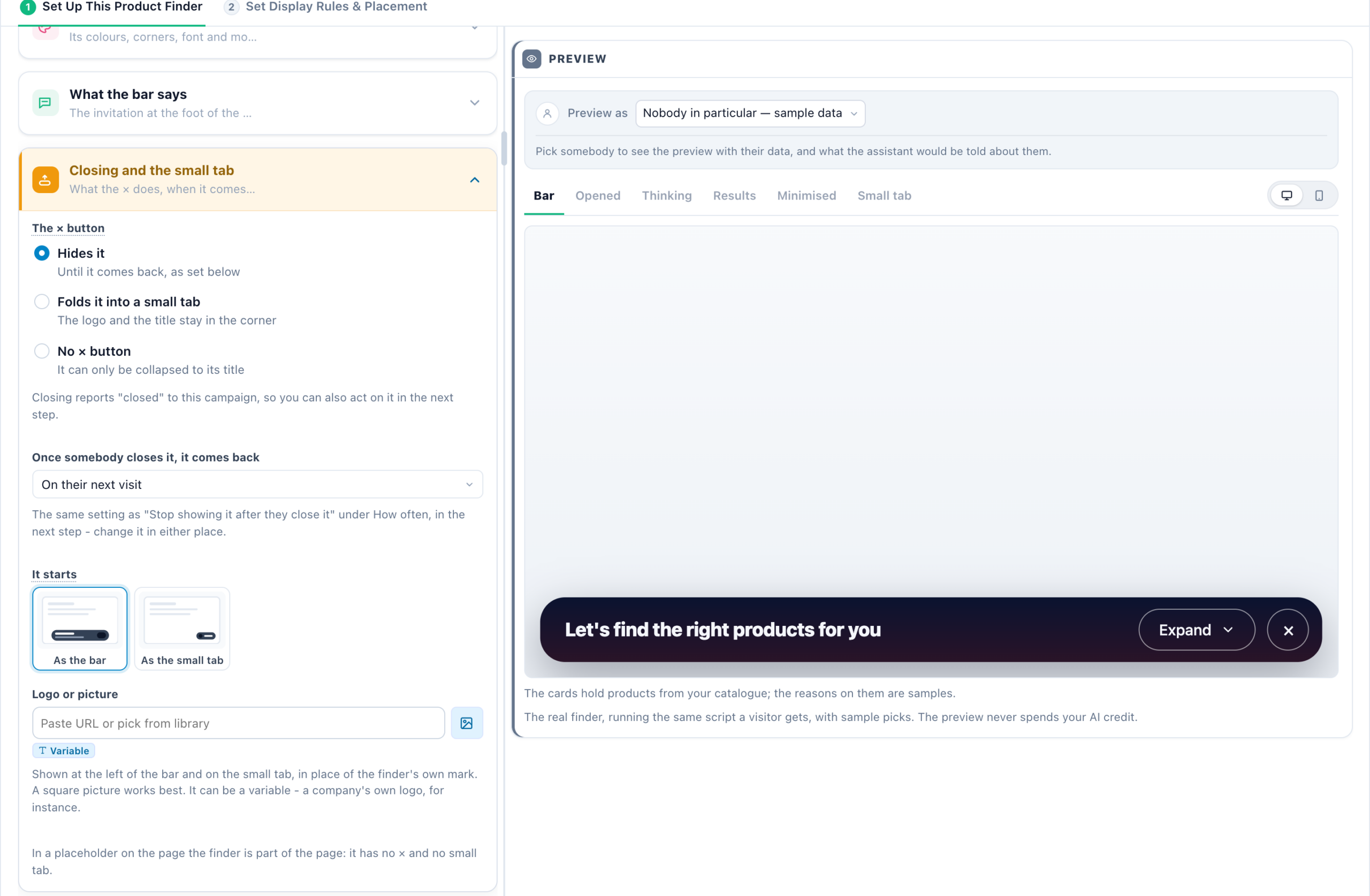
| The × button | Hides it · Folds it into a small tab · No × button | Hidden; or a compact tab with the logo and title that reopens the finder in one click (it stays folded on the next pages of the visit); or no way to close it — they can still collapse it to its title. |
| Once somebody closes it, it comes back | On their next visit · After a day · After a week · After 30 days · Never again, on this browser | The platform’s standard “don’t show again”, so it also appears as Stop showing it after they close it under How often in the next step, and other campaigns can react to the close. |
| It starts | As the bar · As the small tab | A finder that waits quietly as a tab until the visitor opens it. |
Logo or picture — shown at the left of the bar and on the small tab, in place of the finder’s own mark. A square picture works best. It can be a variable — a visiting company’s own logo, for instance.
Related
- AI Product Finder and AI Content Finder — setting one up
- Appearance, placements and attachments — the same per-visitor opening line, for the chat
- What the assistant may see — the visitor data behind the variables