
Placeholders are named slots on your website where Personyze content appears — a banner in your header, a recommendations rail on a product page, a message above the category grid, anything in between. Create a placeholder once, then any campaign or action can render into it without popups or overlays. Manage them at Settings → Content Placement.
Watch the 1:15 walkthrough: creating a named slot, the three ways to say where it is, and how to tell whether it has really rendered.
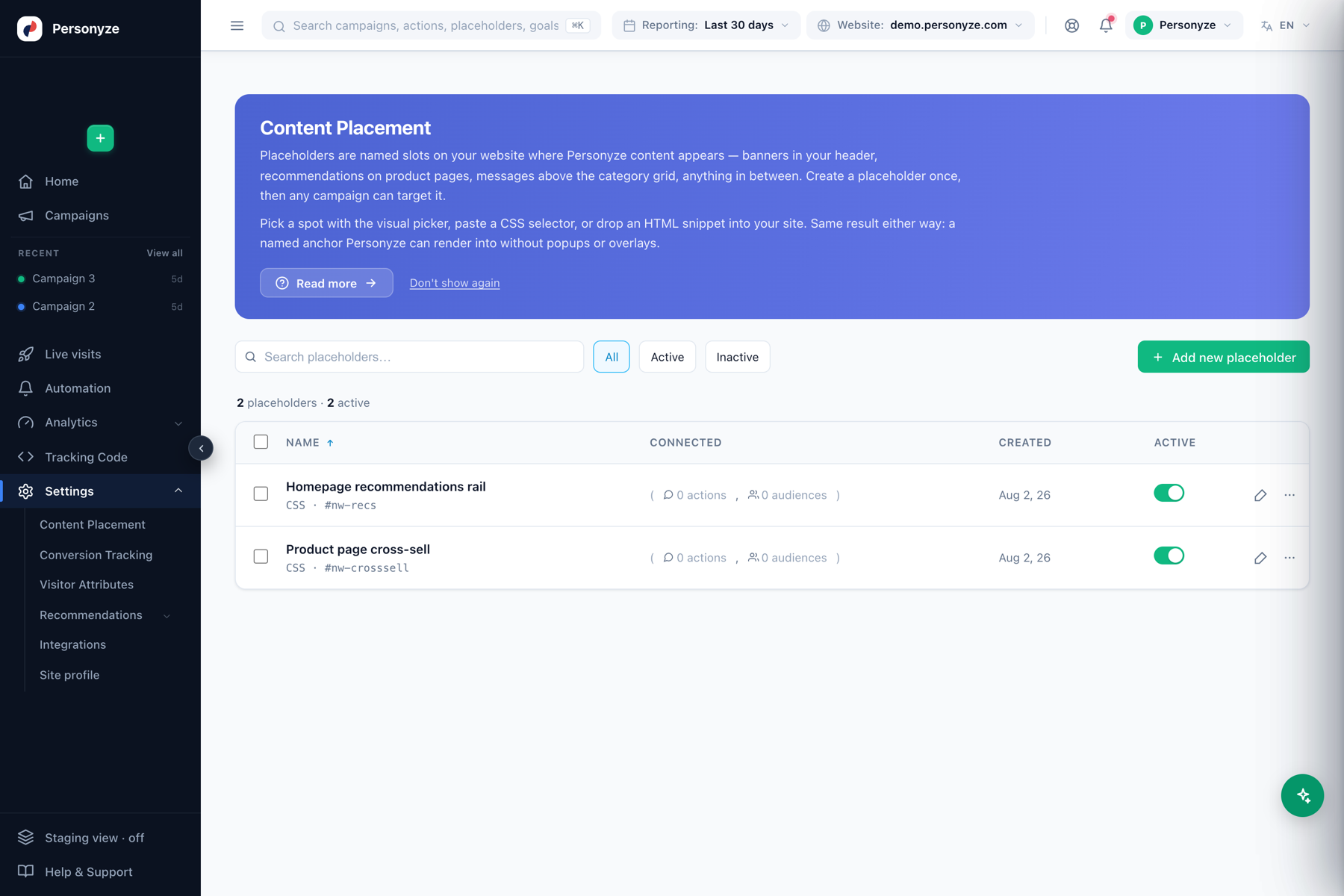
The list shows each placeholder’s name, the selector or method it uses, how many actions and audiences are connected to it, when it was created, and an active toggle. Search and the All / Active / Inactive filters help you find one fast.
Add a placeholder — three methods
Click + Add new placeholder, name it, and choose how to tell Personyze where the content goes:
You can also make one without leaving an action: on its placement step, + New under the placeholder tiles opens the same form, and the placeholder you save is picked for that action — see Picking placeholders.
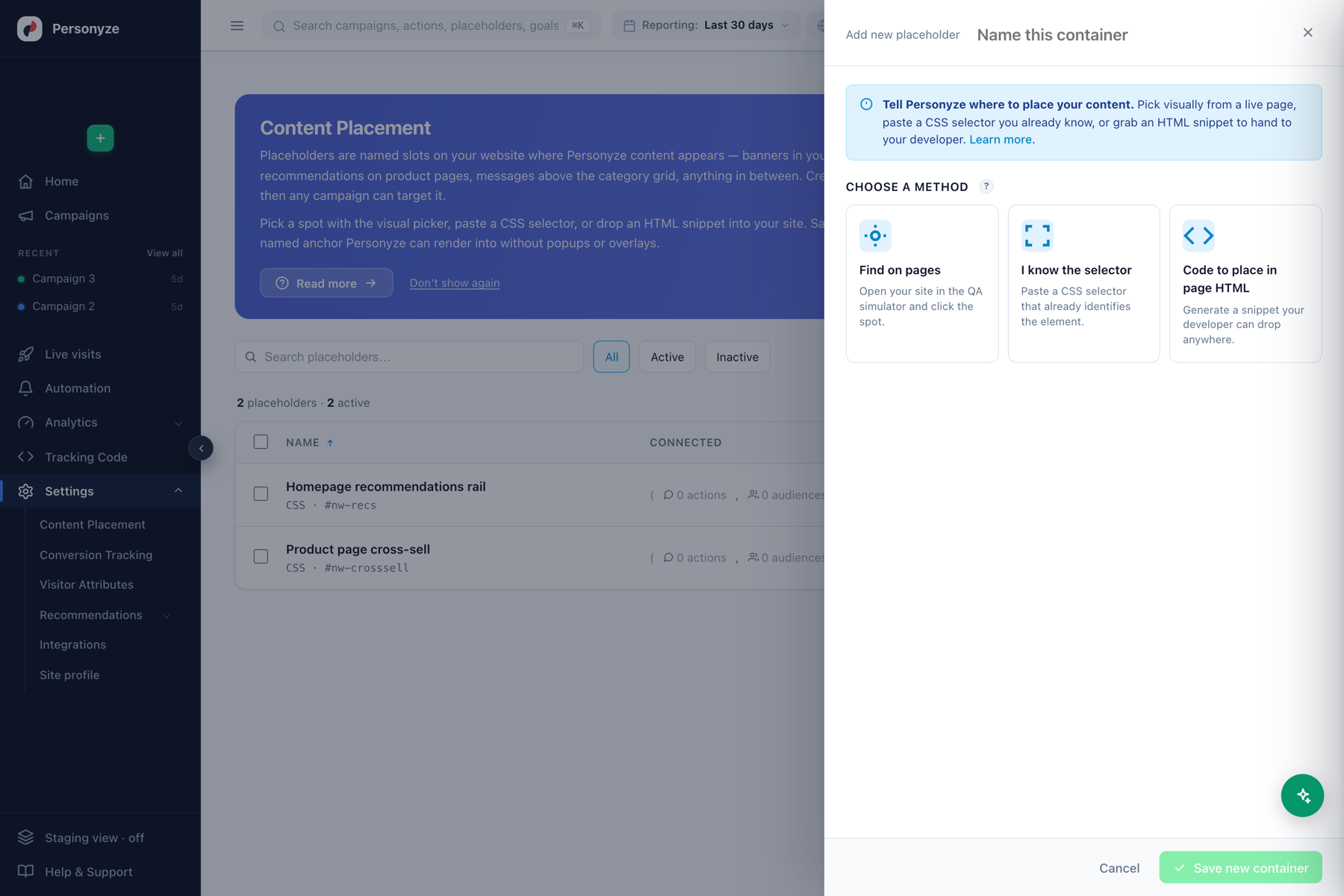
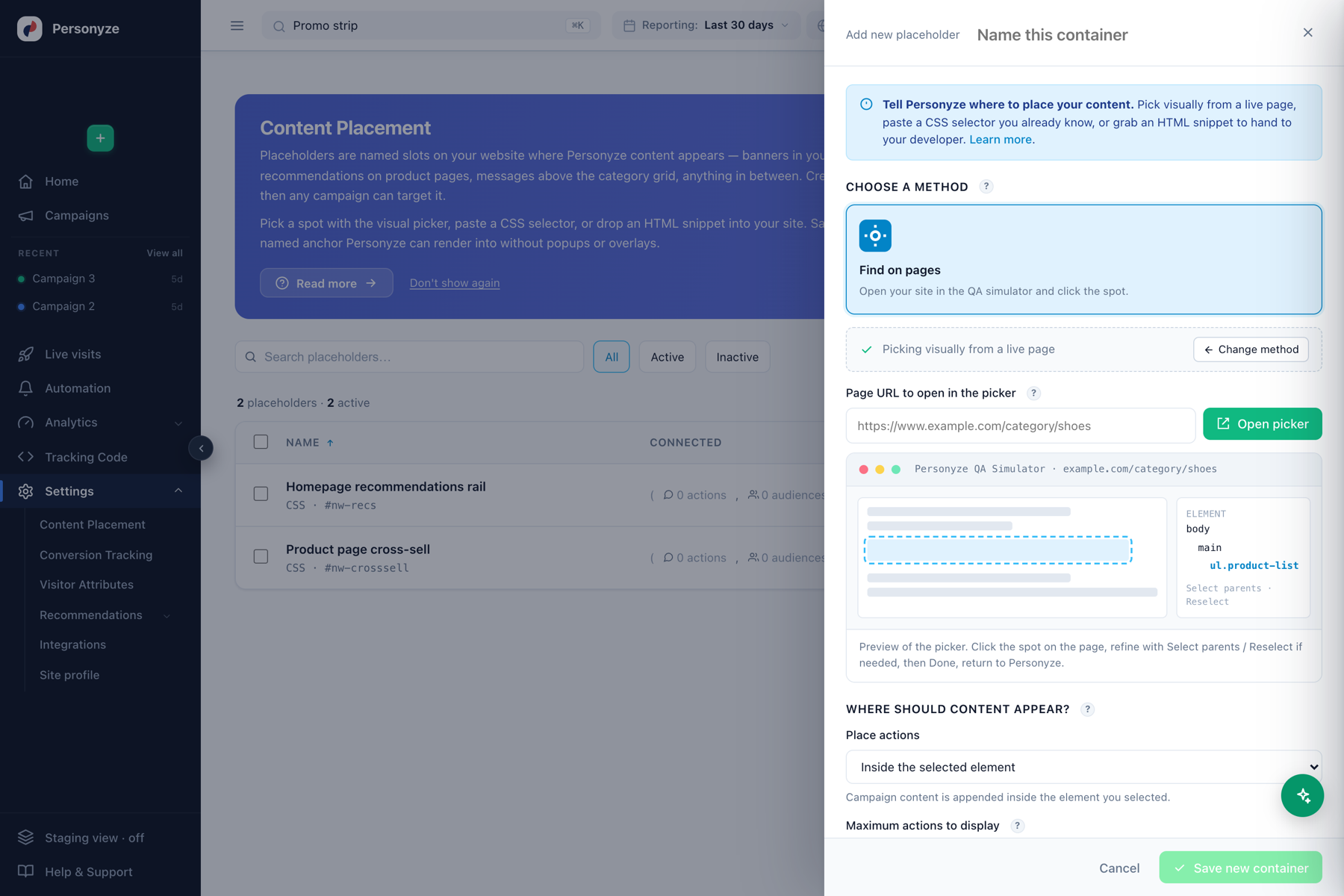
- Find on pages — opens your site in the QA simulator so you can click the exact spot on the live page. Personyze works out the selector for you. Best when you’re not sure of the markup.
- I know the selector — paste a CSS selector that already identifies the element (for example
#nw-recsor.product-grid). Fastest when your site has stable IDs or classes. - Code to place in page HTML — Personyze generates a small HTML snippet your developer drops anywhere on the page. The snippet becomes a guaranteed anchor, independent of the surrounding markup — ideal for spots that don’t have a reliable selector.
Placeholders vs. overlays
A placeholder renders content inline, as part of the page, in a spot you chose. That’s different from a popup or a floating bar, which sit on top of the page and don’t need a placeholder. Use placeholders for recommendation rails, in-content banners, hero swaps, and anything that should look native to the page layout.
Connecting content
Once a placeholder exists, point an action at it from the campaign editor: choose the placeholder as the action’s location instead of a popup or a manual selector. Several actions and audiences can share one placeholder — Personyze decides which visitor sees which content based on your targeting. The Connected column shows how many are wired up.
Tips
- Name placeholders by location and purpose (“Homepage recommendations rail”, “Product page cross-sell”) so anyone building a campaign knows where it lands.
- Prefer a stable ID selector or the HTML snippet method for spots that must never break when your site’s markup changes.
- Toggle a placeholder inactive to instantly stop all content there without deleting anything.
For how an action’s placement, triggers, and display frequency work once content is attached, see Where Content Shows: Placement, Triggers & Frequency.