
Every email has a Timing step in its editor: “Set time frames and limits for this message.” It sets what starts the email, how long it waits, which hours and days it may go, and how often one person can get it. Whatever starts it, the email goes only to people who match the campaign’s audience — see Choosing who receives an email.
The step has three sections, What starts it, When it goes and How often, and the summary box.
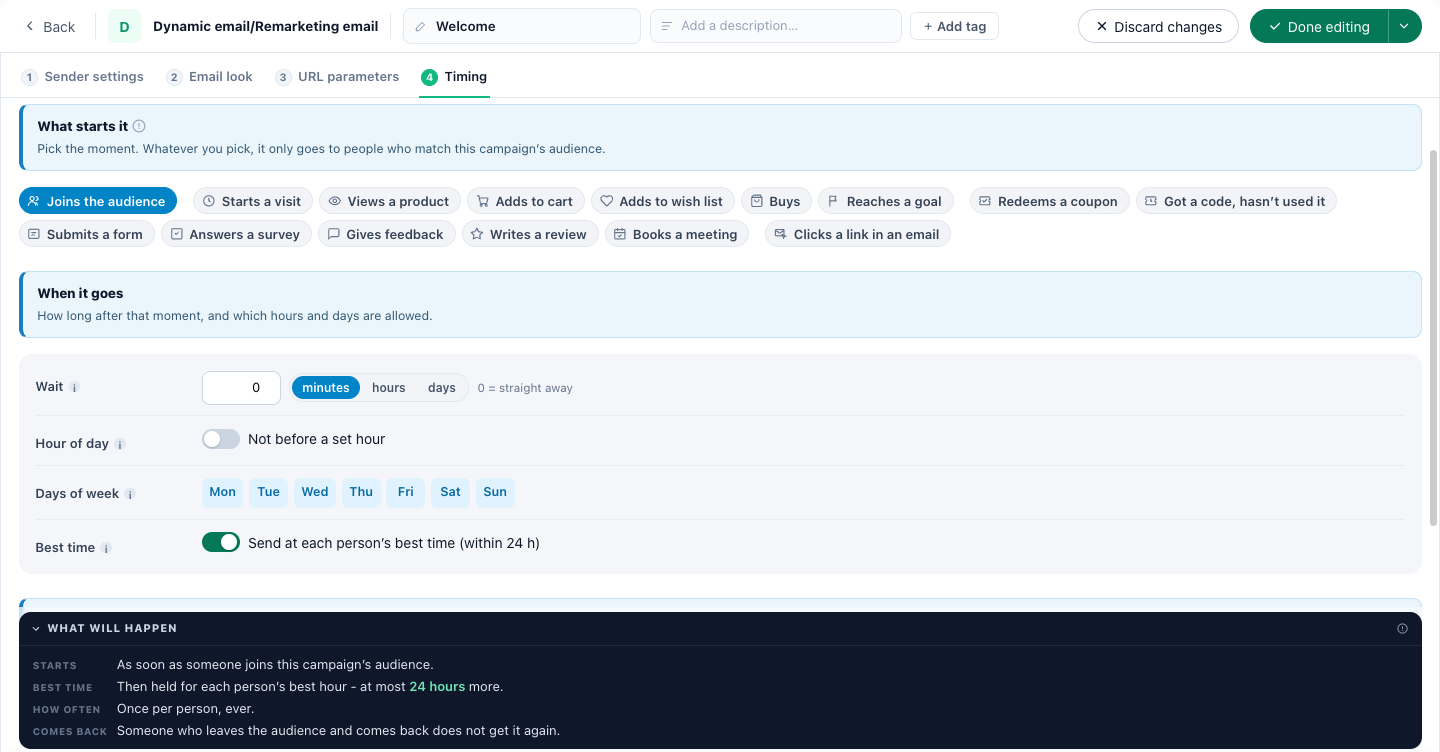
What starts it
“Pick the moment. Whatever you pick, it only goes to people who match this campaign’s audience.” One tile starts the email, and the wait is counted from that moment.
| Group | Tile | The email starts… |
|---|---|---|
| Your audience | Joins the audience | When someone matches the campaign’s audience rules — a list you uploaded, people who did or did not do something. Checked about every 20 minutes. With a wait, it goes after the wait even if they stop matching in the meantime. |
| On your site | Starts a visit | From the start of their latest visit. A browse-abandon nudge: wait a few hours after the visit. |
| Views a product | From their latest product view. | |
| Adds to cart | The cart-abandonment email: from the last time they added something to their cart. | |
| Adds to wish list | From the last time they saved a product to their wish list. | |
| Buys | A thank-you, a review request, a refill reminder: from their latest purchase. | |
| Reaches a goal | When they reach the goal you pick — a sign-up page, a download, any conversion you track as a goal — once their visit is recorded. | |
| Coupons | Redeems a coupon | When they use a code of the coupon you pick, or of any of yours, once your store or the tag reports it. |
| Got a code, hasn’t used it | A reminder, from when they were handed a personal code of the coupon you pick. Checked again on every pass: once they use the code, it does not go. Picking it sets a wait of 3 days. | |
| Forms and answers | Submits a form | A sign-up, a lead form, a newsletter subscription — the form you pick. |
| Answers a survey | When they finish the survey you pick, on your site or on its own page. Half-finished surveys do not count. | |
| Gives feedback | When they send the feedback form you pick. | |
| Writes a review | When they send the review form you pick. | |
| Books a meeting | When they book through the meeting booker you pick — counted from the booking, not from the meeting itself. | |
| In your emails | Clicks a link in an email | When they click a link in an email you sent them — the one you pick, or any other email of this campaign. |
The site tiles count from the start of the visit the action happened in. Under some tiles a picker asks which one: Which form, Which survey, Which feedback form, Which review form, Which meeting booker, Which goal, Which coupon (Any coupon comes first for Redeems a coupon) and Which email (Any other email of this campaign or A specific email).
- Got a code, hasn’t used it needs a coupon that hands each person a code of their own. A shared code is the same for everyone, so it cannot start it.
- The product tiles start on any product. To narrow them to certain products, add a product rule on the Target step — the link “Only for certain products? Add a product rule in the Target step →” takes you there.
- Opens and replies are not offered as a start: Apple Mail opens every email by itself, so an open says little. To email people who opened or replied, use an audience rule with Joins the audience — see Targeting people by what they did with an email.
- In a sequence, a follow-up’s start is set on the Content step. Its Timing step shows one line instead of the tiles, such as “3 days after email 1, only to those who did not open it.”, with Change it on the Content step. See Email sequences.
When it goes
“How long after that moment, and which hours and days are allowed.”
| Setting | What it does |
|---|---|
| Wait | A number of minutes, hours or days; 0 = straight away. “Nothing goes until this much time has passed since the moment above. For something they do, the clock restarts each time they do it again before it goes.” |
| Hour of day | Not before a set hour. Anyone due earlier waits for it; anyone due later that day goes straight away. It means “not before”, not “only at”. |
| Days of week | Mon to Sun. A greyed-out day sends nothing; at least one day stays on. |
| Time zone | Each person’s own or UTC: the zone the hour, the days and the days between sends are counted in. Anyone whose time zone is not known is counted in UTC. The row appears once you set an hour, a day or a limit that needs it. |
| Best time | Send at each person’s best time (within 24 h) — see Best time. |
An email can reach the person up to an hour after it is due.
Best time
Tick Send at each person’s best time (within 24 h) and each email waits in the queue until the hour this person usually opens or clicks your emails — in their own time zone when it is known — and goes then, never more than 24 hours later.
- With no history of their own, the hour most of your recipients open at is used. With too little of that, it sends at once.
- With an Hour of day set too, that hour decides when the email is queued, and the best time can then hold it up to 24 hours more.
How often
“How many times one person can get it, and how far apart.” First, How the limit counts:
| Choice | What it means | Default for |
|---|---|---|
| Once per event | Each new time they do it — a new cart, a new purchase, a new sign-up — can bring one, with no lifetime limit. They have to do it again after their last one. | Every tile except Joins the audience, which does not offer it |
| At most N in total | A lifetime count per person that never resets, even when they leave the audience and come back. | Joins the audience |
| At most N, then start over | The same count, which starts over once their last one is a set number of days old. | — |
Then, as they apply:
| Row | What it does |
|---|---|
| Max per recipient | How many one person can get — “time(s), ever” or “time(s), then the count starts over”. A send that failed is not counted. Not shown for Once per event. |
| Start over after | For At most N, then start over: the number of days without one before the count starts over, 30 by default. Leaving the audience and coming back does not reset it sooner. |
| Days between | The fewest days between two, counted in calendar days from their last one, in the time zone above. Left empty: at most one a day when the audience starts it, and no minimum when something they do starts it — but each one needs them to do it again. |
| Buyers | Stop if they buy after it: skips anyone whose latest purchase is in the same visit as the moment above or later, so someone who left a cart and then bought gets no reminder. A purchase is an order your site reports to Personyze. Shown, and switched on, for Views a product, Adds to cart, Adds to wish list and Got a code, hasn’t used it. |
| Account cap | Ignore the account cap — see Account cap. |
| Sunset policy | Ignore the sunset policy — see Sunset policy. |
| Send speed limit | Limit send speed: not faster than so many messages per Hour, Minute or Second — 100 a minute when you switch it on. “Protects your sending reputation and your site. Sends above the limit are queued, not dropped.” |
A follow-up in a sequence has no Buyers row: Leaves when they buy on the Target step decides that for the whole sequence.
Account cap
Your account can limit how many marketing emails one person gets across all your campaigns — at most so many in so many days. It is set once, on Settings › Unsubscribe page (see Email frequency cap), not on each email. Every marketing email counts toward it.
When someone is already at the cap, the email is skipped for them, not failed:
| The email | For someone at the cap |
|---|---|
| Started by Joins the audience | Goes later, once they have room. |
| Started by something they do — a visit, a cart, a purchase… | Is skipped this time. It goes only when they do it again. |
| A follow-up in a sequence | Is offered again on later checks, until a week after its wait is over. |
Tick Ignore the account cap for an email that must always go — a receipt, a booking confirmation. It is sent even to someone over the cap, and still counts toward it.
Sunset policy
Your account can stop emailing people who never engage. It is set on Settings › Unsubscribe page (see Stop emailing unengaged people), and its default reads: “On by default for email sent through the Personyze server: people sent 5 or more of your marketing emails over 180 days, with no open, click or reply, are skipped.”
Tick Ignore the sunset policy for an email that must reach them anyway — a receipt, or a “we miss you” campaign written to exactly these people.
What will happen
The dark box at the foot of the step rebuilds a plain description each time you change a setting: “Built from every setting on this step, as the send queue reads them, and rebuilt as you change one. If it is not what you meant, something above is wrong.” Its rows, as they apply: Starts, Who, Products, Unused, Hours, Days, Best time, How often, Comes back, New one, Buyers, Account cap, Sunset policy and Speed. For example:
- Who: “Only people who match this campaign’s audience at that moment. Anything they did before this email was created does not count.”
- Hours: “Not before 09:00, each person’s own time zone – anyone due earlier in the day waits until then.”
- Best time: “Then held for each person’s best hour – at most 24 hours more.”
Common set-ups
| To send | What starts it | Also set |
|---|---|---|
| A cart-abandonment reminder | Adds to cart, with a wait of a few hours | Stop if they buy after it is on by itself |
| A browse-abandon nudge | Starts a visit, with a wait of a few hours | An audience rule for who it is meant for |
| A welcome email | Submits a form — your sign-up form | — |
| A thank-you or a review request (for reviews, Ask for a review by email, whose Which product and when picks the day) | Buys, with a wait of a few days | — |
| A reminder of an unused code | Got a code, hasn’t used it — the wait starts at 3 days | Stop if they buy after it is on by itself |
| One email to a list | Joins the audience | Send at each person’s best time (within 24 h) |
| A receipt or a booking confirmation | Buys or Books a meeting | Ignore the account cap and Ignore the sunset policy |
Related
- Email campaigns — one email, a sequence or text messages
- Choosing who receives an email — the audience every email is checked against
- Email sequences — waits and conditions between emails
- Writing the email — sender, subject tests, coupons and the spam check
- Your unsubscribe page — where the account cap and the sunset policy are set
- Targeting people by what they did with an email
- Frequency caps — how often an on-site campaign shows
- Troubleshooting email campaigns