
Every survey answer is kept in Personyze, whatever you set here: as a form submission and in the campaign’s Surveys report — and on the visitor’s profile, for the questions whose Save answer to names an attribute. The Survey action’s Where the answers go step — “Send each submission to your other tools” — sends it on as well.
Destinations
Click + Add a destination and pick one:
| Destination | What you enter | Only when… |
|---|---|---|
| Email me | Send to, Subject and a message of your own — see below. | Yes |
| Slack | A Slack Incoming Webhook URL. Each answer is posted as a readable message. | Yes |
| Zapier | A Zapier Catch Hook URL. Each answer set arrives as one JSON object, ready for any app Zapier reaches. | Yes |
| Custom webhook | Any public https address. Each answer set arrives as one JSON POST. | Yes |
| HubSpot | Portal ID and Form GUID, from the HubSpot form’s embed code. Each answer set is filed into that form, so its workflows run; the form’s field names must match the survey’s. | Yes |
| Salesforce | Also add to Campaign (ID, optional), Field mapping (optional). Uses your Salesforce connection from Integrations. | No |
| Oracle Eloqua | Also add to shared list (ID, optional). Uses your Eloqua connection from Integrations. | No |
| Klaviyo | A Private API key with Events write access, entered once and kept safe. | No |
- Only the first 5 destinations are delivered; the rest are skipped. To reach more tools, route through Zapier.
- There is no Google Sheets destination — use Zapier.
Email me
- Send to — up to 5 addresses.
- Subject, and your own opening lines (optional). The answers are always listed below your text.
${survey_<answer key>}in the subject or the message puts that answer in — e.g.Demo request - ${survey_company_name}. The step lists the survey’s field names under the message; each question’s key is in its Answer key fold.- Preview the email shows it filled with a test answer.
- A reply goes straight to the person who answered, when the survey collected their email address.
Alerts and leads: Only when…
Only when… is on the Email me, Slack, Custom webhook, Zapier and HubSpot rows. Tick it, and that row sends only for some answers: a score that is at most, is at least or is between numbers you pick, or a choice that is any of the ones you tick — and, on a survey that keeps a score, The survey’s score, so only the high scorers go to sales. One click sets Detractors 0-6 on a 0–10 question, or 1-2 stars on a rating.
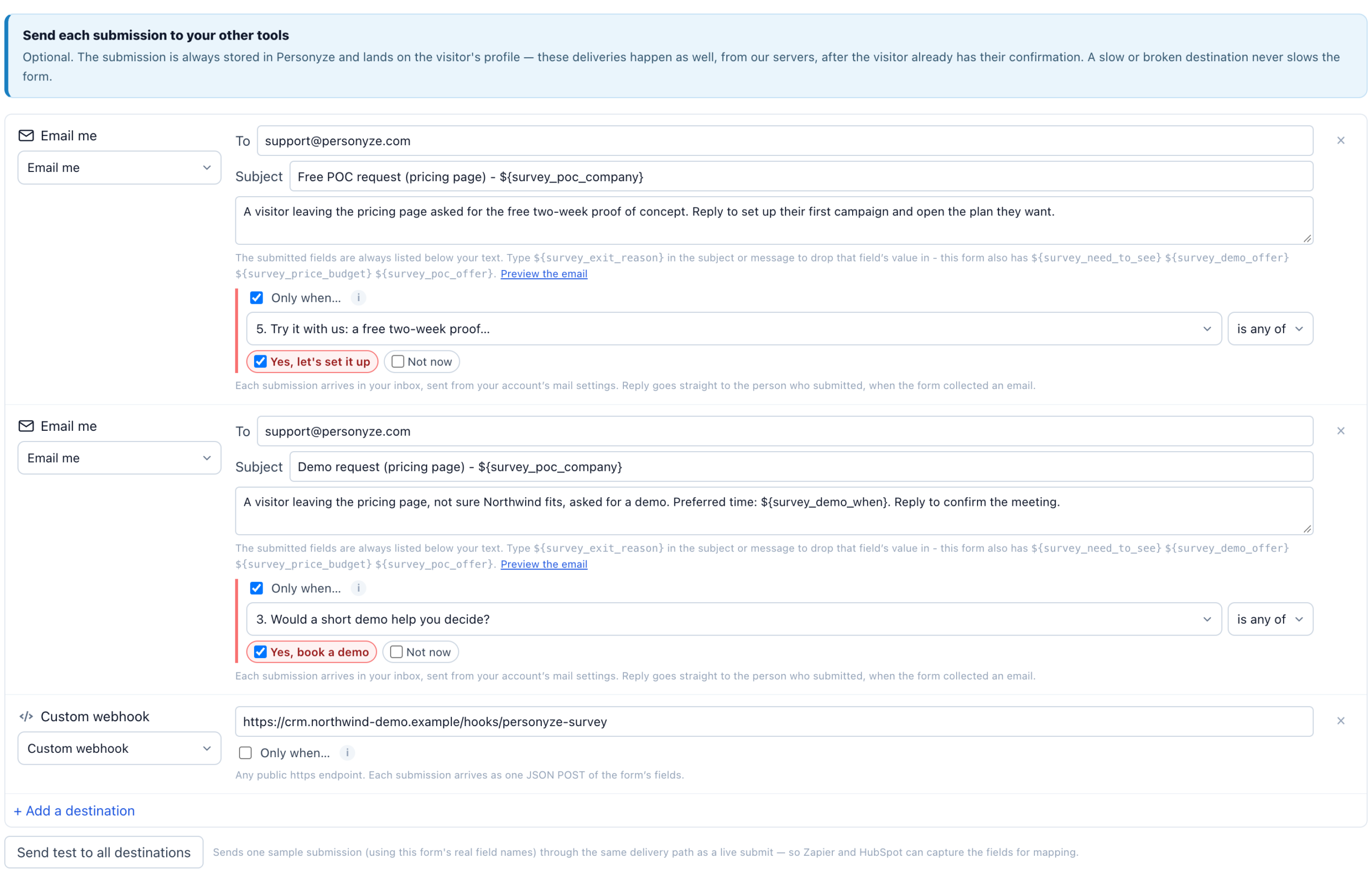
A row with a condition becomes an alert: the email or Slack message says so, and carries the answer, the visitor’s comment and a link to the visitor in the panel. An alert email with no subject of its own is titled Alert: <answer> on “<question>”. Rows without a condition keep sending every answer.
| To get | Set |
|---|---|
| An email to support for every unhappy customer | Email me, Only when “How likely are you to recommend us?” — Detractors 0-6 |
| A Slack post for every low rating | Slack, Only when the rating — 1-2 stars |
| An email to sales only for a demo request | Email me to the sales inbox, Only when “Would a short demo help you decide?” is any of “Yes, book a demo” |
| A HubSpot lead only from those who asked for one | HubSpot, Only when the same choice |
- A condition reads a score or a choice question — not a written answer.
- A condition that can never be true — a question since removed, no choice ticked, a range no answer falls in — blocks the save and says why.
The pricing-page example uses two Email me rows this way: one for demo requests, one for trial requests.
Send test to all destinations
Sends one sample answer set to every row, with the survey’s real field names — so Zapier and HubSpot can map the fields before any visitor answers. Each row then says Test delivered, or why it failed. For an alert row, the test picks an answer that sets the alert off and says whether it did: “The test answer (…) sets this alert off.”
The thank-you email
The Survey action’s fourth step, Thank-you email, sends the visitor one short email for their answers. It is off until you turn on Email a thank-you for the answers; then choose the Sender (the same senders as a Send Email action), write the Subject and Message, and click Send a test to me. It goes only to a visitor whose email address was already known — from your site’s login, your CRM or an order, never an address typed into a form — only the first time they send this survey, and at most one a day to a visitor. See The thank-you email.
Related
- Surveys — the answers on the visitor’s profile
- Survey logic
- The thank-you email
- Worked example: an exit survey on a pricing page — lead emails with Only when…
- Integrations — connecting Salesforce, Eloqua and the rest
- Troubleshooting — an alert that never arrives