
An email campaign’s last step, Performance, shows what its emails did: how many went out, how many were opened and clicked, what recipients bought afterwards, and what bounced or was reported as spam. Its Overview counts messages; its Recipient report counts people and lists every single send.
The Performance step
Open the campaign and go to its Performance step. Email & SMS Personalization and Cart Abandonment Emails campaigns both report this way, in tabs:
| Tab | Counts | What it is for |
|---|---|---|
| Overview | messages | The campaign as a whole: attribution, the email’s journey, the cards, the people behind each number and the charts. |
| Emails | messages | Each email on its own — By email. |
| A/B testing | messages | Shown when the campaign has a subject test or a whole-email test — see Subject tests. |
| Recipient report | people (its send log lists messages) | How far each person got, when people open, and every send with its state — see The Recipient report. |
Schedule report is the envelope-with-a-clock icon at the right end of the range bar (“Schedule report: send these statistics by email”): it emails these numbers on a schedule. Once a schedule exists, a badge on the icon shows how many are active.
One email at a time. When the campaign has two or more emails, an Action selector appears under the range bar: Whole campaign, or one email by name. Every number on every tab follows it.
Ranges end at yesterday
Under the tabs, Reporting time range: picks the period every number covers:
| Button | Covers |
|---|---|
| From start | Everything since the campaign started. |
| From last edit | Since the latest edit to the campaign. Its caret, Choose a specific edit, lists earlier ones as Edit {n} · {date}. |
| From A/B test start, Since winners applied | Shown only on a campaign that has had an A/B test. |
| Date range… | The same presets as the top bar’s Reporting: chip, from Today to Last year, or Custom. The step opens on this one, following the top-bar range. |
To the right, {n} days of data says how long the range is.
Every range ends at the last complete day: yesterday. Today is still being collected, and comparing a part-finished day against whole ones would look like a drop. From start and From last edit stop at yesterday too, and so do This month, This quarter and Year to date, except on the first day of the period.
- To see today, pick Today or Last 7 days incl. today under Date range…. The totals keep rising through the day, and the change badges then compare a part-finished day against whole ones.
- A custom range that ends today is cut back to yesterday.
- A campaign that started today has no complete day yet, so its range covers today rather than nothing.
- Sends are counted about an hour after they go out. What recipients then do on your site is counted once each visit ends, which can take 1–3 hours.
- Days are UTC days, midnight to midnight UTC, whatever your own time zone. The screen does not say so.
Change badges on most cards compare the range with the period of the same length just before it.
With no sends in the range, the Overview reads No emails or texts sent by this campaign in the selected range. A campaign that first sent today shows this until tomorrow.
Attribution: orders and revenue
On an email with recommendations, three tiles open the Overview once its recommended items have been seen or bought:
| Tile | What it counts |
|---|---|
| Transactions | Distinct completed orders that included at least one recommended item. |
| Attributed revenue | Revenue from those orders, matched through the recommended item’s interaction record. |
| Share of revenue | Attributed revenue as a share of the site’s total revenue in the range. |
A Cart Abandonment Emails campaign shows a cart-abandonment block of its own above these tiles.
The email’s journey
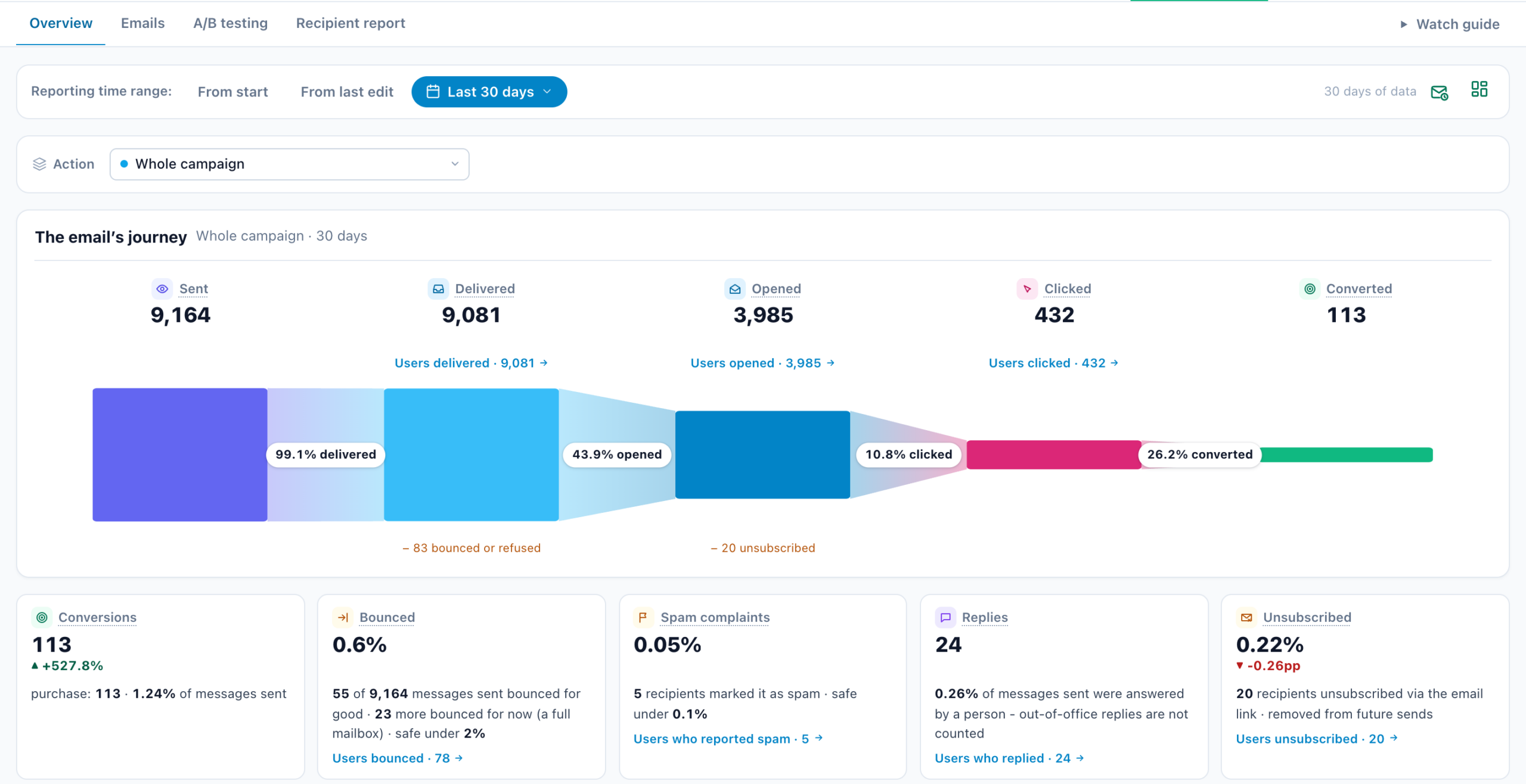
The Overview opens on The email’s journey: one shape from Sent through Delivered, Opened and Clicked to Converted, each stage a band as tall as its share of what was sent. The rate from one stage to the next sits on the join between them — 42.3% opened — and what fell out there is said under it. Its sub-line names the scope, Whole campaign or the chosen email, and the number of days. It counts messages.
| Stage | What it counts |
|---|---|
| Sent | Every message handed to the mail server in the range, including the ones that bounced or were refused. |
| Delivered | Messages that reached a mailbox: sent, minus those that bounced or were refused. Under it, {n} bounced or refused; its tooltip splits them into bounced for good, bounced for now (a full mailbox) and marked as spam. |
| Opened | Messages whose tracking pixel loaded, including messages whose recipient then unsubscribed or reported spam. Apple Mail loads every email’s images, read or not, so opens run high. Under it, {n} unsubscribed. |
| Clicked | Link clicks in the opened messages. The rate on the way in is clicks against opens (CTOR). |
| The email’s own stages | A survey email adds Answered and Finished, a booking email Booked, a review email Reviews collected, against Sent, with their average stars (see Ask for a review by email). |
| Converted when your account has conversion goals |
Visitors who reached one of your goals after arriving from the email, against the clicks. |
Under the journey, Users delivered, Users opened and Users clicked open the people behind those stages — see The people behind each number. The all-campaigns view, Analytics › Email & SMS, shows a Delivery funnel strip instead.
The cards
In this order. A card with a condition appears only when it applies. On one campaign, Sent, Open rate and Click rate are the journey’s own stages, so they are not repeated as cards there.
| Card | What it shows |
|---|---|
| Sent | Messages handed to the sending service — messages, not people: someone who received two of the campaign’s emails counts twice. The rates below all divide by it. |
| Open rate | Opened messages as a share of messages sent, measured by the tracking pixel. Each message counts once, however often it is opened. |
| Click rate | Link clicks as a share of messages sent. It counts clicks, not people: one recipient clicking three links in one email counts three. The sub-line adds CTOR, the same clicks against the messages that were opened. An unsubscribe click is not a link click. |
| Clicked when the email carries recommendations and someone clicked one |
Recipients who went on to click a recommended product on your site — not the click on the email’s link — as a share of opened messages. |
| Added to cart as above |
Of those, the ones who added a product to the cart in the same visit. |
| Purchased as above |
Recipients who bought, as a share of those who added a recommended item to the cart. The sub-line adds attributed revenue, average order value and the share of site revenue. |
| Conversions when your account has conversion goals |
Goals completed by the campaign’s recipients, summed across your goals, each goal named in the sub-line. |
| Bounced | Hard bounces — the address does not exist — as a share of messages sent. Keep it under 2%. A full mailbox is a temporary bounce: the sub-line names those, the rate leaves them out. |
| Spam complaints | Recipients who pressed “Report spam”, as a share of messages sent. Keep it under 0.1%: it is the number mailbox providers watch most closely. |
| Replies once at least one reply is counted |
Messages answered by a person. Out-of-office replies are not counted. |
| Unsubscribed | Recipients who unsubscribed through the email’s link, as a share of messages sent. They are left out of future sends. |
The people behind each number
Most numbers on the Overview open the people behind them. Each link names its list and how many people are in it — Users bounced · 95 — because a card counts messages and a list counts people.
| Where | List | Who is in it |
|---|---|---|
| The journey’s Delivered | Users delivered | Recipients whose message was accepted — everyone it went to, less the sends that failed. |
| The journey’s Opened | Users opened | Recipients who opened the message, as far as an open can be seen: an email client that blocks pictures opens without telling us. |
| The journey’s Clicked, and the Clicked card | Users clicked | Recipients who clicked a link in the message. |
| Bounced | Users bounced | Recipients whose message bounced, for good (the address does not exist) or for now (a full mailbox). An address that bounced for good is not mailed again. |
| Spam complaints | Users who reported spam | Recipients who pressed “Report spam” on the message. They are never mailed again. |
| Replies | Users who replied | Recipients who answered the message, with what they wrote — below. |
| Unsubscribed | Users unsubscribed | Recipients who unsubscribed through the message’s link. |
| Added to cart, Purchased an email with recommendations |
Users added to cart, Users purchased | Recipients who added a recommended item to the cart, or bought one. |
- Sent has no list: it counts every send tried, failed ones included, and a list of those would count a failed send as sent. Delivered and Bounced between them are everyone it went to.
- A list from the send log shows, for each person, Last sent, Messages, Opened, Link clicks and Result — what became of their messages in the range, the strongest first: Reported spam, Bounced, Mailbox full, Unsubscribed or Replied. Columns adds profile fields, Filters narrows the list, View opens one person, and Export downloads the list.
Users who replied
Its Reply column shows each reply’s subject, when it came, and the start of what it says; a picture in it reads (picture). The View drawer shows the same, and the export has a Reply column. Read the whole reply opens the reply itself — all it says and its pictures, with what it quoted folded under it. A reply that came before replies were kept whole shows only its start. Every reply written by a person is also announced in the account’s bell — see Reply tracking.
Bounced, Spam complaints and Replies
These three cards come from the per-message send log — what the receiving mail server reported for each message, and the answers people wrote — rather than the daily totals behind the other cards.
- The verdict. Bounced and Spam complaints end with safe under 2% / safe under 0.1%, above the 2% safe line / above the 0.1% safe line, or Too few sends to judge when fewer than 100 messages were sent in the range. These are the same lines Email deliverability uses.
- Their “messages sent” is the send log’s own count, which includes messages that later failed, and covers only what is still within the account’s per-recipient retention window. On a longer range, the three cards describe only its recent part.
- Hidden, not 0%. Bounced and Spam complaints are left out when the send log has no sends in the range.
- Replies appears only once there is at least one, because a 0 could not tell “nobody replied” from “replies were not tracked”. Replies are recorded for emails sent with Track replies on. It counts answered messages, so someone who answered two emails counts twice; the By email table’s Reply rate counts people.
An address that hard-bounces or reports spam is never mailed again — see Bounces and spam complaints.
Charts
- Send & engagement: Sent, Viewed (opens), Links clicked and Clicked (recommended items clicked on your site), Daily or Weekly.
- Revenue attribution, on an email with recommendations: each day’s site total in grey, with the part attributed to the email stacked in green at its base (This campaign). Revenue / Transactions switches the measure.
By email: each message on its own
The Emails tab. A sequence first shows its flow — who each step reached and where they went next (see Email sequences). Then the card By email (“each message in this campaign, with its own trigger”) gives every email a row:
| Column | Shows |
|---|---|
| The email’s name and its trigger. | |
| Sent, Open rate, Click rate | As the cards, for this email alone. |
| Reply rate | People who wrote back, without automatic replies. Shown when an email tracks replies or has some. |
| Added to cart, Purchases, Revenue | For the item the recipient actually clicked in the email’s recommendation (Engaged, Converted, Conversions for article recommendations). Conversions on the cards is wider: any goal reached after the recipient arrived from the email. |
| Last 14 days | A sparkline of the email’s daily sends. |
- Resend to people who didn’t open appears on a row with unopened sends. It creates a copy of the email for everyone it went to who did not open it, click it or reply: you choose its subject and how many days after the first email it goes. It is created as a new campaign that is not active yet, so you check it before you publish it. Once published, it goes to everyone that email ever reached who has not opened it, however long ago. Each person gets it once.
- + Add a follow-up step opens the Content step, where the campaign becomes a sequence — see Email sequences.
- A subject test or a whole-email test has a tab of its own, A/B testing — see Subject tests.
The Recipient report
The Recipient report tab counts people: someone who received two of the campaign’s emails is one person here and two messages on the Overview. Only its send log, at the bottom, lists messages. It reads the per-recipient send log, so it reaches back only as far as the account keeps that detail; the Overview has no such limit. Guide, at the right of the range bar, opens Recipient report — how to read it.
When the campaign sends several emails, or someone received more than one message, a notice says how many people received how many messages, until you Dismiss it.
Delivery & engagement starts with Over time: how many people reached Sent, Viewed, Clicked and Failed each day (or week). Its header shows the window every number on the tab is measured over.
Recipient outcomes
How far the people the campaign reached actually got. Each stage counts everyone who reached it or went further, every percentage is of Sent, and a grey “−{n} from the step above” shows the loss from one stage to the next. Two columns: People (this tab) and Messages (the unit the Overview reports).
| Stage | People who… |
|---|---|
| Sent | had a message accepted by the mail server. Every later stage is part of this one. |
| Viewed | loaded the tracking pixel — a confirmed open. People who unsubscribed are not counted here, though they must have opened it. |
| Clicked | clicked at least one link in the message. |
| Goal reached | reached a goal after arriving from the email. |
Then, on your site: Added to cart and Purchased (Engaged and Converted for article emails) come from the item-interaction record and are dated by when they happened, so they can be larger than the stages above, and clicking them does not filter the table.
Beside the funnel are three outcomes: Unsubscribed; Error, every send that did not arrive — refused by the provider, bounced or reported as spam; and Pending, taken by the sender with no result yet.
Click a bar or an outcome to filter the send log below to those people’s sends. Clear table filter shows them all again.
Recipients stopped after 3 failed attempts
After three failed sends in a row to one person, the sender stops trying, and the card says how many: {n} recipients stopped after 3 failed attempts. They are left out of every number above. Usually the address is wrong, but a mailbox that was simply full works again: Try again puts them back for the next audience check, and an address that is really dead stops again after three more.
When people open
An hour-of-day strip of the last 500 confirmed opens in the range, each placed in the recipient’s own time zone where it is known and in server time (UTC) otherwise; the card says which. The note names the peak hour, for example “Peak is 09:00–10:00 with 14.2% of the sampled opens.” It is a good guide to an email’s send hour — or let Best time choose for each person.
All emails sent: the send log
Every send of the campaign in the range, one row per message — the complete record, not a sample. It is not loaded by itself: press Load all sends, or click a bar of Recipient outcomes.
- Email or user ID… finds one person: digits match the user ID, anything else part of the email address.
- Filter by state (All states) and, when the campaign has several emails, by email (All emails).
- Export all downloads the matching sends as a CSV of up to 10,000 rows: User ID, Email, Message, Sent, Viewed, State, Link clicks, Error. A bounced or spam-reported row exports as Error, and replies are not in it.
| Column | Shows |
|---|---|
| Recipient | The email address, with the name underneath. |
| State | How far this message got — the furthest state it reached. |
| Which of the campaign’s emails. | |
| Sent | When the mail server accepted the message. |
| Viewed | When the tracking pixel loaded. Blank means no open was seen, which can also mean images were blocked. |
| Link clicks | How many times a link in the message was clicked. |
| Error | The provider’s own message when a send failed or bounced. |
| State | Means |
|---|---|
| Sent | Handed to the mail server, with no open recorded yet. |
| Viewed | The tracking pixel loaded — a confirmed open. |
| A link clicked | A link in the message was clicked. |
| Goal reached | A goal was reached after the recipient arrived from this email. |
| Unsubscribed | The recipient unsubscribed from this message. |
| Error | Refused by the provider; the reason is in the Error column. |
| Pending | Taken by the sender and not resolved yet. |
| Bounced | The receiving server said the address does not exist. It is never mailed again. |
| Bounced for now | The receiving server could not take it right now, usually a full mailbox. Three of these within 30 days and the address is not mailed again. |
| Marked as spam | The person pressed “Report spam” on the email. They are never mailed again. |
The last three take the place of Error for a bounce or a spam report. When one message gets several reports, the strongest wins: Marked as spam, then Bounced, then Bounced for now. Replied {when} beside the state means the person wrote back; the reply was forwarded to the email’s Reply-To address (see Reply tracking).
Dates, time zones and how long detail is kept
- The range, the chart labels and the day lists are UTC days.
- The send log’s own times (Sent, Viewed, Replied) are in your browser’s time zone.
- When people open uses each recipient’s time zone where known.
- Per-recipient detail is kept for a limited time, set per account; longer retention depends on your plan. The Overview’s totals are kept for good. A range older than that window shows No rows in the retention window on the Recipient report — the campaign did send, but its per-person detail is no longer kept — while the Overview still has its totals.
Why the Overview and the Recipient report differ
- Messages or people. The Overview’s Sent counts messages; the Recipient report’s counts people. With one email per person they agree.
- Opened and Viewed. The journey’s Opened counts a message whose recipient opened it and then unsubscribed as opened; Viewed does not, because the unsubscribe replaced the earlier state. The two can differ slightly.
- Retention. The Recipient report covers only the window per-recipient detail is kept for, so on a long range it can total less than the Overview.
- Opens are approximate. Blocked images hide some opens, and Apple Mail opens every email it receives, read or not. Read opens as a trend; clicks are the firmer signal.
Related
- Analytics: Email & SMS and Email Deliverability — every email campaign together, and whether your email reaches the inbox
- Subject Tests — Reading the Result — the A/B testing tab
- Targeting People by What They Did With an Email — use opens, clicks and replies in an audience
- Bounces and Spam Complaints — what happens to an address that bounces
- Reply Tracking — how replies are recorded
- Troubleshooting Email Campaigns
- Performance Metrics — every number in Personyze