
Personyze already reads Tealium in the browser: badges, AudienceStream audiences and utag variables while the visitor is on your page (see Targeting and personalization with Tealium). The server-side connection covers the rest: Tealium’s own servers tell Personyze when a person joins or leaves an AudienceStream audience, even when that person is not on your site.
Video: Tealium: target AudienceStream audiences, on the page and from the server (2:03) — it plays at the top of Targeting and personalization with Tealium.
What it does
- Each Tealium audience becomes an audience list in Personyze, named “Tealium: <audience name>”. Target it in any campaign — website, email or offline.
- A person who joins the audience is added to the list; a person who leaves is removed. The website sees the change on the visitor’s next page.
- Any attributes you send — loyalty tier, plan, opt-in flags, lifecycle stage — are saved on the visitor’s profile. Standard fields such as
first_name,last_nameorphonefill the profile field; everything else becomes a custom attribute you can target.
What you need
- Tealium AudienceStream, with permission to add connectors.
- A Personyze API key: Settings → Integrations → Tealium, at the bottom of the section Send Tealium audiences to Personyze (server-side), click Generate new key. These are the same keys as the Full-featured API card, so a key you already have works too.
Set it up
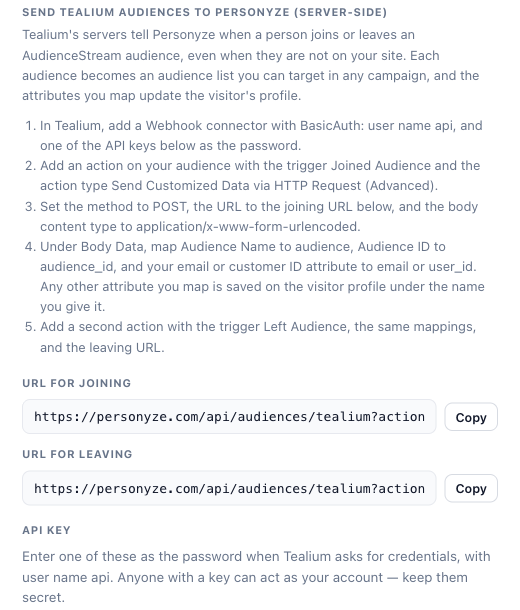
- In Personyze, open Settings → Integrations → Tealium and take the two URLs from the server-side section:
- URL for joining:
https://personyze.com/api/audiences/tealium?action=joined - URL for leaving:
https://personyze.com/api/audiences/tealium?action=left
If you use Personyze under your own domain, take the URLs from the panel: they use the host you are looking at.
- URL for joining:
- In Tealium AudienceStream, add a Webhook connector and choose BasicAuth. Enter
apias the BasicAuth Username, and your Personyze API key as the BasicAuth Password. Keep the key safe: anyone with it can act as your account. - Add an action for the audience you want to send:
- Trigger: Joined Audience
- Action type: Send Customized Data via HTTP Request (Advanced)
- Method: POST
- URL: the URL for joining
- Body Content Type:
application/x-www-form-urlencoded
- Under Body Data, add the mappings below. You need
emailoruser_id, or both. - Add a second action with the trigger Left Audience, the same mappings, and the URL for leaving. Tealium’s Copy Mappings copies them from the first action.
- Save and publish in Tealium.
| Tealium attribute | Map to |
|---|---|
| Audience Name (connector metadata) | audience |
| Audience ID (connector metadata) | audience_id |
| Your email attribute | email |
| Your customer or login ID attribute | user_id |
| Any attribute you want on the profile | The name to save it under, for example loyalty_tier |
Mapping Audience ID as well as the name means a renamed audience keeps its Personyze list. Repeat steps 3 to 5 for each audience you want in Personyze: every audience gets its own list.
How people are matched
Personyze matches each person by the user ID your site sends to Personyze when people sign in, and then by email. Someone Personyze has not seen yet is added to the list too, and is recognised the first time they sign in on your site. A “left” message for someone Personyze has never seen is ignored.
Where to find it
Audiences → Audience lists. The lists are named “Tealium: <audience name>”. Choose one in a campaign’s targeting with the User lists rule. You can rename a list in Personyze; the sync keeps using it.
Other ways to send the data
A JSON body from a template
With Body Content Type application/json, create a Body template:
{
  "audience": "{{#escapeJson}}{{audience}}{{/escapeJson}}",
  "audience_id": "{{#escapeJson}}{{audience_id}}{{/escapeJson}}",
  "email": "{{#escapeJson}}{{email}}{{/escapeJson}}",
  "user_id": "{{#escapeJson}}{{user_id}}{{/escapeJson}}",
  "attributes": {
    "loyalty_tier": "{{#escapeJson}}{{tier}}{{/escapeJson}}"
  }
}
Map the template variables audience, audience_id, email, user_id and tier to your attributes, and use the joining or leaving URL as before. Wrap text values in escapeJson so a quote in a value cannot break the JSON. You can also send the direction in the body instead of the URL: "action": "joined" or "action": "left".
Batches, for high volume
Use Send Batched Customized Data via HTTP Request (Advanced) with the same template, and set Prefix [, Joiner , and Suffix ]. Tealium then sends up to 100 people in one request; Personyze accepts up to 1,000.
The whole visitor profile
Send Visitor Data via HTTP Request sends Tealium’s full visitor record, with nothing to map. Personyze reads the visitor’s current audiences from it:
- With
?audience=<audience name>at the end of the URL, only that audience is synced: the person is added if they are in it and removed if not. - Without it, every audience in the record is joined, and the person is removed from any other “Tealium:” list that was synced by name.
Personyze finds the email in a property named Email, Email Address or Customer Email, and the user ID in User ID, Customer ID or CRM ID. If yours are named differently, add email_attribute=<name> or user_id_attribute=<name> to the URL. Properties and flags are saved on the profile, with names like customer_tier; attributes=none saves none, and attributes=Name 1,Name 2 saves only those. Turn on Print Attribute Names in the action so attributes arrive with their names.
Attributes only
A request with no audience only updates the profile. This works from EventStream too: map event attributes to email or user_id, and the attributes you want.
Limits
- Up to 1,000 people per request, and 5 MB per request.
- Up to 100 attributes per person. Attribute names up to 64 characters, values up to 1,000 characters; anything longer is skipped, not cut.
- Emails and user IDs up to 80 characters.
- Audience names up to 120 characters, unless you also send the Audience ID.
- Sending the same message twice is safe: nobody is added twice.
If something does not work
Personyze answers every request with a short message saying what it did, or what is wrong. Tealium shows it in the connector’s log.
| Answer | What to do |
|---|---|
| 401 “Please, log in” or “Invalid API key” | Check that the BasicAuth password is a current Personyze API key. |
| 400 “No email or user_id: map one of them” | Map an email or user ID attribute under Body Data. |
| 400 “Unknown action …” | The action must be joined or left. Check the end of the URL. |
200 with skipped |
In a batch, the people listed under problems were skipped; the rest were saved. |
Related
- Targeting and personalization with Tealium — the browser side: badges, audiences and utag variables on the page.
- Amplitude and Mixpanel — the same audience-list sync for their cohorts.
- Troubleshooting: an integration stopped syncing