
The Run JavaScript Code action executes your own script in the visitor’s browser when the campaign’s targeting matches — for advanced logic, DOM changes no template covers, or wiring Personyze decisions into third-party tools.
Adding it
In the campaign’s Content step, click Add action and pick Run JavaScript Code. The editor opens directly — no template gallery.
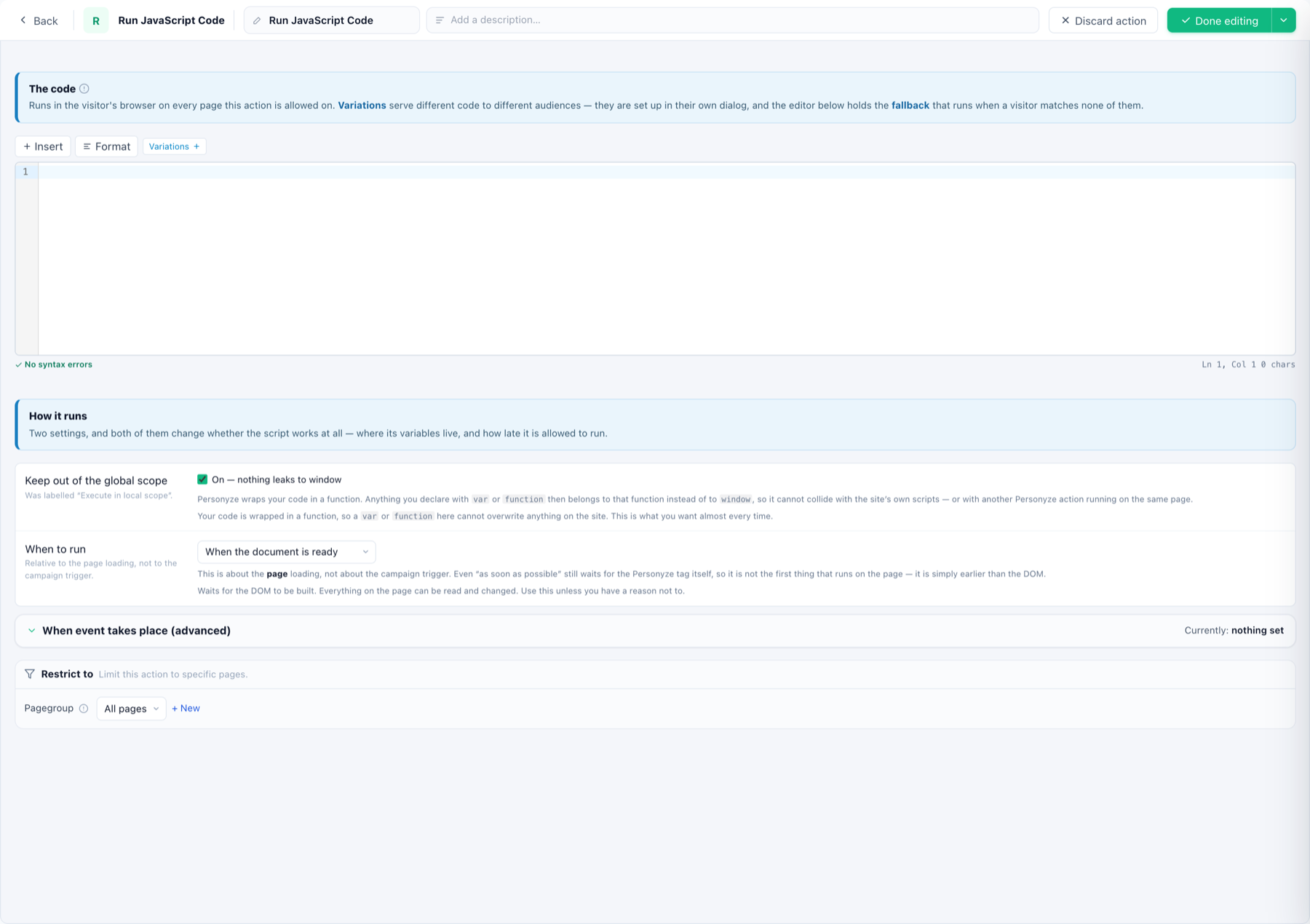
The code
The editor checks syntax as you type (and shows line/column), Insert drops in dynamic Personyze variables (visitor name, location, any profile field), and Format tidies the code. Variations serve different code to different audiences — the editor holds the fallback that runs when a visitor matches none of them.
How it runs — the two settings that matter
- Keep out of the global scope (on by default) — Personyze wraps your code in a function, so your
vars andfunctions can’t collide with the site’s own scripts or with another Personyze action on the same page. Leave it on unless you deliberately need to define globals. - When to run — relative to the page loading, not the campaign trigger:
- When the document is ready — waits for the DOM, so everything on the page can be read and changed. Use this unless you have a reason not to.
- As soon as possible — earlier than the DOM, though still after the Personyze tag itself.
- When event takes place (advanced) — run on a specific on-page event instead.
Where it runs
Restrict to limits the action to specific pages via page groups — on top of whatever the campaign itself targets.
Good to know
- Prefer a template when one exists — a popup or WYSIWYG edit gives you preview, variations and CTR tracking for free.
- To just set a cookie or localStorage value, the dedicated Cookies and Local Storage action is simpler.
- To report events out, use Send Event to Analytics (Segment, Tealium, GA4, GTM dataLayer, Klaviyo) rather than hand-writing the calls.