
A Promotions campaign puts your promotions on the site and lets an algorithm choose which one each visitor sees: the outerwear promotion on outerwear pages, a coupon for a VIP, a free-shipping bar for everyone else. It picks from your Promotions list. Start one with New campaign → Promotions.
On personyze.com: AI Promotions — the right offer and coupon for every visitor →
Watch the 2:40 walkthrough: the campaign step by step, one category banner that shows the outerwear promotion on outerwear pages and the footwear one on footwear pages, then the Overview and the Report.
The steps
| Step | What you do there |
|---|---|
| Your promotions | The Promotions list itself — the same one as in the left menu. See Promotions — One List for Every Offer. |
| Calendar | When each promotion runs, by page category, five weeks at a time. |
| Content | The widgets: Image Banners, Text Promotions or Coupons — how each chooses, how it looks and where it goes. |
| Target | Optional: on which pages and to which visitors the widgets appear at all. |
| QA, Automation, Performance | As in every campaign; Performance has a Promotions tab, the Report for this campaign’s widgets. |
The calendar
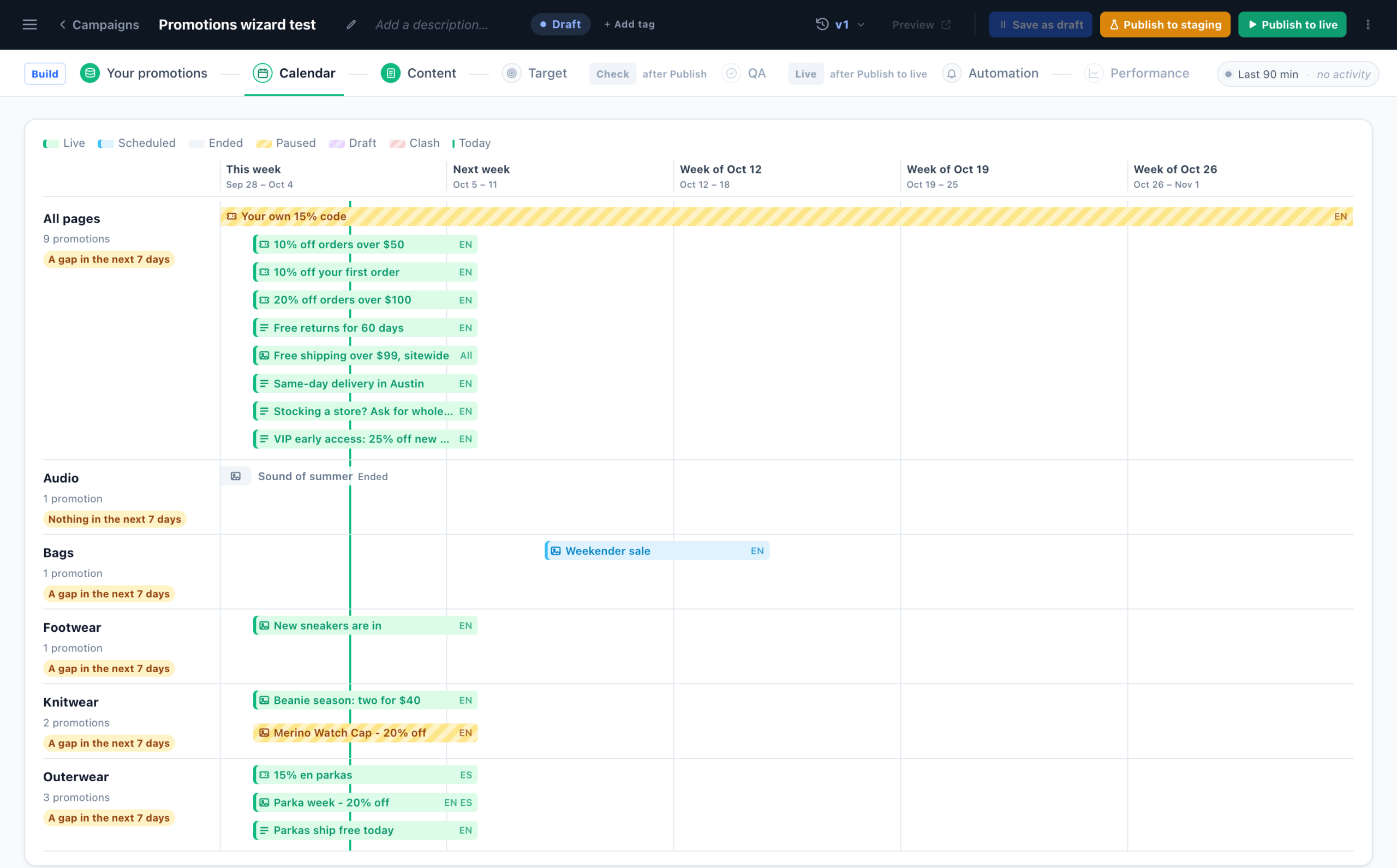
A lane per page category, plus All pages for promotions with no category, and a bar per promotion from its start to its end in your time zone, coloured by status (Live, Scheduled, Ended, Paused, Draft). A lane is flagged Nothing in the next 7 days or A gap in the next 7 days — the categories that need next week’s promotions — and a red week (Clash) has two promotions of one kind on one lane at once, of which the widget shows only one. Click a bar to edit the promotion. The same calendar is Promotions → Calendar in the left menu.
The widgets
In Content, Add action → Promotions and pick AI Promotion Image, AI Promotion Text or AI Promotion Coupon, then a design:
| Widget | Designs |
|---|---|
| AI Promotion Image | Category Hero Banner, Banner Slider, Split Banner (the picture beside its words), Promotion Tiles (up to three banners side by side). |
| AI Promotion Text | Promotion Bar, Promotion Strip (up to three side by side), Rotating Promotion Bar (its promotions in turn), Promotion Callout (a note beside the buy button). |
| AI Promotion Coupon | Coupon Card, Coupon Bar, Coupon Ticket (a torn-off stub with the discount), Coupon With Picture, Coupon Wallet (up to three coupons in a list), Coupon Near You, and the two games, Scratch Card Coupon and Pick a Gift Coupon — see Coupon games. |
Among the AI Promotion Coupon designs, Coupon Near You adds the location the offer is valid at nearest the visitor — its name, how far it is and until when it is open — with a link to the map, and the email best-offer block has a Coupon Near You Email Card; see Coupon Near You. Each widget shows only rows of its own kind. It has three steps: Select Promotion Algorithm, Customize Look & Feel and Placement, Trigger & Frequency.
To put a promotion inside a Canvas design — a popup, an inline block or a hosted landing page — use the Canvas’s AI Promotion element: see AI Promotion and Nearest Store.
To show each visitor their nearest store, with its distance and whether it is open, use Show Store — it is in the same Promotions group of Add action, in a Targeting & Personalization campaign, and picks from your Locations.
How a visitor is matched to a promotion
- Only the rows that fit this visitor, here. Live (active and between its dates), for this page’s category or for all pages, in a language they read, allowed by its Who sees it rules, in stock, and with a code left in its pool. A visitor’s browser language picks the row; rows marked “all” show in every language, and English stands in when a promotion has no row in theirs.
- Ranked by the algorithm you choose (below).
- If it finds nothing, the next algorithm you list runs, then a site-wide promotion — a row with no category. An algorithm that only orders (Most popular, Newest this week, Optimize alone) always finds one.
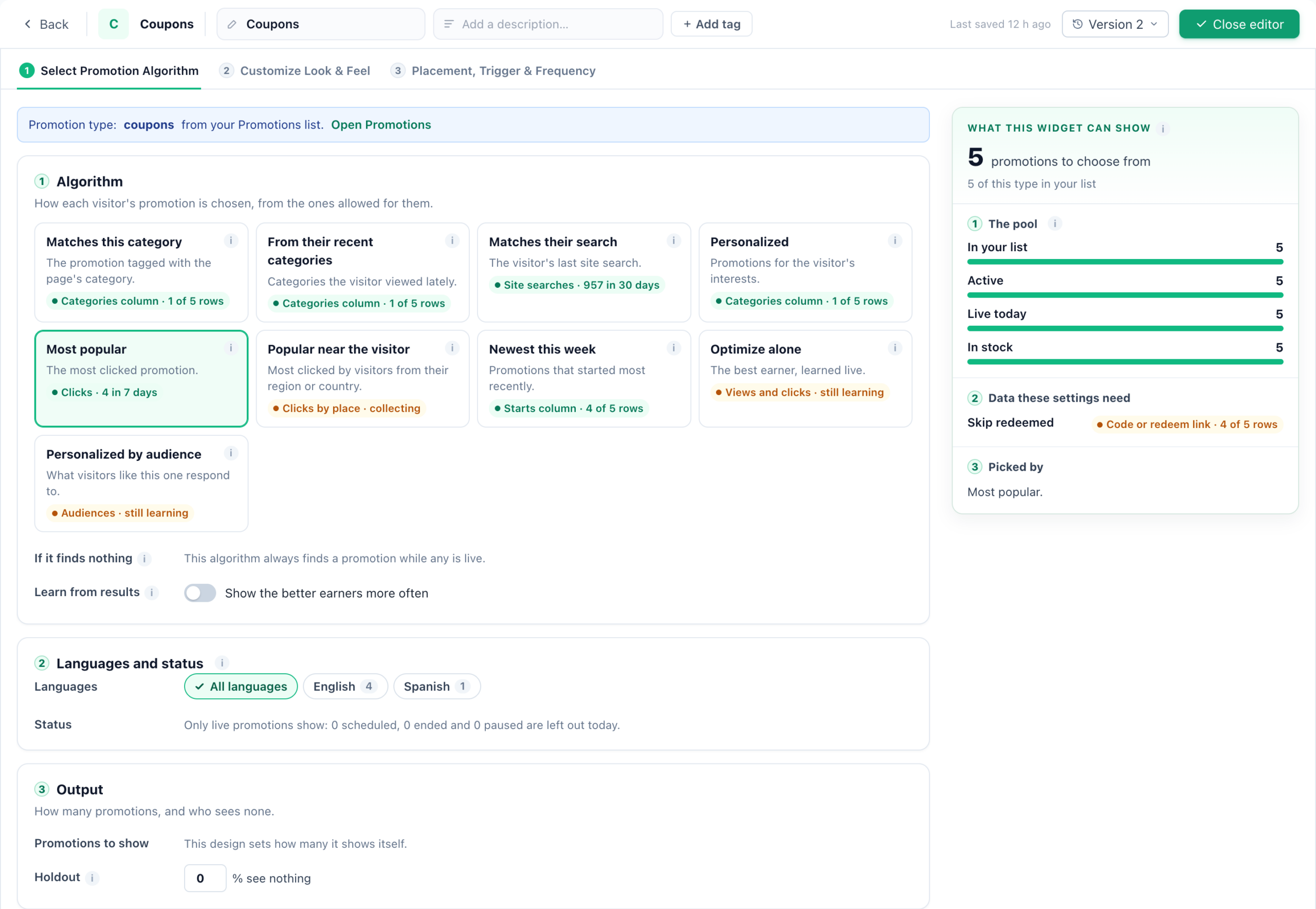
| Algorithm | Shows |
|---|---|
| Matches this category | The promotion tagged with the category of the page being browsed. Pages with no category get the fallback. |
| From their recent categories | Promotions for the categories the visitor browsed in the last 30 days. |
| Matches their search | The promotion that fits the visitor’s last site search. Needs your site search reported to Personyze. |
| Personalized | Promotions for the visitor’s category and interest history. |
| Nearest location’s offer | The offer valid at the location nearest the visitor, within 100 km (60 mi) — for promotions with Valid at set. See Coupon Near You. |
| Most popular | The most clicked in the last 7 days. |
| Popular near the visitor | The most clicked by visitors from the same region, else country. |
| Newest this week | The promotions that started most recently. |
| Optimize alone | The best earner, learned live; a share is kept for the rest. |
| Personalized by audience | What visitors like this one respond to, by device, traffic source and new or returning. |
Learn from results (Show the better earners more often) adds learning to any algorithm: among the promotions it allows, the better earners are shown more often. Earning means clicks, purchases, redemptions, goals or revenue minus discount per view.
What this widget can show, on the right, counts the promotions this widget can choose from, step by step, and what each category page will show — with nothing for a category, its pages get the site-wide fallback. It is worked out before any single page or visitor; for one real visitor, see Why this banner.
The rest of the step:
- Languages and status — narrow the widget to some languages, for a widget that serves one market.
- Output — Promotions to show (one for a banner spot, several for a slider) and Holdout: a share of visitors who see no promotion from this widget, so the report can measure the lift.
- Skip promotions the visitor already… viewed, clicked, redeemed or reached the goal; and Fatigue protection, which rests a promotion a visitor keeps ignoring.
- Restrict and fine-tune — Pause when out of stock, Boost overstocked products, Use the Priority column, Give new promotions a share while the widget learns, and Push sale promotions when orders drop.
- Discounts — Only where a coupon makes the sale stops showing coupons and discounts to the visitor groups that buy just as often without one, measured against the holdout. Keep showing them to a share of them, so the learning goes on. It needs a holdout.
Look and placement
Customize Look & Feel holds the design’s own controls — size, corners, text over the picture, and badges such as Most popular, Trending, New or Ends soon, each shown only when it is true. A banner’s Maximum Width can be Custom, in pixels — your page’s content width, for example. Preview it as a real visitor on one of their pages: Why this banner (Why this coupon, Why this promotion) names the promotion they get and the first reason each other one was left out.
Who to preview it as — a visitor you search for, a sample, New visitor or Nadia — is on Preview as a Visitor.
Placement, Trigger & Frequency puts the widget in a spot on the page, a popup or a bar — in the video, the category banner slot. What the visitor actually gets sums up every setting in plain words before you finish. See the Popup & Banner Action Guide for placement and triggers.
Show the visitor’s code
The four image-banner designs — Category Hero Banner, Banner Slider, Split Banner and Promotion Tiles — print the visitor’s code with a Copy button on a promotion that carries a coupon or a code. Whether they do is Customize Look & Feel → Coupon Code → Show the visitor’s code, which is on by default.
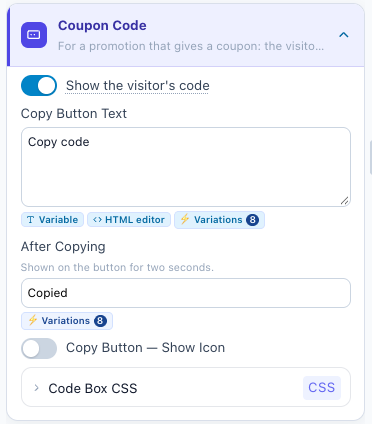
- On — each visitor sees their code and a Copy button. The button’s words and the code box’s look are set under the switch.
- Off — the banner shows no code, and no code is handed out: a code from a pool is not spent on a visitor who never saw it.
To learn whether the code itself sells, A/B test the same banners with the switch on in one variation and off in the other. A widget made before the switch existed keeps showing the code and has no switch; to get it, pick its design again with Change template, above the preview.
Coupon games and coupons that apply themselves
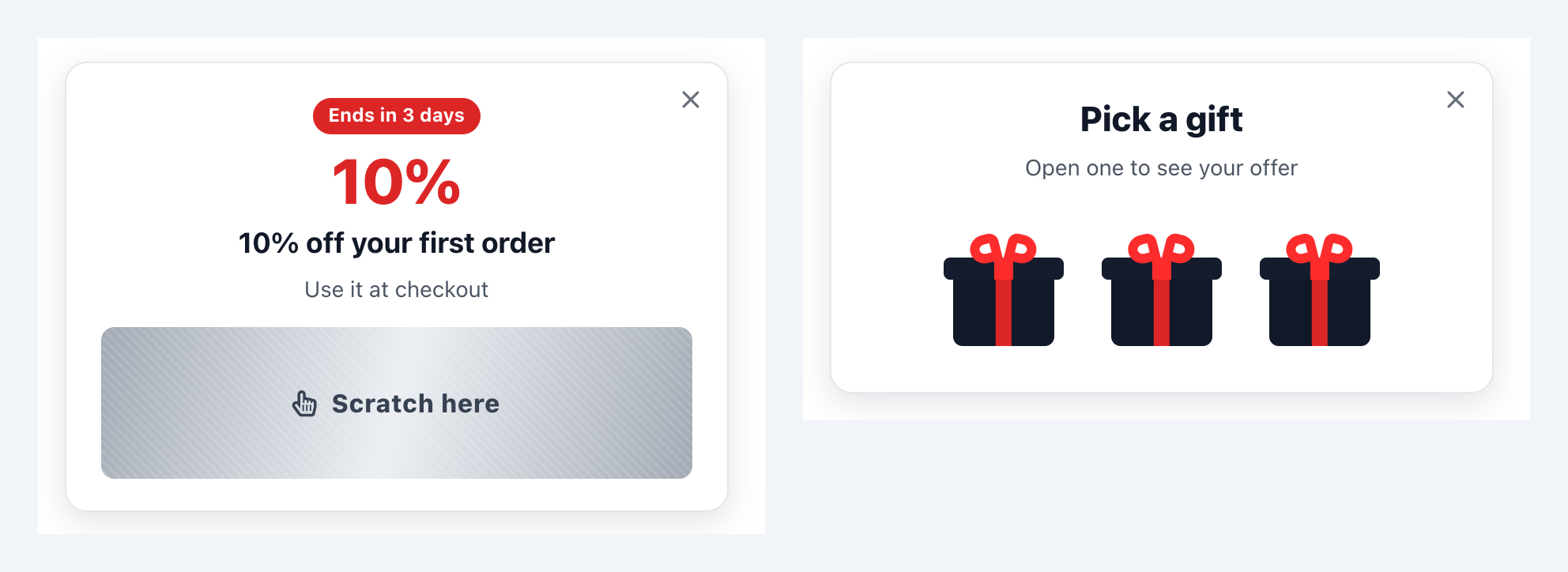
Two AI Promotion Coupon designs make the code a small game. The reveal counts as Code revealed, once; a visitor who revealed it sees the code on the next page and is not counted again.
- Scratch Card Coupon — the code is under a foil the visitor scratches off, with a finger or the mouse. Reveal After Scratching sets how much of the foil must go; keyboard users reveal it with Enter. Before Scratching: Show the offer, or Keep it a surprise, which hides the discount and the headline too until the code shows.
- Pick a Gift Coupon — two to four gift boxes (How Many Gifts); the visitor picks one, its lid flies off, and the coupon is there. Every box holds the same coupon: the visitor’s own.
Every coupon design has Apply It by Itself (Customize Look & Feel → Coupon Code), on by default: when the visitor copies or reveals the code, it goes into their cart — at once on a Shopify store, else into the coupon field when they reach the cart or checkout. Once Applied and Applied at Checkout set the line shown under the code. Choose No – they paste it to turn it off. How it works: Auto-Apply Coupon Code at Checkout.
Target, QA and publishing
Target is optional here (“Where the promotions appear”): its targeting rules decide on which pages and to which visitors the widgets appear, never which promotion they show. Save, publish to staging, and check the pages in QA — on the store in the video, the outerwear page shows the outerwear promotion and the footwear page the footwear one. Then publish to live.
In email: each recipient’s best promotion
Your promotions can also go into the emails you send from Mailchimp, Klaviyo or any other email platform. You paste one block of HTML into the email once; whenever it is opened, the block shows the promotion from your Promotions list that best fits that recipient, drawn as an image, and a click goes to that promotion’s link. It is a design of the Personalized Banner campaign for 3rd-party emails.
To have Personyze send the email itself, with a code of their own for every recipient, use Promotion by email instead.
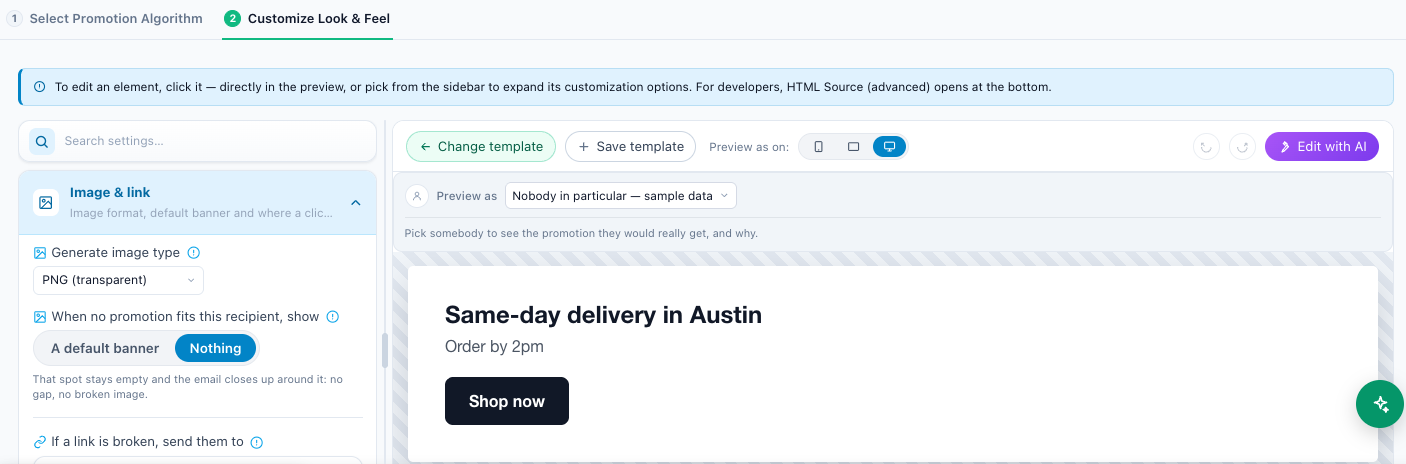
- New campaign → Email & push → Get Code for Emails: Personalized Banner.
- In Look, Browse template gallery, choose External media – Promotions, then a design: Best Promotion Email Card, Promotion Email Banner, Promotion Email Split or Coupon Email Ticket.
- Select Promotion Algorithm works as on the site, without the algorithms that need a page or the visitor’s position: Matches this category, Matches their search and Popular near the visitor. Then Customize Look & Feel.
- In Code, say how your platform names the recipient — their email address or your own user ID — and copy the HTML.
- Publish to live, check the images per recipient in QA, then paste the code into your email.
When no promotion fits
A recipient fits no promotion when none is live, when their targeting keeps every one from them, or when it is a coupon they hold no code of. What they see is Customize Look & Feel → Image & link → When no promotion fits this recipient, show:
| Choice | What the recipient sees |
|---|---|
| A default banner | A picture of your own (Banner picture), linked to Banner link. Until a picture is picked, they see nothing there. |
| Nothing | That spot stays empty and the email closes up around it: no gap, no broken image. |
Codes and targeting in email
- Codes. A promotion with a shared code shows that code. A coupon with one code per person (a code pool) shows only to a recipient who already holds an unused code from its pool, and the image shows that code. This block gives nobody a new code; Promotion by email does.
- Who sees it. A promotion’s Country and State or region rules work in email, by the recipient’s last known place. A promotion limited by Cart value, In cart, Pages or After another promotion is never shown in email, which has no page or cart.
In web push
A Send Web Push campaign can carry each subscriber’s best promotion. On its Content step pick A promotion (Web Push Send – Promotions): “The best offer each subscriber qualifies for, from your Promotions.” Its steps are Select Promotion Algorithm — the algorithms that need no page, as in email — Message look and Timing. Designs: Best Promotion Push, Code-First Push (the promotion’s code as the title) and Offer Nudge Push.
A push goes only when a promotion qualifies for that subscriber: otherwise nothing is sent, and it does not count toward how often they may get one. Views and clicks are counted per promotion, in the Report.
The dashboards
Overview
Promotions → Overview: whether your promotions are on (On — your visitors are shown your promotions, or Not on your site yet), how many are live, scheduled and in drafts, and how many campaigns show them.
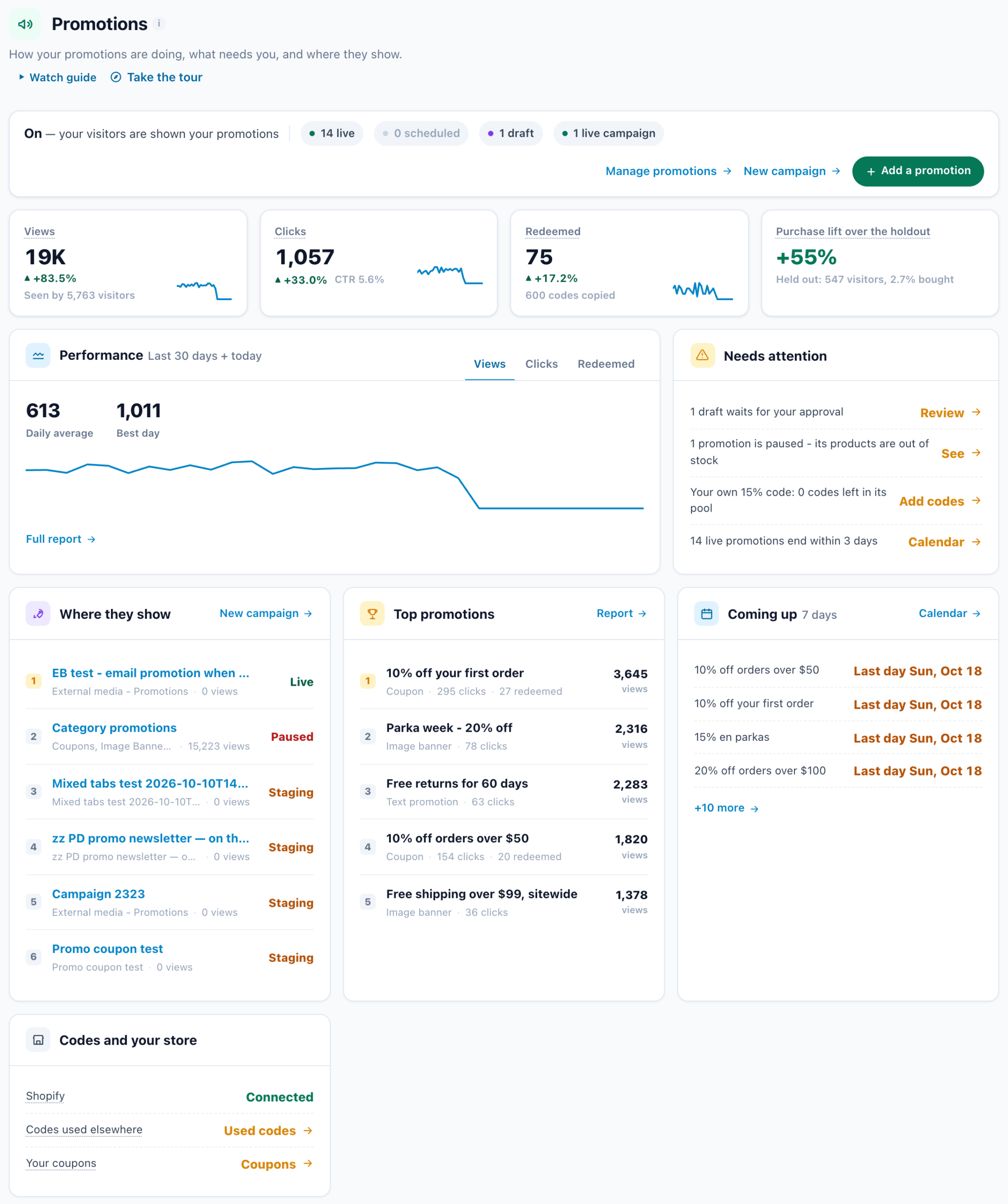
| Tile or card | What it means |
|---|---|
| Views | Promotions shown to visitors in the range, and how many visitors saw one. |
| Clicks | Clicks on a promotion in the range, with the CTR. |
| Redeemed | Codes the store reported used in the range, and how many codes were revealed. |
| Purchase lift over the holdout | Visitors who saw a promotion and bought within 7 days, against visitors a widget held out. Shown once 50 visitors are held out. |
| Needs attention | No campaign showing your promotions, nothing live, drafts waiting, promotions paused for stock, pools running out, live promotions ending within 3 days. |
| Where they show, Top promotions, Coming up | The campaigns showing them and their views; the most viewed promotions; what starts or ends in the next 7 days. |
| Codes and your store | Whether Shopify is connected, Used codes for codes used elsewhere, and Your coupons — see Coupon Codes. |
Report
Promotions → Report breaks it down per promotion; a campaign’s Performance → Promotions tab is the same report for that campaign’s widgets. Filter by Shown in (widget), Category, Language, Sales boost and Audience, and choose the Goals counted.
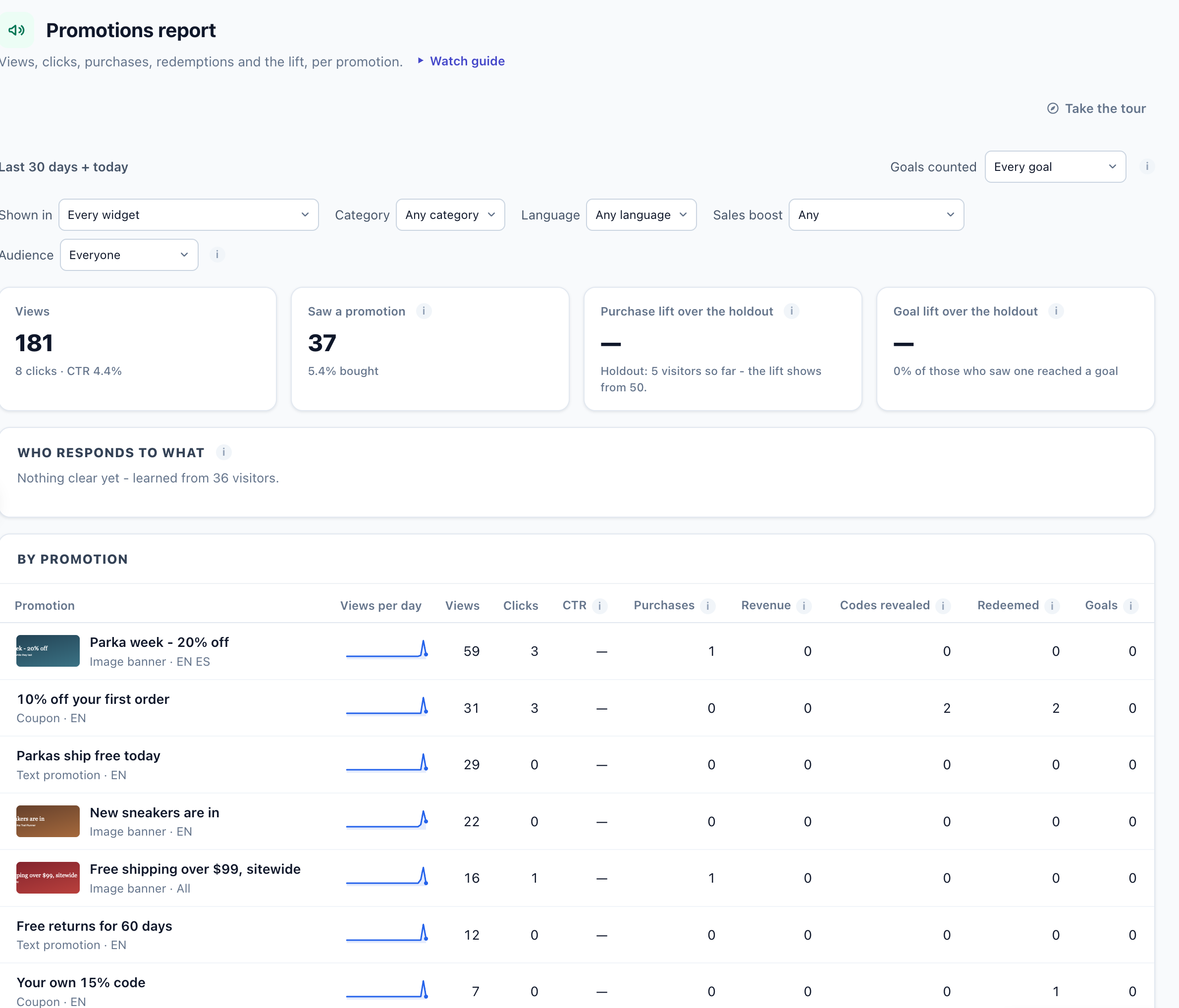
| Number | What it counts |
|---|---|
| Views, Clicks, CTR | Times a promotion was on the page, clicks on it, and clicks per view (shown from 100 views). |
| Saw a promotion | Visitors who saw or clicked one in the range, and the share of them who bought within 7 days. |
| Purchases, Revenue | A purchase within 7 days of seeing or clicking the promotion, counted on the day of the purchase, and what it was worth. |
| Codes revealed | A coupon code copied, or shown on request — once per visitor and day. |
| Redeemed | The store reported the promotion’s code used. |
| Goals | A counted goal, credited to the last promotion the visitor clicked or saw within 7 days. |
| Purchase lift and Goal lift over the holdout | The share who bought, or reached a goal, after seeing a promotion, against the visitors a widget held out. |
Visits that see a campaign on staging are not counted in these numbers. An order is credited to every promotion the shopper saw, so purchases and revenue do not add up across rows. Who responds to what lists kinds of promotions a group of visitors clicks more than everyone else, with Restrict to this audience and Create a promotion for them. How views, clicks and purchases are counted across Personyze: Performance Metrics.
Related
- Promotions — One List for Every Offer — adding promotions, who sees them, uploads, AI drafts and limits
- Coupon Codes — the coupons behind the codes, and every redemption
- Promotion by email — each recipient’s best promotion, sent by Personyze
- Canvas Builder — the AI Promotion and Nearest Store elements
- Coupon Near You — promotions valid at your locations, and the Nearest location’s offer algorithm
- Locations — your stores, their hours and tags
- Show Store — the visitor’s nearest store and its hours
- Popup & Banner Action Guide
- Targeting Rules
- Auto-Apply Coupon Code at Checkout
- Shopify Integration → With the Promotions add-on
- Performance Metrics