
Connect your Shopify store’s data to Personyze through Shopify’s API, with an app you create yourself in Shopify, and keep Personyze in step with your store: your products in the catalog that recommendations draw from, your orders as purchase history on each buyer’s profile, and your customers’ Shopify data on their visitor profiles.
What it does
Three syncs, each switched on separately:
- Products into your catalog. Every active product published to your Online Store, every 6 hours: title, description, main picture, price and sale price, vendor (as the brand), collections and product type (as categories), tags, and whether it is in stock — with the unit count when stock is tracked. Recommendations, product widgets and catalog-based targeting use them right away. A product that leaves your store goes out of stock in the catalog.
- Orders into purchase history. Each order’s products become purchases on the buyer’s visitor profile, matched by their email (a profile is created for a buyer Personyze has not seen yet), at the order’s own date and amount. The first pass reads the last 60 days of orders; after that, new orders arrive every 15 minutes. Recommendations then know what each customer already bought, and targeting by purchased products sees store orders, not only purchases made while the Personyze tag watched. Each order line also keeps its status, carrier, tracking number and link, and its shipped, delivered and expected dates — which is what lets the AI Chat answer “where is my order?” for a visitor who gives the order number and its email. See Where is my order?
- Customers onto visitor profiles. Each customer’s name, tags, number of orders, total spent and the date they became a customer, on their profile, matched by email, every hour. These appear as visitor attributes you can target with targeting rules: Shopify customer tags, Shopify orders, Shopify total spent, Shopify customer since and Shopify customer ID. For example: show a VIP offer to visitors whose Shopify customer tags contain “VIP”.
What you need
- The store owner’s access to Shopify’s Dev Dashboard (dev.shopify.com) — about five minutes.
- Any Shopify plan.
Step 1: Create the app in Shopify
Since January 2026, Shopify no longer lets store owners create custom apps in the store admin; apps are made in the Dev Dashboard. Create it as the store owner: Shopify gives Personyze access only to an app made in the same Shopify organization as the store.
- Sign in to dev.shopify.com as the store owner. Go to Apps → Create app → Create app manually, and name it (for example “Personyze”).
- Under Scopes, enter:
read_products,read_inventory,read_orders,read_customers. Leave out the scope of any sync you do not want. Click Create app, then Release. - On the Apps list, open the app’s menu → Install app, choose your store, and Install. Shopify shows what the app may read; confirm.
- In the app’s Overview → Distribution, choose Custom distribution, enter your store’s address, and click Generate link.
The drawer in Personyze has the same steps under How to create the app in Shopify.
Step 2: Connect it in Personyze
- In the app’s App settings in the Dev Dashboard, find the Client ID and the Client secret. Keep the secret safe.
- In Personyze, go to Settings → Integrations, and open Shopify (under Platform & Developer).
- Enter:
- Store address — your store’s myshopify.com address, for example
your-store.myshopify.com(Shopify shows it under Settings → Domains). Your store’s own domain is not accepted here. - Client ID and Client secret from the app.
- Store address — your store’s myshopify.com address, for example
- Click Connect.
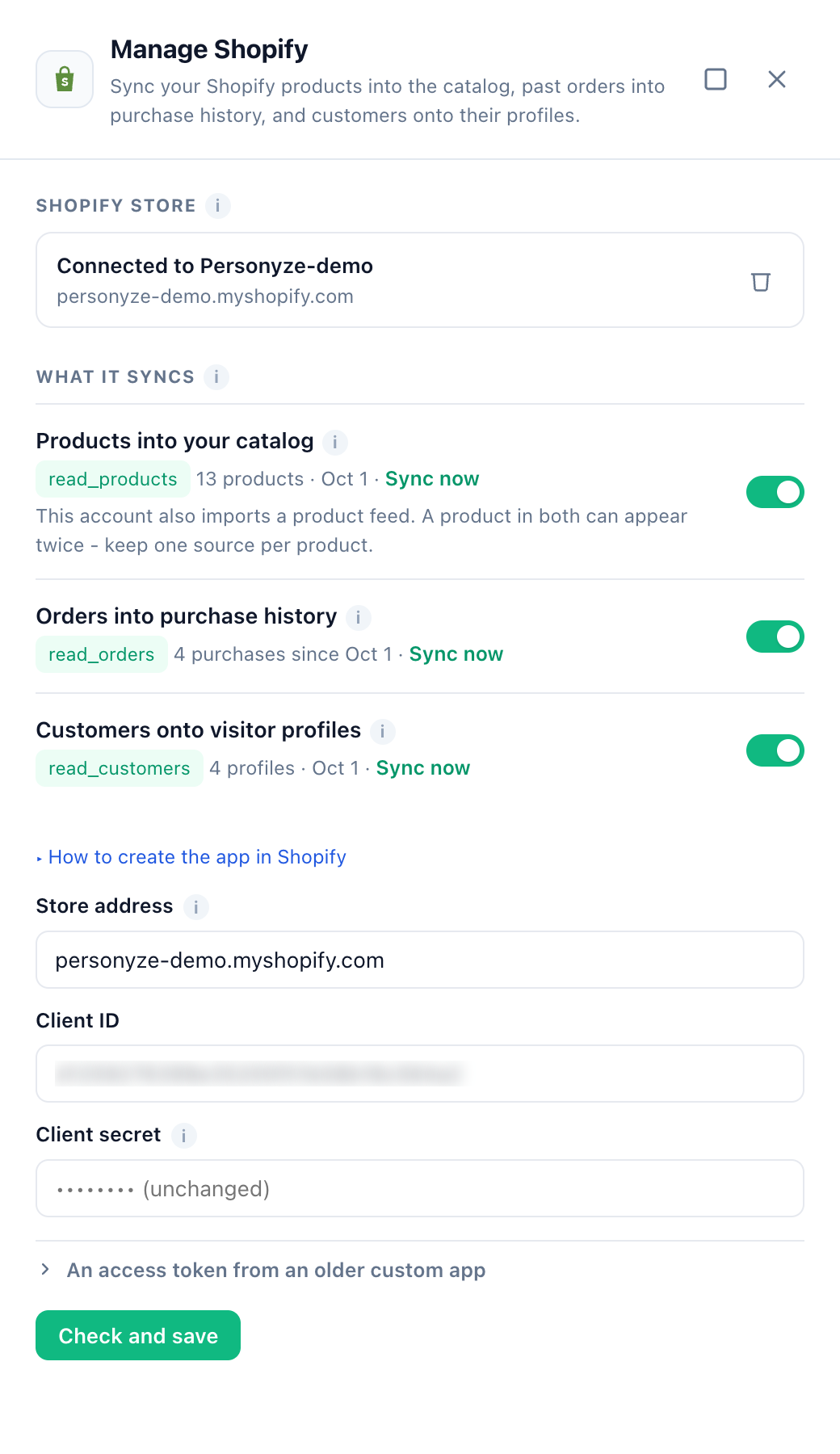
Personyze checks the keys with Shopify before saving them. The drawer then reads Connected to your store’s name. The Client secret is stored encrypted and never shown again — the field reads “(unchanged)” from then on. To change the connection later, edit the fields and click Check and save; leave the secret empty to keep the one already saved.
shpat_) instead: click An access token from an older custom app in the drawer and enter it there, with the store address. Like the secret, it is never shown again.Step 3: Switch on what to sync
Under What it syncs, switch on each sync you want: Products into your catalog, Orders into purchase history and Customers onto visitor profiles. Each row shows the Shopify scope it needs — green when your app has it, red with “Not granted to the app” when it does not, and then the sync cannot be switched on. The first pass starts within 5 minutes; until then the row reads “Starting within 5 minutes”.
After a pass, each row says what it did: “13 products · Oct 1”, “4 purchases since Oct 1”, “4 profiles · Oct 1”. Sync now runs a sync on the next pass (within 5 minutes) without waiting for its schedule. When a sync fails, the row shows why in red; the other syncs still run.
How the data is used
Products
Each product is one catalog item, identified by its Shopify product ID. Its link is the product’s page on your store’s own domain — which is how the Personyze tag recognizes a product page when a visitor views it. When Shopify gives no page address (for example while your storefront is password-protected before launch), Personyze uses your store’s domain and the product’s handle (/products/<handle>), the address Shopify’s themes use.
- A product on sale (with a compare-at price above its price) gets the compare-at price as its regular price and the current price as its sale price. A product with several variants takes its lowest-priced variant’s prices, as your store’s listing does.
- A product is in stock when any of its variants can be bought. The unit count comes only with the
read_inventoryscope, and only for products whose stock Shopify tracks. - Products that are drafts, archived, never published to the Online Store, or gift cards are not synced.
Purchases
An order with the same product on two lines counts as one purchase of the total quantity. Reading an order again never adds a second purchase. Test orders and cancelled orders are left out. An order without an email address cannot be matched to anyone and is left out too. A large store’s history is read over several passes.
A connected store’s shipments and refunds also tell the review and feedback asks when an order arrived or came back — see Asking about a purchase.
More than 60 days of orders
Shopify gives an app only the last 60 days of orders with read_orders. For up to a year of history on the first pass, request the read_all_orders scope for your app (Partner Dashboard → the app → API access requests → Read all orders scope) and add it to the app’s scopes.
Customers
The customer’s first and last name go on the profile’s own name; the rest as the five Shopify visitor attributes above, which the first pass adds to your account’s visitor attributes. The first pass reads all your customers; later passes read those updated since — placing an order updates a customer, so a buyer’s order count and total stay current. A customer without an email address is left out.
Product feeds
If your account also imports a product feed, a product in both can appear twice in the catalog. Keep one source per product — the drawer warns you when the account has a feed.
With the Promotions add-on
The same connection also serves the Promotions add-on, on the Promotions page. It needs three more scopes on your app (in the Dev Dashboard, add them to a new version of the app and release it):
read_orders— discount codes used on your orders count as redemptions of your promotions.read_discounts— Import from Shopify turns your active and scheduled Shopify discounts into promotions: code discounts as coupons, automatic discounts as text promotions.write_discounts— Make codes in Shopify, on a coupon’s Store step (Promotions → Coupons), creates unique codes for a code pool or generated codes, up to 1,000 at a time, so every code works at your checkout. Keep it topped up makes more when few are left. See Coupon Codes.
Disconnecting
Click the bin icon next to “Connected to …” in the drawer, and confirm. Syncing stops; the products, purchases and profiles already synced stay. The app stays in your Dev Dashboard — uninstall or delete it there if you no longer need it.
Troubleshooting
A sync row is red and says “Not granted to the app”
The app does not have that scope. In the Dev Dashboard, open the app → Versions → Create version, add the scope, Release, and accept the update in your store’s admin (open the app there). Then click Check and save in the Personyze drawer.
“Shopify has not approved the app for customer data”
The app has no distribution method (step 1, item 4). In the Dev Dashboard, open the app → Distribution, choose Custom distribution and your store, then click Sync now on the sync that failed.
Shopify refused the app’s keys
When Shopify refuses the keys — for example the app was uninstalled or its secret was rotated — Personyze stops using the connection at once instead of retrying, and the drawer shows Shopify’s reason in red in place of “Connected to”. Fix the app, enter the store address, the Client ID and the current Client secret, and click Connect.
Connect is refused
- “Enter the store’s myshopify.com address…” — you entered your store’s own domain. Enter the myshopify.com address from Settings → Domains in Shopify.
- “Shopify issues a token only to an app made in the same Shopify organization as the store.” — create the app from the store owner’s Dev Dashboard and install it on this store.
- “Shopify did not accept this Client ID and Client secret…” — enter both again from the app’s App settings, and check that the app is installed on this store.
- “No Shopify store answers at …” — check the store address.
Fewer products than in Shopify
Only active products published to the Online Store are synced; drafts, archived products and gift cards are not. A store with more than 50,000 products is synced in part, and the drawer says so.
Orders older than 60 days are missing
See More than 60 days of orders.
A customer’s purchases are not on their profile
Purchases are matched by email. A visitor’s profile shows them once Personyze knows the visitor by that email — from a sign-in, a form, or an email link.
Related
- Install Personyze on a Shopify store — the Personyze app from the Shopify App Store.
- Installing Personyze — the tracking code, on any site.
- Tracking Shopify e-commerce events — product views, add-to-cart and purchases on the storefront.
- Recommendations — what the synced catalog and purchases feed.
- WooCommerce Integration — the same three syncs for a WooCommerce store.
- BigCommerce Integration — the same for a BigCommerce store.
- Integrations — every other connection.
- Troubleshooting: an integration stopped syncing