
What a campaign shows depends on who is looking: a recommendation widget picks different items for each visitor, a Promotions widget a different banner, a review strip different reviews. Preview as picks one person — somebody real, or somebody Personyze knows nothing about — and shows the campaign as that person gets it, with the reason each thing is there. It runs the real widget for that person, and shows them nothing.
Picking a person
In a design step the picker sits above the preview: Preview as, which reads Nobody in particular — sample data until you pick somebody. Click it to open the picker; Clear goes back to sample data. In a recommendation campaign’s Simulator step, and in the QA step of an email for another platform, the same picker is on the left of the step.
Once you pick somebody, the band shows what Personyze knows about them as chips: Company,
Industry, Email, Account type, Lead source,
Role, City and your own fields, up to six. Hover a chip to see the field’s name.
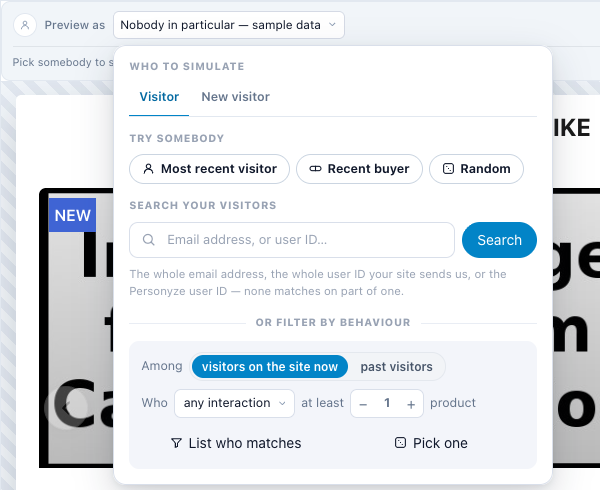
| Tab | Who you get |
|---|---|
| Visitor | Try somebody picks a sample at once: Most recent visitor, Recent buyer (Recent reader for articles; recommendation widgets only) or Random. Search your visitors finds one person by the whole email address, the whole user ID your site sends, or the Personyze user ID — none matches on part of one. Or look through visitors on the site now or past visitors, and pick one. |
| Product (Article) | Where a widget can run for one item — the Simulator, the JSON API Preview and an email recommendation block: what it picks next to that item. |
| New visitor | New visitor: never seen before — no session, no history. Nadia — nothing on file: on file, but with no profile fields and no history, so every fallback fires at once. |
For an email the words are the email’s: Who to preview, Recipient, Most recent recipient, New recipient and An unidentified recipient (an email address you never sent to Personyze), and the samples are people with an email address. In a Promotions, Show Reviews or Customer Logos widget, On page picks which of the person’s pages the preview runs on.
Recommendation widgets: Why these items
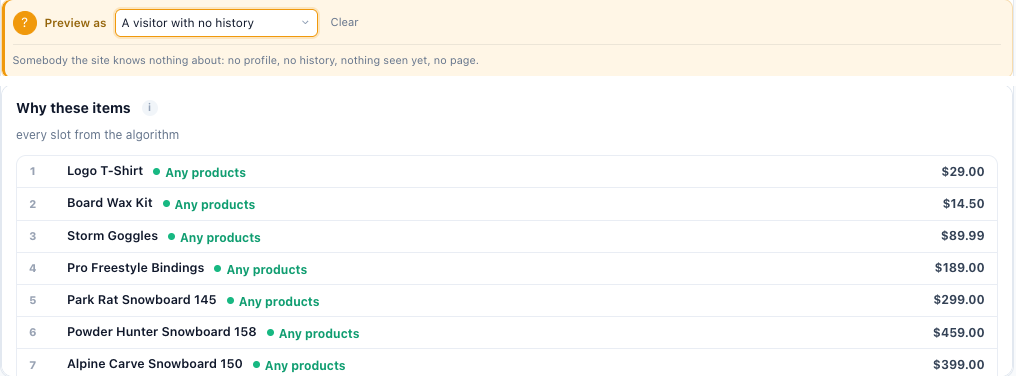
In a product or content recommendation widget, pick the person under Preview as in the design step — Customize Look and Feel for products, Customize Look & Feel for content. The preview shows their items, and Why these items under it labels each one:
| Label | Means |
|---|---|
| The algorithm’s name | The widget’s own algorithm picked it. |
| Fallback: and the fallback’s name | The algorithm came up short and a fallback filled the slot. With several fallbacks, all their names are given. |
| Filler: and what filled it | Neither: the widget topped itself up (Fill empty cells), so the slot is not left blank. |
A line over the items sums it up, for example 3 from the fallback · 2 slots empty. When the widget picks nothing for the person, it says so: the widget does not appear for them.
The algorithm step, Select Recommendation Algorithm, has no picker of its own. Its summary points here: “To see the actual items a person gets, pick them under “Preview as” in the next step.”
The Simulator step
A recommendation campaign’s Simulator step does the same for every widget in the campaign: pick one under Widgets in this campaign, then the person — or, on the Product tab, one item, to see what the widget puts next to it. Each item carries the same labels. The widget stays selected while you step through people, and it runs the algorithm as it is on screen, including Content step changes not saved yet. See Testing & QA.
Emails and web push
An email or a push notification is built on your user base, with no page, so its preview runs that way too.
- Emails Personyze sends — the campaign’s QA step, Preview by user. Find the person by email, user ID, internal ID or part of an address, or Pick a random visitor. Beside them, the campaign’s rules are tested for that person: In this campaign’s audience, or Not in this campaign’s audience with the rule that keeps them out and Change the rules — see Testing & QA. The email’s own design step has Preview as too: it shows the email with the person’s data, and inside a campaign the same audience line under it. When the email holds recommendations, Why these items under it takes each one, run for this recipient the way the email is built, with the algorithm or the fallback that picked each item. A list that a condition keeps out of this person’s email says so.
- Web push — the QA step: Find a person, or Pick a random matching person. When the notification holds recommendations, Why these items is under it.
- Emails sent from another platform — the QA step of a Get Code for Emails campaign has the picker in its email form. It shows the images that person would receive; a recommendation block adds Why these items, and while it is a draft it lists What this email will pick.
- JSON API recommendations — the Preview step, with the same picker, lists what the API would answer for that person, each item with the reason it is there.
How to write the email itself: Writing the Email.
Promotions: Why this banner
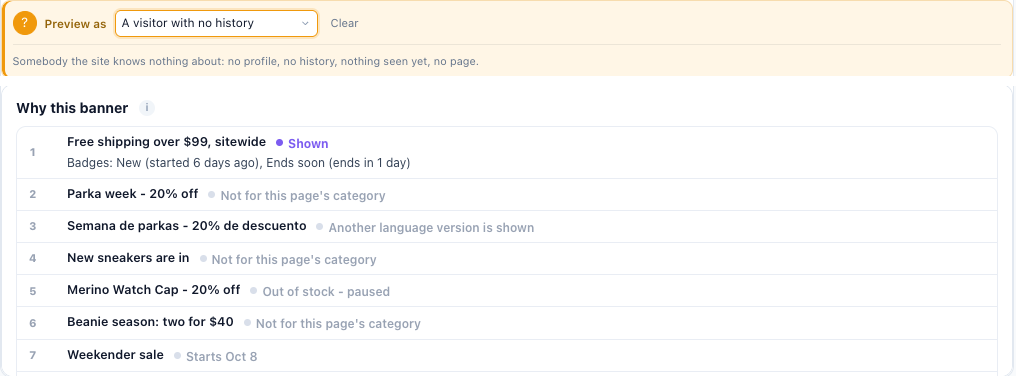
In a Promotions widget, Customize Look & Feel renders the design as the person you pick, on the page chosen in On page. Under it, Why this banner (Why this coupon, Why this promotion) names the promotion they get and the first reason each other one is left out. A visitor in the widget’s holdout is told so: the widget shows them nothing.
How the widget chooses: Promotions Campaign.
Reviews and customer logos: which fields matched
In Show Reviews and Customer Logos, Customize look and feel renders the widget as the person you pick, on one of their pages. Under it, Why these reviews or Why these logos says which of the person’s fields each one matched — for example Matches: Industry = Retail, Country = US — which ones are there only to fill the count, and the first reason each other one is left out. What the site knows of them lists the fields it read. See Show Reviews and Customer Logos.
AI Product Finder and AI Content Finder: what the finder is told
In Set Up This Product Finder (or Set Up This Content Finder), pick the person under Preview as and the preview runs with their data. Under it, What the finder is told about them lists what the finder would be given about that person, and says:
- whether it can rank picks for them from what they viewed and bought;
- whether it recommends only what your Only recommend rules allow, or from your whole catalogue;
- that the cards in the preview are samples, because which items it picks is the model’s answer to each question asked.
AI Chat’s designer has a Preview as list of its own, and under its preview, What the assistant is told about them. See AI Product Finder and AI Content Finder and What the assistant may see.
Hosted landing pages: which version they get, and the page as they get it
A Landing Page campaign’s page editor has one Preview as band at the top, over
the row of the page’s parts. Pick anybody in your user base. Under the band:
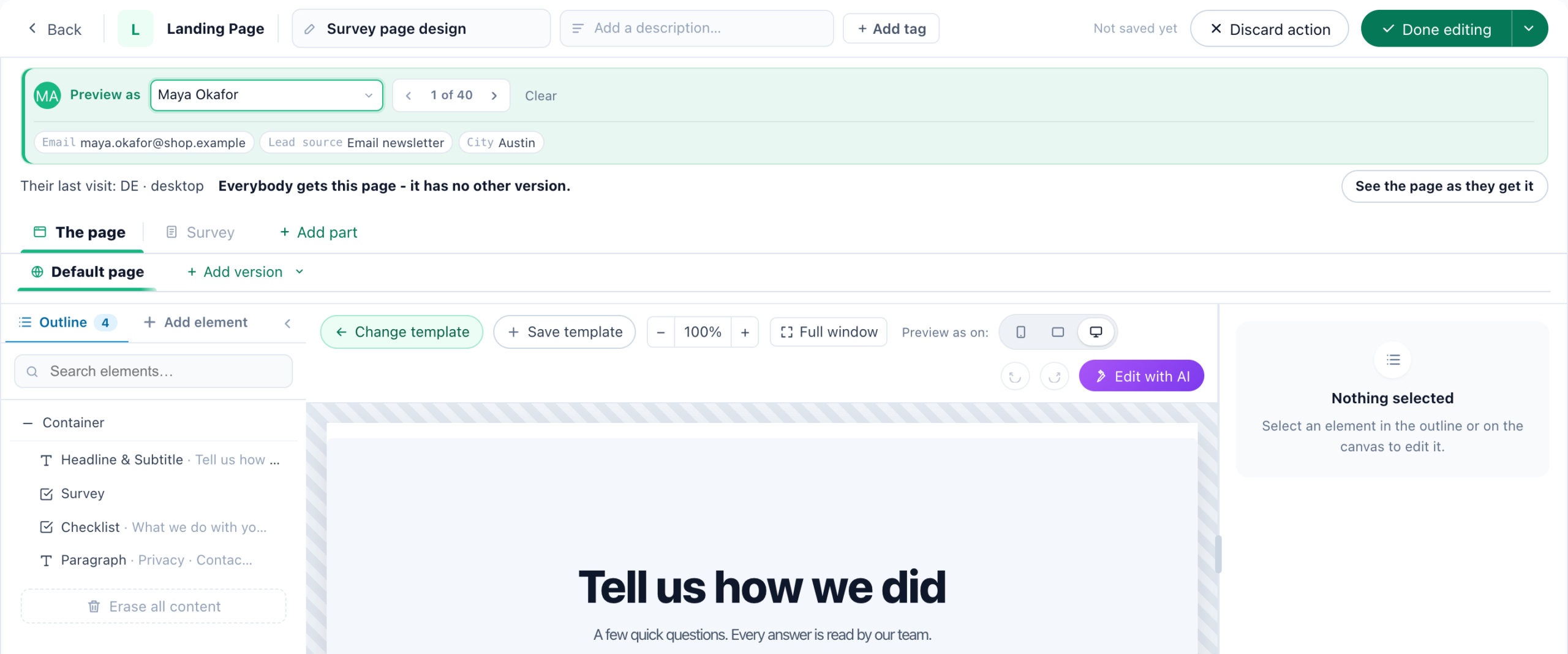
- Their last visit: its campaign tags (UTM) and other parameters, the site they came from, their country
and region, and their device. With no visit on record, the page is for them as for a new visitor. - They get: the version of the page that visit gets, by the versions’ own rules — for
example They get: Default page. A page with one version says Everybody gets this page – it has no other
version. - See the page as they get it: the page as it is in the editor, unsaved changes included, drawn for
them in a frame over the editor. The parts and popups are drawn by the live page, so their places are empty in this
frame.
Every part follows the same pick. On The page, its elements and the parts drawn on it — a
survey, a review form, a calendar — are filled with that person’s data, and so is each part’s own
design step. With nobody picked, they show sample data. A calendar part is drawn on The page as a calendar, in the
booker’s heading and colour, and marked Preview value — the real one fills in on your site.
How the page and its versions are built: Landing Pages.
Good to know
- Somebody not on the site lately. A recommendation widget runs on the profile and history stored for them, which their next visit brings back. A Promotions, Show Reviews or Customer Logos widget runs on the site, which holds no profile or history of theirs, so for them it shows what it shows somebody it knows nothing about — and the picker says so.
- An email recommendation block keeps its picks. A recipient who opened the email in the last 6 hours keeps the items they were shown then. The preview is a fresh pick, as a new open would get.
- Whether the campaign shows up at all — its audience, its pages, its placement — is a different check. See Testing & QA.
- The campaign alone on your real page. To see it on your site with none of your other campaigns around it, tick Hide everything else in the QA step or in the preview dialog — see Testing & QA.
Related
- Testing & QA — Every Way to Check a Campaign — previews, the QA bar, the Simulator, email and push QA
- Setting Recommendation Fallbacks — what fills a widget when its algorithm comes up short
- Product Recommendations Wizard — the widget, step by step
- Promotions Campaign — Why this banner
- Show Reviews
- Customer Logos
- AI Product Finder and AI Content Finder
- Landing Pages — the page, its versions and its parts
- Writing the Email — the QA step’s preview and spam check