
Filters constrain the pool an algorithm draws from. Without them, Personyze considers your whole catalog; with them, only the items that match. The result is sharper, more relevant recommendations — and no awkward ones: the product the visitor already bought, an item with no picture, a brand that does not belong on this page.
Watch the 4:16 walkthrough on a content catalog: filters by author, type or date, filters that follow the article being read, boosts, fallbacks and titles.
Video: Recommendations in depth: filters, fallbacks and a title for each (4:17) — the product-catalog version plays at the top of Setting Recommendation Fallbacks.
Where filters live
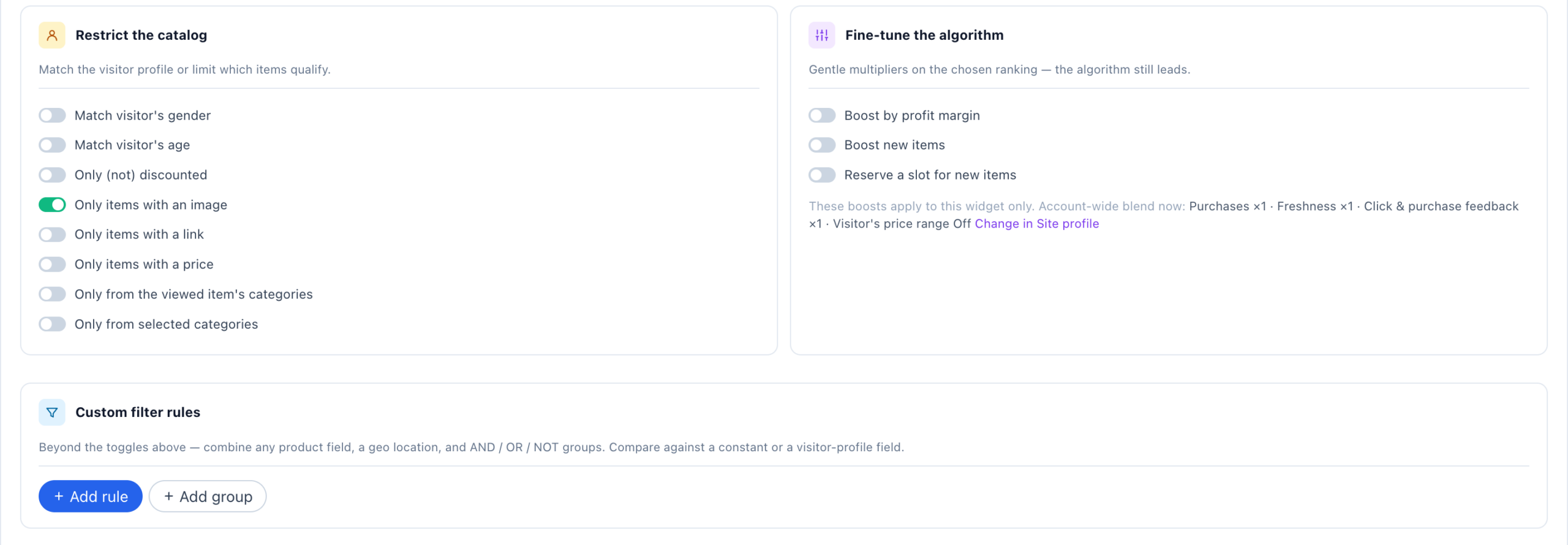
In the recommendation editor — the Select Recommendation Algorithm step of the widget — below the algorithm you picked. The Output card holds Group similar items; next to it sit three cards, Skip items the visitor already…, Restrict the catalog and Fine-tune the algorithm, and under them, full width, Custom filter rules.
Beside them, the What this widget recommends rail counts what your filters leave, one filter at a time, against your real catalog — so a filter that empties the widget shows up before anybody sees it. See What this widget recommends.
Skip items the visitor already…
Leaves out what this visitor has already engaged with. None is on by default — switch on what fits the widget.
| Products | Articles | Leaves out |
|---|---|---|
| is viewing now (PDP) | showing on current page | The item on the page right now. |
| has viewed before | all Shown | Items they have already viewed, or had shown to them. |
| — | all Confirmed view | Articles they opened and actually read, not just had displayed. |
| has in cart | all Commented | Items in their cart / articles they commented on. |
| has saved to wishlist | all Liked | Items they saved or liked. |
| has purchased before | all Reached goal | Items they bought / articles on which they reached a goal. Leave it off for a restock or repurchase reminder. |
Restrict the catalog
| Toggle | Keeps only |
|---|---|
| Match visitor’s gender | Items whose Gender field matches the visitor’s. |
| Match visitor’s age | Items whose Age from / Age to range includes the visitor’s age. |
| Only (not) discounted (products) | Items on sale — any amount, at least 10%, 25% or 50% off — or, reversed, items not discounted. |
| Only items with an image | Items whose main image is set. Use it when the design shows the main image, as the default templates do. |
| Only items with a link | Items with a page to open when the card is clicked. On by default for a new widget. |
| Only items with a price (products) | Items with a price set. |
| Only from the viewed item’s categories | Items in a category of the item viewed on this page. Offered on Product and Cart pages; where no item was viewed, the widget shows nothing. |
| Only from the category on this page | Items in the category the page reports. Offered on Category pages; where no category is reported, the widget shows nothing. |
| Only from selected categories | Items in the catalog categories you choose. |
Group similar items
In the Output card. Pick an attribute — brand, manufacturer, size, colour or family for products; author for articles — and items that share its value are grouped, with only one shown from each group. It shapes the output rather than filtering the catalog: a row of eight items from eight brands.
Custom filter rules
For anything the toggles do not cover. Add rule builds one condition: a field of your catalog, an operator (Exactly matches, Contains, < less than, days ago > and the rest), and a value. Add group nests rules in brackets. Rules and groups combine with AND, OR or XOR, and each one can be switched to NOT. A rule can also be a geo location — the visitor’s country, region or city.
The value is where the power is. It can be:
| Value | Compares each candidate item with |
|---|---|
| Constant… | A value you type — a brand, a price, a type. |
| User: … (Visitor profile) | A field on this visitor’s profile. |
| Viewing product, Last viewed product, Last cart product, Last purchased product | A field of that item — so the filter follows the visitor as they browse. |
| Viewing category, Last viewed category | The category the visitor is in, or was in last. |
| Viewing article, Last viewed article (content) | A field of the article being read, or the last one read. |
Filters that follow the visitor — one widget, no per-product campaign:
| You want | Rule |
|---|---|
| More from the brand on the page | Brand · Exactly matches · Viewing product → Brand |
| Cheaper alternatives | Price · < less than · Viewing product → Price |
| More of what they are already buying | Brand · Exactly matches · Last cart product → Brand |
| More from this author | Author · Exactly matches · Viewing article → Author — on Most Popular it is “most popular from this author”, which older guides listed as an algorithm of its own. |
A filter this narrow will sometimes leave the row short. That is what a fallback is for — and the fallback keeps the filter.
Filters and fallbacks
The main block’s filters apply to every fallback too. Each fallback also has its own Final touches (the gender, age, discount, image, link and price toggles), Filters and Group result by, which narrow it further. Skip items the visitor already… is whole-widget: it is set once, on the main block. See when the fallback fires.
Best practices
- Start broad, narrow gradually. Heavy filtering can empty a widget. Add filters one at a time and check the result each time.
- Pair a narrow filter with a fallback. If the filters are restrictive, add a fallback — it inherits them, so give it a broader algorithm, not a broader filter.
- Test as a real visitor. Filters that follow the page depend on what the visitor is doing; check them with the QA bar on the page they are meant for, or in the QA simulator.
Related
- Recommendation algorithms — what each one picks before the filters narrow it.
- Recommendation fallbacks
- Score blend — including the per-visitor price range, which nudges rather than filters.
- Setting the product / content feed — the fields you can filter on.