
The Product Recommendations action renders a fully customizable, responsive widget of personalized products — driven by views, cart contents and purchases, blending crowd wisdom (best sellers, bought-together) with each visitor’s own behaviour. This guide covers the action itself; the Product Recommendations wizard walks the full campaign end to end.
Prerequisites
- A product catalog synced.
- Interaction tracking for view / add-to-cart / purchase — the events the algorithms learn from. Until there is enough data, Personyze falls back to contextual recommendations so the widget is never empty.
Adding the action
In any campaign type that shows content — most often a Targeting & Personalization or Product Recommendations campaign — open Content, click Add action and pick Product Recommendations.
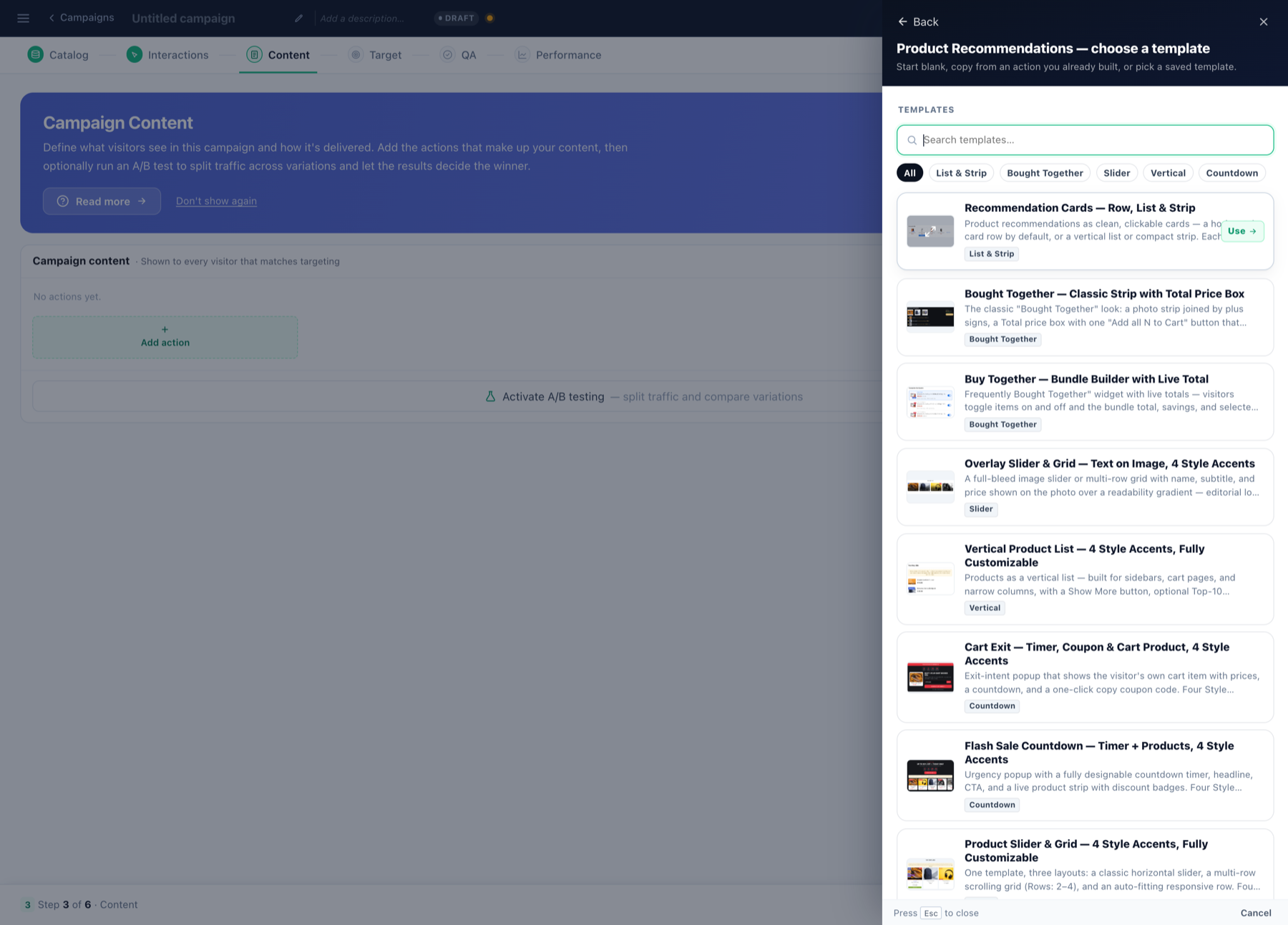
Choosing the algorithm
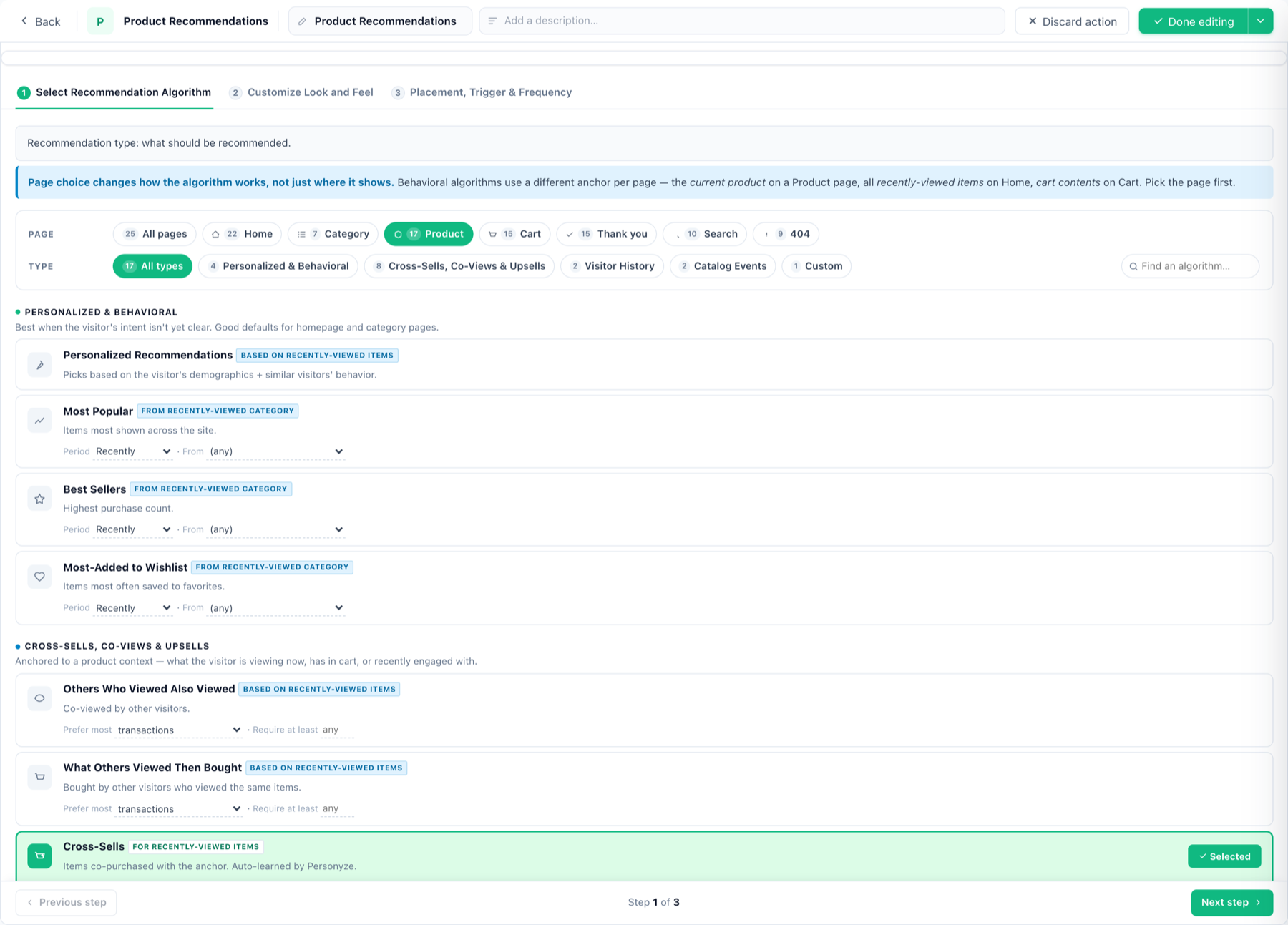
The Recommendation source picker groups the algorithms — personalized, crowd-based, item-based, and fallbacks. The full catalogue with when-to-use guidance is on Product Recommendations Algorithms and Algorithm Types.
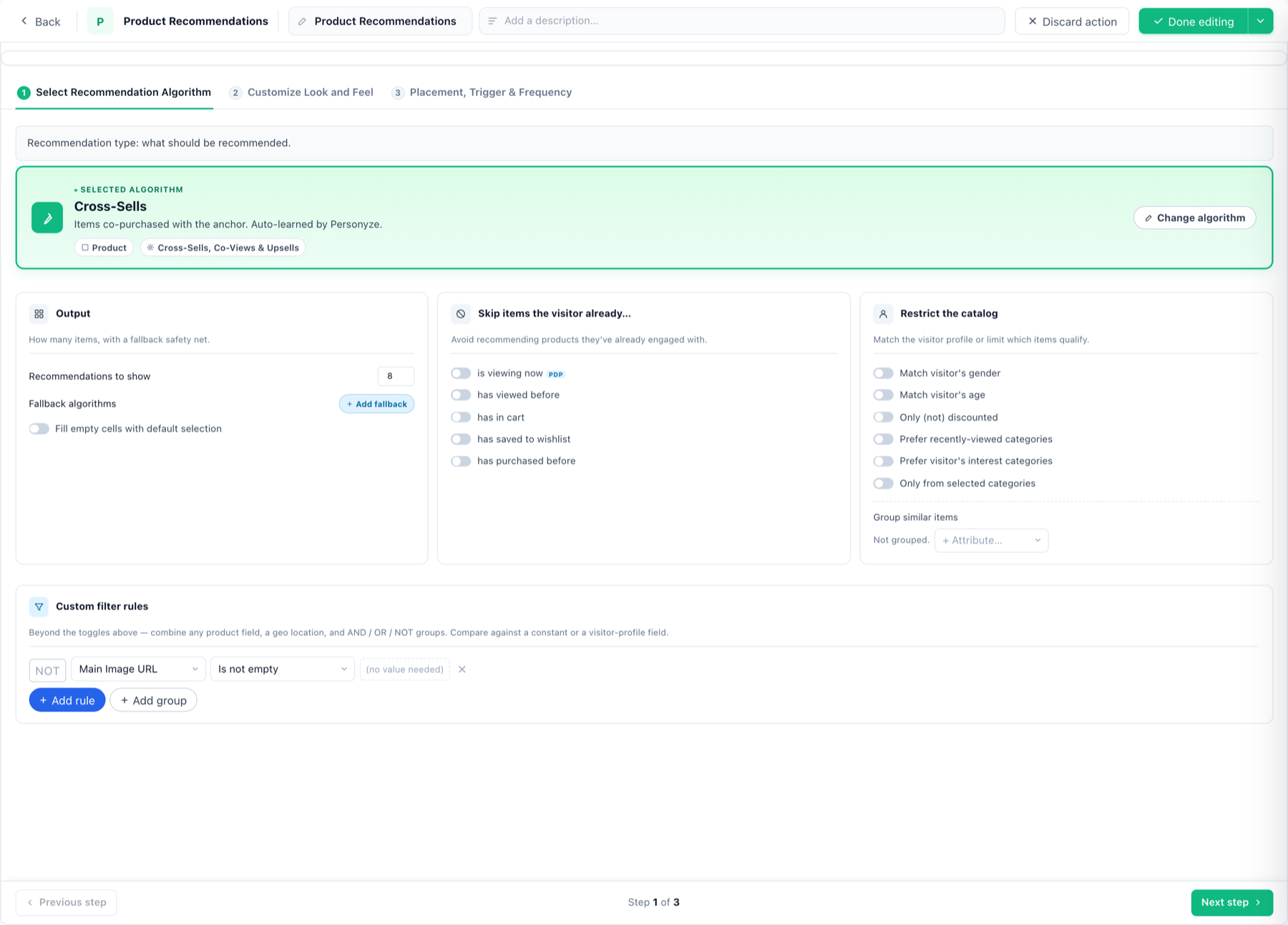
Sharpen the result set with filters (price, category, stock, any catalog field — fixed or relative to the visitor) and fallbacks for when the primary algorithm has too few items.
Anchored algorithms gate themselves
Some algorithms are anchored to an event: similar to the viewed item needs a product to have been viewed,
goes with the cart items needs something in the cart. On a page where that never happened they have nothing to
work from, and the widget came up empty.
The editor now handles that for you. Pick an anchored algorithm for an on-site widget and the widget is bound to a
shared, automatically created page group — “Product viewed on this
page” or “Product added to cart on this page” — and a note appears
beside the page-group setting saying so.
- The binding follows the algorithm. Switch between a viewed-anchored and a cart-anchored algorithm
and the group switches with it; choose an un-anchored algorithm and it clears. - It never overrides a group you chose. If you already assigned your own page group, the editor
leaves it alone and shows guidance instead. - Purchase-anchored algorithms are not gated this way, deliberately — a purchase often
completes off the page it was driven from. - Email and feed widgets get the note only, since they do not run on a page at all.
Look & feel
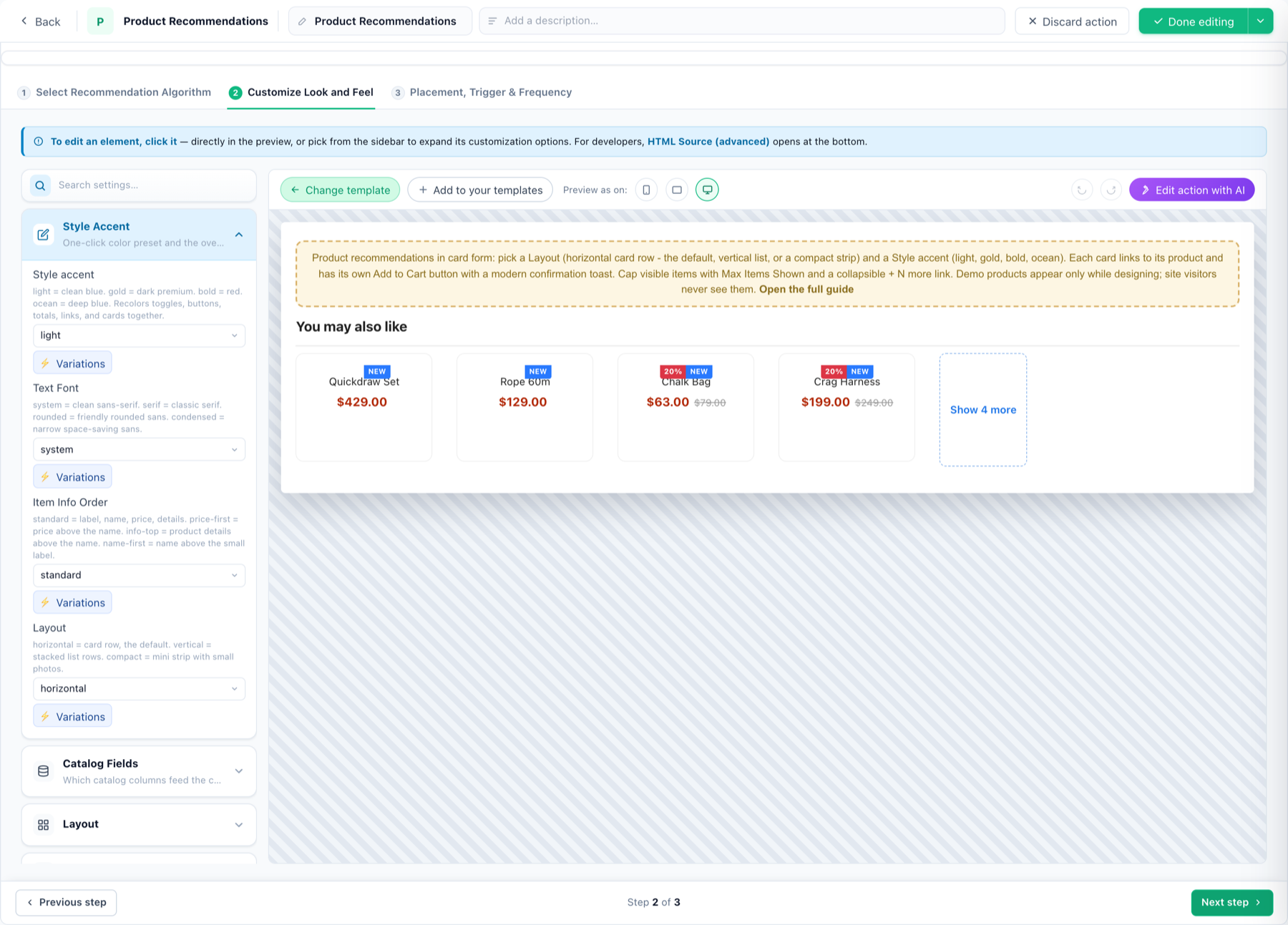
Widget settings work like every action editor: click an element in the live preview or use the sidebar; each setting has its own CSS hook and a ⚡ Variations button for per-audience values (see the variations walkthrough). Edit action with AI restyles the widget from a plain-language prompt. Card fields come from your catalog columns — price, brand, badge, anything you synced. A quick add-to-cart button can be enabled per template.
Placement
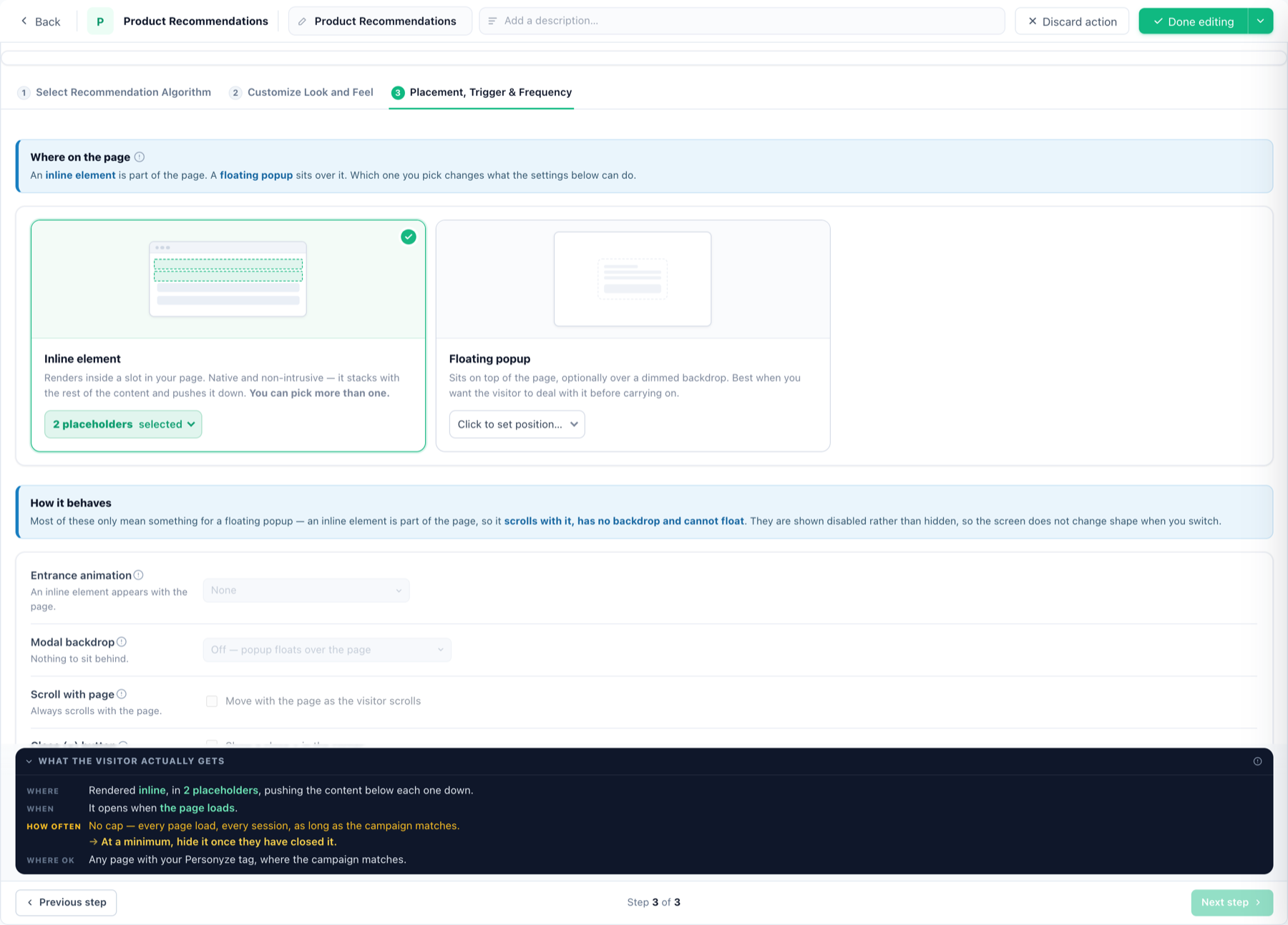
Same placement machinery as every action: inline in one or more placeholders, or floating with position, backdrop, triggers (arrival / scroll / exit intent / your own trigger) and plain-language frequency caps.
Measuring
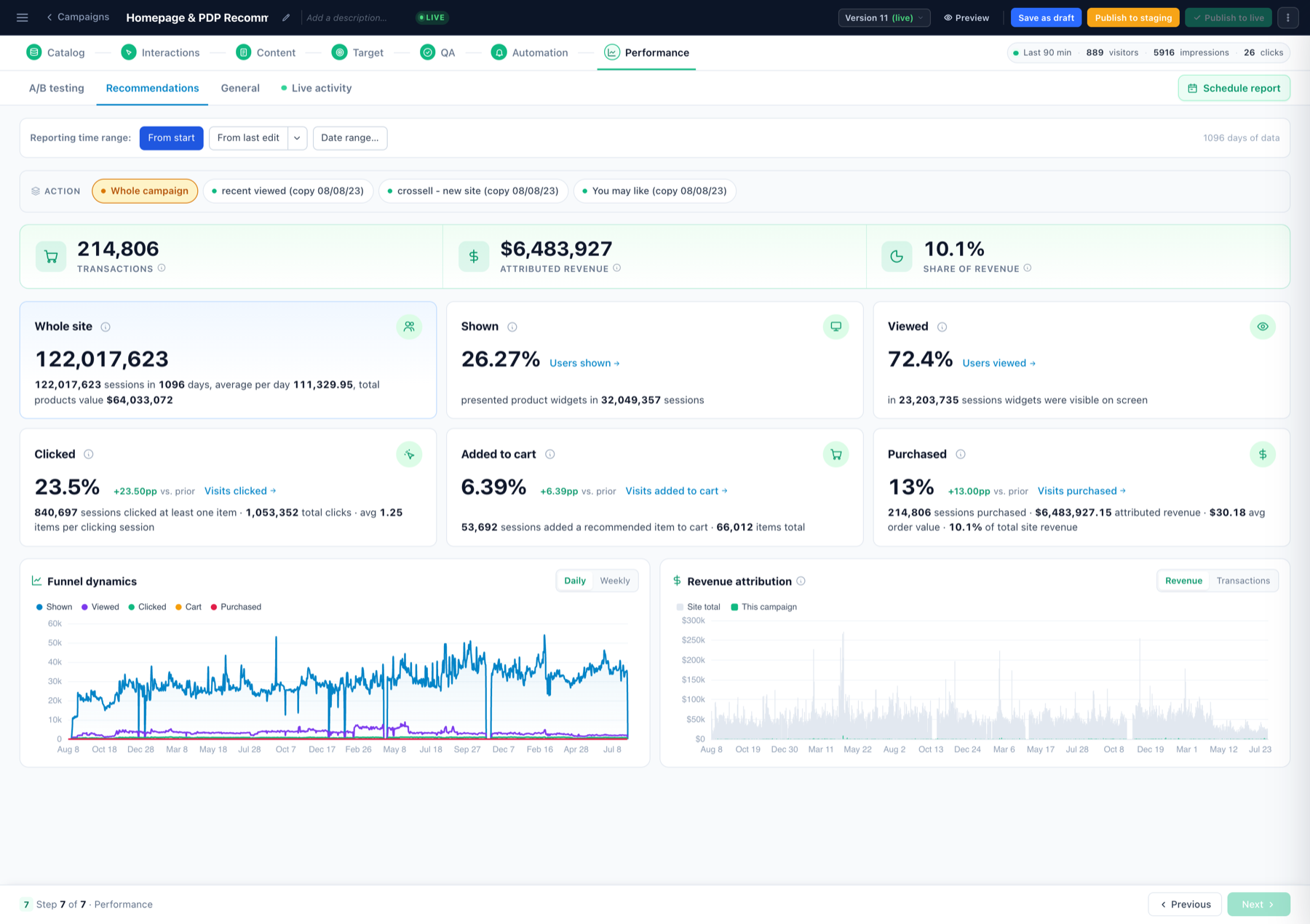
The widget reports impressions, clicks and attributed revenue to the campaign’s Performance step; recommendations-specific analytics live under Analytics. To pit algorithms or designs against each other, activate A/B testing on the Content step.
Related
- Product Recommendations wizard — the full campaign, step by step.
- JSON feed variant — same algorithms, rendered by your own code.
- Buy-together discounts and managed upselling.