
A landing page is a standalone page Personyze hosts for you at its own web address. There is
no theme to edit and no page to build on your own site — you design it with the same
Canvas Builder canvas used for popups and
banners, choose an address, and publish.
On personyze.com: Personalized landing pages →
Watch the 2:21 walkthrough: choosing the address, connecting your own domain, how the link looks when shared, and publishing.
The page carries your tracking code, so forms, goals and personalization behave exactly as they do on your site.
Building one
Start a Landing Page campaign (New campaign → Landing pages → A hosted landing page). It has five steps: Page URL,
Content, QA, Automation and Performance. There is no separate targeting
step — the address is the targeting, and who sees which version is decided inside the page editor.
1. Page URL
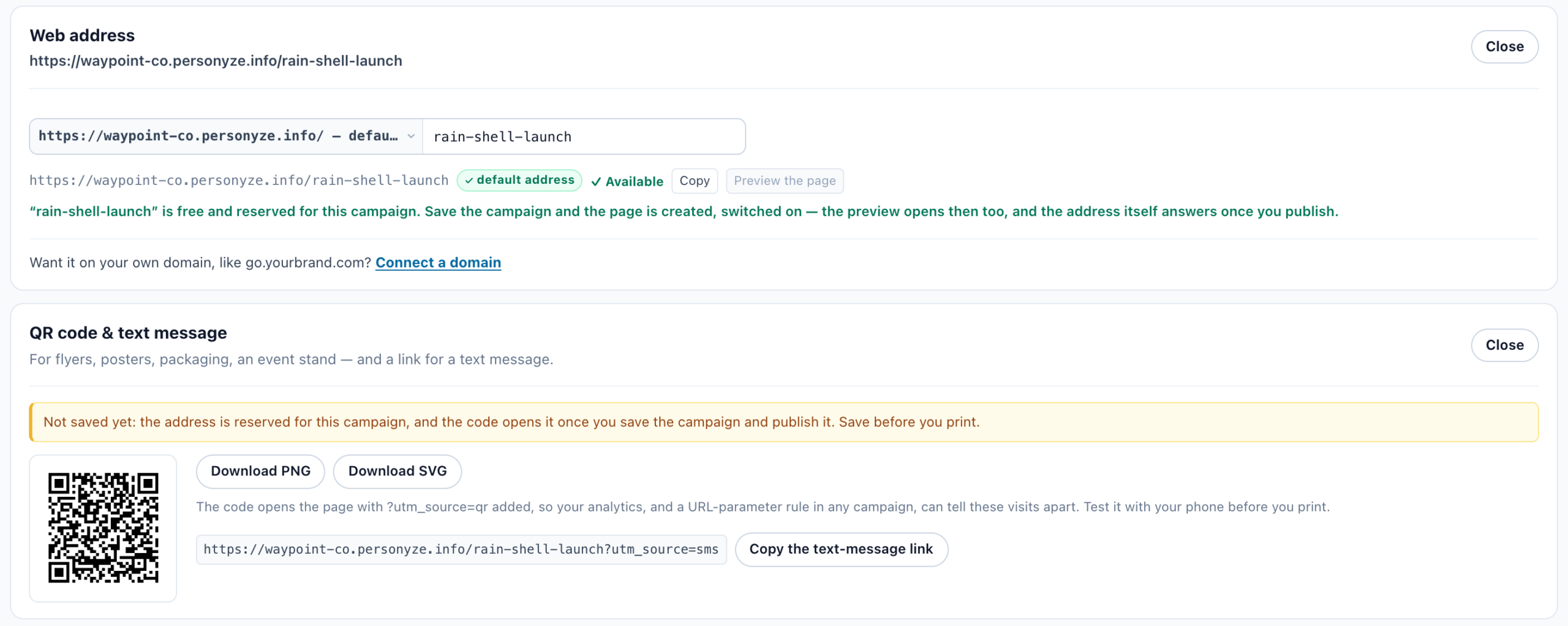
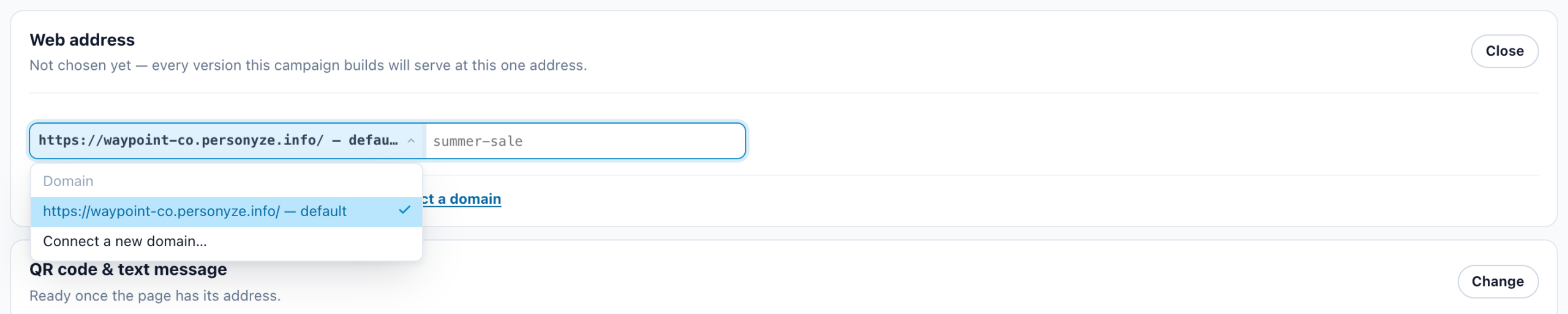
The Web address card is where you pick the domain and the address your page lives at — your
account’s default address is listed first — then click Use this address. Every version you add later is
served at this one URL. Addresses are lower-case letters, numbers and hyphens; spaces and underscores become hyphens.
QR code & text message, under the address, gives the page’s QR code (Download PNG,
Download SVG) and Copy the text-message link. They open the page with
utm_source=qr and utm_source=sms, so your analytics and a version’s URL-parameter rules can tell
them apart. Both work as soon as the address is reserved, before the campaign is first saved, under a note to save before you print.
Personyze, not just your account — a name that looks free can still be refused when you save.
2. Content
The page is designed on the Canvas Builder canvas, so every element is available: headline, image, form, CTA button,
checklist, countdown, coupon, recommendations, testimonials and the rest. If your design contains a Form, a
Where the data goes step appears for choosing its destinations.
A new page first asks What the page is for: A page of your own, Survey page,
Review page, Booking page or Recommendations page. Over the editor, a row —
The page, a tab for each survey, review form, calendar or recommendations part, and + Add part —
opens each part with its own editor. See Landing page kinds and parts.
Start from a design
A page of your own opens on How should the page start?: a Blank page, the
newest whole-page designs, and Browse template gallery for all of them. Pick one and edit it. The designs include:
- Store — collection launch — editorial retail: a serif hero, the products, and live recommendations.
- Travel — trip or destination — photography-led: words on the picture, dated fares, one booking form.
- Software — book a demo — dark hero, the product itself, the numbers, and a demo request.
- Restaurant — book a table — fine-dining type over a room shot, the week’s menu, and a booking form.
- Full-width — edge to edge — nothing in a column: split panels and a picture strip that reach both edges of the window.
- Dynamic — written from who is reading it — every bold value is a live variable with a fallback: name, country, search words, UTM.
- Product launch — one thing, sold properly — a slider, a rating, a comparison, a stock line and an embed.
- Thank you page — confirm, say what happens next, and give them one thing to do.
- Blank page — start from nothing, full width, with the page column already set.
Switching it on — both switches
- The Hosted Landing Pages module is active on the account. Without it the Page URL step says “Landing pages need the add-on”: activate it — or start the free trial — on the Add-ons page, then I activated it — check again.
- Page is live — the checkbox in the editor. New pages are created live.
- The campaign is published. A draft campaign serves nothing, however live the page is.
Preview the page, beside the address, shows it to you before any of that is true.
Showing different versions at one address
A landing page can hold several versions — a Default page everyone falls back to,
plus named versions matched first-match-wins and chosen on the server before the page paints, so there is no flicker.
Because the page has no site around it, versions target the traffic that arrived: campaign source,
medium, name, term and content (the utm_* parameters), referrer domain, country, region and city, device,
language, or any URL parameter you name. One address can therefore greet paid search, an email blast and organic
traffic completely differently.
Preview as, over the page editor, picks somebody from your user base: it says which version their last
visit gets, and See the page as they get it draws that page for them. Its parts and popups are drawn by the
live page, so their places are empty there. See Preview as a Visitor.
Popups on the page
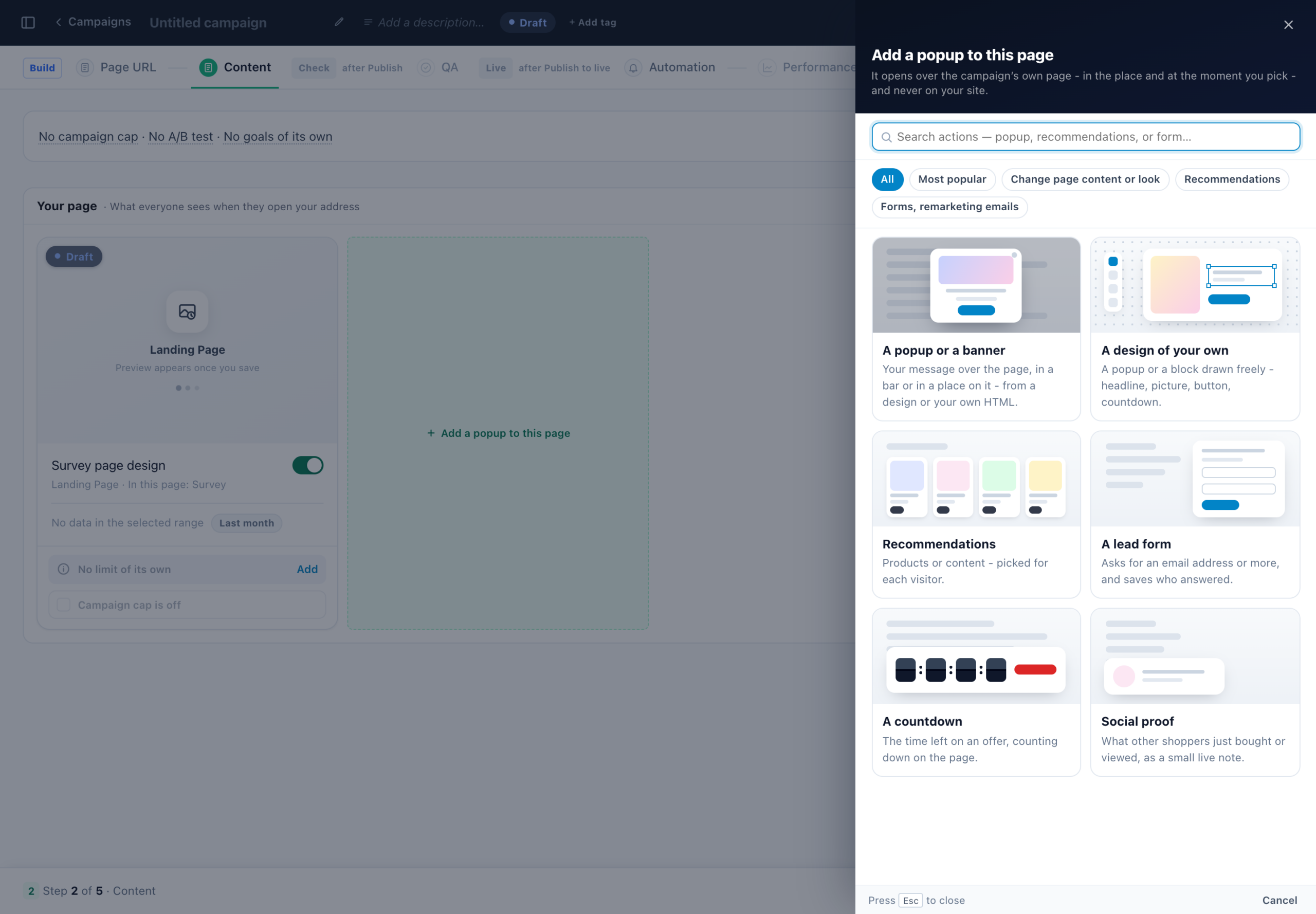
The add button of a group that holds its page reads Add a popup to this page, and offers only what
opens as a popup: a Canvas design, a popup or banner, a countdown, a lead form, social proof, and product or content
recommendations. Social proof and recommendations open in a corner, so they never cover the page; the rest open in the
centre unless their design names a place. A popup’s placement step shows the popup card alone — “A popup on
this landing page – never on your site. Pick where it opens and when it appears.” — and it shows on this page only.
Placeholders are not offered on a landing page. An action already in one keeps working, and stays editable.
A/B testing
Click Turn on A/B testing and Personyze asks What do you want to test?
- The actions on the page — everyone lands on the same page; what changes between groups is
the popup or bar shown on it. - The page itself — each group gets its own page, all served at the same address.
Choosing the page itself asks where the second group’s page comes from: A copy of your page
(the usual choice), A blank page, or A page I already have on your own site as a
control group — visitors are redirected to it with a real server redirect, so there is no flash.
A survey, review or booking page made from its own campaign is tested the same way — see A survey’s own page.
- Each group holds one page.
- Visitors are held in their group by a first-party cookie, so a reload never reshuffles the variant.
- Deleting a group rescales the remaining split back to 100%.
- Turning A/B testing off keeps Group A’s page only — the other groups’ pages are discarded, not merged.
tag. Without it the redirect works and the results are blank.
Your account’s default address
Every account has one address of its own on Personyze’s page domain, <name>.personyze.info —
acme.personyze.info, say — so a page can go out with no DNS work. The name comes from your site
(shop.acme.co.uk gives acme), or else from the account’s name, with a number added when it is
taken (acme-2). It is made the first time a page needs it.
- In the Web address card it is listed first, as
https://acme.personyze.info/ — default, and a new page starts on it — unless the account has a verified domain of its own, which then comes first. - A page saved with no address offers “This page has no address yet. Put it on …, your account’s default address” with Use it. A page is never moved by itself.
- Search engines never list it, whatever Keep it out of search engines says.
- It needs no DNS records and no check, and it cannot be removed: Landing Pages → Domains lists it as Default, Built in.
- Anything else, in the head (your own HTML in the page’s head) is served there only with the Hosted Landing Pages add-on. The named tags — Google Analytics 4, Google Tag Manager, the Meta pixel and the LinkedIn partner ID — always are.
| On the default address | The page needs |
|---|---|
| A landing page | The Hosted Landing Pages add-on |
| A survey’s own page | The Reviews & Surveys add-on, as the survey itself does |
| A review form’s own page | The Reviews & Surveys add-on, as the review form itself does |
| A booking page | Nothing |
Using your own domain
Pages can be served from a subdomain of your own, such as go.yourbrand.com (a subdomain — not
your root domain, and not www). Pick Connect a new domain… in the Web address card’s
domain list (or Connect a domain under it), publish the two DNS records shown, click Check DNS, and
the certificate is issued and renewed for you. A domain proved once serves every campaign’s pages; its records live under
Landing Pages → Domains.
A page on a domain still waiting for its records answers nothing until the domain is verified. Search engines may list a
page only on your own verified domain, and only with Keep it out of search engines off.
Survey, review and booking pages too. A survey, review form or booker can have a plain page of its own on
your default address; on your own domain it comes with this add-on. See A Survey’s Own Page, QR Code and Survey Emails and A Booking Page of Its Own.
Finding your pages
Landing Pages → Pages in the sidebar lists every page, its address, whether it is live, and the campaign
behind it. Open a page to edit it via its campaign. If a campaign is deleted its address stays reserved — it is listed
under Addresses still held, where Release frees it.
Reading the numbers: Landing pages on the Performance Metrics page explains every figure on this screen and how to read it. A page that holds a survey, review form,
calendar or recommendations part has tabs on its Performance step — General, then Surveys,
Reviews, Meetings and Recommendations as it holds them; see
Landing page kinds and parts.
Before you launch
- The page’s host must be in your account’s domain list, or nothing is recorded — no visits,
no goals, no form submissions and no A/B results. This is the most common reason a page “works” but reports
nothing. Your default address is added for you with its first page. - Interactive elements that need JavaScript do not animate on a hosted page. A countdown shows its
starting figures, the prize wheel does not spin, the progress bar does not fill, and the coupon copy button does not
copy. Text, images, forms, buttons and recommendations are unaffected.
What it costs
Hosted landing pages are a paid module — Hosted Landing Pages, activated on the Add-ons page. It includes:
- Unlimited pages and unlimited custom domains.
- A monthly allowance of hosted page views included.
- Personalization and A/B testing built in.
The billable unit is a hosted page view — a visitor loading one of your hosted pages. Pricing has three parts: a monthly price for the module, an allowance of page views included in it, and a usage price for views beyond that allowance. The allowance grows with your plan. There is a free trial.
Current prices, allowances and trial length are shown on the Add-ons page in the account menu — that screen is the authority, not this one.
Pages served from your own domain count the same as pages on your default address: it is the same hosting either way.
Related
- Landing page kinds and parts — survey, review, booking and recommendations pages.
- A booking page of its own — the booker at its own address, with a QR code and booking emails.
- Canvas Builder — the element library used to design the page.
- A/B testing
- A survey’s own page — a survey at its own address, with a QR code.