
Product recommendations put the right items in front of each visitor — cross-sells on a product page, a “recently viewed” rail on the homepage, best-sellers in the category they are browsing. This wizard walks you from catalog to live widget.
Watch the 2:29 walkthrough: a product recommendations campaign on Automatic — the catalog and events checks, choosing the widget and its design, the look, the placeholder, Target, and publishing to staging.
Another way: one specific recommendation — Watch the 2:32 film: picking one algorithm yourself, Cross-Sells on product pages, and placing it under the product.
In the panel: New campaign › Product Recommendations.
You can place several widgets on the same page, each running a different algorithm. If you need an algorithm Personyze does not offer, contact your account manager or support@personyze.com.
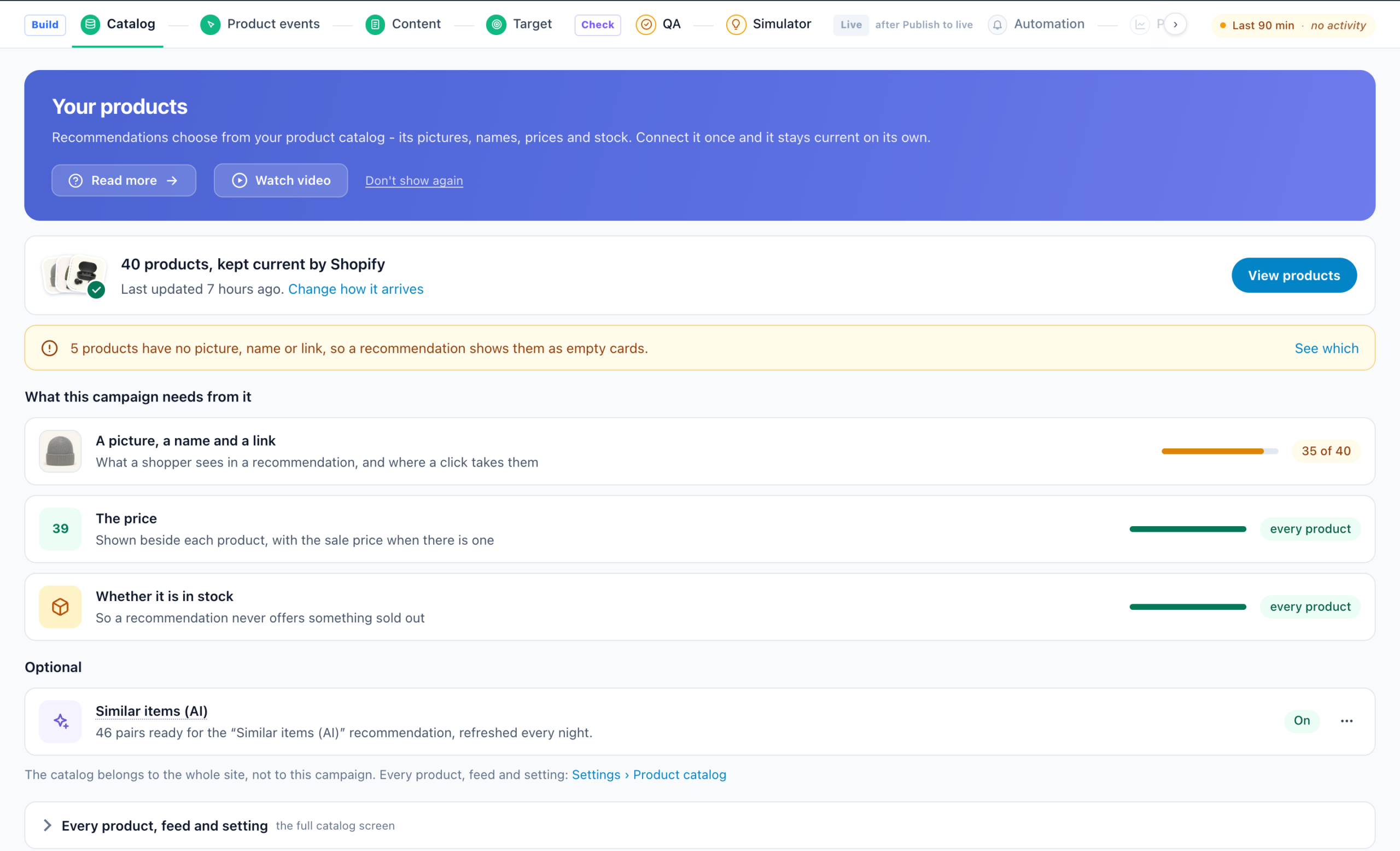
Personyze recommends from the product catalog it keeps for your site. The step opens on a card: how many products, what keeps them current, and how much of the catalog has a picture, a price and a stock value. With no catalog yet, Set up your product catalog opens a guided setup.
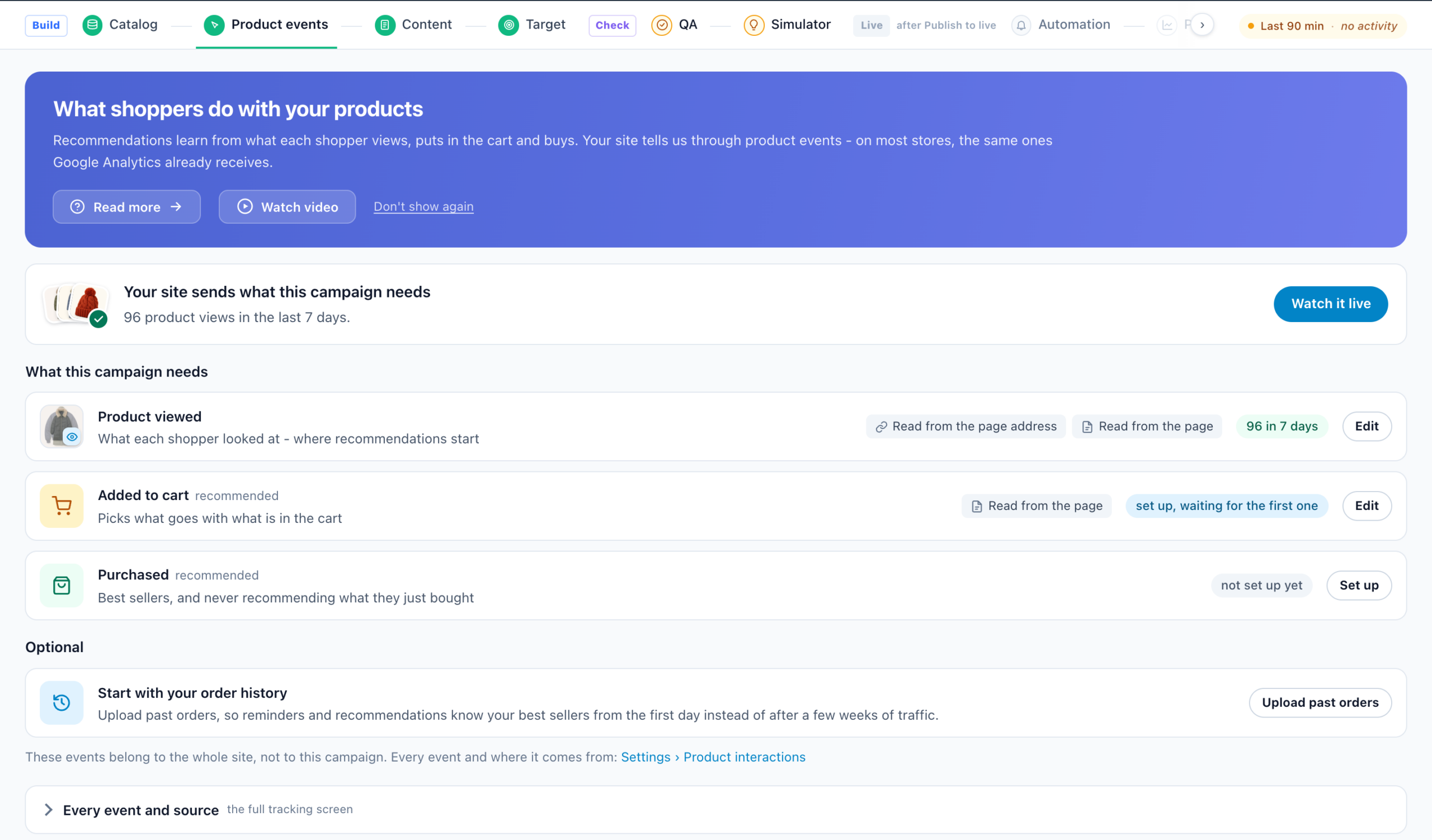
The step opens on what this campaign needs: Product viewed, Added to cart and Purchased, each with its count for the last seven days and whether it arrives. Set up opens a guided setup for the event; the full tracking screen is folded underneath.
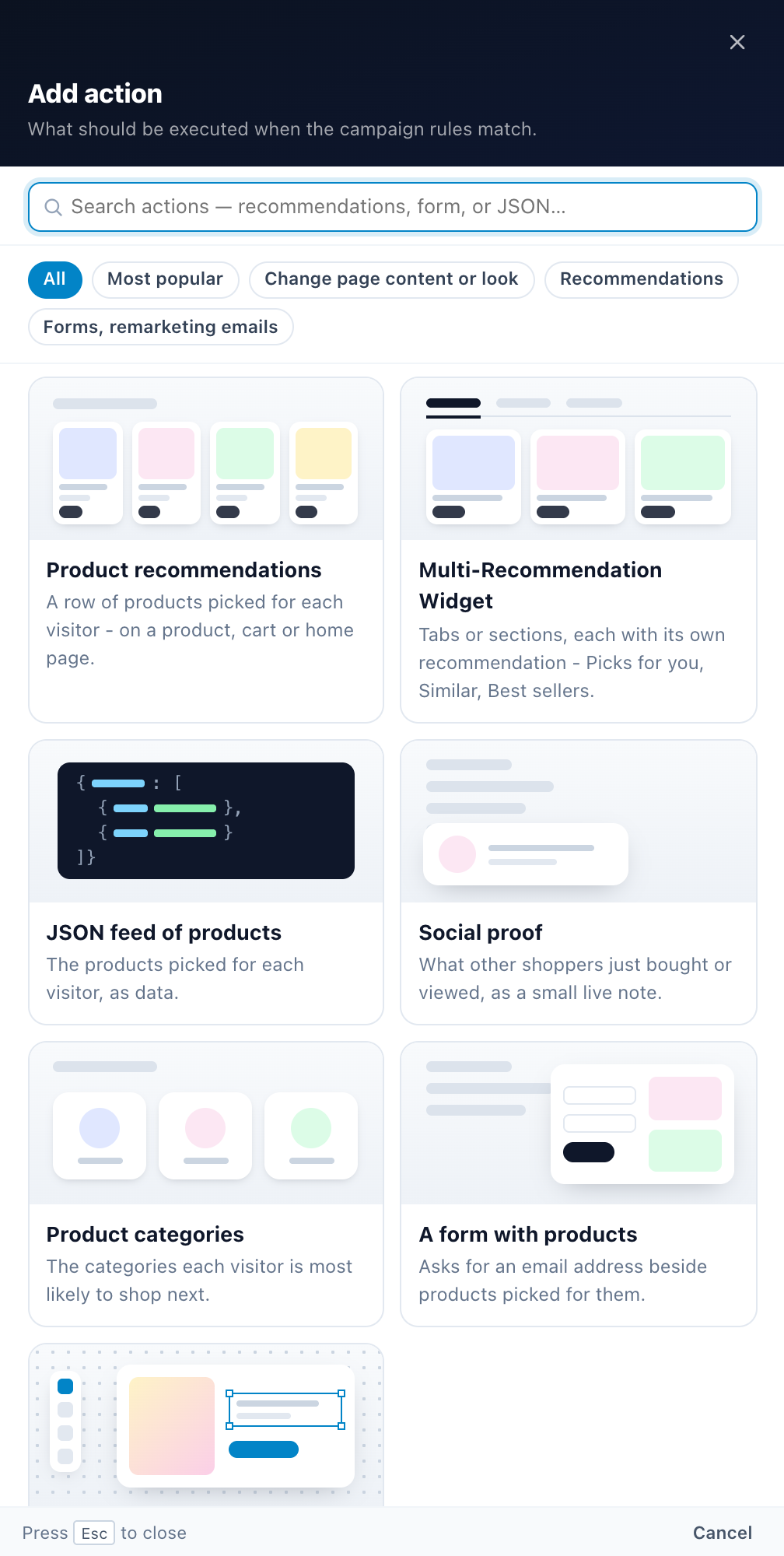
Add action lists the actions built on the product catalog: Product Recommendations, the Multi-Recommendation Widget, Product Recommendations JSON Feed, Social Proof Widget, Category Recommender for Products and Lead Form with Personalized Recommendations — and, last, the Canvas Builder.
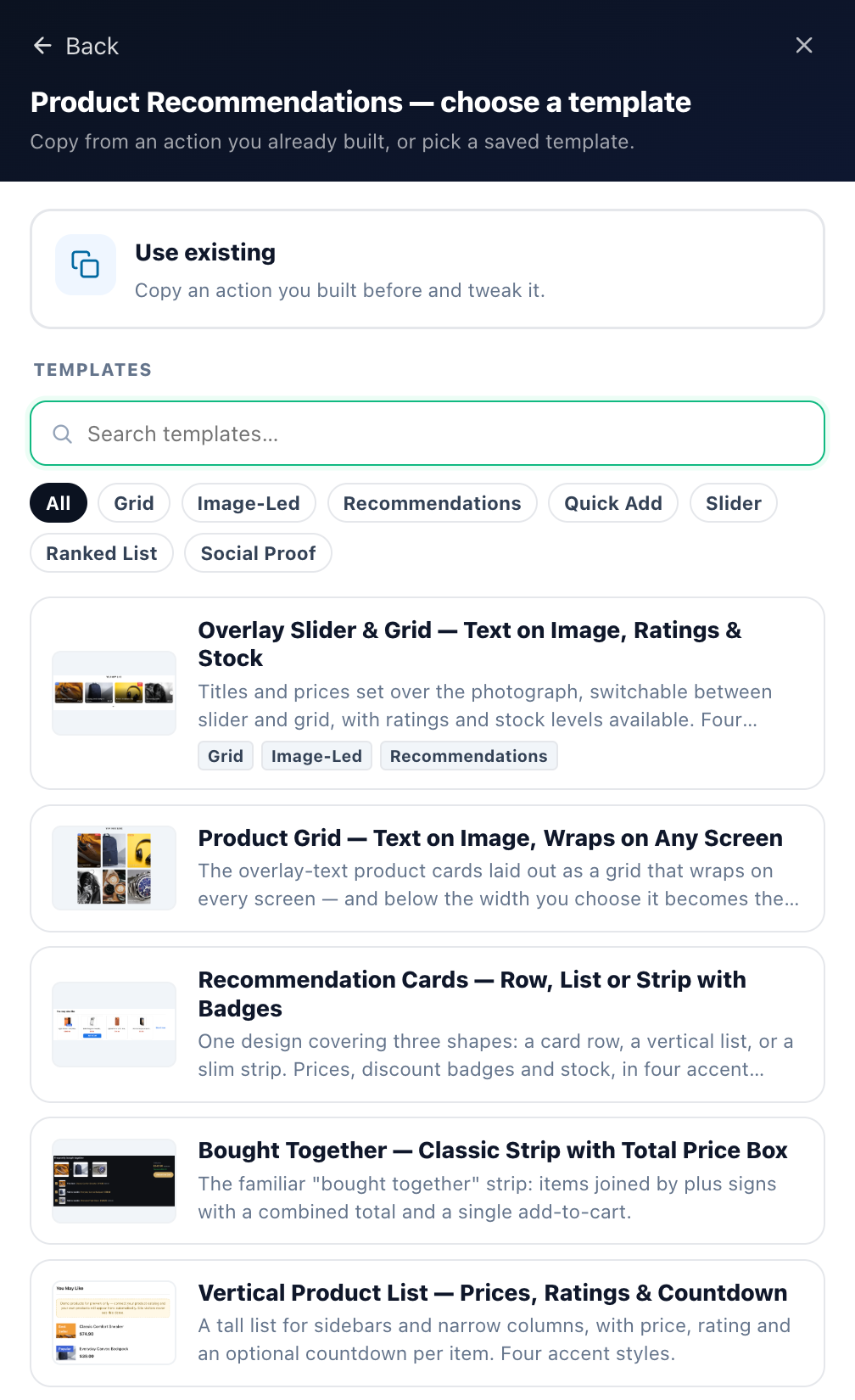
Copy an action you already built, or pick a template. Filter chips (Grid, Image-Led, Quick Add, Slider, Ranked List, Social Proof…) narrow the list.
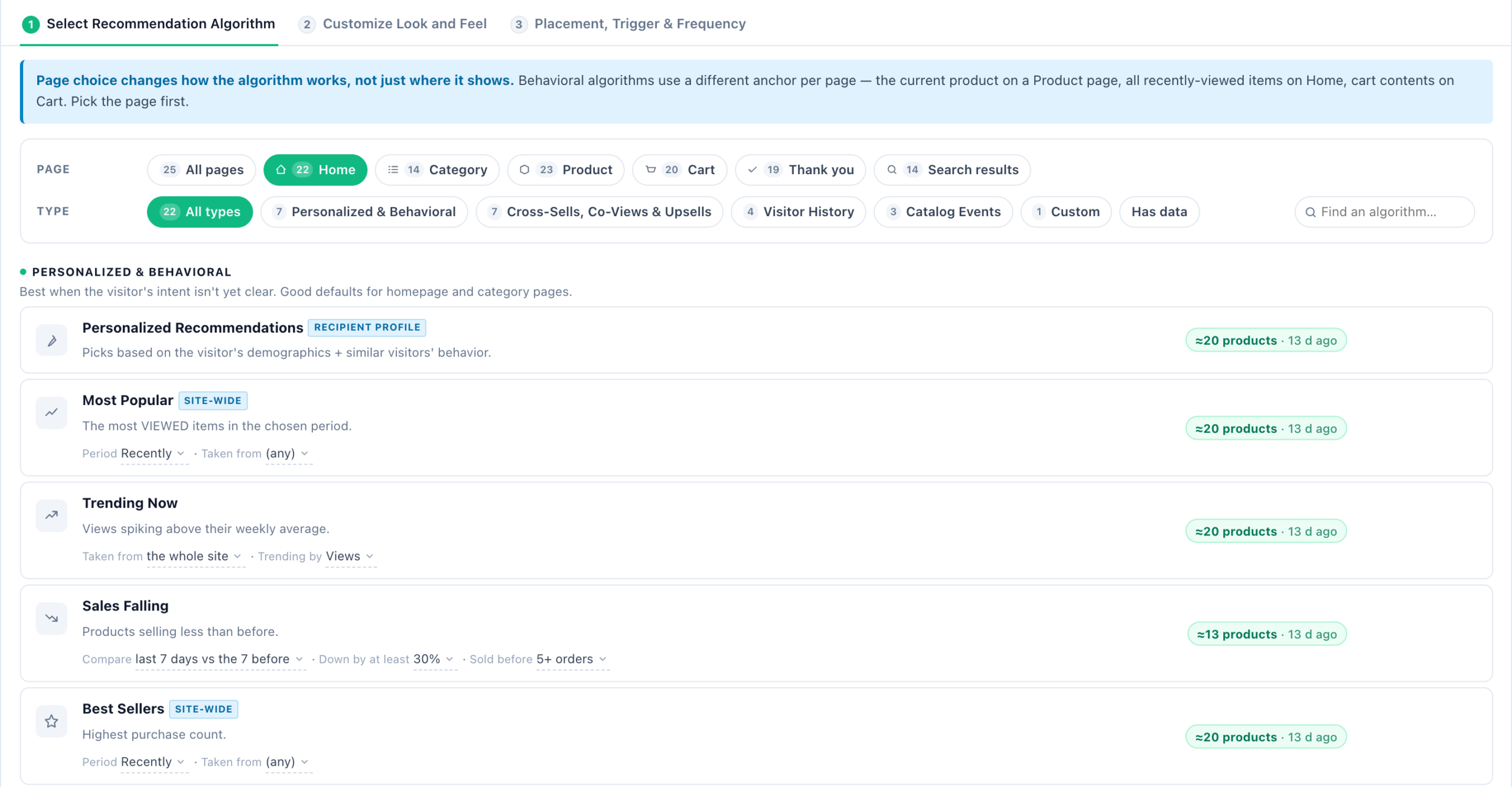
Filter by page first, then by type. Twenty-five algorithms in five groups: Personalized & Behavioral; Cross-Sells, Co-Views & Upsells; Visitor History; Catalog Events; and Custom.
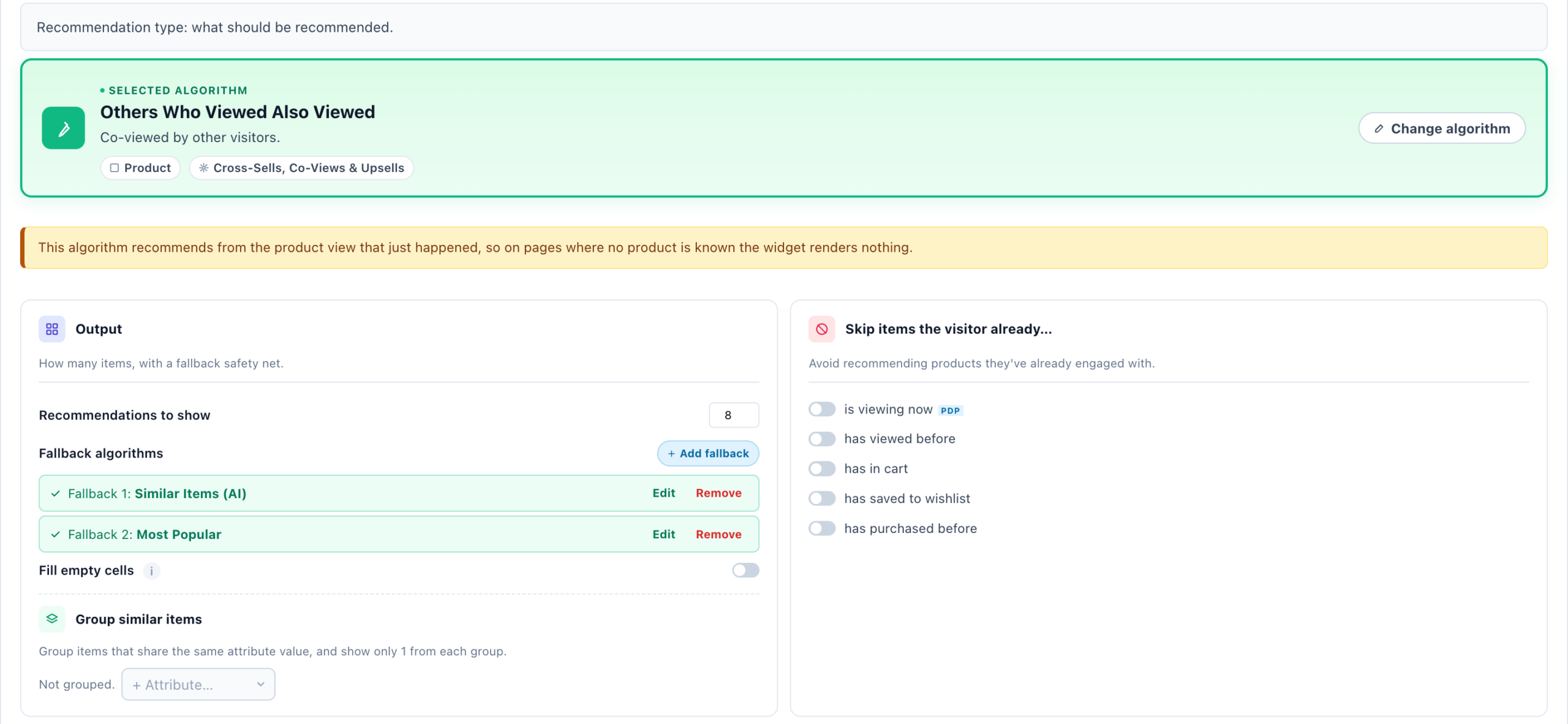
Output count, fallback algorithms and grouping; items to skip (already viewed, in cart, purchased); catalog restrictions; fine-tune boosts; and custom filter rules.
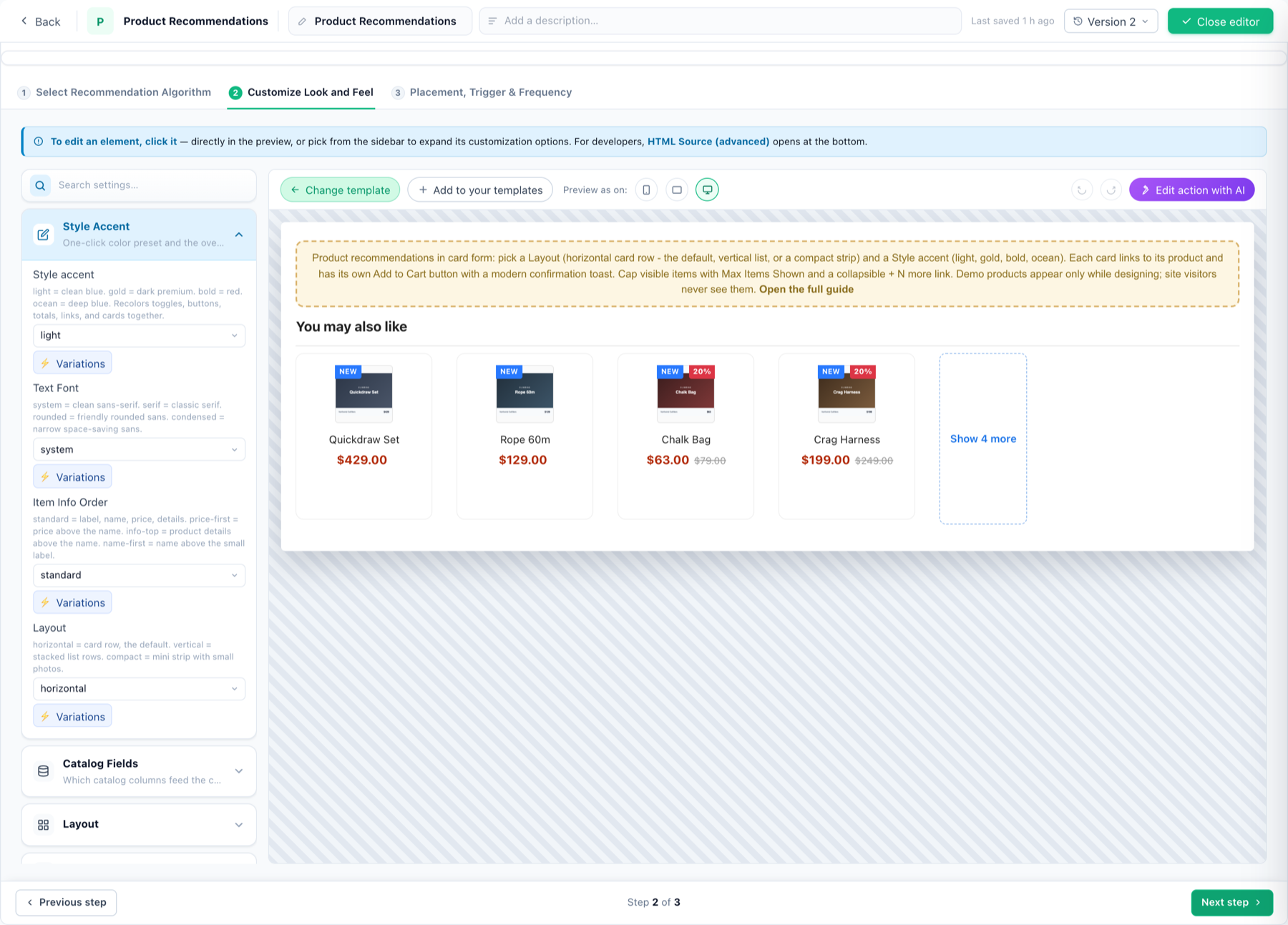
Style accent (light / gold / bold / ocean), text font, item info order and layout (horizontal / vertical / compact), plus cards, prices, buttons and social proof.
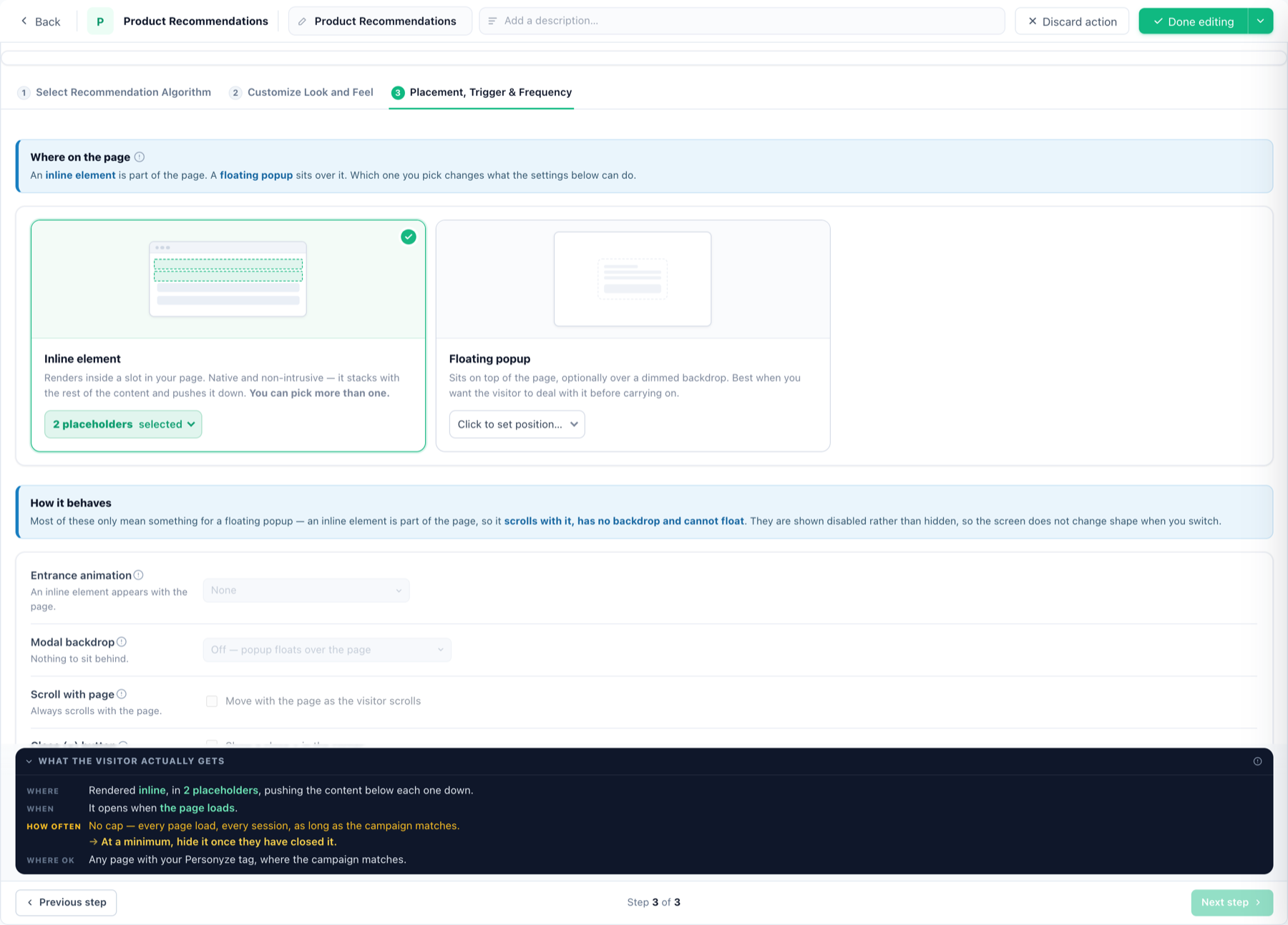
Inline element in a placeholder, or a floating popup. Then stack opening triggers — on arrival, after a delay, when idle, or on engagement. Limit to pages / devices keeps it to a page group.
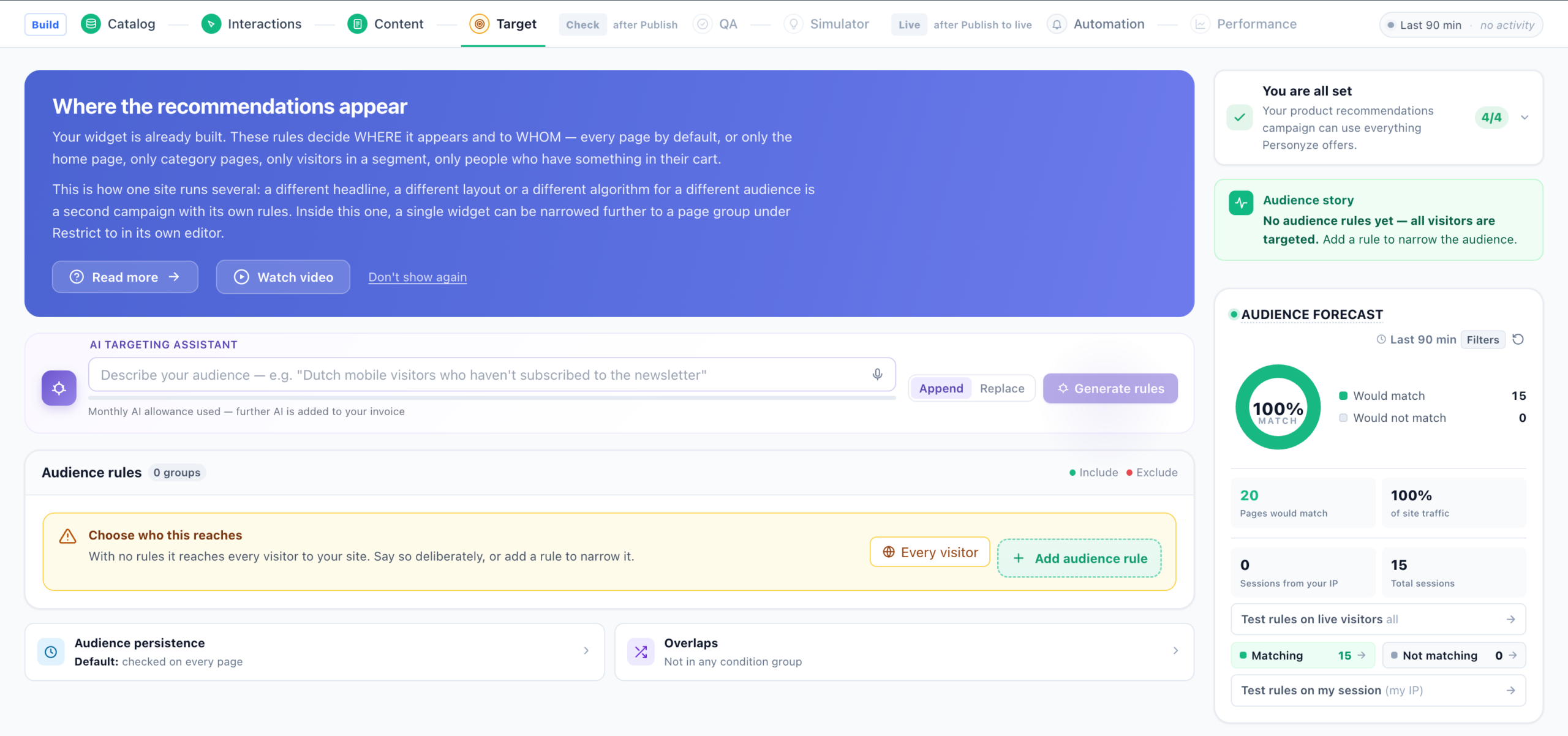
With no rules the widget reaches every visitor. Narrow it with audience rules, joined with and / or / only one, each set to Include or Exclude.
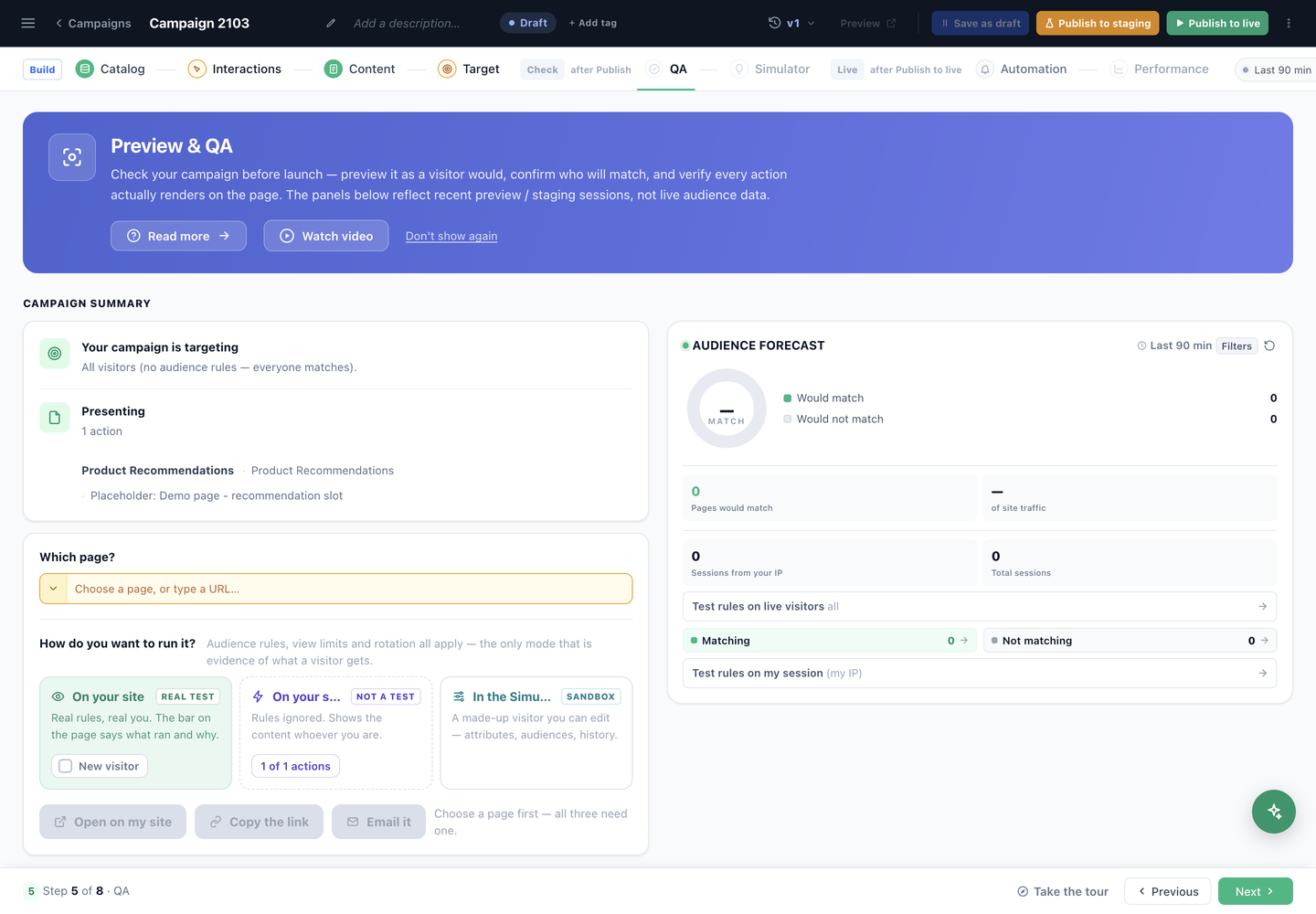
A plain-words summary of what the campaign is about to do, then three ways to look at it: on your site as a real test, on your site forced (not a test), or in the Simulator sandbox.
Personyze recommends from the product catalog it keeps for your site. The step opens on a card: how many products, what keeps them current, and how much of the catalog has a picture, a price and a stock value. With no catalog yet, Set up your product catalog opens a guided setup.
The step opens on what this campaign needs: Product viewed, Added to cart and Purchased, each with its count for the last seven days and whether it arrives. Set up opens a guided setup for the event; the full tracking screen is folded underneath.
Add action lists the actions built on the product catalog: Product Recommendations, the Multi-Recommendation Widget, Product Recommendations JSON Feed, Social Proof Widget, Category Recommender for Products and Lead Form with Personalized Recommendations — and, last, the Canvas Builder.
Copy an action you already built, or pick a template. Filter chips (Grid, Image-Led, Quick Add, Slider, Ranked List, Social Proof…) narrow the list.
Filter by page first, then by type. Twenty-five algorithms in five groups: Personalized & Behavioral; Cross-Sells, Co-Views & Upsells; Visitor History; Catalog Events; and Custom.
Output count, fallback algorithms and grouping; items to skip (already viewed, in cart, purchased); catalog restrictions; fine-tune boosts; and custom filter rules.
Style accent (light / gold / bold / ocean), text font, item info order and layout (horizontal / vertical / compact), plus cards, prices, buttons and social proof.
Inline element in a placeholder, or a floating popup. Then stack opening triggers — on arrival, after a delay, when idle, or on engagement. Limit to pages / devices keeps it to a page group.
With no rules the widget reaches every visitor. Narrow it with audience rules, joined with and / or / only one, each set to Include or Exclude.
A plain-words summary of what the campaign is about to do, then three ways to look at it: on your site as a real test, on your site forced (not a test), or in the Simulator sandbox.
The steps
Eight steps, and the step bar groups them into three bands that open in turn:
- Build — Catalog, Product events, Content, Target. Everything you decide before anyone sees it.
- Check — QA and Simulator, labelled after Publish. Both read the published campaign, and publishing to staging is enough to open them.
- Live — Automation and Performance, labelled after Publish to live. Performance needs real traffic; Automation does not wait, so you can set its rules before the campaign goes live.
A closed band still holds its place in the bar and names the control that opens it, so you can see what is coming. A band that was open and closed again says paused rather than asking for the publish a second time.
Note the order — Content comes before Target. You design the widget first, then decide who sees it.
1. Catalog — the items to recommend from
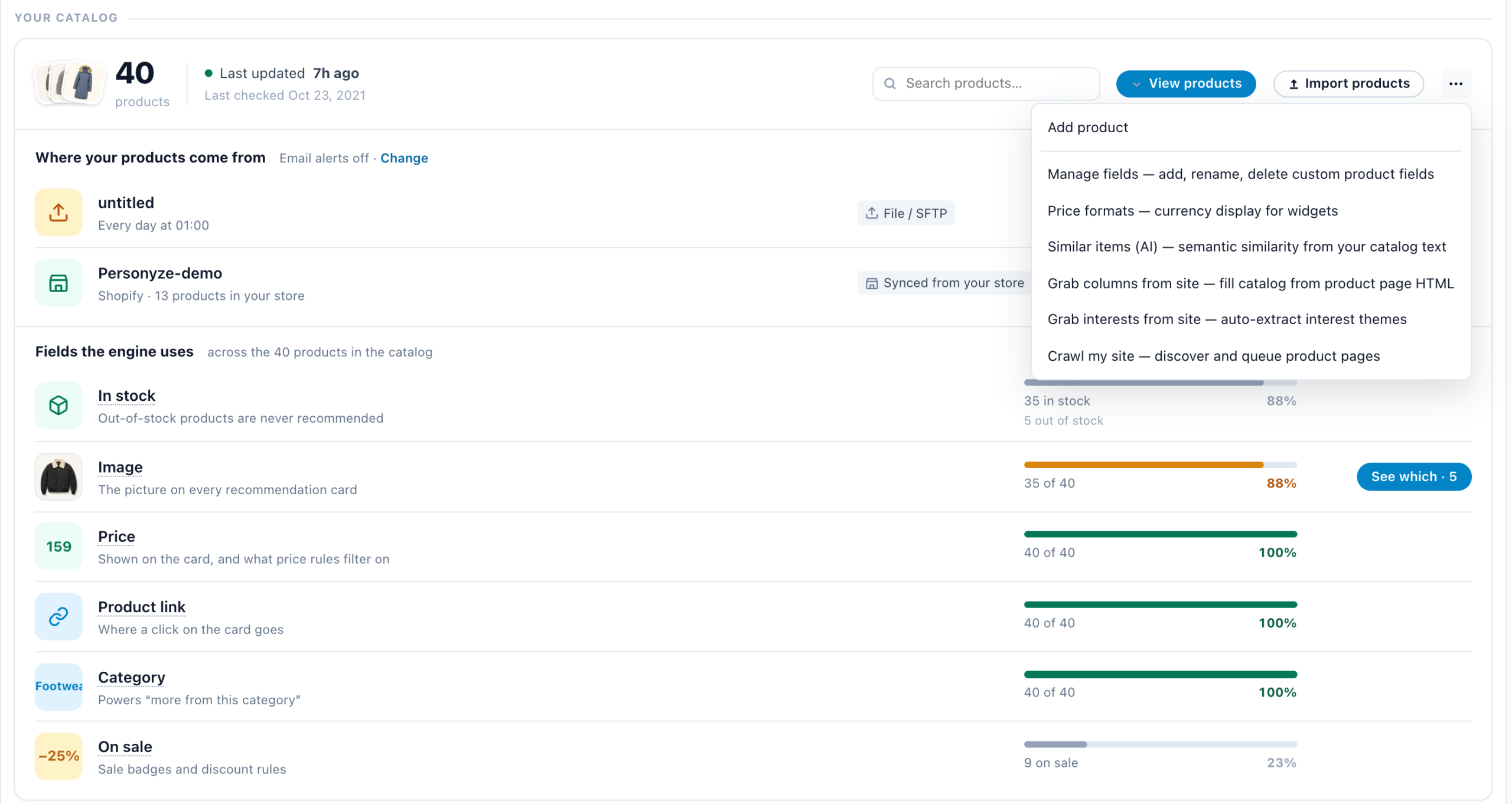
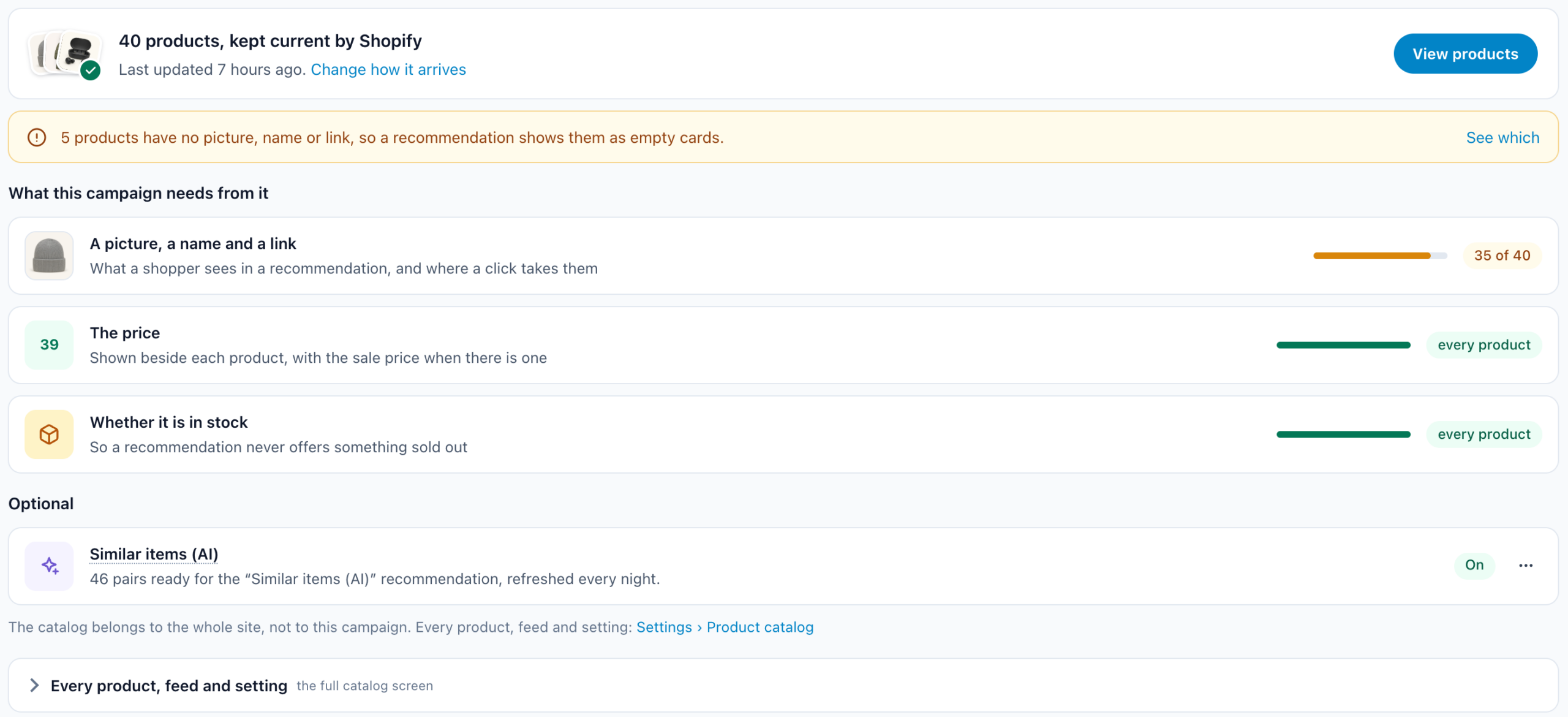
Personyze recommends from the product catalog it keeps for your site, and targeting rules match against that same data. The step answers first, on one card: how many products there are and what keeps them current — a feed, your store, reading your site, files over SFTP or an upload — with Change how it arrives and View products, and the biggest gap said in this campaign’s terms, with See which. Under it, What this campaign needs from it measures what a recommendation shows: A picture, a name and a link, The price and Whether it is in stock, each as a bar of how much of the catalog has it. The full walkthrough of the catalog itself is Setting the Product / Content Feed.
With no catalog yet, the card says so and offers Set up your product catalog, a guided setup that opens in place. It asks Where are your products? — Your store (Shopify, WooCommerce, Magento or BigCommerce), A product feed, We read your site, Upload a file or Your system sends files (SFTP) — connects it, then shows a few of your products as a shopper sees them. Under Optional, Similar items (AI) is switched on from its row with Turn on.
The whole catalog screen is folded under the card, as Every product, feed and setting. Its Where your products come from lists every source as a row — each feed, the site crawl, a store whose product sync is on — with a button only where something needs doing (Map columns, Check, Turn on), whether email alerts are on, and Add a source, which opens the same guided setup. A feed is what keeps the catalog current; without one it goes stale, and so do the recommendations built on it.
Fields the engine uses
This is the part worth reading before anything else. Personyze measures coverage of each field across the whole catalog and draws it as a bar — In stock, Image, Price, Product link, Category, On sale — with the out-of-stock count beside it. A field at 100% is one every algorithm and every filter can rely on. A field at 40% is one that will quietly drop most of your catalog out of any widget that sorts or filters on it.
What else the engine learns from
- On-site behaviour — product shown, added to cart, purchased. The engine needs these as much as it needs the catalog; the step links straight to product tracking.
- Purchase history — Upload history loads past orders, so the engine starts from what already sold together instead of spending weeks learning it live. One row per order line: order ID, product ID, date, and value if you have it. See Uploading past transactions.
- Categories and interests — one line: From your feed, how many categories and interests arrived. Both come on their own and need no setup; View categories and Add interests sit beside it. See Interests for Recommendations.
- Similar items (AI) — computed nightly: each item paired with its most similar items by meaning, read from your catalog text. It is what the Similar Items (AI) algorithm recommends from, so it works for brand-new items no one has viewed yet. Switch it on from the step’s Optional row — Similar items (AI) → Turn on — or from the catalog card’s ⋯ More options → Similar items (AI) — semantic similarity from your catalog text.
Last, under Optional, if you want to steer the engine: Manual recommendation rules — hand-written cross-sell and up-sell links between items, plus seed pairs that prime the engine until live purchase data takes over. The panel’s own advice is that they are worth it when the engine gets something specific wrong, or before there is enough purchase data, and that most accounts never need them. See Managed upselling and cross-selling.
Three ways to fill the catalog from your own pages
Besides a feed, the ⋯ More options menu on the catalog screen’s card can build catalog data out of the pages you already publish. The crawl is also one of the ways under Add a source, as We read your site.
- Grab columns from site — for each product URL you already have, Personyze fetches that page and reads column values out of it with CSS selectors. This is the one to reach for when a feed is missing a single field you can see on the page.
- Grab interests from site — extracts keyword text from those pages and groups products into topical interests.
- Crawl my site — Personyze finds your product pages itself, through your sitemap or links, and builds the catalog from what they publish for search engines. See Building the catalog by crawling your site below.
2. Product events — what the engine learns from
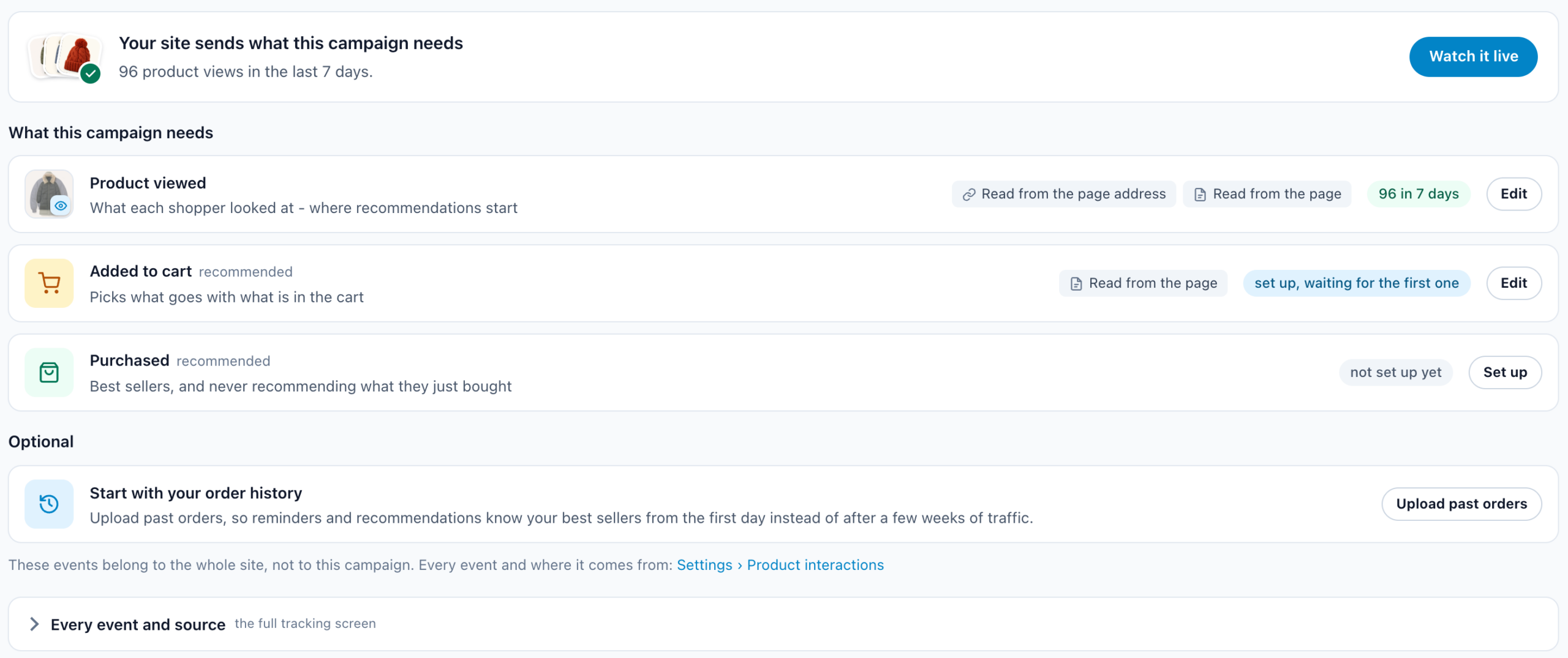
This is the step that decides whether your recommendations are any good, and the one most often skipped. Personyze learns from what visitors do with your products — what they view, add to cart, favourite and purchase — and this step is a health report on exactly that.
The step answers first, on one card: Your site sends what this campaign needs, or what is missing and what that costs this campaign. Under What this campaign needs, each event — Product viewed, then Added to cart and Purchased, both recommended — has its count for the last 7 days, the products shoppers did it with this week, chips for how it arrives (Via Google Tag Manager, Read from the page address, Read from the page, Sent by your site’s code), and Set up, Check it works or Edit.
Set up product tracking opens the guided setup in place. It asks How does your site tell us what shoppers do? — Google Tag Manager, Read it from your pages or Your developer adds it — turns it on, and ticks each event as it arrives live. Under Optional, Start with your order history → Upload past orders gives the engine your past purchases — see Uploading past transactions.
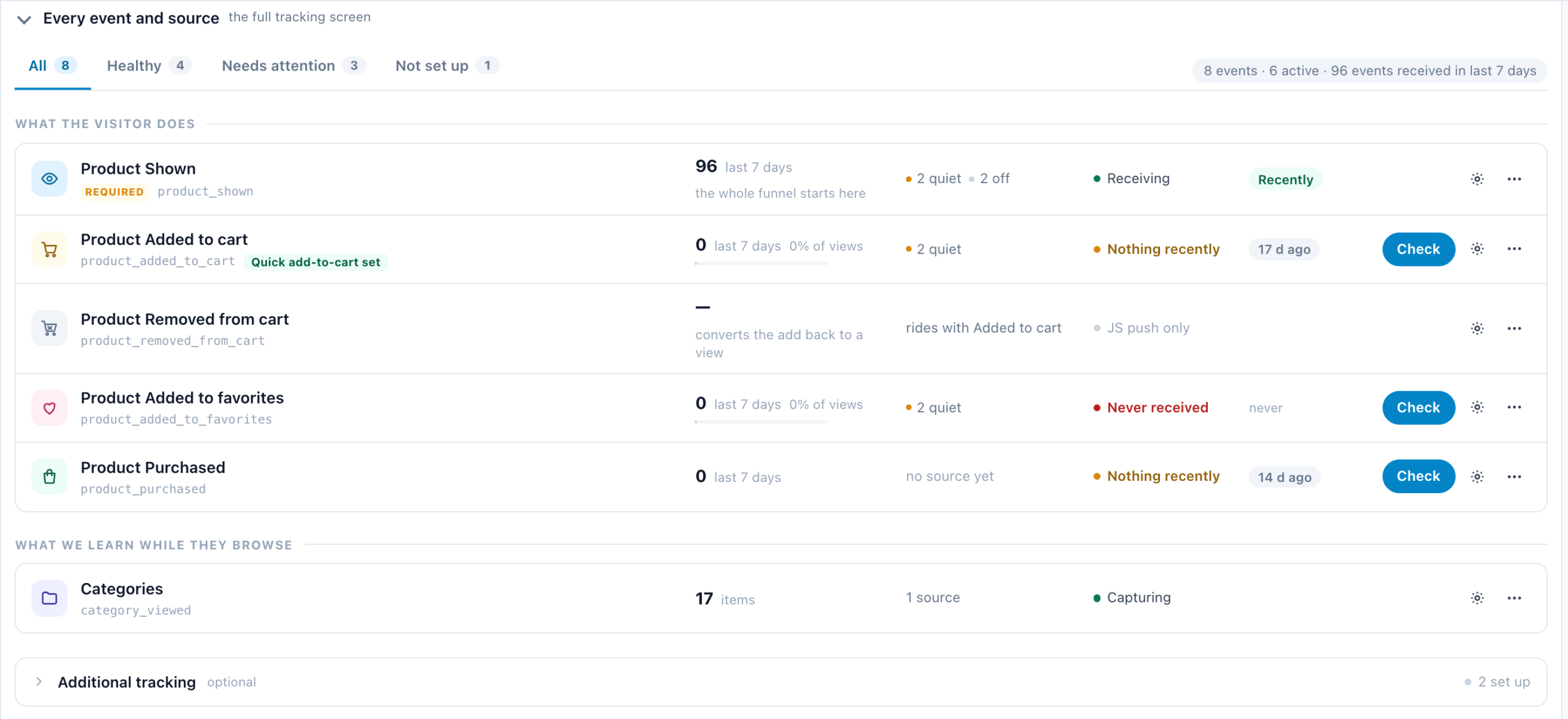
The full tracking screen is folded under the card, as Every event and source. Its tabs count the whole set — All, Healthy, Needs attention and Not set up — so you can jump to the broken ones. Each row ends in Set up or Check when something needs doing, a gear for its settings, and ⋯ More options with Guided setup for that one event.
On the full screen, each event carries its own evidence:
- Product shown is marked required — the whole funnel starts here, and nothing downstream works without it.
- Added to cart, Removed from cart, Added to favorites and Purchased each show their volume and their ratio to the step before — adds as a share of views, purchases as a share of adds. A ratio that looks impossible usually means the event is firing in the wrong place, not that your shop is extraordinary.
- An event that has never arrived says Never received, and one that has no source configured says Not set up. Those two are the ones to fix.
Below the events, what we learn while they browse — the categories being viewed — and what this data feeds: the recommendation sets built from these events, and the trending report. Both cover the whole account rather than this campaign, and both open in a new tab.
3. Content — the widget itself
What you build here is the frame, not a fixed list: what it recommends is decided per visitor at the moment it renders. Three campaign-wide controls sit above the widget itself, and all three are easy to miss:
- Campaign cap — how often this campaign may show to one visitor. Out of the box there is none.
- Goals — by default the campaign is measured against your account-wide goals; you can add one dedicated to this campaign.
- A/B — Turn on A/B testing turns the single piece of content into two competing versions. See A/B testing.
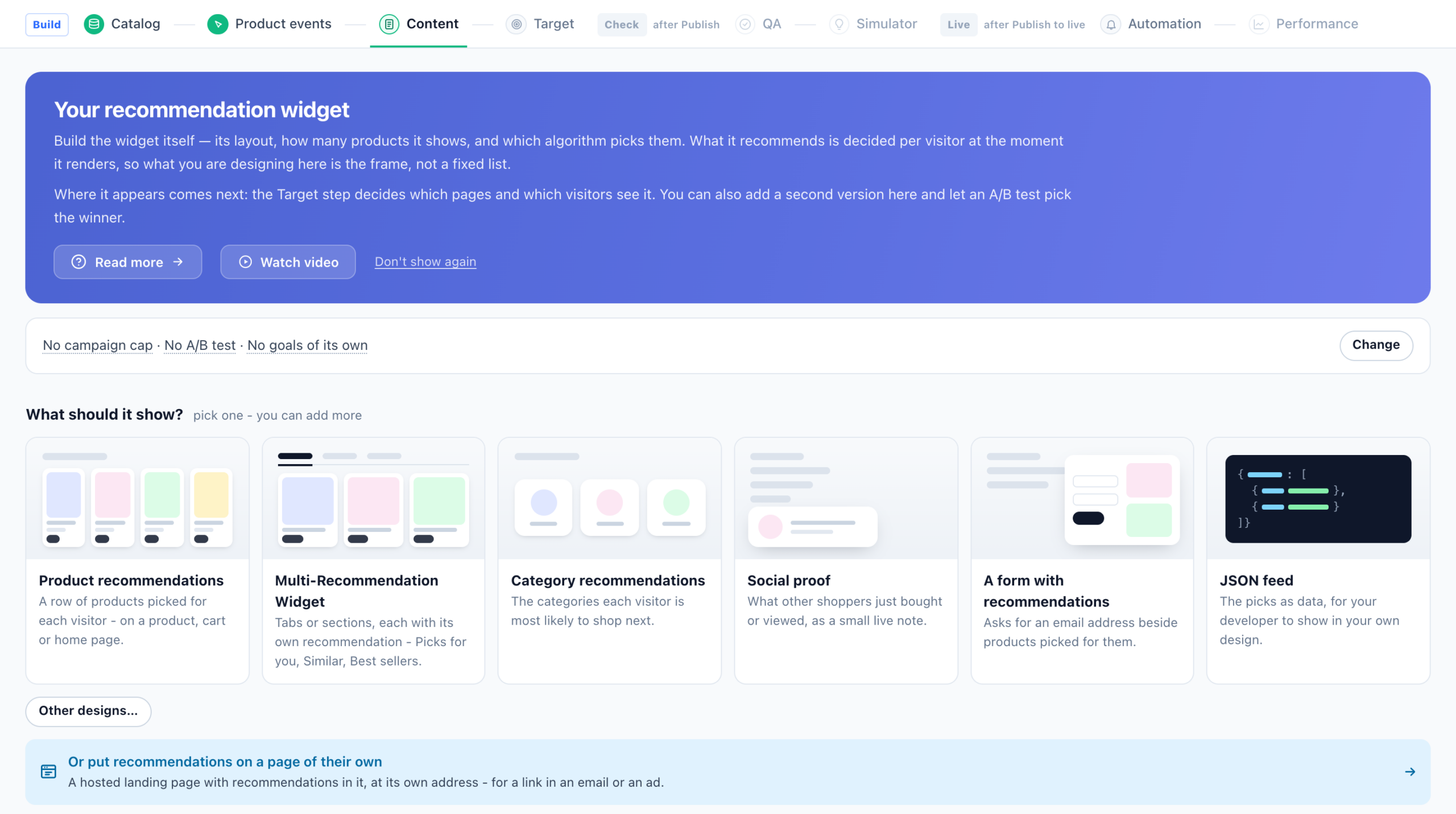
An empty campaign’s Content step asks What should it show? and draws its widgets as pictures — product recommendations, the Multi-Recommendation Widget, category recommendations, social proof, a form with recommendations and a JSON feed — each opening its gallery; Other designs… opens the full list. Later, Add action opens the same picker. A Product Recommendations campaign offers the actions built on the product catalog, with the Canvas Builder listed last:
| Action | What it is |
|---|---|
| Product Recommendations | The on-page widget this article is about. Its gallery includes Product Magazine, one big lead product with the rest beside it or under it. |
| Multi-Recommendation Widget | Several recommendations in one widget, as tabs or sections, each with its own algorithm and look. See Multi-Recommendation Widget. |
| Product Recommendations JSON Feed | The same engine, handed to your own code as JSON to render. See JSON API — Product Recommendations. |
| Social Proof Widget | Real-time activity by other shoppers — recent purchases, views. See Set Social Proof Widget. |
| Category Recommender for Products | Recommends a category rather than a product. See Category & Interest Recommenders. |
| Lead Form with Personalized Recommendations | A form combined with product recommendations for the visitor. |
| Canvas Builder | A free-form design — popup, banner or inline block — built from elements, one of which is recommendations. For when the recommendations belong inside a larger design. See Canvas Builder. |
Pick an action type and you land in the template chooser. Copy from an action you already built, or pick a ready-made template. Filter chips across the top narrow the list — Grid, Image-Led, Quick Add, Slider, Ranked List, Social Proof and more — and every template shows a thumbnail and a description of what it does.
Inside the action editor
Once a template is inserted, the action editor opens with three sub-steps of its own: Select Recommendation Algorithm, Customize Look and Feel, and Placement, Trigger & Frequency.
Sub-step 1 — the algorithm, then its guard rails
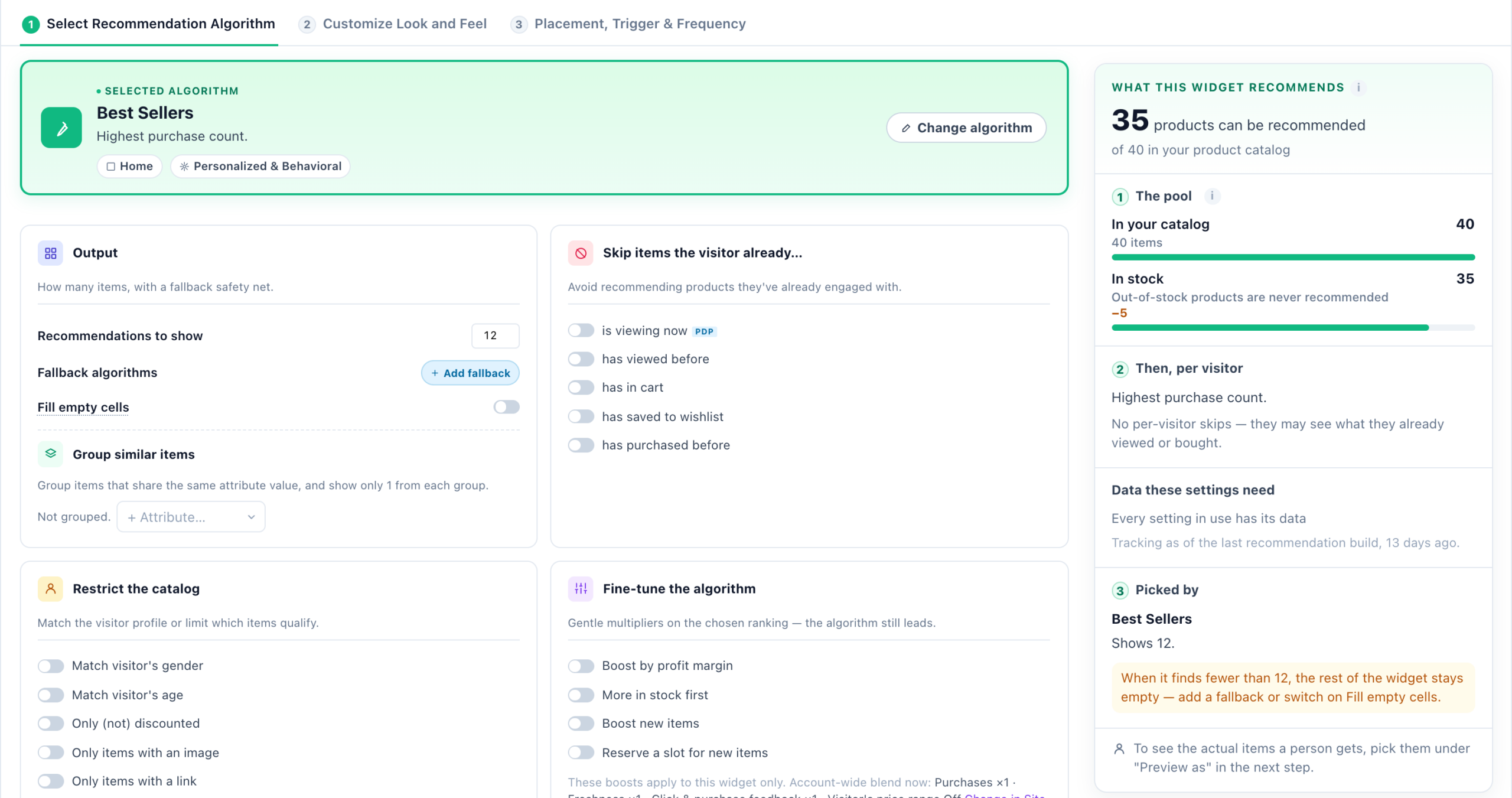
On a new widget, step 1 starts with just the question and the picker. The settings appear once there is a choice for them to describe; from then on the choice sits at the top as the SELECTED ALGORITHM card, with Change algorithm to reopen the picker.
Choosing an algorithm
Pick the page first. The picker’s own note says why: Page choice changes how the algorithm works, not just where it shows. Behavioral algorithms use a different anchor per page — the current product on a Product page, all recently-viewed items on Home, cart contents on Cart.
The Page tabs are All pages, Home, Category, Product, Cart, Thank you, Search results — pick the page the widget will sit on, and only the algorithms that suit it stay in the grid. There is no error-page tab: a widget for your 404 page is a Home-page widget in a campaign that targets that page. The Type tabs narrow by group, Has data shows only algorithms that already have data for this account, and Find an algorithm… searches by name.
Each card carries a badge naming what it works from on the page you picked — BASED ON THE ITEM BEING VIEWED, FROM RECENTLY-VIEWED CATEGORY — and an estimate such as ≈17 products · 16 d ago: how many items it could recommend at the last recommendation build, and how long ago that was.
The algorithms
Twenty-five algorithms in five groups. Expand a group to see what is in it; Recommendation Algorithms explains what each one picks and when to use it.
Personalized & Behavioral — 7 algorithms
Best when the visitor’s intent isn’t yet clear. Good defaults for homepage and category pages.
| Personalized Recommendations | Picks based on the visitor’s demographics plus similar visitors’ behavior. |
| Most Popular | The most viewed items in the chosen period. |
| Trending Now | Views spiking above their weekly average. |
| Sales Falling | Products whose orders dropped against the period before — to put them back in front of shoppers before they go stale. |
| Best Sellers | Highest purchase count. |
| Most-Added to Wishlist | Items most often saved to favorites. |
| Inspired by Past Purchases | What people who bought the same things went on to view and buy — not the visitor’s own purchases (that is Buy it Again). |
Cross-Sells, Co-Views & Upsells — 9 algorithms
Anchored to a product context — what the visitor is viewing now, has in cart, or recently engaged with.
| Others Who Viewed Also Viewed | Co-viewed by other visitors. |
| What Others Viewed Then Bought | Bought by other visitors who viewed the same items. |
| Cross-Sells | Items co-purchased with the anchor. Auto-learned by Personyze. |
| Inspired by Category | Items in the anchor category. |
| Up-Sells | Higher-priced alternatives to the current product or cart items. |
| Similar Items (AI) | Semantically similar items, learned by AI from your catalog text. Works from day one for brand-new items. |
| Managed Cross-Sells | Cross-sells from a catalog you upload and maintain yourself. |
| Cross-Sells for Last Item Added to Cart | Co-purchased with the single most recent item the visitor added to their cart. |
| Last Bought Item: Those Who Bought This Also Bought | Co-purchased with the single most recent item the visitor bought. |
Visitor History — 5 algorithms
Surfaces things this specific visitor has touched before. Best for returning visitors and post-purchase pages.
| Buy it Again | What this visitor purchased before. |
| Matches Their Search | Items matching this visitor’s last search. |
| Recently Viewed | Products this visitor viewed recently. |
| Items in Cart | Currently in this visitor’s cart. |
| Your Wishlist | Items this visitor saved to their wishlist. |
Catalog Events — 3 algorithms
Triggered by changes in your catalog — price drops, new arrivals.
| Price Dropped | Items cheaper than at the visitor’s last visit. |
| Back in Stock | Items that returned to stock after being sold out. |
| New in Stock | Recently added, or new since the visitor’s last visit. |
Custom — 1 algorithm
When you want full control — define your own filter, Personyze ranks within it.
| Any products | All products, ordered as you like and optionally narrowed with your own filter rules. |
Many cards carry small controls of their own: a Period (Recently, Today, In last 2 days, In last 4 days, In last week, In all time), a Taken from scope (for example anywhere in the catalog, or only the same category), and on some a sort (Viewed, Recently added to catalog, Purchased, Added to cart, Added to wishlist, Price: low to high, Price: high to low, Most in stock, High rated, High profit) or a Prefer most. Some add a price relationship to the viewed item — cheaper, more expensive, or within a price difference of it.
Anchored algorithms gate themselves
Some algorithms recommend from something that just happened — the product being viewed, the item just added to the cart, the visitor’s last search. Pick one and a strip under the selected algorithm says so, for example: “This algorithm recommends from the product view that just happened, so on pages where no product is known the widget renders nothing.”
On an on-site widget the editor then handles it for you. It binds the widget to one of five shared page groups, created the first time one is needed and reused by every widget on the account:
| Page group | Bound when the algorithm recommends from |
|---|---|
| Product viewed on this page | the product being viewed |
| Product added to cart on this page | what was just added to the cart |
| Article viewed on this page | the article being read (content widgets) |
| Article commented on this page | the article just commented on (content widgets) |
| Searched on this site | the visitor’s last search |
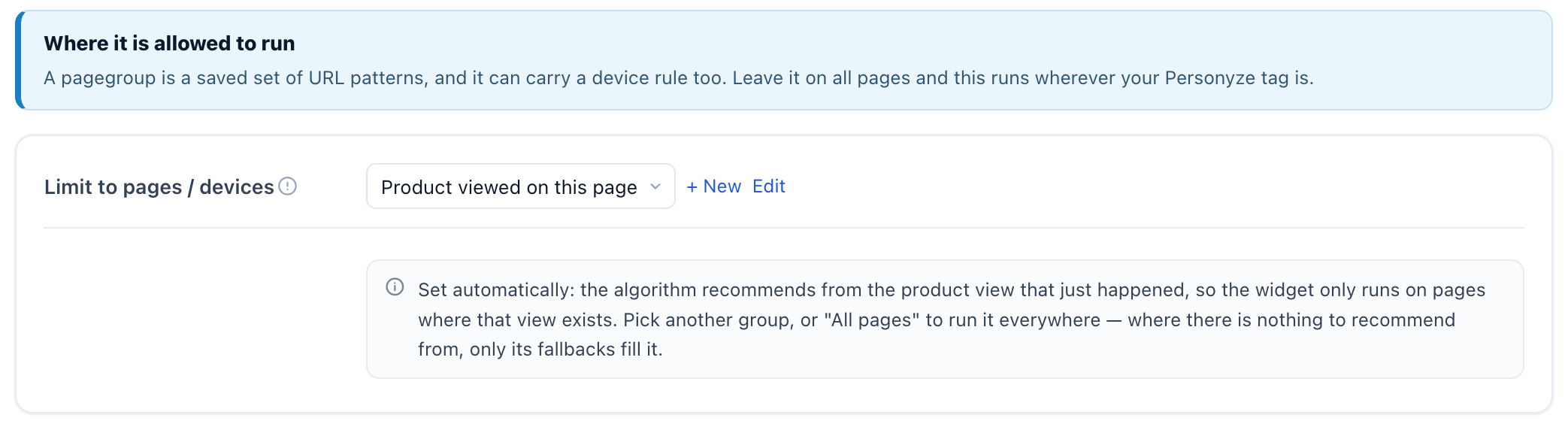
The group appears on the Placement, Trigger & Frequency sub-step, under Where it is allowed to run → Limit to pages / devices, with a note beside it: “Set automatically: the algorithm recommends from the product view that just happened, so the widget only runs on pages where that view exists. Pick another group, or “All pages” to run it everywhere — where there is nothing to recommend from, only its fallbacks fill it.”
- The binding follows the algorithm. Switch from a view-anchored algorithm to a cart-anchored one and the group moves with it; pick an algorithm with no anchor and the editor clears the group it set.
- It never replaces a group you chose. If the widget already has your own page group, the editor leaves it alone and the note suggests adding a Product interaction rule to that group instead.
- “All pages” stays. Choose it to run the widget everywhere and let its fallbacks fill the pages without the event. The editor binds again only if you move to a different anchor.
- Algorithms anchored to a purchase are not gated — a past purchase is stable history, not an event on this page.
- A widget in an email does not run on a page, so it shows the strip but binds no group.
The guard rails
- Output — Recommendations to show (up to 12; a template may show fewer if its layout has fewer cells). Then Fallback algorithms: Add fallback builds an ordered chain that runs, in turn, when the primary algorithm (and each earlier fallback) returns too few items, and each fallback has its own filters and grouping. Fill empty cells is off by default, and then, in the panel’s words, “Only what the recommendation actually returned is shown. If it returns nothing, the block is empty.” Switched on, a short result is topped up with the most popular items and then the catalog itself. See Setting Recommendation Fallbacks.
- Group similar items — in the same card: items sharing an attribute value you pick are grouped, and only one from each group is shown, so one product’s variants do not fill the widget.
- Skip items the visitor already… — is viewing now (product pages), has viewed before, has in cart, has saved to wishlist, has purchased before. The last one matters most: recommending something a visitor just bought is the classic own-goal.
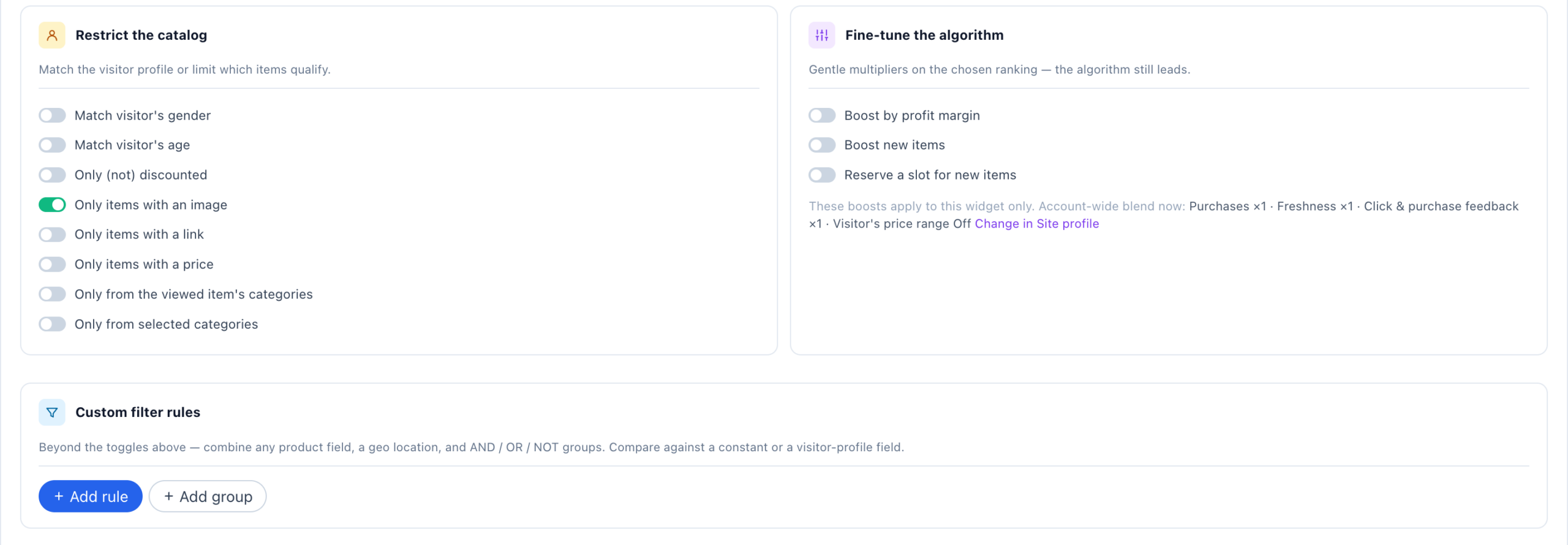
- Restrict the catalog — Match visitor’s gender, Match visitor’s age (both need the field in your feed and on the visitor’s profile), Only (not) discounted with a discount level, Only items with an image, with a link, with a price, Only from the viewed item’s categories (offered on pages that report a viewed item), Only from the category on this page (on the Category page), and Only from selected categories. Out-of-stock items are excluded automatically.
- Fine-tune the algorithm — gentle multipliers on the chosen ranking: Boost by profit margin (reads your feed’s profit field as a margin percent), Boost new items (items created in the last 30 days), and Reserve a slot for new items. They apply to this widget only; the account-wide blend beside them is changed in Site profile — see Tuning the Engine.
- Custom filter rules — Add rule or Add group: any product field or a geo location, compared against a constant or a visitor-profile field, joined with AND / OR / XOR, with NOT on any rule or group. See Setting Filters on Recommendations.
What this widget recommends
Beside step 1, a read-only rail says what your settings leave for the widget to recommend, counted against your real catalog — for example 454 products can be recommended, of 7,062. It is read in four parts:
- The pool — each filter that applies to everyone, one at a time, with how many items are left after it and a bar of its share of your catalog: in stock, then your Restrict the catalog choices and custom filter rules.
- Then, per visitor — what happens for each person: the anchor the algorithm needs, and the Skip items the visitor already… choices. With none on, it says visitors may see what they already viewed or bought.
- Data these settings need — whether your site has reported the events the algorithm and filters read, as of the last recommendation build, or Every setting in use has its data.
- Picked by — the algorithm and its fallbacks in order, and how many items it shows.
When no item qualifies, the rail says so in amber — Visitors will see nothing — no item qualifies. — before anybody does. In an email or get-code recommendation it is What this block recommends, and works per recipient. To see the actual items one person gets, use Preview as on the next step.
Sub-step 2 — look and feel
The same template can look very different. Four one-click presets do most of the work:
- Style accent — light (clean blue), gold (dark premium), bold (red), ocean (deep blue). Recolours toggles, buttons, totals, links and cards together.
- Text font — system (clean sans-serif), serif (classic), rounded (friendly), condensed (narrow, space-saving).
- Item info order — standard, price-first, info-top, name-first.
- Layout — horizontal (card row, the default), vertical (stacked list), compact (mini strip with small photos).
A few things sit above the preview: Change template, Save template (to reuse this design later), a Preview as on switch for phone / tablet / desktop, undo and redo, and Edit action with AI.
The products in the preview are demo products. They appear only while you are designing so the layout has something to render — site visitors never see them. Once the campaign runs, the widget fills with real items chosen by your algorithm.
To see the items one real person would get instead, pick them under Preview as above the preview: Why these items under it says whether the algorithm or a fallback put each one there — see Preview as a Visitor.
Below the presets you can set catalog fields, the layout title, how many recommendations are visible before a Show More link, prices, the Add to Cart button and its success or failure messages, extra product info, and social-proof lines such as live viewed / bought / low-stock. HTML Source (advanced) at the bottom gives developers the raw markup.
Each preset also has a ⚡ Variations control — that is how you generate variants of the same widget to A/B test.
Sub-step 3 — placement, trigger and frequency
First decide where on the page:
- Inline element — renders inside a placeholder in your page. Native and non-intrusive; it stacks with the rest of the content. You can select more than one placeholder.
- Floating popup — sits on top of the page, optionally over a dimmed backdrop. Best when you want the visitor to deal with it before carrying on.
The behaviour settings — entrance animation, modal backdrop, scroll-with-page, close button, auto-close — mostly apply to floating popups only. For an inline element they are shown disabled rather than hidden, so the screen does not change shape when you switch.
Finally, when it opens: stack as many triggers as you like and the first match opens it — on page enter, after a delay, when idle for a period, or on engagement.
The same sub-step has Where it is allowed to run → Limit to pages / devices: the page group this one widget is limited to, All pages by default. It is where an anchored algorithm’s group shows up (see Anchored algorithms gate themselves).
4. Target — who sees it
The widget is already built; these rules decide where it appears and to whom — every page by default, or only the home page, only category pages, only visitors in a segment, only people with something in their cart. A single widget can be narrowed further to a page group with Limit to pages / devices on its own Placement, Trigger & Frequency sub-step.
You do not have to write the rules yourself: the AI targeting assistant at the top of the step turns a sentence into rules and adds them to what is there, or replaces what is there when Replace my current rules is on. The rules it writes are ordinary rules, editable like any other. It draws on your monthly AI allowance.
With no rules, the widget reaches every visitor — which is often exactly right for a recommendation rail. Add rules to narrow it: first-time versus returning visitors, people with something in the cart, a particular audience or CRM segment.
Rules join with and, or or only one and can be grouped, and each rule is set to Include or Exclude (see Targeting Rules › How a rule is built). The AI targeting assistant will generate rules from a plain-English description if you would rather not build them by hand.
On the right, campaign readiness lists what still has to be true for the campaign to run — site tracking being the critical one — and the audience forecast estimates how many recent visitors match.
5. QA — preview it before anyone sees it
The step opens with a campaign summary in plain words — who it targets, how many actions it presents, and which placeholder each one uses — so you can catch “this targets everybody” before a visitor does.
Then it asks two questions: which page? and how do you want to run it? The three answers are not equivalent, and the step labels them so you cannot mix them up:
- On your site — marked real test. Real rules, real you; audience rules, view limits and rotation all apply. The bar on the page says what ran and why. This is the only mode that is evidence of what a visitor gets.
- On your site, forced — marked not a test. Rules are ignored and the content shows whoever you are. Useful for looking at the design, useless for proving the targeting works.
- In the Simulator — marked sandbox. A made-up visitor whose attributes, audiences and history you can edit.
Any of the three can be opened on your own machine, copied as a link, or emailed to a colleague — all three need you to choose a page first.
The audience forecast beside it counts recent visitors that would and would not match. Note the caveat the panel itself carries: these numbers come from recent preview and staging sessions, not from your live audience.
The specific thing to check for recommendations: does the widget actually come back populated? An empty widget in preview almost always traces to step 1 or 2 — a catalog that did not import, or interactions that are not being tracked — rather than to your targeting. The Simulator step next door is the faster way to tell those apart.
6. Simulator — run the algorithm on one person
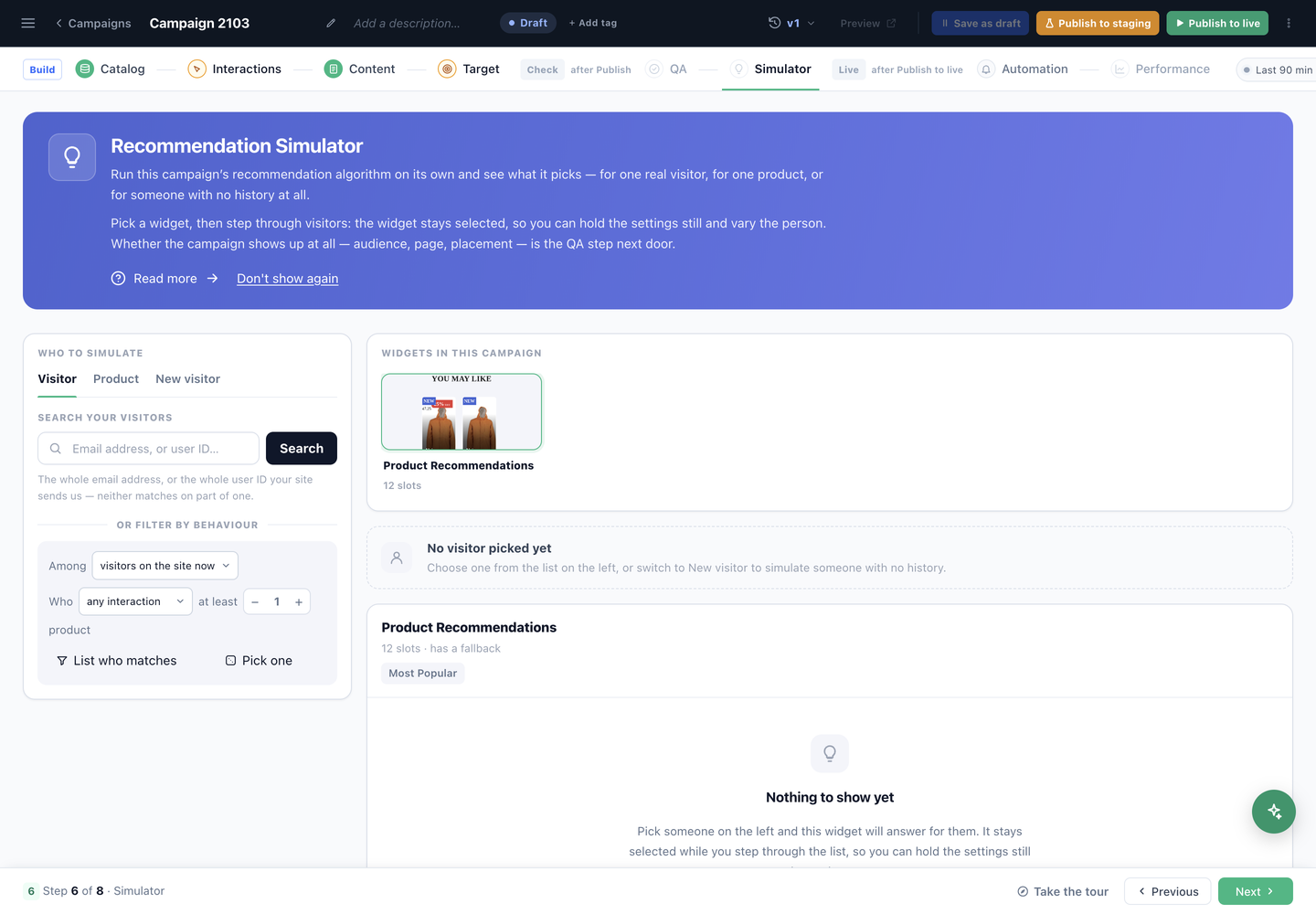
The QA step asks whether the campaign shows up. The Simulator asks what it would recommend — it runs this campaign’s algorithm on its own, with no page and no targeting in the way.
Pick a widget from widgets in this campaign, then choose who to simulate:
- Visitor — search by the whole email address or the whole user ID your site sends (neither matches on part of one), or filter by behaviour instead: among visitors on the site now or past visitors, who did some interaction at least N times. List who matches and Pick one turn that filter into a real person.
- Product — what the engine would put next to one particular item.
- New visitor — someone with no history at all, which is the case most recommendation setups get wrong. If this comes back empty, your widget has no fallback and first-time visitors will see nothing.
The widget stays selected while you step through people, so you can hold the settings still and vary the person — which is how you tell “the algorithm is wrong” apart from “this visitor has no history”.
A Multi-Recommendation Widget is one card here, with its strip of tab names and how many of its tabs show items. Its product and article tabs run like any widget; a promotion or a banner tab says the Simulator covers recommendation tabs only — check it with Preview as instead.
7. Automation — start and stop by rule
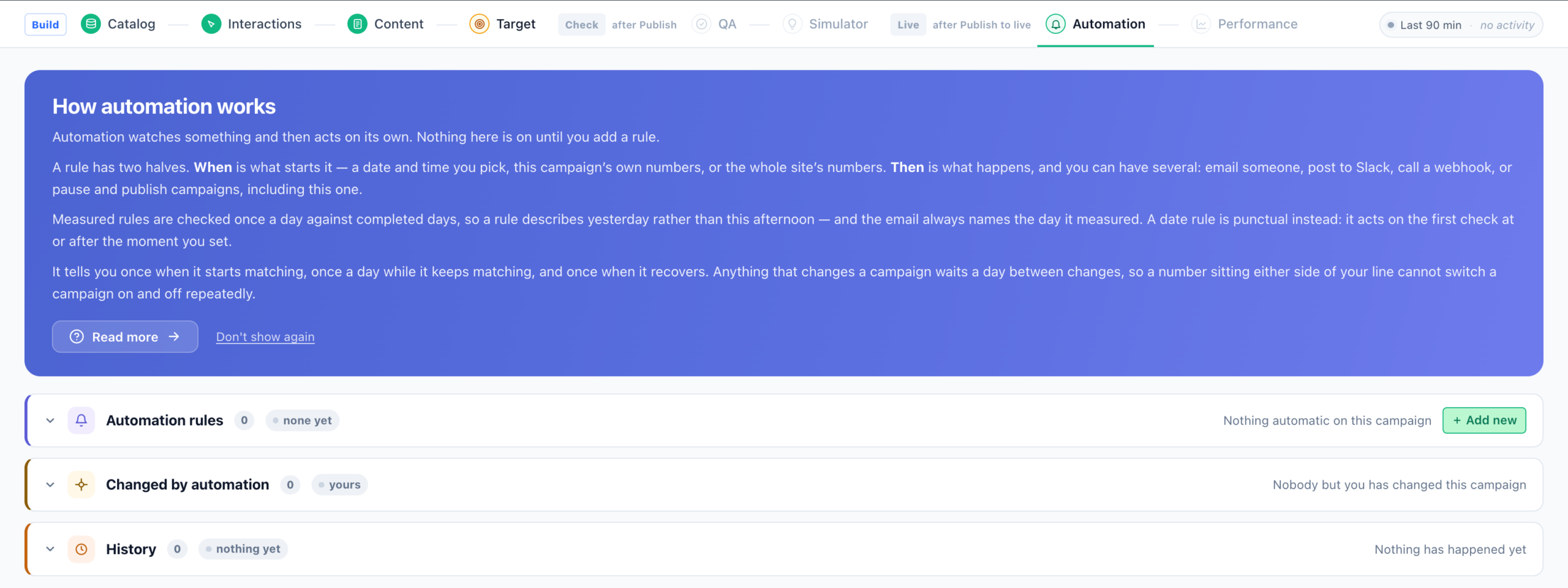
Automation lets the campaign start or stop itself. Pick what should trigger it — a date, this campaign’s own numbers, or the whole site’s — and say what should happen.
Nothing here is on unless you add it. Without an automation, the campaign only starts and stops when somebody does it by hand.
One timing detail that matters: measured rules are checked once a day against completed days, so they describe yesterday rather than this afternoon. Do not expect an automation to react within the hour.
The History panel records only the moments that matter — a rule starting to match, an email sent, a webhook fired, a campaign switched — not every check.
8. Performance — once it is live
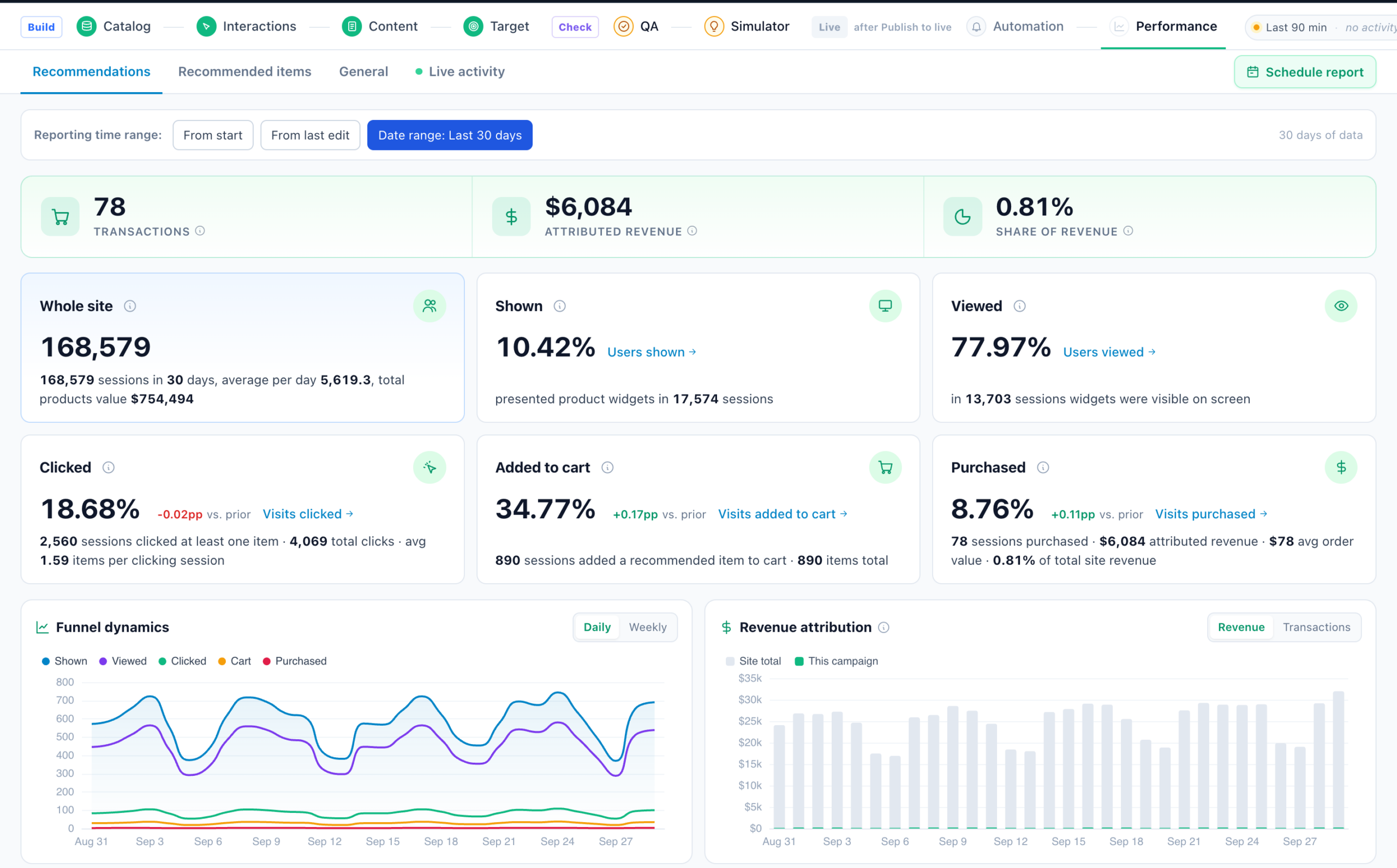
Impressions, engagement and the revenue attributed to the widget. You can set the reporting range to run from the campaign start or from the last edit — the latter is what you want after changing an algorithm, so old results do not mask the new behaviour.
Two places to look, on two different clocks
Personyze reports campaign results in two places, and they update on very different schedules. Knowing which is which saves a lot of “is my campaign broken?”
Live Visits — immediate. The moment a visitor matches, they appear here. You can see sessions arriving, which campaign matched them, and what they did, within seconds. This is where you confirm a freshly published campaign is actually working.
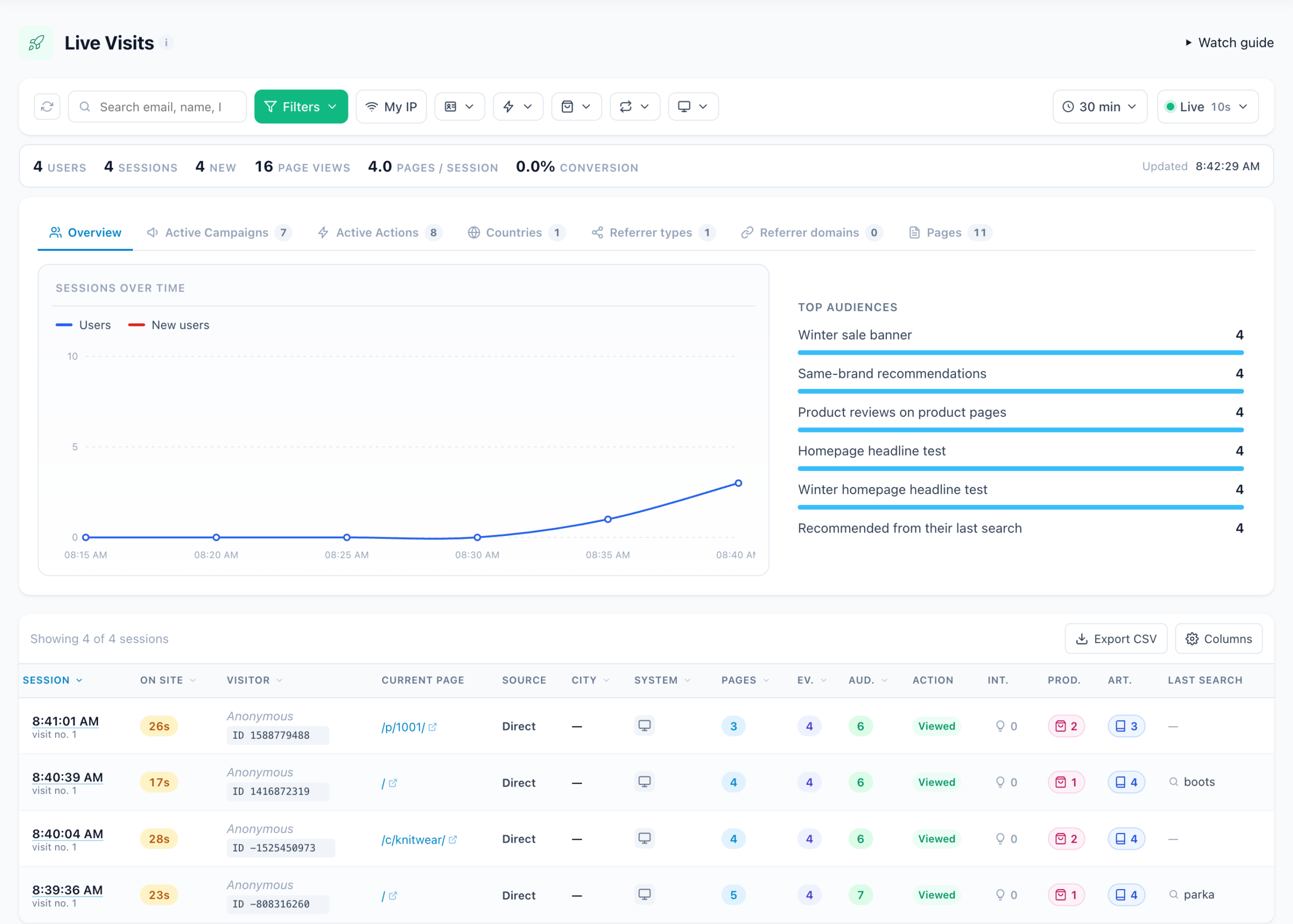
The Performance step — hours later. Visitor stats are only calculated once a session ends, and a session stays open until the visitor has been idle for a while. Add processing time on top and the panel’s own guidance applies: data appears about an hour after the first matching session ends, and can take 1–3 hours to settle.
So a campaign published this morning showing zero on the Performance step this afternoon is normal. Check Live Visits first: if sessions are arriving and the campaign appears under Top Audiences, it is working and Performance will catch up.
Reading the numbers: Product and content recommendations on the Performance Metrics page explains every figure on this screen and how to read it.
Across all your widgets, Analytics → Product analytics has four reports: Trending Report, Recommendations, Recommended Items and Recommendation Sets.
Building the catalog by crawling your site
When there is no feed to be had, Personyze can build the catalog by reading your own product pages: Product Catalog → ⋯ → Crawl my site, or Add a source → We read your site. It finds the pages through your sitemap or links, reads the name, picture, price and stock each one publishes for search engines (schema.org data, then Open Graph tags), and reads them again on the schedule you choose. Every account has it.
Every setting, what arrives on its own and what to map, schedules and plan limits, sites that block crawlers, and troubleshooting are on Crawl Your Site.
Publishing
Three options in the top bar: Save as draft, Publish to staging and Publish to live. Staging lets you see the widget on the real site without exposing it to real visitors.
What Performance looks like with data
Once traffic flows, the Performance step shows the recommendations funnel with real money attached: transactions and attributed revenue, the widget’s share of total revenue, how many sessions were shown widgets and how many actually viewed them, plus daily funnel dynamics and revenue attribution against the site total.
Related
- Recommendations — Where to Start — the whole section in order.
- Recommendation Algorithms — what each algorithm picks.
- Multi-Recommendation Widget — several recommendations in tabs or sections.
- Setting Filters and Setting Fallbacks.
- Content Recommendations Wizard — the same flow for articles and videos.
- JSON API — Product Recommendations — the same engine, raw JSON output.
- Quick Add to Cart button and the Social Proof Widget.
- Products object and product interactions in the REST API.