
A booker does not have to wait for visitors to reach your site. The Sharing step of a Meetings campaign gives the same booker a page of its own — a web address anyone can open to book a meeting, for an email, a text message, a QR code or your email signature — with an email invitation to book and code for the email tool you already use. A booking made there lands in the campaign like one made on your site, with where it was made.
Starting one
- Any Meetings campaign has a Sharing step after Content. Give the booker an address there, and it is on your site and on its own page.
- New campaign → Meetings & booking → Booking email opens a new Meetings campaign on its Sharing step, with Send by email picked.
- A booker only for its page and its emails: on the booker’s Set Display Rules & Placement step, choose Only on its own page and in emails. It never shows on your site.
A campaign whose booker is only on its own page (the Booking email card starts one) is a booking page campaign:
- Its Content step offers one picture, The calendar: the times to pick from, on its own page with your colour and logo.
- It has no Target step: anyone who opens the address sees the booker, and the campaign’s rule is its page’s address. An old link to the Target step opens Content.
- Its booker has no Set Display Rules & Placement step.
- Its Sharing step always has an address filled in — the campaign’s name, or
book-a-meeting, with a number added when it is taken — and no Remove this address. Page is live takes the page down.
The Sharing step
Headed Share this booker, it reads from top to bottom:
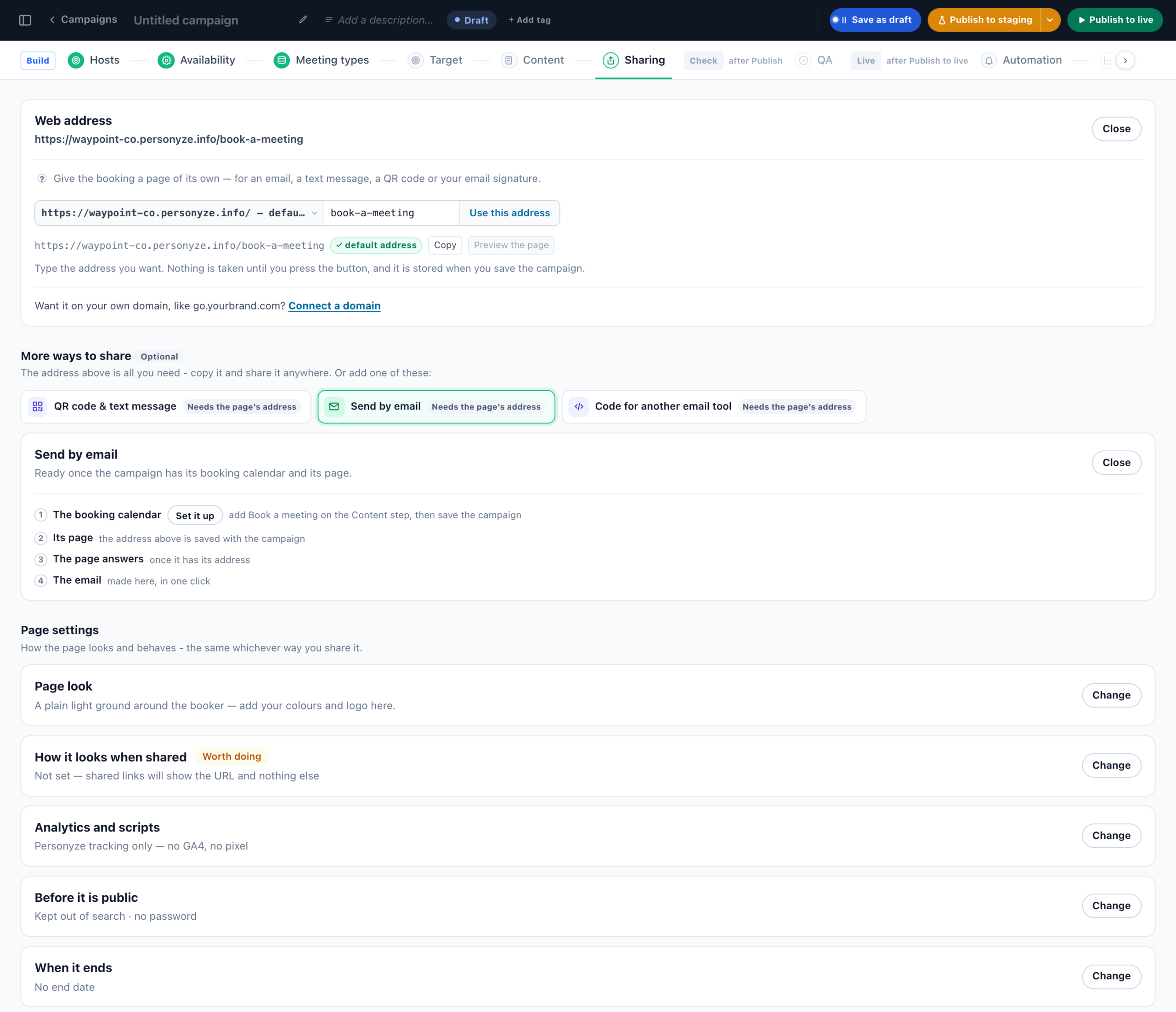
| Part | What it does |
|---|---|
| Web address | The page’s address, with Copy, Preview the page and Page is live. |
| More ways to share (Optional) | QR code & text message, Send by email and Code for another email tool. Each says Ready, After you save the campaign or Needs the page’s address; click one to open its settings. |
| Page settings | Page look (Page colour, Background picture, Logo, Column width), and How it looks when shared, Analytics and scripts, Before it is public and When it ends — the same as a survey page’s. |
| Is the page ready? | What still stops the address from answering, each with a button to fix it. |
Web address
Pick the domain, type the address you want, and click Use this address. Save the campaign and the page is created, switched on; the address answers once the campaign is published.
- Your account’s default address,
https://<name>.personyze.info/, is listed first and needs no add-on for a booking page. See Your account’s default address. - Your own domain, such as
go.yourbrand.com/book-a-demo, needs the Hosted Landing Pages add-on: pick Connect a new domain… in the domain list, publish the DNS records it shows, and click Check DNS.
What visitors see on the page
- The booker you built on the Content step — its meeting types, its look and its form — on the page look you set. A booker shown behind a button on your site is drawn open on the page.
- The page draws the booker itself, so a visitor whose ad blocker stops tracking, or who declines consent, can still book.
- Nothing from your other campaigns pops up over it. A popup made with Add a popup to this page on the Content step shows here, and only here.
- Two versions of the booker in the campaign are split between visitors at the page.
Links that open the page ready to book
Add these to the page’s address when you share it. Every pz_ parameter is removed from the address bar before anything is recorded.
| Add to the link | What it does |
|---|---|
?pz_src=<where> |
Says where the link was shared: page, link, qr, sms, email, esp, social, ad, print or app. It feeds Where it was booked. The QR code and the text-message link add it themselves. |
?pz_type=<meeting type> |
Opens on that meeting type — the name after the / on its row in Meetings → Meeting types. A type the booker does not offer is ignored. |
?pz_slot=<time> |
Picks that time, written with its time zone: 2026-11-03T10:30-05:00. If it is no longer free, one line says so and the calendar opens on that day. |
?pz_name=, ?pz_email= |
Fill in the booking form. The visitor can change them. |
?company= or ?pz_company= |
The company the link was made for, for the heading. |
A link never books by itself: with the time and the details filled in, the visitor still confirms with one click.
Example: acme.personyze.info/book-a-demo?pz_src=email&pz_type=demo&pz_name=Dana%20Levi
A heading made for one person
The Book a meeting action’s Heading can hold ${first_name}, ${name} and ${company}. On the booking page they are filled from the link: the name from pz_name (or from the recipient of a Personyze booking email), the company from company or pz_company.
Example: the heading Hi ${first_name}, let’s talk about Acme + ${company} and the link …/partners?pz_name=Dana%20Levi&company=Globex show Hi Dana, let’s talk about Acme + Globex.
- If any variable in the heading is left without a value, the heading’s If a value is missing answer is shown whole instead — Use the meeting’s own title or Use this instead — never a half-filled line. An email tool’s merge tag that was never filled in counts as no value.
- Plain
companystays in the address the visit records, so a URL parameter grab can save it on the visitor’s profile — see Grab data from your site.
QR code & text message
Download PNG or Download SVG for print, and Copy the text-message link. The code opens the page with ?pz_src=qr, the text-message link with ?pz_src=sms. Both work as soon as you press Use this address, before the campaign is first saved, under the note “Not saved yet: … Save before you print.” Test the code with your phone before you print it.
Send by email
The Send by email fold starts with a checklist — The booking calendar, Its page, The page answers and The email — then asks what the email offers:
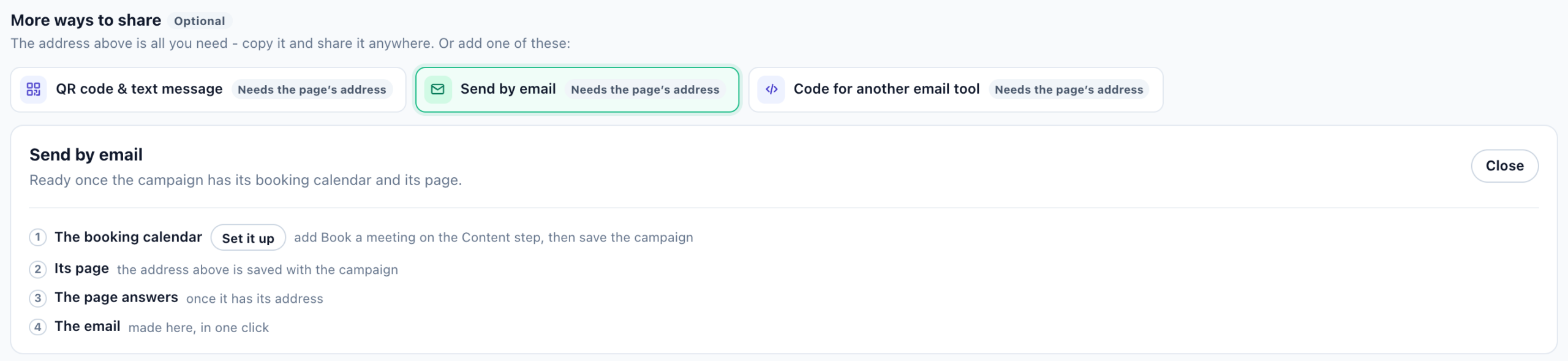
| Choice | What the email holds |
|---|---|
| Pick a time | A short note and one button to the booking page — for one meeting type, or Let them choose. |
| Next free times | Three days of free times as buttons, worked out when the email is sent and shown in each reader’s time zone — within their waking hours (7:00 to 21:00) when there are any. |
- Click Create an email with this booking page. It makes an Email & SMS campaign holding a Booking by email action, in staging, and opens it. Nothing is sent until you publish it.
- Pick who receives it on its User Base step, read it over, and publish.
- Every link in the email is signed for the person it is sent to: the booking page fills in their name and email, and the booking counts for this email. A forwarded link, or one more than 90 days old, opens the page with nothing filled in.
- A test send shows real free times and credits nobody.
- If your plan does not include the Personyze mail server, pick one of your own mail servers as the email’s sender.
The Booking by email action
You can also add a Booking by email to any Email & SMS campaign yourself. Its steps are Which booking page, Sender settings, Email look and Timing. Which booking page lists the Meetings campaigns that have a booking page. Its gallery has the two designs above — Booking Email — A Short Note and One Button to Pick a Time and Booking Email — The Next Free Times, Each One a Link — and a design with a header band and three points before the button, Booking Email — A Header Band and Three Points Before the Button. On the email campaign’s own Performance step, the delivery funnel goes on past Sent, Opened and Clicked to Booked.
Code for another email tool
“Klaviyo, Mailchimp, HubSpot, Brevo and others: a Pick a time button for their email.”
- Pick the Email tool. The code then carries that tool’s merge tag for the recipient’s email address; for Another tool, replace the tag with your tool’s own.
- Pick Which meeting (or Let them choose) and the Button text.
- Click Copy the code and paste it into an HTML or code block of the email.
The button opens the booking page with the reader’s email filled in. The address is not checked, and one Personyze does not know never creates a profile; the booking shows as from Another email tool. For the name filled in too, and the booking counted for the email, send it in a Personyze email instead.
A/B testing the page
In a booking page campaign, Turn on A/B testing opens Test your booking page. Group A keeps the page you have; Group B’s comes from A copy of your booking page or A new booking calendar. Everyone who opens the address gets one group’s page, so there is no Original, and the split always totals 100%.
Where it was booked
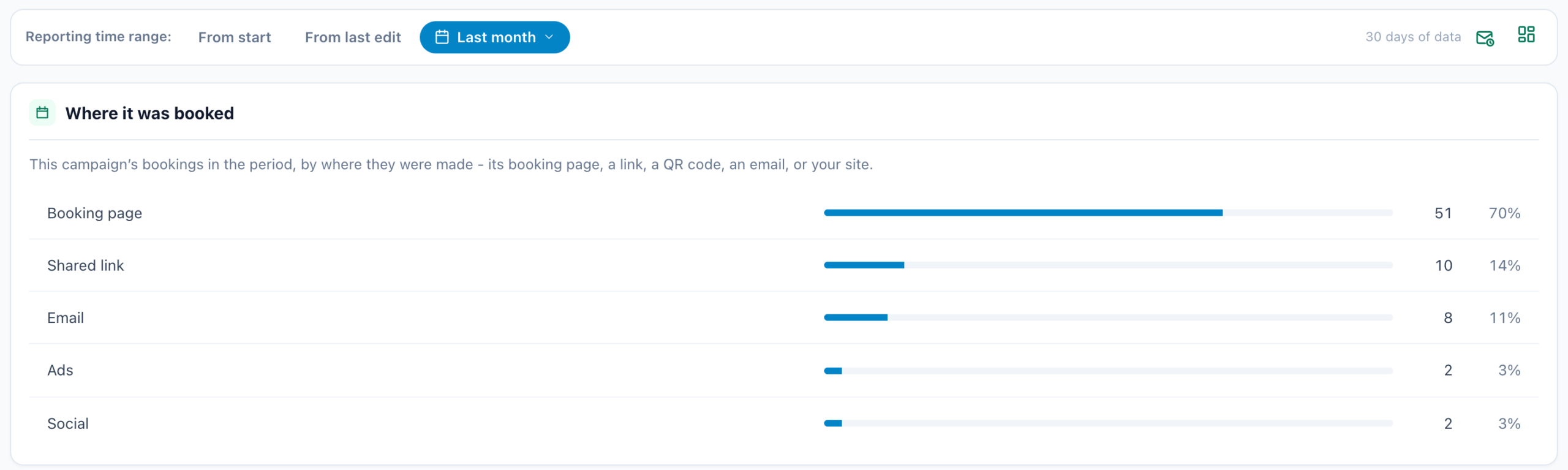
The Meetings campaign’s Performance step has a Where it was booked card: the campaign’s bookings in the period by where they were made — Booking page, Shared link, QR code, Text message, Email, Another email tool, Social, Ads, Print, App or Your site. Bookings made before this was recorded show as Not recorded (older bookings).
Related
- Book a meeting — meeting types, hosts, hours and the booker’s look
- Landing page kinds and parts — a booking page in a design of your own
- Landing pages — your account’s default address and your own domain
- A survey’s own page, QR code and survey emails — the same, for a survey
- Email campaigns