
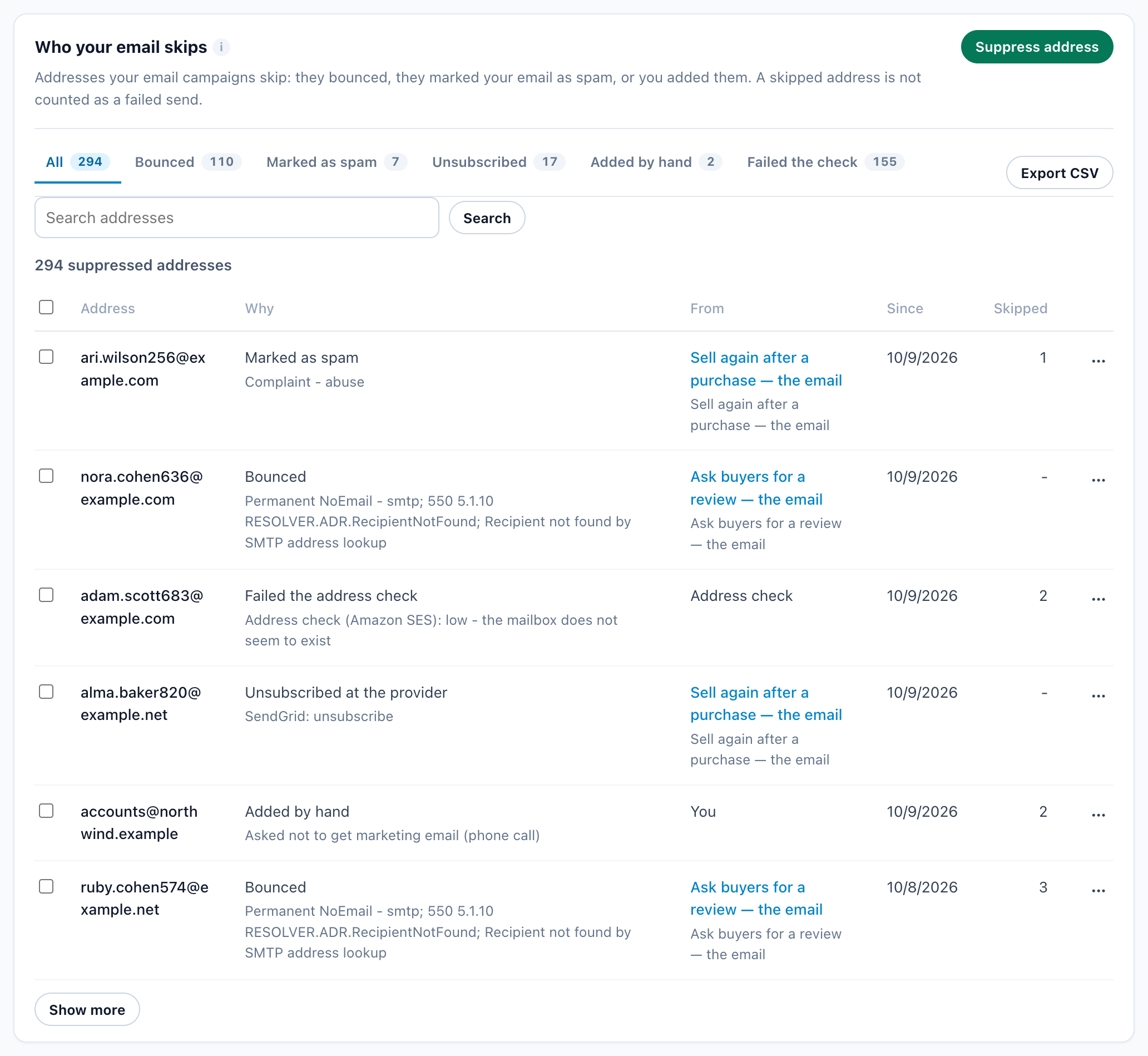
Settings › Email setup › Bounces & spam is the list of every address your email campaigns skip. Its card is called Who your email skips: “Addresses your email campaigns skip: they bounced, they marked your email as spam, or you added them. A skipped address is not counted as a failed send.”
Most addresses get on it by themselves: a bounce, a spam report, an unsubscribe your email provider reports, or a low rating from the Address check. You can add one by hand, and take one off again. A listed address gets no marketing email from any visitor profile that has it, now or later. Alerts, reports, test sends and notices to your own team are never skipped.

Where to find it
Settings › Email setup has five tabs: Senders, Address & consent, Sending limits, Unsubscribe page and Bounces & spam, the last one. Three other screens lead to it:
- Email deliverability (the button at the top right of Email setup, and Analytics › Off-site campaigns): its Bounces & spam card counts the list by kind, and Open the list opens it.
- Settings › Integrations › Email delivery (SMTP): the drawer’s line Bounces & spam: N addresses links to it.
- An email campaign’s User Base step: the Unsubscribed or suppressed tile opens it in a drawer, without leaving the campaign.
How an address gets on the list
| Why | How it gets there |
|---|---|
| Bounced | The address does not exist (a hard bounce). At once. |
| Bounced 3 times in 30 days | A temporary bounce, usually a full mailbox, for the third time within 30 days. |
| Marked as spam | The person pressed “Report spam” in their mailbox. At once. |
| Unsubscribed at the provider | Your own SendGrid or Mailgun reported an unsubscribe. |
| Opted out of email | A connected store or CRM says the person refused marketing email there. |
| Not subscribed to marketing | A connected store has no agreement to marketing email from the person. Someone who agreed on one of your own forms or surveys is not listed for this. |
| Failed the address check | The Address check rated the address low. |
| Added by hand | Someone on your account added it — below. |
- Bounces and spam reports come from the Personyze mail server, and from your own SendGrid or Mailgun once its Bounce webhook is set up. Other SMTP servers send nothing back.
- People who unsubscribe through your own link, or the one-click button in Gmail and Yahoo, are not on this list. Their visitor profile stops every marketing email to them instead — see What a recipient sees.
Reading the list
The tabs above it filter by kind, each with its count: All, Bounced, Marked as spam, Unsubscribed, Added by hand and Failed the check. Each address has:
| Column | What it shows |
|---|---|
| Address | The email address. |
| Why | The kind, and below it the receiving server’s or the provider’s own words — for example 550 5.1.1 The email account that you tried to reach does not exist. |
| From | The campaign and the email it bounced from, linked to the campaign. Our mail server when the email cannot be named, Address check, or You for an address added by hand. |
| Since | When it was added. |
| Skipped | How many sends were skipped because of it. Hover for the last one. |
Find an address with Search addresses; Show more loads more. Export CSV downloads the tab and search you are on, newest first, up to 20,000 rows, with the columns Address, Why, Details, Campaign, Email, Reported by, Since and Skipped.
Take an address off the list
An address’s ⋯ menu has Unbounce for a bounce and Remove for anything else. The panel asks first, in words that depend on why the address is there:
| Why | What it asks |
|---|---|
| A bounce | “Remove jane@example.com from the list? It bounced, and will probably bounce again – every bounce hurts how your other emails are delivered.” |
| Marked as spam | “Remove jane@example.com from the list? This person marked your email as spam. Email them again only if they asked you to.” The removal is then refused: “jane@example.com reported your email as spam, so only Personyze support can remove it.” |
| Anything else | “Remove jane@example.com from the list? Your email campaigns will be able to reach it again.” |
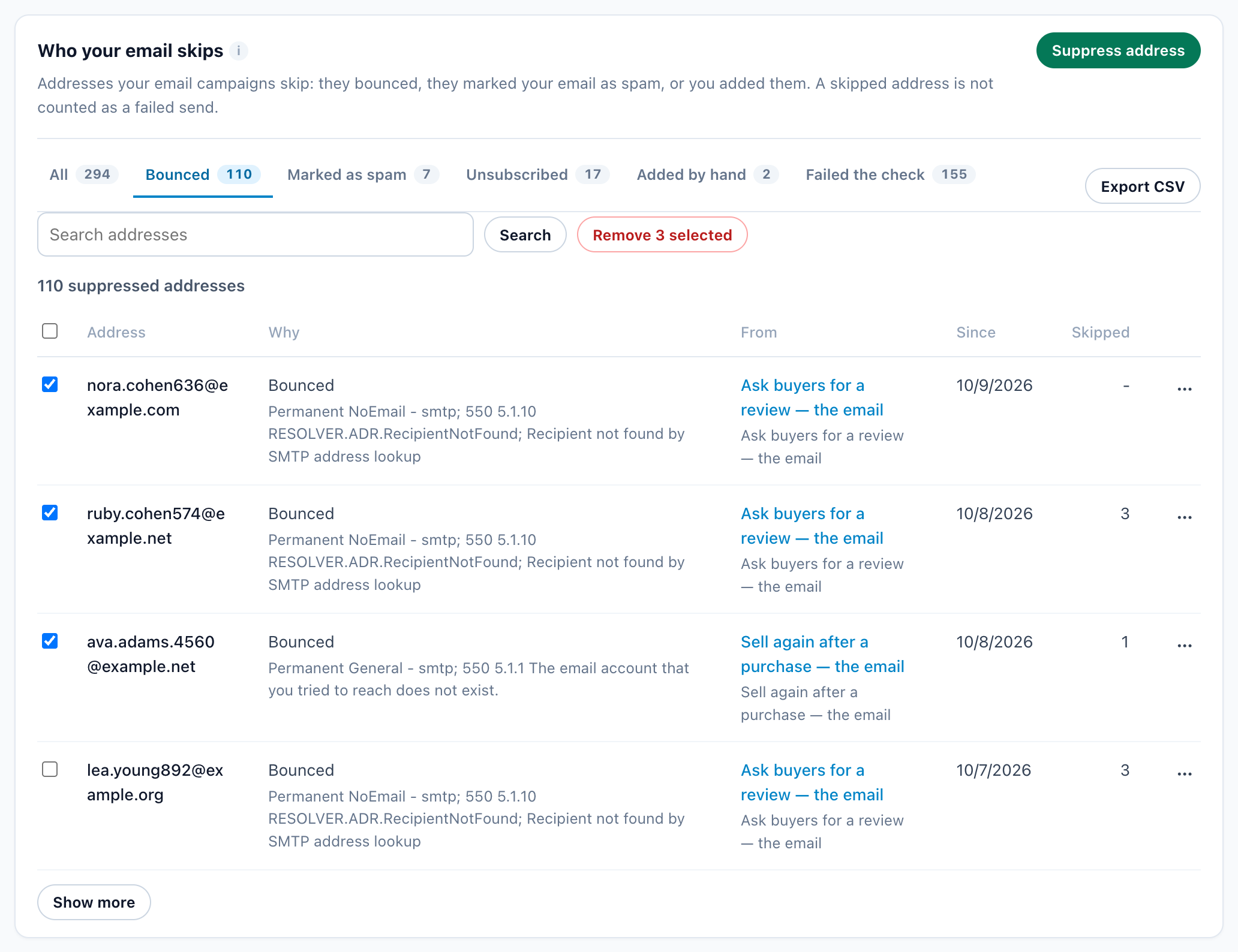
Several at once: tick their rows, or tick the box in the header to select all on this page, then press Remove N selected. Addresses marked as spam stay on the list.
Add an address by hand
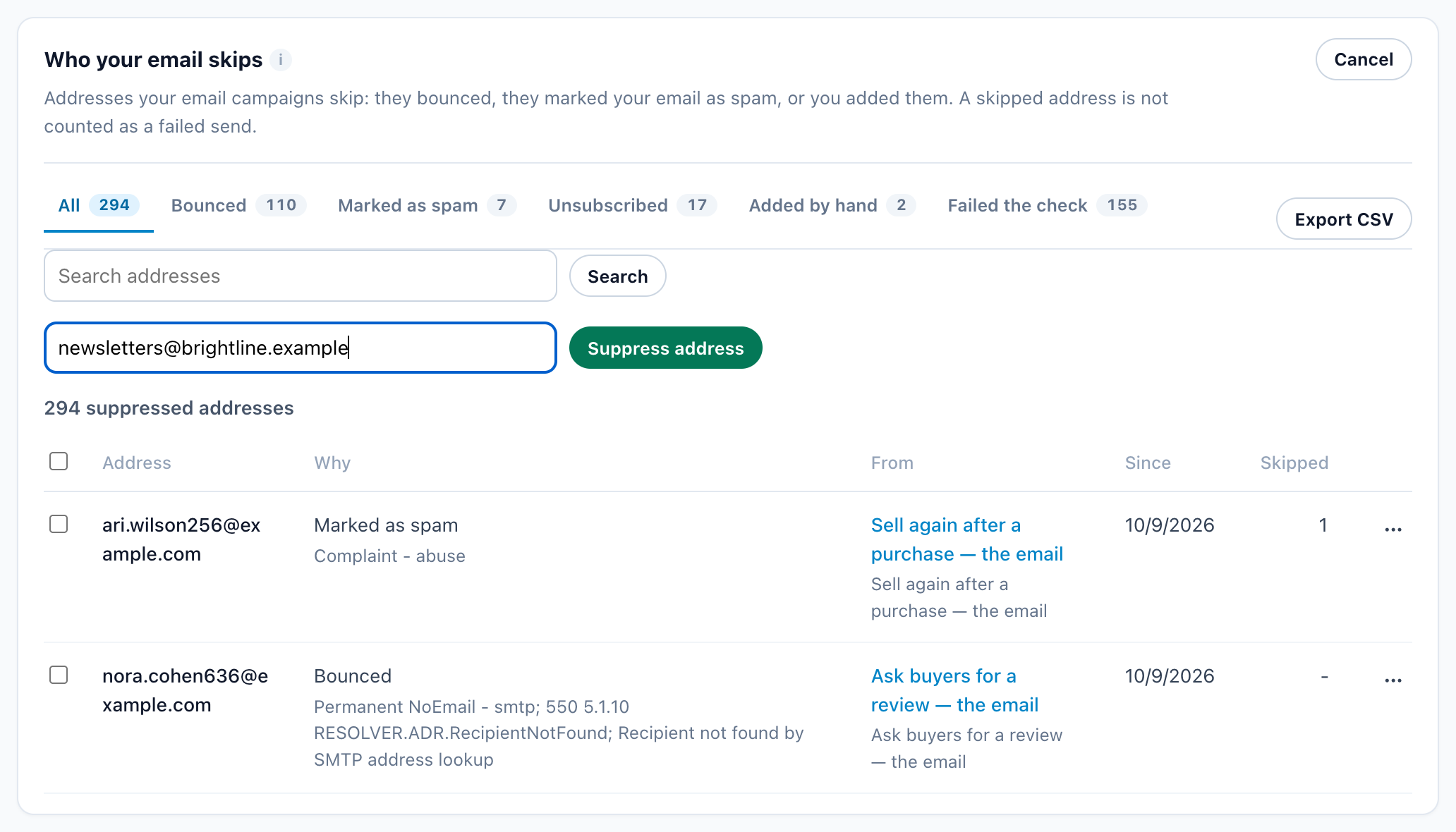
Press Suppress address at the top right, type the address in the field that opens and press Suppress address: “jane@example.com will get no more marketing email.” Adding it also marks every visitor profile with that address unsubscribed, and drops marketing emails already waiting in the queue for it. Cancel closes the field.
What happens to each report
For email sent through the Personyze mail server:
- The send is marked failed. Its state becomes Error, with the receiving server’s message in the Error column, and the send log shows which kind of report it was (below).
- A hard bounce or a complaint unsubscribes the person, as if they had chosen Everything Forever on your unsubscribe page. A temporary bounce does not.
- The address goes on your Bounces & spam list — a hard bounce or a complaint at once, a temporary bounce on its third within 30 days. From then on no visitor profile with that address gets your marketing email. A complaint also marks the person’s consent records withdrawn.
- It is counted in the campaign’s report, on the Email deliverability page, in a new domain’s warm-up, and in your account’s health on the Personyze mail server (below).
Hard bounces, temporary bounces and complaints
| Kind | Tag on the send log | The person | The address |
|---|---|---|---|
| Hard bounce: the address does not exist | Bounced — “The receiving server said this address does not exist. It is never mailed again.” | Unsubscribed | Suppressed at once (Bounced) |
| Temporary bounce: usually a full mailbox | Bounced for now — “The receiving server could not take it right now – a full mailbox, usually. Three of these within 30 days and the address is not mailed again.” | Keeps getting your email | Suppressed on the third within 30 days (Bounced 3 times in 30 days) |
| Spam complaint | Marked as spam — “This person pressed ‘Report spam’ on the email. They are never mailed again.” | Unsubscribed, consent records withdrawn | Suppressed at once (Marked as spam) |
- The tags are on the campaign’s Recipient report, in All emails sent. The rows are in the Error state, so the state filter’s Error shows them.
- When one email gets several reports, the strongest kind wins: Marked as spam, then Bounced, then Bounced for now.
- Sends from before 4 October 2026 show only Error.
- A refusal caused by the message or the sender, such as content rejected or a message too large, is not held against the address: it is not suppressed.
Where they are counted
| Where | What you see |
|---|---|
| The campaign’s Performance step | The Bounced card (hard bounces as a share of messages sent, with the temporary ones named on its line) and the Spam complaints card. Each line ends safe under 2% / safe under 0.1%, above the 2% safe line / above the 0.1% safe line, or Too few sends to judge when fewer than 100 sends are in the range. See Bounced, Spam complaints and Replies. |
| Analytics › Off-site campaigns › Email deliverability | The last 30 days across every campaign, against the same lines. See Email deliverability. |
| A new sending domain’s warm-up | Too many bounces or complaints pause the domain for the rest of the day. See Warm-up of a new domain. |
| Your account on the Personyze mail server | Past 5% hard bounces or 0.1% complaints over a week, sending through it is paused until support resumes it. Nothing is lost: the email waits in the queue. See Paused sending. |
Your own SendGrid or Mailgun: the Bounce webhook
With email sent through your own SendGrid or Mailgun, the provider can send its bounces and spam reports to Personyze, so those addresses go on your Bounces & spam list and your future campaigns skip them:
- Go to Settings › Integrations, open Email delivery (SMTP) and edit the provider. Its Bounce webhook section shows a URL — “Send this provider’s bounces and spam reports to us, so those addresses are skipped by your future campaigns.”
- Copy the URL into the provider:
- SendGrid: “In SendGrid: Settings > Mail Settings > Event Webhook. Paste this as the Post URL, tick Bounced, Dropped and Spam Reports, and turn on Signed Event Webhook.”
- Mailgun: “In Mailgun: Sending > Webhooks. Add this URL for Permanent Failure, Temporary Failure, Spam Complaints and Unsubscribes.”
- Enter the provider’s key and press Save key: “Saved. Bounces and spam reports will now reach your suppression list.” Until a key is saved the section says “Not active yet: save the key to turn it on.”
An unsubscribe that your SendGrid or Mailgun reports goes on the list too, as Unsubscribed at the provider. Other SMTP servers send no bounce information back: add an address that keeps failing by hand. More on the provider setup in Integrations › Email delivery (SMTP). The Bounces & spam tab points there too: “Bounce reports from your own SendGrid or Mailgun are set up in Integrations › Email delivery.”
Related
- Check your recipients’ addresses — the Address check, and the Failed the check tab
- The Email sending add-on — plans, the trial and which mail server sends
- Your unsubscribe page and double opt-in — and what a recipient sees
- Email deliverability — the page, domain warm-up and paused sending
- Reading an email campaign’s report — the Bounced and Spam complaints cards and the send log
- Set up email sending — senders, your domain and your own email provider
- Troubleshooting email campaigns