
Notify Me puts a button next to Add to Cart on your product pages. A visitor who finds a product sold out, or a little too expensive, asks to be told when it is back in stock or when its price drops — by email, by browser notification, or on the site the next time they visit. Personyze remembers which product each visitor asked about, watches your catalog, and tells them once it happens. Every account has it; it is an action you add to a campaign, like a lead form.
What the visitor sees
On a product page, next to Add to Cart, a button that fits the product:
- Notify me when it’s back on a sold-out product, when you watch Back in stock. If you watch price drops too and the product has a price, the form offers Tell me if the price drops as a second tick.
- Tell me if the price drops on a product with a price, when you watch Price drops.
- No button when there is nothing to offer: an in-stock product when you watch only Back in stock, or a product with no price when you watch only Price drops.
The button opens a small form: the ways you offer (By email, By browser notification, On the site), an email field when email is chosen, your consent line and a Notify me button. A visitor whose profile already has an email address is not asked for one: the form says We will email the address we have for you, and never puts the address itself on your page.
After they ask, the form answers in the standard wording:
| Way | The answer |
|---|---|
| By email | Done – we will email you. If this is a new address for us, click the link in the email we just sent to confirm it. |
| By browser notification | Thanks! We will let you know. |
| On the site | Done – we will remind you here the next time you visit. |
The product is the one the visitor is viewing, worked out by Personyze from their product tracking — never taken from the page. On a page that is not about a product, the action is not delivered at all.
Adding it
- New campaign → Targeting & Personalization (or open a campaign you have).
- In the Content step, Add action — in a campaign with no content yet, See all actions — then the Forms, remarketing emails tab and A notify-me button, and pick a design from its gallery.
- Fill the action’s four steps: Design, What visitors can ask for, The alert they get and Placement, Trigger & Frequency.
- Leave the campaign’s audience on every visitor, or narrow it. The button appears only where a product is in view.
A Product Recommendations campaign offers both actions too: under What should it show? in a new campaign they are A notify-me button and A reminder on your site, and both are in its Add action. With a Notify Me in it, the campaign’s Performance step gets the Waiting list tab, and its Recommendations tab leaves Notify Me out of the recommendation figures.
In Placement, Trigger & Frequency, choose Inline element and a placeholder next to your Add to Cart button — More placeholders → New placeholder makes one: pick the spot on your page or paste the button’s CSS selector, and place the content after it. See Content Placement — Placeholders and Where Content Shows. A button that is part of the page needs no cap under How often.
Step 1: What visitors can ask for
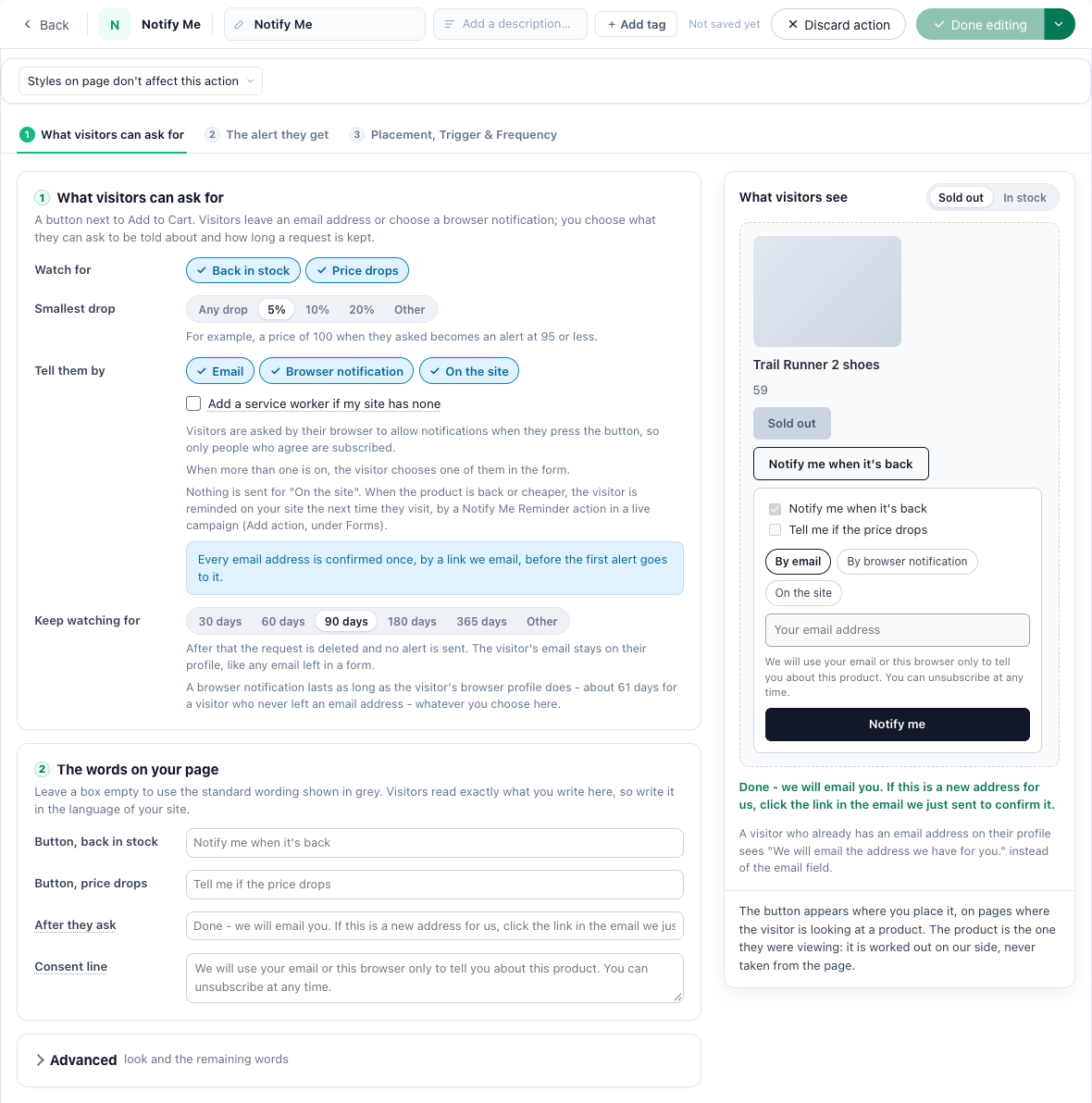
| Setting | What it does |
|---|---|
| Watch for | Back in stock, Price drops, or both (the default). At least one stays on. |
| Smallest drop | Shown when Price drops is on: Any drop, 5% (the default), 10%, 20% or Other (0–100%). The price must fall at least this far below what it was when the visitor asked: at 5%, a price of 100 becomes an alert at 95 or less. A sale price counts as a drop. |
| Tell them by | Email (the default), Browser notification, On the site, or any mix — the visitor chooses one of them in the form. At least one stays on. |
| Add a service worker if my site has none | Shown with Browser notification. Notifications need a service worker on your site; tick this to register one at /sw.js. Leave it off if your site has its own. |
| Keep watching for | 30, 60, 90 (the default), 180 or 365 days, or Other (1–365). After that the request ends and no alert is sent. |
The words on your page — Button, back in stock, Button, price drops, After they ask and Consent line. Leave a box empty for the standard English wording shown in grey; visitors read exactly what you write, so write it in your site’s language. After they ask is one text for every way, and should stay true for an address you have not seen before, which is sent a confirmation email. The consent line is shown only while the way it speaks for is chosen.
Advanced — Button style (Outline or Solid), Colour, and the remaining words: Send button, Email field, and with more than one way on, Choice: email, Choice: browser notification and Choice: on the site.
The preview on the right switches between Sold out and In stock, so you see both buttons.
Step 2: The alert they get
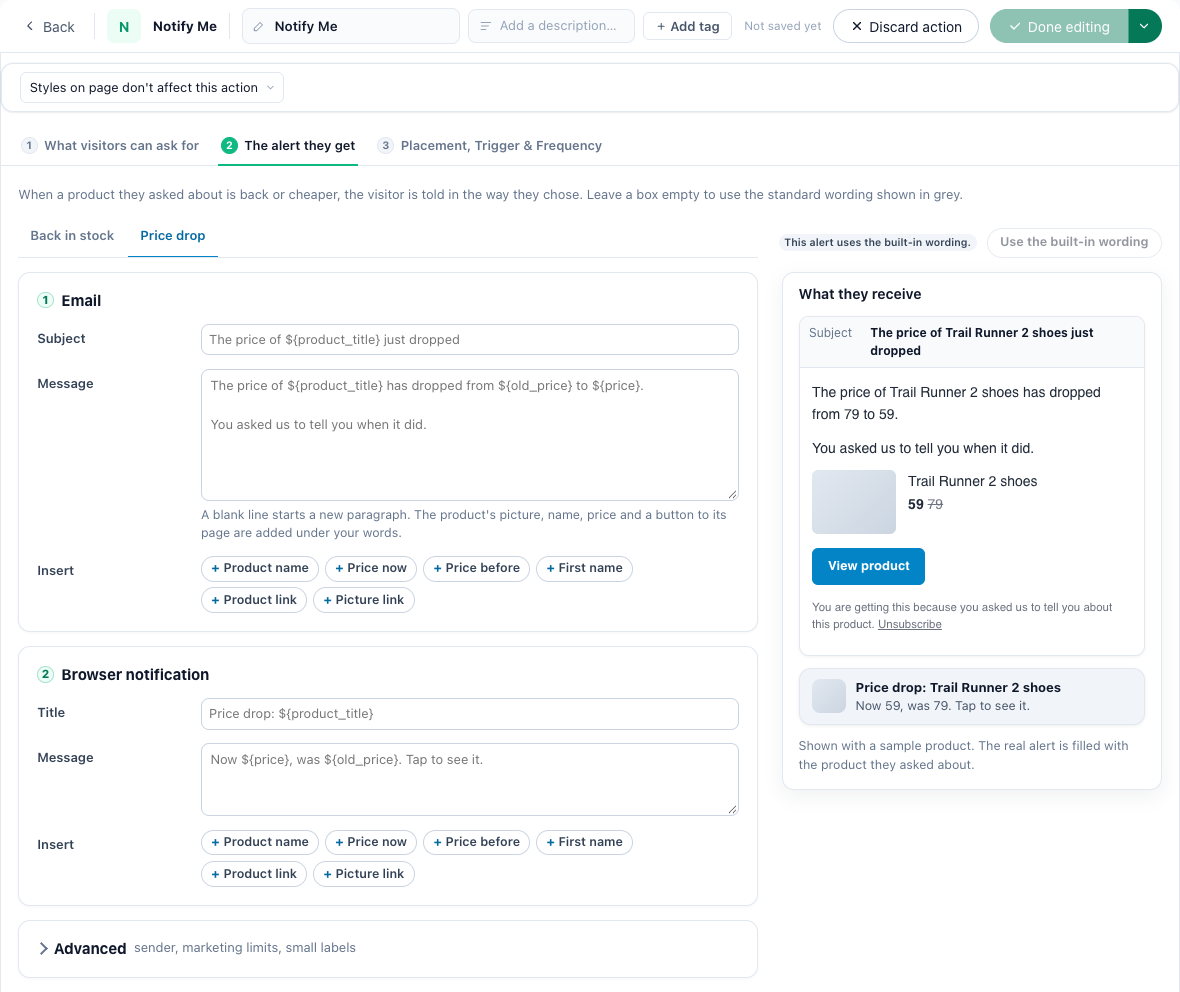
A back-in-stock alert and a price-drop alert say different things, so each has its own words — choose the Back in stock or Price drop tab (both appear when you watch both):
- Email: Subject and Message. A blank line starts a paragraph. The product’s picture, name, price and a button to its page are added under your words.
- Browser notification: Title and Message.
- Insert puts a placeholder where the cursor is: Product name (
${product_title}), Price now (${price}), Price before (${old_price}, the price when they asked), First name, Product link and Picture link.
Empty boxes use the built-in wording, for example The price of Trail Runner 2 shoes just dropped. Use the built-in wording clears the tab’s four boxes. Prices come from your catalog as plain numbers: write the currency into your words (Now €${price}).
Advanced:
- Email sent from — The standard sender (the sender your chat emails use, else the platform’s no-reply address) or Choose a sender. See Set Up Email Sending.
- Marketing limit — Hold an alert back when the marketing email limit says they have had enough. Off by default: the alert is the email they asked for.
- Button label in the email, Line above the unsubscribe link, Unsubscribe link label.
Every alert email ends with an unsubscribe link, which cannot be removed.
What triggers an alert
Personyze checks the products people are waiting for every few minutes, against your catalog as your feed or crawl updates it.
| Request | Due when |
|---|---|
| Back in stock | The product’s Is in Stock changed back to in stock after the visitor asked, and has stayed so for 10 minutes. A product that was out for under 3 hours and is back, for a visitor who asked while it was still in stock, is a feed blink and not news. |
| Price drop | The price now — the lower of Price and Sale Price — is at least Smallest drop below the price when the visitor asked, the drop happened after they asked, and it has stood for 10 minutes. A product already on sale when they asked waits for a further drop. A product with no price cannot be watched for a drop. |
Then the visitor is told the way they chose — usually 10 to 20 minutes after your catalog shows the change:
- Email — the alert, to the address on the request. The first time an address is used at your account, it first gets one confirmation email, worded by Personyze and sent from the platform’s address with your site’s name (Please confirm your email address – <your site>, with a Yes, email me button). Once confirmed, the address is never asked again at your account, whoever asks for it. Requests whose address is not confirmed within 48 hours are dropped.
- Browser notification — to the browser that asked. The browser asks the visitor to allow notifications when they press Notify me, so only people who agree are subscribed. No address, no confirmation. See Send Web Push Notifications.
- On the site — nothing is sent. The request waits as a reminder for the visitor’s next visit, where a Notify Me Reminder shows it.
A request is told once, then it is done. A visitor waiting for both a return and a price drop has two requests.
The Notify Me Reminder
The On the site way needs a second action that shows the reminder: Add action → Forms, remarketing emails → A reminder on your site, in a campaign of its own or in your Product Recommendations campaign. It shows the visitor the products they asked about once they are back or cheaper — each with its picture, a line, its price (the old one struck through for a price drop) and a View product button — with Maybe later and a close.
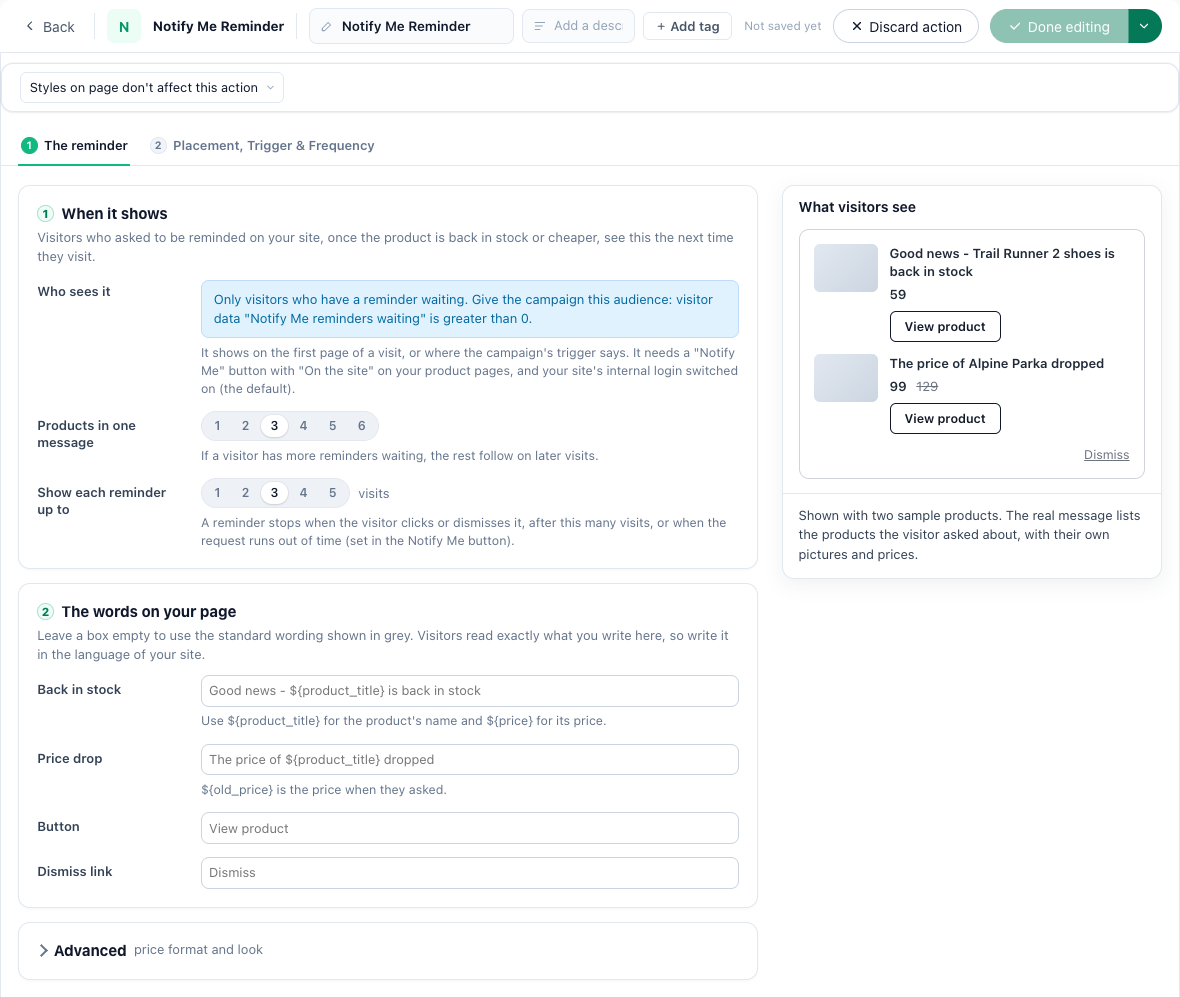
| Setting | What it does |
|---|---|
| Who sees it | Only visitors who have a reminder waiting: the reminder shows itself only to them. In a campaign of its own you can also give the campaign the audience Notify Me reminders waiting is greater than 0 — Add audience rule, visitor data (User CRM/ABM/Profile); the attribute is listed once you have saved a reminder action. Never give that audience to a campaign with other content, such as Product Recommendations: it would hide the rest from everyone else. See Targeting Rules. |
| Products in one message | 1–6, 3 by default. More reminders waiting follow on later visits. |
| Show each reminder up to | 1–5 visits, 3 by default. A reminder ends when the visitor clicks or dismisses it, after this many visits, or when the request runs out of time (Keep watching for, in Notify Me). |
| The words on your page | Back in stock, Price drop and Price shown as. ${product_title}, ${price} and ${old_price} are filled in. Leave a box empty for the standard wording, which a visitor reads in your page’s language (English, German, Greek, Spanish, French, Italian, Japanese, Dutch or Portuguese); words you write are shown as you write them. Left empty, Price shown as prints prices in your catalog’s price format; to write your own, put your currency sign around the number, for example €${price}. |
| Design (its own step) | The message’s look, its product button, Maybe later and its close, with a preview of two sample products. Maybe later hides the reminder for the rest of the visit, and it comes back on a later visit; the close dismisses it for good. |
Its steps are Design, The reminder and Placement, Trigger & Frequency, which places it like any action — a popup, or a placeholder. It shows on the first page of a visit, or where the campaign’s trigger says.
The Waiting list tab
A campaign that holds a Notify Me action gets a Waiting list tab in its Performance step, next to General.
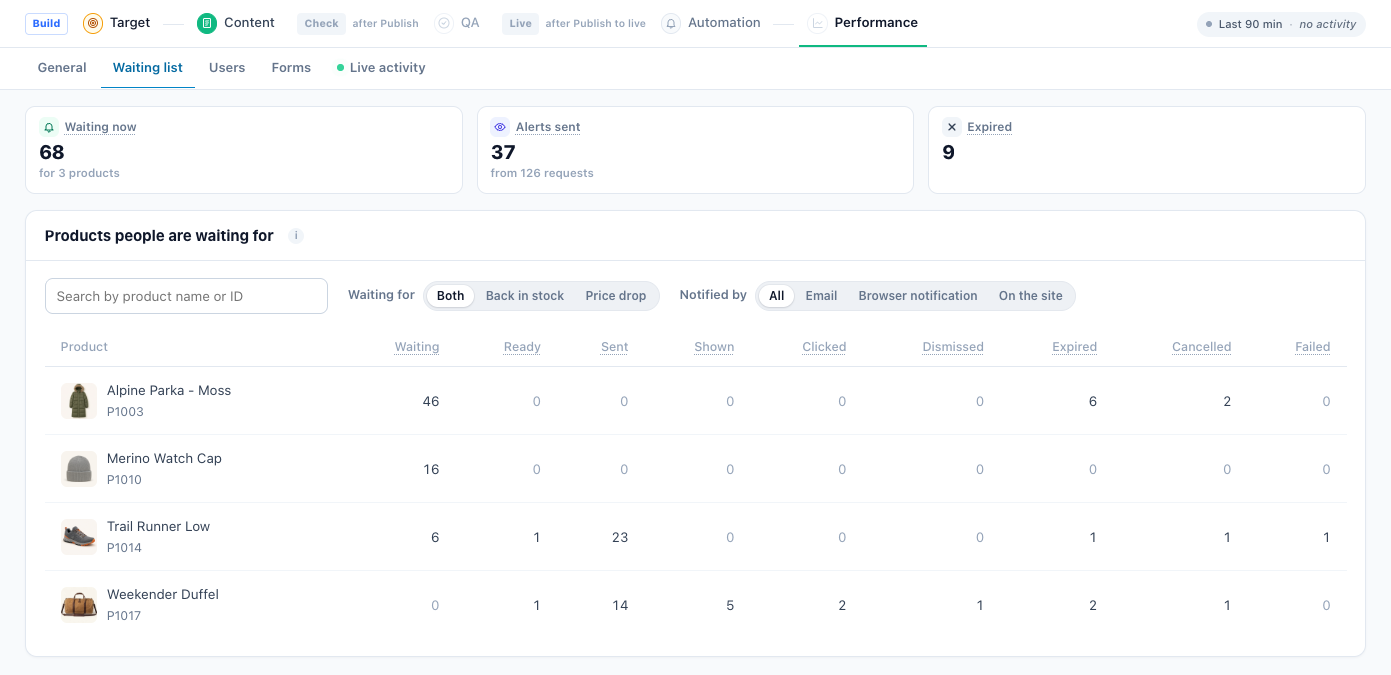
- Waiting now — visitors still waiting, and for how many products. A visitor waiting for two products counts twice.
- Alerts sent — alerts that went out by email or browser notification, of all requests made.
- Expired — requests that ran out of time. Nobody was told.
Products people are waiting for has a line per product, with a search (Search by product name or ID) and the filters Waiting for (Both, Back in stock, Price drop) and Notified by (All, Email, Browser notification, On the site). The filters narrow the table only; the tiles stay the campaign’s.
| Column | Counts |
|---|---|
| Waiting | Requests still waiting for the return or a big enough drop. |
| Ready | The wait is over and the alert is due. It stays here only while held back — a day’s limit, or your marketing limit — and an on-site reminder until the visitor’s next visit. |
| Sent | Alerts sent by email or browser notification. |
| Shown, Clicked, Dismissed | On-site reminders shown at least once, clicked, dismissed. These columns appear only when there are on-site reminders: email and browser notifications do not report clicks. |
| Expired | Ran out of time. |
| Cancelled | Ended without an alert: the address unsubscribed, or the Notify Me action was removed. |
| Failed | Could not be delivered: no usable address or browser subscription, or the sender kept refusing. |
The tab has no date range: it adds up every request since the button went live. A request whose email address is not confirmed yet is not counted. An action used in two campaigns has one waiting list, shown in both. When your account reaches the day’s 300 confirmation emails, a notice above the tiles says so — visitors are not told. Each request sent is also a form submission, in the campaign’s Forms tab.
What your catalog needs
- Is in Stock — the return is when it changes back to in stock. Keep sold-out products in the catalog marked out of stock: a product deleted and added again has no return to notice.
- Price and Sale Price — for price drops.
- Title, Main Image URL and Product Page URL — for the alert, the reminder and the Waiting list.
- Updates as they happen: a feed re-read on a schedule (Setting the Product / Content Feed) or a crawl with a re-crawl schedule (Crawl Your Site). An alert can only be as quick as the catalog.
- Product view tracking on your product pages, so Personyze knows which product the visitor is on — see Product Interaction Tracking.
Limits
| Limit | Value |
|---|---|
| Open requests per visitor | 20 |
| Requests a visitor can make per day | 30 |
| Confirmation emails per mailbox per day | 2 (you+1@gmail.com and y.ou@gmail.com are one mailbox) |
| Confirmation emails per account per day | 300 |
| Alert emails per mailbox per day | 10 — the rest go the next day |
| Time to confirm an address | 48 hours |
| A request is kept | Keep watching for, 1–365 days. A browser-notification request lasts as long as the visitor’s browser profile, about 61 days for a visitor who never left an email address. |
A day is a UTC day. Over a mailbox’s or your account’s limit, the visitor sees the same answer as always, so the form never reveals whether an address is already known to you.
Troubleshooting
| What you see | Why, and what to do |
|---|---|
| No button on a product page | No placement chosen, or the placeholder is not on that page; the page is not tracked as a product view; the product is not in your catalog under the same Internal ID; or there is nothing to offer (in stock with only Back in stock on, or no price with only Price drops). Check the page with Preview as a Visitor. |
| We could not tell which product this is. Please open the product page and try again. | The visitor has no product view recorded — see Product Interaction Tracking. |
| This product has no price to compare with. | A price drop was asked on a product with no Price in your catalog. |
| You are already watching the most products we can keep for you. / You have asked for a lot of alerts today. | The visitor reached 20 open requests, or made 30 requests today. |
| The product is back, and no alert came | The address was not confirmed; the return was under 10 minutes ago; the product was deleted from the catalog instead of marked out of stock; the request expired; the address unsubscribed; or the day’s 10 alerts to that mailbox were used. Ready on the Waiting list means it is due and held. |
| The price fell, and no alert came | The drop is smaller than Smallest drop, measured from the price when they asked; the product was already on sale when they asked; or the price went back up within 10 minutes. |
| No confirmation email | That mailbox already had 2 today, the address was stopped, or your account reached 300 today (the Waiting list shows a notice). Check spam: it comes from the platform’s address, not your own sender. |
| By browser notification is missing from the form | The visitor’s browser cannot receive notifications, or your site has no service worker — tick Add a service worker if my site has none. |
| The reminder does not show | It shows from the next visit, not the one where they asked. Check that the reminder campaign is live with the audience Notify Me reminders waiting greater than 0, and that Merge visitors to known users is on. A staging preview shows a reminder but records nothing. |
Related
- Lead Form Action — forms that save who answered
- Send Web Push Notifications — browser notifications
- Setting the Product / Content Feed — Is in Stock, Price and Sale Price
- Crawl Your Site — a catalog read from your own pages
- Product Interaction Tracking — view, add to cart, purchase
- Content Placement — Placeholders
- Content & Design — every action