
A survey does not have to wait for visitors to come to your site. The Sharing step of a Surveys campaign gives the same survey a page of its own — a web address anyone can open to answer it — with a QR code for print, a link for a text message, a Personyze email whose first answer is a single tap, and code for the email tool you already use. Every answer goes where the survey’s answers always go: the Surveys report and your destinations — and the visitor’s profile, for the questions whose Save answer to names an attribute.
The Sharing step
A Surveys campaign’s steps are Content, Target, Sharing, QA, Automation and Performance. A survey shown only on its own page and in emails leaves out Target — anyone who opens the address sees it, and the campaign’s rule is the page’s address — and the survey has no Placement, Trigger & Frequency step. Sharing is optional — a survey with no page is still a whole campaign. The step is headed Share this survey, and reads from top to bottom:
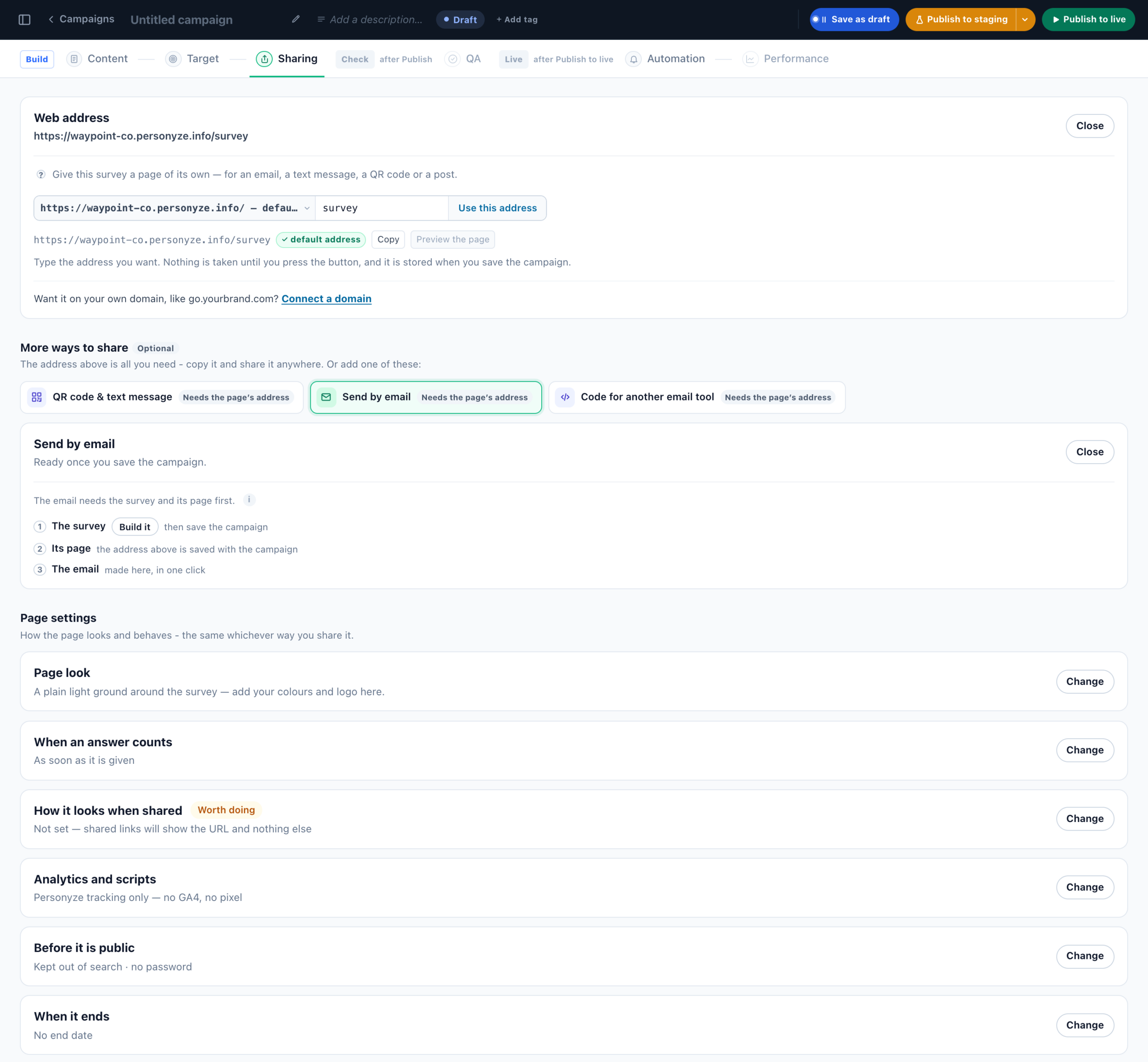
| Part | What it does |
|---|---|
| Web address | The page’s address — your account’s default address or your own domain — and the switch that takes the page down. |
| More ways to share (Optional) | The address is all a page needs; these add to it. QR code & text message — for receipts, packaging, a table tent. Send by email — a Personyze email whose first question is answered with one tap. Code for another email tool — the same question, for Klaviyo, Mailchimp, HubSpot, Brevo and others. Each says Ready, After you save the campaign or Needs the page’s address; click one to open only its settings. |
| Page settings | How the page looks and behaves, whichever way it is shared: Page look, When an answer counts, How it looks when shared, Analytics and scripts, Before it is public and When it ends. |
| Is the page ready? | A checklist of what still stops the address from answering. |
In New campaign → Surveys & feedback, Survey email (NPS, feedback) opens a new Surveys campaign straight on this step, with Send by email picked; its survey starts Only on its own page and in emails. A survey on a page of its own, in the same group, starts a hosted landing page with a survey in it — see Landing page kinds and parts.
Web address
Until you add one, the card reads “No page yet — add one: a web address anyone can open to answer this survey.” Pick the domain — your account’s default address, https://<name>.personyze.info/, is listed first — type the address you want after it, and click Use this address. Save the campaign and the page is created, switched on.
- In a survey made only for its page, the address is filled in for you — the campaign’s name, or
survey, with a number added when it is taken — and there is no Remove this address: Page is live takes the page down. A survey that is on your site too can lose its page with Remove this address (the page stops answering). - Copy copies the address. Preview the page opens it for you before anyone else can see it.
- Page is live — off takes this one page down without unpublishing the campaign. The survey keeps running on your site.
- The status reads Live, Not live or Staging — preview only. The address answers the public only once the page is switched on and the campaign is published; until then it says “No such page”.
- Two versions of the survey in one campaign are split between visitors on the page too.
The default address, or your own domain
Your account’s default address works for every account: a survey page there needs nothing beyond the Reviews & Surveys add-on the survey itself needs, and search engines never list it — see Your account’s default address. A page on your own domain, such as go.yourbrand.com/<your-address>, comes with the Landing Pages add-on — pick Connect a new domain… in the address’s domain list, publish the DNS records it shows, and click Check DNS.
Page look
The page around your survey. The survey itself keeps its own design — change that on the Content step.
- Page colour and Background picture — the picture covers the page behind the survey; leave it empty for the plain colour.
- Logo — shown above the survey, at most 56 pixels tall.
- Survey width — 360 to 960 pixels, 600 by default. On a phone the survey always takes the screen’s width.
When an answer counts
| Setting | What happens |
|---|---|
| As soon as it is given (the default) | Counted in your results right away (and on the visitor’s profile, when its question saves there), even if they never press Send. With a 0–10 question, most people only tap the number — and that number is the point. |
| Only when the survey is finished | Counted once they press Send. Until then their answers are kept so they can continue. |
It applies to this page, its QR code and its links. On your website itself an answer always counts when the survey is sent. Either way the answers so far are saved as the visitor moves on, so the report can show where people stop.
Sharing, analytics, privacy and an end date
| Section | What you set |
|---|---|
| How it looks when shared | Page title, Description, Share image URL (1200 × 630) and Favicon URL — what a link pasted into WhatsApp, Slack or LinkedIn shows. |
| Analytics and scripts | Google Analytics 4, Google Tag Manager, Meta pixel, LinkedIn partner ID, and Anything else, in the head. By default the page runs Personyze tracking only. |
| Before it is public | Keep it out of search engines (a page on your default address always is), and an optional shared Password — not a login, just a way to show the page to a colleague before it goes out. |
| When it ends | Stop serving on a date, and Then send visitors to another address. Without a redirect, the ended page answers “not found”. |
At the bottom, Is the page ready? checks what is stored right now: that the campaign has a survey, the page is switched on, the campaign is published, and (on your own domain) the DNS is connected. Each missing item has a button to fix it.
What visitors see on the page
- The survey you built, one question per screen, whatever its layout on your site.
- It never closes itself: no auto-close, no × and no “Maybe later” link.
- Nothing from your other campaigns pops up over it, and your frequency caps do not apply — it shows every time the page is opened. Only a popup you add to this page shows over it (below).
- A visitor who leaves halfway and comes back is asked “You have answered 2 of 5 questions. Continue where you left off?”, with Continue or Start over.
- A visitor who finished sees their thank-you with Change my answers. A new send replaces their old answers, and the thank-you email still goes only once.
- If your account runs Personyze in consent mode, the page asks the visitor itself, before the survey keeps anything.
Links with answers or tags in them
Add these to the page’s address when you share it. Every pz_ parameter is removed from the address bar before anything is recorded.
| Add to the link | What it does |
|---|---|
?pz_f_<answer key>=<value> |
Prefills a question — a choice by its words, a rating 1–5, a scale 0–10. The page opens on the first question still to answer. The answer key is under the question’s Answer key fold (Surveys). |
?pz_h_<name>=<value> |
Sends a hidden value with the answers, never shown — an order number, a store, a campaign. Up to 10, named with a-z, 0-9 and _. |
?pz_src=<where> |
Says where the link was shared: page, link, qr, sms, email, social, ad, print or app. It feeds Where it was answered in the report. The QR code and the text-message link add it themselves. |
Example: acme.personyze.info/store-visit?pz_src=print&pz_h_store=berlin on a printed receipt.
QR code & text message
As soon as you press Use this address: Download PNG or Download SVG for print, and Copy the text-message link. Until the campaign is saved, a note says the address is reserved and the code opens it once you save and publish — “Save before you print.” The code opens the page with ?pz_src=qr, and the text-message link with ?pz_src=sms, so the report can tell those answers apart. Test the code with your phone before you print it.
Send by email
The Send by email fold reads, for example, “One tap on ‘How likely are you to recommend us?’ in the email answers it”. Each answer in the email is a link to the survey’s page, so it starts with a checklist: The survey (saved), Its page (with its address) and The email.
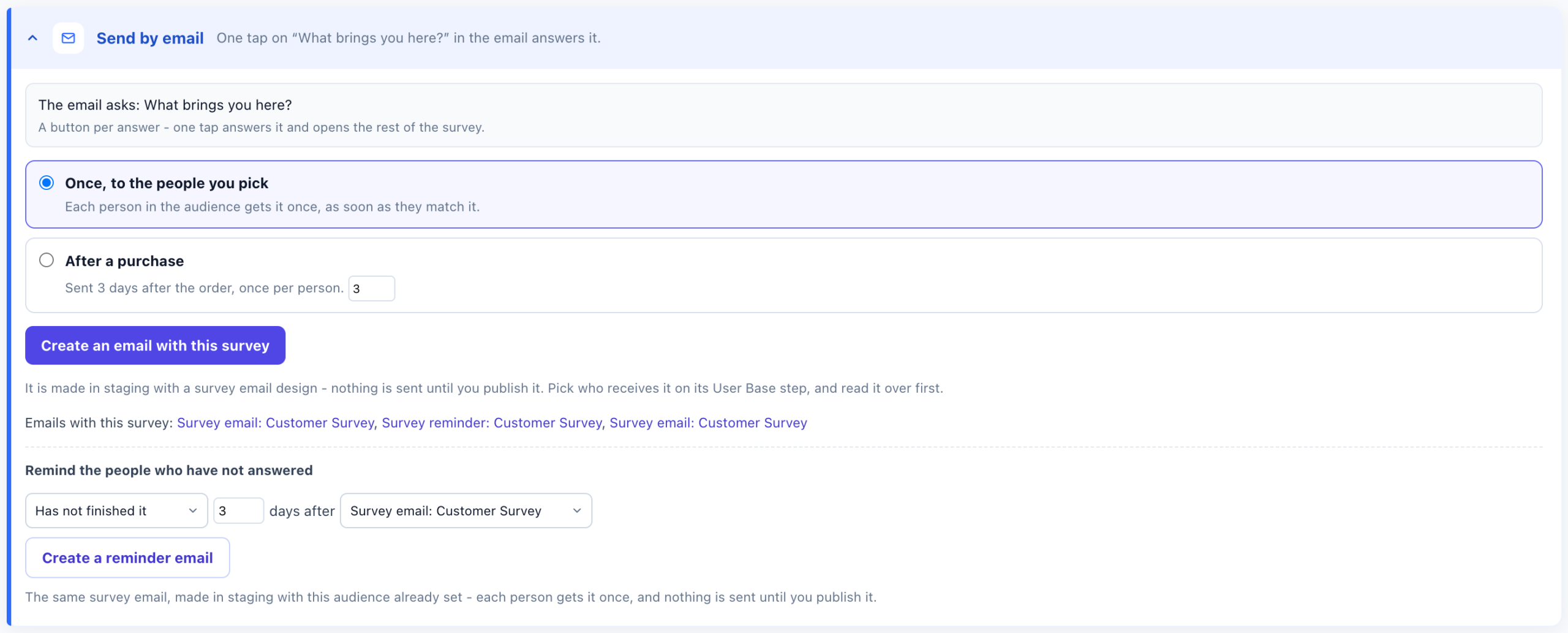
- Choose When it is sent: Once, to the people you pick (each person in the audience gets it once, as soon as they match it) or After a purchase (1 to 90 days after the order, 3 by default; once per person).
- Click Create an email with this survey. It makes a new Email & SMS campaign holding a Survey by email action, in staging, and opens it. Nothing is sent until you publish it.
- Pick who receives it on its User Base step, read the email over, and publish.
The emails that already carry the survey are listed under Emails with this survey:. If your plan does not include the Personyze mail server, pick one of your own mail servers as the email’s sender.
The Survey by email action
You can also add a Survey by email to any Email & SMS campaign yourself. Its steps are Which survey, Sender settings, Email look and Timing. Which survey lists every survey on the account and says whether its page is live, switched off or not there yet — a survey with no page cannot be picked, because a tap would find nothing. A survey that is a part of a hosted landing page is listed with that page’s address, and a tap opens the landing page. Its gallery has four designs:
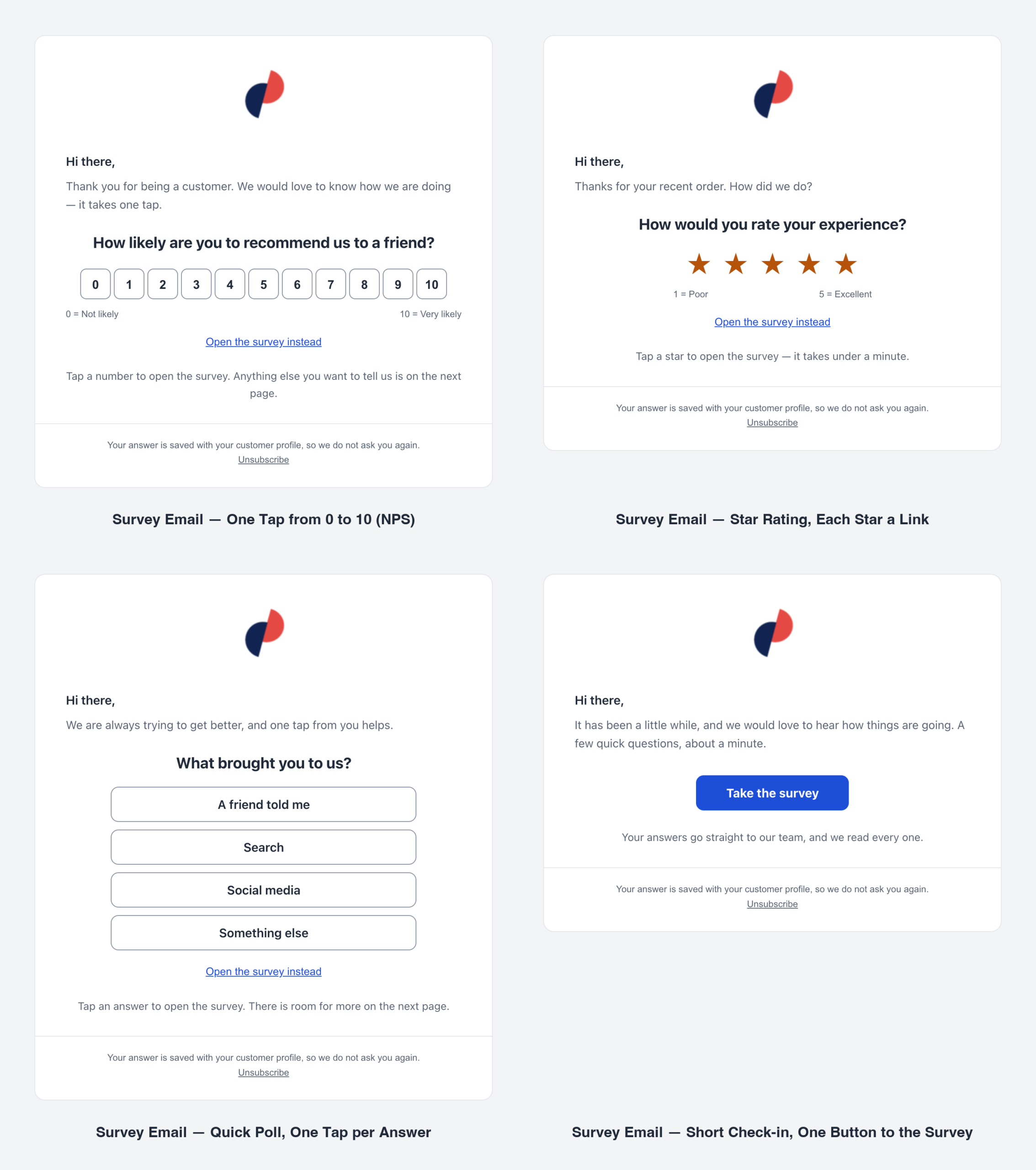
- Survey Email — One Tap from 0 to 10 (NPS)
- Survey Email — Star Rating, Each Star a Link
- Survey Email — Quick Poll, One Tap per Answer
- Survey Email — Short Check-in, One Button to the Survey
How one-tap answers work
- The email asks the survey’s first question that one tap can answer: a 0–10 scale, a 1–5 rating, or one choice of up to six — and never a question with an Ask only when… rule. A survey with none gets a single button that opens it. Another eligible question can be picked under Email look.
- A tap opens the survey’s page with that answer chosen, and the reader goes on from there. The answer is kept with the survey, and on the reader’s profile when its question saves there.
- Each link is signed for its recipient and works for 90 days. A link from a test send shows the answer but credits nobody.
- If an email scanner “taps” several answers at once, nothing is chosen, and the reader is asked to tap their answer once more.
On the email campaign’s own Performance step, the delivery funnel goes on past Sent, Opened and Clicked to Answered and Finished — see Survey reports.
Code for another email tool
“Klaviyo, Mailchimp, HubSpot, Brevo and others: paste the question into their email.”
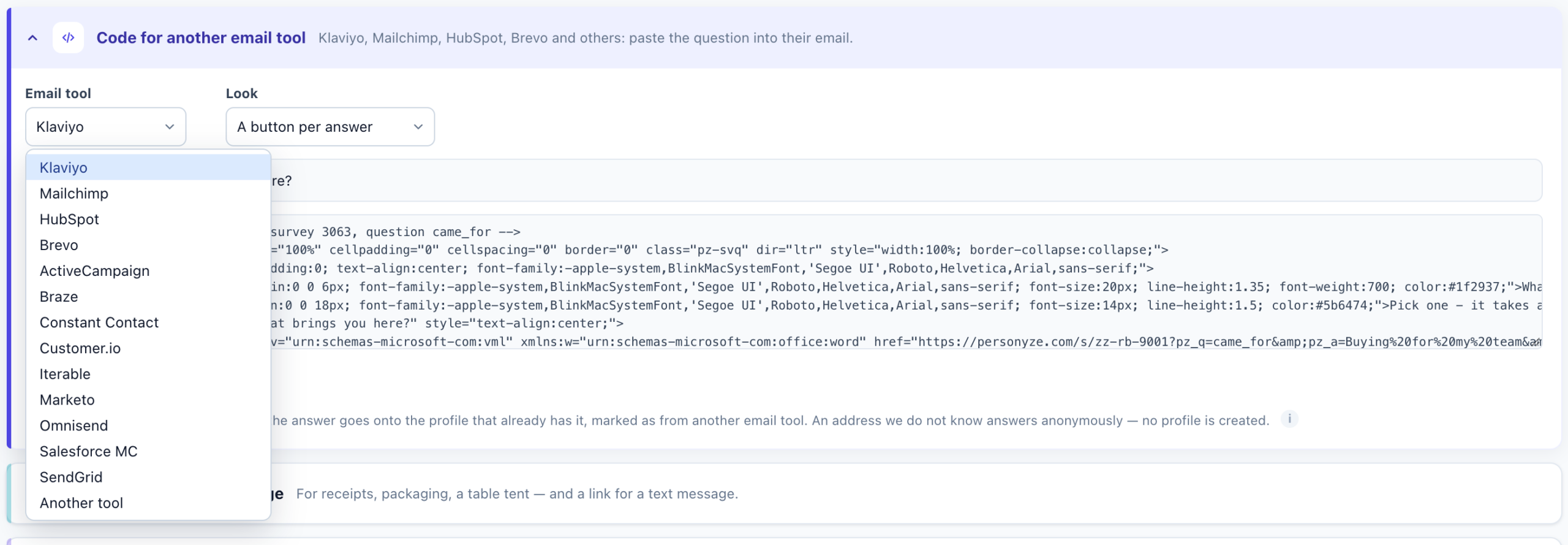
- Pick the Email tool: Klaviyo, Mailchimp, HubSpot, Brevo, ActiveCampaign, Braze, Constant Contact, Customer.io, Iterable, Marketo, Omnisend, Salesforce MC, SendGrid, or Another tool. The code then carries that tool’s merge tag for the recipient’s address. For another tool, replace the tag with your tool’s own.
- Pick the Look. It follows the question the email asks: a 0–10 scale offers Numbers, a 1–5 rating Stars or Numbers, one choice A button per answer — and every question also offers a “Take the survey” button.
- Click Copy the code and paste it into an HTML or code block of the email.
The address in the link is not checked. An address Personyze already knows files the answer under that visitor (and on their profile, when its question saves there); an unknown address answers anonymously, and no profile is created. The report shows these answers as Another email tool. For a checked identity, send the survey in a Personyze email instead.
Reminders to the people who have not answered
Once an email carries the survey, the Send by email fold offers Remind the people who have not answered:
- Choose who gets it: Has not finished it (the default — not answered at all, or started and stopped), Has not answered it, or Started it, did not finish.
- Set how many days after the email, and which email it follows when there are several.
- Click Create a reminder email. It is the same survey email, made in staging with this audience already set; its subject starts “Reminder:”. Each person gets it once, and nothing is sent until you publish it.
The “Survey response” targeting rule
A reminder’s audience is an ordinary targeting rule, and you can use it in any email campaign’s Target step: Surveys → Survey answers → Survey response. It reads how far a person got with one of your surveys, wherever they answered it — your site, the survey’s own page or an email.
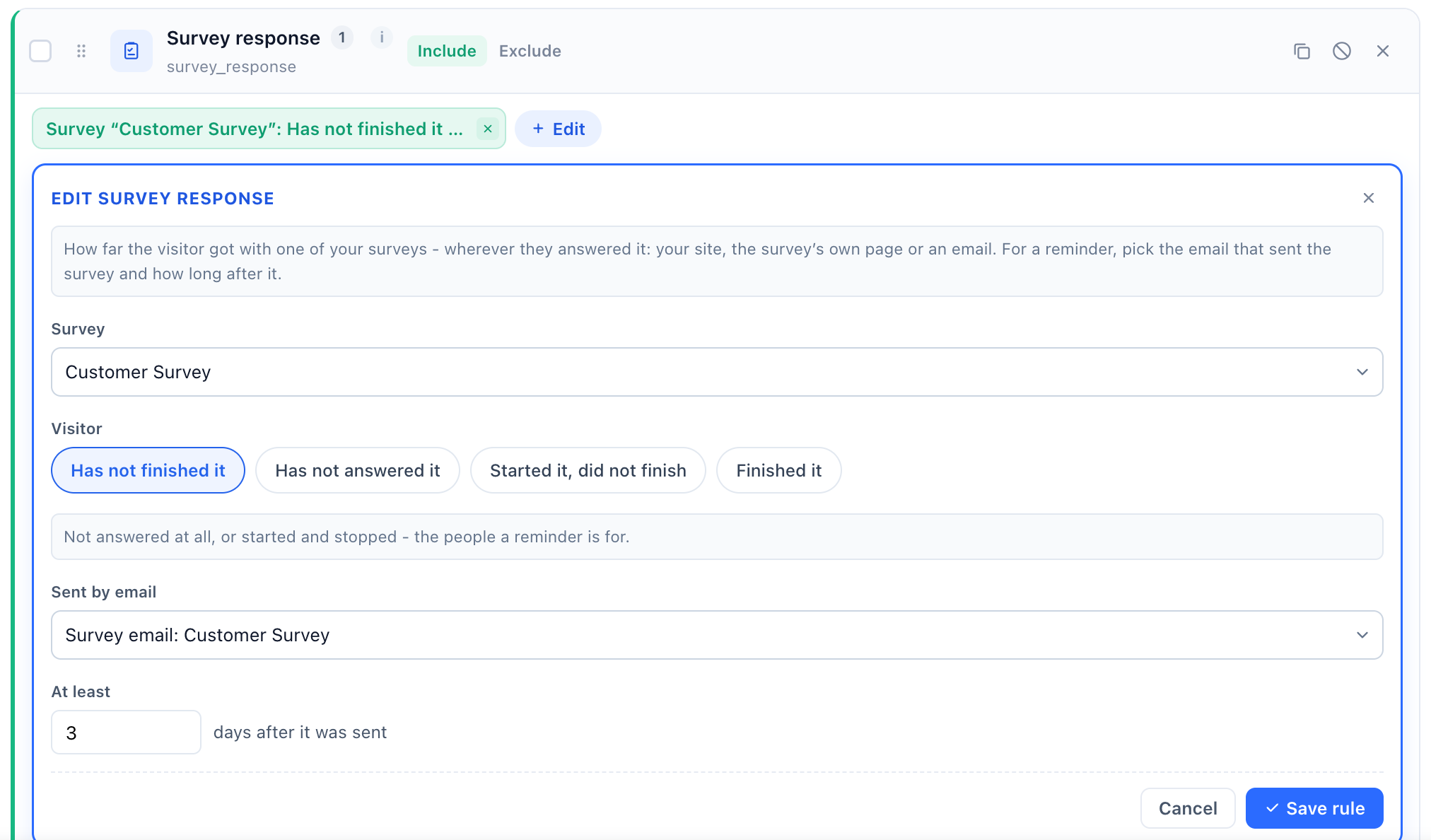
| Field | Choices |
|---|---|
| Survey | Any survey on the account. Required: a rule with no survey matches nobody. |
| Visitor | Has not finished it, Has not answered it, Started it, did not finish or Finished it. |
| Sent by email | One of the emails that carry the survey, or Any visitor – no email needed. With no email picked, “has not answered” means everyone in the user base who has not — pick the email to remind only the people it reached. |
| At least N days after it was sent | Shown once an email is picked. |
Example: Survey “Customer survey”, Has not finished it, sent by the invitation email, at least 3 days ago. More rules: Targeting rules.
Popups on the page
In a survey made only for its page, once the campaign holds its survey, the Content step’s add button reads Add a popup to this page. It offers only what opens as a popup — a Canvas design, a popup or banner, a countdown, a lead form, social proof, and product or content recommendations — and the popup shows on the survey’s page only, never on your site: its placement step says “Only on this campaign’s own page – never on your site.” Social proof and recommendations open in a corner, clear of the survey. The same goes for a review form’s page and a booking page.
A/B testing the page
In a survey made only for its page, Turn on A/B testing opens Test your survey page. Group A keeps the page you have; Group B’s comes from A copy of your survey page or A new survey — a fresh survey from the gallery, while the page keeps its look. Everyone who opens the address gets one group’s page, so there is no Original, and the split always totals 100%. A review page and a booking page are tested the same way.
A survey page that has a design of its own
A survey page made with a full-page design keeps it. Its editor is one numbered row — 1 The survey, 2 The page, 3 Where the answers go, 4 Thank-you email — walked with one Previous / Next. The page draws the real survey in its place, Edit the survey goes back to step 1, and Add version starts as a copy of the first page. A review page reads 1 The review form, 2 The page, 3 Where the reviews go, 4 Thank-you email; a booking page 1 The booking calendar, 2 The page, 3 Where the booking goes. A new page in a design of your own is made as a hosted landing page — see Landing page kinds and parts.
Protection against bots and floods
- Each network may send 30 surveys and save progress 120 times a minute per account. Beyond that the visitor is asked to try again in a minute — a limit a person never meets, and a script meets in its first second.
- A hidden trap field catches simple bots: a send with it filled is dropped.
- Answers that look automated — sent faster than anyone could answer, tapped all at once by an email scanner, or from someone whose address differs from the one another email tool’s link gave — are kept, delivered and flagged. The report leaves them out unless you tick Include possibly automated.
Related
- Surveys — building the questions and the placement
- Where survey answers go — destinations, alerts and leads
- Survey reports and the AI summary — including Where it was answered
- Landing Pages — your account’s default address and your own domain
- Landing page kinds and parts — a survey inside a page of your own design
- A booking page of its own — the same, for a booker
- Ask for a review by email — the same idea for reviews: stars in an email that open your Review Form
- Troubleshooting