
An A/B test usually ends with one winner for everyone. But the version that wins overall is not always the one that wins for phones, or for visitors from the United States. A/B tests by audience shows the audiences where a different version wins — and when an audience has a Clear winner, you can apply it:
- the A/B test ends;
- each winning version is shown to the audiences it won;
- everyone else keeps the overall winner;
- versions that won nowhere are switched off.
Nothing changes until someone clicks Apply, and you can undo it.
On personyze.com: A/B testing by audience →
Watch the 1:38 walkthrough: a test Weatherproof wins overall, the phone audience where Free shipping is a Clear winner, applying it, the campaign afterwards, and Undo.
How it differs from the other ways a test decides
- Pick a winner (auto-pick) promotes one version for everyone.
- The AI optimizer (“AI: optimize continuously”) keeps shifting the traffic split for everyone and never concludes.
- Apply winners by audience concludes the test per audience, after you approve it.
What it needs
- A live campaign running an A/B test with two or more versions rotating — not multivariate, not a landing-page campaign.
- Audience Discovery on the account. The audiences are the ones it found, and the test’s sessions are sliced by them once a day, starting the day after the test runs.
- Enough data per audience: at least 200 sessions on each of the two versions compared, and 10 conversions between them.
- No unpublished changes waiting on staging for that campaign.
Reading A/B tests by audience
Open Audiences → A/B tests by audience and pick the test (or open …/ab-audiences?campaign=<id>). The reporting range in the top bar applies.
- Metric: Purchase rate, Conversion rate, Click-through rate (form sends included), or This campaign’s goal when it has one. The default follows the data: the campaign’s goal, then purchases, then any goal. Conclusive only hides the rows that are not conclusive.
- The header: each version’s overall rate, the leader marked “leads overall”, and a summary such as “3 audiences with enough traffic · 2 disagree with the overall leader, 1 of them conclusively”.
- The table, one row per audience: Visits (its share of the test), each version’s rate with conversions / sessions, Leader in this audience (“same as overall”, or “not the overall leader”), and Confidence.
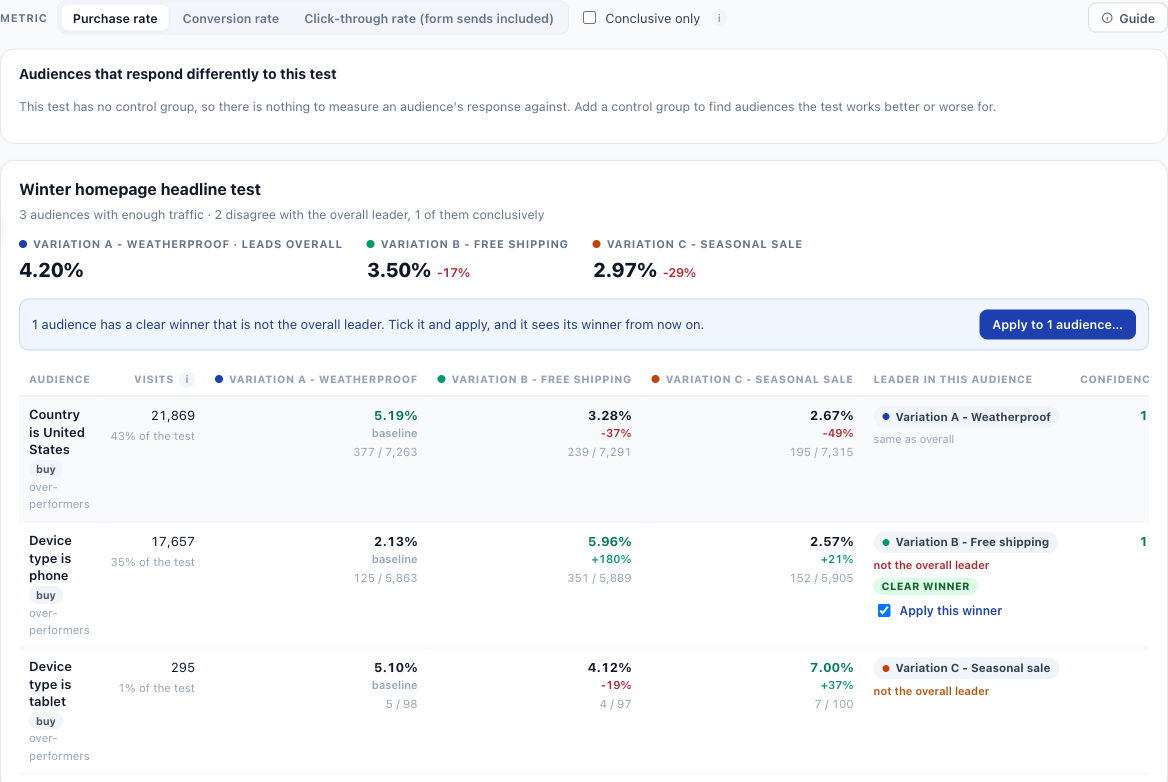
Reading the numbers: Audience Discovery on the Performance Metrics page explains every figure on this screen and how to read it.
What makes a Clear winner
From the panel: “Conclusive after the correction for how many audiences were asked, ahead in both halves of the days, and with enough sessions and conversions to mean it.” In plain terms:
- The correction. With many audiences, some look like winners by luck, so the bar rises with the number of audiences checked (a false-discovery-rate correction), at the test’s own significance setting — 95% unless changed.
- Both halves. The days of the range are split into two alternating halves (odd and even days), so each half spans the whole period, and the leader must be ahead in both.
- Enough data — as above.
- A different winner — the audience’s leader must differ from the overall leader.
Applying, step by step
- Tick the audiences you want: every row with a Clear winner has an Apply this winner checkbox (up to 10 audiences per campaign).
- The button above the table reads Tick the audiences to apply until you tick one, then Apply to 1 audience… — the number follows the selection.
- Click it. The confirmation, Apply the winners to their audiences?, lists exactly what will happen.
- Click Apply to 1 audience. Personyze checks the verdict again on the server before it writes anything; if the data no longer supports it, nothing changes.
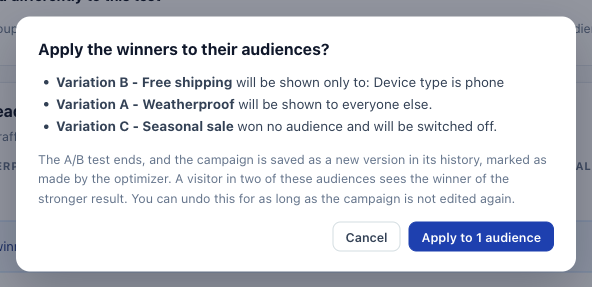
When the campaign has a control group, the confirmation can also say that some audiences are “Shown nothing, because the control group won them” — or that “Everyone else is shown nothing, because the control group won overall.”
What changes, and where to see it
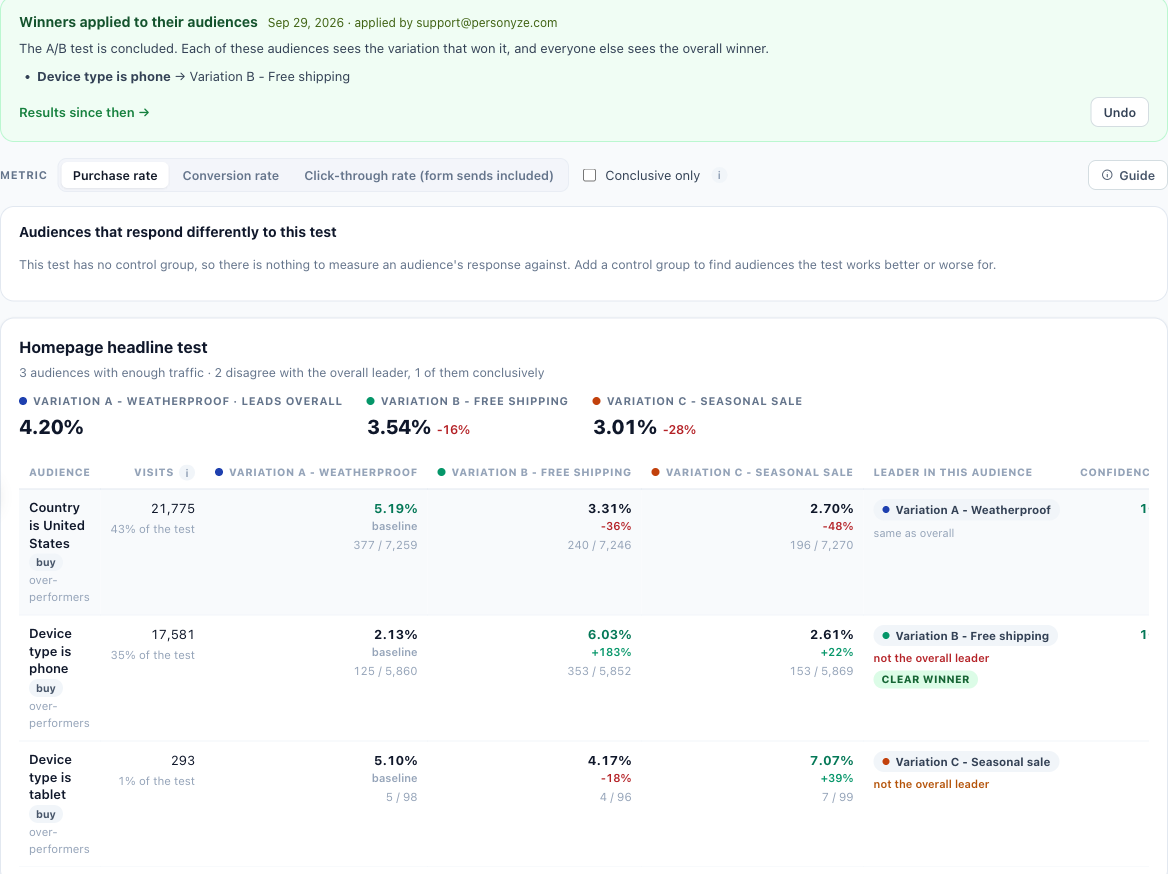
- On the report, a green banner: Winners applied to their audiences, with the date and who applied it, “The A/B test is concluded. Each of these audiences sees the variation that won it, and everyone else sees the overall winner.”, each audience with its version, Results since then → and Undo.
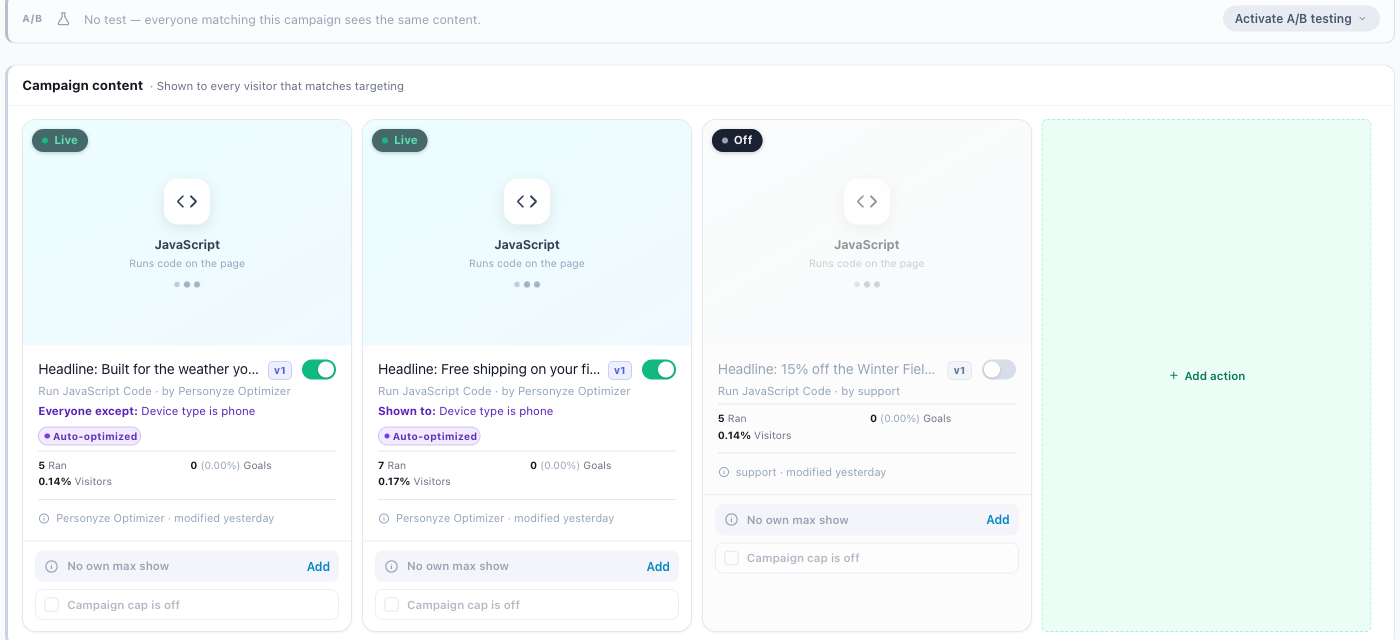
- In the campaign’s Content step, the A/B strip reads “No test — everyone matching this campaign sees the same content.”, and the campaign is at a new version signed Personyze Optimizer. Each kept card says who sees it, in purple under its type line: Shown to: Device type is phone on the audience’s winner, Everyone except: Device type is phone on the overall winner. Both carry an Auto-optimized tag. A version that won no audience shows the Off status.
- Inside an action, its Restrict to section (“Limit this action to specific pages.”) shows the page group the optimizer made, named after the audience (for example Shown to: Device type is phone), with Edit. That page group belongs to the action; it is not offered to other actions.
- In Performance, the date-range button Since winners applied shows the results after the change.
Undo
Click Undo in the banner, then confirm: “Undo puts the test back as it was: the variations rotate again and the audience page groups are removed.” Undo is available until the campaign is edited again. A campaign takes one apply at a time, so to add another audience later, undo first, then apply again with all the audiences ticked.
I see no Apply button
- Most often no row has a Clear winner: try a longer range, another metric, or wait for traffic.
- “No audience slices for this test in the selected range yet.” Audience Discovery is off, the test is too new (slices start the day after it runs), or the range misses it.
- “No audience has 20 visits in this test over the range yet.” Wait for traffic, or widen the range.
- When the campaign cannot take an apply, an amber bar says so — “1 audience has a clear winner, but it cannot be applied here.” — followed by the reason:
- Winners cannot be applied per audience on a landing-page campaign
- This campaign has changes waiting on staging — publish or discard them first
- This campaign has no A/B test running
- The winners were already applied to this campaign
- This campaign runs a multivariate test — winners can be applied per audience on an A/B test only
- Campaign … is not live, so it has no test to conclude
Questions
- Is it automatic? No. A person clicks Apply, and the server re-checks at that moment.
- Which numbers decide? The report’s metric and range when you click Apply; they are stored with the apply.
- A visitor in two audiences? They see the winner of the stronger result.
- Is history kept? Yes. The version the test ran on stays in the campaign’s history.
From switching on to applying: what you see at each stage
| Stage | What you do | What you see |
|---|---|---|
| 1. Switch on | Add-ons → Audience Discovery (trial or activate) | “No pass has run yet…”, then within about ten minutes the first audience cards |
| 2. Check the settings | Discovered audiences → Settings: the outcome to lead with (Automatic is fine) and the data the rules may use | The cards re-rank at the next pass |
| 3. Run an A/B test | Any campaign → Content → an A/B test with two or more versions, published live | Nothing new yet |
| 4. The next day | Audiences → A/B tests by audience → pick the test | One row per discovered audience with enough visits; mostly “same as overall” |
| 5. Data builds up | Wait: a Clear winner needs 200+ sessions per compared version and 10+ conversions, ahead in both halves | A Clear winner badge on a row, and the tick-and-apply bar |
| 6. Apply | Tick, Apply, confirm | The banner, the Shown to labels, the Off version, the new campaign version |
| 7. Measure | Performance → Since winners applied | Results after the change |
Related
- A/B testing — running the test in the first place.
- Audience Discovery — where the audiences come from.
- Audiences & targeting