
Connect your Magento store (Magento Open Source or Adobe Commerce 2.4) to Personyze, and keep Personyze in step with it: your products in the catalog that recommendations draw from, your orders as purchase history on each buyer’s profile, and your customers’ Magento data on their visitor profiles.
What it does
Three syncs, each switched on separately:
- Products into your catalog. Every enabled product that is visible in your catalog or search, every 6 hours: name, description, main picture, price and special price, brand, categories, and stock with the unit count. Recommendations, product widgets and catalog-based targeting use them right away. A product that leaves your store goes out of stock in the catalog.
- Orders into purchase history. Each order’s products become purchases on the buyer’s visitor profile, matched by their email — a profile is created for a buyer Personyze has not seen yet, guest checkouts included — at the order’s own date and amount. The first pass reads a year of orders; after that, new orders arrive every 15 minutes.
- Customers onto visitor profiles. Each customer’s name, customer group and the date they registered, on their profile, matched by email, every hour. They appear as visitor attributes you can target: Magento customer group, Magento customer since and Magento customer ID. For example: show trade pricing to visitors whose Magento customer group is Wholesale.
What you need
- Magento Open Source or Adobe Commerce 2.4 (or Mage-OS).
- A Magento admin user who can create integrations (System → Extensions → Integrations).
- Your store on a public https address. Personyze connects to your store’s API from the internet.
Step 1: Create the integration in Magento
- In your Magento admin, go to System → Extensions → Integrations → Add New Integration.
- Give it a name (for example “Personyze”), and enter your admin password to confirm.
- Open the API tab, set Resource Access to Custom, and tick:
- Catalog → Inventory — products, categories and stock. Tick Inventory itself, not only Products under it: stock is read through it.
- Sales → Operations → Orders → Actions → View — orders.
- Customers — customers and customer groups.
- Stores → Settings → All Stores — your store’s addresses and currency.
- Stores → Attributes → Product — brand names.
Personyze only reads; it never changes anything in your store.
- Click Save. On the Integrations list, click Activate next to the integration, then Allow.
- Magento shows four values: Consumer Key, Consumer Secret, Access Token and Access Token Secret. You enter all four in Personyze in step 2 — keep this window open until then, and keep the values safe.
Step 2: Connect it in Personyze
- In Personyze, go to Settings → Integrations and open Magento (under Platform & Developer).
- Enter:
- Store address — the address shoppers visit, for example
https://shop.example.com/. A store in a subfolder, likehttps://www.example.com/shop/, works too. Not the admin address. - The four values from step 1: Consumer Key, Consumer Secret, Access Token and Access Token Secret.
- Store address — the address shoppers visit, for example
- Click Connect.
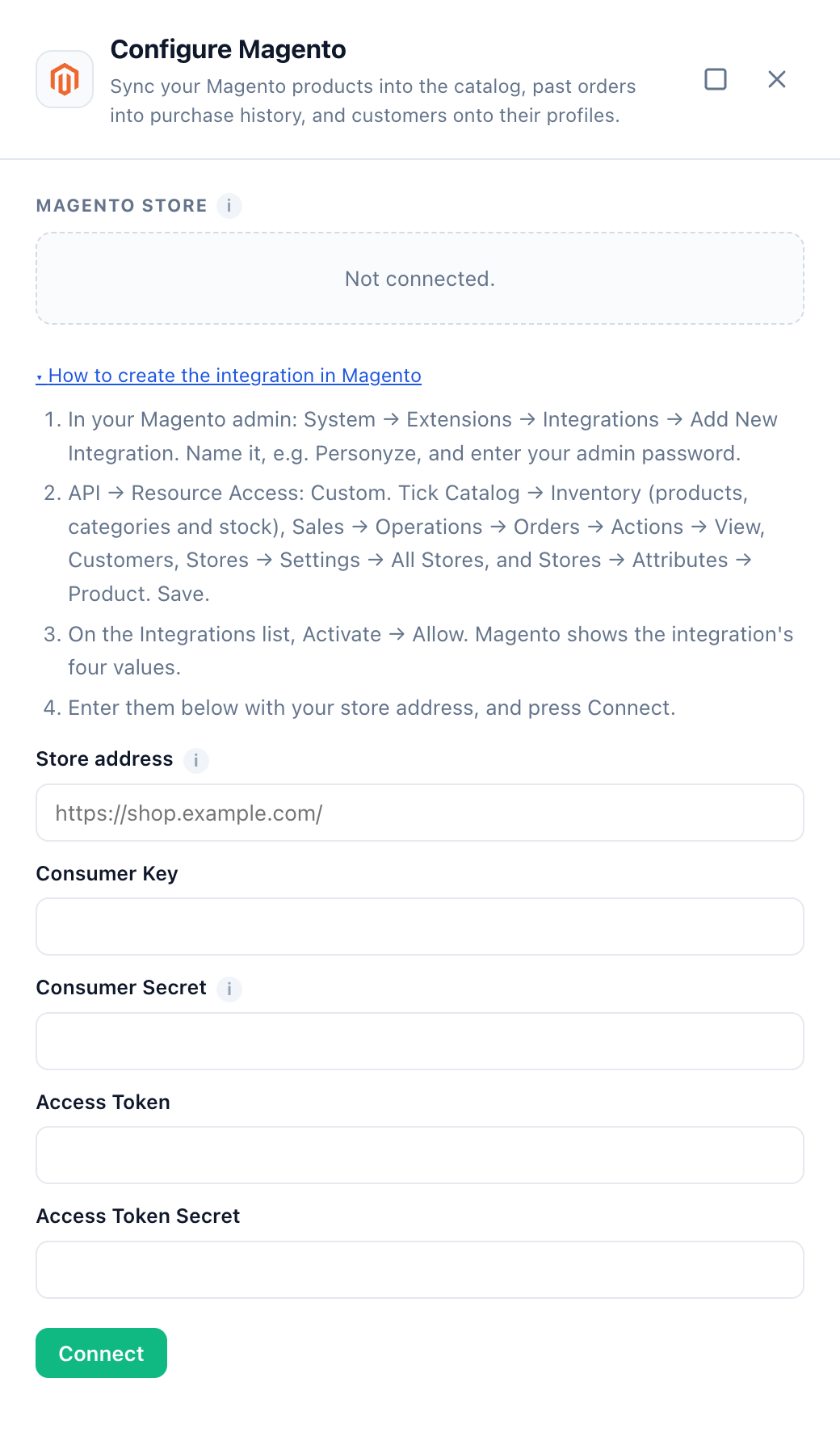
Personyze checks the four values with your store before saving them — values that do not work are never stored — and finds out which of the three syncs the integration may read. The three secret values are kept encrypted and never shown again: from then on their fields read “(unchanged)”. The drawer then reads Connected to your store.
To change something later, edit the fields and click Check and save. For the same store and Consumer Key you can leave the secret fields empty to keep the saved values.
Personyze signs every request with the integration’s four values (OAuth 1.0a), the way Magento expects an integration to. You do not need to turn on “Allow OAuth Access Tokens to be used as standalone Bearer tokens” in Magento’s OAuth settings.
Step 3: Switch on what to sync
Under What it syncs, switch on each sync you want: Products into your catalog, Orders into purchase history and Customers onto visitor profiles. Each row shows what it needs from the integration — Products, Orders or Customers — in green when the integration may read it, and in red, with “Not allowed for the integration”, when it may not (see Troubleshooting).
A sync you switch on reads “Starting within 5 minutes”. After a pass, each row says what it did, for example “7 products · Oct 1”, “8 purchases since Oct 1” or “3 profiles · Oct 1”. Sync now runs a sync on the next pass, within 5 minutes, without waiting for its schedule.
How the data is used
Products
Each product is one catalog item, identified by its Magento product ID. Its link is your store’s address, the product’s URL key and your product URL suffix (.html unless you changed it).
- Prices: a special price counts while today is inside its from/to dates, and only when it is lower than the price — then the price is the regular price and the special price is the sale price. Catalog price rules are not applied to the synced prices.
- Configurable products (for example a T-shirt in sizes) are one catalog item, with the lowest price of their enabled variants and their variants’ stock added up. The variants themselves (“Not Visible Individually”) are not synced as separate products.
- Stock: a product is in stock as Magento says; the unit count is kept only where Magento manages the product’s stock.
- Brand: your
brandormanufacturerattribute. - Categories: the names of the product’s categories.
- Disabled products, products not visible individually and products without a URL key are not synced.
- Up to 50,000 products are synced. A larger store has its first 50,000 synced, and the Products row says so.
Purchases
An order’s purchases are its products (a configurable product counts as the product, not its variant). Quantities that were cancelled or refunded are left out, and each line’s discount is subtracted from its amount. Cancelled orders, fully refunded (closed) orders and orders without an email address bring no purchases.
Product feeds
If your account also imports a product feed, a product in both can appear twice in the catalog. Keep one source per product — the Products row warns you when the account has a feed.
Disconnecting
Click the bin icon next to “Connected to …” in the drawer. Syncing stops; the products, purchases and profiles already synced stay. The integration stays in your Magento admin — delete it there if you no longer need it.
Troubleshooting
“There is no Magento API at …”
The address is not the store’s own. Enter the address shoppers visit, like https://shop.example.com/ — not the admin address.
“Magento did not accept these keys.”
Check that the integration is Active in Magento, and enter all four values again from the integration’s details. If you clicked Reauthorize in Magento, it issued a new Access Token and Access Token Secret — enter those.
“The integration may read nothing Personyze syncs.”
The integration has none of the resources in step 1. In Magento, edit it → API, tick them, Save, then Reauthorize and Allow, and enter the new values in Personyze.
A sync row is red and says “Not allowed for the integration”
In Magento, edit the integration → API, tick the resource the row names (see step 1), Save, then Reauthorize and Allow. Enter the new Access Token and Access Token Secret in Personyze and click Check and save.
“Personyze cannot connect to …”
Personyze reaches your store over the internet, on https only. A store on a private network or on plain http cannot be connected.
“The signature is invalid”, although the four values are right
Magento checks each request’s signature against the address it thinks it was called at. If your store sits behind a proxy, load balancer or CDN that ends https and passes plain http on to Magento, Magento must be told the request was https — through its offloader header, usually X-Forwarded-Proto: https, set by the proxy. A store whose secure pages work normally already has this. When you connect, this shows as “Magento did not accept these keys.”; during a sync, Magento’s own words — “The signature is invalid” — appear in the reason the drawer shows.
“The store redirected to …”
The address you entered sends visitors on to another one (for example from example.com to www.example.com). Enter the address it redirects to.
The drawer shows Magento’s refusal instead of “Connected to”
Magento refused the keys during a sync — the integration was deactivated, deleted or reauthorized. Personyze stops using the connection at once instead of retrying, and the drawer shows Magento’s reason where “Connected to” was. Enter the integration’s current four values and click Connect. A reconnected store keeps its syncs as they were.
Every product shows as in stock, with no unit counts
The integration may not read stock: tick Catalog → Inventory itself (step 1), reauthorize, and enter the new values in Personyze.
Prices differ from the storefront
Catalog price rules are not applied to synced prices; special prices are.
The store’s firewall blocks the connection
If your store sits behind a firewall that blocks automated requests, allow requests with the user agent Personyze/1.0 (+https://www.personyze.com).
Related
- Integrations — every other connection.
- Shopify Integration (connect by API) — the same three syncs for a Shopify store.
- WooCommerce Integration — the same three syncs for a WooCommerce store.
- BigCommerce Integration — the same for a BigCommerce store.
- Installing Personyze — the tracking code your storefront needs.
- Recommendations — Start Here — widgets built on the synced catalog and purchases.
- Setting the Product/Content Feed — the other way to fill the catalog.
- Targeting rules — targeting on Magento customer group.
- Troubleshooting: an integration stopped syncing