
A hosted landing page can be built around a form: a survey, a review form, a booking calendar or product recommendations, each a part of a page you design. The page is yours — any design, any element, a version for each kind of traffic — and every part keeps its whole editor: a survey’s questions and where its answers go, a booker’s meeting types, a recommendation’s algorithm and look.
Start a page of one kind
Three ways in, all to the same thing — a new Landing Page campaign that opens on the designs of that kind:
- New campaign: Surveys & feedback → A survey on a page of its own, Reviews & social proof → A review form on a page of its own, Meetings & booking → Your calendar on a page of its own, or Landing pages → A hosted landing page for any kind.
- From a campaign for your site: under the pictures on the Content step of a Surveys, Reviews, Product Recommendations or Meetings campaign, Or put a survey on a page of its own (… a review form …, … your calendar …, Or put recommendations on a page of their own). It starts a new landing page campaign; the campaign you came from stays as it is.
- In a new Landing Page campaign: the Content step opens on What the page is for.
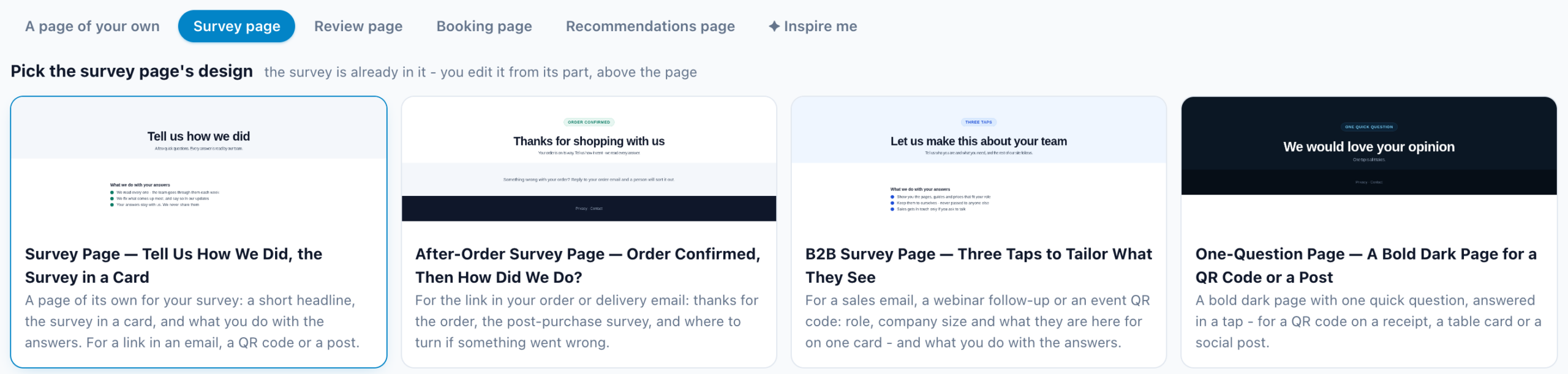
| What the page is for | What it starts with |
|---|---|
| A page of your own | How should the page start? — a Blank page, the newest landing page designs, and Browse template gallery. See Landing pages. |
| Survey page | Pick the survey page’s design: Survey Page, After-Order Survey Page, B2B Survey Page or One-Question Page, each with a survey already in it. |
| Review page | Review page, Reviews wall page or After-order review page, each with a review form in it. |
| Booking page | Booking page, Demo booking page or Consultation page, each with a booking calendar in it. Offered when the account has Meetings. |
| Recommendations page | The landing page designs or a blank page, with a recommendations part waiting in it for Choose a recommendations design. |
The kind only decides where the page starts. Any page can take more parts later, of any kind.
The page and its parts
Over a landing page’s editor sits a row: The page, a tab for each part (named after it), and + Add part.
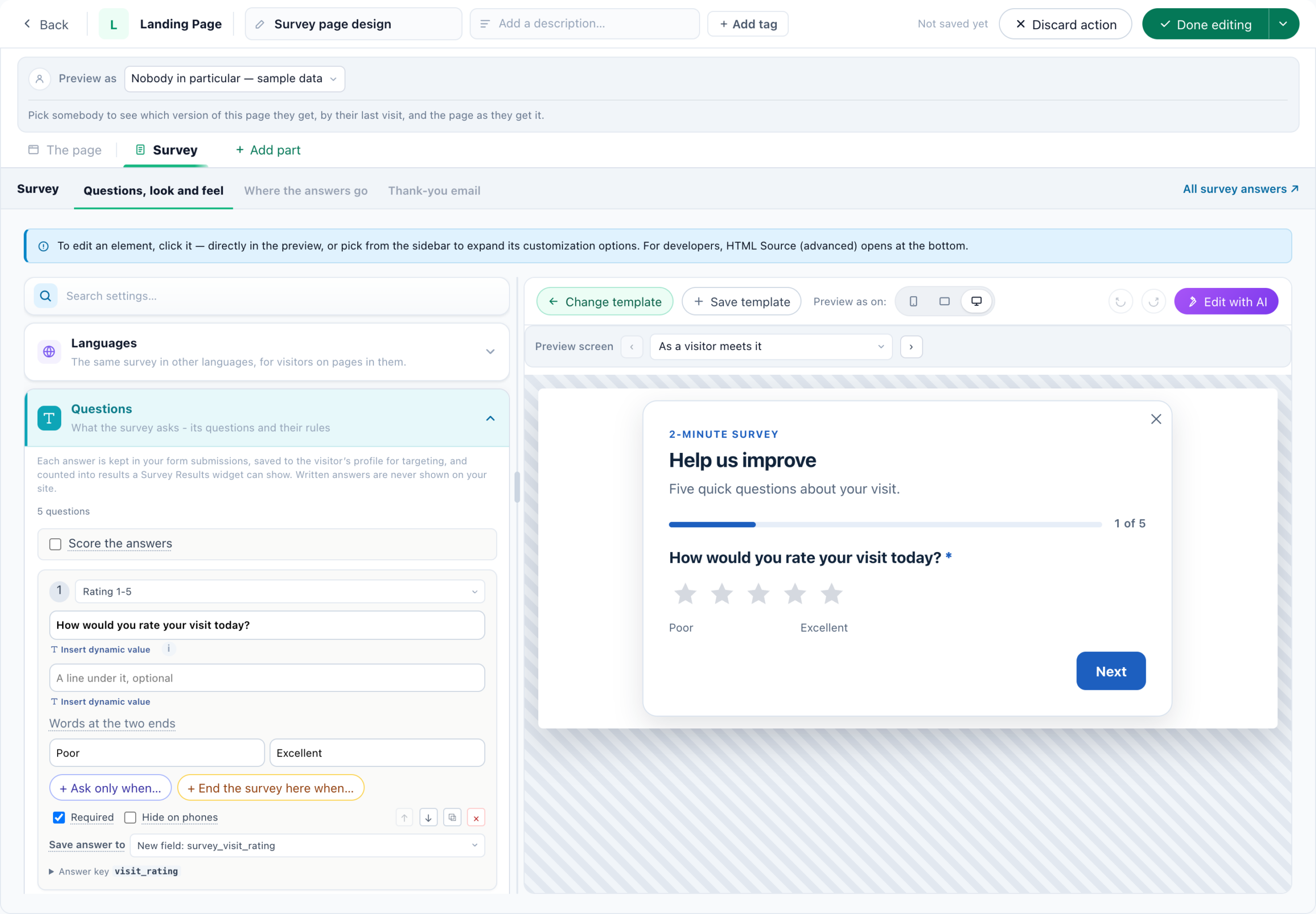
- The page is the page as a whole: its design, its versions and where each part sits on it. A part is moved by dragging its element on the page.
- A part’s tab opens its own editor in place, its steps as a small switch — every step the action has but placement, because a part’s place is the page. A survey shows Questions, look and feel, Where the answers go and Thank-you email; a calendar Set Up This Meeting and Where the booking goes.
- Beside the steps, a link opens the part’s account-wide settings in a new tab: All survey answers, Reviews settings, Meetings settings or Recommendation engine.
- + Add part asks What goes on this page? — A survey, A review form, A calendar (when the account has Meetings) or Recommendations. The part goes after the element selected on the page; then pick its design from that element.
- Each version of the page has its own parts.
The parts on the canvas
On a landing page, the Canvas element list has Survey, Review form, Calendar and Recommendations — the same parts, added from the page. A new one asks for its design: Choose a survey design, Choose a review form design, Create the calendar or Choose a recommendations design. Once it has one, Edit the survey (and so on) opens it in the row. On a landing page these take the place of the Canvas’s own booker and recommendations elements; a page that already holds one keeps it.
A survey or review form part is drawn on The page as visitors will see it. A calendar or recommendations part shows its place, filled on the live page.
What visitors get
- A survey behaves as a survey’s own page does: it never closes itself, a visitor who leaves halfway can continue where they left off, the thank-you offers Change my answers, and a link can prefill answers the same way (
?pz_f_<answer key>=, see Links with answers or tags in them). Its answers count when the survey is sent, and go where the survey’s answers always go. - A review form: every review goes to your Reviews page.
- A calendar: visitors book with your hosts, at their hours; each booking counts for this campaign.
- Recommendations: products picked for each visitor.
A part shows only on its page, never on your site.
Emails that open the page
- Survey by email — its Which survey step lists the survey parts of your landing pages, with the page’s address. A tap on an answer opens the landing page with that answer chosen, counts the email’s click, and saves the answer on the recipient’s profile. See The Survey by email action.
- Ask for a review by email — when its Review Form is a part of a landing page, a tap on a star opens that page with the stars picked. See Review form.
Popups on the page
Add a popup to this page adds a popup, banner, countdown or the like that opens over this page only — see Popups on the page.
Results
A landing page that holds a part has tabs on its Performance step: General (the page’s own numbers, where the step opens), then Surveys, Reviews, Meetings and Recommendations, as the page holds them — each the same report those campaigns have. A page with no part keeps its one view. Survey answers are also in the survey reports, and reviews on the Reviews page.

Address and add-ons
- The page is a landing page: it needs the Hosted Landing Pages add-on, and is served at the campaign’s Page URL — your own domain or your account’s default address.
- A survey or review form part needs the Reviews & Surveys add-on, as a survey or review form anywhere does. A calendar part needs Meetings.
Related
- Landing pages — the address, versions, A/B tests and popups of every hosted page
- A survey’s own page, QR code and survey emails — a survey on a plain page of its own
- A booking page of its own — the booker on a plain page of its own
- Surveys — building the questions
- Review form
- Book a meeting — meeting types, hosts and hours
- Canvas Builder — the elements a page is designed from