
A visitor about to leave your pricing page is asked why — and each reason gets its own next step: a demo for the unsure, a free two-week trial for the ones for whom the price is the question, and a friendly goodbye for people just looking. Personyze runs this survey on its own pricing page. It uses most of what a survey can do, so it is a good one to copy.
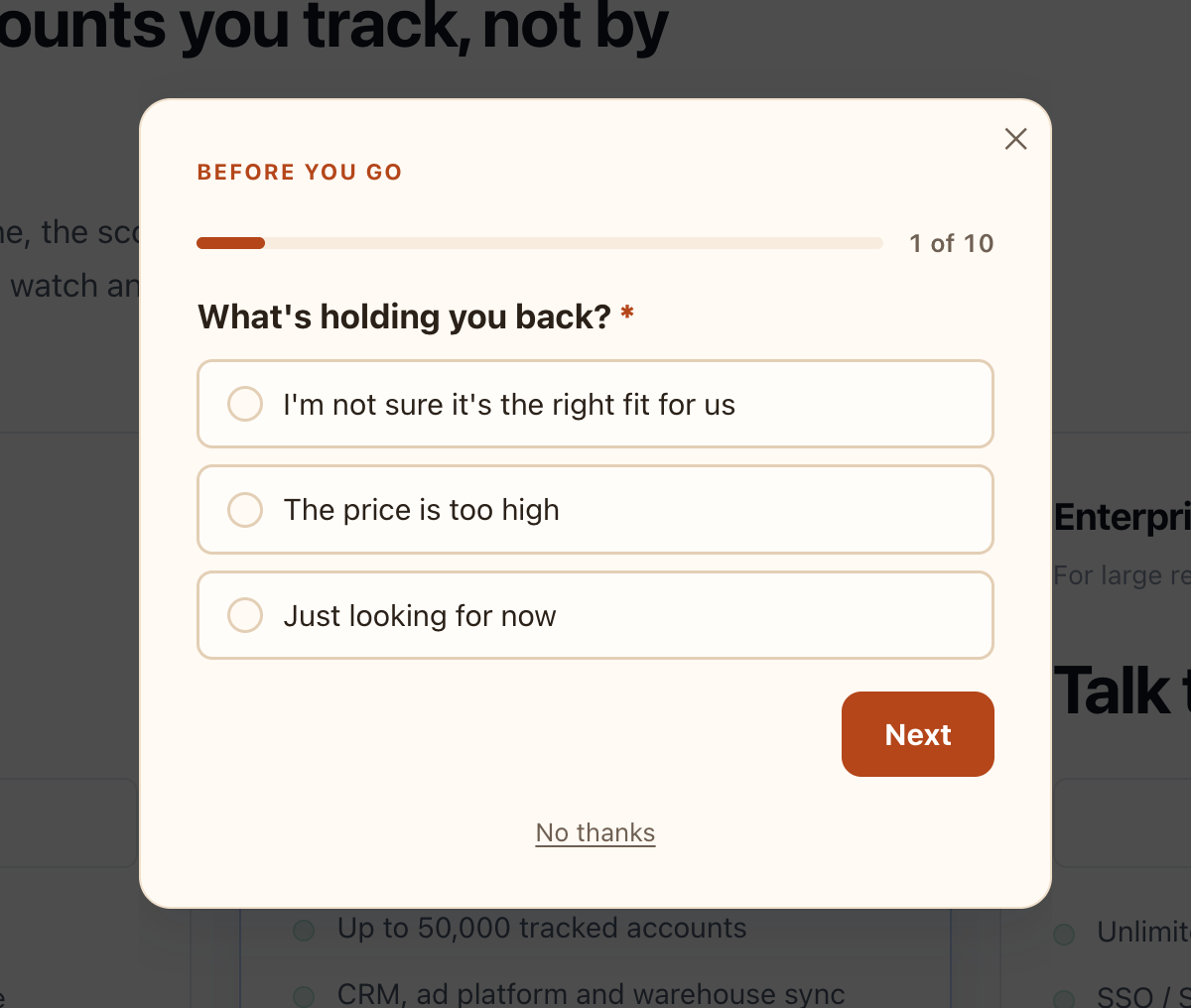
The questions and their logic
Nine questions, but no visitor sees more than a few: each answer decides what comes next.
| # | Question (kind) | Asked only when | Ends the survey when |
|---|---|---|---|
| 1 | What’s holding you back? (One choice): I’m not sure it’s the right fit for us / The price is too high / Just looking for now | — | Just looking for now: “Thanks for stopping by — the Free plan is here whenever you’re ready.” |
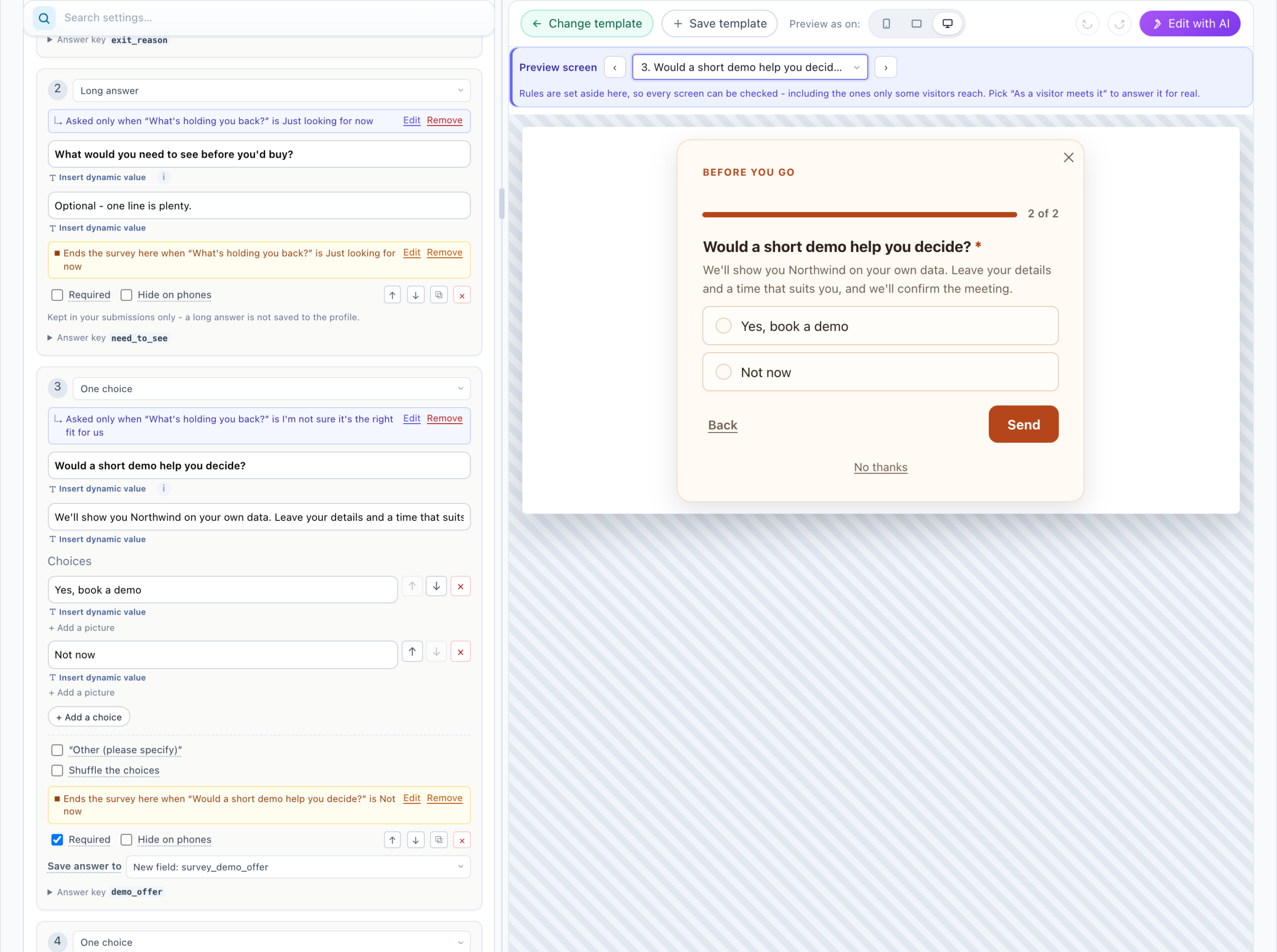
| 2 | Would a short demo help you decide? (One choice): Yes, book a demo / Not now. Line under it: “We’ll show you Personyze on your own site. Leave your details and a time that suits you, and we’ll confirm the meeting.” | Q1 is I’m not sure it’s the right fit for us | Not now: “No problem — thanks for telling us.” |
| 3 | Which monthly budget would work for you? (One choice, optional): three budget bands — Our entry plan or less / Between our plans / Above our top plan — and Not sure yet | Q1 is The price is too high | Our entry plan or less or Not sure yet: a thank-you line with a code for two free weeks on any paid plan |
| 4 | Try it with us: a free two-week proof of concept? (One choice): Yes, let’s set it up / Not now. Line under it: “We will set up your first campaign with you and open the plan you choose — free for two weeks.” | Q3 is Between our plans or Above our top plan | Not now: “No problem — thanks for telling us.” |
| 5–7 | Your work email, Your name, Company name (Short answer) | Q4 is Yes or Q2 is Yes (Any one of these is enough) | — |
| 8 | When would suit you for the demo? (Short answer). Line under it: “A day, a time and your time zone — we’ll confirm by email.” | Q2 is Yes, book a demo | When answered: “Thanks! We’ll email you to confirm your demo time.” |
| 9 | Company website (Short answer) | Q4 is Yes, let’s set it up | — the survey’s normal thank-you: “We’ll be in touch shortly to set up your free two-week proof of concept.” |
Write the budget choices in your own price points — the bands only need to match where your plans start and end. The three paths a visitor can take:
- Not sure it fits → demo? → email, name, company → a time for the demo.
- The price → budget → a free-weeks code for a small budget, or a proof-of-concept offer → email, name, company, website.
- Just looking → a goodbye, one question in.
Setting it up
- New campaign → Surveys. On the Content step, Add action → Survey, and pick the gallery design Exit Survey — What Held You Back? For B2B and Services.
- In Questions, look and feel, change its questions to the nine above: + Add a question for each, its kind, its choices, and the line under it. In Question Layout, set Layout to One question at a time.
- Add the logic under each question: + Ask only when… for the third column, + End the survey here when… with its Thank-you line for them for the fourth. For questions 5–7, add two conditions and choose Any one of these is enough. See Survey logic.
- For Company name and Company website, set Save answer to to your existing company and website visitor attributes, so later campaigns can use them. For What’s holding you back?, choose Create a new attribute…, so a follow-up campaign can target the reason. The other answers stay with the survey: Survey only – not on the visitor profile is the default.
- In Placement, Trigger & Frequency: a Floating popup at the Center with Modal backdrop on; under When it opens, On exit intent with both Desktop — cursor leaves and Mobile — Back tap; and under How often, a cap so each visitor is asked once.
- Set up Where the answers go (below).
- On the Target step, add Pages Visited for the current page, with the address containing your pricing page’s path.
- Check every branch (below), then publish.
Where the answers go
Every answer is in the Surveys report, and the three saved in step 4 are on the visitor’s profile. The leads also go straight to sales: two Email me rows to the sales inbox, each with Only when…, so each fires only for its own lead.
| Row | Only when… | Subject |
|---|---|---|
| Email me | Q4 is Yes, let’s set it up | Free POC request (pricing page) - ${survey_poc_company} |
| Email me | Q2 is Yes, book a demo | Demo request (pricing page) - ${survey_poc_company}, with “Preferred time: ${survey_demo_when}” in the message |
${survey_<answer key>} puts an answer into an email’s subject or message. The same rows could go to HubSpot, Zapier or a Custom webhook — those take Only when… too. Make Your work email an Email question, and the same leads can reach Salesforce, Oracle Eloqua or Klaviyo, with the address as the submission’s email. Send test to all destinations picks a test answer that sets each row off, and says whether it did. See Where survey answers go.
Checking every branch
Above the preview, use the Preview screen dropdown instead of answering the survey nine ways. Pick 3. Which monthly budget… to see a question only some visitors reach (marked “· only for some”), and each After question {n} entry under Thank-you screens to read every early ending. Set it back to As a visitor meets it to answer the survey for real, with the rules on. Nothing is saved by picking a screen.
Before it goes live, check it on the page itself with a QA session.
One survey in every language
A site in several languages needs one survey. In step 1’s Languages section, add each language with the start of its pages’ address — /nl, /es — and write its questions, choices and endings, or let Translate with AI fill them in. Every language asks the same questions with the same logic, sends its leads through the same two rows, and counts in one report. See Languages.
What happens next
The answers saved to the profile keep the survey working after it closes:
- A follow-up campaign can target the reason — the attribute made in step 4 — with the User CRM/ABM/Profile rule — a case study for visitors who were not sure it fits, a plan comparison for “The price is too high”. See Targeting rules.
- The company and website answers join the visitor’s company and website, for every campaign that uses them.
- The Surveys report shows which reason is most common, and where visitors stop.
Related
- Surveys
- Survey logic — asking only some visitors, ending early
- Where survey answers go
- Survey reports and the AI summary