
Show Reviews puts reviews from the Reviews page on your site — and not the same ones for everybody: this product’s reviews on a product page, a case study from the visitor’s industry, testimonials from their country.
On personyze.com: Reviews and testimonials, matched to each visitor →
Video: the Reviews walkthrough (2:29) shows a Show Reviews widget built for a product page, start to finish.
Adding it
In a campaign’s Content step, Add action → Reviews → Show Reviews, and pick a design: Review Cards, Review Slider, Product Reviews or Testimonial Wall. Three steps follow: Which reviews, Customize look and feel, and Placement, Trigger & Frequency.
Which reviews
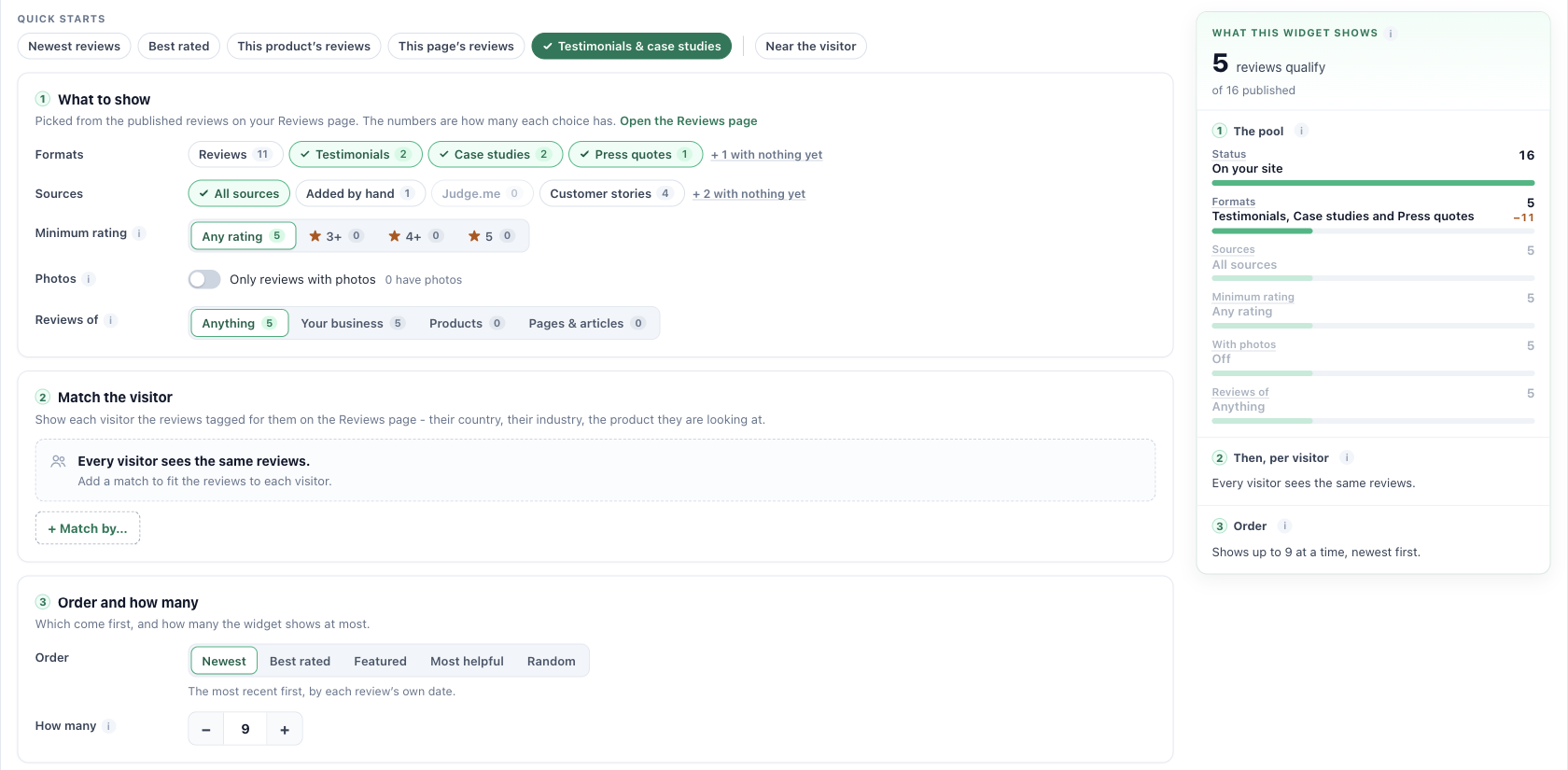
Quick starts
Newest reviews, Best rated, This product’s reviews, This page’s reviews, Testimonials & case studies, and Near the visitor. Near the visitor adds to whichever quick start is on: it hides reviews tagged for another country and puts the ones for the visitor’s own region first. A quick start you then change reads “· edited”.
1 What to show
- Formats — reviews, testimonials, case studies, press quotes, social posts.
- Sources — All sources also includes platforms you connect later.
- Minimum rating — any minimum also hides reviews with no rating, which includes most testimonials and case studies.
- Only reviews with photos.
- Reviews of — anything, your business, products, or pages & articles.
Each option shows how many published reviews it has. Options with none yet are folded behind “+ N with nothing yet”.
2 Match the visitor
Click + Match by… to fit the reviews to each visitor, by what the reviews are tagged with under Who it is for: the product on the page, the last product bought, country, region, city, industry, company size, page, website, gender, interests, categories, or your own fields. Each match has a strength:
| Strength | What the visitor sees |
|---|---|
| Matches first | Matching reviews first; untagged ones and ones tagged for someone else fill the rest. |
| Hide others | Reviews tagged for someone else are hidden; matching and untagged ones show. |
| Only matches | Only matching reviews. A visitor nothing matches sees none. |
The menu separates the fields your reviews are tagged with from fields no review carries yet — a match on those changes nothing until you tag reviews with them.
3 Order and how many
Newest, Best rated, Featured, Most helpful or Random, and how many to show — up to 24 at a time.
What this widget shows
The panel on the right counts the reviews that qualify as you change settings: the pool filter by filter, with what each one removed; what happens per visitor; and the order. With an Only matches rule it adds how many each visitor sees at most. When nothing qualifies it turns red and names the setting responsible.
Look and feel
On each card: photos, the date (in the page’s language), “via” and the platform’s name, the platform link, your reply, the verified-buyer label, the product or page name, and the text length. The overall-rating line reads like “4.8 from 1,234”, with a number style of your choice (1,234 / 1.234 / 1 234).
Pick a real visitor under Preview as, above the preview, and Why these reviews lists which of their fields each review matched — see Preview as a Visitor.
Related
- The Reviews page — tagging reviews with who they are for
- Review Form — collect new reviews under the ones you show
- Reports — Seen, Engaged, Converted
- Troubleshooting — a widget that does not appear