
The Promotions list holds every offer your store runs — image banners, text promotions and coupons — each with its dates, the pages it belongs to and who may see it. A Promotions campaign puts them on your site, and an algorithm picks which one each visitor sees. Open it from the left menu: Promotions → Promotions.
On personyze.com: AI Promotions — the right offer and coupon for every visitor →
Watch the 1:45 walkthrough: the Promotions list, adding a promotion for the Knitwear category by hand, uploading a file or reading a feed, and coupons with a code for each visitor.
The list
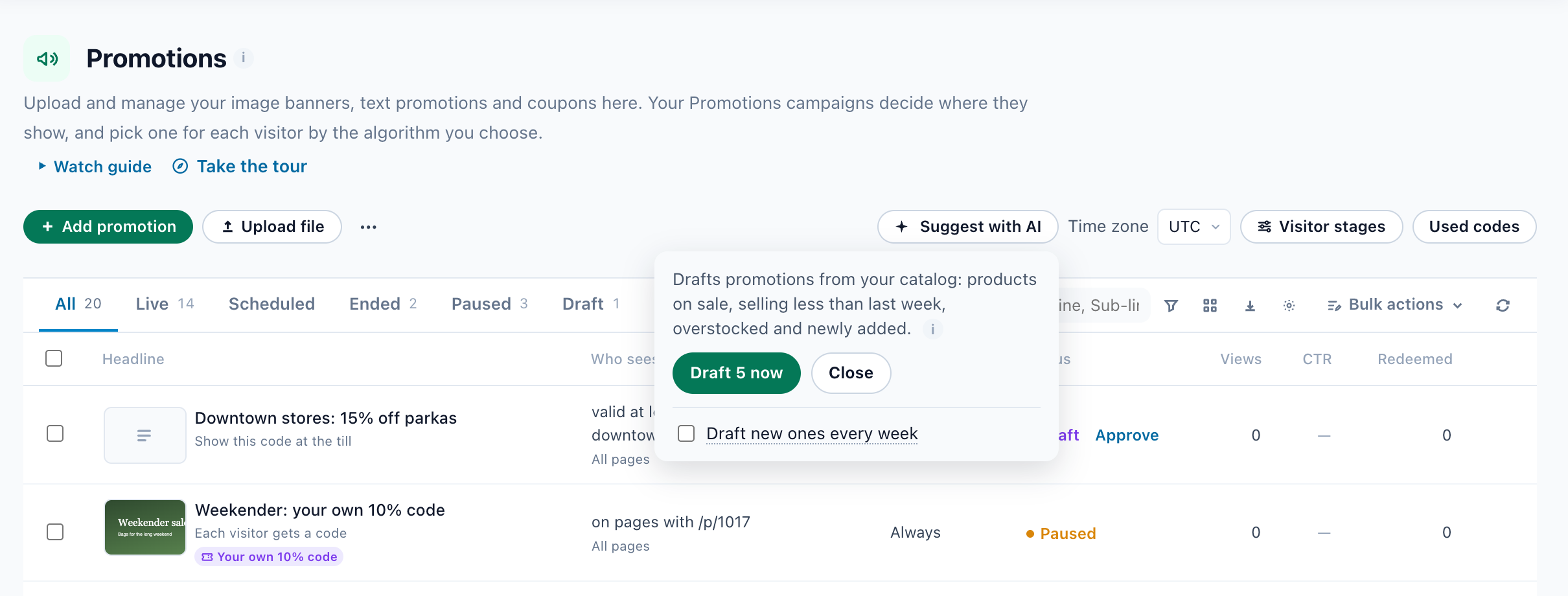
Above the table: Suggest with AI (see AI drafts), Upload file, Add promotion, Download template, the Time zone every date is read in, Visitor stages (see Who sees it) and Used codes (see How a code counts as redeemed). The tabs filter by status: All, Live, Scheduled, Ended, Paused and Draft.
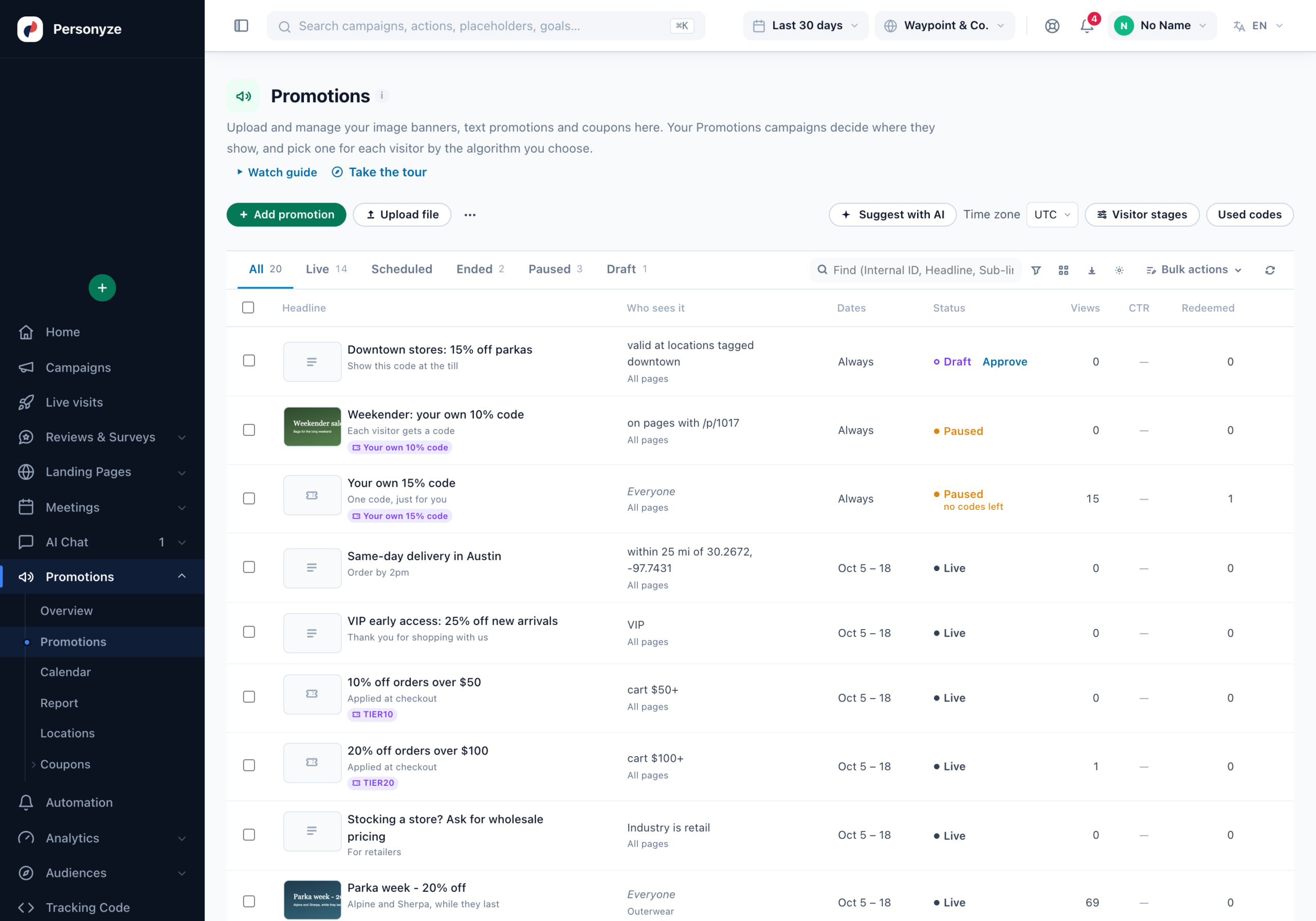
| Column | What it shows |
|---|---|
| Image | The promotion’s picture, or an icon of its type when it has none. |
| Headline | The headline and the sub-line under it, with the type’s icon. |
| Categories | The page categories it belongs to. All pages when it has none. |
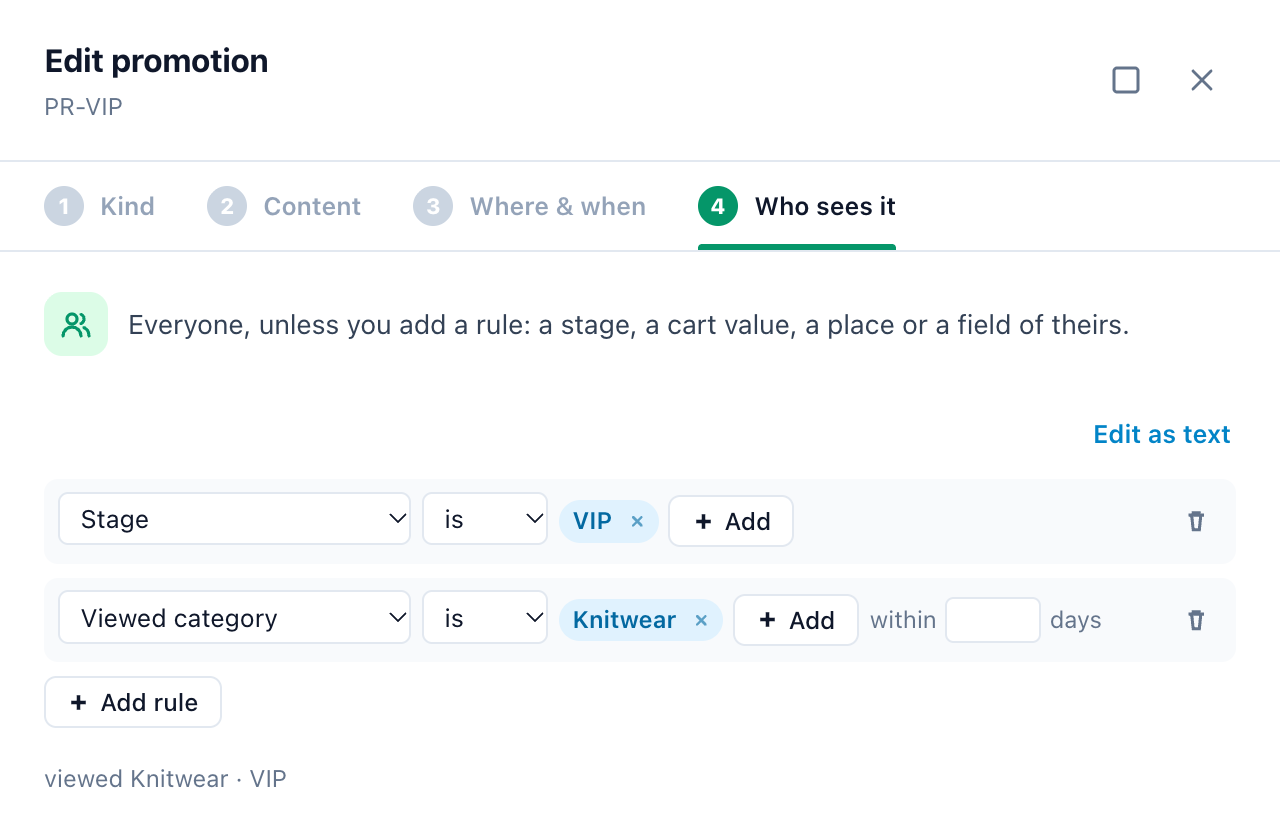
| Who sees it | Its rules in words, such as viewed Knitwear · VIP. Everyone when it has none. |
| Dates | From its start to its end, in the account’s time zone. Always when it has neither. |
| Languages | Every language the promotion has a row in (see Language and Promotion key). |
| Status | Live, Scheduled, Ended, Paused or Draft, and the pauses below. A draft has an Approve button beside it. |
| Views, CTR, Redeemed | The last 30 days. CTR is shown from 100 views; fewer is noise. |
Columns adds any other field to the table — Internal ID, Promotion key, Type, Priority, Sales boost, the coupon code and the rest. The same section of the left menu has the Overview, the Calendar and the Report — see the dashboards. Its Locations item holds your stores and branches, for the Show Store widget and Coupon Near You — see Locations.
Promotions that pause themselves
| Status | Why, and what brings it back |
|---|---|
| Paused out of stock |
Every product in its Promotes field is out of stock in your product catalog. It comes back by itself on restock. A promotion that names no products never pauses for stock. (The widget’s Pause when out of stock switch is on by default.) |
| Paused no codes left |
Its coupon’s code pool has handed out its last code. New visitors are not shown it until you add codes to the coupon. |
| Paused limit reached |
It reached one of its Limits: redemptions, clicks or its discount budget. A daily limit starts again at 00:00 UTC. |
| Paused | You set Active to Paused. Shown to nobody until you set it back to Live. |
The automatic pauses are under the Paused tab, and the Overview lists them under Needs attention.
Adding a promotion
Add promotion opens the editor. Its steps: Kind, Content, Codes (coupons only), Where & when and Who sees it. Save promotion adds it to the list, and the campaigns start offering it from its start date. Click any row to open it in the same editor.
Kind
| Kind | What it is | Needs |
|---|---|---|
| Image banner | A picture with your words on it — for a hero, or the top of a category page. | A picture and a link. A phone picture and a code if you like. |
| Text promotion | A line of words with a button — for a top bar, or a strip between sections. | A headline and a link. No picture. |
| Coupon | A card with a Copy code button. | A headline, a link and a coupon from Coupons — one code for everyone, a list, or a code made for each visitor. |
Content
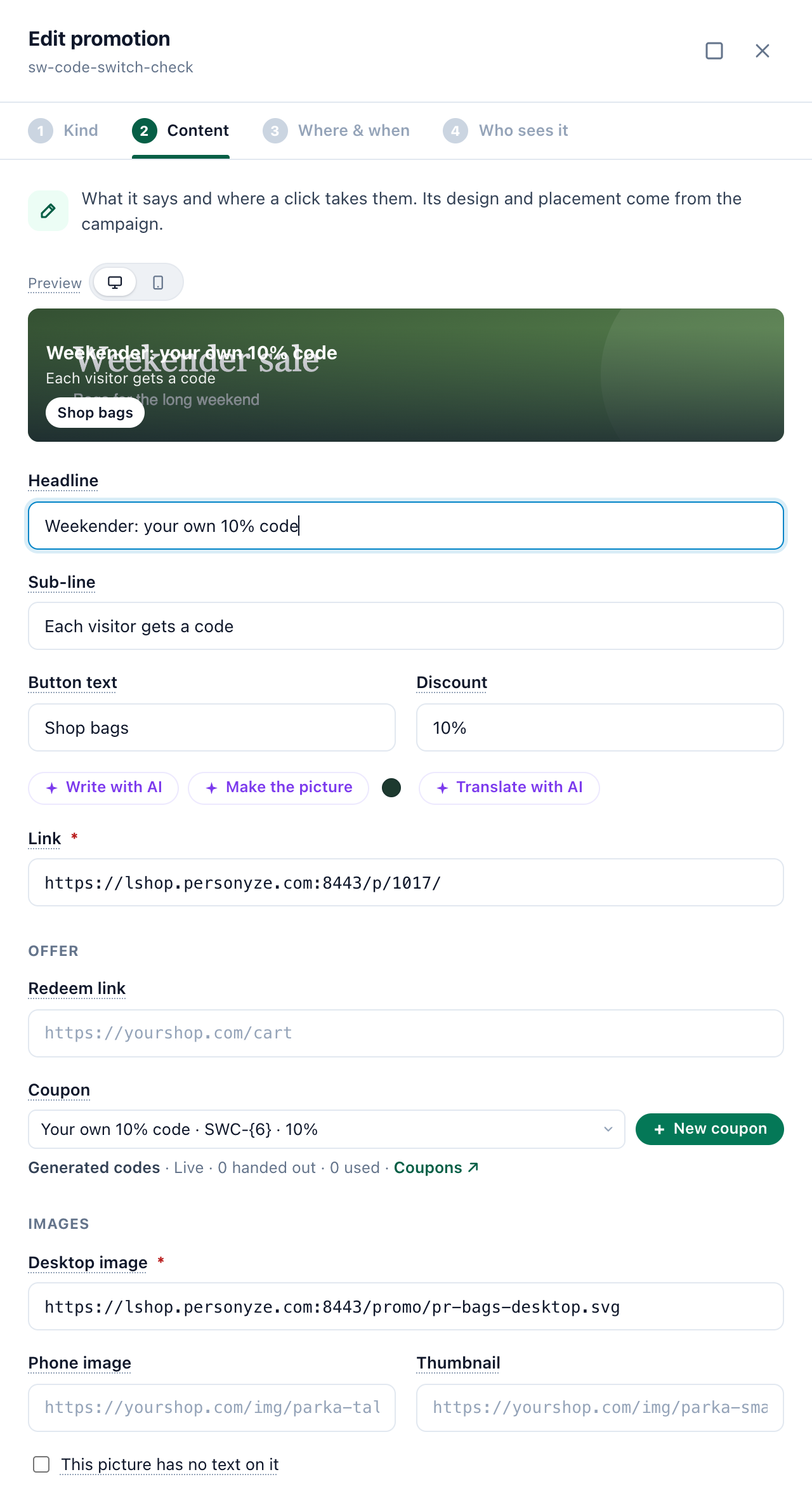
- Headline — 60 characters or fewer: most designs cut a longer one. Sub-line — one short line under it.
- Button text and Discount — the discount as visitors read it, such as 20%.
- Write with AI writes the headline, the sub-line and the button from the type, discount, categories and link, and offers other headlines. Test them as variants adds them as drafts; once approved, each visitor gets one headline and the better-clicking one is shown more. Translate with AI adds a row in each language you pick, also as drafts. Nothing the AI writes goes live until you save or approve it.
- Link (required) — where a click goes: a full address, or a path on your site such as /sale.
- Coupon code and Redeem link (image banners and text promotions) — any promotion can carry a code; the store reports it used, which counts as redeemed. An image banner can pick a Coupon instead, so each visitor gets their own code on the banner, with a Copy button. The redeem link applies the code for the visitor, such as your store’s discount link; see Auto-apply a coupon code at checkout.
- Desktop image, Phone image and Thumbnail (image banners) — image addresses. Without a phone image, phones get the desktop one. Make the picture makes all three for you — see Make the picture.
- This picture has no text on it — tick it when the words are not part of the picture: every design then prints the headline, sub-line and button over it. Pictures made with AI are ticked for you.
Where & when
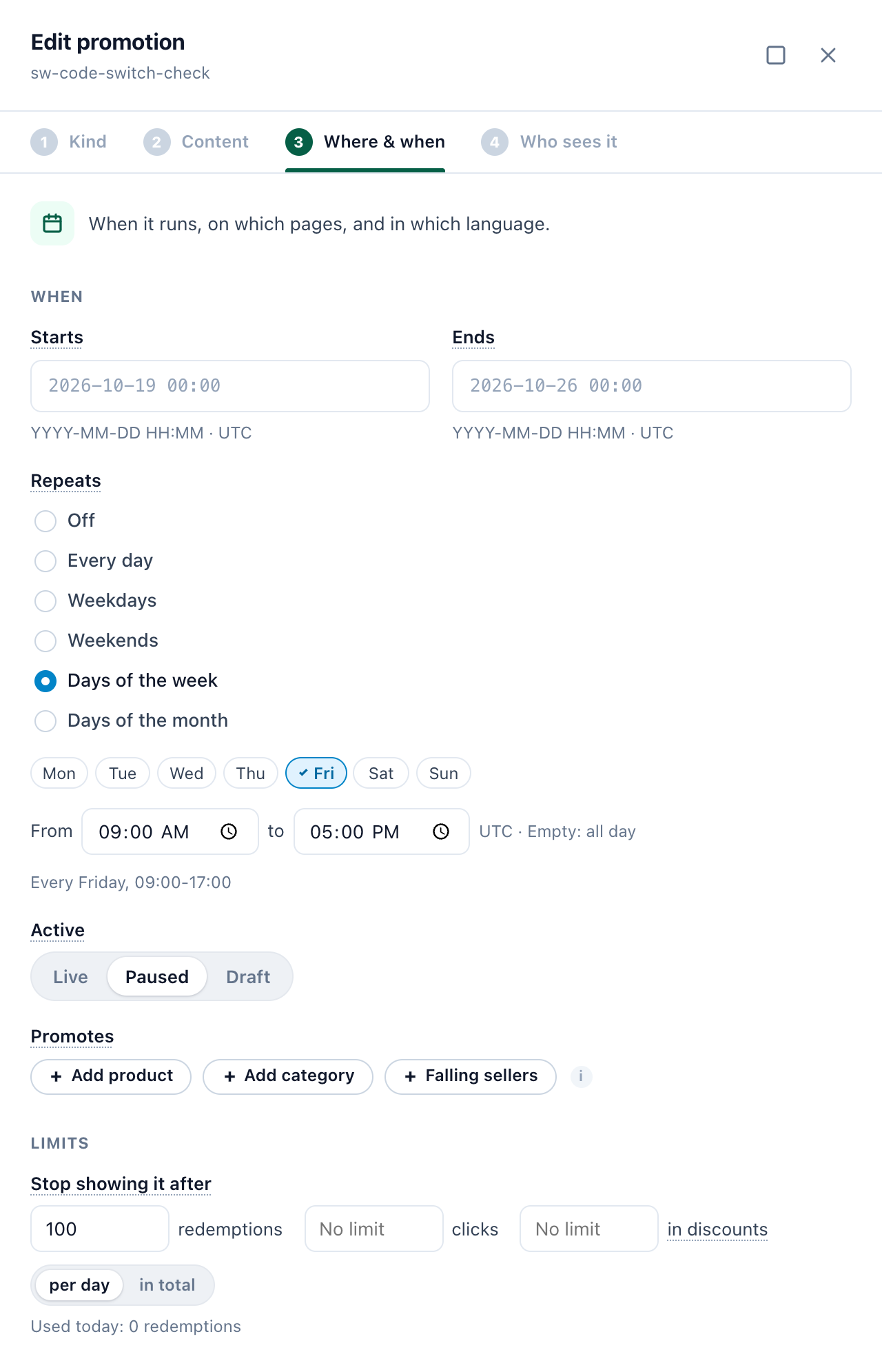
- Starts and Ends —
YYYY-MM-DD HH:MMin the account’s time zone. No start: live as soon as it is saved. No end: it runs until you pause it. - Active — Live (shown between its dates), Paused (shown to nobody) or Draft (waits for your approval).
- Promotes — the products or categories it sells, picked from your catalog. When none of them is in stock, it pauses. Falling sellers fills it at serve time — see Falling sellers.
- Repeats and Limits — days and hours inside its dates, and when to stop showing it — see Limits and repeats.
- Categories — the pages it shows on: those of the categories you tick (Knitwear in the video). None: it shows on all pages.
- Language — visitors whose browser is in this language get it: pick one from the list (or type a code such as fr), or All languages. Promotion key — rows that share a key are one promotion: its translations and variants.
- Which shows first — Priority (a higher number pushes it up among the promotions that fit the same place) and Sales boost (moves it up while sales trail last week’s, in widgets with the boost on; Type default is on for coupons and rows with a discount).
- Advanced — the Internal ID, made from the headline unless you set one. An upload row with the same ID replaces the promotion.
Limits and repeats
Both are on Where & when.
- Repeats — runs only on these days and hours, inside its Starts and Ends: Off, Every day, Weekdays, Weekends, Days of the week or Days of the month (with Last day for the end of every month), each From a time to a time — empty: all day. In the account’s time zone; hours past midnight run into the next day. Every Friday 9:00–17:00 is Days of the week, Fri, 09:00 to 17:00.
- Limits — Stop showing it after a number of redemptions, of clicks, or an amount in discounts, per day or in total. Each is optional; the first reached stops it, and the list says Paused · limit reached. Under the boxes: what was used so far, or today. The discount budget is estimated from the Discount box — an amount times the redemptions, a percent times the average order — so it needs an amount or a percent there. Counted every 10 minutes, so a promotion can run a little over; a day is a UTC day.
A change reaches your site within about 10 minutes.
Falling sellers
In Promotes, Falling sellers makes a promotion of the products whose sales fell 30% or more on last week. Each visitor sees the one that fits their page or interests — its picture, name, price (a sale price with the old one struck) and page — and a product drops out by itself once its sales recover. The headline is then your name for it in the panel; the row needs no link or picture of its own. Why this banner names the product and its fall.
Who sees it
Everyone, unless you add a rule. Add rule gives a line of pickers: a field, is or is not, and its values. Lines must all be true; the values in one line are alternatives. The rules are read back in words under them. Edit as text shows them as Name: value lines.
| Rule | Matches |
|---|---|
| Cart value | At least, or at most, a set amount in the cart. |
| Country, State or region, Near a city | Where the visitor is — near a city within a distance you set. |
| Viewed category, Viewed product, In cart | What they looked at (optionally within a number of days) or have in the cart. |
| Bought product, Bought from category, Spent to date | What they bought, and how much in total. |
| Stage | New, Returning, Subscriber, First-time buyer, Repeat buyer, VIP or Lapsing. |
| Visits, Days since first visit | At least a number of visits, or days since the first one. |
| After another promotion | They redeemed, clicked or saw another promotion first. |
| Pages, Device, Source | The page, phone/tablet/desktop, and where their first visit came from. |
| Any visitor field | Every field on the visitor’s profile, including the ones from your CRM — e.g. Industry is retail. |
| Valid at | Not who sees it, but where the offer is good: every location, locations tagged some tags, or these locations of your Locations list. Only the Nearest location’s offer algorithm reads it — see Coupon Near You. |
Visitor stages, above the list, sets once for every promotion what VIP (VIP: spent at least) and Lapsing (Lapsing: no visit for so many days) mean. These rules choose among promotions; to decide where a campaign appears at all, use its targeting rules.
AI drafts and Make the picture
Suggest with AI, above the list (and beside Add promotion in a Promotions campaign), drafts promotions from your catalog: products on sale, selling less than last week, overstocked, and newly added.
- Draft 5 now — about half a minute. Each draft is an image banner for one product: its headline, sub-line and button written by AI, a picture made from the product photo, its page as the link and its categories as the pages it shows on. It never adds a coupon code.
- Draft new ones every week — up to 3 drafts a week, from products not suggested before.
- Drafts wait under the Draft tab: nobody sees one until you Approve it. Each says why it was suggested — “Suggested by AI: on sale, 20% off”, “its sales fell from 14 to 6 orders a week” — for you only, never for visitors.
Make the picture
On an image banner’s Content step, Make the picture makes a desktop, a phone and a thumbnail picture from the photos of the products it promotes — with none picked, of its categories’ products, or of the product or category its link is to. The products are cut out of their photos and set on your colour, with room for your words and the discount as a sticker. The dot beside the button picks the background: Brand colour (from your Site profile, else your AI Chat’s colour), From the photos, or Other colour. The pictures are saved to your media library; save the promotion to keep them.
Drafts and pictures use your account’s AI credits, as Write with AI does.
Uploading a file, a feed or Shopify discounts
- Download template — a CSV with every column and one row of each kind.
- Upload file — a CSV, TSV or Excel (XLSX) file. Map its columns, and check the preview: every row is checked as the editor checks it (a picture for an image banner, a link, dates in order, a code for a shared coupon, categories your site already has), and a refused row is listed with its reasons. Only Link is required. A row whose Internal ID is already in the list replaces it; a row without one gets one made from its headline, type and language, so the same file uploaded again updates those rows.
- Coupons, limits and repeats in a sheet —
coupon_idpicks a coupon from Coupons, by its number or its name;limitstakes the Limits in words, e.g.Redeemed: 100; Per: day;repeatsthe Repeats, e.g.WeekendsorFri 09:00-17:00. - Who sees it in a sheet — a column per rule:
Min cart,Max cart,Country,State,Near,Viewed category,Viewed product,In cart,Bought product,Bought from,Stage,Visits,Days since first visit,Spent to date,After,Pages,Device,Source,Valid at— or a visitor field by its title. For exampleStage=VIP,Near=Austin, TX; 25 mi.Valid attakesall,tagged downtown, mallor Store codes such asS12, S14; a code or a tag your Locations list does not have refuses the row. - A feed — enter a feed address instead of a file and keep it as a recurring feed: it is read again on a schedule and listed under Active feeds. SFTP and the REST API work too.
- Google Merchant Center — upload its promotions feed as it is: it is recognized and turned into rows. Google’s feed has no page per promotion, so each links to your shop’s address — change it where one has its own. Promotions for physical stores only are left out.
- Import from Shopify — in the upload’s file box when your store is connected with the
read_discountsscope. Active and scheduled discounts come in as rows: code discounts as coupons, automatic ones as text promotions; one with unique codes comes in as a code pool. See Shopify Integration → With the Promotions add-on.
Export writes the list back out in the same columns, with dates in your time zone, so an edited export can be uploaded again.
Coupons: where the codes come from
A coupon promotion’s Codes step picks its Coupon: “Where its codes come from: one code for everyone, a list, or a code made for each visitor. Its limits and dates hold here too.” Coupons are kept under Promotions → Coupons. New coupon makes one right there, under the picker, and picks it when it is saved.
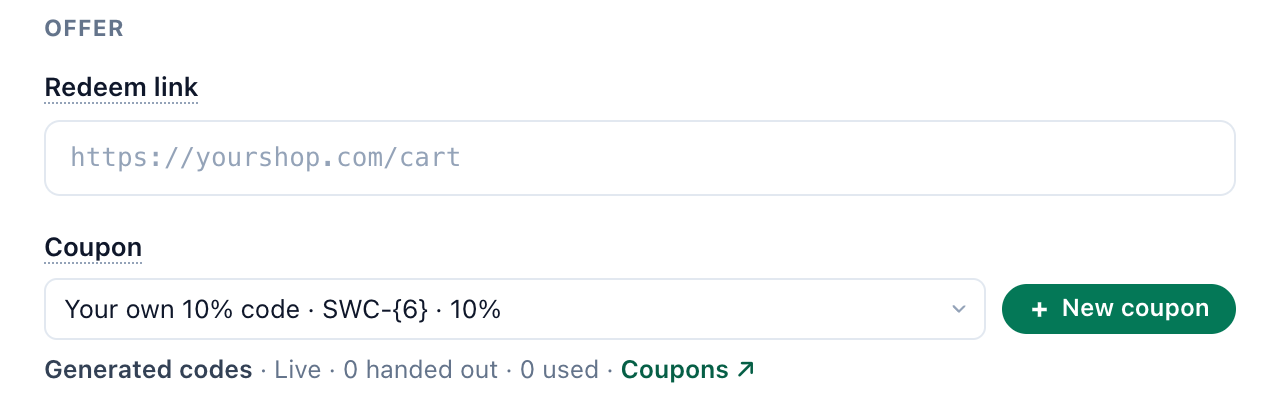
- A promotion takes its coupon’s discount and redeem link when it has none of its own.
- One coupon can serve several promotions, AI Chat offers and designs; its limits count across all of them.
- When none of the AI Chat’s own offers fits a visitor, the chat and the AI finders offer the coupon or text promotion this list would give that visitor, preferring one whose Promotes covers the product in question — see AI Chat offers.
- A coupon’s kinds — a shared code, a code pool, generated codes, a coupon engine or a protected code — its codes, the codes made in your store, its limits and its redemptions are on Coupon Codes.
How a code counts as redeemed
A code the store reports used is a redemption; Copy code counts as a code revealed. With Shopify connected (read_orders), codes on your orders are recorded every 10 minutes by themselves. For codes used where the Personyze tag cannot see — in the shop, by phone, on another device — open Used codes and list them one per line, with the date and the shopper’s email if you have them, or choose a file, then Record. Every use of every coupon is listed under Promotions → Coupons → Redemptions — see Redemptions.
The same list in every Promotions campaign
Your promotions, the first step of every Promotions campaign, is this same list, so you can set it up right there. The rest of the campaign — the calendar, the widgets and how they choose, and the dashboards — is in Promotions Campaign — The Right Banner for Every Visitor. To email each person their best promotion with their own code, see Promotion by email.
Related
- Promotions Campaign — the widgets, the algorithms and the dashboards
- Coupon Codes — the coupons your promotions pick, their codes, limits and redemptions
- Promotion by email — each recipient’s best promotion, with their own code
- Locations — your stores, their hours and tags
- Show Store — the visitor’s nearest store and its hours
- Coupon Near You — the offer valid at the nearest location
- Shopify Integration — importing discounts, codes made in Shopify, redemptions from orders
- Auto-Apply Coupon Code at Checkout
- Targeting Rules
- Performance Metrics — how views, clicks and purchases are counted