
AI Search is a search-shaped box that answers from what you have taught the assistant, sitting
in a placeholder on your page. Somebody types a question where they would have typed keywords, and gets an answer —
with product or article rows underneath when the catalogue has something to show.
On personyze.com: AI Chat Agent — answers from your own pages →
It is the same assistant as the chat bubble, wearing a different face: the same knowledge, the same
instructions, the same guardrails, the same billing. What it knows and how it behaves is set once under AI Chat
→ Settings; see AI Chat agent.
site, not a web search” by default. That is deliberate: an answer box sets an expectation it can actually
meet, where a box promising ranked results would lose to any real search engine on the first typo.
Chat, or ask box?
| AI Search (ask box) | AI Chat (bubble) | |
|---|---|---|
| Where it sits | In the page, where you place it | A corner of the screen, or a placeholder |
| Greeting | None — it answers what was asked | Greeting and suggested questions |
| Hands over to a person | Off by default | On by default |
| Catalogue rows | Yes | Yes |
| Best on | Pages people search from — a catalogue, a help section, a long article | Anywhere you want a conversation |
An ask box belongs on the pages people search from, rather than on every page you have.
Adding one
Create a campaign from Create new → AI Search & Chat, then on the Content
step add an AI Search action. You can add both faces to one campaign — a box on the page and a
bubble in the corner.
The action has two steps: Set Up This Search Box and Set Display Rules &
Placement. There is also an AI Search element in the
Canvas Builder, with the same settings under
slightly different labels, for dropping a box inside a design you are already building.
Give it somewhere to appear
On the placement step, choose either an inline placeholder or a popup position.
Either works: a placeholder gives the box your page’s own width; a popup gives it a frame of its own.
Personyze blocks the publish rather than letting you find out later: “‘{name}’ has nowhere to
appear — choose where it should show before this goes live, or visitors will see nothing.” The same check
applies to staging.
What the box says
- Inside the box — the grey text before anybody types. “This is the whole invitation
— a box nobody understands is a box nobody uses.” Default: Ask about anything on this site. - Button — default Ask.
- Note underneath — where you set the expectation: it answers a question, it does not rank
results. Leave it empty and the built-in line is used. - Colour — six swatches or your own. Leave it alone to follow the assistant.
- Looks — Midnight, Daylight, Ocean, Sunset, Forest, Lavender, Rose, Graphite, Editorial, Mono and Candy. One click sets the colour, the Theme (Always light or Always dark), the Corners and the Font of the box and its answers, on these pages only. Change any of them afterwards and the look shows as your own.
- Languages, the designer’s first card, gives these three a version per language — see Languages.
Ask about your order, ${user->first_name}resolves per visitor with a fallback.
Once the box has been used, its follow-up field says Ask another question and the button keeps the
box’s own word — it stops borrowing the chat’s “Type your message” and “Send”,
which made a search box read like a conversation.
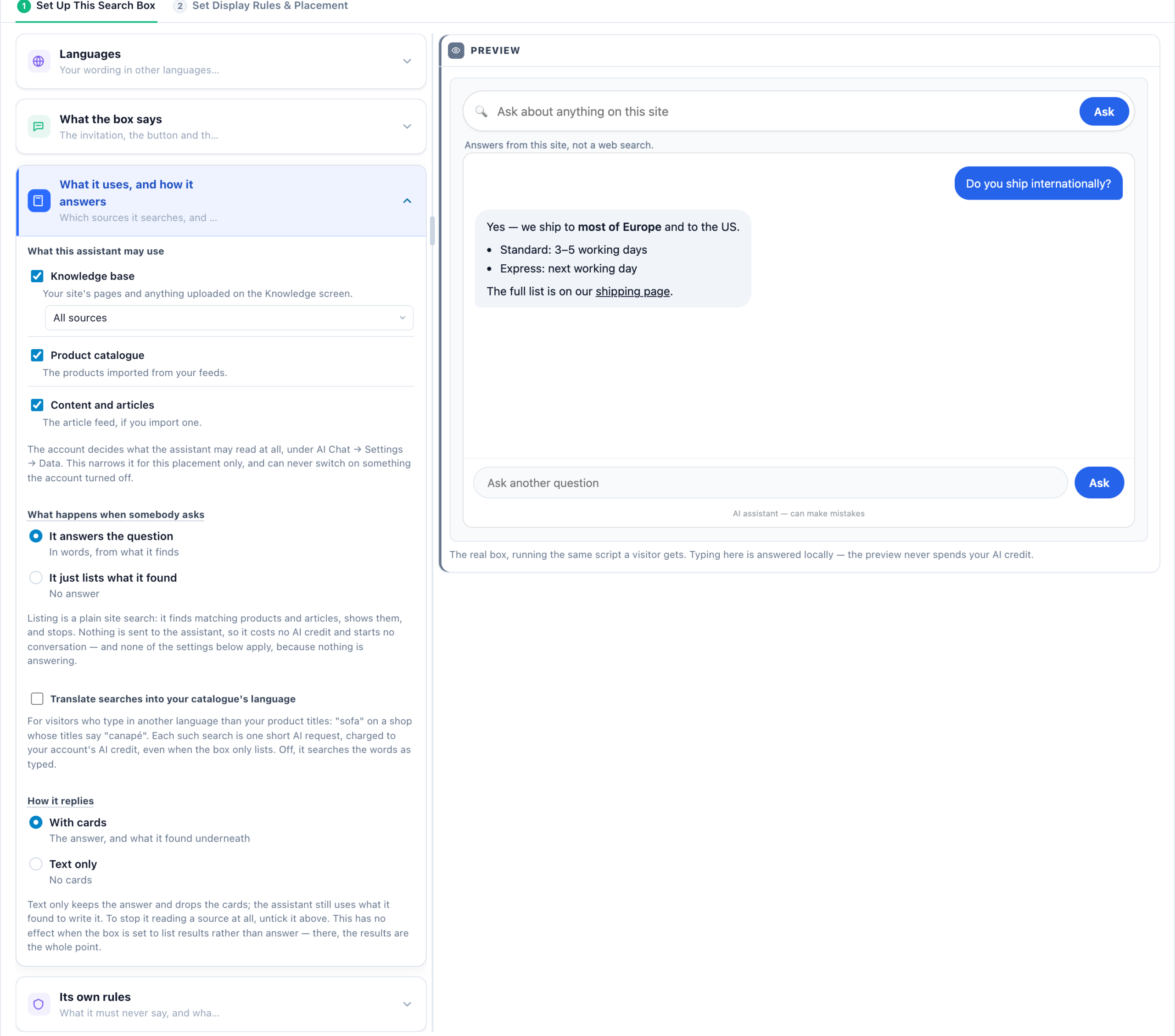
What happens when somebody asks
A box does not have to answer. What happens when somebody asks has two settings:
- It answers the question — in words, from what it finds — the default, and the reason the box exists.
- It just lists what it found — no answer — the rows appear and nothing is written above
them.
The second is a real search box that happens to understand a sentence: somebody types waterproof jacket under
100 and gets products, with no paragraph in front of them.
nothing appears under Conversations — there is no transcript to keep because there was no exchange. On a catalogue
with heavy search traffic that is the difference between a search box you can afford everywhere and one you place
carefully.
It also changes what the box is. There is no follow-up question, no handover and no offer — the
guardrails still apply to what is shown, but the assistant never speaks. The knowledge base is not read at all, so a
results-only box on a support page will find nothing: point it at pages with a catalogue behind them.
Translate searches into your catalogue’s language
The rows under the box come from a plain word search of what the visitor typed, so somebody who types in another language than your product titles finds nothing: “sofa” on a shop whose titles say “canapé”. Translate searches into your catalogue’s language, off by default, is the switch for that:
- It searches the words as typed first. Only when not every word matches a title, and only when the catalogue’s language can be told from its titles, are the words translated into it and searched again.
- Each translated search is one short AI request, charged to your account’s AI credit — also on a box that only lists. A translation is kept for a day, so the same words are not paid for twice that day.
- If the translation fails or finds nothing, the words as typed are used.
A written answer needs no switch: the assistant always searches your catalogue in its own language — see How it searches your catalogue.
“Powered by Personyze”
A small link sits under the box. It is part of what a free account gives in exchange, so it can only be switched off
with a paid plan — under AI Chat → Appearance, where the setting is shared with the chat
bubble. On a free plan the control is visible but disabled. White-label accounts never see the link at all.
What it answers from
Answer from is the whole knowledge base, or only sources carrying one tag —
which is most of the reason this is its own action. A box beside one product line reads a different shelf from the one on
your support pages. Tags are applied to sources on the Knowledge section of Settings.
Pick a tag and you choose what happens when that tag has no answer:
- Answer from the whole knowledge base.
- Answer from the whole knowledge base, and say it is outside what this box covers.
- Say it cannot help with that here.
Search which catalogue
Where your account imports more than one feed, this points the placement at one of them: a shop with a
feed per country can have its Spanish pages search Spanish titles and never offer a product named in another language.
Items that came from no feed at all are always included — they are yours rather than any storefront’s.
catalogue.
rows straight away while the written answer is still coming. Those first rows ignore this setting; the assistant’s
own search honours it and replaces them. On a Spanish page pointed at a Spanish feed, the first rows can briefly be from
another feed.
Its own rules
- Can it hand over to a person? — off by default:
“A search box that quietly turns into a support queue is not what the page put there.” With it off
the assistant keeps answering and says plainly that this box cannot reach a person — and asking for a human in
words will not open a case either. If somebody really needs a person, give them a chat placement. - Extra instructions — added after the assistant’s own, for these pages only.
- It must never — added to the assistant’s hard rules, one per line.
Settings screens, and a catalogue choice can only narrow what the account already imports.
assistant may still offer to pass the visitor to somebody — an offer this box cannot honour. Pair that option with
handover on, or use one of the two wider options.
Living alongside the chat
An ask box never hides a corner chat, and never stands down for one: the rule that keeps two
conversation windows off one page does not count a box, because a box is a pill in the page rather than a window.
Two ask boxes in two different placeholders are fine too.
asks in the box carries the chat’s scope, handover and instructions — not the box’s. The
conversation binds to the first placement it saw, and nothing says so on screen.
The preview
The designer runs the real box beside your settings, so you can see the wording as a visitor would. Typing in it is
answered locally — the preview never spends your AI credit, and never creates a conversation or a
transcript.
It redraws for the four things it can show: the placeholder, the button, the note and the colour. Changing the
knowledge tag, the feed, handover or the instruction boxes will not appear to do anything there — those are not
painted. If the preview says the script could not be loaded from your tracker host, that is usually a locked-down
network, not a broken action.
When it does nothing at all
- The assistant is switched off on the account — the box draws nothing, with no error. That is
deliberate: the honest reading of “switched off” is that there is no assistant here. - No placement chosen — see above.
- The conversation allowance is spent — the box does not render, though a visitor already
mid-conversation is allowed to finish. - Products are switched off under Settings → Data, in which case no feed choice can produce a
single row and the box is knowledge-only. - A tag or feed that no longer exists — the designer flags both in amber, but only when you open
it. A missing tag falls through to your “no answer” setting; a missing feed leaves the placement searching
only your un-fed items.
A visitor sees three catalogue rows at most, and a rate limit and an empty catalogue look identical
from their side — the written answer arrives with no rows under it.
Related
- AI Chat agent — the assistant itself: knowledge, behaviour, data, handover, people and billing.
- Placeholders — where the box goes.
- Product / content feeds — what it searches.
More on the assistant behind this box: Knowledge · Behaviour & handover · Visitor data & catalogue · Appearance.