
Send Web Push composes a notification and delivers it to the people who have already subscribed. It is the second half of web push in Personyze — collecting subscribers is a separate campaign, covered in Web Push Subscription. If you have not built the opt-in prompt and installed the service worker yet, start there; this campaign has nobody to send to until you do.
Watch the 2:31 walkthrough of both web push campaigns: Web Push Subscription — who is asked, the invitation, the service worker and where the prompt shows — then Send Web Push: your subscribers, a notification from a template, and when it goes.
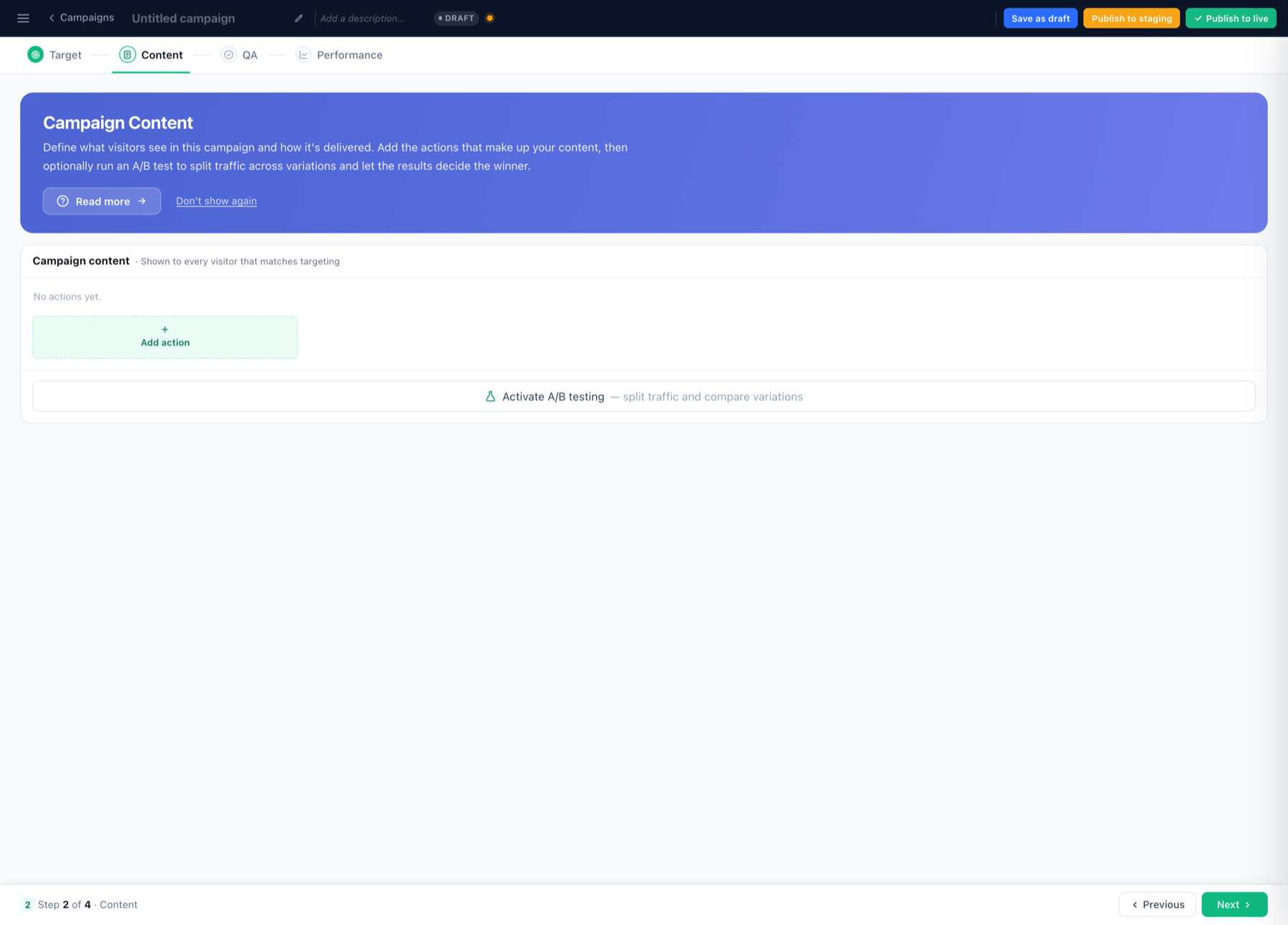
In the panel: New campaign › Send Web Push.
The steps
Six steps: Subscribers, Target, Content, QA, Automation and Performance — who you can reach, then which of them get this push, then what they get.
1. Subscribers — who can receive a push
Everyone this campaign can reach is a browser that already allowed notifications from your site, through a Web Push Subscription campaign. This step counts them and says what has to be in place first. Nobody is added here: if the list is small, the answer is on the subscription campaign.
2. Target — who receives it
Narrow the subscriber base to the people who should get this message. All of Personyze’s targeting is available: behaviour on site, profile and CRM fields, interests, cart contents, segments.
Because a push notification interrupts someone outside your site, precision matters more here than in an on-site campaign. A badly targeted push does not just underperform — it costs you the subscription.
3. Content — composing the notification
The notification is edited in two tabs: Message look and Timing. A push that recommends a product, an article or a promotion has a third tab before them, where the item is chosen: Recommendation type, or Select Promotion Algorithm for a promotion.
The template gallery has ready-made notifications: Announcement, Event Reminder and Welcome; for products, a push with the product’s name as the title and one with a friendly line; for articles, New for You and Your Next Read; for promotions, Code-First and Offer Nudge.
Message look
A web push notification is rendered by the operating system, not by your page, so the fields map onto what the OS supports:
- Title — the headline. Required; the notification will not send without one.
- Body — the message text. Also required.
- Icon — the image shown beside the message, usually your logo.
- Badge — the small monochrome glyph some platforms show in the status bar.
- Image — a larger picture displayed inside the expanded notification, where the platform supports it.
- Action URL — where the visitor lands when they click. Send them to the specific thing the notification is about, not the homepage.
- Action buttons — optional extra buttons inside the notification, each with its own label and destination.
The message can also carry a tag: a newer notification with the same tag replaces an older one instead of stacking up.
Not every platform honours every field. Treat title, body, icon and the action URL as the reliable core, and the rest as enhancements.
Timing
How it arrives: Silent (no sound or vibration), Renotify (alert again when it replaces an unread notification with the same tag) and Vibration (phones only).
Keep trying to deliver for: a phone or laptop that is off when the push is sent gets it when it is next on, if that is within this time; after that it is dropped. The default is a day for a plain push or a promotion and three days for a product or an article; the other choices are 1 hour, 6 hours, 1 day, 3 days and 1 week. Keep it short for anything about a time, like a sale that ends tonight.
Then set the time frames and limits. While a user matches the audience, the notification can be sent to them once or repeatedly, according to what you configure here. This is what stops a recurring campaign from notifying the same person every day.
Hours keeps pushes to a time of day: switch on Only at set hours and choose Send only between two times, read in each person’s own time zone. A push with no hours is offered them — Suggested: only between 09:00 and 20:00, in each person’s own time zone. — with Use these hours, never forced.
Push notification cap, in Settings → Email setup → Sending limits, limits how many of your pushes one subscriber gets in a period, across all your campaigns — switched on, it starts at 3 a day. More than a few a day is when people block a site’s notifications for good. A push over the cap is skipped, not failed, and offered again once the subscriber has room. A push that must go can switch on Ignore the account cap in this tab.
4. QA — before it goes out
Review the message and the audience, and check the forecast of how many subscribers currently match. The step also says where each tap goes: an address that opens nothing is an error, naming the button, and a push too long to send is refused. A push cannot be recalled once sent, which makes this the one step worth being slow about.
5. Automation
Rules that tell you, or have Personyze act, when this campaign’s numbers cross a line — see Automation.
6. Performance — after it goes out
The General tab shows notifications sent, shown and clicked, and the conversions that followed. Shown is a floor, not a delivery rate: the browser only confirms a notification when it is clicked or dismissed. The click rate is clicks ÷ sent and cannot pass 100%. The Subscriber report counts the same activity per person. See Email, SMS, web push and 3rd-party emails.
Sending recommendations in a push
Alongside the plain notification, Personyze offers three recommendation-driven push types:
- Web Push Send – Products — the notification is built around a product picked for that individual subscriber.
- Web Push Send – Articles — the same, for content.
- Web Push Send – Promotions (the picture A promotion) — the best offer each subscriber qualifies for, from your Promotions list; sent only when one qualifies. Needs the Promotions add-on — see In web push.
These use the same recommendation engine as on-site widgets, so the item in the notification is chosen per person from their behaviour rather than being the same for everyone. They need a product or article catalog in place first.
Practical notes
- Say something worth interrupting for. Subscribers are easy to lose and impossible to win back — once someone blocks notifications, that decision sticks at the browser level.
- Land people on the relevant page. The action URL should point at the thing you mentioned.
- Use tag and replace for recurring campaigns, so a subscriber sees the current message rather than a pile of old ones.
- Set the timing limits deliberately. The default behaviour of a matching audience is to keep matching.
Related
- Web Push Subscription (Opt-In Prompt) — collecting subscribers, and the service worker setup.