
This page is the plan Inspire me writes: how to read it, its mock-ups, Build this, and sharing it. How to run a plan, Fine-tune and what it reads are on Inspire me.
Reading the plan
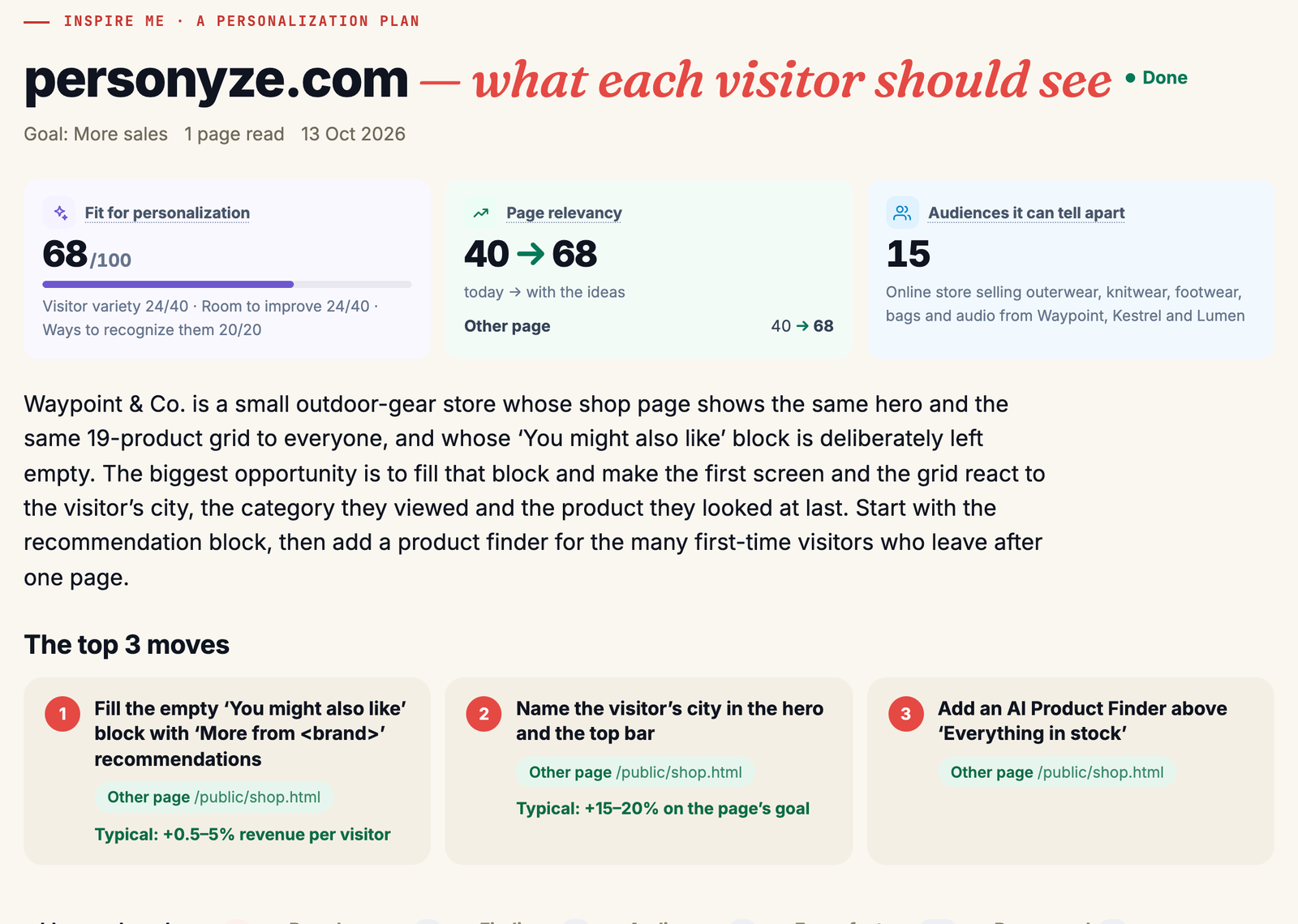
In the panel, the line under the site’s name says what the plan was made for: its goal (Goal: … — we picked it from the site when you chose Pick one for me), Fine-tuned for: … or Only: …, your request, the depth, the pages read, when and by whom. Under it, the store it read: Read as a visitor from: … · Prices in ….
The scores
- Fit for personalization (out of 100): how much your site stands to gain. Visitor variety, how many audiences your visitors fall into (up to 40); Room to improve, how far your pages are from serving them today (up to 40); and Ways to recognize them (up to 20).
- Page relevancy, today → with the ideas: how well your scored pages speak to each audience, weighted by its share of visitors. Each scored page has its own pair of numbers. An estimate, not a forecast of sales.
- Audiences it can tell apart: how many distinct audiences personalization could tell apart on your site, and what the site is.
Under the scores, the plan in short, a few sentences on where it would start and why.
The top 3 moves
A shared plan and the free scan’s plan then show The top 3 moves: the plan’s first three ideas, each with its page, its effort and its typical effect. A move’s title opens its idea.
The tabs
Ideas and mock-ups, Landing pages, Page by page, Findings, Audiences, Every feature and Pages read, each with its count, and in the panel Log.
Ideas
Four to six ideas, best first, spread across your scored pages — fewer when the plan was made with Only. Each shows:
- its page, by kind and path (Product page /boots/trail);
- the Personyze feature it uses, and the data that recognizes the visitor;
- Who sees it, Where on the page, Why (pointing at something on your page), and how to Measure it;
- its effort: About 15 minutes, no code, About an hour or Needs a developer — or let the AI assistant build it for you;
- its typical effect, when its kind of change has a published figure: Typical effect: +9–38% clicks on the button · typical for this kind of change. A note under the ideas says it plainly: these are typical results of this kind of change in published studies and benchmarks, not a forecast for your site.
An idea can name what a visitor is known by — the brand they viewed, their city, their company — and its mock-up shows an example for each visitor. One that needs the visiting company or your CRM is marked May need an integration; its tip says where that data comes from: an IP-to-company service or your CRM, connected under Integrations.
After the ideas, More you can do with Personyze lists further suggestions, each tagged A/B test, Web push, Email, SMS or Idea, with the page it is about: A/B tests first, email last.
Page by page

One short suggestion for every page read: what to personalize there, for which audience, pointing at something on that page. A Standard plan covers up to 20 pages this way, and a Deep plan up to 40.
Findings, audiences, features and pages
- Findings: what the pages show that matters for personalization, and what the site already does well. A shared plan groups them in themes.
- Audiences: each audience with the data that recognizes it, its share of visitors, how relevant the pages are to it today and with the ideas, and which ideas lift it. The shares are estimates. An audience marked Real visitors was found by Audience Discovery in your own visitors; hover the mark for its real numbers. The mark appears only where Audience Discovery has enough traffic to work with.
- Every feature: every Personyze feature checked against your site — Strong fit, Possible, Already on the site or Not a fit — with a reason each.
- Pages read: every page read and its kind. The page that matters most for the goal is marked Key page; a store’s cart is Cart page. The pages are kept 90 days.
Landing pages
Create landing page designs a whole landing page for an idea’s audience: the page an ad, an email or a personalized link would send them to, in your site’s own look. Make it a real landing page turns it into a hosted Landing page campaign in your account, in staging, which you can connect to your own domain.
Mock-ups, Draw this idea and the gallery
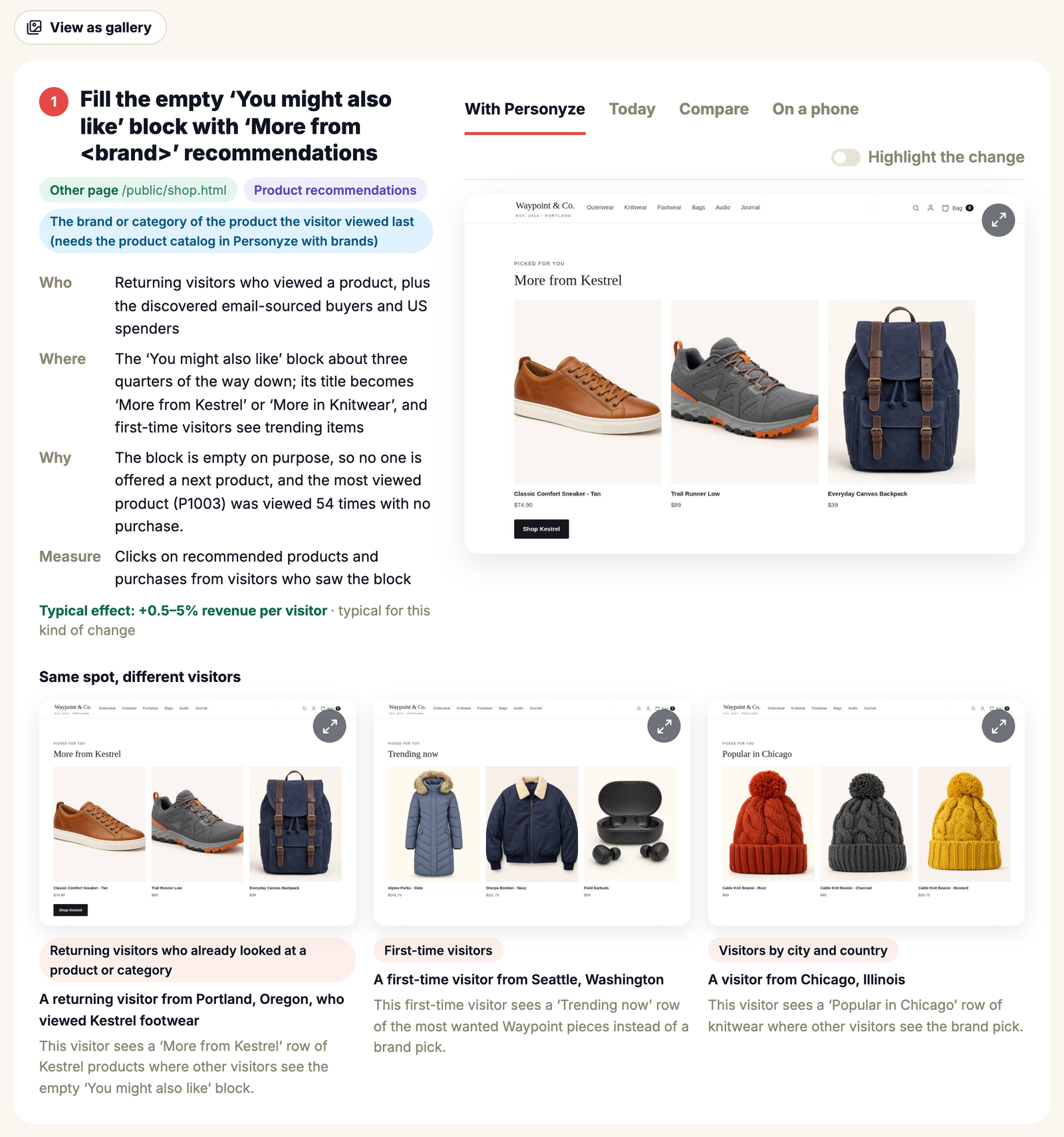
The best ideas come with a mock-up: the idea drawn on a picture of your real page, matching your fonts, colours and buttons, and using your own products and words.
- Same spot, different visitors. A mock-up is drawn for two or three of the plan’s audiences, the idea’s own audience first. Each shows what that visitor would see there, and who they are.
- With Personyze, Today and Compare show the page with the idea, as it is now, or both with a line you slide between them. Desktop and Phone switch between the two pictures; a shared plan has On a phone.
- Highlight the change rings the spot that changed and darkens the rest; the ring blinks once when the idea comes into view, and the switch keeps it on. It is dimmed on Today, on Compare, and on a phone picture that does not say where its change is.
- An idea without a mock-up has Create mock-up; a drawn one has Draw again. Both use your AI credit. While it draws: Drawing the mock-up… Usually about a minute. An email idea has none.
- Every picture is checked against the idea before it is shown. One that fails is drawn once more. If it still fails, the panel keeps it with This picture may not show the change well. and Draw again, and shared links and public plans leave it out. A visitor version left out says so: 1 visitor version left out by the picture check.
A mock-up is an illustration: nothing changes on your site until you build a campaign and publish it.
The gallery
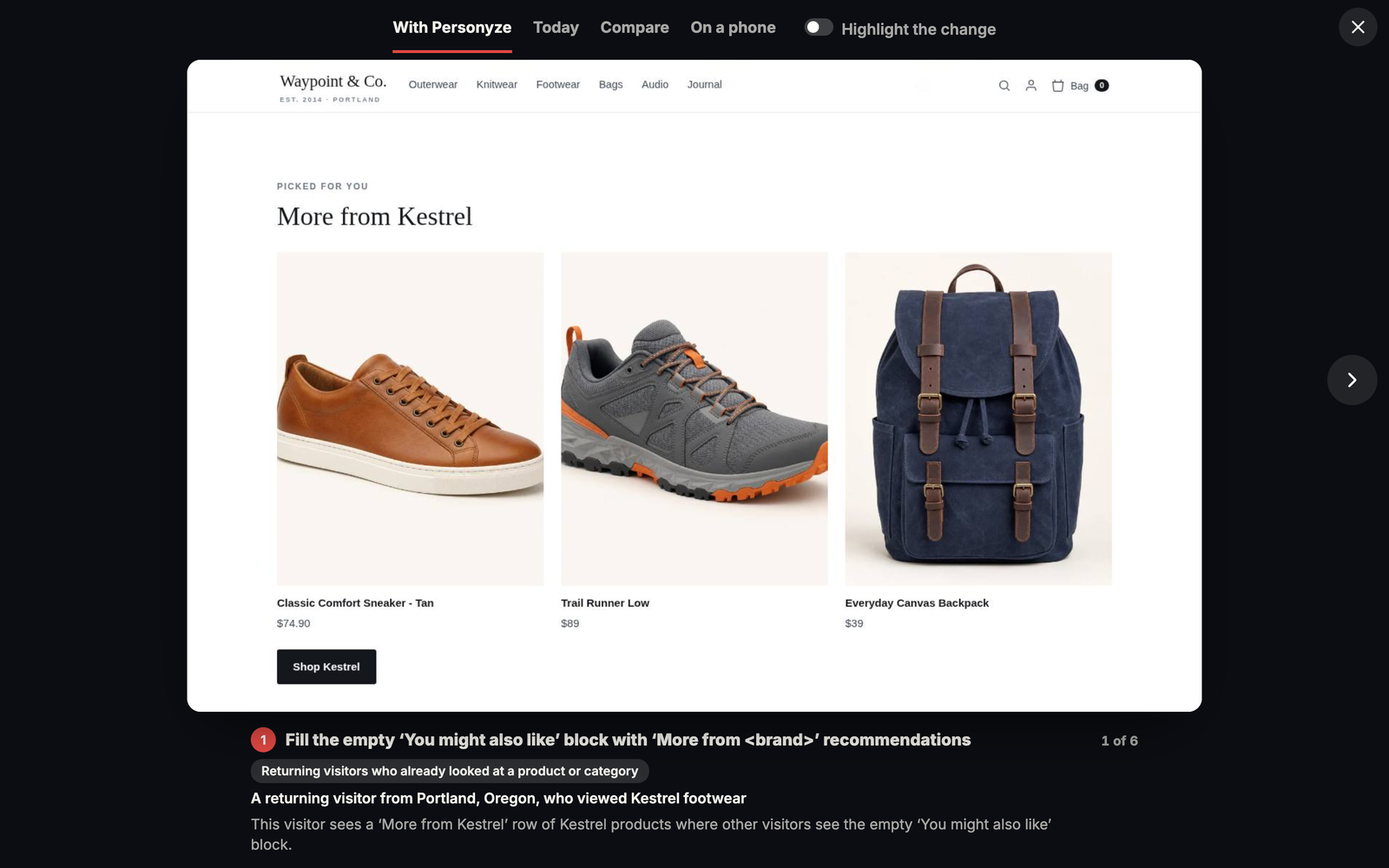
On a shared plan and the free scan’s plan, View as gallery, or Open larger in a picture’s corner, shows the pictures one at a time: ‹ › or the arrow keys to move, ✕ or Esc to close, n of N, and under each the idea’s title, who it is for and why. Visitor versions open whole, with their ring.
Draw this idea
On the free scan’s plan, the ideas show while their pictures are being drawn (Considering these ideas…). An idea that has no picture is listed under More ideas for this page, with Draw this idea — up to 3 a scan. A shared plan lists them too, without the button.
Build this
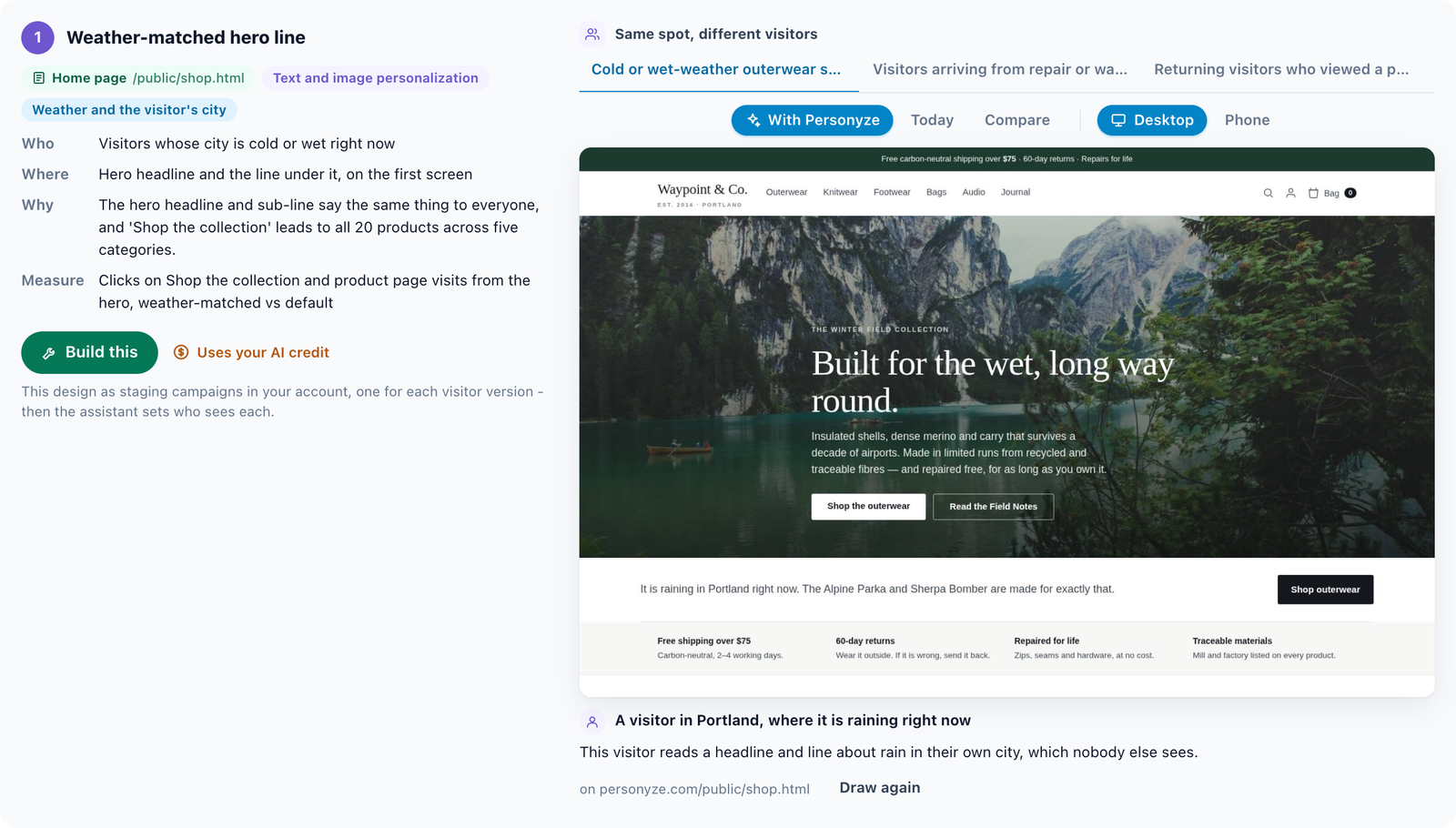
On an idea with a mock-up, in your own account’s plan, Build this makes it real campaigns in your account, in staging: nobody sees them until you publish them. What it makes depends on what was drawn:
| Drawn | Build this makes |
|---|---|
| A design — a hero, a banner, a pop-up, a text change | One campaign for each visitor version, with the design as drawn at the same spot on the same page (in a new placeholder). Then the AI assistant opens and sets who sees each campaign, asking you what it needs. That step uses your AI credit. |
| A row of products or articles | One Recommendations widget for every visitor of that page — no assistant step and no AI credit. The widget itself picks for each visitor. An account with no catalog yet builds it the way a design is built, above. |
| An A/B test idea | One campaign: half your visitors see the test version, the same half on every visit, and the other half see today’s page, which the A/B results count as the control. |
| A countdown | Nothing. A countdown runs to your offer’s real end date, which the drawing only shows an example of — make it with the Countdown Timer action and that date. |
A recommendations row
- Its algorithm is the one the plan named, first, with a heading per algorithm, and a fallback that needs no history, so a first-time visitor still sees a full row. The drawn look is kept where the template takes it.
- A their brands first idea switches on Match the visitor.
- A row drawn in tabs is built as its first tab; the note says how to make a Multi-Recommendation Widget for tabs.
- A row in a pop-up, a bar or a corner card, one whose spot was not found, or one on an account with no catalog is built as the fixed design drawn — the same products for everyone — and the note says so.
What else to know
- Words that name the visitor — their city, the brand they viewed, their company — are built as personalized text: each visitor sees their own. A visitor we know nothing of sees the words drawn in their place. A company’s name shows once company data is connected.
- Grid layouts (a Wix site, for example): the campaign goes inside the section the drawing used, and a note says so.
- Where the drawing could not find its exact spot, the note says so, and you choose the placement in the campaign’s editor. Text changes use Replace text.
- An A/B test version shows any plans and prices as drawn: check them before you publish.
- Once built, the card says Built in staging as 3 campaigns, one for each visitor version – nobody sees them until you publish them. (or as a campaign), and lists each with Open the campaign and Preview it, plus Ask the assistant to set who sees them where there is an audience to set. An idea is built once.
- Check them with the campaign preview, then publish them when you are ready.
- If your AI credit has run out, the card says so before anything is built, with Add AI credits.
Help me build it, on an idea without a mock-up, asks the AI assistant to build the idea in staging, step by step. Make it a real landing page: see Landing pages.
Sharing a plan
Share, on a finished plan, opens Share this plan. Anyone with a link sees what you choose there — read only, with nothing about what it cost or who ran it. A link is not listed anywhere, and you can stop it at any time.
- Choose Everything, or only some parts: The scores – fit, page relevancy, audiences, Findings, Audiences, Every feature, checked against the site, which ideas, and whether they come With their mock-ups and landing pages.
- Create link, then Copy or Open. To send it, Email opens your own mail app with the link written in, and LinkedIn and WhatsApp their own share box. Nothing is sent through Personyze.
- If pictures are still being drawn, the drawer says so: 2 pictures are still drawing – a link made now shows them when they are ready.
- Links to this plan lists every link: what it shares, when it was made, Viewed 3 times · last … or Not viewed yet, and Stop sharing.
- Only a person’s opening counts as a view. Link previews (Slack, LinkedIn), mail scanners, crawlers and opens from the panel don’t.
- A plan’s card in your list shows its links’ views together (12 views · 2h ago); click it to open the plan with its links.
What a shared plan shows
The parts you chose, in the same look as the panel: the scores, the plan in short, The top 3 moves, the tabs, and the ideas with their pictures — With Personyze, Today, Compare, On a phone, Highlight the change (phones included) and the gallery. Its line names the goal and Fine-tuned for: … or Only: …, but never the words of your request. Pictures the check marked are left out.
Sharing a free scan
On a free scan’s plan at www.personyze.com/inspire/, Share this plan opens a pop-up with Email (your own mail app), LinkedIn, WhatsApp, X and a copy field. It shares a read-only link at www.personyze.com/inspire/s/…/: no email form, and a Get my own free plan button for whoever opens it.
If a drawing fails
An error page or a security check is never drawn. A drawing that can’t be made fails with a plain message:
- “The site showed a security check instead of the page when we drew it – try Draw again in a few minutes”, or the page answered an error. The site turned our browser away for now: wait a few minutes, then Draw again. Your Identity HTTP Headers can let it in for good.
- “The page was still changing when we drew it” — a slider or an animation moved. Draw again.
- “The design would have replaced most of the page” — Draw again.
- “The text it changes was not found on this page” — often words painted into an image. Draw again.
- “The test version came out empty” (an A/B idea) — Draw again.
- “The block it was meant for wasn’t found”: the page changed between reading and drawing, so the design is drawn where the page’s content starts. Draw again usually finds it.
Related
- Inspire me — running a plan, Fine-tune, the template step, the free scan
- Recommendations — the widgets Build this makes
- A/B Testing — reading an A/B test’s results
- Landing Pages — hosting a landing page at its own address
- Content Placement — Placeholders — where a built campaign shows
- Preview as a Visitor — checking a campaign before you publish it
- AI in Personyze — the AI assistant