
Zeotap sends the members of a CDP audience to Personyze, with their attributes, so the audiences you build in Zeotap decide what those people see on your site. Personyze is a destination in Zeotap: the setup happens there, with an API key from Personyze.
Step 1: Get an API key in Personyze
- Go to Settings → Integrations and open Zeotap — or What do you want to do? → Import my contacts & CRM data → Zeotap. Its card reads Set up in Zeotap: there is nothing to switch on in Personyze.
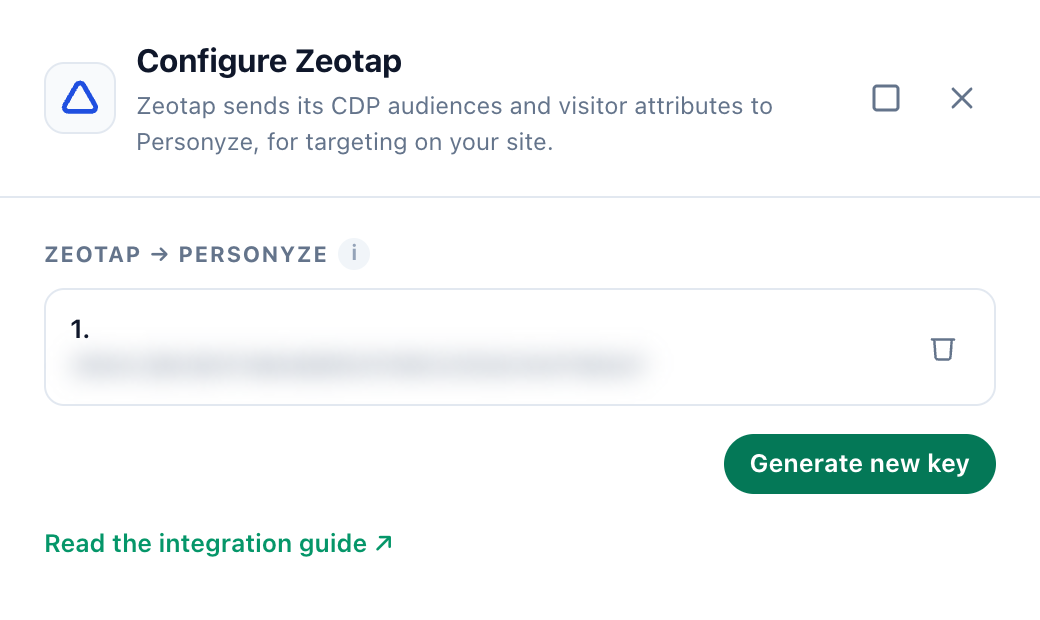
- Under Zeotap → Personyze, click Generate new key and copy it. These are the same keys as on the Full-featured API card: any of them works.
Only the account owner and Managers can see and create API keys.
Step 2: Create a Destination for Personyze in Zeotap
- Log into the Zeotap CDP App and go to the DESTINATIONS application.
- Click + Create Destination.
- Under All Destinations, search for Personyze, and click it.
- Enter a name for the Destination, and enter the key from step 1 as its Private API Key. Review the values and click Next.
- Under Choose your Action, choose Send Attributes to Personyze. This fills in Internal ID, Email, First Name, Last Name, Phone and Industry under Map the Fields; you can edit or remove any field except the mandatory ones, and add more.
- Click Create Destination. The Destination is listed in the Audiences application: link it to an audience, and its members start arriving as Personyze visitor profiles.
How the data is used
- Targeting: the attributes Zeotap sends appear under Profile Data in targeting rules.
- Matching a visitor: a profile from Zeotap applies to a visitor once Personyze knows that visitor by the same Internal ID or email — from a sign-in, a form, or an Internal ID container on Settings → Visitor Attributes. Until then the visitor is anonymous, and the Zeotap profile waits.
Related
- Integrations — every other connection.
- Segment – Personyze Integration Guide — the other CDP that sends profiles in.
- Visitor Attributes — the attributes Zeotap fills, and Internal ID containers.
- Targeting rules — targeting on Profile Data.
- REST API — Authentication — the API keys Zeotap uses.