
Resolve conflicts between audiences when multiple audiences match simultaneously by adding them to an
audience group and assigning a priority to each audience (a lower number indicates a higher priority). Audience group settings allow you to resolve conflicts based on two criteria:
Watch the 3:29 walkthrough: rules between campaigns, how long an audience holds, groups with priorities, placeholder order, and timing between actions.
-
Audience priority (lower numbers have higher priority).
-
If audiences have the same priority, choose whether to give precedence to the
first or last audience matched.
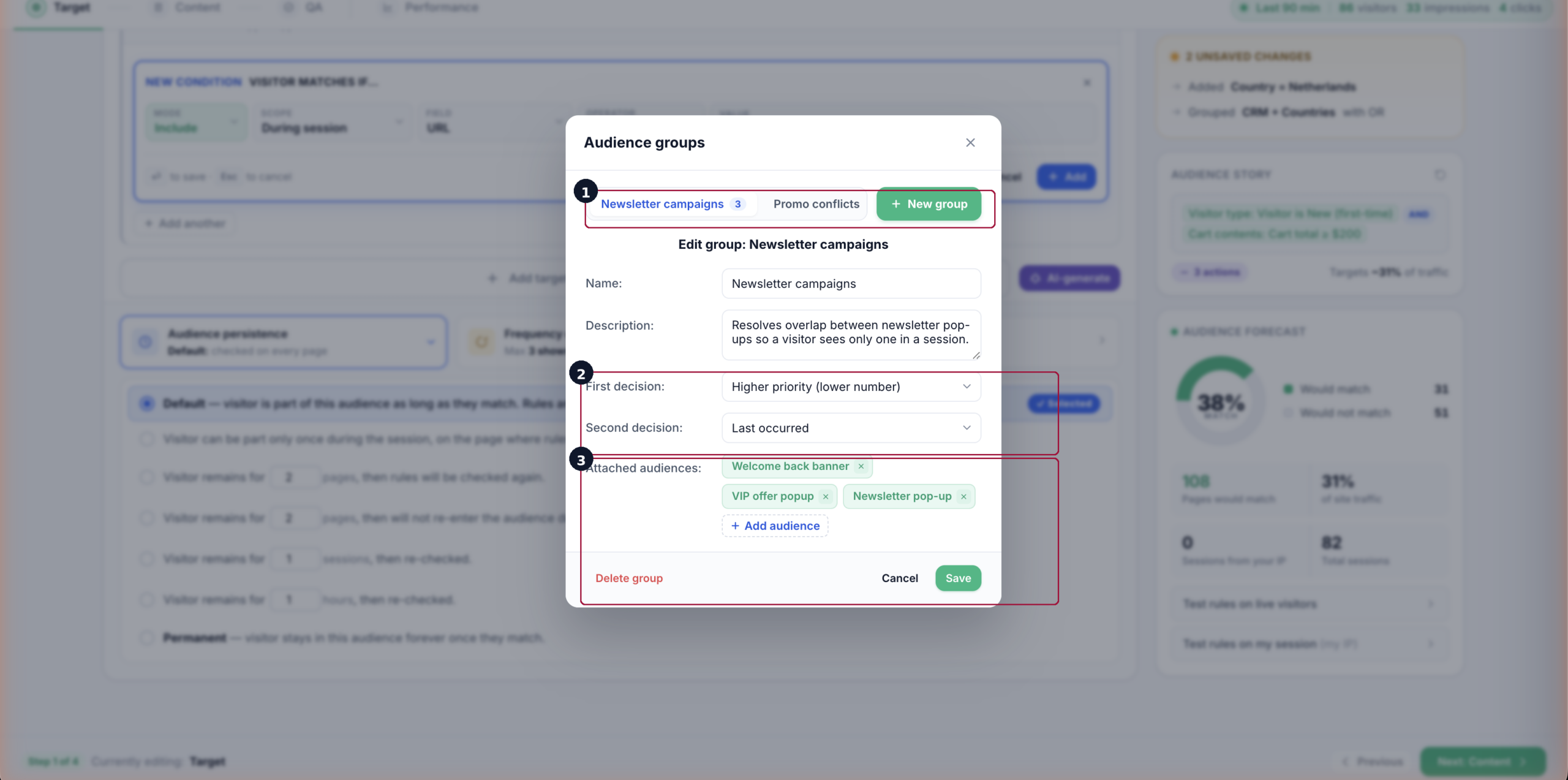
The conflict resolution process results in only the winning audience being matched, while other audiences involved in the conflict are treated as unmatched. Therefore, these unmatched audiences are not included in statistics or console preview data.
In the Audience Group settings modal (shown in the screenshots), you can configure both a primary and secondary conflict resolution rule:
- Higher priority (lower number) – the audience with the smallest number wins.
- Last occurred – the most recently matched audience wins.
- First occurred – the earliest matched audience wins.
The screenshots show how these settings appear in the interface. When creating or editing an audience group, you can name the group, set the logic (e.g., use priority first, fall back to “last occurred”), and attach multiple audiences with specific priority values. This ensures consistent, predictable behavior across personalized content.
For example, in the screenshot, the group “popups” includes two audiences: “C5 audience” with priority 1 and “C5 commercial” with priority 10. Since lower numbers mean higher priority, “C5 audience” will take precedence unless both have the same priority—then the rule “last occurred” applies.
You can whether other audiences in the group have higher priority, giving you an at-a-glance overview of group hierarchy.
If you want to show a sequence of banners or popups without conflict, use the setting “Limit audience matches per page” or add a targeting rule to
exclude visitors who’ve already matched a specific audience.
This ensures that once a visitor stops matching an audience and is dropped from that group, the next content in the sequence will automatically start showing.
How to create an audience group
- In the Target step, open Overlaps (it shows how many audiences this campaign can collide with).
- Click + New group, name it, and add a short description.
- Set the conflict-resolution rule — higher priority (lower number) wins, with ties broken by first- or last-occurred.
- Attach the audiences that overlap and give each its priority number.
- Save. From now on a visitor who qualifies for several of these audiences sees only the winning one.
Related
- Targeting and Personalization — the full campaign lifecycle.
- Targeting Rules in Personyze — every audience rule type.