
The Recommendation Quiz guides visitors through a few quick questions and then reveals a tailored result with a call-to-action. Each answer votes for a result “bucket,” and the winning bucket decides which result the visitor sees. Everything runs in the browser — no data is stored unless you switch it on. Placement is set in the action’s Location step.
When to use it
- Product finder — help visitors discover the right product or collection based on their answers.
- Personalized offers — route different visitors to different deals or landing pages.
- Engagement & segmentation — learn a visitor’s intent and optionally save it to their profile.
Add it to an action
In a Popup action, choose Recommendation Quiz. Edit the questions and answers, map each answer to a result bucket, then write the result cards.
How it works
- The quiz has two questions, each of which can be turned on or off (at least one must stay on).
- Each question offers up to four answers. Every answer is assigned a result letter (a–f) with the Answer Result dropdown.
- As the visitor answers, votes are tallied. The letter with the most votes decides which result card (A–F) appears. Ties go to the earliest letter.
Answer layouts
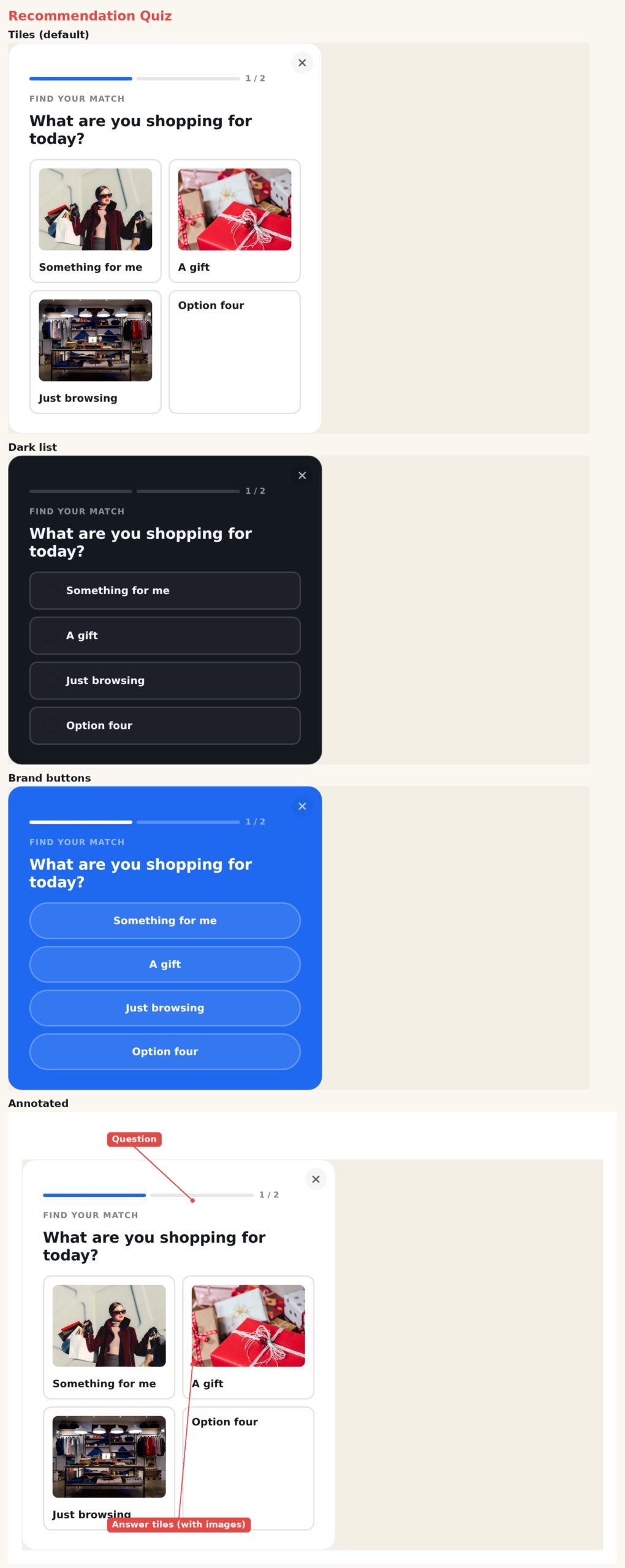
- Tiles (default) — answers appear as a two-column grid of image cards. Each answer has its own image. Collapses to a single column on mobile.
- List — answers appear as text rows with a selection dot.
- Buttons — answers appear as large pill buttons.
Settings
- Preset — light, dark, or brand.
- Answer Layout — tiles, list, or buttons.
- Questions 1 & 2 — each has a Show toggle, the question text, and its answers. Each answer has text, a result letter, and (for tiles) an image.
- Results A–F — each result card has an icon, title, message, a button with its own link, and a Save Value. Results A and B are on by default; C–F are off until you enable them.
- Save to Personyze — optionally store the result to the visitor profile when the quiz finishes. Choose the profile field, and set each result’s Save Value (defaults to the bucket letter). An optional Custom JS field runs on finish.
- Close & Restart — the Start Over link (toggle and text) plus the close button and its visibility (always or on hover).
Saving the result to a profile
Turn on Save Result to Profile, pick the field to store it in, and give each result a Save Value (for example bargain_hunter or premium). When the quiz finishes, the winning result’s value is written to that profile field, so you can target or segment the visitor afterward.
Tips
- Keep questions short and answers scannable — two questions is usually enough to feel personal without losing people.
- In Tiles layout, use clear, edge-to-edge images so the cards read well.
- Map several answers to the same result letter to steer visitors toward your key outcomes.
- Use the Save Value to store a clean segment name rather than the visible result title.
Further reading
- Website popup templates — all 16 templates, and how to pick the right format.
- Gamification marketing — the mechanics behind interactive templates and where they fit.